Как добавить Python в переменную PATH Windows
Часто работает Питон Из Терминала это неизбежно. Однако, если вы впервые установили Python в Windows 10, запуск его через Терминал Windows возможен только в том случае, если он добавлен в переменную среды Windows PATH.
Это может показаться трудным, но бояться нечего. Чтобы помочь вам пройти через все взлеты и падения, связанные с добавлением Python в ваш Windows PATH после его установки, давайте рассмотрим несколько задействованных вариантов и шагов.
Зачем добавлять Python в PATH Windows?
Если вам не удалось добавить Python в PATH в вашей Windows, вы не сможете запустить компилятор Python, запустить виртуальную среду программирования или выполнить такие команды, как пип установить от Терминала.
Это связано с тем, что, когда вы запускаете любое приложение, отличное от заданного по умолчанию, из командной строки, Терминал ищет исполняемый файл в текущей папке или по пути Windows.
Если его нет в переменной PATH, Терминал возвращает ошибку «Не существует«. Добавление в PATH — это мощная команда, поэтому, даже если вы выполняете команду из сгенерированного или пакетного файла по умолчанию, добавление ее основного исполняемого файла в переменную PATH также делает ее вызываемой из Терминала.
Как вручную добавить Python в Windows PATH
Во-первых, если на вашем устройстве не установлен Python, перейдите на сайт python.org Загрузите и установите желаемую версию.
После успешной установки Python на ваш компьютер проверьте, не был ли он уже добавлен в PATH Windows. Откройте Терминал и введите питон , затем нажмите клавишу. Enter. Команда может отображать сообщение об ошибке «‘python’ не распознается как внутренняя или внешняя команда, работающая программа или командный файл», Указывая на то, что Python еще не добавлен в переменную PATH вашего устройства.
Чтобы запускать программы Python из командной строки, выполните следующие действия.
Найдите путь установки Python на вашем компьютере
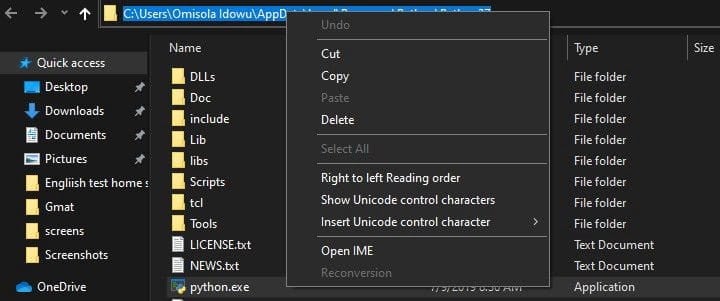
Чтобы добавить Python в PATH Windows, вам необходимо получить путь его установки. Для этого откройте панель поиска Windows и введите python.exe (не нажимайте клавишу Enter). Затем щелкните правой кнопкой мыши Python.exe, который появляется в появившемся меню, и выберите вариант. местонахождение открытого файла.

В открывшемся окне проводника щелкните длинную панель каталогов слева от строки поиска. Выделите весь текст пути и скопируйте его в буфер обмена с помощью Ctrl + C. Затем перейдите к следующим шагам ниже.
Добавление Python в PATH в пользовательских переменных
Чтобы добавить Python в PATH в пользовательских переменных, щелкните правой кнопкой мыши «Этот компьютер» и выберите ئصائص. Оказавшись в меню свойств, нажмите на опцию Расширенные системные настройки. В следующем окне выберите вкладку Расширенные настройки , и выберите переменные среды.
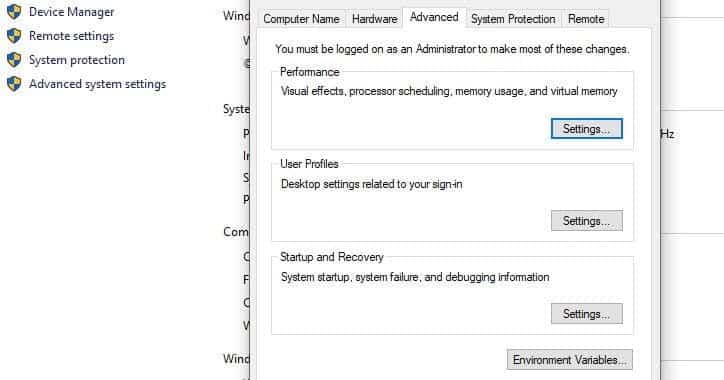
Список переменных среды состоит из двух отдельных частей: верхней части, называемой пользовательскими переменными, и нижней части, называемой системными переменными. Однако в этом случае мы сосредоточимся на пользовательских переменных.
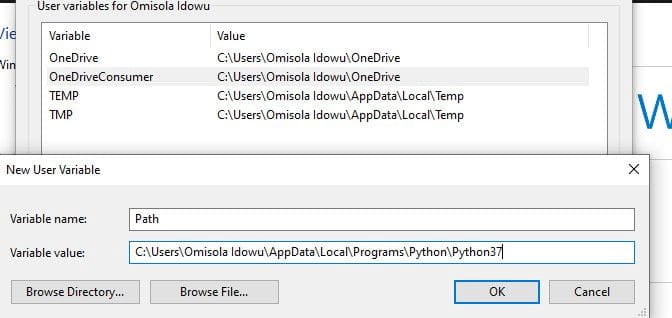
в списке Пользовательские переменные найдите переменную с именем. Path. Затем вставьте путь, который вы скопировали ранее, в параметр значения переменной, используя Ctrl + V И нажмите Ok.
Однако, если вы не можете найти эту переменную, вам может потребоваться ее создать. Для этого нажмите Новое. Затем в форме имени переменной введите Path и вставьте путь Python в поле значения переменной.
Вернитесь в папку пути установки Python и дважды щелкните Заметки к слайдам чтобы открыть этот каталог. Затем скопируйте его путь из панели пути в верхней части окна (рядом с панелью поиска), как вы это делали ранее с путем установки Python.
Как только вы скопируете трек Заметки к слайдам , вернитесь к переменным среды. Затем выберите переменную Path и щелкните «Изменить». Введите точку с запятой после пути к исполняемому файлу Python и вставьте путь Заметки к слайдам который вы только что скопировали после. Затем нажмите Ok.
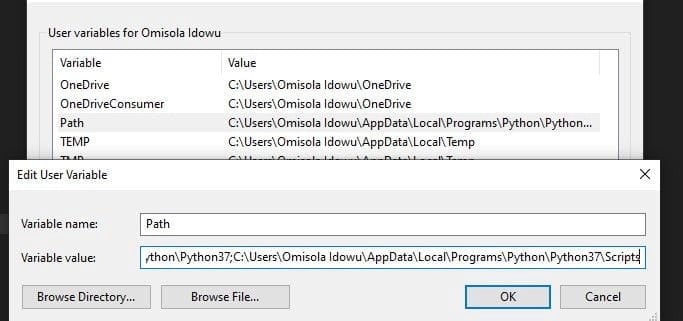
Добавление Python в PATH с опцией системных переменных
Вы также можете добавить Python в системные переменные PATH. Хотя это всего лишь альтернатива, и в ней нет необходимости, если вы уже добавили ее в пользовательские переменные.
Чтобы использовать параметр «Системные переменные», выполните описанные выше действия, чтобы скопировать путь Python и его путь к сценариям. Затем вернитесь к переменным среды. Затем в разделе «Системные переменные» найдите переменную с именем Path. Щелкните эту переменную и щелкните Выпуск.
В следующем появившемся окне нажмите New и вставьте путь, который вы скопировали ранее, в открытое пространство. Повторите этот процесс также для пути скриптов. Далее коснитесь Ok И закройте окно переменных среды.
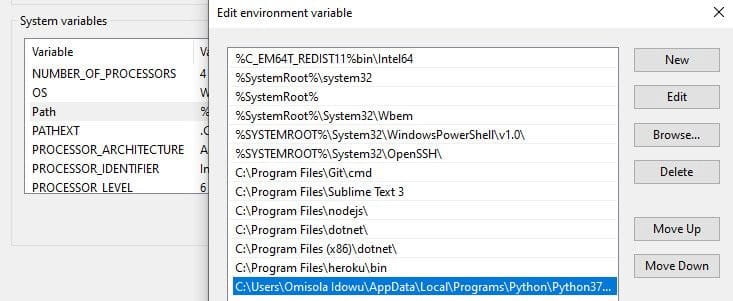
Добавить Python в Windows PATH автоматически
Вы также можете автоматически добавить Python в свой Windows PATH во время установки. Хотя этот метод работает не во всех случаях, вы все же можете попробовать.
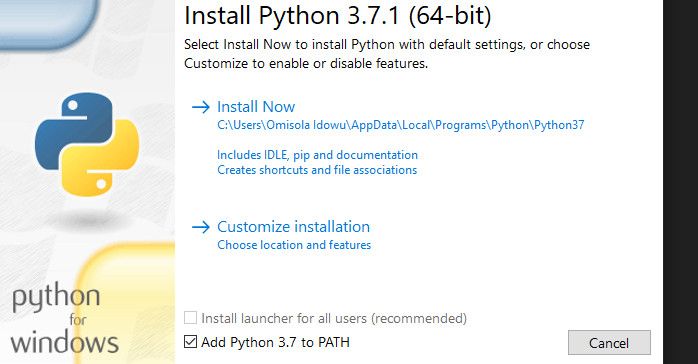
Для этого щелкните свой установочный файл и установите флажок «Добавить Python 3.7 в PATH». Номер версии изменится при установке разных версий Python.
Установка этого флажка автоматически добавит Python в ПУТЬ Windows. Это означает, что вы можете запускать команды Python через командную строку сразу после установки.

Убедитесь, что вы добавили Python в свой путь к Windows.
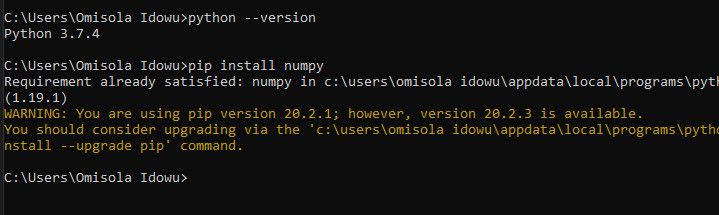
Чтобы узнать, был ли Python уже добавлен в Windows PATH, откройте Терминал и введите python — version, затем нажмите клавишу Enter. Если команда возвращает текущую установленную версию Python, это означает, что вы успешно добавили ее в свой путь Windows.
Однако, чтобы проверить, добавили ли вы путь к сценариям в Windows PATH, попробуйте выполнить команду пакет установки pip в Терминале и замените «пакет» своей любимой библиотекой. Если вы установили Python 2.7.9 и новее, команда устанавливает указанный пакет, указывая, что вы также успешно добавили скрипты Python в путь.
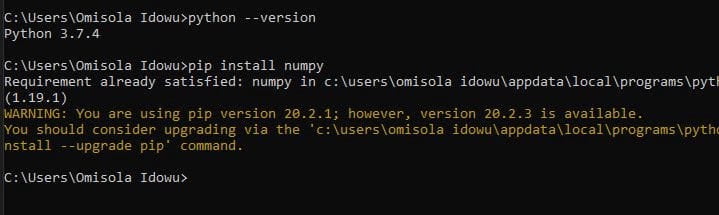
Еще одно приложение, о котором вам следует подумать о добавлении в ваш путь к Windows.
Помимо добавления Python в ваш Windows PATH, вы можете добавить приложения для редактирования текста, интегрированные среды разработки (IDE), Git, Node, Anaconda и многие другие.
Например, управлять проектами с помощью Sublime Text легко, когда вы открываете Терминал в каталоге папки проекта и запускаете команду subl.. Это откроет отредактированную команду в вашей текущей папке и отобразит ее на боковой панели, еще один экономящий время ярлык для продуктивной работы. Sublime Text.
How to Add Python to PATH
You may need to add Python to PATH if you’ve installed Python, but typing python on the command line doesn’t seem to work. You may be getting a message saying that the term python isn’t recognized, or you may end up with the wrong version of Python running.
A common fix for these problems is adding Python to the PATH environment variable. In this tutorial, you’ll learn how to add Python to PATH . You’ll also learn about what PATH is and why PATH is vital for programs like the command line to be able to find your Python installation.
Note: A path is the address of a file or folder on your hard drive. The PATH environment variable, also referred to as just PATH or Path, is a list of paths to directories that your operating system keeps and uses to find executable scripts and programs.
The steps that you’ll need to take to add something to PATH will depend significantly on your operating system (OS), so be sure to skip to the relevant section if you’re only interested in this procedure for one OS.
Note that you can use the following steps to add any program to PATH , not just Python.
Supplemental Code: Click here to download free supplemental code that’ll walk you through changing PATH across operating systems.
How to Add Python to PATH on Windows
The first step is to locate the directory in which your target Python executable lives. The path to the directory is what you’ll be adding to the PATH environment variable.
To find the Python executable, you’ll need to look for a file called python.exe . The Python executable could be in a directory in C:\Python\ or in your AppData\ folder, for instance. If the executable were in AppData\ , then the path would typically look something like this:
In your case, the <USER> part would be replaced by your currently logged-in user name.
Once you’ve found the executable, make sure it works by double-clicking it and verifying that it starts up a Python REPL in a new window.
If you’re struggling to find the right executable, you can use Windows Explorer’s search feature. The issue with the built-in search is that it’s painfully slow. To perform a super-fast full system search for any file, a great alternative is Everything:

Those paths highlighted in yellow, namely those at \WindowsApps and \Python310 , would be ideal candidates to add to PATH because they look like executables at the root level of an installation. Those highlighted in red wouldn’t be suitable because some are part of a virtual environment—you can see venv in the path—and some are shortcuts or internal Windows installations.
You may also encounter Python executables that are installed within the folder for a different program. This is due to the fact that many applications bundle their own version of Python within them. These bundled Python installations would also be unsuitable.
Once you’ve located your Python executable, open the Start menu and search for the Edit the system environment variables entry, which opens up a System Properties window. In the Advanced tab, click on the button Environment Variables. There you’ll see User and System variables, which you’ll be able to edit:
In the section entitled User Variables, double-click on the entry that says Path. Another window will pop up showing a list of paths. Click the New button and paste the path to your Python executable there. Once that’s inserted, select your newly added path and click the Move Up button until it’s at the top.
That’s it! You may need to reboot your computer for the changes to take effect, but you should now be able to call python from the command line.
For setting the PATH environment variable from the command line, check out the section on Configuring Environment Variables in the Windows Python coding setup guide. You can also find instructions in the supplemental materials:
Supplemental Code: Click here to download free supplemental code that’ll walk you through changing PATH across operating systems.
You may also want to set up PATH on your Linux or macOS machine, or perhaps you’re using Windows Subsystem for Linux (WSL). If so, read the next section for the procedure on UNIX-based systems.
How to Add Python to PATH on Linux and macOS
Since Python typically comes pre-installed on UNIX-based systems, the most common problem on Linux and macOS is for the wrong python to run, rather than not finding any python . That said, in this section, you’ll be troubleshooting not being able to run python at all.
Note: Depending on your particular system, you may have a python program for Python 2, and a python3 for Python 3. In other instances, both python and python3 will point to the same executable.
The first step is locating your target Python executable. It should be a program that you can run by first navigating to the containing directory and then typing ./python on the command line.
You need to prepend the call to the Python executable with its relative path in the current folder ( ./ ) because otherwise you’ll invoke whichever Python is currently recorded on your PATH . As you learned earlier, this might not be the Python interpreter that you want to run.
Often the Python executable can be found in the /bin/ folder. But if Python is already in the /bin/ folder, then it’s most likely already on PATH because /bin/ is automatically added by the system. If this is the case, then you may want to skip to the section on the order of paths within PATH .
Since you’re probably here because you’ve installed Python but it’s still not being found when you type python on the command line, though, you’ll want to search for it in another location.
Note: A great search utility for quickly searching large folders is fzf. It works from the command line and will search all files and folders within your current working directory. So you might search for python from your home directory, for instance. fzf will then show you the paths that contain python .
That said, it might be that /bin/ has been removed from PATH altogether, in which case you might skip forward to the section on mangaging PATH .
Once you’ve located your Python executable and are sure it’s working, take note of the path for later. Now it’s time to start the process of adding it to your PATH environment variable.
First, you’ll want to navigate to your home folder to check out what configuration scripts you have available:
You should see a bunch of configuration files that begin with a period ( . ). These are colloquially known as dotfiles and are hidden from ls by default.
One or two dotfiles get executed whenever you log in to your system, another one or two run whenever you start a new command-line session, and most others are used by other applications for configuration settings.
You’re looking for the files that run when you start your system or a new command-line session. They’ll probably have names similar to these:
- .profile
- .bash_profile
- .bash_login
- .zprofile
- .zlogin
The keywords to look for are profile and login. You should, in theory, only have one of these, but if you have more than one, you may need to read the comments in them to figure out which ones run on login. For example, .profile file on Ubuntu will typically have the following comment:
So, if you have .profile but also .bash_profile , then you’ll want to use .bash_profile .
You can also use a .bashrc or .zshrc file, which are scripts that run whenever you start a new command-line session. Run command (rc) files are common places to put PATH configurations.
Note: Pedantically speaking, rc files are generally for settings that affect the look and feel of your command-line prompt, not for configuring environment variables like PATH . But you can use rc files for your PATH configuration if you prefer.
To add the Python path to the beginning of your PATH environment variable, you’re going to be executing a single command on the command line.
Use the following line, replacing <PATH_TO_PYTHON> with your actual path to the Python executable, and replace .profile with the login script for your system:
This command adds export PATH=»<PATH_TO_PYTHON>:$PATH» to the end of .profile . The command export PATH=»<PATH_TO_PYTHON>:$PATH» prepends <PATH_TO_PYTHON> to the PATH environment variable. It’s similar to the following operation in Python:
Since PATH is just a string separated by colons, prepending a value involves creating a string with the new path, a colon, then the old path. With this string, you set the new value of PATH .
To refresh your current command-line session, you can run the following command, replacing .profile with whichever login script you’ve chosen:
Now, you should be able to call python from the command line directly. The next time you log in, Python should automatically be added to PATH .
If you’re thinking this process seems a bit opaque, you’re not alone! Read on for more of a deep dive into what’s going on.
Understanding What PATH Is
PATH is an environment variable that contains a list of paths to folders. Each path in PATH is separated by a colon or a semicolon—a colon for UNIX-based systems and a semicolon for Windows. It’s like a Python variable with a long string as its value. The difference is that PATH is a variable accessible by almost all programs.
Programs like the command line use the PATH environment variable to find executables. For example, whenever you type the name of a program into the command line, the command line will search various places for the program. One of the places that the command line searches is PATH .
All the paths in PATH need to be directories—they shouldn’t be files or executables directly. Programs that use PATH take each directory in turn and search all the files within it. Subdirectories within directories in PATH don’t get searched, though. So it’s no good just adding your root path to PATH !
It’s also important to note that programs that use PATH typically don’t search for anything except executables. So, you can’t use PATH as a way to define shortcuts to commonly used files.
Understanding the Importance of Order Within PATH
If you type python into the command line, the command line will look in each folder in the PATH environment variable for a python executable. Once it finds one, it’ll stop searching. This is why you prepend the path to your Python executable to PATH . Having the newly added path first ensures that your system will find this Python executable.
A common issue is having a failed Python installation on your PATH . If the corrupted executable is the first one that the command line comes across, then the command line will try and run that and then abort any further searching. The quick fix for this is just adding your new Python directory before the old Python directory, though you’d probably want to clean your system of the bad Python installation too.
Reordering PATH on Windows is relatively straightforward. You open the GUI control panel and adjust the order using the Move Up and Move Down buttons. If you’re on a UNIX-based operating system, however, the process is more involved. Read on to learn more.
Managing Your PATH on UNIX-based Systems
Usually, your first task when managing your PATH is to see what’s in there. To see the value of any environment variable in Linux or macOS, you can use the echo command:
Note that the $ symbol is used to tell the command line that the following identifier is a variable. The issue with this command is that it just dumps all the paths on one line, separated by colons. So you might want to take advantage of the tr command to translate colons into newlines:
In this example, you can see that badpython is present in PATH . The ideal course of action would be to perform some PATH archaeology and figure out where it gets added to PATH , but for now, you just want to remove it by adding something to your login script .
Since PATH is a shell string, you don’t have access to convenient methods to remove parts of it, like you would if it were a Python list. That said, you can pipe together a few shell commands to achieve something similar:
This command takes the list from the previous command and feeds it into grep , which, together with the -v switch, will filter out any lines containing the substring badpython . Then you can translate the newlines back to colons, and you have a new and valid PATH string that you use right away to replace your old PATH string.
Though this can be a handy command, the ideal solution would be to figure out where that bad path gets added. You could try looking at other login scripts or examine specific files in /etc/ . In Ubuntu, for instance, there’s a file called environment , which typically defines a starting path for the system. In macOS, that might be /etc/paths . There can also be profile files and folders in /etc/ that might contain startup scripts.
The main difference between configurations in /etc/ and in your home folder is that what’s in /etc/ is system-wide, while whatever’s in your home folder will be scoped to your user.
It can often involve a bit of archeology to track down where something gets added to your PATH , though. So, you may want to add a line in your login or rc script that filters out certain entries from PATH as a quick fix.
Conclusion
In this tutorial, you’ve learned how to add Python, or any other program, to your PATH environment variable on Windows, Linux, and macOS. You also learned a bit more about what PATH is and why its internal order is vital to consider. Finally, you also discovered how you might manage your PATH on a UNIX-based system, seeing as it’s more complex than managing your PATH on Windows.
Supplemental Code: Click here to download free supplemental code that’ll walk you through changing PATH across operating systems.
Как добавить Python в переменную PATH Windows
Запуск Python с терминала часто бывает неизбежен. Однако, если вы впервые установили Python в Windows 10, запуск его через Терминал Windows возможен только в том случае, если он добавлен в переменную среды Windows PATH.
Это может показаться сложным, но бояться нечего. Чтобы помочь вам преодолеть сложности, связанные с добавлением Python в PATH Windows после его установки, давайте рассмотрим варианты и несколько необходимых шагов.
Зачем добавлять Python в Windows PATH?
Если вам не удалось добавить Python в PATH в вашей ОС Windows, вы не сможете запустить интерпретатор Python, запустить виртуальную среду программирования или выполнить такие команды, как pip install, из терминала.
Это потому, что, когда вы запускаете любую программу, отличную от стандартной, из командной строки, машина ищет исполняемый файл в текущей папке или в ПУТИ Windows.
Если его нет в переменной PATH, терминал возвращает ошибку «команда не найдена». Добавление в PATH – это мощный инструмент, даже если вы выполняете команду из созданного или пакетного файла по умолчанию , добавление родительского исполняемого файла в переменную PATH также делает его доступным для вызова из терминала.
Как вручную добавить Python в Windows PATH
Во-первых, если вы не установили Python на свой компьютер, перейдите на веб- сайт python.org, чтобы загрузить и установить предпочитаемую версию.
После успешной установки Python на ваш компьютер проверьте, не добавлен ли он в PATH Windows. Откройте свой терминал и введите python , затем нажмите клавишу Enter . Команда может вернуть ошибку, в которой говорится, что «python не распознается как внутренняя или внешняя команда, работающая программа или пакетный файл», указывая, что Python еще не добавлен в переменную PATH вашего компьютера.
Чтобы запускать программы Python из командной строки, выполните шаги, выделенные ниже.
Найдите путь установки Python на вашем ПК
Чтобы добавить Python в ваш Windows PATH, вам нужно получить путь его установки. Для этого откройте панель поиска Windows и введите python.exe (не нажимайте клавишу Enter ). Затем щелкните правой кнопкой мыши Python.exe, который появляется в появившемся меню, и выберите опцию Открыть расположение файла .
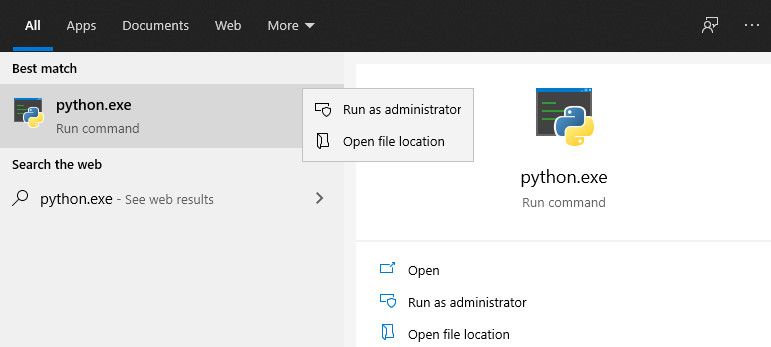
В открывшихся окнах проводника щелкните длинную панель каталогов слева от строки поиска. Выделите и скопируйте весь текст пути в буфер обмена с помощью Ctrl + c . Затем перейдите к следующим шагам ниже.
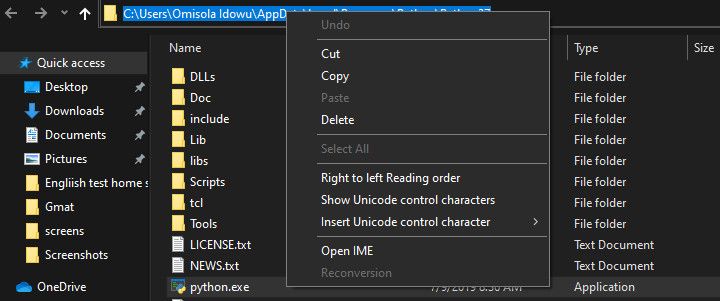
Далее: Добавить Python в PATH в пользовательских переменных
Чтобы добавить Python в PATH в пользовательских переменных , щелкните правой кнопкой мыши « Этот компьютер» и выберите « Свойства» . Оказавшись в меню свойств, нажмите на опцию Advanced system settings . В следующем окне выберите вкладку Advanced и выберите Environment Variables .
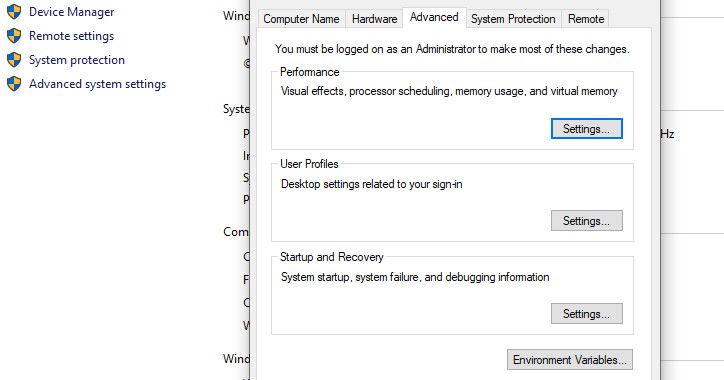
Меню переменных среды состоит из двух отдельных частей: верхней части, называемой пользовательскими переменными , и нижней части, называемой системными переменными . Однако в этом случае мы сосредоточимся на пользовательских переменных .
В меню пользовательских переменных найдите переменную с именем Path . Затем вставьте путь, который вы скопировали ранее, в параметр «Значение переменной», используя Ctrl + v, и нажмите « ОК» .
Однако, если вы не можете найти эту переменную, вам может потребоваться ее создать. Для этого нажмите New . Затем в форме имени переменной введите путь и вставьте свой путь Python в поле значения переменной .
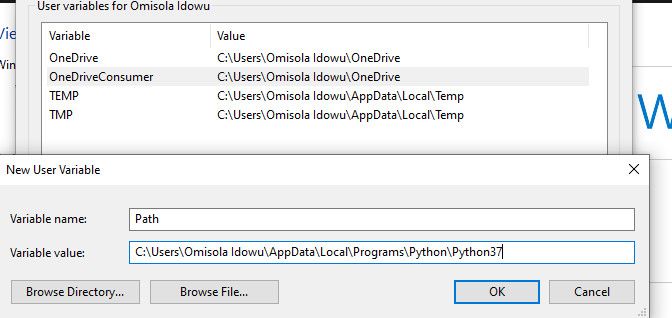
Вернитесь в папку пути установки Python и дважды щелкните Scripts, чтобы открыть этот каталог. Затем скопируйте его путь из панели пути в верхней части окон (помимо панели поиска), как вы это делали ранее для пути установки Python.
Скопировав путь к скриптам, вернитесь к переменным среды . Затем выберите переменную Path и нажмите Edit . Введите точку с запятой после пути к исполняемому файлу Python и вставьте после него путь скриптов, который вы только что скопировали. Затем нажмите ОК .

Добавление Python в PATH с помощью параметра системных переменных
Вы также можете добавить Python в системную переменную PATH. Хотя это всего лишь альтернатива, и в ней нет необходимости, если вы уже добавили ее в переменные Users .
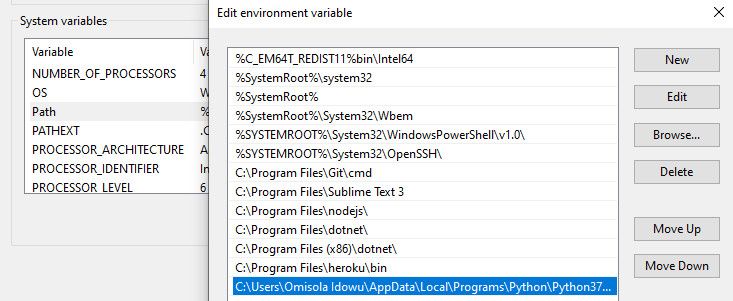
Чтобы использовать параметр « Системные переменные» , выполните шаги, выделенные выше, для копирования пути Python и его сценария. Затем вернитесь в переменные среды . Затем в сегменте системных переменных найдите переменную с именем Path . Щелкните эту переменную и щелкните Изменить .
В следующем появившемся окне нажмите New и вставьте путь, который вы скопировали ранее, в открывшееся пространство. Повторите этот процесс и для пути скриптов . Затем нажмите ОК и закройте окно переменных среды .
Добавить Python в Windows PATH автоматически
Вы также можете автоматически добавить Python в PATH Windows во время установки. Хотя этот метод работает не во всех случаях, вы все равно можете попробовать.
Для этого щелкните свой установочный файл и установите флажок « Добавить Python 3.7 в PATH» . Номер версии будет меняться при установке разных версий Python.
Установка этого флажка автоматически добавляет Python в ваш путь к Windows. Это означает, что вы можете запускать команды Python через командную строку сразу после установки.
Подтвердите, что Python добавлен в Windows PATH
Чтобы узнать, добавлен ли Python в PATH Windows, откройте терминал и введите python –version , затем нажмите клавишу Enter . Если команда возвращает текущую установленную версию Python, это означает, что вы успешно добавили ее в Windows PATH.
Однако, чтобы проверить, добавили ли вы каталог Scripts в Windows PATH, попробуйте запустить пакет установки pip на терминале, заменив «package» на предпочитаемую вами библиотеку. Если вы установили Python 2.7.9 и выше, команда устанавливает названный пакет, указывая, что вы также успешно добавили скрипты Python в путь.
Другая программа, которую вам следует подумать о добавлении в путь к Windows
Помимо добавления Python в Windows PATH, вы можете добавить текстовые редакторы, интегрированные среды разработки (IDE), Git, Node, Anaconda и многие другие программы.
Например, управлять проектом с помощью Sublime Text легко, когда вы открываете терминал в каталоге папки вашего проекта и запускаете subl. команда. Это откроет редактор в вашей текущей папке и отобразит его на боковой панели, еще один экономящий время ярлык для продуктивной работы с Sublime Text .
How To Add Python to Path?

This article will put forth a very simple ye and important concept that is how to add Python to the path and follow it up with a detailed practical demonstration. Following pointers will be covered in this article,
- Add Python To Path
- Installing Python
- Setting up Path
- How to add Python Path to Windows?
- Setting Path in Unix or Linux
- Environmental Variables
So let us get started then,
Add Python To Path
Today there is an application for whichever problem you can imagine. Be it in the form of a web application or one that runs on your smartphone, the world of applications is literally an endless pit of opportunities, thus making Python an obvious choice for many developers across the world. The reason for Python being such a popular choice is the plethora of features, the platform comes with.
For developers who are just beginning to learn Python, one might mistakenly install Python in Windows without fulfilling the prerequisites first. One of the most common problems that we hear from developers is how to add path in Python and in this article, we will talk about just that.
But first, let’s get the basics out of the way.
Moving on with this article on How To Add Python To Path,
Flavors of Python
Similar to other programming platforms available on the market, Python too is supported by all the operating systems that are currently in existence, most prominently, Linux, Mac OS, and Windows.
Installing Python
The most up to date version of Python that is available for download is pretty easy to install. You just need to download the binary code that is applicable to your operating system and install the same. If you find that the binary code is not available for the operating system you are using, you need to make use of a C compiler to compile the source code manually.
One of the most significant advantages of compiling your source code manually is that you will get more flexibility in terms of features that you might need during the installation process.
Moving on with this article on How To Add Python To Path,
Setting up Path
Once you have installed Python on your system, now comes the tricky part of setting a path so that you can easily access the python.exe file. Depending on the operating system you are currently using, the process of setting up path varies greatly. Mentioned below are the steps to set up Path for Windows, Mac, and Linux simultaneously.
Adding Python Path to Windows
If you have installed Python in Windows like most other developers by just following online tutorials, in most cases there is a chance that the Python executable file wasn’t added to the Windows Path Variable. While this might sound like a small thing at the beginning, when you start using Python full-fledged this will cause a problem. The Python executable file is responsible for listing the directories that will be executed when you type in a command in the command prompt of your Python window. Once you have added the Python executable file in the Windows directory, you will be able to access the python.exe file simply by typing the python keyword. One of the main advantages of adding this feature is that every time you need to access the python.exe file, you don’t need to specify the full path to the program.
Now let us consider a case, where the Python executable file has not been added to the Windows Path. In such a scenario, when you enter a Python command in the command prompt, you will be greeted by an iteration of the following message.
‘python’ is not recognized as an internal or external command,
operable program or batch file.
This message clearly indicates that the python.exe file has not been added to the Windows Path and therefore you won’t be able to access it. In such a scenario, if you want to access the python.exe file you need to specify the full address of the file. It will look something like this,
As you can see from this example, this process is definitely more complicated than what meets the eye and therefore it is always advisable that you add the python executable file to the Windows Path at the very beginning of the installation process.
Moving on with this article on How To Add Python To Path,
How to add Python Path to Windows?
Now that we are aware of the effects of not adding Python Path to Windows, here is a simple method of adding it.
- Start the Run function on your Windows computer, by using the shortcuts ctrl+R.
- Once the Run prompt is up and running, type in sysdm.cpl
- Press Enter and you will be redirected to System Properties. In this section, locate the Advanced Tab and click on the button that reads Environment Variables.
- Under Environment Variables, find System Variables and locate the Path.
- Click on Edit and locate the option which says Variable Value. In this section add the path at the end of the phrase that is already present. One of the most important things to note here is that, before you add the Path you need to include a semicolon (;) so that both can be differentiated easily.
- In our example above, we have added the Path which reads ;C:Python34.
Once this is done, press OK and the path will be added to the specific location. Save all your actions and reboot your system for more effective performance.
Moving on with this article on How To Add Python To Path,
Setting Path in Unix or Linux
The steps for adding Path in Unix or Linux are fairly straight forward, just follow the steps outlined below.
- In the csh shell, type the following sentence: PATH “$PATH:/usr/local/bin/python” and press Enter.
- If you are using the standard flavor of Linux, open up the bash shell and type the following phrase, export PATH=”$PATH:/usr/local/bin/python” and press Enter.
- If you have access to either sh or ksh shell, then open up the terminal and type the following, PATH=”$PATH:/usr/local/bin/python” and press Enter.
One of the most important things to note when you are adding Path to Python in Unix or Linux is that, /usr/local/bin/python is the default path of the Python directory.
Moving on with this article on How To Add Python To Path,
Environmental Variables
Now that you have successfully added Path to Python, here are some of the most significant Environmental Variables that Python recognizes.
- PYTHONPATH: This is one of the most common Environmental Variables that Python recognizes and it has a role that is similar to the original Path. The use of this variable tells Python where to locate the module files and how to import them into a program. While using this function, be sure to include the Python source library directory and also the directories that contain the Python source code. In some instances, PYTHONPATH is already present in the Python directory.
- PYTHONSTARTUP: The use of this file contains the path of an initialization file which contains the Python source code. This function is executed every time you start the interpreter in Python. In Unix or Linux, this is named pythonrc.py, and using this command loads the utilities that modify PYTHONPATH.
- PYTHONCASEOK: This is an Environmental Variable that is specific to Windows. When you use this variable, Python will find the first case insensitive match in an import statement. In order to activate this variable, you can set it to any value of your choice.
- PYTHONHOME: This is an alternative to the module search path that can be used in Python. In most scenarios, this is embedded into the PYTHONSTARTUP or PYTHONPATH in order to make switching modules between libraries fairly easy.
Does this bring us to the end of this article on How To Add Python To Path? If you wish to check out more articles on the market’s most trending technologies like Artificial Intelligence, DevOps, Ethical Hacking, then you can refer to Edureka’s official site.
Do look out for other articles in this series that will explain the various other aspects of Python and Data Science.