How to Use TikTok on Desktop (PC or Mac)
Learn how to upload and post TikToks, manage notifications, download videos, and more in this guide to using TikTok on desktop.
Does your neck hurt? Perhaps you slept funny. Or perhaps it was those three consecutive hours you spent hunched over a tiny screen watching silly little videos. We’re not judging. We’re not even going to tell you to “go outside” or to “drink a glass of water.” But, to save you some pain and physiotherapy, may we suggest: TikTok on desktop.
TikTok is best known as a mobile app, but the platform’s desktop version includes many of the same features on a larger screen (and significantly less neck pain).
Here’s everything you need to know about TikTok on desktop.
Bonus: Get a free TikTok Growth Checklist from famous TikTok creator Tiffy Chen that shows you how to gain 1.6 million followers with only 3 studio lights and iMovie.
Can you use TikTok on desktop?
The short answer is: yes, you can use TikTok on desktop.
TikTok’s desktop version works similarly to the mobile version, but because desktops have more real estate to work with, you can see more of TikTok’s features via a single screen.
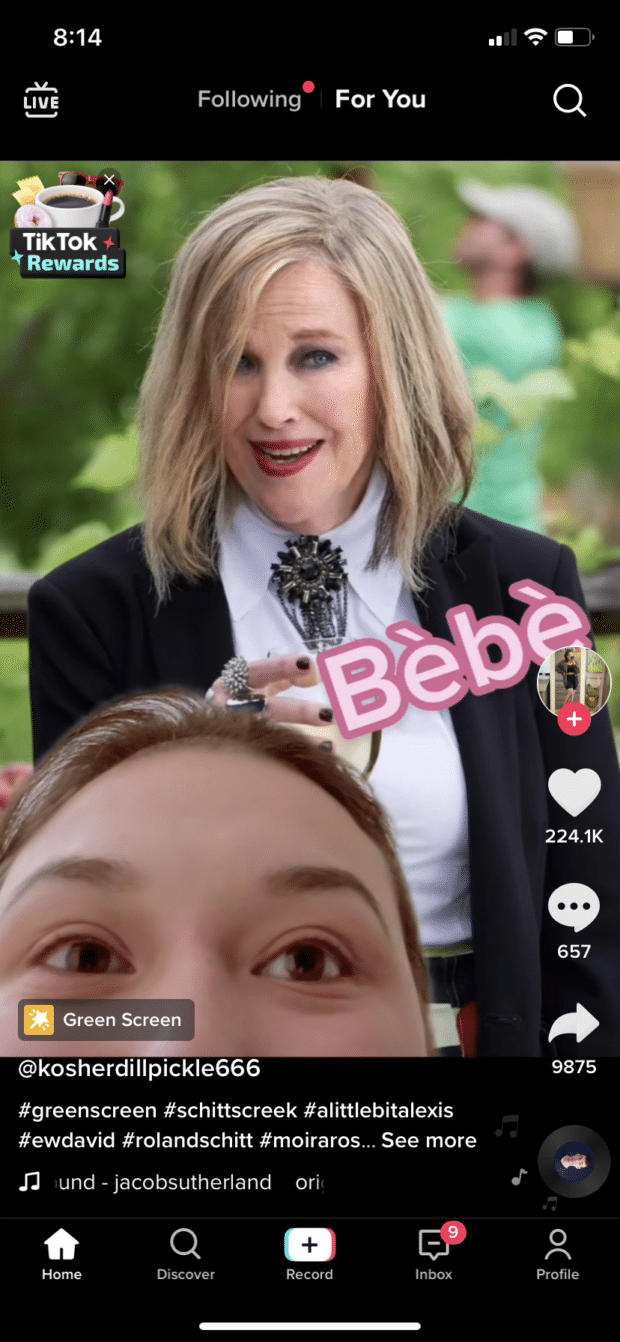
After opening the TikTok mobile app, users are taken directly to their For You Page, and can use buttons to like, comment, and share TikToks, or navigate to other parts of the app (Search, Discover, Profile, Inbox). They can also switch to the “Following” view to see a stream of content exclusively from followed accounts, and, finally, tap the + button to start recording a TikTok.
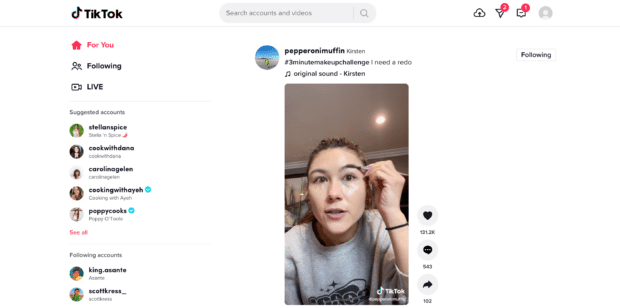
From tiktok.com, desktop users have access to all of the same features (EXCEPT the ability to record a TikTok directly within the site). The desktop version replaces that “Record” button with an “Upload” button—that’s the cloud-like icon in the top right of the screengrab above.
TikTok for desktop’s left menu also suggests accounts for you to follow, shows accounts you already follow, and displays trending hashtags and sounds.
Also notable is the “Messages” tab—on mobile, all notifications and direct messages are accessed through the Inbox, but on desktop, DMs are separated into ther own tab.
How to download TikTok videos on a PC or Mac
As of May 2022, you can’t directly download videos from TikTok’s desktop site to your PC or Mac. One simple workaround is to download the video on your mobile device and then email it to yourself.
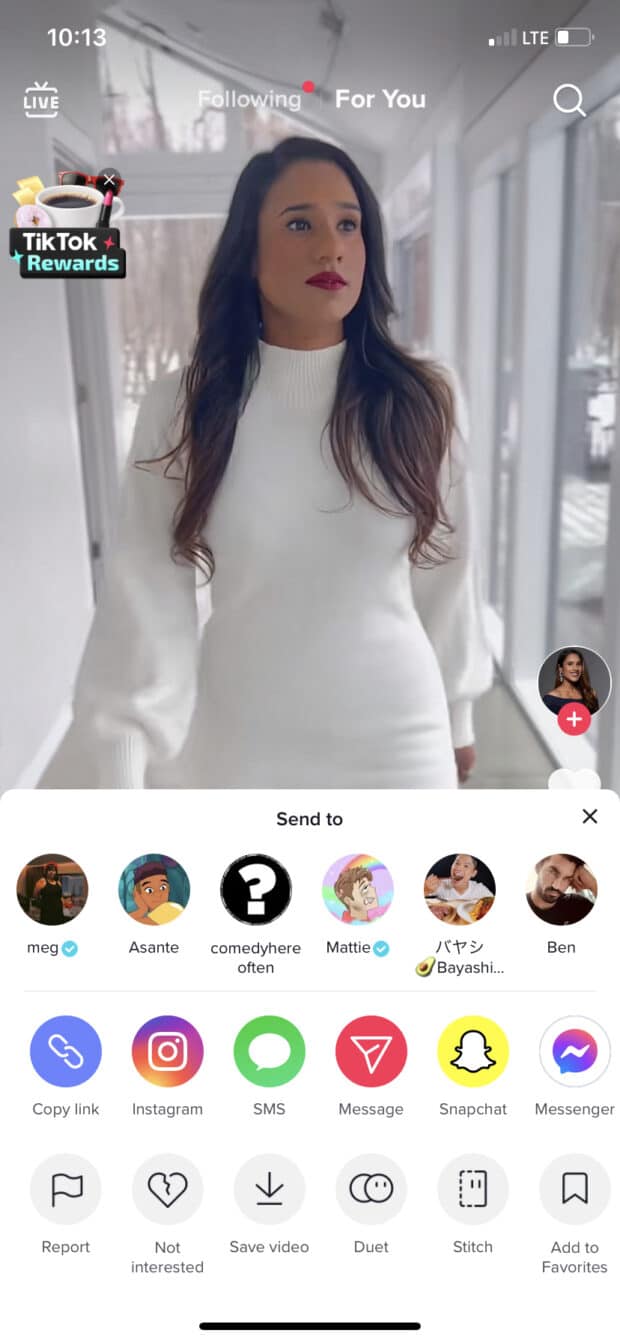
To download a TikTok on your mobile device, just go to the TikTok you’d like to download, hit the “Share” arrow on the bottom right side of your screen, then hit Save Video. Once you have the video saved, you can attach it to an email from your camera roll.
The above is the guaranteed safest way to download a TikTok, but if you don’t have access to a mobile device, another method you can use is to download the video using a third-party website or app. Here are a few resources for doing so:
SaveTT
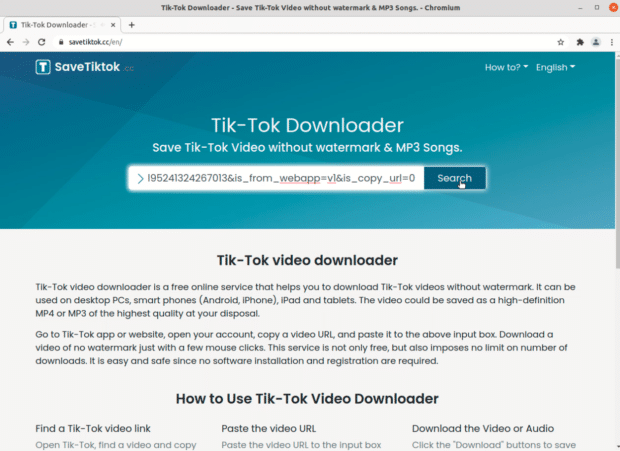
This is a browser website (read: no app download required) that’s compatible with Mac and PC computers. To download a TikTok using this site, go to the video you’d like to download, copy and paste the link into the search bar on SaveTT.cc, then click “Search.” From there, you can save the TikTok as an MP3 or MP4, and either download it, save it to your Dropbox, or get a QR code for it.
Qoob Clips
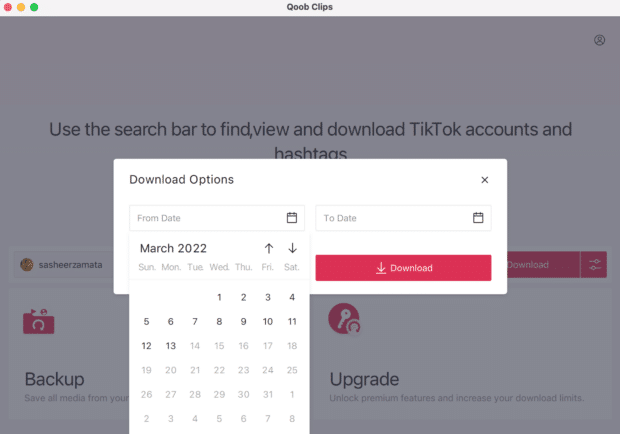
Qoob Clips is a downloadable app, and the starter service is free and works for both Mac and PCs. Once you have the app, you can download TikToks by plugging in the username of the account who’s video you’d like to download. Qoob will automatically download all of the videos from that account, so be sure to select a timeframe before you start your download (unless you’re wanting thousands of TikToks to eat up your computer’s memory space).
How to upload and post a video to TikTok on desktop
Downloading TikToks to your desktop may be a bit complicated, but uploading is a breeze.
To upload a TikTok from your desktop, click the Upload video button on the top right side of your screen. It’s shaped like a cloud with an “up” arrow inside of it.
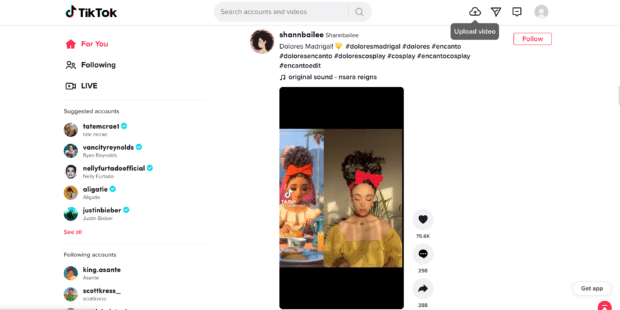
From there, you can select your video from your computer or drag and drop a file to upload. Then, add your caption, hashtags, privacy settings, all that good stuff.
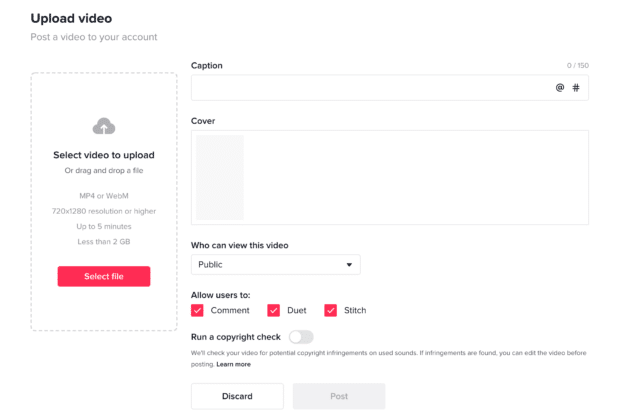
Once you’re ready, simply hit the Post button below the editor, and your video will be published to your account.
Access exclusive, weekly social media bootcamps hosted by TikTok experts as soon as you sign up, with insider tips on how to:
- Grow your followers
- Get more engagement
- Get on the For You Page
- And more!
How to upload and post a video to TikTok using Hootsuite
Of course, you can also use Hootsuite to manage your TikTok presence from desktop.
From one intuitive dashboard, you can schedule TikToks, review and answer comments, and measure your success on the platform. Our TikTok scheduler will even recommend the best times to post your content for maximum engagement (unique to your account).
Learn how to schedule a TikTok from desktop or from your phone using Hootsuite:
How to look up TikTok analytics on desktop
To access your analytics from your desktop, hover over your profile picture in the top right, then choose View Analytics.
From there, you can see all of your metrics and use them to shape your strategy. The stats include Overview analytics (performance from a specific date range), Content analytics (metrics of specific posts), Follower analytics (information about your followers) and Live analytics (stats on the live videos you’ve posted).
How to see saved videos on TikTok on desktop
Sorry, folks: as of May 2022, there’s no way to easily see your saved photos via TikTok on desktop. Check this space for updates — and browse your favorite saved content on your phone, for now.
How to manage TikTok notifications on desktop
Because TikTok for desktop has a larger screen (most of the time—isn’t it wild how mobile technology started out big, got really small, and is now getting big again?), you can see more features at once, and that’s especially helpful for notifications.
On your desktop, it’s easy to filter notifications by type. Just go to the top right and click the Inbox icon, which is just to the left of your profile picture.
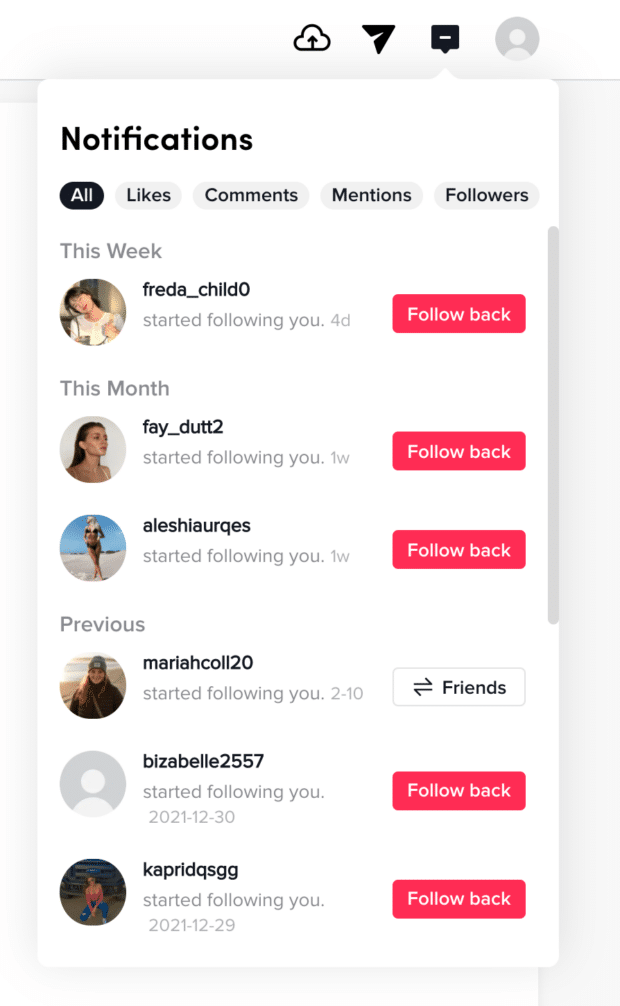
From there, you can easily filter through your likes, comments, mentions and followers. Simply click on the notification type you’d like to see, and you’re set.
Grow your TikTok presence alongside your other social channels using Hootsuite. From a single dashboard, you can schedule and publish posts for the best times, engage your audience, and measure performance. Try it free today.
Schedule posts, learn from analytics, and respond to comments all in one place.
How to Use TikTok on Mac and PC Computers?

Undoubtedly, TikTok is a trending app nowadays. It does not just let you share your talent and creativity; you can also create a big fandom by having millions of followers. While the app has built-in presets and effects, the good news is that you can edit the videos using great computer software. And directly upload it to your TikTok account from your system.
Yes, you heard that right! You can download TikTok or any other Android application using the emulator BlueStacks. However, at the moment, the TikTok app is only available for smartphones, which means that you can’t use it from a computer. However, you can install the BlueStacks emulator that lets you use apps from the Google Play Store on Windows and Mac operating systems.
Installing BlueStacks might be slightly complicated, so in this article, we are going to take you through the installation process of this emulator, and we’ll show you how to install TikTok on PC and Mac. Let’s have a look at how you can use TikTok on computers.
You might be interested in:
The Fastest Way to Download TikTok on Your Laptops

This method is probably the fastest way to download TikTok because you don’t have to download any emulator. Actually, all you have to do is add a free extension to Google Chrome — Mobile TikTok & Downloader, so that you can swipe through the trendiest videos, explore various kinds of sounds, find the most popular hashtags, and more.
How to Install TikTok on a PC Computer?
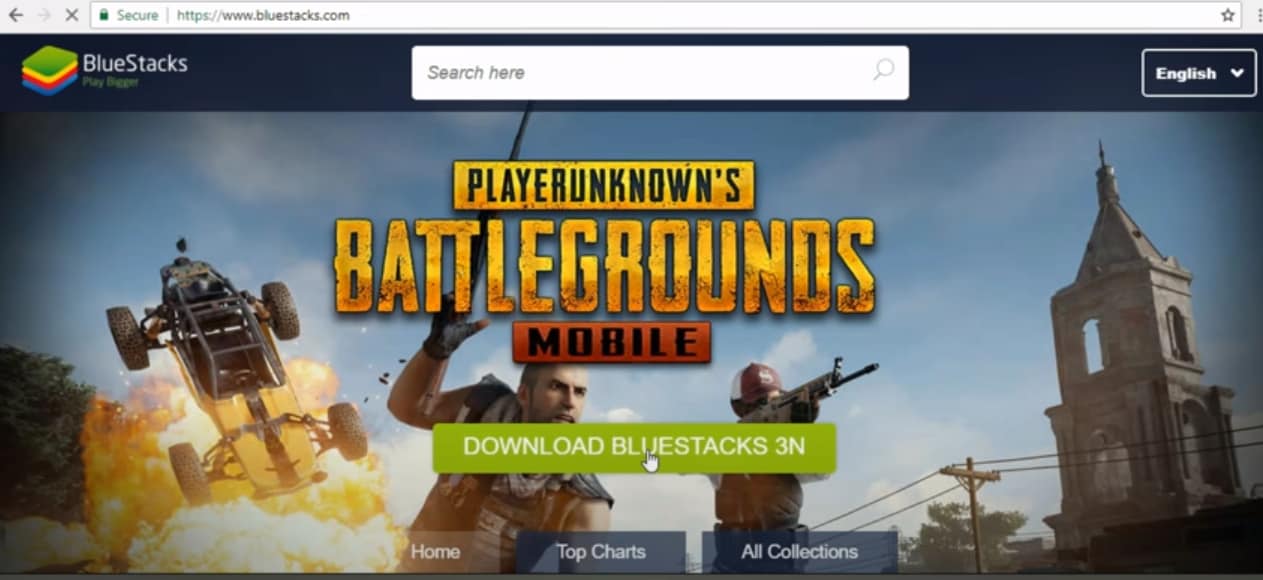
Before you start recording music videos with TikTok on desktops, you have to install the BlueStacks emulator first. You can do it by visiting the website and downloading the software to your computer. Then locate the exe. file you downloaded and double-click on it. Once the installer launches, click on the Install Now button. After the installation is completed, click on the Complete button.
Now the BlueStacks emulator is installed on your PC. Launch it and head over to the App Center tab. You will be asked to sign in to your Google account. And if you don’t have one, you need to create a Google account for using TikTok or any other Android app from your computer.
You can type TikTok into the Search Bar that is located in the upper right corner of the emulator’s window in order to find the TikTok app on Google Play. Once the app appears in the search results, click on it and proceed to click on the Install button. Click Accept in the pop-up window to give the app access to the computer’s camera. And then after the TikTok app is installed, click on the Open button.
You can use the app to record new videos, add sounds, apply filters and effects or trim each video you recorded with TikTok.
How to Install TikTok on a Mac Computer?
The process of installing the TikTok app on a Mac computer might be a bit more complicated, because the BlueStacks emulator may cause your computer to crash. In order to avoid this, you’d better shut down all other apps and permit the software to be installed on your device. Here’s how you can install TikTok on your Mac devices.
Step 1. Go to the BlueStacks website and click on the Download button to initiate the download process.
Step 2. Open the folder where the BlueStacks installer is located, find the installer dmg. file, and then double-click on it.
Step 3. Once the installer window appears on the screen, double-click on the BlueStacks icon to start the installation and then click Continue.
If the System Extension blocked message from appearing on the screen, choose the Open Security Preferences and click on the Allow button. The emulator will then be installed on your computer.
In order to install the TikTok app on your Mac, you’ll have to create a Google account if you don’t have one. Once you sign in with your Google account, you can proceed to install the app on your computer. The steps for installing TikTok on PC and Mac computers are the same, so you just need to find the app in the Google Play Store and click on the Install button. You can access the TikTok app from the My Apps tab in the BlueStack emulator whenever you want to create a new video.
Edit TikTok Videos with Excellent Video Editor
After installing the TikTok app on your personal computer, why not start using it right after you finish editing your videos? Just download an amazing TikTok video editor for free — Filmora now and make yourself a superstar on TikTok.
Conclusion
Although the TikTok app is only compatible with Android and iOS operating systems, Mac and PC users can also record or post videos on this social network directly from their computers by using the BlueStacks emulator. However, Mac users have experienced difficulties while installing this emulator on their devices, which is the reason why you need to make sure that your device meets all the technical requirements before you decide to install the BlueStacks on your computer.
TikTok offers an easy and fun way to create short music videos that have cool filters and visual effects, and share them with millions of people.
Q1. What is an Emulator?
In computing, emulator is a software or hardware that makes your computer system act like another system. For example, there were previously famous PlayStation 1 emulators, which allowed users to play PS1 games on their PCs. Likewise, having an Android emulator on your desktop or laptop will enable you to download and run mobile applications on your system.
Q2. What is BlueStacks, and why is it famous?
BlueStacks is a free and famous emulator for running Android applications on Windows and macOS. And it is totally legal to download and run BlueStacks on your system, as the company is partnered with some industry-leading organizations, such as Intel, Samsung, and AMD.
Q3. Why is BlueStacks so slow?
There could be a few reasons for slow BlueStacks on your computer. However, the most authentic one is outdated software. So, if you are using an older version of BlueStacks, go to the website and download the latest version.
Q4. How do I stop BlueStacks from lagging?
You can do a couple of things to stop your BlueStacks from lagging. First, turn on the “Virtualization.” Second, ensure you have allocated your CPU cores and RAM details in BlueStacks settings. Third, go to “Control Panel” and set your laptop/PC to “High Performance.” Fourth, you must have GPU drivers installed in your system. Fifth, close all other programs when using BlueStacks to make sure the RAM supports your emulator. And lastly, try to have an updated and correctly installed antivirus (if any).
Q5. Why won’t TikTok Work on BlueStacks 5?
You are required to download the latest version of BlueStacks to run TikTok. Next, make sure you have installed “Pie 64-bit Instance” from your BlueStacks “Multi-instance Manager.” Once done, open the Play Store, search for TikTok, download the app, and run.
Note: If you are using Nougat 64-bit/32-bit you won’t be able to run TikTok on BlueStacks 5.
Q6. Does BlueStacks damage the PC?
Not at all! The creators of BlueStacks claim that this emulator is entirely safe for MAC and PC users.
Q7. Can I run BlueStacks 5 on a PC with 2GB RAM?
You must have at least 4GB RAM with 5GB free disk space to run BlueStacks 5 on your system.
Do you use TikTok from a PC or Mac computer? Welcome to leave a comment below and share your experiences with us.
Запустить TikTok на ПК
TikTok — приложение категории «Социальные», разработанное компанией TikTok Pte. Ltd. BlueStacks — лучшая платформа игр и приложений для Android на ПК или Mac. Получите незабываемый опыт использования мобильных приложений вместе с нами.
Социальная сеть TikTok является глобальным сообществом любителей создавать и смотреть короткие видеоролики. Это одно из самых популярных приложений для Android, которое скачали более 1 млрд раз!
С помощью простых и интуитивно понятных инструментов TikTok вы можете снимать и редактировать любой видеоконтент: о своей жизни, домашних питомцах, хобби, учебе, работе, путешествиях и т.д. В вашем распоряжении сотни эмодзи, масок, фильтров, эффектов, стикеров и надписей, которые превратят ваше видео в маленький шедевр!
Кроме того, у вас есть возможность добавить в ролик любимую песню — в музыкальной библиотеке TikTok миллионы бесплатных треков различных жанров!
Желаете знать, что снимают в вашей стране или предпочитаете видеть только определенный контент? Тогда просто ставьте лайки, оставляйте комментарии и делитесь понравившимися постами с друзьями. Все остальное сделает TikTok — его умные алгоритмы настроят вам ленту, и вы будете смотреть видео на интересующие вас темы.
Чего же вы ждете? Скачайте TikTok на ПК с BlueStacks и вливайтесь в тусовку креативных и творческих! Сумеете ли вы создать ролик, который посмотрят миллионы людей?
Вы также можете поиграть в TikTok прямо в своем браузере на ПК или мобильном телефоне без скачивания. Нажмите и сразу играйте!
How to Download TikTok on PC
Скачайте и установите BlueStacks на ПК.
Войдите в аккаунт Google, чтобы получить доступ к Google Play, или сделайте это позже.
В поле поиска, которое находится в правой части экрана, введите название игры – TikTok.
Среди результатов поиска найдите игру TikTok и нажмите на кнопку «Установить».
Завершите авторизацию в Google (если вы пропустили этот шаг в начале) и установите игру TikTok.
Нажмите на ярлык игры TikTok на главном экране, чтобы начать играть.
TikTok — популярное приложение, ориентированное на создание и просмотр коротких видеороликов с музыкальным сопровождением. Здесь создают видеоматериалы обо всем на свете!
Скачайте TikTok на ПК с BlueStacks, снимайте свои ролики и смотрите чужие на широкоформатном мониторе в высоком разрешении. Делитесь важными, яркими или смешными моментами из жизни, а также наблюдайте за образом жизни других людей, даже тех, кто живет за тысячи километров от вас!
BlueStacks 5 с поддержкой Android 9 Pie позволяет устанавливать практически любые мобильные 32- и 64-разрядные приложения и игры на ПК с Windows 7, 8, 10 или Mac. Все, что вам нужно, — это ноутбук или компьютер с 4 Гб оперативной памяти, четырехъядерным процессором от Intel или AMD и видеокартой на 2 Гб с показателем PassMark не менее 750.
Также BlueStacks порадует вас другим полезным функционалом: гибкой настройкой игрового управления, макросами и скриптами, режимом эко, мультиоконностью, автопереводчиком и т.д.
С BlueStacks 5 вы можете развлекаться в TikTok и в то же самое время играть в любимые игры. Что может быть лучше, особенно когда каждая секунда жизни на счету!
Минимальные системные требования
С BlueStacks 5 вы можете начать работу на ПК, который отвечает следующим требованиям.
Операционная система
Microsoft Windows 7 и выше.
Процессор
Процессор Intel или AMD.
Минимум 4 Гб ОЗУ
Жесткий диск
5 Гб свободного места на диске.
* У вас должны быть права администратора на ПК. Актуальные драйверы видеокарты от производителя чипсета или Microsoft.
Как скачать и установить TikTok на ПК с Windows
TikTok для ПК с Windows: вы можете увидеть, как вы можете скачать и установить TikTok для ПК, портативный компьютер, и рабочий стол бесплатно. Пошаговый метод, Я объяснил, как загрузить и установить TikTok для ПК Windows Windows 7,8,10 (32 немного — 64 немного). Так, пожалуйста, прочтите эту статью наконец.
Скачать TikTok для ПК Windows 7,8,10 Свободно
TikTok — бесплатное социальное приложение для создания, редактирование, и обмен видео. Хотя ByteDance разработал его для китайского рынка на iOS и Android в 2016, он стабильно завоевал мировую известность. Вы также можете использовать приложение на ПК, загрузив файл и установив его на мобильном эмуляторе..
TikTok также является платформой для социальных сетей, где вы можете поделиться своим персонализированным видео с другими людьми.; вы также можете лайкать или просматривать другие видео, оставлять комментарии, и даже поделиться с друзьями. Но перед всем этим, вам необходимо создать учетную запись пользователя, которую можно сделать через другие социальные сети.
Я почти уверен, что вам понадобится это на вашем ПК. По-прежнему, у вас возникли трудности с загрузкой этого приложения TikTok для ПК или вы даже загрузили его, вы не знаете, как установить его на ПК?, отдыхать; эта статья даст вам пошаговое руководство о том, как успешно установить это приложение TikTok на свой компьютер с помощью эмулятора BlueStacks..
| Название приложения | Приложение iVMS-4500 |
| Лицензия | Свободно |
| Версия | 14.7.4 |
| Последнее обновление | Ноя 24, 2020 |
| Загрузки | 1M Подробнее |
| Разработчик | BYTEMOD PTE. ООО. |
Особенности приложения TikTok для ПК Windows
- ТикТок Простой & Быстрое скачивание!
- Работает со всеми версиями Windows!
- Последняя версия ТикТок!
- Полностью совместим с Windows 7/8/10 операционная система.
- Тонны спецэффектов
- Короткие видео
- Легко использовать
- Популярная музыка для синхронизации губ
- 100% СВОБОДНЫЙ!
Как скачать и установить TikTok на ПК с Windows 7,8,10 и Mac?
На данный момент, нет официального приложения или программного обеспечения TikTok, разработанного для ПК с Windows. Единственный способ установить TikTok на компьютер с Windows — использовать эмулятор Android.. Один из самых популярных, надежный, многофункциональный, и хорошо оптимизированный эмулятор Android — Bluestacks.
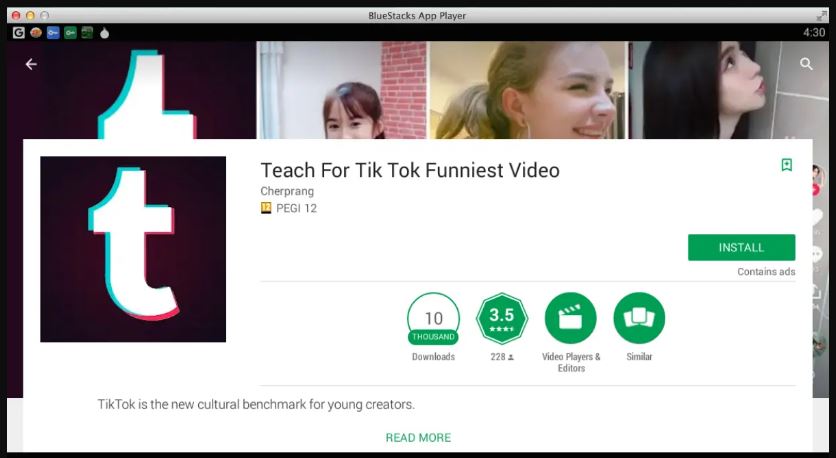
Шаги по загрузке и установке TikTok для ПК с помощью Bluestacks:
- Прежде всего, Загрузите Bluestacksэмулятор и установите файл Bluestacks 4.exe на свой компьютер или ноутбук..
- После того, как вы установили Bluestacks 4 эмулятор, пожалуйста, войдите в свою учетную запись Google на Bluestacks 4.
- Теперь вы можете напрямую загрузить и установить TikTok из Google Play Store с помощью Bluestacks. 4 приложение.
- Приложение TikTok установится через несколько минут., и вы можете начать использовать Joox Player.
Шаги по загрузке и установке TikTok для ПК с помощью проигрывателя приложений Nox :
- Прежде всего, УстановитеИгрок приложения Nox на вашем ПК
- После установки, запустите приложение Nox app player на ПК и войдите в свою учетную запись Google.
- Теперь найдите приложение TikTok..
- Установите приложение TikTok на эмулятор Nox.
- После завершения установки, вы сможете запустить приложение TikTok на своем ПК.
Заключение
Спасибо, что прочитали эту статью, Надеюсь, оно вам понравится и обязательно поможет вам загрузить приложение TikTok для Windows и Mac.. По-прежнему, Если у вас есть вопросы относительно того же, тогда любезно поделитесь в поле для комментариев. К тому же, ты хочешь больше вещей, тогда не стесняйтесь обращаться ко мне.