Discord ID Creation Date Checker
See the creation date of a server, channel, message or user using their Discord ID!
Place the ID in the Discord ID field. Example: 459891664182312982
Discord ID:
Check the date!
Result:
Frequently asked questions
How to find the ID?
You will need developer mode on, this will work on desktop and mobile. You can find an article here.
Is this website logging the ID we input?
No, the whole script is done locally, it is not possible for us to store the ID.
Как узнать дату создания аккаунта Discord
Как узнать дату регистрации Дискорд аккаунта? Посмотрите историю событий и найдите первое сообщение, отыщите письмо о создании учетной записи на e-mail или обратитесь в службу поддержки. Похожие методы можно использовать для получения данных по времени создании сервера Discord. Ниже рассмотрим эти вопросы более подробно.
Как узнать дату регистрации на Discord

Многие пользователи спрашивают, как посмотреть, сколько лет аккаунту в Discord. Такие сведения могут потребоваться для статистики, покрытия личного интереса или решения иных задач. Сразу отметим, что непосредственной информации о дате регистрации в аккаунте Дискорд нет, поэтому придется использовать обходные пути.
- Войдите в электронный ящик, который указывался при регистрации на платформе. Обратите внимание на дату, когда пришло письмо с данными о создании учетной записи.

- Посмотрите сообщения в телефоне с подтверждением номера. Это актуально в том случае, если вы сразу привязывали эти данные к аккаунту в Дискорд. В ином случае узнать точные сведения таким способом не получится.
- Перейдите по ссылке support.discord.com, авторизуйтесь, а после войдите в свой профиль. Там будет информация по отправленным запросам, публикациям и подпискам. С помощью этих сведений можно сделать ориентировочные выводы о дате регистрации в аккаунте Дискорд.

- Напишите в службу поддержки. Для этого войдите по ссылке support.discord.com. Там заполните поле электронной почты, а в разделе Чем мы можем помочь Вам выберите последний пункт.
- Укажите тему, введите описание и прикрепите файл. В основной строке задайте вопрос или спросите, как узнать, сколько ты в Дискорде. Возможно, работники службы поддержки подскажут иные методы. Но учтите, что ответа на письмо чаще всего приходится ждать долго (до нескольких дней).
Как уточнить день создания сервера
Иногда у пользователей возникает другой вопрос — как узнать дату создания сервера Дискорд. Эта информация может потребоваться индивидуально или для решения вопроса с днем регистрации аккаунта (к примеру, если речь идет о первом созданном сервере).
Наиболее точный путь — решить задачу через консоль программы. Сделайте следующие шаги:
- Войдите в приложение Дискорд.

- Кликните на символ шестеренки внизу.
- Войдите в раздел Внешний вид.

- Внизу найдите Режим разработчика и переместите тумблер в правую сторону.
- Жмите на комбинацию Ctrl+Shift+I.
- Перейдите в раздел Console.

- Вставьте function getCreationDate(id) < return new Date((id / 4194304) + 1420070400000); >getCreationDate(«insertId»). Вместо insertId вставьте ID своего сервера. Для получения этой информации выберите сервер, для которого нужно узнать дату регистрации, жмите на него правой кнопкой мышки, и кликните Копировать ID. После этого вставьте информацию вместо указанной выше надписи.
- Жмите Ввод. Система показывает дату, день недели и время в привязке к определенному часовому поясу.
С помощью рассмотренного метода можно узнать и дату регистрации самого аккаунта Дискорд, если вы сразу создавали server для работы на платформе. При желании можно использовать и другие варианты:
- Войдите на сервер и найдите самое первое сообщение. Возле него указывается день отправки.

- Напишите в поддержку support.discord.com/hc/ru/requests/new?ticket_form_id=360000029731. Здесь используйте тот же принцип, что рассмотрен выше.
Теперь в ваших руках есть необходимые сведения, как узнать дату регистрации аккаунта Дискорд. В комментариях расскажите о других способах получения этой информации, если они имеются. Возможно, они будут более точными и простыми, чем те, что предложены выше.
How To See When A Discord Server Was Created (EASY Guide!)
If you are curious as to when a certain server on Discord was created then keep reading as I go over how you can check when a Discord server was created on both PC and mobile.
How To Find Out When A Discord Server Was Created (PC)
- Log into your Discord account
- Click “User Settings”
- Click “Advanced”
- Toggle on “Developer Mode”
- Right click on the server you want to see the creation date for
- Click “Copy ID”
- Go to hugo.moe, paste the copied ID, then click “Check the date!”
- The “Results” section will show when the server was created
Here are some images that help walk you through it as well:
Log into your Discord account. Click “User Settings”.
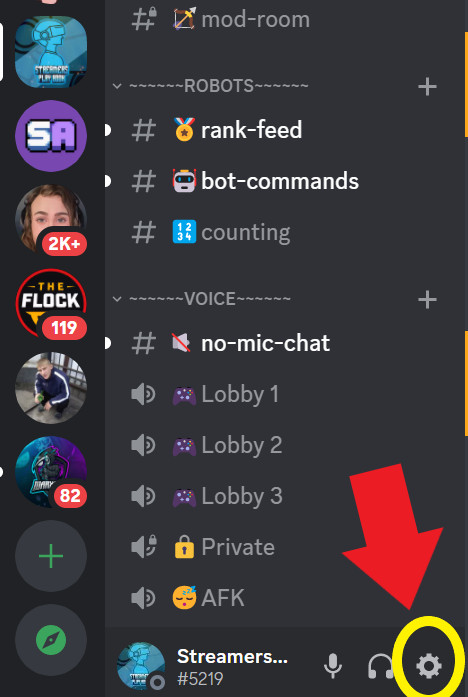 User Settings
Click “Advanced” . Toggle on “Developer Mode”.
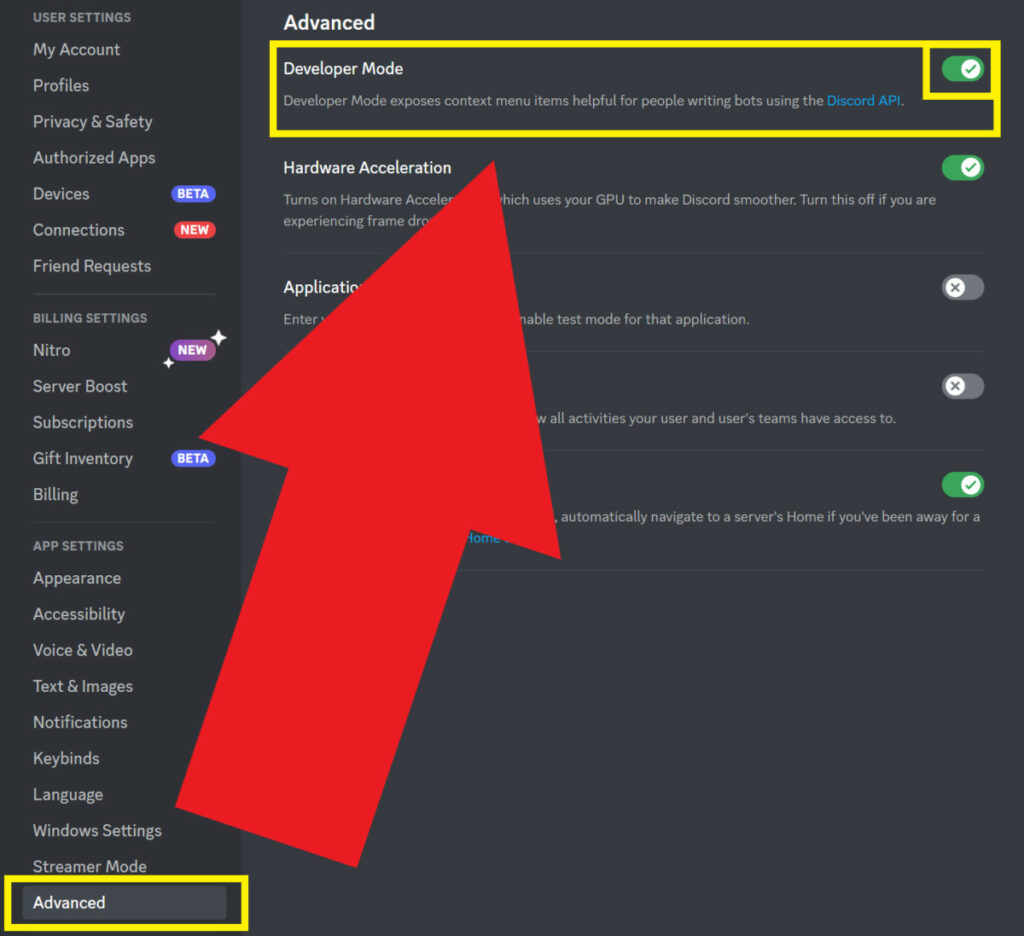 Advanced > Developer Mode
Right click on the server you want to see the creation date for. Click “Copy ID”.
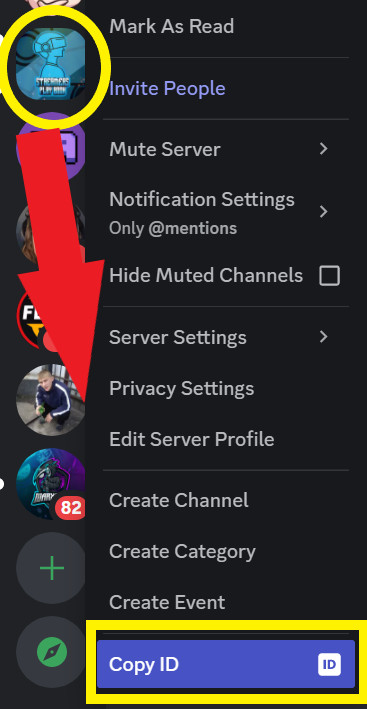 Copy ID
Go to hugo.moe, paste the copied ID, then click “Check the date!”. The “Results” section will show when the server was created.
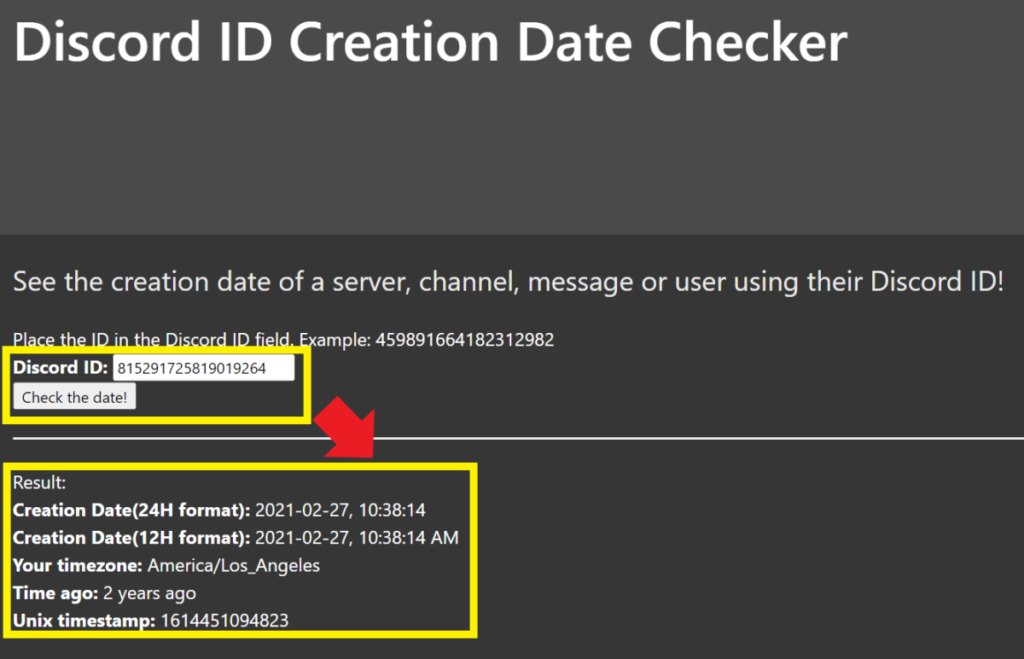 Creation Date Tool
The above method should work for most users, but I did read online some users complaining that this method only works for the browser version of Discord and not the app.
If you are having issues enabling developer mode in order to copy the Discord ID of the server, try switching from the app to the web version of Discord or visa-versa.
If you are on mobile, here is how you can find the date a Discord server was created.
How To Find Out When A Discord Server Was Created (Mobile)
- Log into your Discord account
- Go to “Settings”
- Tap “Appearance”
- Toggle on “Developer Mode”
- Go back and then tap and hold on the server you want to check the age of
- Tap “More Options”
- Scroll down and tap “Copy ID”
- Go to hugo.moe, paste the copied ID, then click “Check the date!”
- The “Results” section will show when the server was created
Here are some images that help walk you through it as well:
Log into your Discord account. Go to “Settings”. Tap “Appearance”.
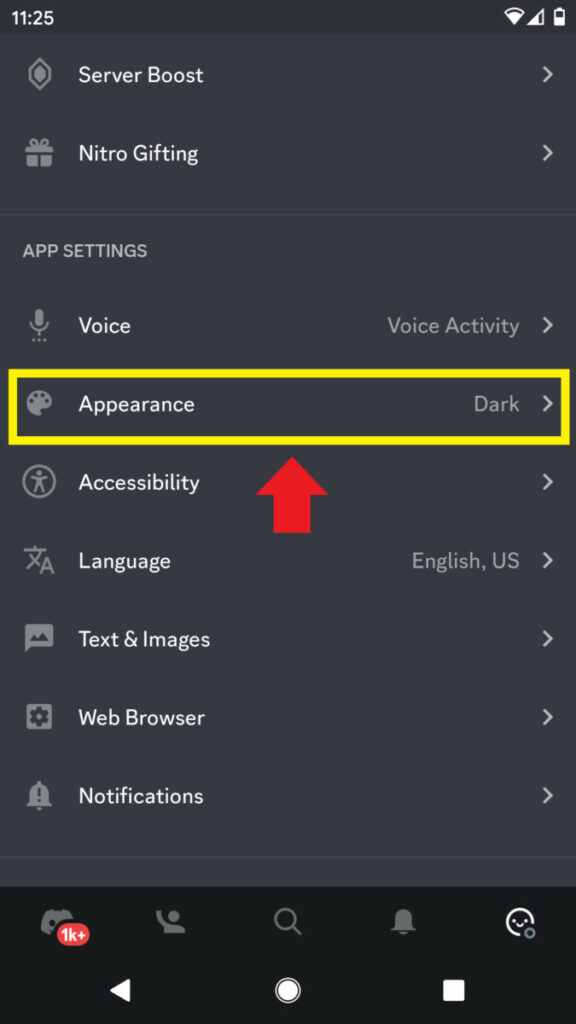 Appearance
Toggle on “Developer Mode”.
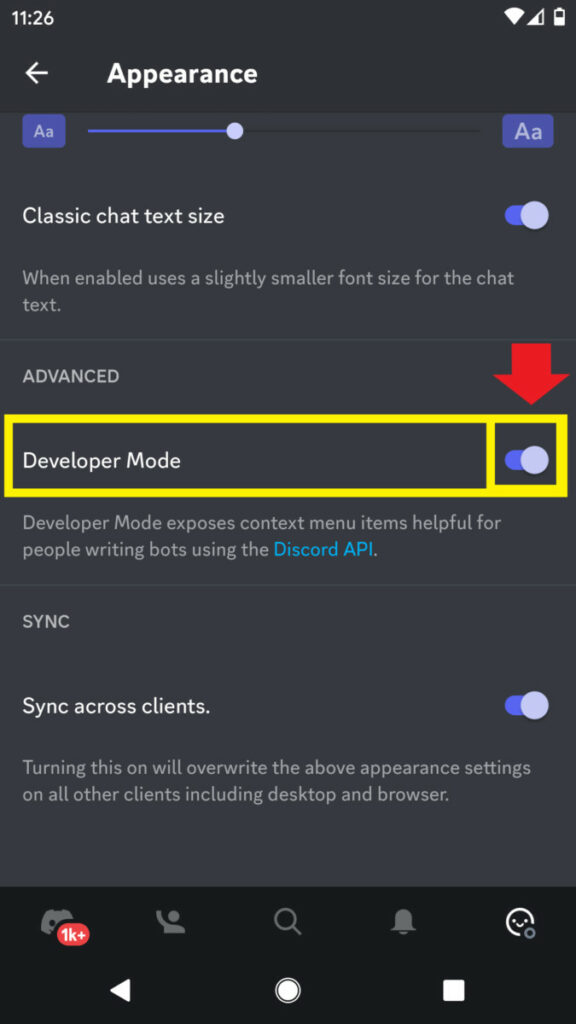 Developer mode
Go back and then tap and hold on the server you want to check the age of. Tap “More Options”.
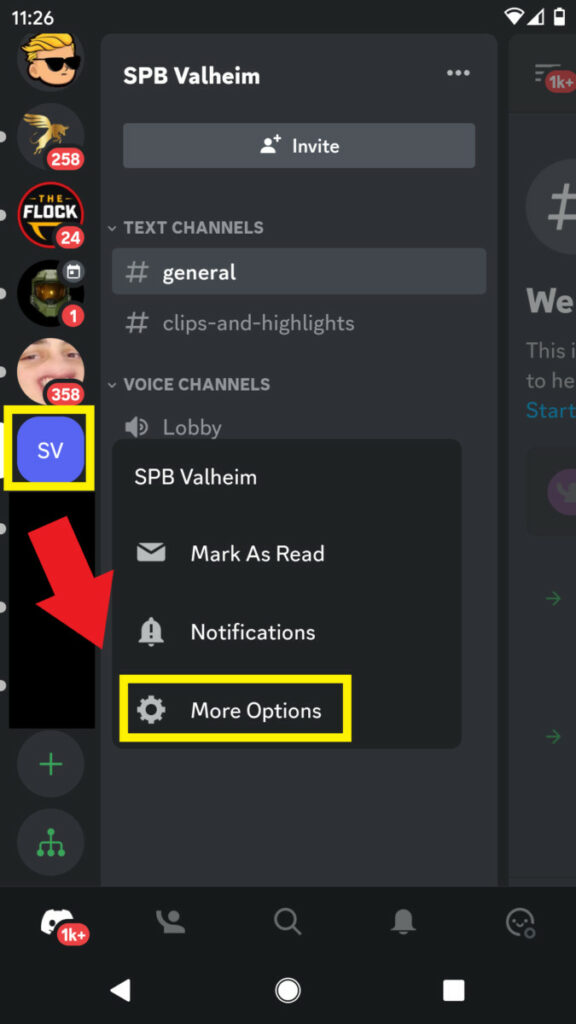 More Options
Scroll down and tap “Copy ID”.
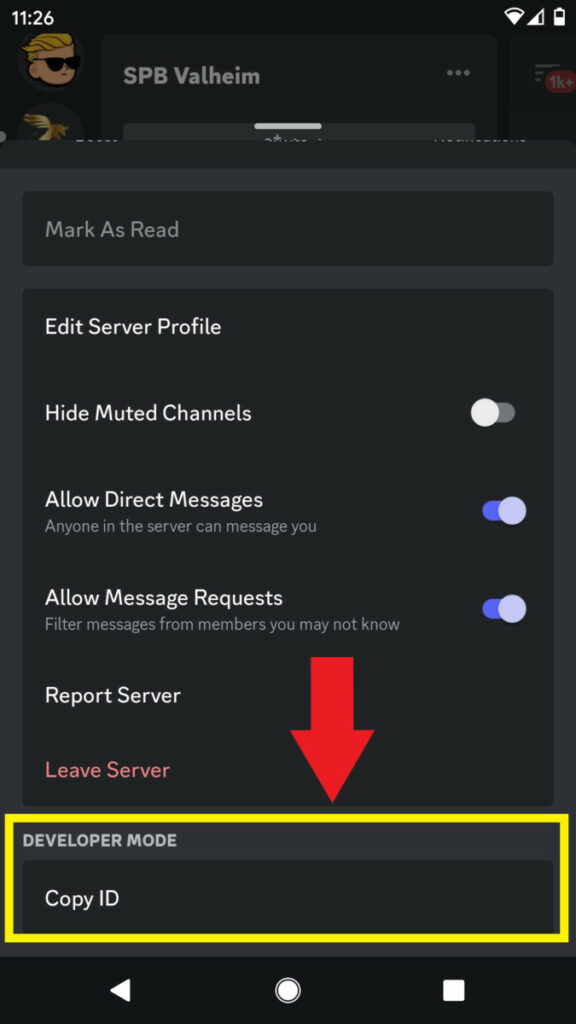 Copy ID
Go to hugo.moe, paste the copied ID, then click “Check the date!”. The “Results” section will show when the server was created.
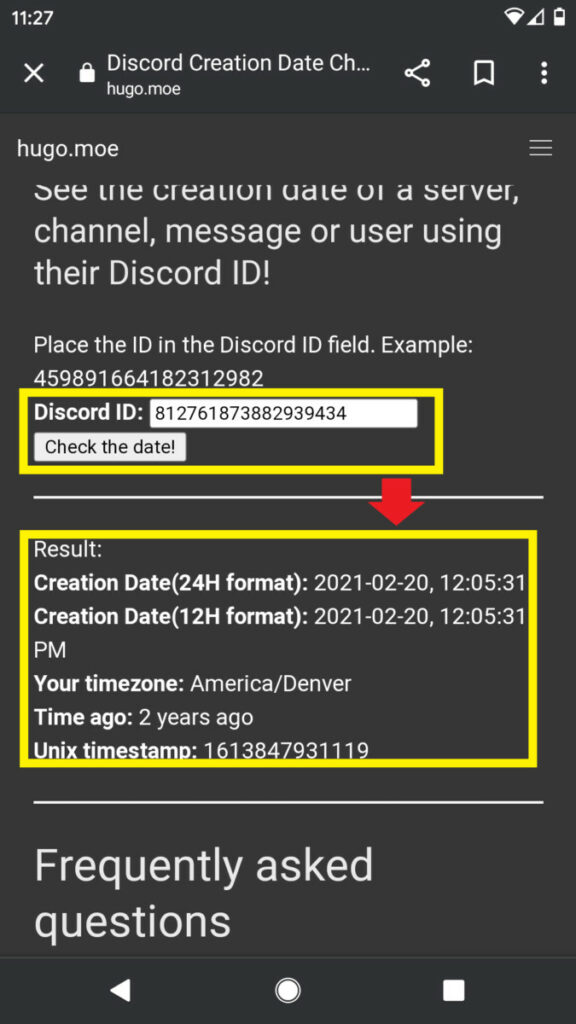 Discord Creation Date Tool
Now I will say that checking the age of a Discord server is much easier on PC than it is on mobile, but both methods work so feel free to use either one.
If you want to see when you joined a Discord server, here is how you would do that.
How To See When You Joined A Discord Server
- In a server that has the MEE6 Discord Bot type “!user-info @username” in the chat
- The MEE6 bot will auto-respond with the date you joined, along with other info
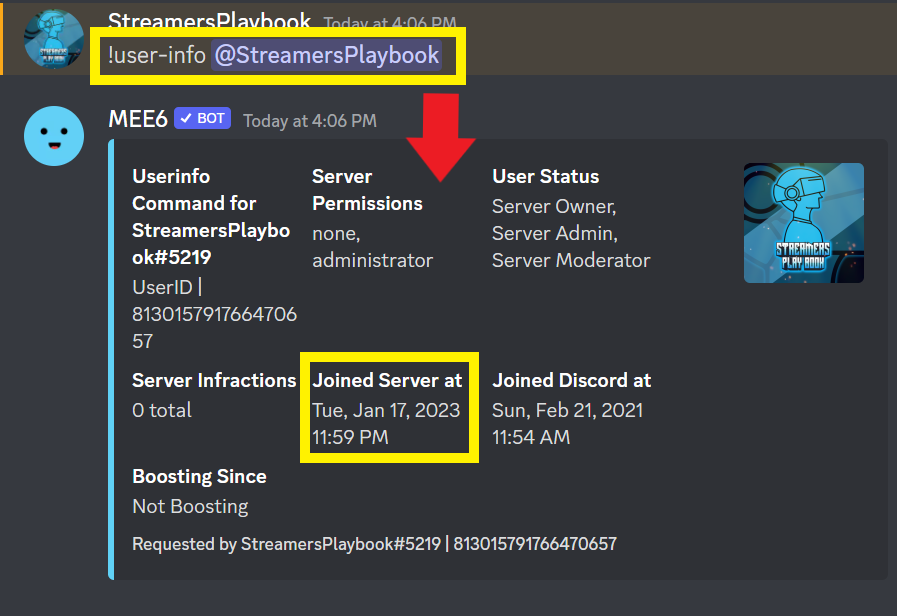
If you are the owner of a Discord server and would like to add this as a command to your server, you will first need to add the MEE6 bot to your server.
Once the bot is added to your server, enable the moderator plugin inside the MEE6 dashboard.
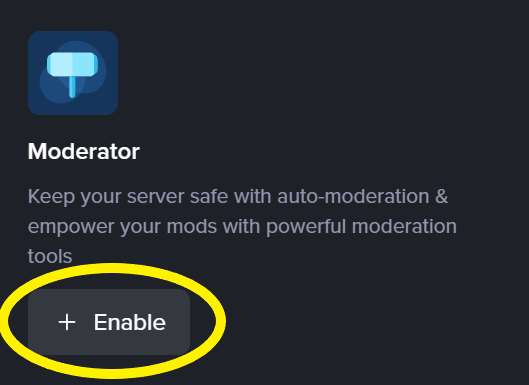
Once you do this the command will be active and anytime a user types “!user-info @username” the bot will respond with that users join date and other important info regarding their participation in the server.
If you are trying to use this command in a server, and it is not working, then the moderators or admins of the server may have disabled the command or renamed the command to something else.
If it’s not working, make sure you entered the command correctly with the correct username as well. If everything is spelled right, reach out to a mod and see what command you need to use for that request.
Next, if you want to see who created or owns a Discord server, see below.
How To See Who Created A Discord Server
- Go to a Discord server that you want to see who the creator is
- Click “Show Member List” in the top right
- The list of server members will be displayed on the right
- Scroll until you see a user with a crown next to their name
- The user with a crown next to their name is the creator / owner of the server
Here are some images that show what I am describing.
Go to a Discord server that you want to see who the creator is. Click “Show Member List” in the top right.
 Members List Button
The list of server members will be displayed on the right. Scroll until you see a user with a crown next to their name. The user with a crown next to their name is the creator / owner of the server.
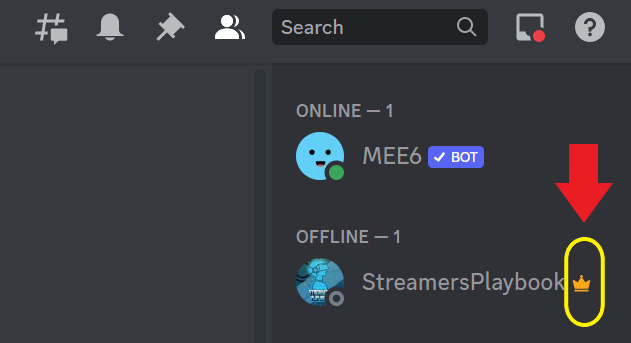 Discord Crown
Besides using the method I just went over, if your server has Dyno bot, you can just type “?serverinfo” in chat and details of the server will appear, including who the owner / creator is. Let’s talk more about Dyno bot below.
Best Bot For Checking The Age Of A Server
The best bot for checking the age of a Discord server is Dyno Bot. In a server that has Dyno Bot all you have to do is type the command “?serverinfo” and Dyno Bot will tell you the creation date and time of a Discord server.
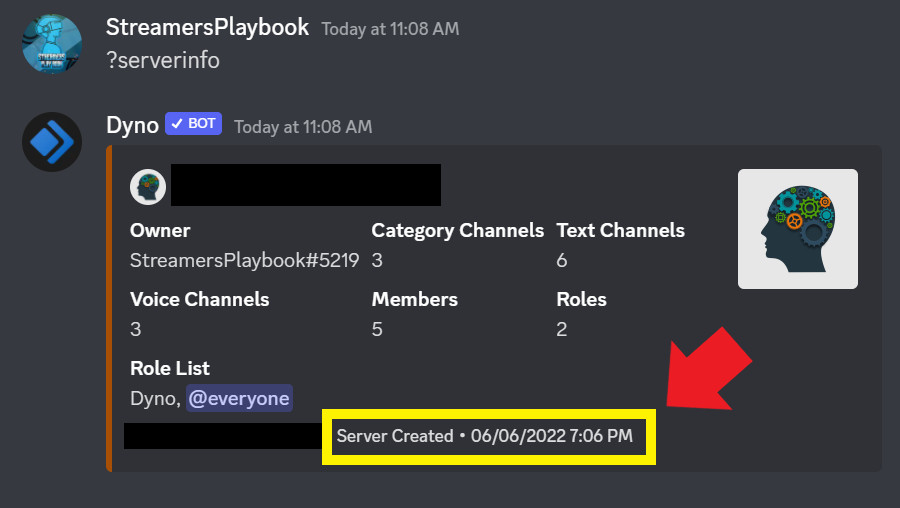 Dyno Bot Command & Response
If you are active on Discord, you have probably heard of Dyno Bot. It’s one of the most popular bots on all of Discord because it has so many useful tools.
And even better, it has a default command that allows you to quickly and easily see the age of a server that you are in.
Now this command will work in servers that use Dyno Bot as long as they have not disabled the command or renamed the command. If it’s not working then message one of the mods to see why.
This command is fun for user engagement and I am sure several members of your server would be interested to see when they joined your server.
Finding the creation date of a server is easiest with Dyno bot, but if the server you are in does not use Dyno bot or use that command, then there are other tools you can use to find out when a server was created on Discord.
Lastly, to wrap it all up, if you want to see when a Discord channel was created here is what you would do.
How To See When A Discord Channel Was Created
- Log into your Discord account
- Click “User Settings”
- Click “Advanced”
- Toggle on “Developer Mode”
- Right click on the channel you want to see the creation date for
- Click “Copy ID”
- Go to hugo.moe, paste the copied ID, then click “Check the date!”
- The “Results” section will show when the channel was created
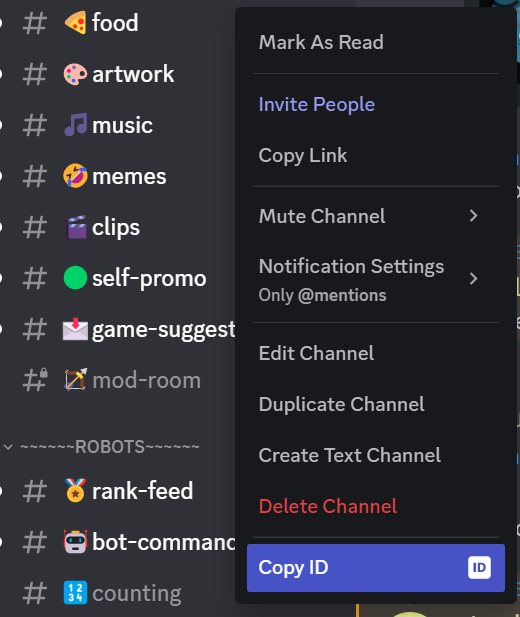 Channel ID
As you can see, checking when a channel was created is similar to seeing when a server was created. The key is copying the ID and pasting it into the right tool.
Related Articles:
For even more streaming tips and how-to content check out my Youtube channel here. And if you want to check out my streams then stop by my Twitch channel here.
Eric streams 3 days a week on Twitch and uploads weekly to Youtube under the moniker, StreamersPlaybook. He loves gaming, PCs, and anything else related to tech. He’s the founder of the website StreamersPlaybook and loves helping people answer their streaming, gaming, and PC questions.
View Information about any Discord Server (Invite)
You can be used to extract lots of information from a Discord Server. It will show you information about the Discord Server such as the server profile picture icon, server banner, server name, server splash banner, server description, member count, online users, and the invite expiration date.
How do I use the Discord Invite Information Tool?
Simply enter any valid Discord Invite into our tool above and press "Get Information" . You can enter the raw Discord Invite link, or simply the invite code. It doesn't matter.
How do I get a Discord Server Invite?
You can get a Discord Server Invite from a Discord server listing website, or on the web somewhere. It doesn't matter where you get the server invite from, but you can use our tool above to check all the information such as the server profile picture, server banner, member count, server description, online members etc.. regarding the Discord server you have been invited to.
More Information about this Tool:
There are many good reasons to use this tool. Mostly due to the fact Discord does not natively display much information about a server and there's no way to download a discord server profile picture or banner otherwise. With this tool you can easily check all of the information about a Discord server, simply by just inputting an invite link.
The main use cases for this tool are to download, check, or grab a Discord server profile picture, splash banner, or regular banner. You can also use the tool to view key information such as server membercount, description, and total online users.
This project is made possible by Discadia which is the top Discord Server List for finding Discord servers.
If you have a suggestion to improve this tool, or notice something not working correctly please reach out to us via the "Contact us" button in the page footer. Please note that we are not affiliated with Discord