How to install MacOS High Sierra on an older Mac
Hi. I have a Mac from early 2008. Could you show me how to install MacOS High Sierra? Or is it impossible?
- Learn how to install MacOS High Sierra on an older Mac
- Step 1. Prepare your USB drive
- Step 2. Use MacOS High Sierra Patcher
- Step 3. Install Mac OS High Sierra
You can install MacOS High Sierra on an older Mac. However, there are specific requirements, and not all older Mac devices can be “hacked” that way. Additionally, note that there are high risks since performing such actions goes against Apple's advice. Likewise, weigh the advantages and disadvantages before proceeding.
If you have still decided to install MacOS High Sierra on an older Mac, you will need several things before you can start. First of all, get a USB drive [1] with at least of 8 GB of free space and download MacOS High Sierra Patcher. Later, get a copy of MacOS High Sierra, and you are able to start the procedure.
You can install MacOS High Sierra on the following devices:
- Early-2008 or newer iMac, Mac Pro, or MacBook Pro;
- Early-2008 or newer Xserve;
- Late-2008 or newer Aluminum Unibody MacBook or MacBook Air;
- Early-2009 or newer white MacBook or Mac Mini.
Unfortunately, but this hack won't work on the following Mac computers:
- 2006-2007 Mac Pros, MacBook Pros, iMacs, and Mac Minis;
- 2006-2008 MacBooks;
- 2007 iMac 7,1 (If you have updated the CPU to Penryn-based Core 2 Duo);
- 2008 MacBook Air.
Learn how to install MacOS High Sierra on an older Mac
Before you start the procedure, it is important to make sure that SIP [2] is disabled. If you are not sure whether it is disabled or it re-enables use the following instructions to fix this issue:
- Click on the Apple's icon and select Restart;
- While the computer is still restarting hold Command + R to reboot your Mac into Recovery System;
- Open Terminal and type csrutil disable;
- Press Return.
Also, it is wise to store backups [3] in case you encounter any damage to your system. If you store them in the cloud or an external drive, they will be safe, and you will avoid any data loss.
Как установить macOS 10.12 Sierra на старое устройство Mac (несовместимую версию)
Впервые за несколько лет Apple прекратила поддержку macOS Sierra для некоторых компьютеров. Такое решение компании было вызвано рядом несовместимостей и недостатков аппаратного обеспечения. Однако многим пользователям MacBook причина не кажется веской. Контраргументом служит то, что некоторые компьютеры по неясной причине прошли отбор, в то время как их более мощные современники (например, MacBook Pro) таинственным образом оказались позади.

По одной из версий, Apple таким образом повышает требования с целью того, чтобы стимулировать покупку новых устройств. Другие неопровержимые обстоятельства, влекущие за собой появление неподдерживаемых компьютеров, отсутствуют. Зачастую эта версия оказывается оправданной – при помощи нескольких твиков и дополнений инструмент от dosdude 1 под названием macOS Sierra Patcher решает проблему «несовместимости» многих компьютеров с данной версией операционной системы. В этой инструкции мы расскажем, как установить macOS 10.12 Sierra на более старые версии Mac, по заявлению производителя несовместимые с этой операционной системой.
Сегодняшний список устройств, поддерживающих macOS 10.12 Sierra, включает:
- MacBook (Late 2009);
- iMac (Late 2009);
- MacBook Air (2010);
- MacBook Pro (2010);
- Mac Mini (2010);
- Mac Pro (2010).
Для сравнения стоит взглянуть на таблицу со списком компьютеров, на которые возможно установить Sierra, используя macOS Sierra Patcher:

Стоит внимания тот факт, что в случае с определенными компьютерами, согласно таблице, могут возникать проблемы. Самая распространенная – отсутствие Wi-Fi из-за наличия в некоторых устройствах несовместимой карты BCM 4321. Проблема зачастую решается путем замены карты. Другие устройства (например, MacBook Pro (2008/9) работают настолько превосходно, что не требуют никаких модификаций и лишь заставляют удивляться, почему Apple сочла их несовместимыми.
Пользуетесь одной из приведенных в таблице моделей и хотите протестировать на ней Sierra? Следуйте нашей инструкции по созданию модифицированного инсталлятора.
Инструкция по установке macOS Sierra на неподдерживаемые версии Mac
1) Найдите флешку объёмом от 8 Гб или создайте раздел на внешнем жёстком диске.
2) Отформатируйте с таблицей разделов GUID и файловой системой Mac OS Extended через приложение Disk Utility.
3) Загрузите копию macOS Sierra 10.12. Чтобы скачать его через App Store, понадобится доступ к поддержимаемой машине. Однако скачивание напрямую или через виртуальную машину с macOS позволяет обойти это ограничение.
4) Убедитесь, что приложение Install macOS Sierra, которые вы скачали, находится в папке /Applications.
6) Отключите SIP на машине, куда вы собираетесь установить Sierra. SIP должен быть отключён на всём протяжении установке и даже после неё. Не беспокойтесь: хоть это и несколько снижает уровень безопасности, это не конец света, а версии ОС до El Capitan вообще не включают SIP.
Для отключения SIP перезагрузите ваш Mac в раздел восстановления вашей текущей OS X, запустите Терминал и выполните следующую команду – “csrutil disable”.
7) Когда всё готово, запустите приложение macOS Sierra Patcher.

8) В этом приложении нажмите на значок установки Sierra и укажите путь к вашей копии macOS Sierra в каталоге /Applications.

9) Нажмите значок Volume, чтобы выбрать раздел для создания модифицированного установщика.

10) Затем нажмите “Start Operation…”. Введите пароль по требованию. Sierra Patcher создаст модифицированный установщик macOS на выбранном разделе, который способен работать на неподдерживаемых устройствах.

После создания установщика Sierra Patcher покажет сообщение Complete!. Раздел диска или USB-диск теперь должны иметь метку “OS X Base System” вместо предыдущего имени.
11) Во время включения компьютера удерживайте клавишу Alt/Option. Это позволит выбрать загрузочное устройство — в нашем случае USB-диск.
12) Выберите необходимое устройство из списка, чтобы начать загрузку с него.

13) После запуска установщика macOS, следуйте его указаниям, выбрав жёсткий диск вашего компьютера в качестве раздела, куда будет проведена установка. Если вы производите установку с нуля, используйте Disk Utility (расположенную в секции Utilities инсталлятора), чтобы предварительно очистить целевой раздел. Это рекомендуется сделать для полной переустановки. Однако если вы хотите сохранять существующую установку OS X или просто обновиться, запустите установщике без очистки диска.

Теперь должна начаться установка. Следите за её ходом, поскольку в середине процесса произойдёт перезагрузка, после которой понадобятся ваши действия.

14) Когда начнётся перезагрузка, удерживайте клавишу Alt/Option, чтобы снова открыть экран выбора загрузочного устройства. Если вы пропустите перезагрузку, не волнуйтесь: компьютер попытается загрузиться, но не сможет этого сделать. Просто удержите кнопку питания, пока он не выключится, и снова включите его, не забывая удерживать кнопку Alt/Option.
15) На экране выбора загрузочного устройства снова выберите раздел с установщиком.
16) После загрузки установщика необходимо установить патчи, позволяющие запустить Sierra. Вместо запуска программы Install Sierra, выберите macOS Post Install.

17) Утилита Post Install должна автоматически определить вашу модель Mac. Проверьте, что она определена правильно; если это не так, выберите свой вариант в выпадающем списке. Наш MacBookPro 5.5 программа определила правильно. Если вы не уверены, какая у вас модель, поищите её по названию и году выпуска или используйте Mactracker для Mac или iOS.
18) После выбора правильной модели программа автоматически выберет большинство актуальных патчей для вашей машины. Если вы не уверены в том, что делаете, ничего не меняйте. Мы можем порекомендовать Recovery Partition Patch, делающий возможной загрузку с раздела восстановления. Это единственный необходимый патч, не включённый по умолчанию.
19) Убедитесь, что раздел, на который вы устанавливаете патчи — это раздел вашего Mac, на который вы записали ОС. Не устанавливайте их на USB-раздел или куда-то ещё. После этого нажмите кнопку, чтобы установить патчи и перезагрузиться. Обратите внимание, что вам не нужно отмечать “Force Cache Rebuild”, как показано на рисунке. Эта опция полезна только в тех случаях, когда ваши патчи по какой-то причине не действуют.

20) Во время последней перезагрузки удерживайте клавишу Alt/Option. На этот раз вместо установочного раздела выберите целевой, куда вы устанавливали систему. Наш называется Macintosh HD.
Теперь компьютер загрузится и завершит установку. Подтвердите её завершение. Вы получите новую инсталляцию Sierra на вашем де-юре неподдерживаемом Mac. Если какие-то вещи вроде Wi-Fi и USB не работают после проведения установки, снова загрузите установочный раздел и ещё раз наложите патчи.
Это всё!
Патчер до сих пор обновляется, что дает надежду на возможность работы и с будущими версиями Sierra. Похоже, что большинство пользователей El Capitan все же смогут обновиться: все, включая Siri, работает прекрасно на нашем MacBook Pro 13″ 2009 года выпуска. Недавнее обновление инструмента даже позволило получать обновления macOS через AppStore.
Важно! Если вы используете Hackintosh вместо настоящего Mac, в патчере нет никакой необходимости. Все, что требуется – отказаться от использования SMBIOS, после чего компьютер станет распознаваться как поддерживаемое устройство. Патчер же нужен лишь для заводских MacBook.
Пользуетесь компьютером, несовместимым с macOS Sierra? Сообщите в комментариях, если инструкция позволит ему начать новую жизнь.
A step by step guide to installing macOS High Sierra on an unsupported mac.

I’ve got probably a few articles coming out here shortly, involving what I’ve done with my life for the past while, but for the moment, I wanted to teach you how I updated my MacBook Pro to High Sierra, even though my specific MacBook isn’t supported. Fact of the matter is, the system has the hardware and power, in every way, to run High Sierra, Apple just wants you to buy a new MacBook or Mac desktop, so they get some more cash. I’m currently running High Sierra on my one and only MacBook, the Mid-2009 MacBook Pro. Also, while I am writing this guide, it should be noted that all instructions we’re gathered from http://dosdude1.com/highsierra/. In fact, we use the tool located there to make it happen.
Before you get started, you should make sure the system is going to work correctly. Currently, you can only proceed with this if your mac is any of the following models:
- Early 2008 or newer iMac, MacBook Pro, or Mac Pro.
- Early 2008 or newer MacBook Air or Aluminum Unibody MacBook.
- Early 2009 or newer Mac Mini or MacBook.
- Early 2008 or newer Xserve.
All other forms of macs are unsupported, and not guaranteed. to work. In fact, they probably won’t.
The next thing you’ll need to do is figure out what WiFi card your Mac uses, if any. This mostly applies to MacBook’s. Who would use their laptop if it has to be tethered to an ethernet cable all the time.
Here are the ID’s of WiFi cards from Apple that don’t work. If you have one of these, it wouldn’t be wise to follow this guide until you can replace the card with one that does work. While the operating system should function properly with these cards, wireless functionality will not.
- (0x14E4, 0x8C)
- (0x14E4, 0x9D)
- (0x14E4, 0x87)
- (0x14E4, 0x88)
- (0x14E4, 0x8B)
- (0x14E4, 0x89)
- (0x14E4, 0x90)
If an ID is not listed here, that means that card should work fine, with no issues.
To find out you’re WiFi card’s ID, click the Apple logo in the top left, and select About This Mac. From there, click System Report, scroll to the Network section, and select WiFi. Under Interfaces, find Card Type. This should say something like AirPort Extreme. Directly after that will be the card id. If its in the list above, Wireless functionality will not work with High Sierra.
Once you’ve verified you’re good to go on installing macOS High Sierra, go ahead and grab the things you’ll need for this to happen. You’ll need a USB Flash Drive of at least 8 GB (Gigabytes), The macOS Installer Patcher (located here: http://dosdude1.com/highsierra/macOS%20High%20Sierra%20Patcher.dmg), and a macOS High Sierra Installer. This can be downloaded from the Mac App Store, and if it won’t let you, the Patcher mentioned above will allow you to download it, via the Tools menu.
From here, you’ll want to plug your USB flash drive into your Mac, and open up Disk Utility. Click the USB drive, and format it (or erase it) for Mac OS Extended Journaled, and if theres a setting for it, use the GUID Partition Scheme. Once complete, go ahead and load the patcher. Its best to install this to the Applications directory, as you might have guessed. If you haven’t already, download macOS High Sierra’s installer, either from the Mac App Store, or the patcher tool. Once complete, click the High Sierra icon, and load the installer in the window that appears. Choose the volume as your flash drive, and click Start Operation. This will erase your flash drive, and install High Sierra to it as an installer, along with the patch needed.
Next you’ll need to reboot. Once the apple white screen, or boot chime happens, begin holding Alt (option). If you did a full shutdown, you can hold Alt (option), then press the power button. Continue to hold the Alt (option) button, until you see the boot menu. Select your flash drive, and press enter. This will load the macOS installer. From here, if you want only to update, proceed through the installer, and select your Mac’s hard drive, or solid state drive. If you have multiple, you need to choose the one that macOS boots from. If you wish to do a clean installation, use Disk Utility from the installer, and erase your mac’s ssd or hdd.
Once installed, you should reboot back into the High Sierra installer, and open the Post Installation tool. Choose your macbook’s model, and patch.
Once done, go ahead and reboot.
You should now be running a completely functional version of macOS High Sierra, though if the system doesn’t boot or doesnt function correctly, reboot back to the installer and patch again, this time making sure to tick the force rebuild cache button.
How to install macOS High Sierra on unsupported Mac? 11 Easy Steps with Patch file
Want to install macOS High Sierra, but your Mac is not on the supported list? In this detailed guide, we will learn how to install macOS High Sierra on unsupported Mac models. Installing macOS High Sierra on unsupported Mac can be achieved with macOS High Sierra Patcher file. We have a detailed guide to help install macOS High Sierra on unsupported MAC.
This article will help you install macOS High Sierra 10.13.x on your Mac with macOS High Sierra Patcher. The article will be helpful to owners of outdated Mac models but quite workable today.
install macOS High Sierra on unsupported Mac
Also, Mac models owners officially supported by the macOS High Sierra operating system may face the fact that installing the system imposes a new APFS file system, which may be undesirable for the user for various reasons. For example, some owners of Mac Pro 5.1 or Mac Pro 4.1 models installing macOS High Sierra 10.13.6 (the last build) can install the operating system on the Mac OS Extended (logging) section and not apply Patch.
Which Mac models will support macOS High Sierra?
Early 2008 or newer Mac Pro, Xserve, iMac and MacBook Pro:
- MacPro3,1
- MacPro4,1
- Xserve 2,1
- Xserve 3,1
- iMac8,1
- iMac9,1
- MacBookPro4,1
- MacBookPro5,1
- MacBookPro5,2
- MacBookPro5,3
- MacBookPro5,4
- MacBookPro5,5
End of 2008 release or newer MacBook Air or Aluminum Unibody MacBook:
- MacBookAir 2,1
- MacBook 5,1
Early 2009 release or newer Mac Mini or White MacBook:
- Macmini 3,1
- MacBook 5,2
Which Mac models will not support macOS High Sierra?
Release 2006-2007 all models Mac Pro, iMacs, MacBook Pro and Mac Mini:
- MacPro1,1
- MacPro2,1
- iMac4,1
- iMac5,1
- iMac5,2
- iMac6,1
- iMac7,1 *
- MacBookPro1,1
- MacBookPro2,1
- MacBookPro3,1
- Macmini1,1
- Macmini2,1
The iMac 7.1 of 2007 is compatible if the CPU is upgraded to the T9300 Core 2 Duo (Penryn).
MacBook 2006-2008 models:
- MacBook1,1
- MacBook2,1
- MacBook3,1
- MacBook4,1
2008 MacBook Air:
- MacBookAir 1,1
More on High Sierra incompatibility
Built-in iSight cameras: iSight’s built-in cameras are currently not working correctly on some machines. It’s likely to work but knows before you install it your iSight camera may not work.
Trackpad (MacBook 5.2 only): The trackpad in MacBook 5.2 is not fully supported in High Sierra. Although it works and is entirely usable, High Sierra detects it as a standard mouse, preventing you from changing some trackpad-oriented settings.
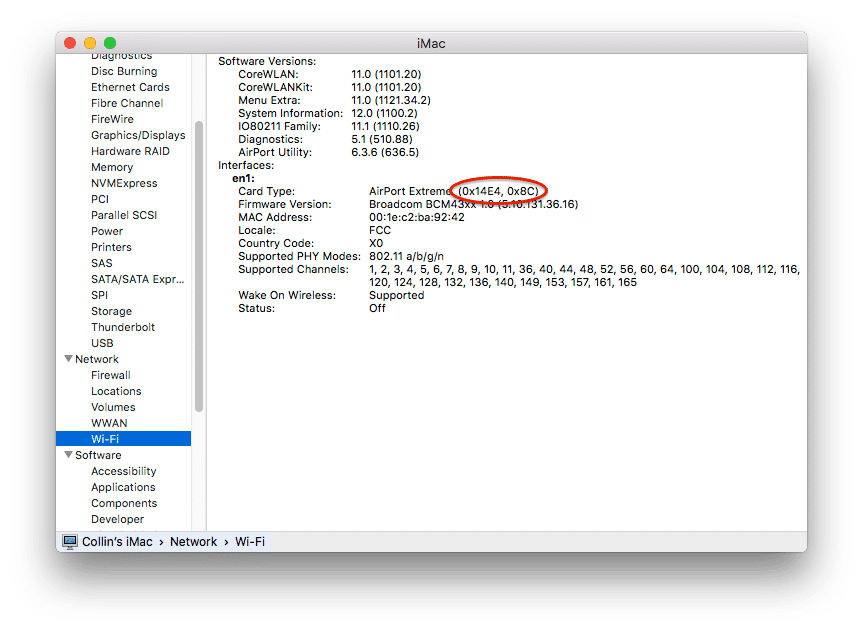
Macs that use the Broadcom BCM4321 (BCM94321) WiFi will not have available WiFi when high Sierra is launched, and support for these modules has been discontinued since macOS Sierra. This usually applies to MacPro3.1, MacBook5,2, MacBookPro4,1, iMac8.1, Macmini3.1, and MacBookAir2.1 computers. Please note that not all of these machines will have an unsupported map. It is just a list of machines known to come with this card in some configurations.
You can find out that you have an unsupported card by opening System Profiler (click on Apple’s Mac’s System Report) and clicking on Wi-Fi in the Network section. Note the value for the map type field.
Below are ID Wi-Fi modules that don’t work in High Sierra:
- (0x14E4, 0x8C)
- (0x14E4, 0x9D)
- (0x14E4, 0x87)
- (0x14E4, 0x88)
- (0x14E4, 0x8B)
- (0x14E4, 0x89)
- (0x14E4, 0x90)
FOR EXAMPLE, any ID not listed above (0x14E4, 0x8D) is a supported card and will work great in High Sierra.
 Required Files: macOS High Sierra on unsupported Mac
Install macOS High Sierra on unsupported Mac: What you’ll need?
1. Mac OS High Sierra installer file.
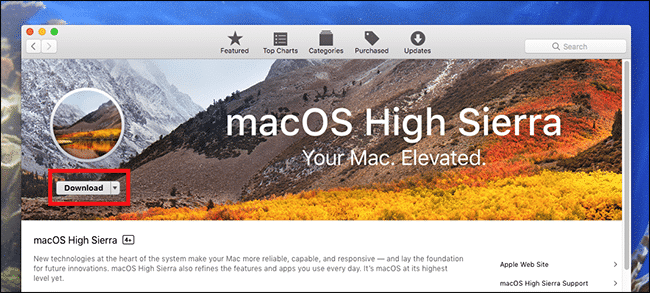
You can download it from the Mac App Store with a high Sierra-enabled computer or a built-in download feature directly from the macOS High Sierra Patcher. Start macOS High Sierra Patcher and select “Tools and Download macOS High Sierra…” As shown in the picture below: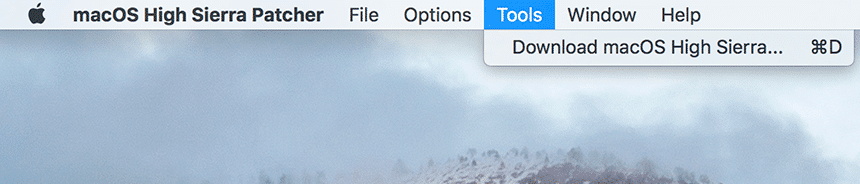
2. USB drive at least 16GB
3. macOS High Sierra Patcher File
Download the latest version: Link
See the list of changes (in English) and download previous versions of the utility from below:
How to install macOS High Sierra on unsupported Mac? 5 Easy Steps with Patch file
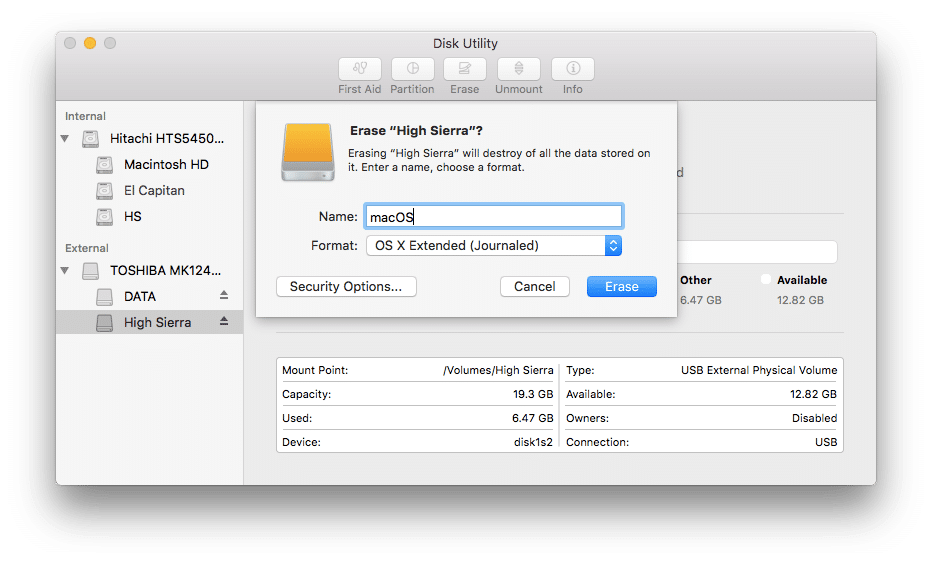
1. Insert your USB drive (remember at least 16GB), open the disk utility, and format it as OS X Extended (Journaled). For reference, follow the snapshot below:
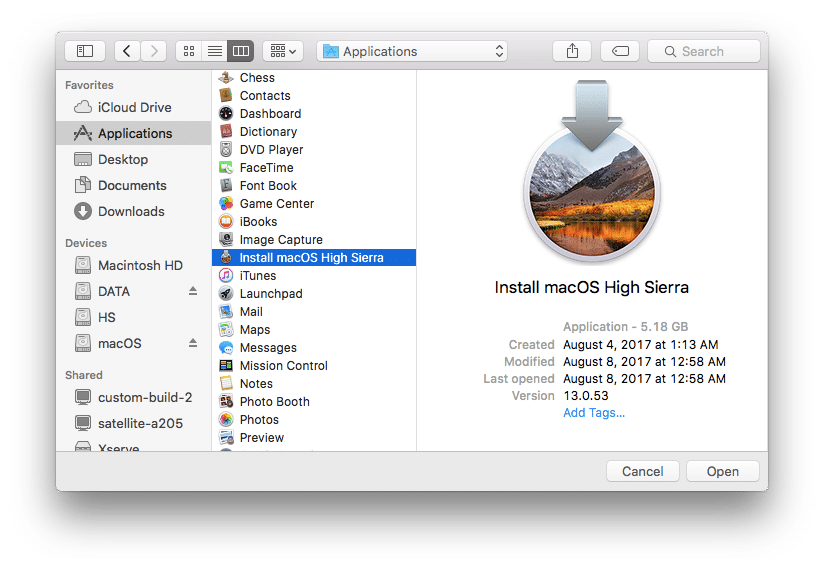
2. Open the previously downloaded “macOS High Sierra Patcher” utility and find your copy of the macOS High Sierra Installer program, usually a macOS installer that is usually used to download into the Applications folder. For reference, follow the snapshot below:
There should be a window that the utility successfully checked the application macOS High Sierra Installer. Click OK. For reference, follow the snapshot below:
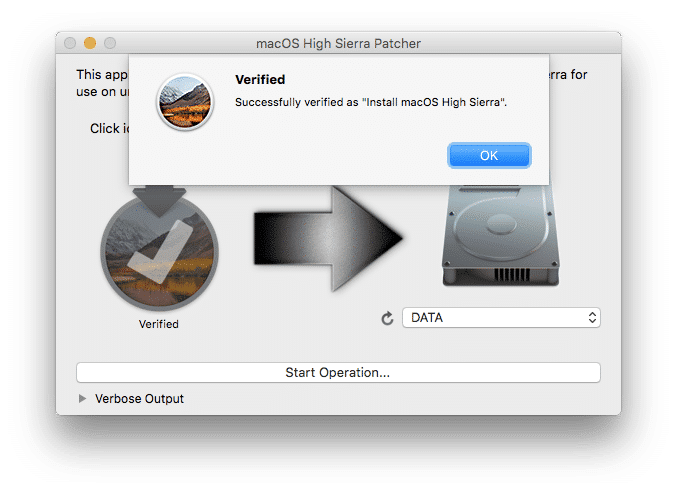
3. Then select the USB drive in the drop-down list on the right and press the “Start Operation” wide button. For reference, follow the snapshot below:
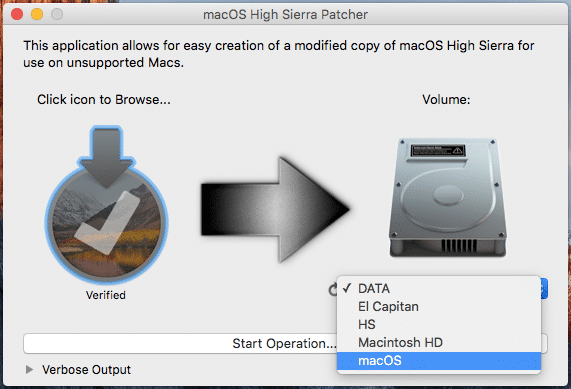
4. When the installation flash drive is ready, it is necessary to load it from it. To do this, turn off the Mac and turn it on again, holding the Option (Alt) button and select the macOS High Sierra. For reference, follow the snapshot below:
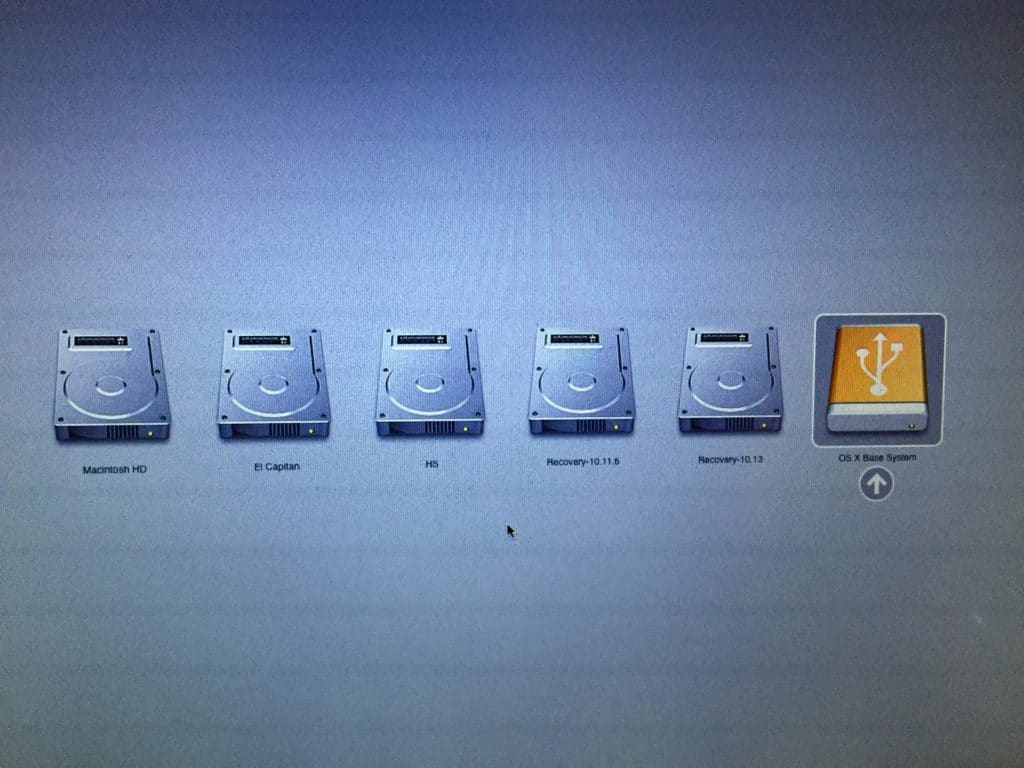
Note: Follow steps 5 and 6 if you want to do a clean installation. If you already have experience installing macOS, you can skip these steps and install the High Sierra operating system on that previous version of OS X, after which an on-site update will be performed.
5. Once the installation program is loaded, open the Disk Utility from the utility menu or double-click it in the utility window in the bottom left corner of the screen.
For reference, follow the snapshot below: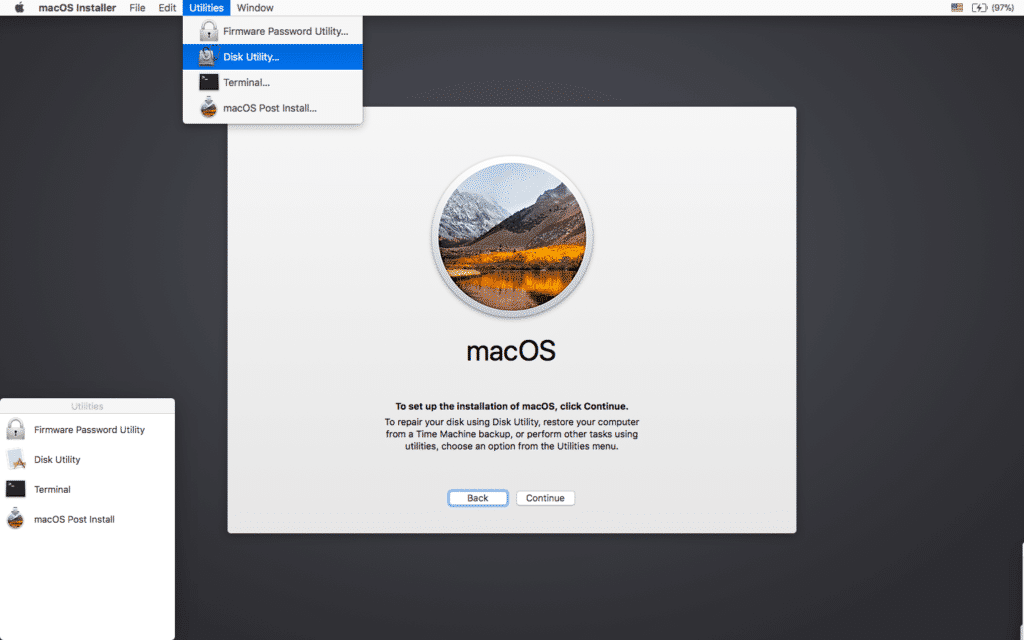
6. Select the drive or section you want to install macOS High Sierra on and click Erase, then select Mac OS Extended (Journaled) or APFS. When you format the entire disk, make sure you select the GUID markup.
- Use APFS for 2009 models and later, will work, as on macOS High Sierra.
- It’s a good idea to use APFS only if you’re installing High Sierra on an SSD drive.
If you have a Mac that didn’t initially support High Sierra (and therefore can’t download from the APFS volume initially), please note:
- If you use APFS, you won’t have a Recovery HD.
- If you decide to use APFS, the loader will be installed by the utility later, as the built-in software of these unsupported machines does not support the loading from the APFS volumes. This is not exactly a native (native) download method, but it won’t cause any working High Sierra. The demo process of such a download can be seen below.
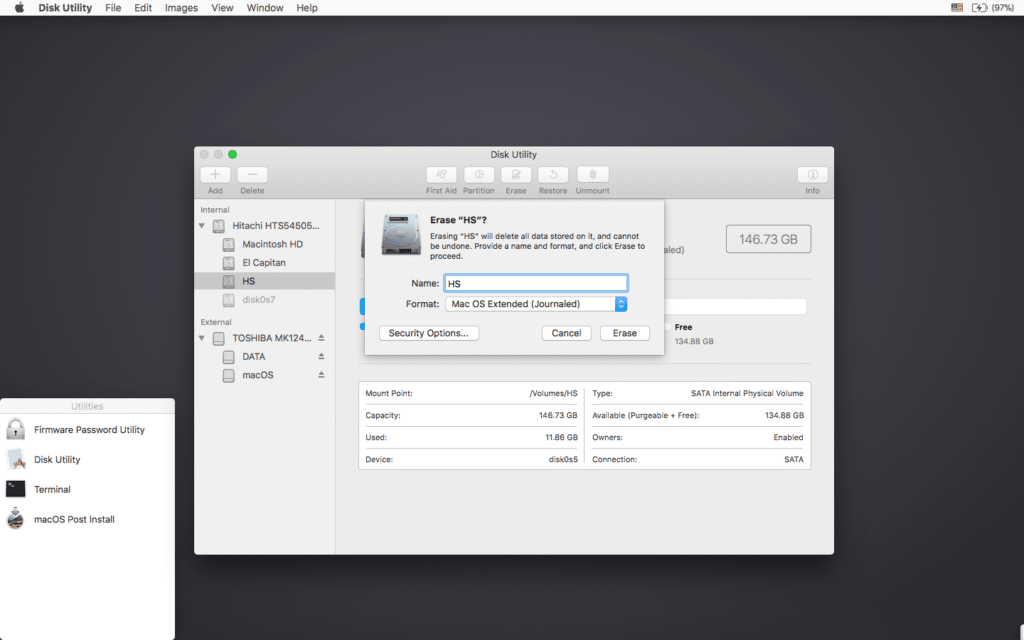
7. Next, install the MacOS High Sierra as usual on the desired volume.
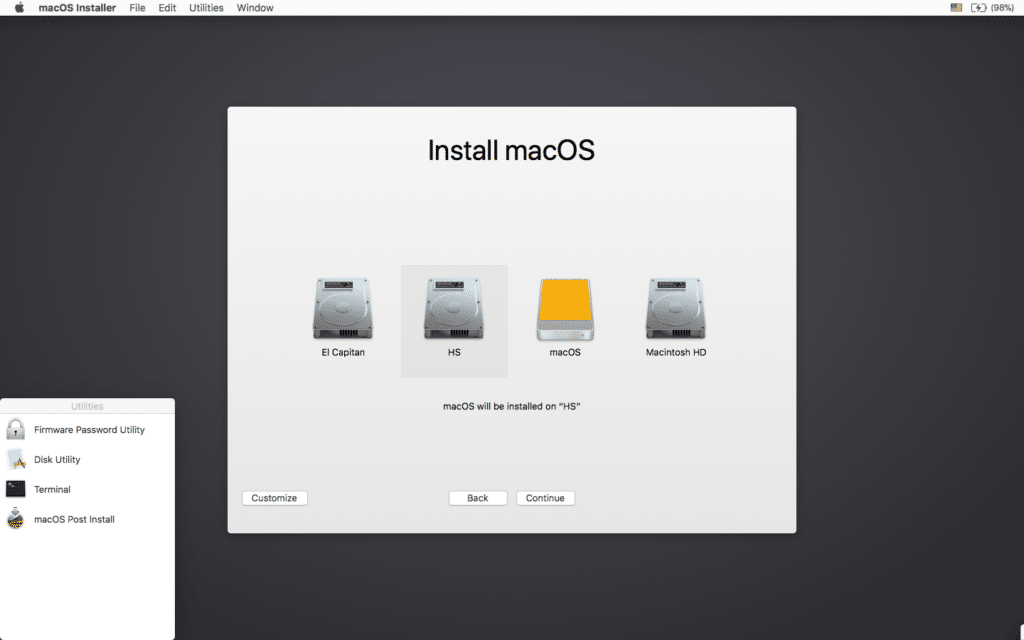
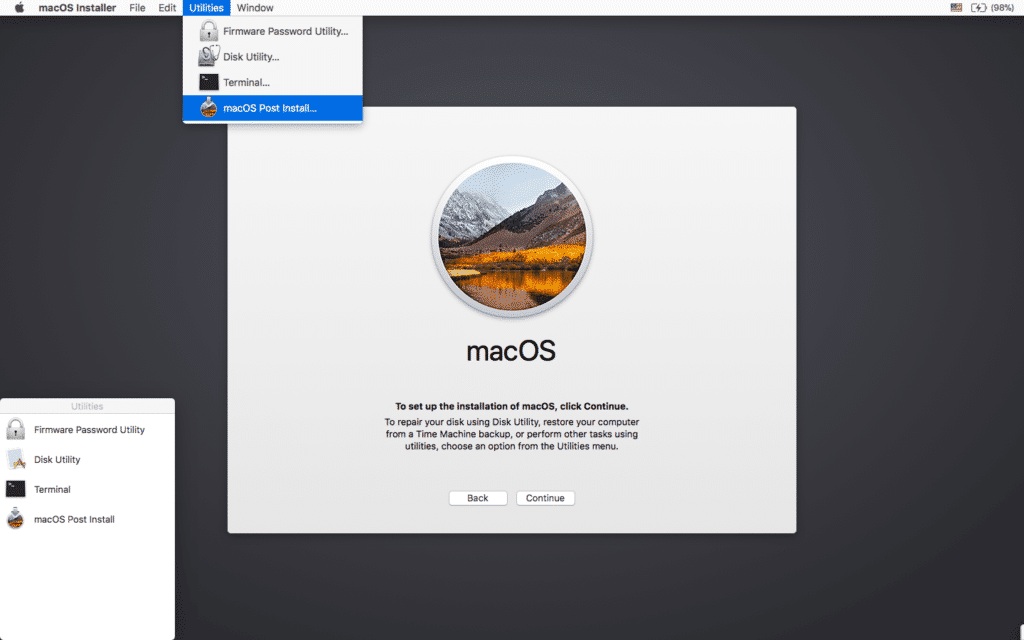
It should be noted that if you install the operating system on an officially supported Mac model for any reason, then at this stage, the installation is complete, and you don’t need to do 8-11 steps. Just reboot your Mac.
8. Once the installation is complete, restart again by holding the Option (Alt) key and select the macOS High Sierra again. Once downloaded, open the “mac OS Post Install” app. For reference, follow the snapshot below:
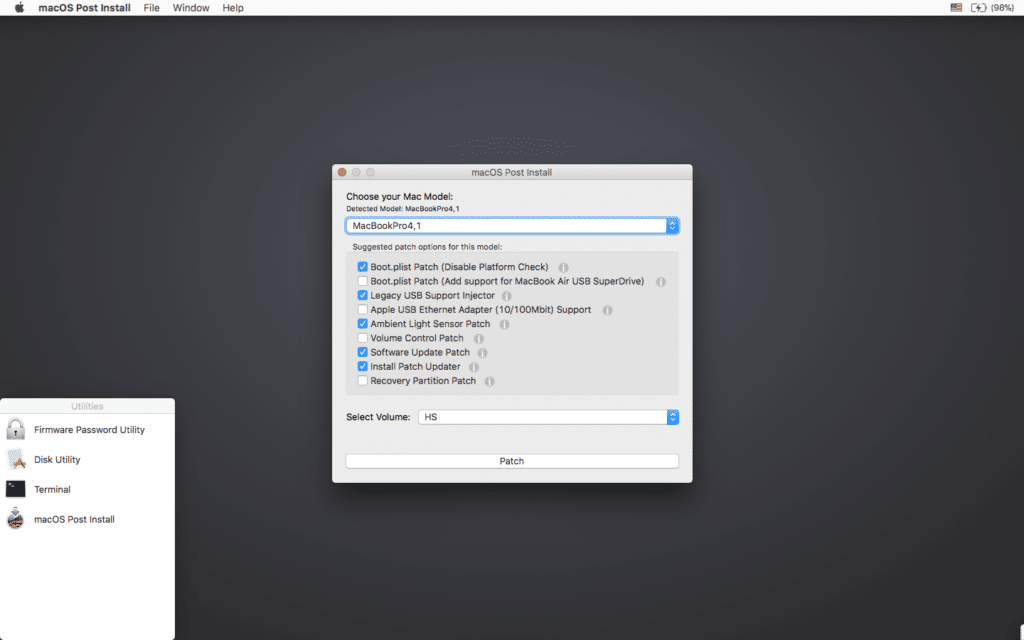
9. You’ll open a window from the top in the “Choose your Mac Model” section of the drop-down list to choose your Mac model. Once you’ve selected the Mac model, the optimal checkboxes (ticks) will be marked automatically for your model. You can also tick other ticks of your choice you don’t need them.
10. At the bottom of the Select Volume section in the drop-down list, select the volume you just installed on Mac OS High Sierra and click “Patch.” When the utility installs all the patches, you select click “Reboot.” The Mac can rearrange the cache within minutes before restarting.
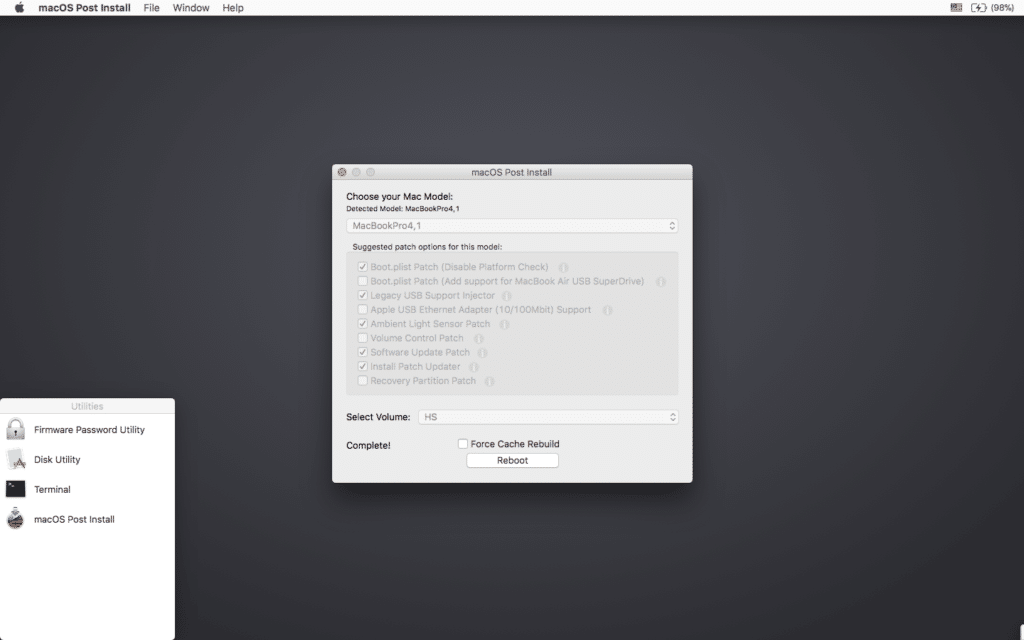
If the system doesn’t work properly after the restart for some reason, download back to the installation drive, re-start “mac OS Post Install” and select “Force Cache Rebuild” before restarting. In most cases, this is not necessary.
11. After the restart, your Mac should be loaded into a fully operational operating system macOS High Sierra.
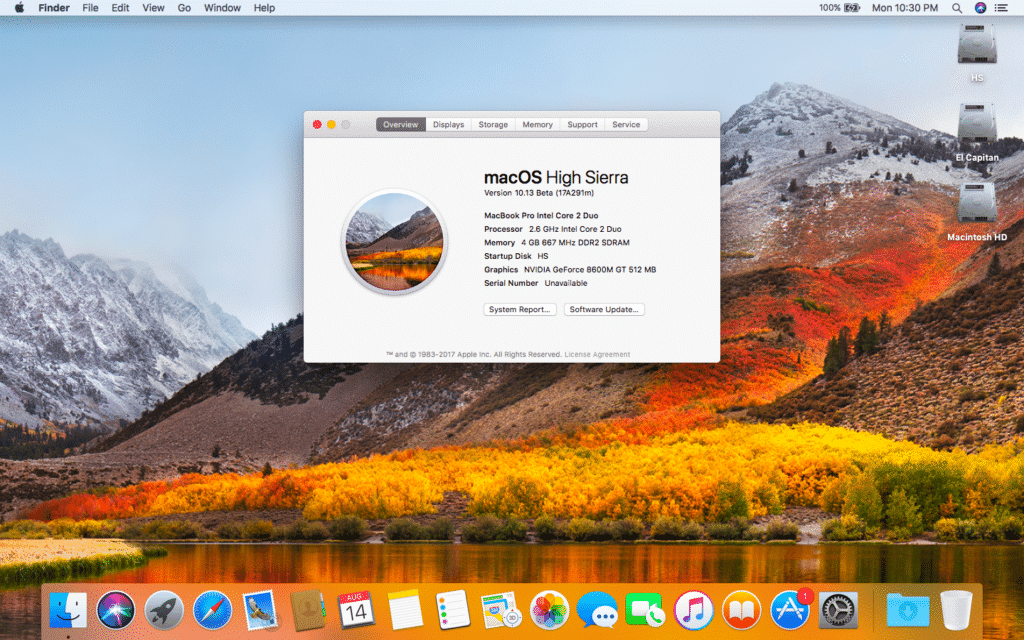
For more information:
High Sierra installs the “Patch Updater” program in the Application/Utility folder when you install The Mac OS Post Install tool. This program will alert you when new patch updates are available for your machine and ask you to install them. If you don’t have Patch Updater installed, but you want to install it, you can download and install this program, click on the link and unpack the archive after downloading it.
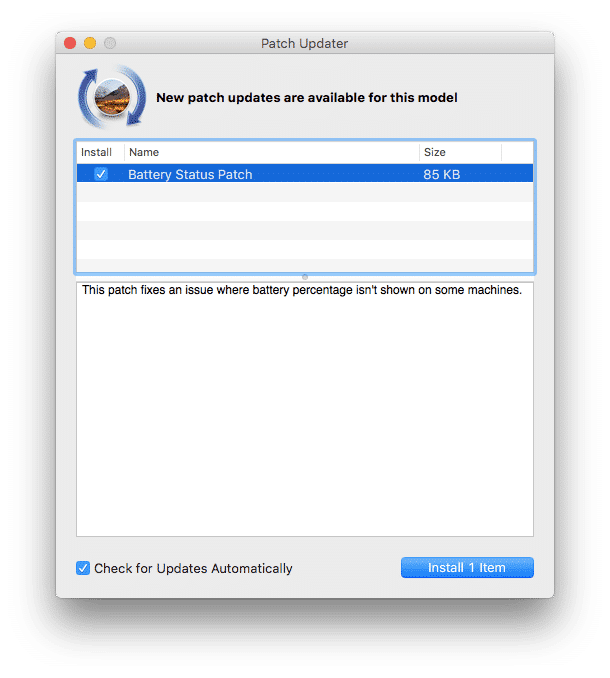
Reinstalling patches:
During the macOS High Sierra update, some of our fixes may be overwritten. You can reinstall these fixes with a click to update the patches. To do this, open the Patch Updater app and select “View Installed Updates” or use the “View and Show Installed Updates” menu in the menu line.
To re-install one of the patches, click the right button on it in the list and select “Re-install…”. You can also click “Re-install All” to reinstall all installed fixes at once.
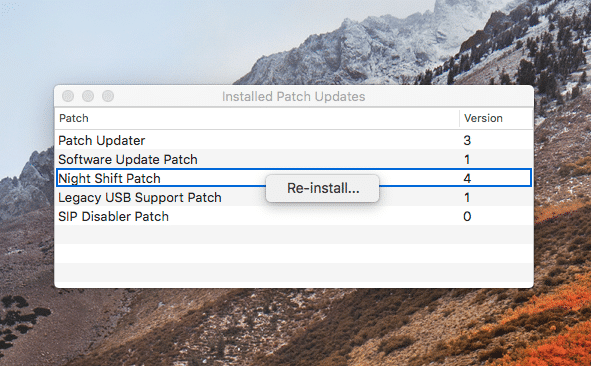
Update:
System updates, such as 10.13.1, should be installed as normal if “Software Update Patch” has been tagged in the mac OS Post Install tool or you installed it later using InstallPatchUpdater. If for some reason, updates don’t show up or are installed incorrectly, you need to reinstall the software update fix with the Patch Updater app.
If the system doesn’t start properly after the update is installed, you’ll need to download the corrected install volume and re-start the fix after installing it on the High Sierra volume. Make sure you choose “Force Cache Rebuild” before the reboot.

How to install macOS High Sierra on unsupported Mac: FAQs
How to install macOS High Sierra on unsupported Mac: FAQs
I’VE SUCCESSFULLY CREATED A USB DRIVE, BUT WHEN DOWNLOADED, THE RUN INDICATOR FREEZES HALFWAY.
Check out your copy of the Installation mac OS High Sierra installation. Download the latest version of the installation of the operating system Install mac OS High Sierra. Check out the macOS High Sierra Patcher version. It should be version 1.1 or higher.
HIGH SIERRA PATCHER SAYS “ERROR COPYING FILES…”.
Make sure the USB drive is available for recording. Try reformatting it, or try another USB drive.
PATCHER IS SHOWING ME THE ERROR OF “MOUNTING FAILED”
Make sure the macOS High Sierra is installed correctly. The size should be about 5GB. If you’ve used the “Skip App Verification” option, you’ve probably chosen a macOS High Sierra that doesn’t have the original installer and it doesn’t contain the files you need.
THE HARD DRIVE SECTION DOES NOT APPEAR ON THE SCREEN AT THE TIME OF INSTALLATION.
Make sure FileVault is off. You can manually disable it with the terminal, use the instructions by clicking on the link.
I SEE THE “NO” SYMBOL WHEN I RUN HIGH SIERRA AFTER A SUCCESSFUL INSTALLATION.
Make sure that after installation, you’ve been doing the Mac OS Post Install tool and patching the volume on which the macOS High Sierra is installed, as described above in 8-10 steps.
I SEE THE “NO” SYMBOL WHEN I START WITH A USB DRIVE
Check out the list of supported and unsupported Macs at the top of this page. Make sure your device is on the support list.
I SEE A “NSURL” ERROR MESSAGE WHEN I TRY TO UPDATE YOUR COMPUTER THROUGH THE APP STORE
This is usually the result of an inappropriate set of directory URLs. To fix it, give the command in the “sudo softwareupdate-clear-catalog” terminal and then run Patch Updater.
SAFARI, APP STORE AND/OR MAIL APP STOPPED WORKING AFTER SYSTEM UPDATE
Download and run the Onyxapp, select the Maintenence tab, then click “Run.”
IMPORTANT. WHEN YOU TRY TO INSTALL HIGH SIERRA, YOU SEE A MESSAGE SAYING”NO PACKAGES ALLOWED TO INSTALL”
This is due to the incorrect setting of the date and time in the system. To fix this, you need:
1. Open the terminal after downloading from your USB installer to set a date.
2. In the terminal, please command: date 0318125014 and click EnterNow you can continue installation, and this message will not be displayed.
You can also follow our other guides:
Conclusion: How to install macOS High Sierra on unsupported Mac
I hope this guide on How to install macOS High Sierra on unsupported Mac was useful for you. You can install macOS High Sierra on unsupported Mac by using the macOS High Sierra Patch file. I have shared all the download links above. If you are still facing any issues, you can comment down your query.