 Create a SQL Developer User Account
 Before You Begin
This 15-minute tutorial shows you how to create a Data Miner user account and SQL Developer connection using a pluggable database (PDB).
Background
Oracle SQL Developer is a client to the Oracle Database software. An Oracle SQL Developer user account is required to access Oracle database tables and use Oracle Data Miner.
What Do You Need?
- Oracle Database 19c Enterprise Edition
 Create a User Account in a Pluggable Database
Your Oracle Database 19c instance should have at least one pluggable database (PDB) instance. You will use an account with the proper permissions to create a user account for your Data Miner user account.
Note: If you are using an Oracle Database instance in your corporate environment, you may need to request your DBA to perform these actions.
- Open SQL Developer.
- Right-click your PDB sys user account and select Connect.
- In the SQL Developer Connections tab, expand the connection.
- Right-click the Other Users node and select Create User from the pop-up menu.
- In the Create User window, select the User tab and specify a username, password, default tablespace, and temporary tablespace for the user account. Use the following parameters:
- User Name: DMUSER
Note: You must use an upper case user name. - Password: Create a password of your choice (it must be at least 9 characters and contain two upper case characters.)
- User Name: DMUSER
- Select the Granted Roles tab and click the check box in the Granted Column for CONNECT.
- Select the Quotas tab and click the check box to set the default USERS Tablespace to Unlimited.
- Click Apply to create the account. Then, click OK in the resulting «Successful» window.
 Create a SQL Developer Connection for the Data Miner User
You can create this connection either by using the SQL Developer Connections tab or the Data Miner tab. In either case, the same New / Edit Database Connection dialog box appears. All saved SQL Developer connections appears in both tabs.
- In the SQL Developer Connections tab, right-click Connections and select New Connection from the pop-up menu.
- In the New / Select Database Connection dialog box, enter the following parameters:
- Connection Name: PDB1-DMUSER
- Password: your chosen password
- Check Save Password
- Connection Type: Basic
- Hostname: The host name of your database server (localhost if the database is installed on your PC, or the IP address if it is remote)
- Port: Enter the appropriate port number (1521 is the default)
- Service name: The service name for your PDB, such as orclpdb1.example.com
- Click Test to test the connection. If the connection is successful, Status (just above the Help button) changes to «Success». Then, click Connect to save the connection and to also establish a connection to the database.
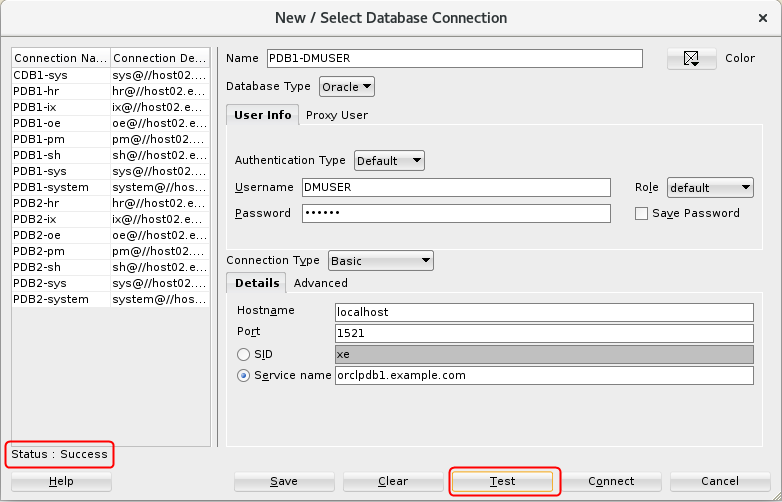 Description of the illustration create-dmuser-connection.png
 Next Tutorial
In the next tutorial, you’ll install the Data Miner sample data repository.
Создание пользователя с помощью Oracle SQL Developer
Есть множество способов создать пользователя в Oracle 10g Database. Но так как мы будем работать в Oracle SQL Developer – здесь будет описано, как создать пользователя с помощью этого средства.
1. Запустите Oracle SQL Developer из меню Пуск ® Программы ® SQL Developer (возможны отличия в пути).
2. Затем нужно настроить соединение с БД. На вкладке «Connections» нужно нажать «+» — New Connection, в результате появится окно создания нового соединения (рис. 10).

Рисунок 10 — Создание подключения в SQL Deveolper
3. В полях «Connection Name», «Username», «Password» нужно ввести имя соединение, затем имя пользователя – system и пароль, указанный при установке Oracle. На вкладке «Oracle» выбрать «TNS», затем выбрать «Network Alias», в выпадающем списке выбрать настроенную ранее нами сетевую службу ORCL.
4. На вкладке «Connections» нажмите на значок «+» (рис. 11).
Примечание: если Вы не выполняли процедуры сетевой настройки – выполнить этот шаг будет невозможно в том виде, как он здесь описан.
5. Теперь нажмем кнопку «Save» для сохранения настроенного нами соединения в списке «Connections», затем нажмем кнопку «Connect».
6. Нажмите «+» на узле «Other Users», вызовите контекстное меню правой кнопкой мыши на этом узле. Выберете «Create User».

Рисунок 11 — Вкладка «Connections»
7. Введите в поле «User Name» имя создаваемого пользователя, в полях «Enter Password» и «Confirm Password» введите дважды пароль для создаваемого пользователя, в полях «Default Tablepace» и «Temporary Tablespace» выбрать USERS и TEMP соответственно (рис. 12). Перейдите на вкладку «Roles».
8. Выберете в списке роли, отметив их галочками в колонке «Granted» как на рисунке 13. Перейдите на вкладку «System Privileges».
9. Выберете в списке системные привилегии, отметив их галочками в колонке «Granted» как на рисунке 14. Нажмите кнопку «Apply».
10. В результате программа перейдет на вкладку «Results», где будет отображаться ход создания пользователя (рис. 15). На вкладке «SQL» будет сформирован SQL-скрипт для создания пользователя. После вывода результа нажмите кнопку «Close».

Рисунок 12 — Окно создания пользователя вкладка «User»

Рисунок 13 — Окно создания пользователя вкладка «Roles»

Рисунок 14 — Окно создания пользователя вкладка «System Privileges»

Рисунок 15 — Окно создания пользователя вкладка «Results»
Создание пользователя завершено. Пользователь «TEST» появиляся в разделе «Other Users». Как было сказано вначале, есть несколько альтернативных способов создать пользователя. Далее мы кратко опишем способ как это можно сделать в Oracle Enterprise Manager, основанном на web-интерфейсе.
Понравилась статья? Добавь ее в закладку (CTRL+D) и не забудь поделиться с друзьями:
Create A New User and Connection in SQL Developer
In this tutorial, we will learn how to create a new user and connection in SQL developer. We will also learn how to unlock HR account and understand more about HR schema.
This article is divided in 3 parts:
- Create a New Connection for SYS user
- Create a New Connection for HR User
- Create a New User and Connection in SQL developer
Create a new Database connection for SYS user
This is the first thing that we need to do after installing SQL developer.
Once we have installed Oracle database and SQL developer on our system, we need to create a connection using SQL developer to connect with Oracle database. We can use both SQL developer and Command Prompt to interact with the database.
When we install Oracle database, it comes with some predefined users like STS, SCOTT, SYSTEM, HR etc. SYS user is the one which has all the administrative privileges. We only login to the database using this user when we need to perform administrative tasks.
Since, SYS and SYSTEM users are already created when we install Oracle Database, we just need to create a connection in SQL developer to connect with the database.
Step 1: Open the New Connection Window
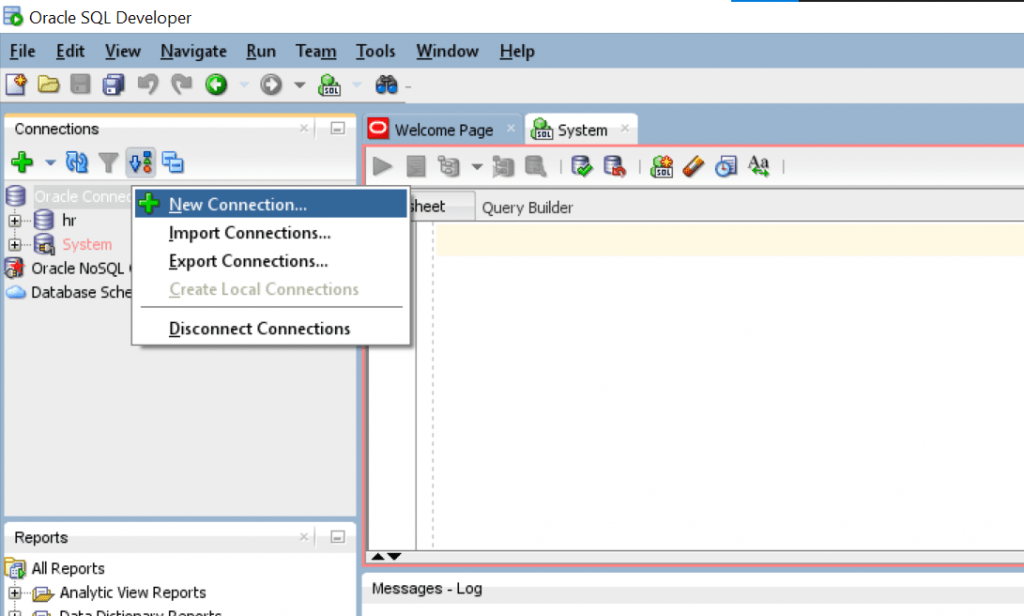
Click on the ‘Green Plus’ Sign under Connections on the left to open New Connection Window. This screen opens up.
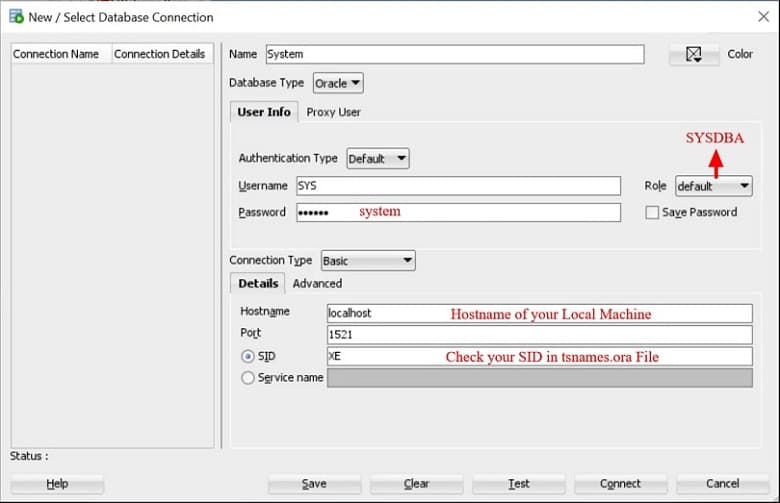
- Username is SYS and Password is what you gave at the time of Oracle Database installation. In our case,
- Name – System ( You can give any name, but we give it as System for quick reference )
- username – SYS
- password -system
- Role – SYSDBA
- Connection Type – Basic
Step 2: Check hostname, port and SID in tsnames.ora file
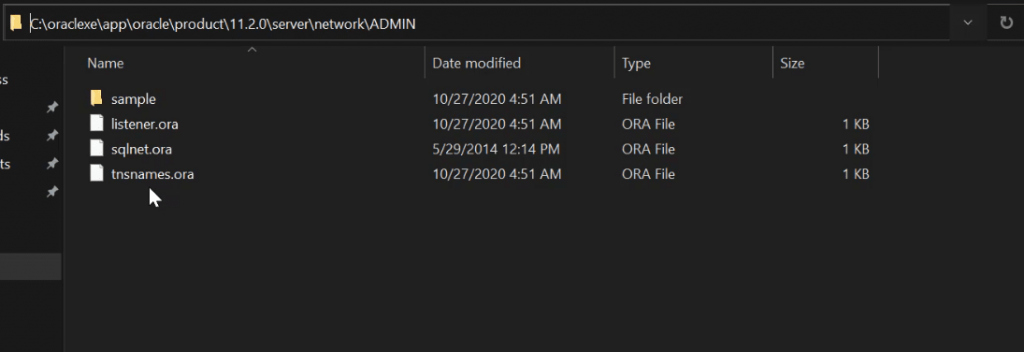
For hostname, port and SID you can once check the tsnames.ora file in the Oracle Installation Directory.
The path of this file on my machine is >>
You can also search for this in your Oracle Installation Directory.
Open this file in Notepad++ or any other text editor and this will give you the hostname, port and SID. Use this information while creating any new user or connection in SQL developer. In most cases it’s default, but in some cases the SID might be different
After this click on Test and then Save to create a new database connection for SYS user in SQL developer.
Create a New Database connection for HR User
HR is other predefined user which comes HR schema. HR schema consists of some database tables which we use for oracle training. These tables are generally used for learning Oracle and we perform all SQL queries on these practice tables.
Just like SYS user, HR user is also automatically created when we install Oracle Database. We just need to create a new connection for this HR user in SQL developer.
Step 1: Open the new connection window in SQL developer
Just like before, click on the ‘Green Plus Sign’ under connections to open the New connection window.
Enter the following information:
- Name- hr
- username -hr
- password -hr
- Role – Default
- Connection Type- Basic
Hostname, Port and SID is the same that we used while creating the SYS user connection. You can also check it in tsnames.ora file.

As you can see, we received the ORA-28000 Error saying the account is locked. This happens because sometimes we forget to unlock these accounts at the time of Oracle Database Installation. We can unlock this account by writing a simple 2 line SQL query.
Step 2: Unlock the HR account in SQL Developer
For this, we use the SQL command Line Tool. Just search for SQL command Line tool in your Start Menu as this tool is also installed when we install the Oracle Database.
SQL Developer is a GUI ( Graphical User Interface) tool which allows us to work with the database using just our mouse and we get to see and edit the data in tables as we do in Excel. But SQL Command Line Tool is just used for writing queries and does not offer any graphical interface to interact with data in the database.
Let’s use SQL command Line tool to write this 2 queries, one after other
connect system/system as sysdba;
alter user hr identified by hr account unlock;
The first line is used for connecting with database using system username and password.
The second line is used for altering the hr user account and instructing Oracle to Unlock it.
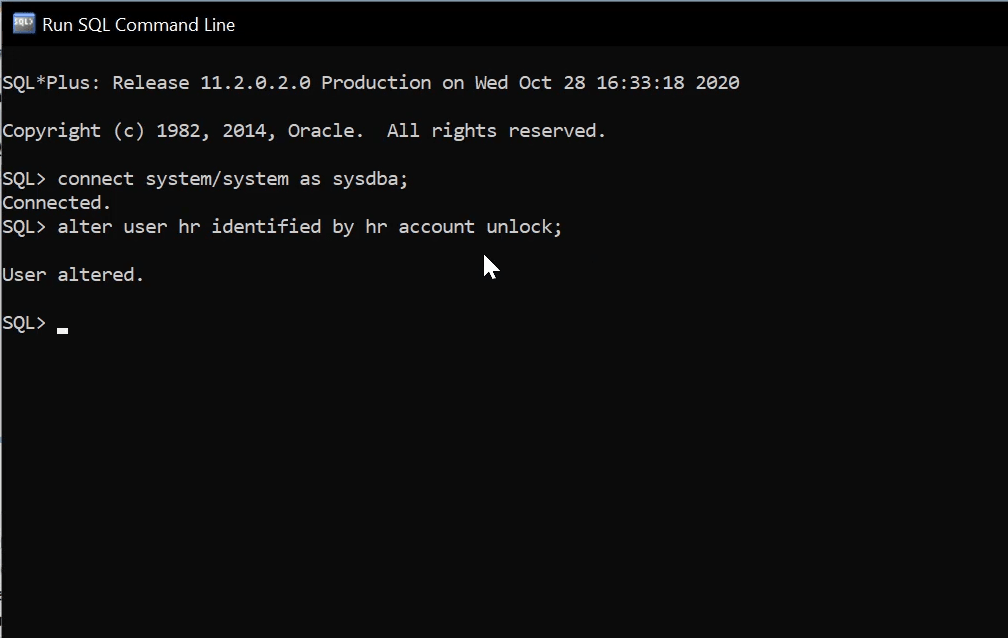
User is altered.
Step 3: Create HR connection in SQL Developer
Repeat Step 1 and this time as you can see, it shows success.
Click on Test > Save and then login to this account using
- username- hr
- password -hr

HR Schema
All relational objects like Tables, Views, Functions etc. within a database are owned by a specific user. These objects together are referred to as Schema.
As we already saw, SYS, SCOTT, SYSTEM, HR are some of the users which are created at the time of Oracle Database installation. Each user has its own schema or relational objects associated with it.
HR schema consists of 7 tables and a view and procedure. These are practice tables with dummy data which reflect data used in a real organization.
We use these table to perform operations and manipulate data within these table as per our requirements and to learn Oracle SQL.

Create a New User and Connection
SYS and HR were the users which come preinstalled. Let’s see how to create a brand new user using SQL developer.
Step 1: Login to SYS account and Create a New User
For creating a new user, we need to login to the SYS account using username and password.
Here, we have the option of simply writing a query to create a new user or to use SQL Developer interface to create new user.
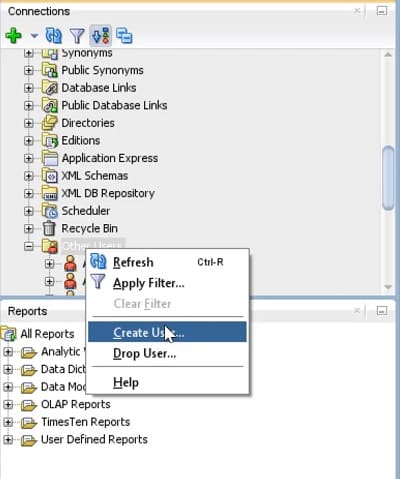
Step 2: Open the SYS User schema and go to > Other Users > Create User
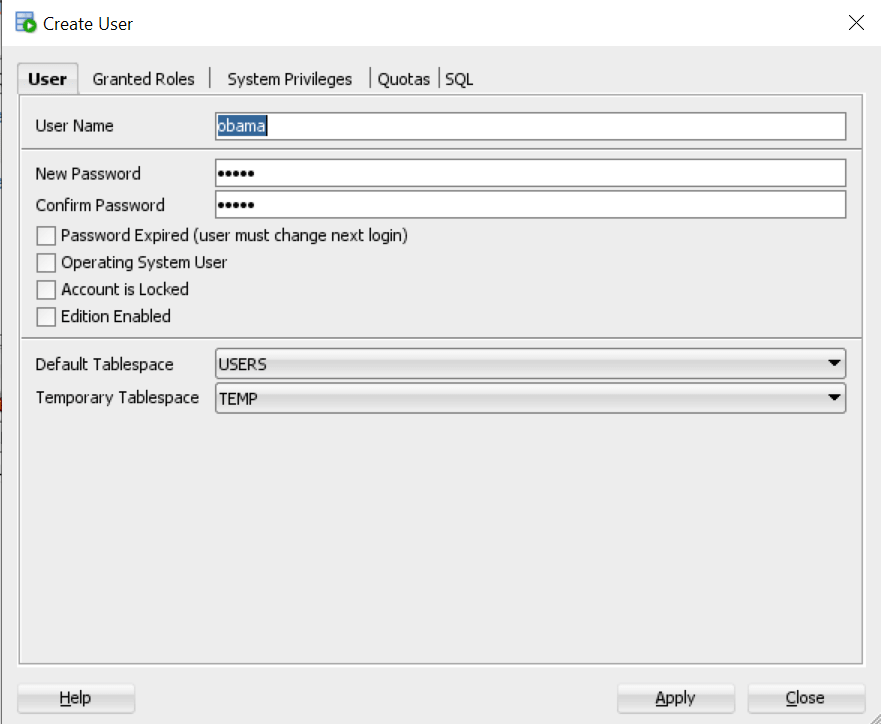
Step 3: Give username and password
Give any name you wish, but make sure it does not conflict with the name of any user that comes preinstalled with Oracle.
- Default Tablespace – Users
- Temporary Tablespace – Temp
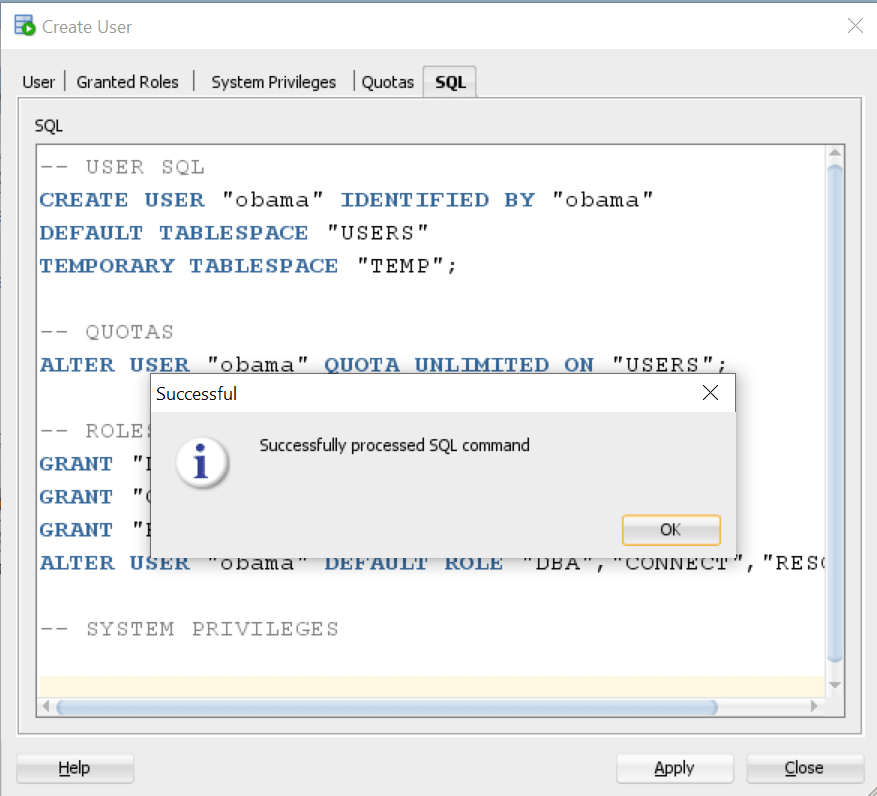
Step 4 : Grant Privileges
Grant Connect, DBA and Resource Privileges to this new user.

Step 5 : Grant Quota for Tablespace

Click Apply and this new user has been created.
Step 6: Create a New Connection for this New User
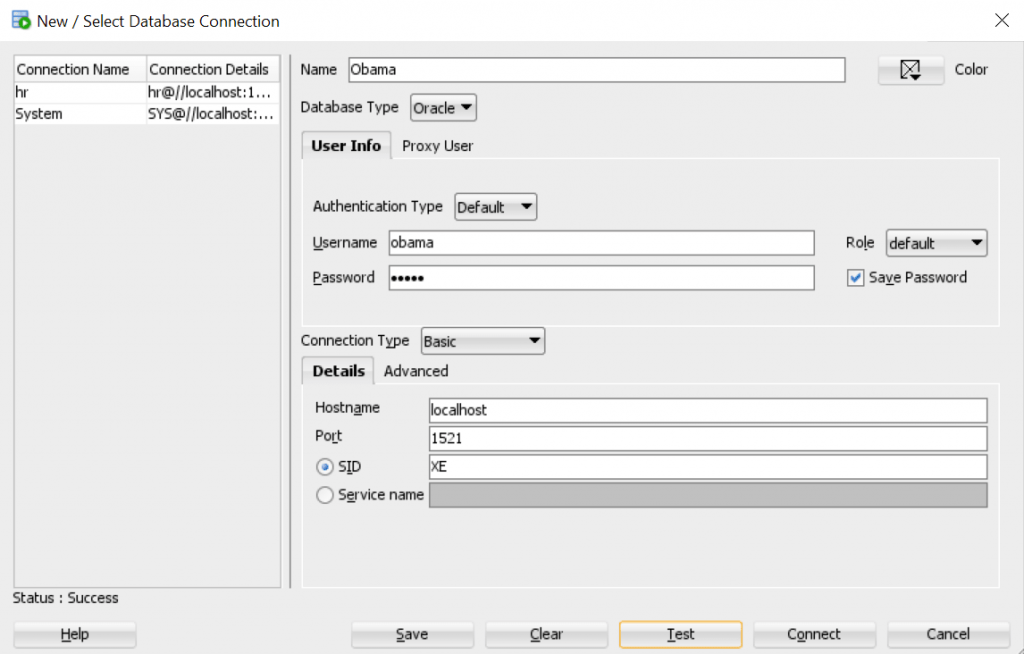
Alternate Method to Create New User
We can also create new user and connection using few simple queries.
Step 1:
Let’s directly create the user by using SQL queries by logging into the SYS user account.
CREATE USER ‘obama’ identified by ‘obama’;

Step 2:
Type this query to check, if the account status. If its locked, we may get error. Replace the username with username that you have given.
SELECT * FROM dba_users WHERE username =’obama’;
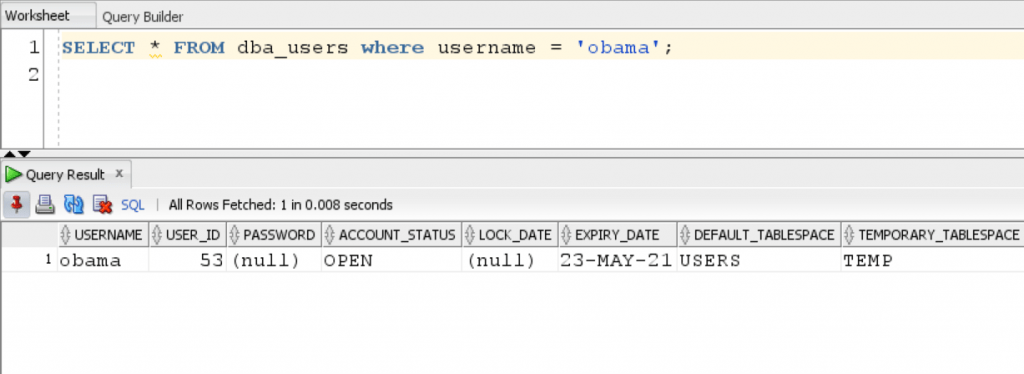
Step 3 :
Create new connection by clicking on ‘green plus sign’ in SQL developer.
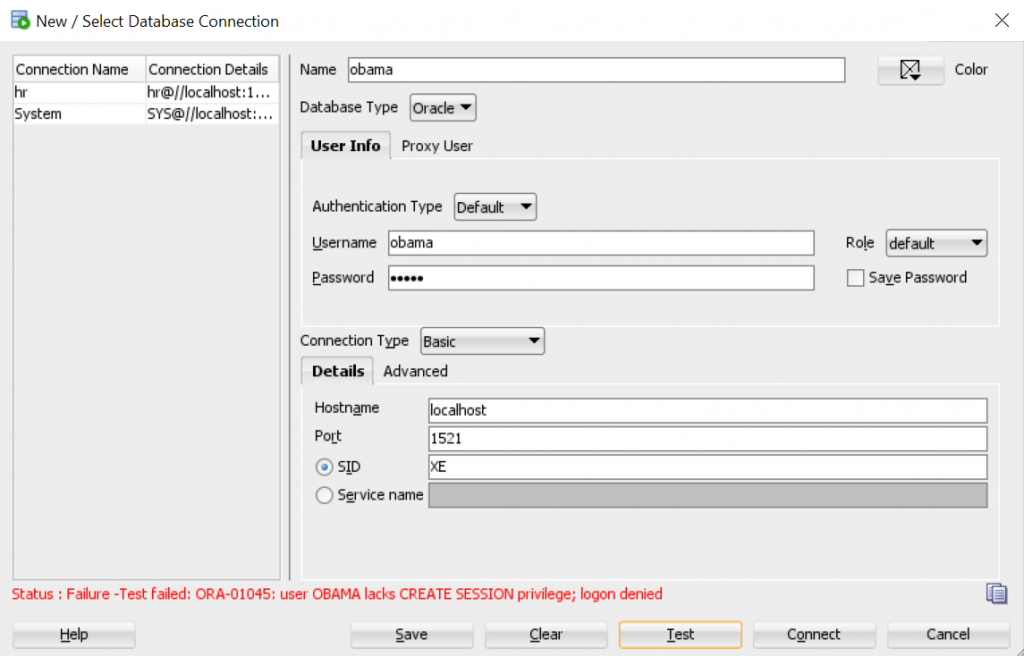
As you can see, we are getting the ORA-01045 error as we have not granted privileges to user.
Step 4:
Let’s grant all privileges to new user:
grant privileges to obama;

Finally, We have created the new user and connection.
Let’s check if everything is working fine by writing one simple query after logging into new user account we just created:
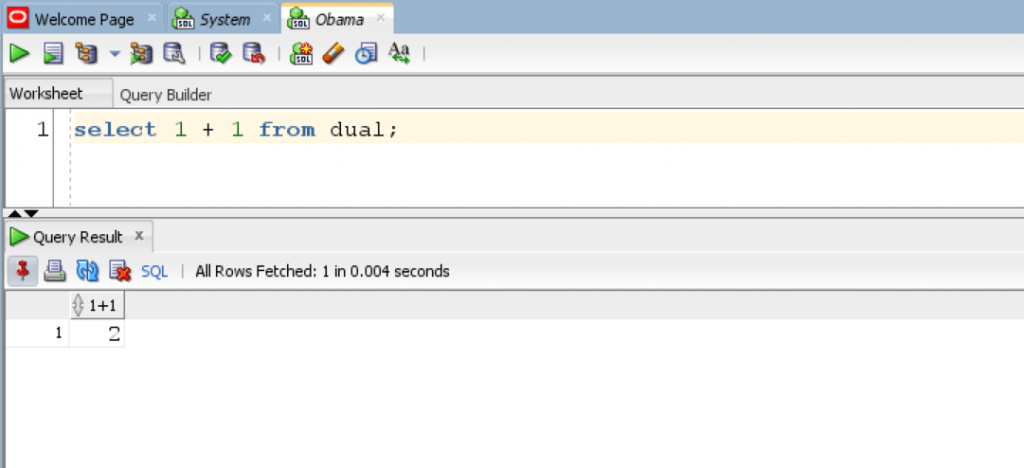
Everything is working fine.
In this tutorial, we learned how to create a new user and connection in SQL developer.
How to create a user in Oracle SQL developer
I am newbie to oracle sql developer 3.1.07.42, and have just installed it on my machine. I want to make a new connection, but it requires a user and a password which I do not know. I have been googling about it since many days, and have learned that there are some commands to create user, but I do not know where should I run those commands, because I cannot run queries/commands until the connection is created. Would anyone let me know what should I do?