How to Install Deb Files in Ubuntu, Mint and Debian
Before we look at the different approaches to installing deb files on Ubuntu or Debian-based Linux distributions, we first need to understand them.
Debian, Ubuntu, and Linux Mint distributions support the use of a package file with a ‘.deb’ file extension, which contains the needed metadata, scripts, and files that are crucial in the installation and management of targeted Linux-supported software packages.
The Debian Project developed the ‘.deb’ file format as a standard software package distribution format. By conceptualizing a ‘control file‘, the targeted software package is enriched with metadata info like name, version, dependencies, and installation scripts associated with the software package in question.
Installing Deb Package on Ubuntu, Mint, and Debian
There is more than one approach to installing ‘.deb’ files on Ubuntu and Debian-based Linux distributions as explained in the following steps.
1. Using the ‘dpkg’ Command
The dpkg command is used to install, manage, and remove ‘.deb’ software packages along with their dependencies if any as shown.
The -i flag in the command above triggers the installation of the google-chrome .deb file.
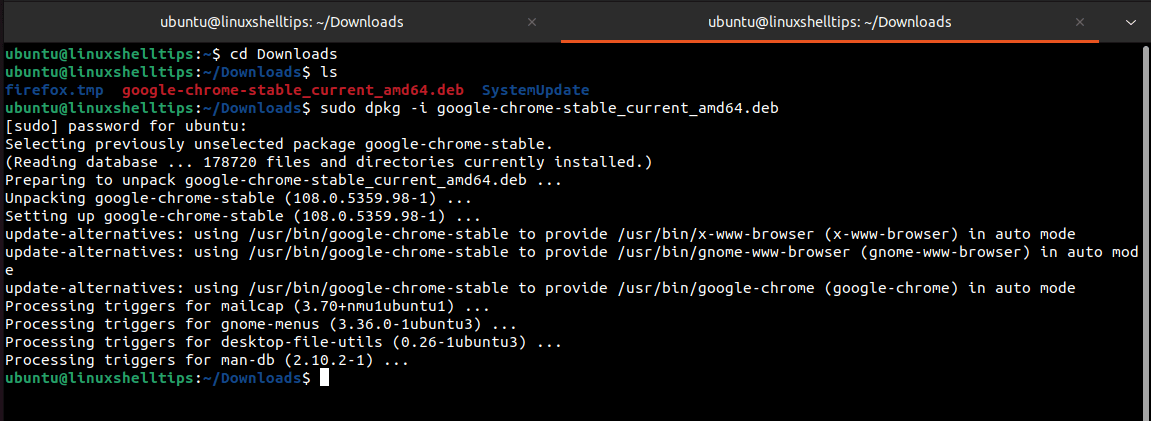
Install Deb Package Using dpkg Command
Once installed, you can confirm the installed version of the ‘.deb’ software package using the dpkg-query command.

Check Installed Package in Ubuntu
2. Using the apt Command
The apt command is effective in managing packages (install, upgrade, and remove) since it is the default package manager. This approach of installing a ‘.deb’ file automatically caters to the download and installation of missing dependencies. Also, ‘.deb’ packages installed via this approach are automatically upgraded during the next system update.
To install a ‘.deb’ file using ‘apt’, implement the following command:
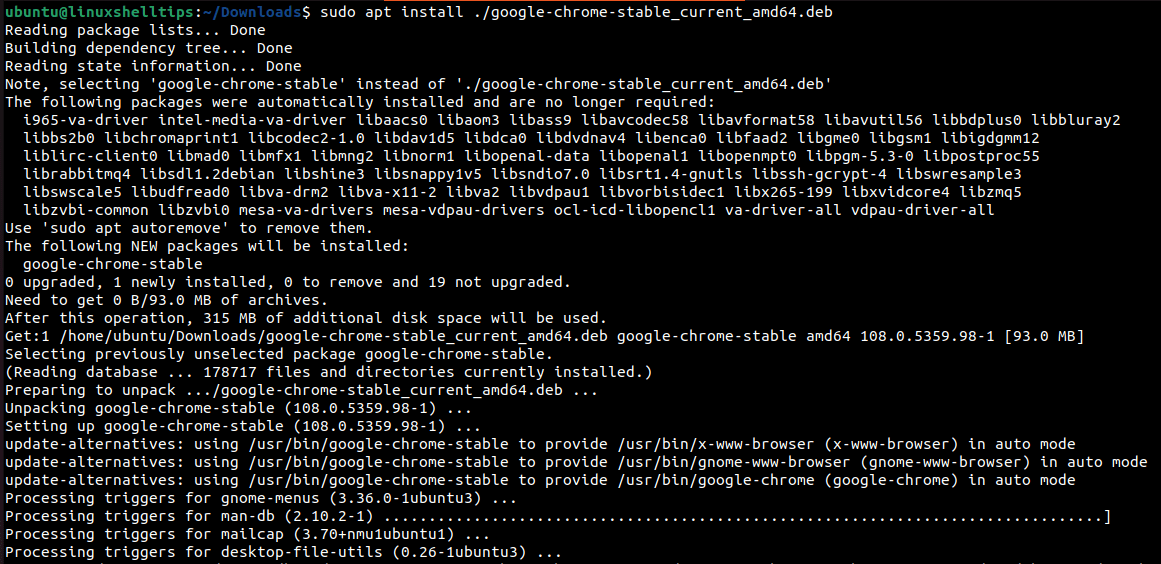
Install Deb Package Using apt Command
Once installed, you can confirm the installed version of the ‘.deb’ software package using the apt command.

List Installed Package Using apt Command
3. Using a Graphical Package Manager
A Graphical Package Manager is an ideal alternative to install Deb files on Ubuntu and Debian-based systems. Their user-friendly interface makes it easy to install, manage, and upgrade packages as shown.
To install Deb packages via the default Graphical Package Manager, consider the following installation steps:
Right-click on the targeted ‘.deb’ file.
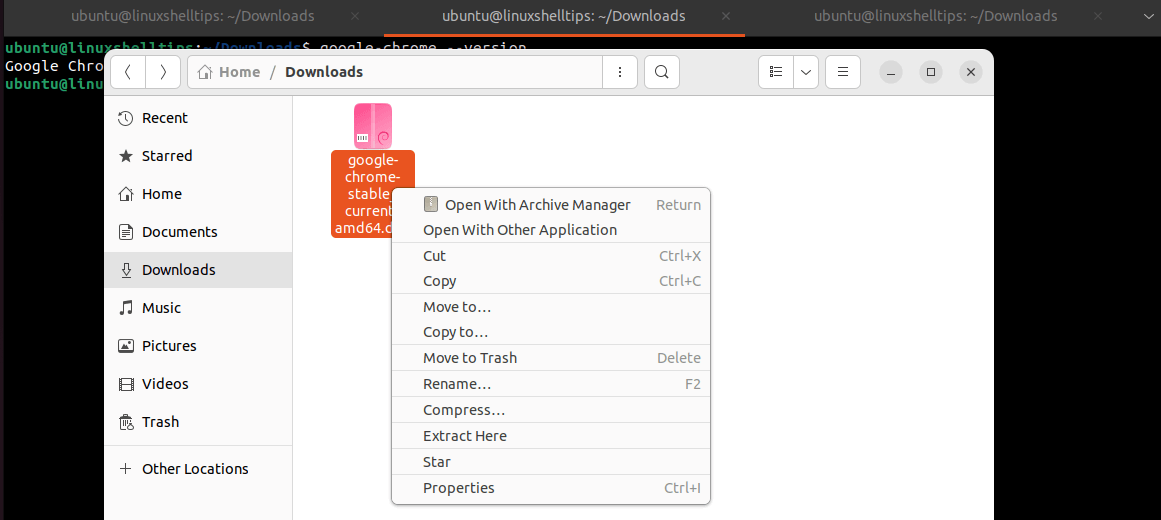
Install Deb File Using GUI Package Manager
Select the ‘Open With Other Application‘ option and choose the ‘Software Install‘ option.
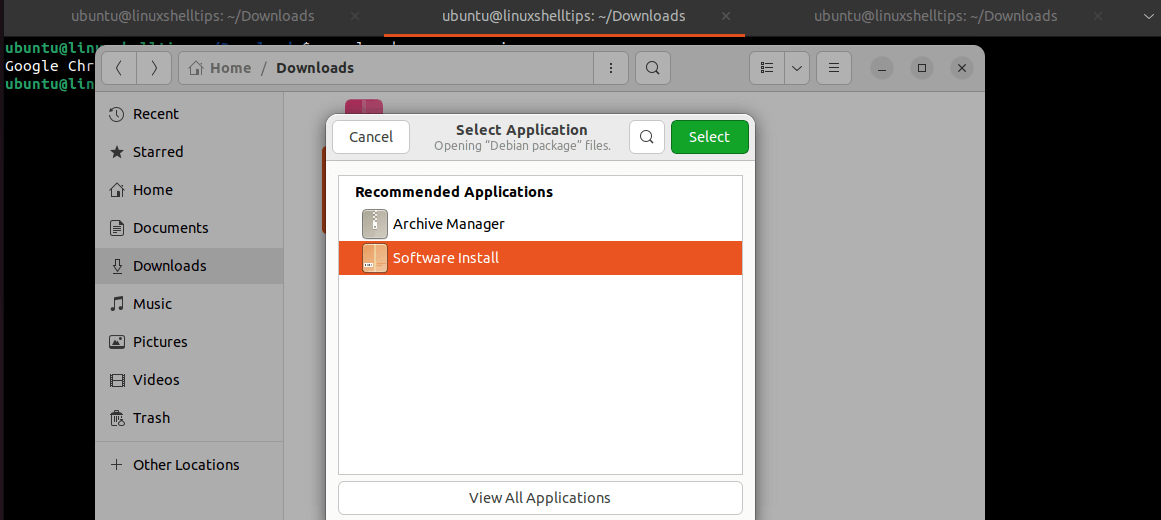
Choose Software Install Option
Next, click on the ‘Select‘ button and wait for the application details to load. You should see an ‘install‘ button for installing the selected software package.
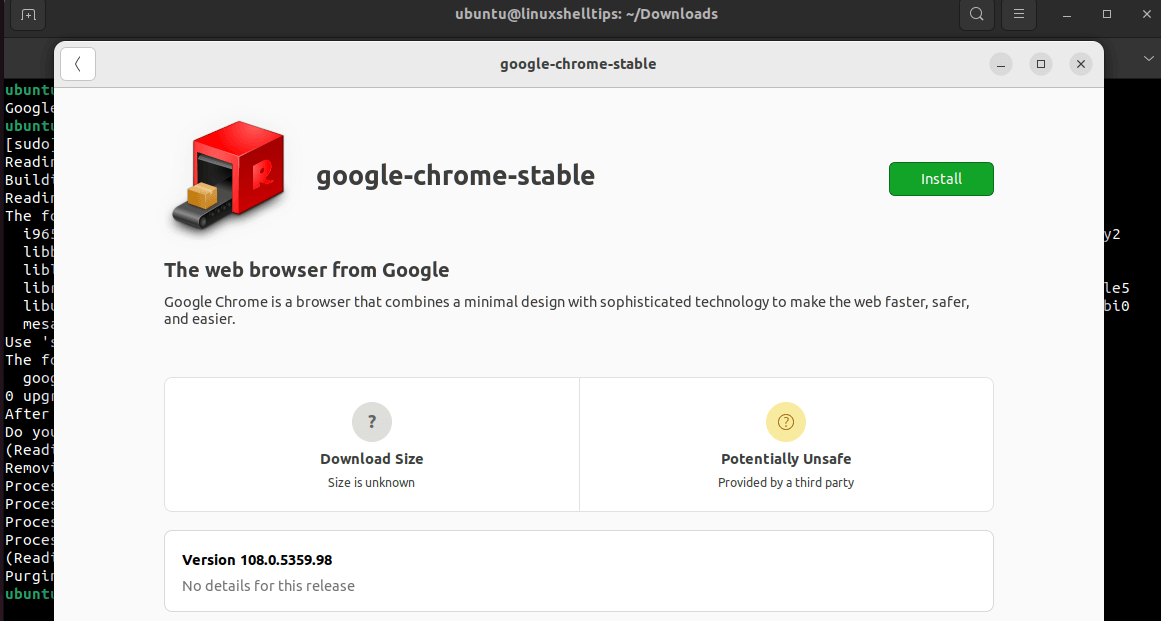
Install Deb File via Software Center
Click on it and provide a Sudoer user password for the installation to proceed.
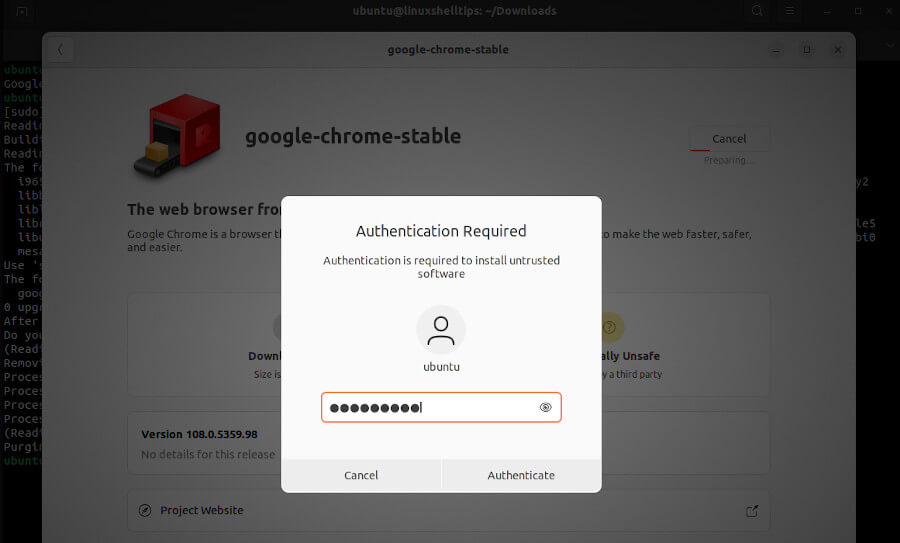
Enter Sudo User Password
After a while, the software package should be installed.
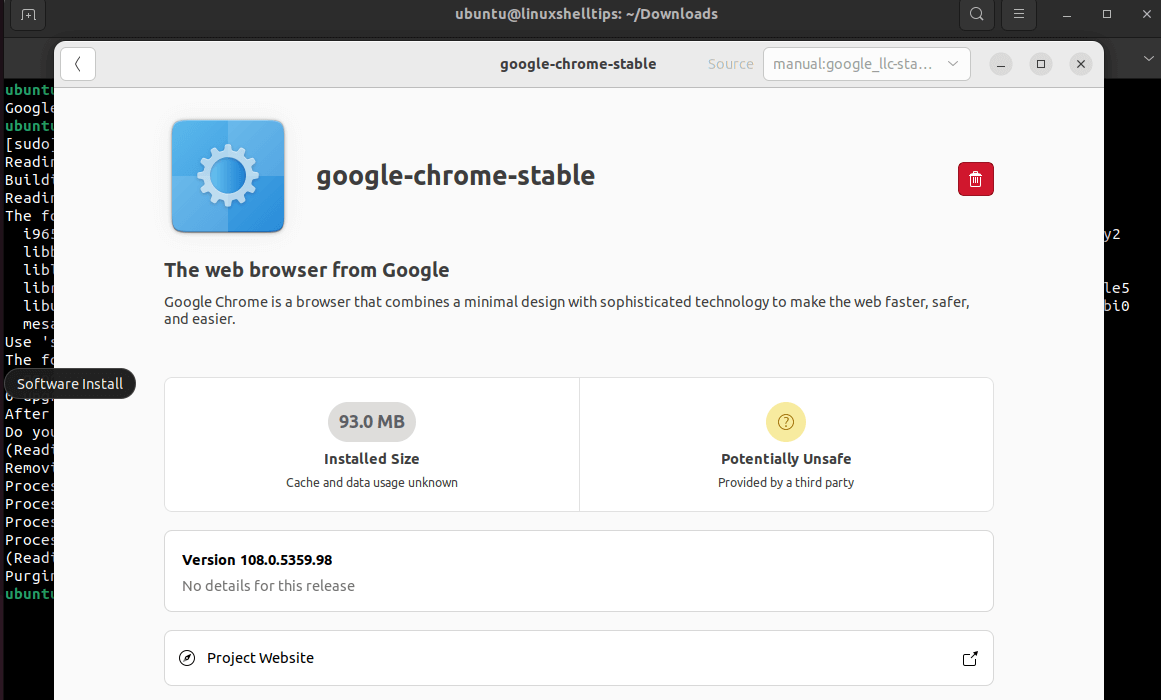
Summary of Installed Deb Package
Remove Deb Packages in Ubuntu, Mint, and Debian
Before uninstalling a ‘.deb’ file, we need to be certain of its exact program name. For instance, for Google Chrome, we will run the following command:

Query Installed Package Name
From the above output, we can use the exact program name for Google Chrome (google-chrome-stable) software to uninstall it if necessary.
Remove Deb File with Configuration Files
Fully uninstall a Deb file together with its configuration files using the dpkg or apt command.
Remove Deb File without Configuration Files
To uninstall a Deb file without removing configuration files, use the dpkg or apt command.
Conclusion
The ‘.deb’ file format plays a crucial role in Debian-based distributions such as Ubuntu and Linux Mint. For instance, its existence makes it convenient and efficient to distribute and install targeted software packages on these systems.
If you have any questions on how to install and remove Deb files on Debian-based distributions, feel free to leave a comment.
Файлы формата deb: как установить и открыть
У вас возникли проблемы с открытием файла .deb или вам просто интересно, что он содержит? В этой статье мы объясним, для чего используются файлы такого формата, и покажем нужное ПО, для которого установка пакетов deb обычное дело.
.png)
Что такое пакет deb
deb — это расширение имён файлов. Пакеты deb используются только в дистрибутивах Linux, таких как Ubuntu, Debian, Linux Mint и многих других.
Эти файлы чаще всего используются для установочных пакетов, содержащих программное обеспечение, разработанное для компьютеров, работающих на операционной системе Linux, и открываются с помощью приложения управления пакетами Debian.
Файлы deb содержат два заархивированных файловых архива. Один архив содержит информацию об установке приложения, а другой архив – фактические данные об устанавливаемом приложении.
Хотя эти файлы предназначены для использования в системах Linux, различные программы на других ОС способны без проблем извлекать их содержимое.
Где можно найти deb-пакеты? Тут есть два варианта: найти этот формат можно на любом сайте или в официальных репозиториях Debian и Ubuntu.
Чаще всего для поиска, установки, обновления и удаления пакетов deb используется утилита APT.
Что такое утилита APT
APT (Advanced Packaging Tool) – это утилита командной строки для установки, удаления и иного управления пакетами deb в Ubuntu, Debian и связанных с ними дистрибутивах Linux.
Она сочетает в себе наиболее часто используемые команды apt-get и apt-cache.
В современных обновлениях дистрибутивов Linux может использоваться просто apt. Однако мы советуем вам всё ещё прибегать к использованию полных команд apt-get и apt-cache в сложных сценариях, поскольку они совместимы с различными версиями и имеют больший функционал.
Как уже было сказано, утилита APT контролирует всё: от установки и удаления пакетов до обновления и удаления программного обеспечения в Ubuntu, Debian и аналогичных дистрибутивах Linux.
Как правильно работать с этой утилитой в командной строке:
sudo apt опции команда имя_пакета
Команды apt:
update – отвечает за обновление информации о последних версиях доступных пакетов, но не устанавливает никаких обновлений.
upgrade – загружает последние версии пакетов и обновляет установленные пакеты до новой версии.
full-upgrade – обновляет установленные пакеты и удаляет пакеты, которые не требуются для полного обновления системы.
install – устанавливает указанный пакет из репозитория.
remove – удаляет пакет, но оставляет конфигурационные файлы.
purge – удаляет пакет и все конфигурационные файлы.
autoremove – удаляет ненужные пакеты.
list – выводит список всех доступных пакетов или пакетов в соответствии с определенными критериями.
search – ищет пакеты в локальной базе данных.
show – выводит информацию о конкретном пакете.
edit-sources – позволяет пользователям редактировать исходный код пакета в текстовом редакторе.
Как установить файл deb в Linux (Ubuntu и Debian) из официального репозитория
Способ 1. Через терминал
Установка Debian и Ubuntu проходит одинаково, поэтому смело используйте следующее руководство для обоих случаев:
- Обновите список пакетов, введя в терминале команду:
sudo apt update
- Далее важно проверить есть ли пакеты для установки в ваших репозиториях. В этом вам поможет команда:
apt search название_программы
- Если программа есть в репозитории, то её можно установить.
- Для установки программы введите:
sudo apt install название_программы
- Если вам нужно установить несколько пакетов сразу, укажите названия через пробел.
- Когда система запросит у вас пароль, введите его и подтвердите установку.
Способ 2. Через встроенный установщик
Это, пожалуй, самый простой способ для установки пакетов формата .deb на ваш компьютер.
- Перейдите к загруженному файлу. Чаще всего он хранится в папке «Загрузки».
.jpg)
- Дважды щёлкните на него.
- Перед вами откроется программный менеджер. Всё, что вам остаётся сделать, это нажать на кнопку «Установить».
- Когда система запросит пароль, введите его.
Способ 3. С помощью утилиты GDebi
- Введите следующую команду в Терминале и нажмите Enter:
sudo apt install gdebi
(2).png)
- Система потребует ввести пароль. Введите его, учитывая то, что изменения никак не будут проявляться на экране.
- Впишите Д.
- После завершения установки перейдите к загруженному пакету deb.
- Если вы используете Ubuntu, щёлкните правой кнопкой мыши по пакету приложения и выберите Открыть в другом приложении. В противном случае найдите другую опцию «Открыть с помощью».
- Найдите и нажмите «Программа установки пакетов GDebi» и, наконец, нажмите «Выбрать».
(3).png)
- Установщик пакета GDebi теперь откроется и получит информацию о пакете, который вы хотите установить.
- Наконец, нажмите кнопку «Установить пакет» и дайте ему некоторое время для установки.
Как установить файл deb в Linux (Ubuntu и Debian), если его нет в репозитории
Если вы пользователь систем Ubuntu, Debian и прочих дистрибутивов Linux, то вы знаете, что не всегда пакеты deb находятся в репозитории, поэтому требуется установка файлов со стороннего сайта.
Процессы установки deb-пакетов на Debian и Ubuntu крайне схожи, но мы всё-таки дадим вам две отдельные инструкции, как это сделать при помощи команды dpkg.
Если вы хотите использовать команду dpkg для установки пакетов deb, то введите в терминале:
sudo dpkg -i к/файлу/Загрузки.deb
Где к/файлу/Загрузки можно заменить на путь до вашего файла.
(3).png)
- Скачайте файл в формате .deb.
- Затем перейдите в каталог, где находится загруженный пакет. Например, он может находится в папке Загрузки. Для быстрого доступа в папку введите:
- Введите команду dpkg, затем имя пакета и нажмите Enter.
Например: sudo dpkg -i «имя_пакета.deb»
- Замените имя_пакета на имя вашего пакета (но сохраните при этом кавычки).
- Нажмите Enter, и установка должна начаться. Вероятно, на этом этапе вас попросят ввести пароль администратора – сделайте это.
Какой бы метод вы ни использовали с dpkg, мы рекомендуем перед запуском приложения убедиться, что все необходимые зависимости установлены. dpkg не проверяет наличие в вашей системе всего необходимого для запуска программы, но apt может сделать это за вас.
Если на вашем компьютере установлено что-либо, требующее дополнительных зависимостей, apt поможет вам их установить. Для этого используйте следующую команду: sudo apt install -f
Как посмотреть установленные пакеты
Благодаря уже знакомым нам командам dpkg и apt можно посмотреть все установленные вами deb-пакеты.
Для этого введите в Терминале:
dpkg —get-selections или apt list –installed
Перед вами загрузится полный список установленных приложений:
(1).png)
(2).png)
Список может казаться бесконечным при наличии на компьютере большого количества установленных пакетов.
Если вам нужно найти что-то конкретное, то лучше использовать команду:
sudo apt list —installed | ключевое слово
Как удалить пакеты deb
Способ 1. С помощью утилиты apt
Всё крайне просто. В Терминале введите команду:
sudo apt remove имя_программы
Где имя_программы нужно заменить на название того приложения, которое нужно удалить.
Однако может появиться проблема. Что делать, если вы не знаете точное название программы? С этим вам поможет предыдущий раздел этой статьи – благодаря всё той же утилите apt вы сможете найти в полном списке установленных пакетов нужную программу.
Способ 2: С помощью команды dpkg
Схема схожая с предыдущим способом. В терминале введите команду: dpkg -r имя_программы, чтобы стереть пакет deb с вашего компьютера.
Заключение
Формат файла «.deb» играет крайне важную роль в дистрибутивах на основе Debian, таких как Ubuntu и Linux Mint. Одно его существование делает удобным и эффективным распространение и установку программных пакетов этих систем.
Что такое DEB name?
Использоваться будет консольная утилита DPKG, поэтому нужно ввести только одну команду sudo dpkg -i /home/user/Программы/name.deb, .
Как установить DEB пакет на iphone?
Достаточно в Safari нажать на ссылку для загрузки deb-файла и браузер сам предложит открыть его в iFile. Нажав на твике, Вы увидите всплывающее меню с функцией «Установить» («Install«), она и отвечает за инсталляцию расширения.
Как установить deb на линукс?
Просто перейдите в папку, в которую вы скачали . deb файл (обычно это папка Downloads) и дважды щелкните по файлу. Откроется центр программного обеспечения, где вы должны увидеть кнопку установки программного обеспечения. Все, что вам нужно сделать, это нажать кнопку установки и ввести пароль для входа в систему.
Как установить пакет на линукс?
Ищите его в главном меню по запросу «Менеджер пакетов».Запустите менеджер пакетов.Введите в поисковой строке имя нужной программы.Выделите найденный элемент, а затем нажмите на кнопку «Установить».Введите свой пароль пользователя и подождите, пока менеджер пакетов скачает и установит нужную программу.24 янв. 2019 г.
Что такое джейлбрейк для айфона?
Джейлбрейк (англ. jailbreak — «побег из тюрьмы», «взлом») iPhone/iPod Touch/iPad/Apple TV/Apple Watch — официально не поддерживаемая корпорацией Apple операция, хотя она позволяет получить доступ к файловой системе ряда моделей устройств iPhone, iPod, iPad, Apple TV и Apple Watch.
How to Install .deb File in Ubuntu — 4 Ways Described with Example

How will you install packages which are not available in the software center?
Basically there are are many software’s are available on Ubuntu software center, and you can install those very easily by using an apt and apt-get command as well as by graphical Interface.
If the software does not exist on the software center and you want to install on your ubuntu operating system then you must download first from the official website of that particular software.
if you want to install external you must download the executable file in .deb format for Debian and Ubuntu-based operating system.
This tutorial will cover how to install Deb file in Ubuntu operating system using different methods. I will cover command-line methods as well as the graphical interface for installing deb files on ubuntu.
What is the .deb file?
deb files are executable file for the Debian-based Linux distribution. In general word, you can install software by using a .deb package.
When you install any software on the windows then you download .exe file first. and you can install software by using this executable file.
Similar to Windows you can install the software by using the .deb executable file. So keep in mind if you are going to download an executable file from the vendor’s official website it would be in .deb format.
Why install a deb file manually
Most of the time you use a package manager such as the Ubuntu Software Center to install the new software on Debian-based distribution. You use apt and apt-get command for downloading and installing new software from the repository.
Some application does not exist on the software center/repository then you must download from the vendor’s website first. Be careful before downloading and installing such type of files which are not available on the repository.
Some of the biggest applications are delivered in this format, including Google’s Chrome web browser. For this reason, it is important to know how to install the packages manually.
How to download deb Package
You must go to the vendor’s website and download the executable file in .deb format. Don’t forget system architecture before downloading the .deb file. If you are running 32 bit then download deb file for 32 bit otherwise for 64 bit.
For the demonstration purpose, I am going to install TeamViewer on my Ubuntu operating system, then first I will have to go on the vendor’s website teamviewer.com then I will search for Teamviewer executable file in .deb format.
I found there are two types of the .deb packages, one is 32 bit another 64 bit. I have the installed Ubuntu operating system 64 bit. So I download 64 bit .deb file. The file name is teamviewer_14.5.1691_amd64.deb
Install deb files in Ubuntu by using dpkg tool
You can install and uninstall Debian (.deb) packages by using the tool “dpkg”. This is a command-line tool. You can do many things by using this tool, for Now, I am going to teach you how to install deb file in Linux by using dpkg command.
So run the following command in terminal.
$sudo dpkg -i /path_to_package/packagename
For example, to install Teamviewer, My downloaded .deb file in Download folder, the path is /home/vijay/Download and the file name is teamviewer_14.5.1691_amd64.deb.
So the command will be as following:
You can use -install switch instead of -i and command will be as following:
Install deb file in Ubuntu using apt Package Manager
If you come to installing .deb packages on you Debian based distribution then you have another option for it. you can use the apt package manager to install .deb package. Yes, you install the package locally on your system instead of the web.
Before go running the apt command for installing the new package use the apt update command to update the database.
$sudo apt update
As I have told you previously, apt has the advantage to resolve dependency error automatically. So you would not worry about the dependencies when using apt command.
If you have faced any problem-related dependency error then Please use apt command to install .deb file in ubuntu. See in the command below to install the same package as the previous example.
In the above example, you can see there are multiple dependencies required for TeamViewer software. the apt tool didn’t install Teamviewer in the previous example and asked for installing dependency first.
You can use apt command followed by -fix-broken install for installing package and dependencies as well.
Command will be the following:
Choose Y and hit enter, After some, you will that Teamviewer has been installed on your system.
Install deb file in Ubuntu using apt-get command
apt-get command is working similar as an apt command. You don’t need to change anything in apt command. You will use apt-get instead of apt.
Commands will look like following
Install Deb file in Ubuntu by using GUI
The graphical interface is loved by everyone. One more thing about the graphical interface it’s very comfortable.
If you are one of the graphical interface lovers then you can use GUI to install deb file in ubuntu.
You can use the following steps:
Step 1: double click on downloaded .deb file it will open automatic in ubuntu software center.
Step 2: Click on the “Install” button
Step 3: It will ask for authentication, give the current user password and click on the authenticate. If you don’t know you can’t install the package.
The installation process will start and after some time Teamviewer will be installed on your ubuntu system.
How to remove .deb package
You can use the following command to remove/uninstall the package
If you want to remove a package along with configuration file then run the following command
When you uninstall the package it will remove the only package and dependency will remain in your computer so run the following command to remove unused dependency packages in your system.
If you want to remove package as well as its dependency then use the apt command followed by remove option and package name.
See the example below:
You can use GUI to uninstall the package follow the steps:
Step 1: Open software center in ubuntu
Step 2: Click on an Installed tab inside the ubuntu software center application
Step 3: Find the package name and Click on “Remove”.
Conclusion
By now you are able to understand about deb files. and how to install, uninstall deb file in ubuntu. How you can install .deb package with its dependency. and remove a package with its dependency as well.