How to Download a Discord Profile Picture

By Aaron Donald Aaron Donald Author Aaron Donald is a passionate technology writer with a distinct emphasis on gaming and electronic gadgets. His extensive knowledge of gaming hardware and keen eye for technical details equip him to provide thorough, in-depth how tos and reviews of the latest gaming gear and games. Read more • Edited by Jan Jan Editor Read more August 4, 2022
Discord users have the freedom to use any compatible image as their profile picture, and many take pride in their interesting images. Sometimes, you’d encounter someone with a profile picture you like, but you can’t save the file right away. This occurrence is common on both PC and mobile devices.

Fortunately, there are still methods to download another person’s profile image on Discord. You can do so on both PC and mobile platforms as well. Read on to find out more.
On PC, there are two main ways to download other users’ profile pictures. One method uses the Inspect Element feature on Google Chrome or other browsers. As for the second way, you’ll need a Discord bot that can use an “avatar” command.
The Inspect Element method can be done without a bot, making it the most convenient. However, it’s slightly more complex as you’ll have to navigate through lots of code. Fortunately, we can condense everything into simple steps.
Using Inspect Element
Buckle up for a ride, as you’ll be working through code you may not understand. Here are the steps for this method:
- Launch Google Chrome.

- Go to discord.com.

- Right-click a user and view their Profile.

- Press Ctrl + Shift + I to open the Inspect Element window on the right side.

- Press Ctrl + Shift + C to bring up the Element Selector or click the icon at the top left of the Inspect Element window.

- Click on the user’s profile picture.

- Now, you’ll see some code being highlighted.

- Behind div is an arrow you need to click.

- Keep clicking on arrows in this order: svg, foreignObject, div, and finally img.

- You’ll see a URL to the profile picture.

- Click on the URL or copy and paste it into another tab.

- Wait for the profile picture to appear.

- Right-click on the image and select Save image as…

- Now, you have another user’s profile picture.
There are several tricks using the Inspect Element window for saving images. You can increase the image size at the end of the URL by bumping up the numerical value at the end. This action will make the image larger, though it tends to become blurry.
If the image isn’t in PNG or JPG format, you can edit the file extension when saving the image. This will allow for a more accessible file.
Using a Discord Bot
Several popular Discord bots have an “avatar” command. This code will display user profile pictures in a message where you can download them onto your device. Here are some bots that you’ll want to use:
- Dyno

- Mudae

- Shiro

- ProBot

- Ayana

- Dank Memer

If you don’t have any of these, you can check your bot’s command list and see if similar commands are available.
To download a profile picture using bots, try these steps:
- Type the command according to your bot’s syntax.

- At the end of the command, ping the user who owns the profile picture.

- Execute the command by pressing Enter on your computer.

- When the new message appears, click on the embedded image.

- Click on Open original.

- Go to the image URL.

- Make any size adjustments if necessary and right-click the profile picture.

- Select Save image as…

This method somewhat inconveniences other users as you’ll have to ping them. If they’re unhappy, the most you can do is apologize. Even so, you can always ask users for permission, and they may let you go ahead.
How to Download a Discord Profile Picture on an Android
On Android, you won’t be able to use Inspect Element as you can on a PC. However, the other method will work without an issue.
Using a Discord Bot
The Discord bots we mentioned earlier will also accept “avatar” or related commands on Android devices. You can even save images faster as all it takes is a few taps.
Here are the instructions:
- Go to Discord for Mobile.

- Go to the proper channel.

- Type the “avatar” command and the user you want to ping and hit Send.

- Tap on the embedded image that appears.

- Save it to your mobile device.

And that’s it for Android. It’s simple, and you don’t have to worry about file formats.
How to Download a Discord Profile Picture on an iPhone or iPad
Discord is the same across mobile devices, even though the iOS and Android versions are separate apps. Thus, the steps above are identical for iPhone or iPad in almost every way. We’ll note any differences if they arise.
Using a Discord Bot
Remember to ping the correct user, or you may risk the wrath of an angry person. You can use the method even if the Discord user is demure.
- Go to Discord for iOS.

- Go to the proper bot or spamming channel.

- Type the “ avatar ” command according to the proper format.

- Type @ and find the correct user.

- Execute the “avatar” command by sending the message.

- Tap on the embedded image that appears in the text message.

- Save it to your mobile device.

Let Me Get That from You
Getting profile pictures from other Discord users is tricky for the uninitiated, but you can do so for free using these methods. What’s more, all of these methods are legal as long as you don’t infringe on anyone’s copyrights. None of these methods are directly supported by Discord but aren’t outright forbidden either.
Have you tried any of these methods before? What would you feel if someone checked your profile picture right in front of you? Let us know in the comments section below.
View & Download Discord Profile Picture (PFP)
This tool can be used to view and download (grab) someones Discord profile picture (PFP) and banner in full HD (High Definition) size. It will also show you information about their Discord account, such as the exact date the Discord account was created, the account age, banner image, and much more. This is a free service that costs nothing to use. You can use it to look up information about any Discord user and Bot and view and Download their profile and banner pictures.
How do I get the Discord User ID?
In order to find a Discord User ID you will first need to enable Developer mode on your Discord client. The setting for Developer mode is found in different tabs within the main "Settings" menu depending on what device is being used.
For those on a PC: Developer mode can be enabled in the Settings -> "Advanced Settings" tab For those on an iOS device: Developer mode can be enabled in the Settings -> "Appearance" tab For those on an Andriod device: Developer mode can be enabled in the Settings -> "Behaviour" tab
Once Developer mode is enabled, on PC you can right-click any Discord profile and copy their User ID. If you're on mobile, simply press down on the Discord account you want to copy the ID for, then press the 3 dots and finally press the "Copy ID" button.
Check out this video if you're stuck.
How do I use the Discord PFP download tool?
Simply input the Discord user ID for the account or bot you want to view then solve the captcha (press "I am not a robot" ) then press the "check user" button. After this, all the information about the Discord user including their profile picture and banner will be shown. You can click the pfp or banner to view it in full size then download it at your own wish.
How do I view a Discord Server Profile Picture Icon?
If you'd like to view, download, or grab the profile picture icon or banner of a Discord server instead of a user, you can use this tool we built. You can simply input any Discord server invite link and it will show you the profile picture and much more information.
More information about this tool:
There are many reasons to use this tool. Namely the fact that Discord does not normally let you view or download the full size profile picture or banner of a user. This is why we made this tool, it can be used be absolutely anyone on any device (even mobile) to easily and efficiently grab, view and download someones Discord profile picture (pfp).
If you're interested in finding servers for Discord or Discord Emojis, then check out Discadia. It's the number #1 Discord server list.
If you notice any errors with the output of the tool or would like to suggest some improvements, we'd love to hear it. Just press the "Contact us" button in the footer below and drop us a message! Please note that we are not affiliated with Discord.
How to Get Discord Profile Pictures — Tutorial

With up to 130 million users, Discord managed to become one the most famous platform for gamers to hang out. Because of 2017, the number of users tripled and it only keeps increasing as well. The growth of this social platform came after they actually announced their partnership along with Xbox and Spotify at the beginning of 2018. Just read this article to know all about How to Get Discord Profile Pictures — Tutorial. Let’s begin!
This allowed users to play across different consoles and also still connect on Discord as well. As a result, more and more folks started downloading this social platform. Due to how many people use Discord daily, you guys will definitely end up spotting a unique profile picture as well. The moment you see it, you guys will want to take it. However, that’s where the problem begins. How do you guys download that picture for yourself?
That’s why we also made this guide for you as well. Downloading photos from discord is a piece of cake. You guys don’t have any special programming skills to do it. Anyone can download it as well. All you have to do is follow these simple steps and you will have your picture ready in no time as well. Here is how you can download your favorite photos someone else has on their profile as well.
How to Get Discord Profile Pictures — Tutorial
- This opens your discord and taps CTRL+SHIFT+i in order to open up the inspector. The inspector will appear on the right side of your screen. Here is how it looks like as well.
- Just find the profile picture you guys want to download and press on the person who has that profile picture. Next, just tap on “View profile” to see the picture up close.
- This is actually the window you want to open. Here you can also see the biggest size of the profile picture Discord can provide.
- Tap on the first icon in the inspector. You guys can see the icon in the screenshot below. If you want a shortcut, then you can press CTRL+SHIFT+C.
- Now, just tap on the image in Discord. The inspector will also show you the code for that exact image.
- Whenever you have selected the image, the code for that image will appear in the inspector as well actually. You are looking for the code that starts with “image:” and “HTTPS”. If you guys can’t find it see the screenshot below.
- Choose the code properly. Make sure to select from “https” to “size=256” as well. Don’t miss any number or letter as well. If you guys do, then it won’t work. So, choose the code correctly.
- Copy-paste the code into your web browser as well. Now here, you will want to change two things actually. First, you guys will delete “webp” and “256” as well. You will want to replace them along with “png” and “1024”. Also, see the screenshot below. We’ve selected the 1024 image size since that’s the biggest size Discord can provide. You can’t get a bigger picture than that actually.
That’s just it! Now you know how you can download profile pictures on Discord.
Как сохранить изображение профиля кого-то в Discord?
Discord – это бесплатная платформа для группового чата, изначально созданная для геймеров. Он используется миллионами людей по всему миру для игр и других сообществ. У каждого пользователя на Discord есть аватар, известный как аватар. Вы можете просматривать аватары других людей, нажимая на их значки. Однако картинка будет довольно маленькой, и в Discord не предусмотрена возможность сохранения аватаров других пользователей. Есть и другие методы, которые можно использовать для сохранения чьего-либо изображения профиля в Discord. В этой статье мы покажем вам способы сохранения или просмотра изображения профиля любого пользователя в Discord.
 Сохранить изображение профиля в Discord
Программы для Windows, мобильные приложения, игры — ВСЁ БЕСПЛАТНО, в нашем закрытом телеграмм канале — Подписывайтесь:)
1. Сохранение изображения профиля с помощью функции проверки в Discord
Этот метод можно использовать без бота или сервера. Все, что вам нужно, это просмотреть профиль пользователя, чтобы получить его изображение профиля. Вы можете использовать функцию Inspect Element в приложении Discord для просмотра HTML-кода. Эта функция упрощает получение любого изображения, доступного на Discord. Вы можете выполнить следующие шаги, чтобы увидеть, как Inspect Element работает в Discord:
- Откройте приложение Discord, дважды щелкнув ярлык или выполнив поиск с помощью функции поиска Windows.
Примечание. Вы также можете просто открыть его в своем браузере. - Теперь перейдите на сервер или в список друзей и щелкните значок их профиля. Теперь нажмите на Просмотр профиля, который будет отображаться над изображением профиля.
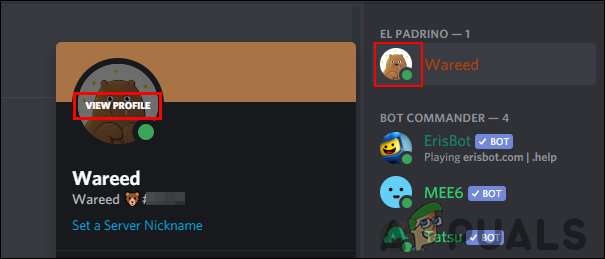 Открытие профиля пользователя
- Нажмите одновременно клавиши Ctrl + Shift + I на клавиатуре, чтобы открыть раздел Inspect Element в приложении Discord.
- Теперь нажмите на значок «Выбрать элемент» (указатель мыши с рамкой) вверху. Затем снова щелкните изображение профиля пользователя.
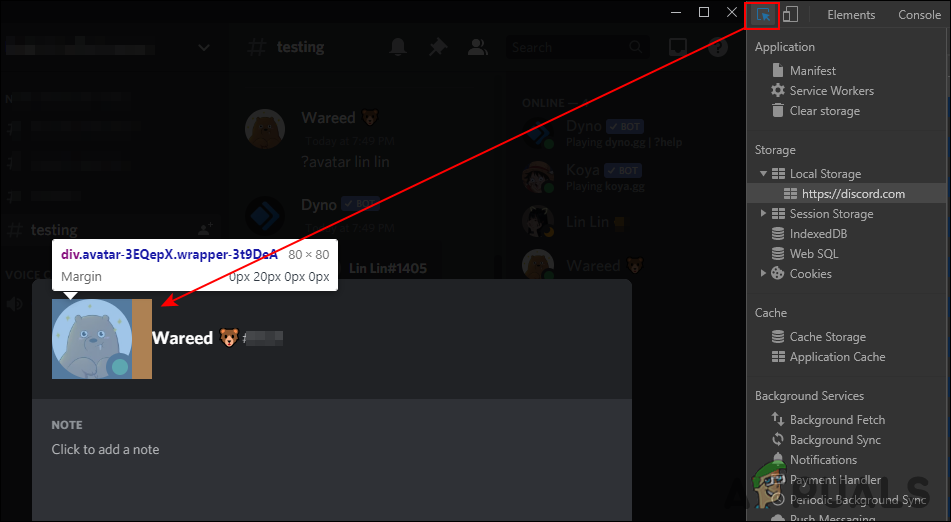 Выбор изображения профиля в элементе проверки
- В коде HTML разверните значение класса, чтобы найти URL-адрес изображения. Скопируйте URL-адрес изображения и откройте его в браузере.
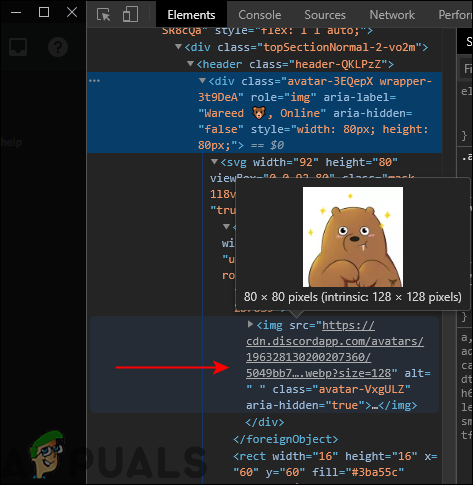 Поиск URL-адреса изображения
- Теперь вы можете просто щелкнуть изображение правой кнопкой мыши и выбрать опцию «Сохранить изображение как», чтобы сохранить его.
- Вы также можете увеличить размер, удвоив значение в URL-адресе. Значение по умолчанию – 128, вы можете изменить его на 256, 512 и 1028, чтобы увеличить размер.
Примечание. Качество зависит от изображения, загруженного для изображения профиля.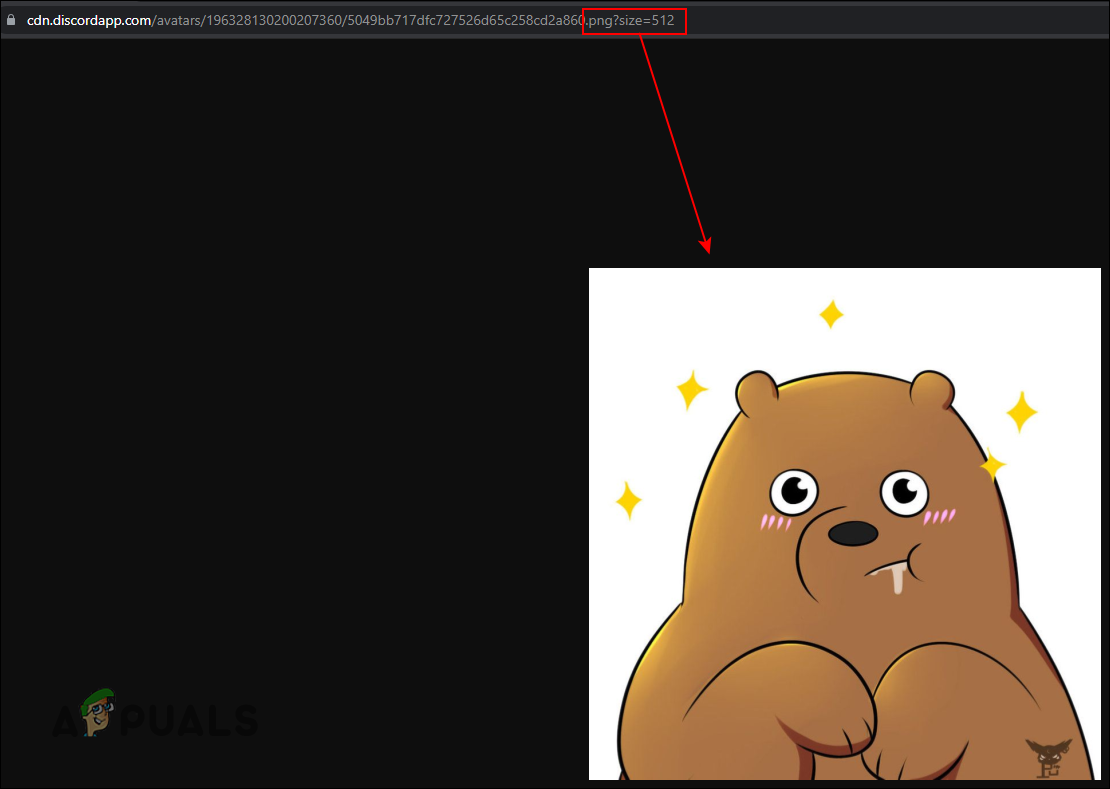 Изменение размера и формата в URL
- По умолчанию изображение сохраняется как WebP. Вы можете конвертировать WebP в PNG, если предпочитаете PNG-версию загруженного вами фото. Это связано с тем, что вы не можете повторно загрузить это изображение для изображения профиля Discord в формате WebP.
2. Сохранение изображения профиля с помощью бота Discord.
Еще один способ сохранить чью-то аватарку – использовать бота Discord. Есть много ботов, которые предоставляют функцию аватара. В этом методе мы будем использовать бот Dyno, чтобы продемонстрировать идею получения изображения профиля любого пользователя. По умолчанию изображение, которое вы откроете через бота, будет размером 256 пикселей.
Примечание. Если вы используете на своем сервере любого другого бота, убедитесь, что у него есть функция поиска аватара. Команду для этого конкретного бота можно найти на их сайте.
- Откройте дискорд, дважды щелкнув ярлык или выполнив поиск с помощью функции поиска Windows. Теперь перейдите на сервер, где вы найдете и бота Dyno, и пользователя для изображения профиля.
Примечание. Если вы используете свой собственный сервер, просто добавьте на сервер бота Dyno. - Теперь перейдите в текстовый канал и введите команду с именем пользователя этого конкретного пользователя, как показано на снимке экрана.
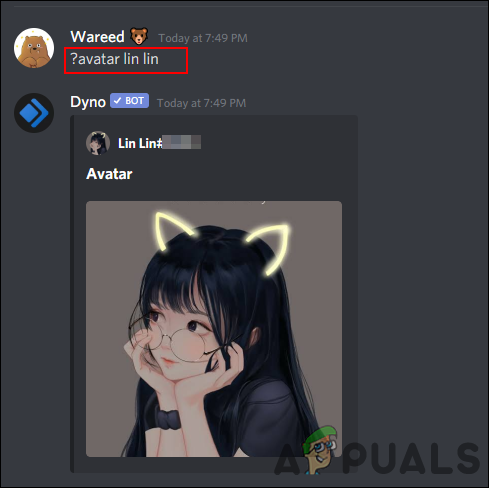 Команда для поиска аватара пользователя
- Появится изображение профиля пользователя. Теперь вы можете просто щелкнуть по нему, а затем открыть исходный файл в браузере.
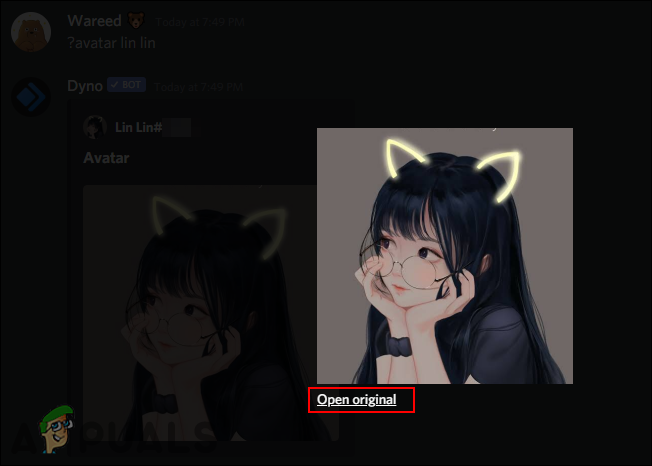 Открытие исходного изображения в браузере
- В браузере вы можете сохранить его, щелкнув изображение правой кнопкой мыши и выбрав опцию «Сохранить изображение как». Вы также можете изменить размер, изменив последнее число в URL-адресе.
Примечание: размеры будут работать как 128, 256, 512 и 1024. - Изображение будет сохранено в вашей системе в формате PNG.
Некоторые другие известные боты Discord, которые вы можете использовать для получения изображений профиля, – это Dank Memer Bot, Kashima Bot, Ayana Bot, Tatsu Bot, Yggdrasil Bot, Mudae Bot и YAGPDB Bot.
Программы для Windows, мобильные приложения, игры — ВСЁ БЕСПЛАТНО, в нашем закрытом телеграмм канале — Подписывайтесь:)