Вы упускаете возможность. Попросите администратора включить Microsoft Teams.
Microsoft призывает пользователей Skype для бизнеса перейти с службы обмена мгновенными сообщениями и видеотелефонии на новую коммуникационную платформу — Microsoft Teams . В компании считают, что платформа Teams лучше подходит для работающих профессионалов. Однако после миграции и попытки войти в Teams большинство пользователей получают следующее сообщение об ошибке: Вы упускаете возможность, попросите администратора включить Microsoft Teams (You’re missing out, Ask your admin to enable Microsoft Teams) .
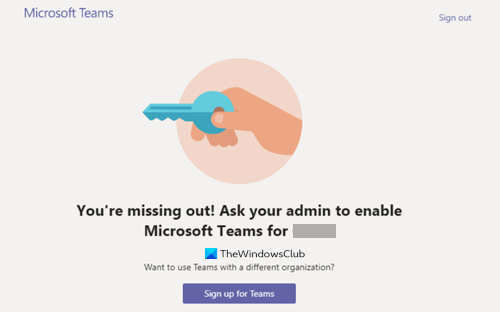
Попросите администратора включить Microsoft Teams
Для получения доступа к Teams пользователь должен иметь назначенную лицензию Microsoft Teams из (Microsoft Teams) Центра администрирования (Admin Center) Office 365 . Потому что без назначенной лицензии Microsoft Teams пользователи не могут войти в Teams . Но если вы являетесь единственным администратором и все еще видите это сообщение, мигающее на экране вашего компьютера, следуйте этому методу устранения неполадок.
- Перейдите на страницу admin.microsoft.com.
- Нажмите кнопку раскрывающегося списка «Пользователи».
- Выберите опцию «Активные пользователи».
- Выберите пользователя.
- Нажмите кнопку Дополнительные действия.
- Выберите параметр « Управление лицензиями на продукты (Manage Product Licenses) ».
- Когда появится новое окно, прокрутите вниз до раздела « Приложения (Apps) ».
- Проверьте параметр Microsoft Teams.
- Сохраните изменения.
Примечание (Note) . Только администратор (Admin) Office 365 может включать и отключать Microsoft Teams для пользователей в организации.
В каждой подписке Microsoft 365 Business должна быть хотя бы одна учетная запись администратора. Он управляет сервисом, учетными записями пользователей и устройствами. Итак, если вы подписались на подписку, то вы являетесь глобальным администратором своей подписки. Перейдите на страницу admin.microsoft.com и войдите в систему, используя данные своей учетной записи.
В меню навигации Центра (Navigation) администрирования (Admin Center) Microsoft 365 нажмите кнопку раскрывающегося списка Пользователи . (Users)
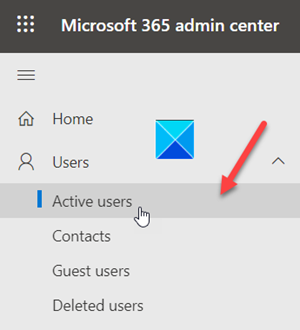
Из предложенных вариантов выберите вариант « Активные пользователи (Active Users) ».
Проверьте кружок рядом с активным (Active) именем пользователя.
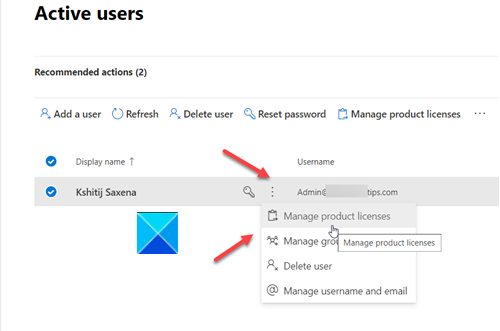
Нажмите кнопку « Дополнительные действия (More Actions) » (отображается в виде трех вертикальных точек) и в отображаемом списке параметров выберите « Управление лицензиями на продукты (Manage Product Licenses) » .
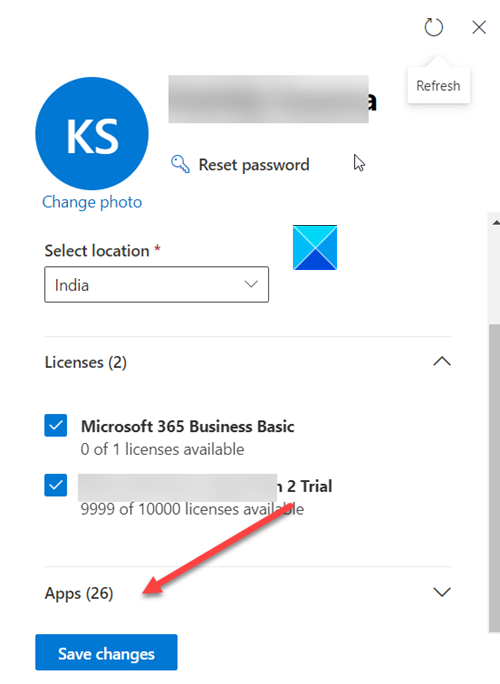
Далее в открывшемся окне пролистайте вниз до раздела « Приложения (Apps) ».
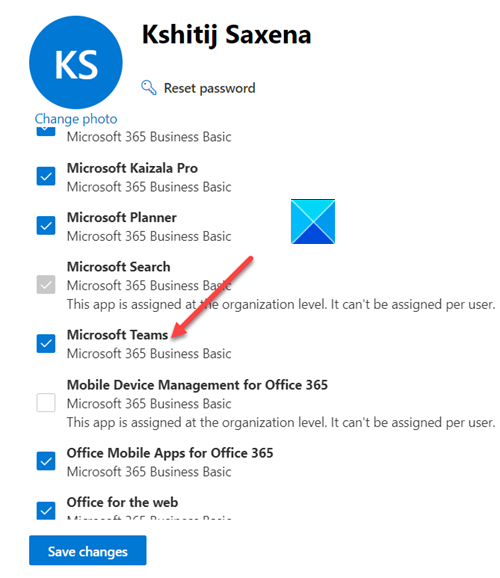
Под ним найдите запись Microsoft Teams . Установите флажок напротив него и сохраните внесенные изменения.
Вы больше не должны видеть сообщение «Попросите администратора включить Microsoft Teams».
Читайте (Read) . Как изменить изображение команды в Microsoft Teams (How to change the Team Picture in Microsoft Teams) .
You’re missing out, Ask your admin to enable Microsoft Teams
Micrоsoft encourages Skype for Business usеrs to migrate from its instant messaging and video telephony service to a new communication platform – Microsoft Teams. The company believes, Teams platform is better suited for working professionals. However, after migrating and attempting to log in to Teams, most users receive the following error message – You’re missing out, Ask your admin to enable Microsoft Teams.
Ask your admin to enable Microsoft Teams
For getting access to Teams, a user must have an assigned Microsoft Teams license from Office 365 Admin Center. Because without assign Microsoft Teams license users cannot log in to Teams. But, if you are the only administrator and still see this message flashing on your computer screen, follow this troubleshooting method.
- Go to admin.microsoft.com page.
- Click the Users drop-down button.
- Select the Active Users option.
- Choose the user.
- Click the More Actions button.
- Select the Manage Product Licenses option.
- When a new window pops up, scroll down to the Apps section.
- Check the Microsoft Teams option.
- Save the changes.
Note: Only Office 365 Admin can enable/disable Microsoft Teams for users in the organization.
In every Microsoft 365 Business subscription, there should be at least one admin account. It manages the service, user accounts, and devices. So, if you’re the one who signed up for a subscription, then, you’re the global admin of your subscription. Go to the admin.microsoft.com page and login with your account details.
Under the Navigation menu of the Microsoft 365 Admin Center, click the Users drop-down button.
From the given options, choose the Active Users option.
Check the circle next to the Active username.
Click the More Actions button (visible as 3 vertical dots) and from the list of options displayed, choose Manage Product Licenses.
Next, in the window that opens, scroll down to the Apps section.
Under it, locate Microsoft Teams entry. Check the box marked against it and save the changes made.
You should not see the ‘Ask your admin to enable Microsoft Teams’ message anymore.

Лев Ильин
About the author
Я профессиональный аудиотехник и клавишник с опытом работы более 10 лет. Я работал в корпоративном мире в качестве консультанта и менеджера по продуктам, а в последнее время — инженером-программистом. Мои навыки и опыт позволяют мне работать над различными типами проектов от малого бизнеса до крупных компаний. Я также являюсь экспертом по Windows 11 и работаю над новой операционной системой уже более двух лет.
FIX: Ask Your Admin to Enable Microsoft Teams Error
Microsoft Teams is widely popular, especially with organizations and schools, as a Workstream Collaboration app. It is probably one of the best apps for collaboration and communication out there. But, sadly, not everything’s always rainbows and cupcakes in the realm of Microsoft Teams.
Many users have reported facing the “You’re missing out! Ask your admin to enable Microsoft Teams” issue. It locks you out of your Microsoft Teams account, and you’re unable to use Teams for anything.
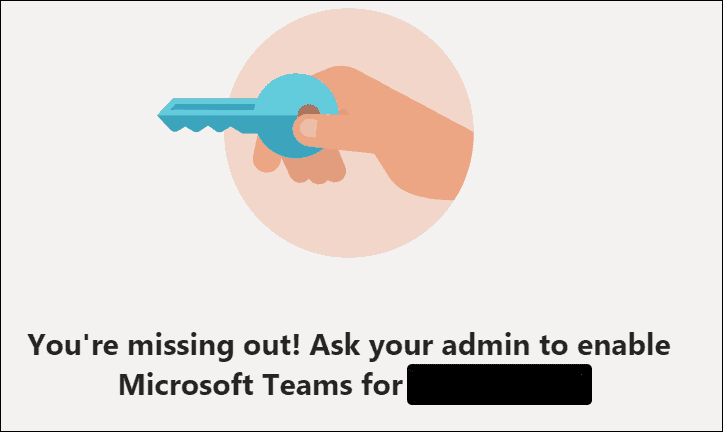 The error locks you out of your account quite literally.
That is a major inconvenience since a lot of work – meetings and communication – involve using Microsoft Teams. But there’s nothing to fret about yet. There are a few things that’ll fix the situation for you in no time.
Clear the Cache
If you’re facing the issue on the Microsoft Teams desktop app, try logging into your account on the web app too. If you can log in, the trouble is with the desktop app and not the account. And the best solution is to clear your local cache for the desktop app.
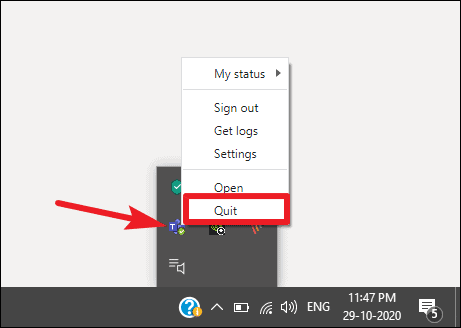
To clear the cache for Microsoft Teams in Windows, first quit the app completely. Go to the system tray and right-click the icon for Microsoft Teams. Then select ‘Quit’ from the menu. Another way to completely quit the app is from the Task Manager.
Now, open File Explorer on your PC. You can use the keyboard shortcut ‘Windows Logo Key + E’ to open it. Type or copy/ paste the location %appdata%\Microsoft\teams in Quick Acess bar and press the Enter key.

The folder for the specified location will open. Delete all files from the following folders on this location.
- ‘Cache’ folder in the ‘Application Cache’ Folder
- Blob_storage
- Cache
- Databases
- GPUCache
- IndexedDB
- Local Storage
- tmp
Restart Microsoft Teams and try logging in with your account to see if the problem was resolved.
Ask your Admin to Enable Microsoft Teams
If you can’t open your account in either the web app or the desktop app or the above fix for just the desktop app didn’t help, then it’s time to contact the admin for your organization. The issue also literally asks you to try it. This fix is for internal users of the organization. If you don’t have admin access to your organization’s Microsoft 365, you’ll need to ask users with admin access to do this for you.
If you do have admin access, go to Microsoft 365 admin center and login with your admin account. Then, click on the option ‘Users’ on the navigation menu on the left.
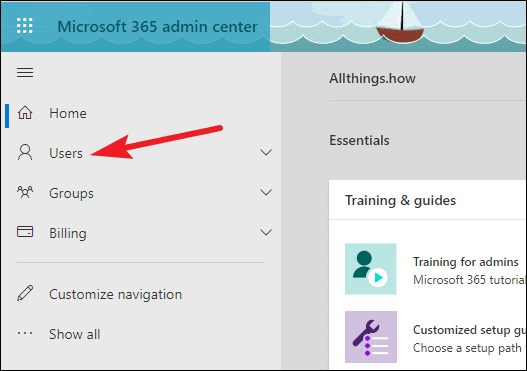
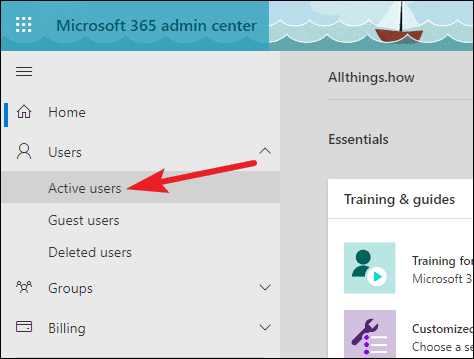
Few options will expand underneath it. Click on ‘Active users’.
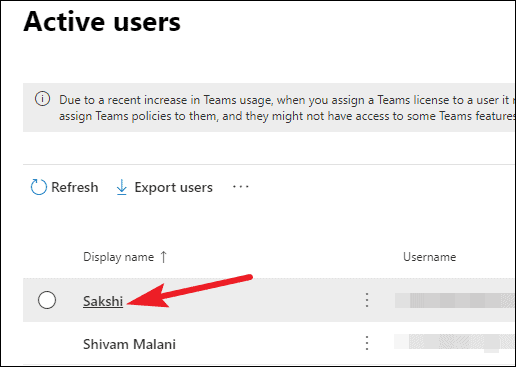
The list of all the users you have added to the organization will open. Go to the user’s name and click on it.
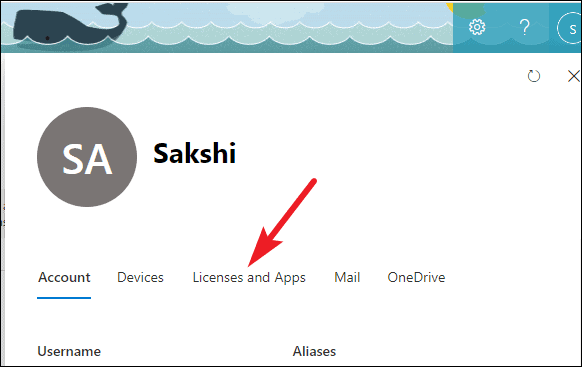
A window will pop-up from the right side of the screen. Go to the ‘Licenses and Apps’ tab.
Go to the ‘Apps’ option to expand it.
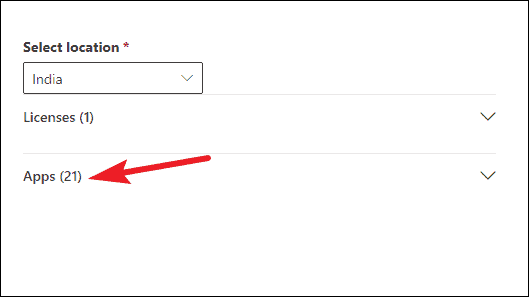
Then, select the checkbox for Microsoft Teams. After selecting Microsoft Teams, it might or might not start working instantly. If it does, good for you. But if it doesn’t, you should wait for a few hours as Microsoft Office does have a bit of a reputation for taking hours to reflect the changes.
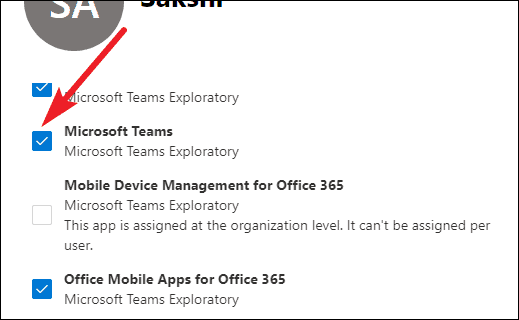
If it was already on, try a hard reset. Turn the button for Microsoft Teams off, wait for an hour, and turn it on again.
Re-Add you to Microsoft 365
If the above option didn’t work, ask the admin to remove you from the user list in Microsoft 365, wait for a couple of hours, and then re-add you to the user list. After re-adding you to the user list, check whether Microsoft Teams started working or not.
Microsoft Teams not working can be a huge inconvenience and bring your whole workday to a halt. But you are not alone in facing this issue. Countless others have been in the same position as you, and they found refuge among one of these fixes. It’s bound to be of help to you too.
You’re missing out! Ask your admin to enable Microsoft Teams.

Since Microsoft has launched the free use of Microsoft Teams, I also wanted to use it for my personal use. I tried to login using my XXX@hotmail.com account and fallen with the error message “You’re missing out! Ask your admin to enable Microsoft Teams.“
Upps, So looks like it’s not simply straight forward to login to free account of teams using my Microsoft account.
 You’re missing out! Ask your admin to enable Microsoft Teams
Here, we are missing the registration process and let’s do it first !.
STEP 1
I would recommend to using Incognito browser window for the registration process.
- Click on Get Teams for free and choose the Sign up for free button and start your registration process.
2. Enter the email address you want to use with Microsoft Teams free. I am using my xxx@hotmail.com which used earlier and got the error (above).
3. On the next screen, answer the question about how you want to use Teams. Its good to select “Work“.
STEP 2
Fill in your name and the other requested info, and then click Set up Teams.
 Fill the details of user and other details
STEP 3
When you are done with registration, you can login to teams web clients OR login into Teams desktop app using your XXX@hotmail.com email ID which you used in “STEP 1” for registration.
 Login with Microsoft Teams free registered email ID
STEP 4
Click on “Continue” to proceed with completion of the process and it will open your teams windows.
 Select your Work information and continue
STEP 5
 Welcome to your first team – a group of people you’ll collaborate with.
You’re missing out, Ask your admin to enable Microsoft Teams
Microsoft encourages Skype for Business users to migrate from its instant messaging and video telephony service to a new communication platform – Microsoft Teams. The company believes, Teams platform is better suited for working professionals. However, after migrating and attempting to log in to Teams, most users receive the following error message – You’re missing out, Ask your admin to enable Microsoft Teams.
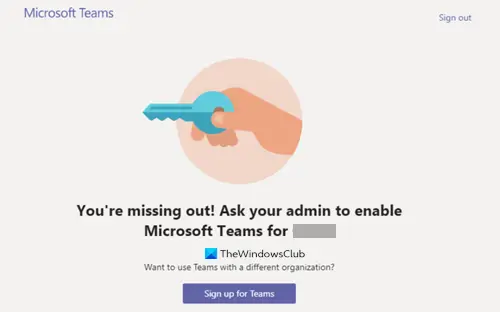
Ask your admin to enable Microsoft Teams
- Go to admin.microsoft.com page.
- Click the Users drop-down button.
- Select the Active Users option.
- Choose the user.
- Click the More Actions button.
- Select the Manage Product Licenses option.
- When a new window pops up, scroll down to the Apps section.
- Check the Microsoft Teams option.
- Save the changes.
Note: Only Office 365 Admin can enable/disable Microsoft Teams for users in the organization.
In every Microsoft 365 Business subscription, there should be at least one admin account. It manages the service, user accounts, and devices. So, if you’re the one who signed up for a subscription, then, you’re the global admin of your subscription. Go to the admin.microsoft.com page and login with your account details.
Under the Navigation menu of the Microsoft 365 Admin Center, click the Users drop-down button.
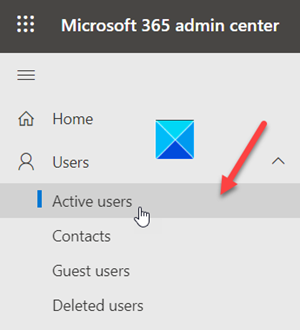
From the given options, choose the Active Users option.
Check the circle next to the Active username.
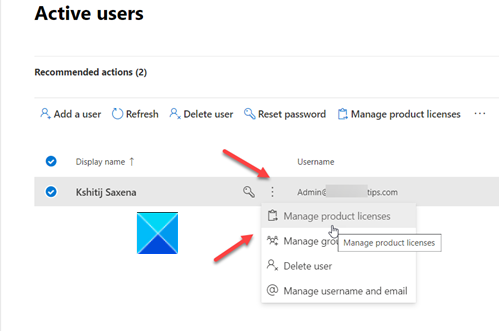
Click the More Actions button (visible as 3 vertical dots) and from the list of options displayed, choose Manage Product Licenses.
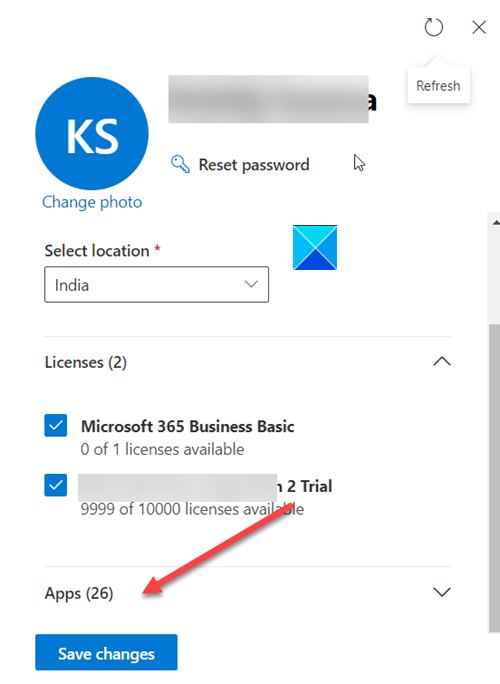
Next, in the window that opens, scroll down to the Apps section.
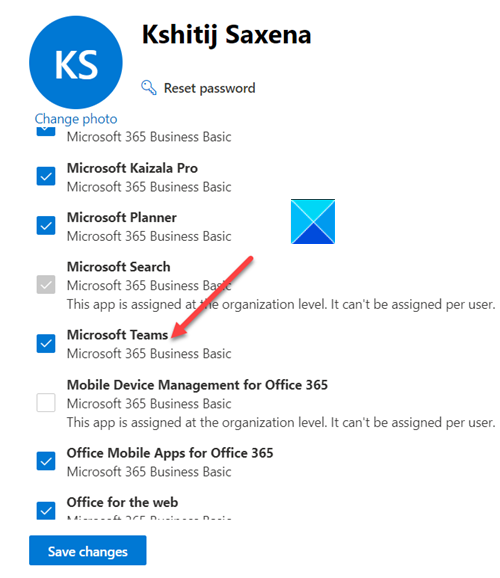
Under it, locate Microsoft Teams entry. Check the box marked against it and save the changes made.
You should not see the ‘Ask your admin to enable Microsoft Teams’ message anymore.
Published on March 31, 2021 Tags: Teams
Related Posts
Failed to send messages to a Group Chat in Teams
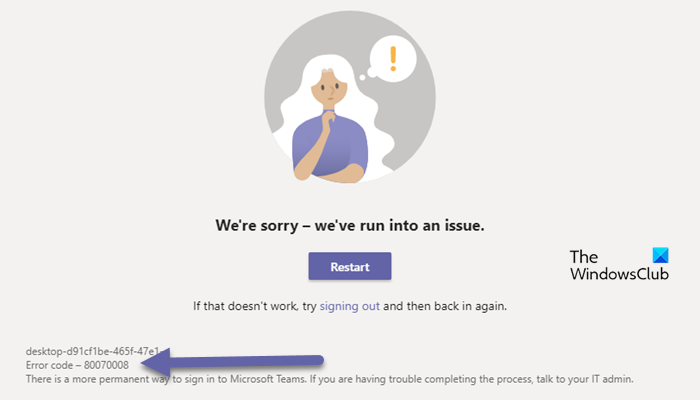
Fix 80070008 Teams Error Code
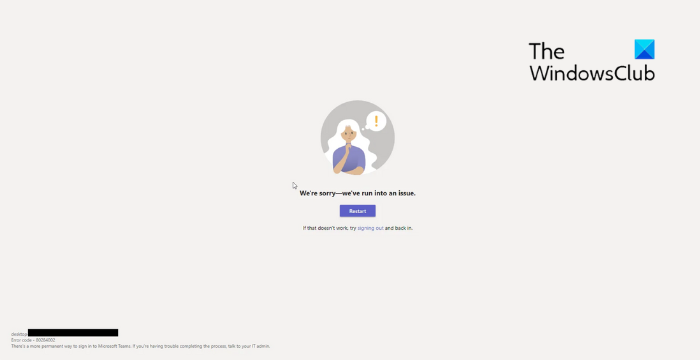
Fix 80284002 Teams Error Code
HemantS@TWC
A post-graduate in Biotechnology, Hemant switched gears to writing about Microsoft technologies and has been a contributor to TheWindowsClub since then. When he is not working, you can usually find him out traveling to different places or indulging himself in binge-watching.