How to uninstall TeamViewer on Mac

Having spent some years coding applications for macOS, we’ve created a tool that everybody can use. The all-round problem fixer for Mac.

So here’s a tip for you: Download CleanMyMac to quickly solve some of the issues mentioned in this article. But to help you do it all by yourself, we’ve gathered our best ideas and solutions below.
Features described in this article refer to the MacPaw site version of CleanMyMac X.
TeamViewer is one of those applications that proved incredibly useful during pandemic lockdowns because it allows you to remotely log into and control any device from your Mac. It can also be used to create remote classrooms and for video conferencing. If you installed it to use on your Mac while you couldn’t travel into the office and now no longer need it, you should uninstall it to free up space. We’ll show you how to do that in this article.
What is TeamViewer?
TeamViewer has several different functions. At its heart, it’s a tool for accessing and controlling a remote computer or device as if you were sitting in front of it. You can run apps, move files around, and even copy files between the remote device and your local computer. It also has features that allow you to use it in remote learning environments and for conferences and meetings.
How to remove TeamViewer on Mac
There are several ways to uninstall TeamViewer. The easiest, and the one you should try first, is the application’s own uninstaller. However, if that’s unavailable or doesn’t work, you can also uninstall it from Terminal or the Finder. We’ll also show you a great tip for uninstalling it easily without resorting to Terminal or the Finder if the uninstaller doesn’t work.
How to uninstall TeamViewer using its uninstaller

- Launch TeamViewer.
- Click the TeamViewer menu and choose Preferences.
- Choose the Advanced tab.
- Under Uninstall at the bottom of the window, check ‘Also delete configuration files.’
- Click Uninstall.
You should see a message telling you that TeamViewer is uninstalling.
How to remove TeamViewer using Terminal
If the uninstaller doesn’t work, you can also use Terminal.
- Launch Terminal from Applications > Utilities.
- Type: sudo rm -rf /Applications/TeamViewer.app
- Press Return.
- Type in your admin password if it’s requested.
- Press Return.
How to uninstall TeamViewer using Finder
If you don’t want to use Terminal, you can also uninstall TeamViewer manually by locating files in the Finder and dragging them to the Trash. You’ll need to look in several different places to find all the files that’s scattered on your disk.
- Click on the Finder in the Dock.
- Select the Go menu and choose Go to Folder.
- In the text box, type each of these paths, hitting Return after each one to take you to the folder. Then look for files with TeamViewer in their name and drag them to the Trash.
Once you’ve done that, go to your Applications folder and drag the TeamViewer application to the Trash. Don’t forget to Empty the Trash.
How to easily remove TeamViewer (or any other app)
If the TeamViewer uninstaller doesn’t work and you’re not comfortable using Terminal or hunting down app files in Finder, there is a (much) easier way to remove any app. If you use a dedicated uninstaller, you can remove any program altogether. CleanMyMac X has just such an uninstaller and many other tools to help keep your Mac clean of clutter and running as fast and efficiently as possible. CleanMyMac X can be used to uninstall an app completely or reset it to its original state. You can download it for free here, and below we’ll show you how to use it to remove TeamViewer.
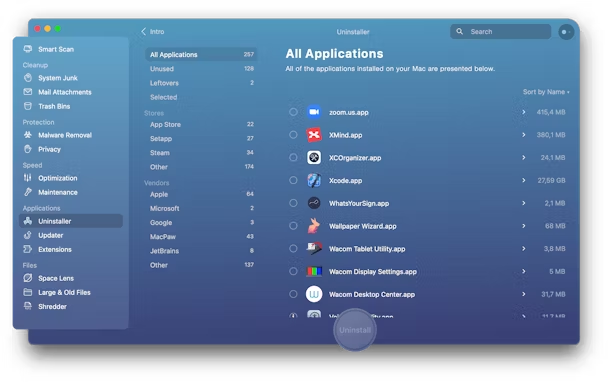
- Launch CleanMyMac X and choose Uninstaller in the sidebar.
- Scroll through the list of apps to locate TeamViewer.
- Check the button next to TeamViewer.
- Press Uninstall.
TeamViewer is a tool for remotely controlling any computer or device as if you were sitting in front of it and can also be used for remote learning and video conferencing. If you no longer use it, follow the instructions above to uninstall it and keep your Mac free from clutter.
Как легко и полностью удалить TeamViewer с Mac

Всемогущий эксперт по написанию текстов, который хорошо разбирается в проблемах Mac и предоставляет эффективные решения.
Как и другие приложения, вы можете захотеть удалить TeamViewer Mac. Он может быть неправильно установлен или вызвать множество проблем на вашем компьютере. TeamViewer — это приложение, обеспечивающее удаленный доступ к одному компьютеру с другого компьютера в любой точке мира. Вот почему вы также можете беспокоиться о своей безопасности.
К счастью, вы попали в нужную статью. Мы поможем тебе удалить нежелательное приложение с Mac так что вы можете переустановить его или полностью удалить со своего компьютера Mac. Наше руководство поможет вам удалить TeamViewer с Mac, чтобы вы могли сэкономить место на вашем компьютере. Или вы можете просто полностью удалить его в целях безопасности или в других целях. Давайте начнем.
Часть 1. Как удалить TeamViewer из автозагрузки на Mac?
Может быть, вы действительно не хотите удалять TeamViewer с Mac полностью. В этом случае вы можете отключить его открытие во время запуска. В этом разделе мы поможем вам отключить запуск TeamViewer во время запуска на вашем компьютере Mac. Это позволит вашему Mac загружаться проще и быстрее, поскольку приложение также может потреблять некоторые ресурсы.

Ознакомьтесь с нашими шагами ниже:
- Нажмите значок TeamViewer. Первое, что вам нужно сделать, это щелкнуть значок TeamViewer. Его можно найти в Доке. Альтернативой может быть поиск его в папке «Приложения» на вашем Mac.
- Перейти к Настройки. Теперь проверьте меню TeamViewer. Оттуда выберите параметр «Настройки». Перейдите в раздел с надписью общие настройки.
- Снимите флажок Запуск TeamViewer. Следующим шагом будет снятие флажка с надписи «Запустите TeamViewer с системой». После того, как вы сняли отметку с кнопки, нажмите кнопку Применить кнопку позже.
- Выйти из TeamViewer. После этого вы можете просто выйти из приложения TeamViewer на своем Mac.
- Перезагрузить компьютер. Последний шаг — перезагрузить компьютер. Убедитесь, что TeamViewer не открывается после загрузки Mac.
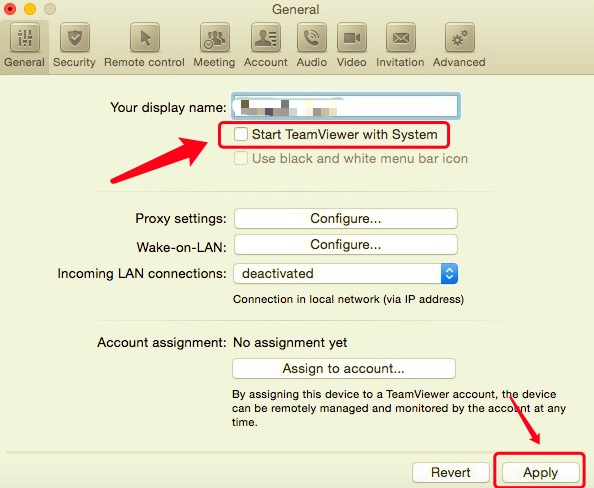
Вот как отключить запуск TeamViewer при запуске на вашем Mac. Но что, если вы хотите удалить TeamViewer с Mac? Давайте посмотрим на следующий раздел, который поможет вам ответить на этот вопрос.
Часть 2. Как полностью удалить TeamViewer?
Удалите TeamViewer через терминал
В этом разделе мы научим вас, как удалить TeamViewer с Mac через Терминал вашего компьютера Apple. Иногда Терминал может быть сложным для новичков. Но это отличный инструмент, который поможет вам разобраться в вещах на вашем Mac. Однако, если вы его испортите, вы можете по ошибке удалить на своем Mac системные файлы, которые важны для его работы. Вот почему вы должны делать это с осторожностью.
Вот шаги по удалению TeamViewer с Mac с помощью терминала:
- Откройте Терминал. Первое, что вам нужно сделать, это открыть Терминал на вашем компьютере.
- Введите команду. Следующее, что нужно сделать, это ввести команду без кавычек и последней точки. Это команда: « sudo rm –rif / Applications/TeamViewer.app ».
- Введите свой пароль. Следующим шагом является ввод пароля администратора для этого компьютера Mac, чтобы подтвердить действие. Важно отметить, что ввод пароля не будет отображаться в окне Терминала.
- Команда двойной проверки. Следующий шаг — перепроверить, правильно ли вы разместили команду в Терминале.
- Нажмите клавишу возврата. Наконец, вы должны нажать клавишу Return, чтобы удалить TeamViewer с помощью Терминала.
Если вы хотите убедиться, что вы действительно реализовали, как удалить TeamViewer с Mac, посетите папку «Приложения» на компьютере. Оттуда проверьте, было ли удалено приложение. Если его нет в папке, значит, вы успешно реализовали, как удалить TeamViewer.
Удаление TeamViewer со связанными файлами вручную
Вот шаги, чтобы удалить TeamViewer с Mac и связанных с ним файлов:
- Откройте TeamViewer. Первый шаг — запустить TeamViewer на вашем компьютере.
- Войти Настройки. Затем перейдите на вкладку «Настройки» в меню. Перейдите на вкладку Advanced.
- Затем посетите вариант с надписью Удалить. Нажмите на опцию или установите флажок с надписью Также удалить файлы конфигурации.
- Щелкните Удалить. Теперь выберите параметр «Удалить». Это не последний шаг по удалению TeamViewer.
- Перейти к Библиотека Нажмите клавиши, которые CMD + SHIFT + G и введите следующее:
- Очистить корзину. Последний шаг — очистить корзину, чтобы полностью удалить TeamViewer с Mac.
Автоматически удалить TeamViewer с Mac
Чтобы автоматически удалить TeamViewer с Mac, вы можете просто использовать инструмент под названием PowerMyMac. Этот инструмент — отличный способ оптимизировать ваш компьютер Mac и помочь вам удалять приложения, не оставляя файлов трассировки. Вот шаги по его использованию:
- Получить PowerMyMac. Первый шаг — получить PowerMyMac с его веб-сайта, а затем установить его на свой компьютер. После этого откройте его на своем Mac.
- Нажмите Деинсталлятор приложений. Выберите слева вариант с надписью «Деинсталлятор».
- Нажмите SCAN. Теперь нажмите кнопку «Сканировать». По завершении щелкните приложение TeamViewer и выберите его файлы, чтобы удалить TeamViewer.
- Нажмите ЧИСТКА. Наконец, нажмите кнопку «Очистить», чтобы удалить TeamViewer. Дождитесь завершения процесса.
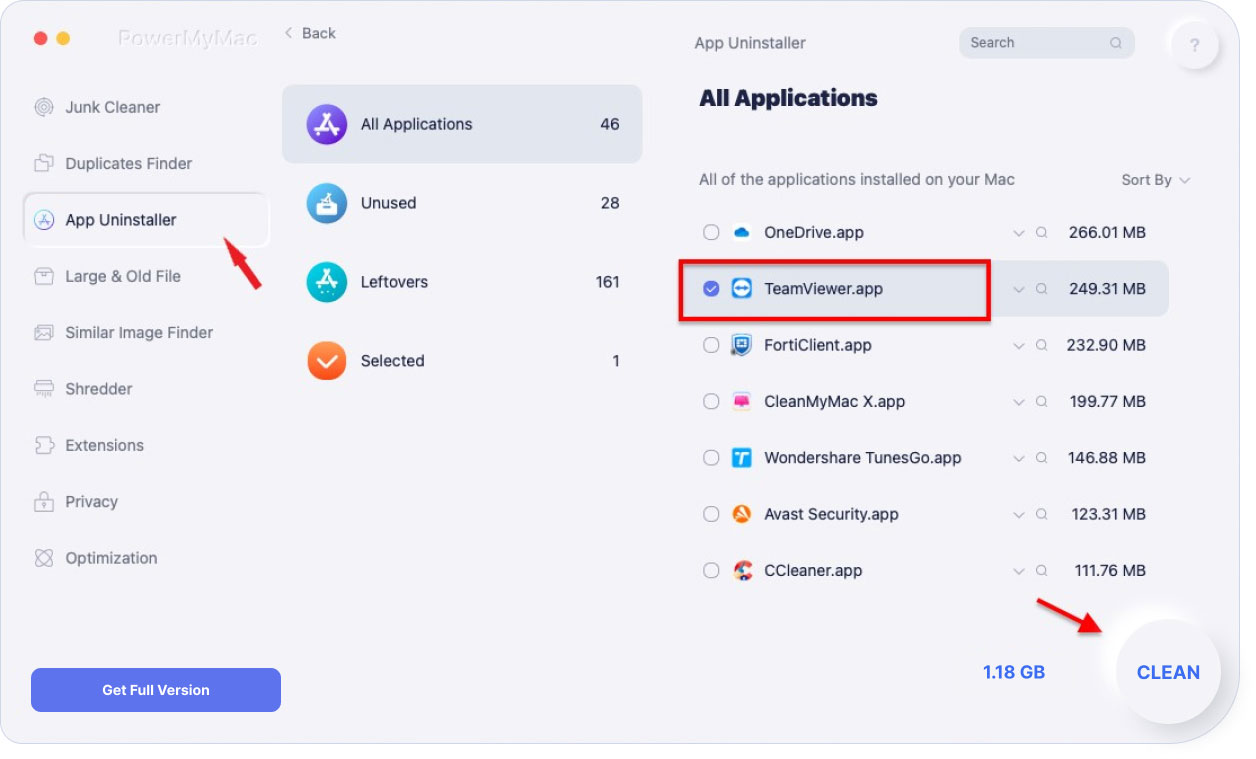
Часть 3. Вывод
В этой статье мы научили вас, как удалить TeamViewer с Mac. Мы научили вас, как удалить его через Терминал и встроенный деинсталлятор. Мы также научили вас удалять файлы трассировки вручную.
При этом лучший способ удалить TeamViewer с Mac — через PowerMyMac и его модуль удаления. Это отличный инструмент для оптимизации Mac, который поможет вам оптимизировать Mac и удалять приложения, не оставляя файлов трассировки. Получите продукт сегодня!
Удаление TeamViewer
В любое время, приняв решение отказаться от того или иного ПО или от предложений, загруженных в процессе работы ПО, можно с легкостью удалить их с помощью средства добавления и удаления программ Windows в соответствии со следующими инструкциями:
Windows 10, Windows 8, Windows 7 и Vista
- В меню «Пуск» выберите «Панель управления».
- В разделе «Программы» выберите ссылку «Удалить программу».
- Выберите программу для удаления и щелкните правой клавишей мыши, а затем выберите «Удалить/Изменить».
- Чтобы завершить процесс удаления ПО, следуйте предлагаемым подсказкам.
Windows XP
- В меню «Пуск» выберите «Панель управления».
- Щелкните значок «Добавление или удаление программ».
- Выберите программу для удаления и щелкните кнопку «Удалить» или «Изменить/Удалить».
- Чтобы завершить процесс удаления ПО, следуйте предлагаемым подсказкам.
Windows 95, 98, Me, NT, 2000 и XP в классическом виде
- В меню «Пуск» выберите «Параметры», а затем «Панель управления».
- Дважды щелкните значок «Добавление/удаление программ».
- Выберите программу для удаления и щелкните кнопку «Удалить» или «Изменить/Удалить».
- Чтобы завершить процесс удаления ПО, следуйте предлагаемым подсказкам.
Инструкции по удалению в среде macOS
TeamViewer версии 9 (или более поздней) для macOS можно полностью удалить с использованием параметров настройки TeamViewer. Чтобы удалить TeamViewer для macOS, следуйте этим шагам:
4 Ways to Completely Uninstall TeamViewer on Mac
Summary: This guide shows you how to uninstall TeamViewer from Mac in 4 ways.
As more and more people work from home, the need for remote control tool has increased. TeamViewer is one of the best remote control software for macOS. Although it can help you remotely control your desktop and share files, it also has some drawbacks that force people to uninstall it from Mac, such as slow file sharing, insecure issues, annoying pop-ups, pricey plans, etc.
Whatever the reason you want to remove it from your Mac, don't miss this blog where we will show you how to get rid of it in 4 different ways.

Table Of Contents
How to Uninstall TeamViewer on Mac with Its Preferences
TeamViewer comes with an uninstall feature that allows you to remove it from your Mac in a matter of seconds. Here's what you need to do.
- Open TeamViewer.
- Click TeamViewer Menu > Preferences > Advanced.
- Scroll the screen to the bottom, and you will see the Uninstall option. To remove TeamViewer, click the Uninstall button. (Check Also delete the configuration files if necessary.)
How to Uninstall TeamViewer on Mac with Terminal
Alternatively, you can use Terminal to uninstall TeamViewer from your Mac.
- Open Terminal via Spotlight or Launchpad.
- Type: sudo rm -rf /Applications/TeamViewer.app and press Return.
- If asked, enter your administrator password and press Return again.
How to Remove TeamViewer from Mac with Finder
Another way to uninstall TeamViewer is to use Finder. Here's how:
Quit TeamViewer
Quit TeamViewer to avoid any uninstallation failures.
Uninstall TeamViewer App
Open Finder > Applications, find the TeamViewer icon and drag it to the Trash.
Remove TeamViewer's Related Files
TeamViewer's support files are stored in the following folders. You can use the Go to Folder tool to find and delete them. (Press Shift-Command-G to open the Go to Folder window.)
Empty your Trash.
After deleting all TeamViewer-related files, don't forget to empty the Trash.
How to Uninstall TeamViewer on Mac with BuhoCleaner: The Easy Way
BuhoCleaner offers you a faster and easier way to uninstall TeamViewer on Mac. It is a popular Mac app uninstaller that removes TeamViewer with a single click. Its built-in leftover removal feature can help you easily get rid of any residual files of uninstalled apps.
100,000+ Satisfied Users Worldwide
Here's how to use BuhoCleaner to uninstall TeamViewer on Mac
- Download, install and launch BuhoCleaner on your Mac.
- Click on App Uninstall and you will find all the apps installed on your Mac.
- In the result list, find TeamViewer, check the box next to it, and click the Remove button. (You may be asked to quit TeamViewer first if it's in use.)
Hopefully, you have removed TeamViewer and all its associated files from your Mac.
If you found this article helpful, share it on your Facebook or Twitter.
A creative editor from Dr. Buho, who has been consistently writing high-quality Mac and iPhone issue-related guides for over 3 years.