Igcc.exe Virus ⛏️ (Coin Miner Trojan) Removal

The IGCC.exe process is the main executable file for the Intel Graphics Command Center. It runs in the background and handles the functionality of the application, allowing users to customize display settings, adjust graphics performance, and access additional features specific to Intel integrated graphics. It normally does not create any significant CPU load, but when it does, you definitely see a malicious copy of this process. In this post, I will show you the way to understand if it is malicious or not, and wipe out the virus, if there is one.
What is Igcc.exe process?
Igcc.exe is a legit process, but its name may be used by coin miners
Originally, IGCC.exe is benevolent and does not have any impact on your system’s performance. But it’s worth noting that malware or malicious software can sometimes disguise itself using legitimate process names to avoid detection. The most common symptom of a coin miner hiding under this name is high CPU load created by that process. You will also feel that your system has become extremely sluggish, even in the simplest tasks.
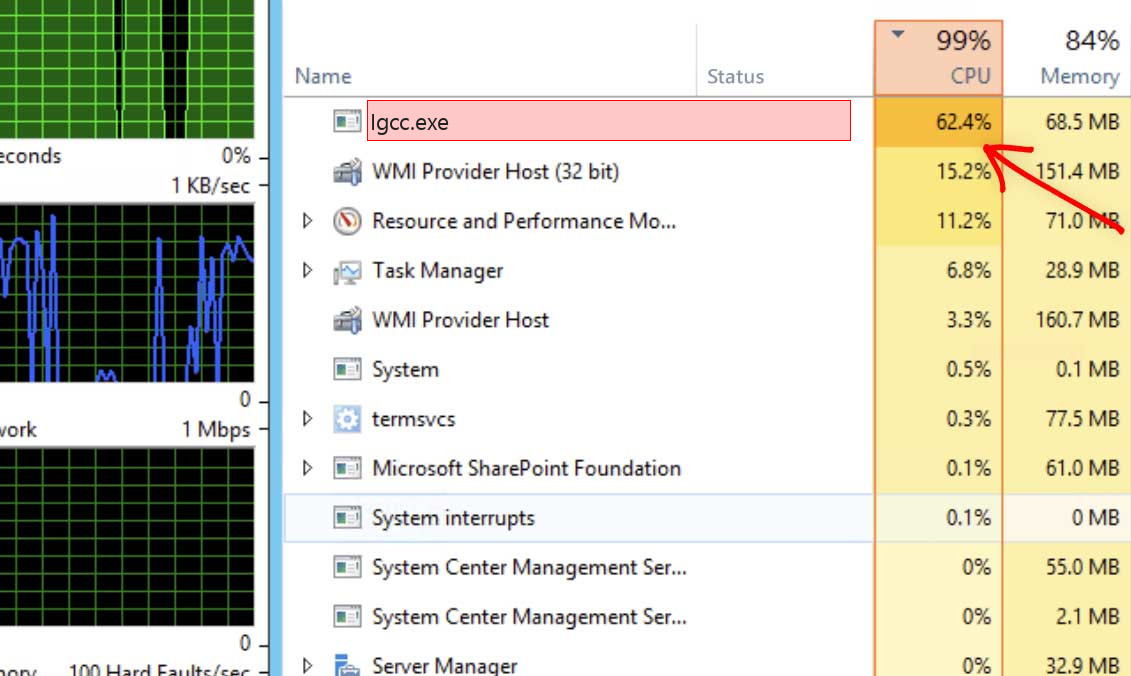
Igcc.exe – Really high CPU and GPU usage
Besides CPU usage, you can find out whether IGCC.exe process legit or not by its executable file location. The default folder for this file is C:\Program Files\WindowsApps. You can right-click on the process in the Task Manager, select “Open File Location,” and see the folder where this file is placed. Once the file is in another directory, it is most likely a malicious copy.
Shortly about cryptocurrency mining
Crypto mining term means the operation of calculating the transaction block hash. That is a basic part of anything based on the blockchain technology. Since this action takes a lot of calculations, a high-end machine is needed. Exactly, the video card is better for this purpose, because they have more cores available. Cryptomining farms are usually constructed of dozens of graphic cards to conduct their activity effectively. Such systems are not usable for “usual” purposes, like gaming or web browsing. Fraudsters who gain money via this coin miner use someones’ computers instead, even if they are used for the regular activity.
List of the typical coin miner symptoms
How dangerous is the Igcc.exe miner?
Coin miners does not deal damage to your files. However, they make a lot of unpleasant things with the whole system
Initially, Igcc.exe malware makes your system overloaded. It is unable to run your applications anymore, since all CPU power is used by a virus. That malware does not care for your needs, all it focuses on is generating profits on you. Even if you are patient, and you waited until web browser is open, you will likely suffer from extremely slow efficiency. Pages will open up for years, any sort of logins will take about a minute – just a horror story for a person who does a job online.
Igcc.exe Technical Summary.
| File Name | Igcc.exe |
| Type | Trojan Coin Miner |
| Detection Name | Trojan:Win32/CoinMiner |
| Distribution Method | Software bundling, Intrusive advertisement, redirects to shady sites etc. |
| Similar behavior | Lws.exe, Hid.exe, Logiregistryservice.exe |
| Removal | Download and install GridinSoft Anti-Malware for automatic Igcc.exe removal. |
“Visible” damage is not a solitary unpleasant activity coin miners do to your computer. Igcc.exe coin miner additionally deals damage to your OS. To perform all malicious operations correctly, it wrecks the protection components of your system. You will likely see your Microsoft Defender disabled – malware stops it to avoid detection. If you check the HOSTS file, you will likely see a ton of new notes – they are brought in by this coin miner to connect your computer to a malicious cryptomining network. All these adjustments shall be reverted to the original in the process of system recovery.
Hardware effects of coin miner activity
Besides decreasing your computer’s performance, performing at peak power for a long period of time can trigger damage to your machine and increase power expenses. Hardware components are designed to easily get along with high load, but they are good with it only in case when they are in a good shape.
Small and well-protected processor cooling system is quite hard to crack. Meanwhile, graphic cards have large and easy-to-access rotors, which can be easily broke if affected while running, for instance, by the user much earlier before the malware injection. Malfunctioning cooling system, together with the unusually high load caused by Igcc.exe can easily lead to graphic processing unit failure 1 . Graphic cards are also tend to have very fast wearing when used for cryptocurrency mining. It is likely an undesirable case when the performance of your GPU plunges 20-30% only after several weeks of being used in such a way.
How did I get Igcc.exe coin miner virus?
Coin miners are spread through different ways, but their main sources are malicious banners and programs from dubious sources
Coin miners are the most common malicious programs through “serious” malware. Adware sometimes works as a carrier for Igcc.exe malware injection: it demonstrates you the banners, which include a link to malware downloading. Yes, this abstract “malware” can belong to any kind – yet another adware, spyware, rogue or backdoor. But the statistics show that approximately 30% of all malware spread through the malevolent banners are coin miners – and Igcc.exe is just with them.
The example of malicious banners you can see in the Internet
An additional way you could get this thing on your PC is by downloading it from the dubious web page as a part of a program. People who spread hacked versions of popular programs (which do not require the license key) have small chances to earn money. Hence, there is a very big lure to add in malware to the final package of the hacked app and get a coin for every installation. Prior to criticizing these individuals for hacking and malware spreading, ask yourself – is it alright to avoid buying the program in such a way? It is much cheaper to pay $20-$30 at once than to pay a much bigger sum for antivirus program and new parts for your PC.
How to remove the Igcc.exe miner from my PC?
The best way to get rid of this coin miner virus is to use anti-malware software
Removing such a virus needs making use of specific software. Effective security tool should have high capability at scanning and also be lightweight – in order to make no problems with usage also on weak computers. On top of that, it is better to have proactive security in your protection tool – to stop the virus even before it launches. Microsoft Defender lacks these elements for different reasons. That’s why I’d recommend you to use a third-party anti-malware program for that goal. GridinSoft Anti-Malware is a perfect option that fits all of the discussed characteristics. 2
Prior to the malware removal, it is important to boot your operating system into Safe Mode with Networking. Since Igcc.exe miner consumes a lot of CPU power, it is needed to halt it before launching the security program. Otherwise, your scan will last for years, even though the GridinSoft program is pretty lightweight.
Booting the PC into Safe Mode with Networking
Press the Start button, then choose Power, and click on Reboot while holding the Shift key on the keyboard.
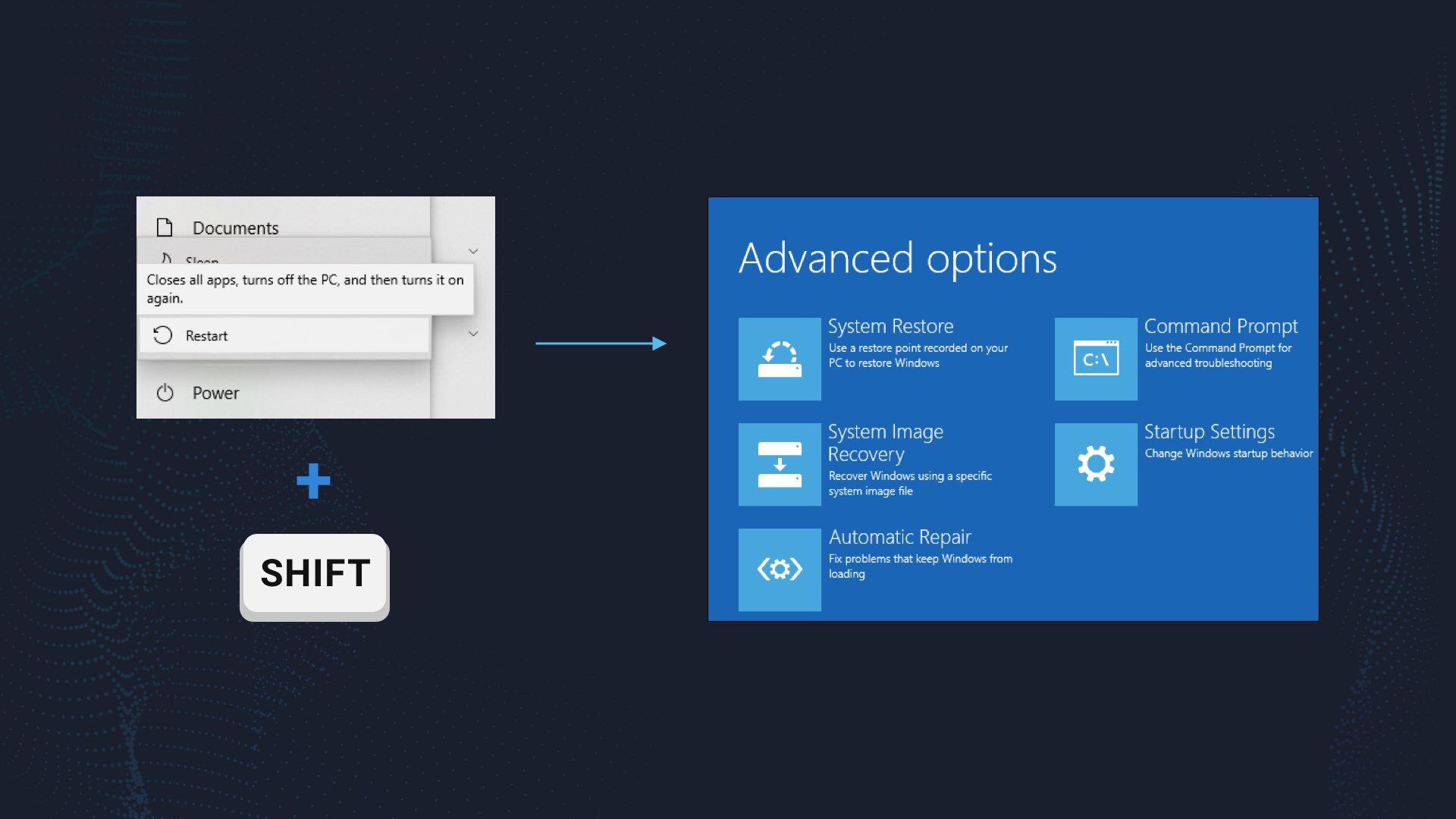
Windows will reboot into recovery mode. In that mode, choose Troubleshoot→ Startup Settings→ Safe Mode with Networking. Press the corresponding button on your keyboard to choose that option.
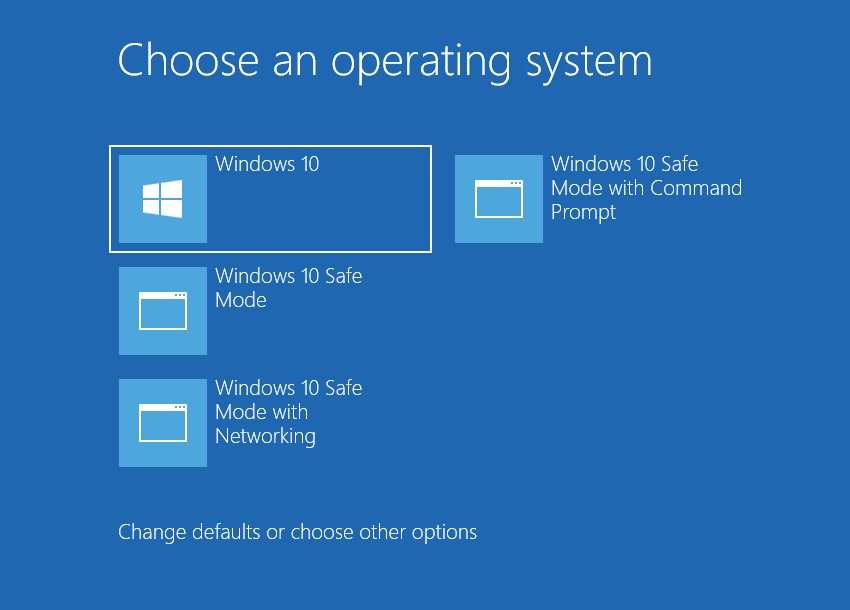
When your system is in Safe Mode, all third-party applications, along with the majority of non-crucial system components, are not launched with the system start. That gives you the ability to clean the computer without dealing with high processor usage of the coin miner.
Remove Igcc.exe coin miner virus with GridinSoft Anti-Malware
Download and install GridinSoft Anti-Malware. You can use this anti-malware program for free during its 6-day trial period. In that term, all functions are available, and it takes no payments to remove malware from your system.
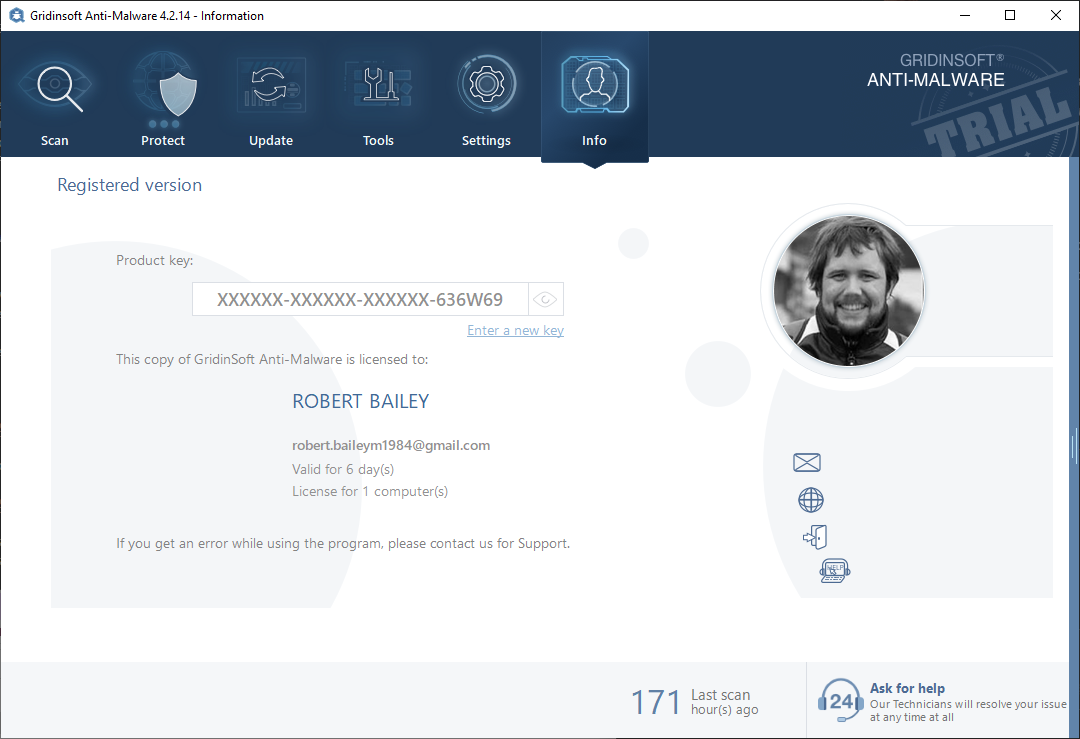
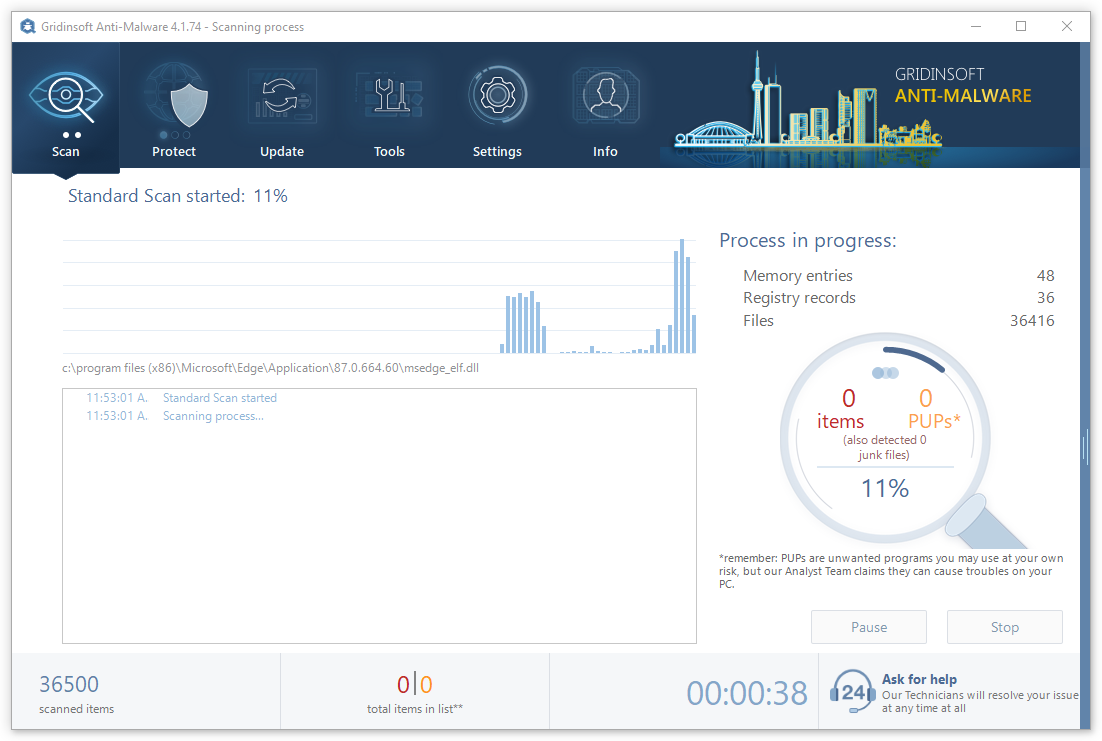
After activating your free trial, start Full scan. It may last up to 10 minutes. You may use the PC as usual.
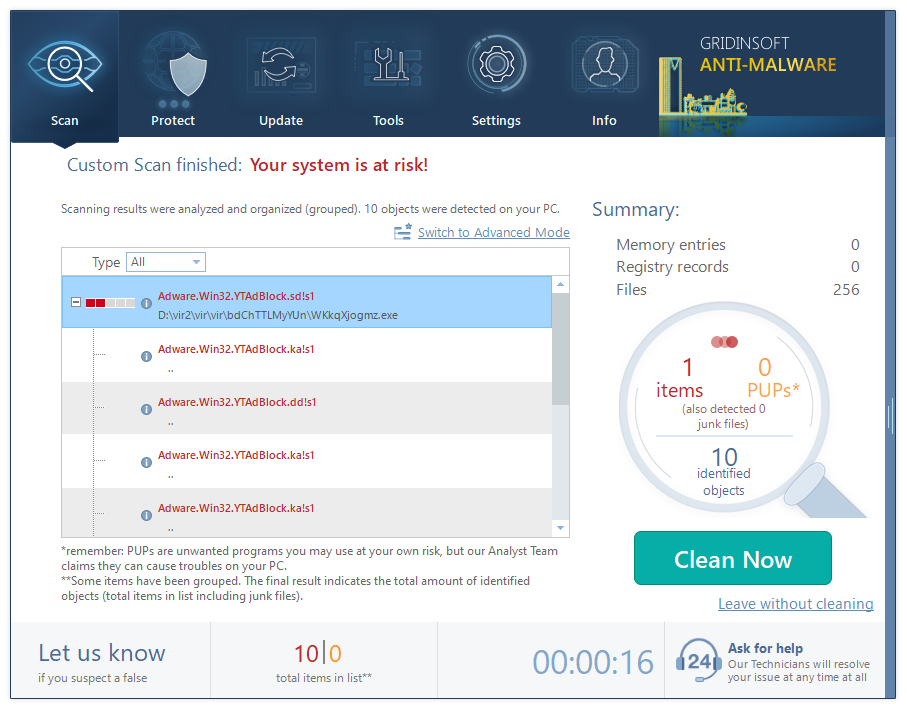
When the scan is finished, press the Clean Now button to remove all detected elements from your system. This procedure takes less than a minute.
Now, you are good to go. Reboot your PC into a normal Windows mode and use just as there was nothing malicious.
Как удалить IGCC
IGCC.exe — это исполняемый файл (программа) для Windows. Расширение имени файла .exe — это аббревиатура от англ. слова executable — исполнимый. Необходимо запускать исполняемые файлы от проверенных производителей программ, потому что исполняемые файлы могут потенциально изменить настройки компьютера или нанести вред вашему компьютеру. Бесплатный форум с информацией о файлах может помочь вам разобраться является ли IGCC.exe вирусом, трояном, программой-шпионом, рекламой, которую вы можете удалить, или файл принадлежит системе Windows или приложению, которому можно доверять.
Вот так, вы сможете исправить ошибки, связанные с IGCC.exe
- Используйте программу Настройщик Windows, чтобы найти причину проблем, в том числе и медленной работы компьютера.
- Обновите программу IGCC. Обновление можно найти на сайте производителя (ссылка приведена ниже).
- В следующих пунктах предоставлено описание работы IGCC.exe.
Информация о файле IGCC.exe
Описание: IGCC.exe не является необходимым для Windows. Файл IGCC.exe находится в подпапках «C:\Program Files». Известны следующие размеры файла для Windows 10/11/7 20,992 байт (55% всех случаев) или 20,480 байт.
AppUp IntelGraphicsExperience — это приложение для Магазина Windows, полное название пакета AppUp.IntelGraphicsExperience_8j3eq9eme6ctt.
Приложение не видно пользователям. Нет информации по файлу. Это не системный процесс Windows. Процесс можно деинсталлировать из панели инструментов. IGCC.exe представляется сжатым файлом. Поэтому технический рейтинг надежности 34% опасности.
Если вы хотите полностью удалить программу, перейдите в Панель управления ⇒ Программы ⇒ Intel® Graphics Command Center или Центр управления графикой Intel®.
Важно: Некоторые вредоносные программы маскируют себя как IGCC.exe, особенно, если они расположены в каталоге c:\windows или c:\windows\system32. Таким образом, вы должны проверить файл IGCC.exe на вашем ПК, чтобы убедиться, что это угроза. Мы рекомендуем Security Task Manager для проверки безопасности вашего компьютера.
Комментарий пользователя
Лучшие практики для исправления проблем с IGCC
Аккуратный и опрятный компьютер — это главное требование для избежания проблем с IGCC. Для этого требуется регулярная проверка компьютера на вирусы, очистка жесткого диска, используя cleanmgr и sfc /scannow, удаление программ, которые больше не нужны, проверка программ, которые запускаются при старте Windows (используя msconfig) и активация Автоматическое обновление Windows. Всегда помните о создании периодических бэкапов, или в крайнем случае о создании точек восстановления.
Если у вас актуальные проблемы, попробуйте вспомнить, что вы делали в последнее время, или последнюю программу, которую вы устанавливали перед тем, как появилась впервые проблема. Используйте команду resmon, чтобы определить процесс, который вызывает проблемы. Даже если у вас серьезные проблемы с компьютером, прежде чем переустанавливать Windows, лучше попробуйте восстановить целостность установки ОС или для Windows 8 и более поздних версий Windows выполнить команду DISM.exe /Online /Cleanup-image /Restorehealth. Это позволит восстановить операционную систему без потери данных.
Следующие программы могут вам помочь для анализа процесса IGCC.exe на вашем компьютере: Security Task Manager отображает все запущенные задания Windows, включая встроенные скрытые процессы, такие как мониторинг клавиатуры и браузера или записей автозагрузки. Уникальная оценка рисков безопасности указывает на вероятность процесса быть потенциально опасным — шпионской программой, вирусом или трояном. Malwarebytes Anti-Malware определяет и удаляет бездействующие программы-шпионы, рекламное ПО, трояны, кейлоггеры, вредоносные программы и трекеры с вашего жесткого диска.
IGCC сканер
Security Task Manager показывает все запущенные сервисы Windows, включая внедренные скрытые приложения (например, мониторинг клавиатуры или браузера, авто вход). Уникальный рейтинг надежности указывает на вероятность того, что процесс потенциально может быть вредоносной программой-шпионом, кейлоггером или трояном.
Бесплатный aнтивирус находит и удаляет неактивные программы-шпионы, рекламу, трояны, кейлоггеры, вредоносные и следящие программы с вашего жесткого диска. Идеальное дополнение к Security Task Manager.
Инструмент ремонта ПК бесплатное сканирование, очистка, восстановление и оптимизация вашей системы.
What is IGCC.exe?
The .exe extension on a filename indicates an exe cutable file. Executable files may, in some cases, harm your computer. Therefore, please read below to decide for yourself whether the IGCC.exe on your computer is a Trojan that you should remove, or whether it is a file belonging to the Windows operating system or to a trusted application.
IGCC.exe file information

IGCC.exe process in Windows Task Manager
Description: IGCC.exe is not essential for the Windows OS and causes relatively few problems. The file IGCC.exe is located in a subfolder of «C:\Program Files» (e.g. C:\Program Files\WindowsApps\AppUp.IntelGraphicsExperience_1.100.3408.0_x64__8j3eq9eme6ctt\). Known file sizes on Windows 10/11/7 are 20,480 bytes (69% of all occurrences), 20,992 bytes or 591,172 bytes.
More information about the package AppUp.IntelGraphicsExperience_8j3eq9eme6ctt can be found in the Windows Store https://www.microsoft.com/store/apps/9PLFNLNT3G5G.
There is no description of the program. The program is not visible. It is not a Windows core file. The app passed the Windows Store certification. The software can be uninstalled in the Control Panel. IGCC.exe appears to be a compressed file. Therefore the technical security rating is 33% dangerous; but you should also compare this rating with the user reviews.
Important: Some malware camouflages itself as IGCC.exe, particularly when located in the C:\Windows or C:\Windows\System32 folder. Therefore, you should check the IGCC.exe process on your PC to see if it is a threat. We recommend Security Task Manager for verifying your computer’s security. This was one of the Top Download Picks of The Washington Post and PC World.
Score
User Comments
Summary: Average user rating of IGCC.exe: based on 3 votes with 3 user comments. One user thinks IGCC.exe is essential for Windows or an installed application. One user thinks it’s probably harmless. One user thinks it’s neither essential nor dangerous. One user is not sure about it.
Best practices for resolving IGCC issues
A clean and tidy computer is the key requirement for avoiding problems with IGCC. This means running a scan for malware, cleaning your hard drive using 1 cleanmgr and 2 sfc /scannow, 3 uninstalling programs that you no longer need, checking for Autostart programs (using 4 msconfig) and enabling Windows’ 5 Automatic Update. Always remember to perform periodic backups, or at least to set restore points.
igcc.exe : что это? и как его убрать (Решено)
Очистите мусорные файлы, чтобы исправить igcc.exe , которое перестало работать из-за ошибки.
- Запустите приложение Asmwsoft Pc Optimizer.
- Потом из главного окна выберите пункт «Clean Junk Files».
- Когда появится новое окно, нажмите на кнопку «start» и дождитесь окончания поиска.
- потом нажмите на кнопку «Select All».
- нажмите на кнопку «start cleaning».
Очистите реестр, чтобы исправить igcc.exe , которое перестало работать из-за ошибки
- Запустите приложение Asmwsoft Pc Optimizer.
- Потом из главного окна выберите пункт «Fix Registry problems».
- Нажмите на кнопку «select all» для проверки всех разделов реестра на наличие ошибок.
- 4. Нажмите на кнопку «Start» и подождите несколько минут в зависимости от размера файла реестра.
- После завершения поиска нажмите на кнопку «select all».
- Нажмите на кнопку «Fix selected».
P.S. Вам может потребоваться повторно выполнить эти шаги.
Как удалить заблокированный файл
- В главном окне Asmwsoft Pc Optimizer выберите инструмент «Force deleter»
- Потом в «force deleter» нажмите «Выбрать файл», перейдите к файлу igcc.exe и потом нажмите на «открыть».
- Теперь нажмите на кнопку «unlock and delete», и когда появится подтверждающее сообщение, нажмите «да». Вот и все.
Настройка Windows для исправления критических ошибок igcc.exe :
- Нажмите правой кнопкой мыши на «Мой компьютер» на рабочем столе и выберите пункт «Свойства».
- В меню слева выберите » Advanced system settings».
- В разделе «Быстродействие» нажмите на кнопку «Параметры».
- Нажмите на вкладку «data Execution prevention».
- Выберите опцию » Turn on DEP for all programs and services . » .
- Нажмите на кнопку «add» и выберите файл igcc.exe , а затем нажмите на кнопку «open».
- Нажмите на кнопку «ok» и перезагрузите свой компьютер.
Как другие пользователи поступают с этим файлом?
Всего голосов ( 202 ), 133 говорят, что не будут удалять, а 69 говорят, что удалят его с компьютера.
Как вы поступите с файлом igcc.exe ?
Некоторые сообщения об ошибках, которые вы можете получить в связи с igcc.exe файлом
- ( igcc.exe ) столкнулся с проблемой и должен быть закрыт. Просим прощения за неудобство.
- igcc.exe . Эта программа не отвечает.
- ( igcc.exe ) — Ошибка приложения: the instruction at 0xXXXXXX referenced memory error, the memory could not be read. Нажмитие OK, чтобы завершить программу.
- ( igcc.exe ) не является ошибкой действительного windows-приложения.
- ( igcc.exe ) отсутствует или не обнаружен.
IGCC.EXE
 Описание файла: igcc.exe Файл igcc.exe из Intel Corporation является частью IGCC. igcc.exe , расположенный в C:/Program Files/WindowsApps/AppUp.IntelGraphicsExperience_1.100.3407.0_x64__8j3eq9eme6ctt/IGCC.exe с размером файла 20480 байт, версия файла 1.100.3407.0, подпись 1db4ee21cdf12711da62d0361efe33ab.
Проверьте процессы, запущенные на вашем ПК, используя базу данных онлайн-безопасности. Можно использовать любой тип сканирования для проверки вашего ПК на вирусы, трояны, шпионские и другие вредоносные программы.