How to Run Python Scripts in Linux
One of the most basic and crucial things to learn is running a Python script when learning or working with Python. Because Python is an interpreted language, it requires the Python interpreter to execute any Python code. Depending on the type of script, there are a couple of ways you can execute it.
This guide will showcase executing a sample Python script.
Python scripts
Any script is a text file containing the code. The file can then be run using an interpreter. The same goes for any Python script.
Generally, a Python script will have the file extension PY. However, there’s another way of writing a Python script: embedding Python codes into a bash script.
Either way, you need to have the Python package installed in your system. Because it’s a popular programming language, all Linux distros offer pre-built Python binaries directly from the official package servers. Distros like Ubuntu, Linux Mint, Pop! OS etc., comes with Python pre-installed. The package name should be “python” or “python3″ for any other distros”.
Working with a Python script
Creating a sample Python script
For demonstration, let’s make a quick Python script. Open up the terminal and create a file named sample-script.py.

To be able to run the script, it must be marked as an executable file. Mark the file as an executable.

Check the file permission to verify if it worked.

Writing a sample Python code
Now, we’re going to put some code in the script. Open up the file in any text editor. For demonstration, I’m going to be using the nano text editor.
We’ll place a simple program that prints “hello world” on the console screen.
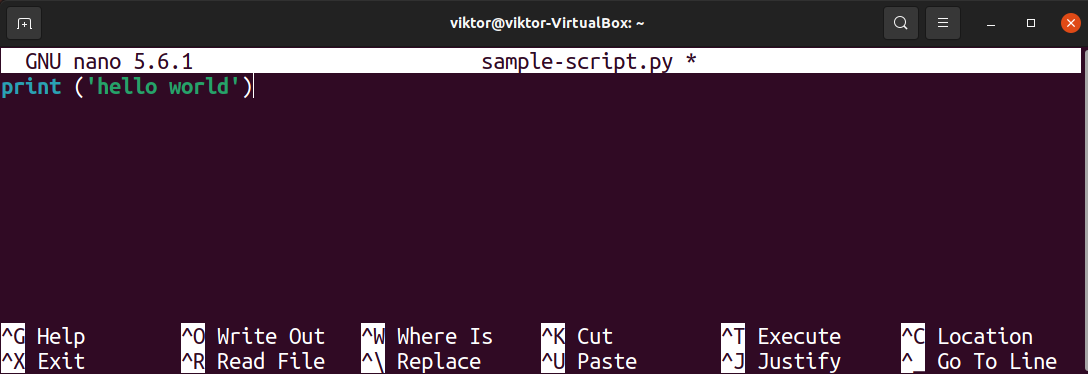
Save the file and close the editor.
Running the Python script
Finally, we can run the script. Call the Python interpreter and pass the location of the file.

Bash-style Python script
So far, we’ve seen the default way of running a Python script. However, there’s an unconventional way of writing and running a Python script as a shell script.
Generally, a shell script contains a list of commands that are interpreted and executed by a shell (bash, zsh, fish shell, etc.). A typical shell script uses shebang to declare the desired interpreter for the script.
We can take this structure to our advantage. We’ll declare the Python interpreter as the desired interpreter for our code. The body of the script will contain the desired Python scripts. Any modern shell will execute the script with the Python interpreter.
The structure will look something like this.
Location of Python interpreter
The shebang requires the path of the interpreter. It will tell the shell where to look for the interpreter. Generally, a Python interpreter is available as the command “python” or “python3”. Python 2 is deprecated, so it’s not recommended to use it anymore (except in very specific situations).
To find the location of the Python interpreter, use the which command. It finds the location of the binary of a command.

Creating a shell script
Similar to how we created the Python script, let’s create an empty shell script.

Mark the script as an executable file.

Writing a sample shell script
Open the script file in a text editor.
First, introduce the shebang with the location of the interpreter.
We’ll write a simple Python program that prints “hello world” on the next line.
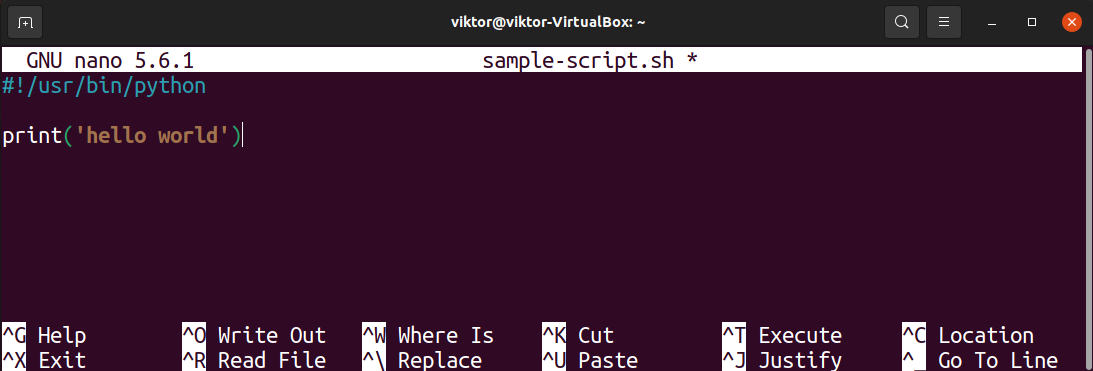
Save the file and close the editor.
Running the script
Run the script as you’d run a shell script.

Final thought
It needs to be passed on to the interpreter to run a Python code. Using this principle, we can use various types of scripts to run our Python code. This guide demonstrated running Python scripts directly (filename.py scripts) or indirectly (filename.sh).
In Linux, scripts are generally used to automate certain tasks. If the task needs to be repeated regularly, it can also be automated with the help of crontab. Learn more about using crontab to automate various tasks.
About the author

Sidratul Muntaha
Student of CSE. I love Linux and playing with tech and gadgets. I use both Ubuntu and Linux Mint.
Run Python Scripts from the Terminal: A Simple Skill for Serious Data Scientists
Pass arguments to Python scripts without changing the underlying code to improve your programming flexibility and efficiency.


Access to programming knowledge and tools has never been easier, and that’s a good thing. Now anyone can find a free data science course, start up a Jupyter notebook, and have working code to analyze data in a matter of minutes. Inevitably, those small projects scale up to include more data and more complex analysis that require more computational resources. Suddenly, that Jupyter notebook just doesn’t cut it anymore. You need a more flexible (and more powerful) way to run your code.
This is where running Python scripts from the command line can be your friend. Developing scripts with the command line in mind will make it easier to scale your code up to run in parallel on your own machine or a supercomputer, should it come to that. The rest of this article will cover the basics of this simple, yet powerful, skill.
A Simple Example
First, you’ll need to have Python installed on the machine where the code is going to run. Your system will also need to know Python is installed and be able to access it. This article specifically discusses this for the Windows operating system, but will also make references for Mac and Linux users. If you have Anaconda installed (recommended) this is easy. Just open up the Anaconda Prompt. You can find it by searching in the Start Menu. Otherwise, open up the Windows command prompt (search ‘cmd’ in the Start Menu). Mac/Linux users can simply open a terminal.
Type python in the terminal window and press ‘Enter’. If you have Python installed, this will start an interactive Python session with a message describing your Python version. Below the version information you will see >>> indicating you are in an interactive session. You’ve now confirmed your Python installation and can type quit() and press ‘Enter’ to exit the interactive session. If an interactive session did not start you will need to install Python or troubleshoot your installation.
How to run a Python script in Linux
In a Linux environment, everything is treated as a file, including the directories and connected devices. To run an executable file in a Linux environment, we use the terminal or the command line interface (CLI).
Execute a written Python script
First, we need to place the file in a directory where we can access it and run it via the terminal. For this tutorial, we shall place it on the desktop.
Now, open the terminal, for most Linux flavors using the shortcut "Ctrl + Alt + T" should work. In case it doesn't, we can type it in the search bar and open the terminal from there.
Now, we need to navigate to the "desktop", where we have placed the python script that we wish to execute. To switch directories, we use the cd command followed by the name of the directory.
Как запустить скрипт Python в Linux
Одним из самых популярных языков программирования является Python. Его часто используют программисты для написания различных системных скриптов для Linux. Например, если в Windows не хватает системных возможностей, то используется программа PoweShell. В Linux на такой случай предусмотрен именно язык Python. Особенность Python в том, что на нем написано огромное количество системных программ, в частности менеджер apt, видеоредактор OpenShot, а также множество скриптов, которые вы можете установить с помощью утилиты. Дальше рассмотрим, как запустить Python скрипт в Linux с помощью терминала различными способами.
Запускаем скрипт Python в Linux
В качестве примера испольуем Python скрипт. Но не будем брать уже существующий, а создаим новым — собственный:
Чтобы запустить скрипт необходимо передать его интерпретатору Python. Для этого просто откройте терминал с помощью сочетания клавиш Ctrl + Alt + T, перейдите в папку со скриптом и выполните:
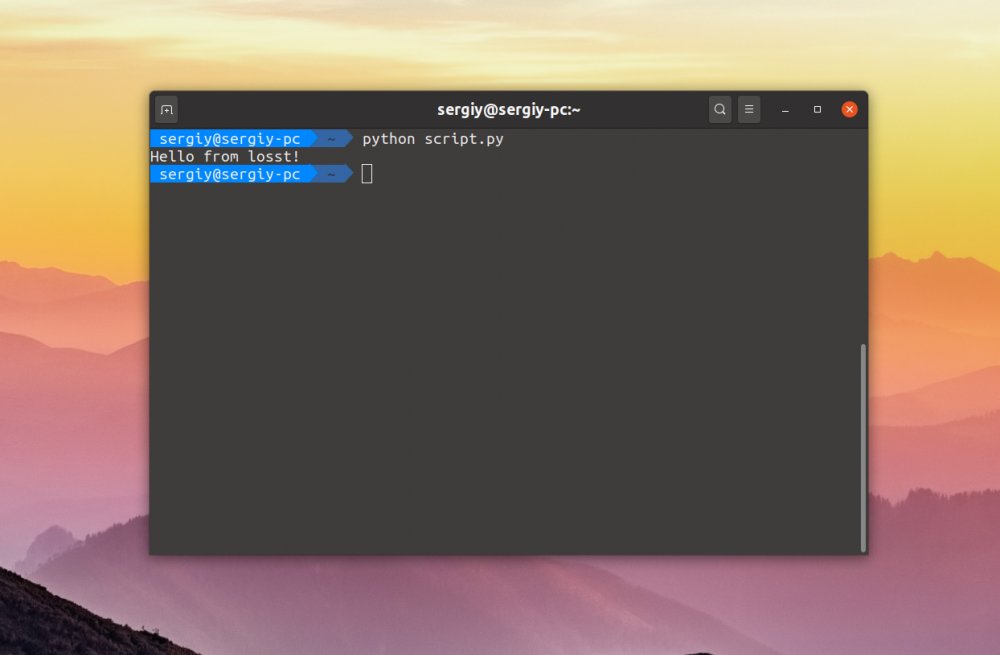
Если вы хотите, чтобы после выполнения скрипта открылась консоль, в которой можно интерактивно выполнять команды языка Python используйте опцию -i:
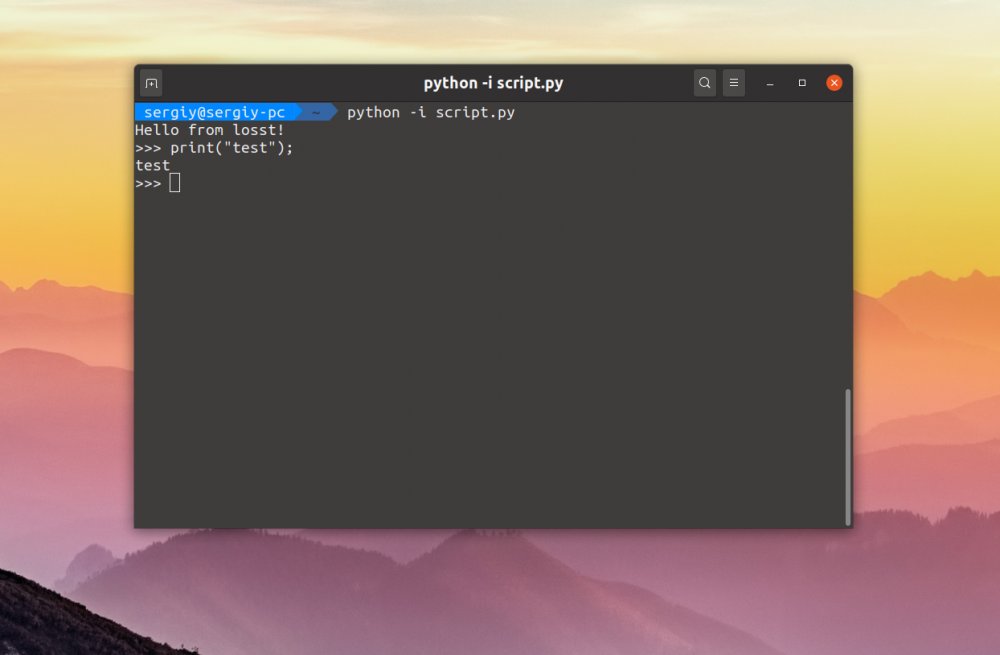
Как видим, при запуске apt или openshot не надо писать слово python. Это намного удобнее. Давайте разберемся как это реализовать. Если вы не хотите указывать интерпретатор в командной строке, его надо указать в самом скрипте. Для этого в скрипт добавим строчку:
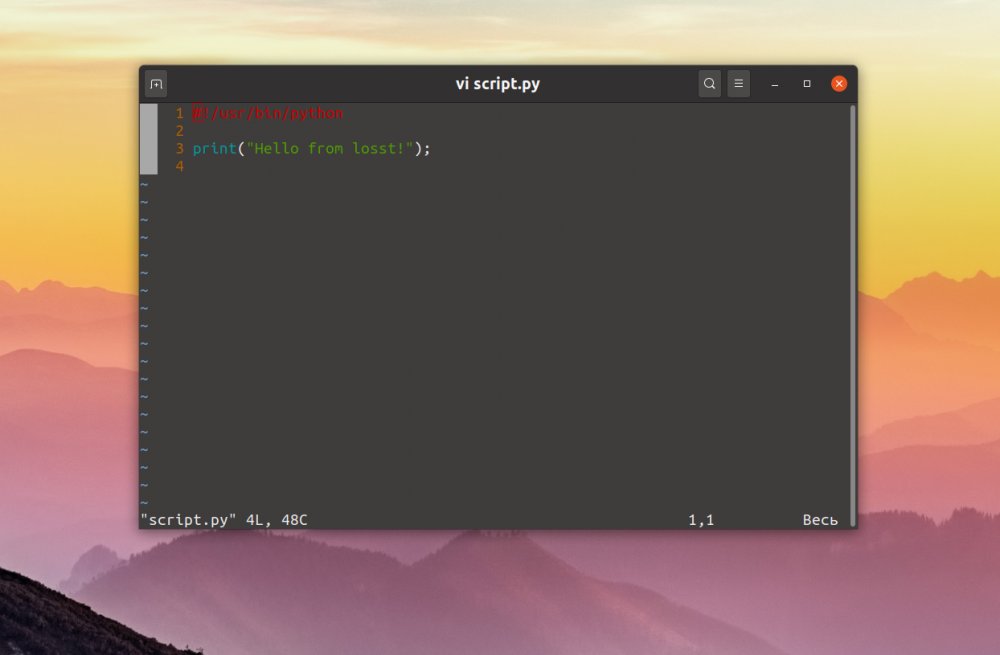
Сохраните изменения, а затем сделайте файл скрипта исполняемым с помощью такой команды:
После этого можно запустить скрипт Python просто обращаясь к его файлу:
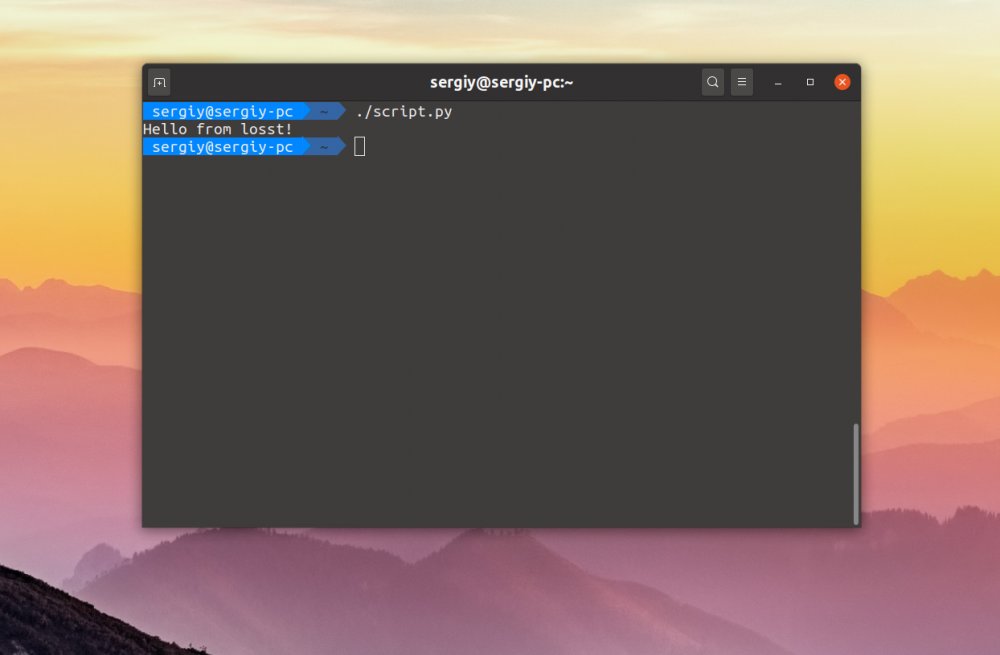
Если убрать расширение .py и переместить скрипт в каталог, который находится в переменной PATH, например /usr/bin/, то его можно будет выполнять вот так:
Запуск команды python Linux выполняется довольно просто и для этого даже есть несколько способов. Можете пользоваться любым из них.