Better Discord Crashing Try These 10 Fixes
You will receive a notification indicating BetterDiscord has been automatically disabled temporarily. There are several reasons that you might receive this error message. The most common explanation is a faulty plugin. While BetterDiscord is disabled you will find that you are unable to access any features and the application will not be visible in your settings. This guide will help breakdown the most common reasons for the “BetterDiscord Seems to Have Crashed Your Discord Client” error, and how to fix and prevent it.
Why Does My BetterDiscord Keep Crashing?#
There are several reasons that your BetterDiscord might be crashing and giving you this error message. Luckily, it is easy to narrow down the root of your issue with some troubleshooting. Some of the most common causes and explanations are listed below:
1. You Are Using Incompatible Plugins#
When BetterDiscord encounters an incompatible plugin, it will cause Discord to crash and display the “BetterDiscord Seems to Have Crashed Your Discord Client” error message. This is an automatic response by BetterDiscord indicating that you should deal with the problematic plugin before trying to use the application. If you find that your plugins were working before a recent update, you should try uninstalling the plugin or if able, roll back to a previous version and see if that resolves the error. New updates can push plugins out of compatibility with BetterDiscord, so if you have updated any of your plugins lately and begin to receive this error, that is a good indicator of where to find the root of the problem.
2. A Plugin You Are Using Has Become Corrupted#
Like any file on your computer, plugins can become corrupted overtime. Unstable updates or outdated software versions can increase the risk of plugin corruption. When BetterDiscord encounters a corrupted plugin, it will enter a disabled state. Users will find that they cannot access any of the features of BetterDiscord while using a corrupted plugin. If you suddenly encounter the “BetterDiscord Has Seems to Have Crashed Your Discord Client” error, you should check and make sure that all your plugins are stable and working. It can be hard to pinpoint the exact plugin that is not functioning correctly, so patience is a must when trying to resolve this error.
3. BetterDiscord Is Out of Date#
Users have reported this error and random crashing when using a version of BetterDiscord that is not up to date. Patches and fixes pushed in the most recent updates could help fix compatibility issues between your plugins and BetterDiscord. Plugin developers pushing updates to reflect the most recent version of BetterDiscord can also affect the compatibility of your plugins with older versions of the application. If a plugin you use has been recently updated and you are using an outdated version of BetterDiscord, you can expect to see this error message.
4. Unread Count Badges Cause BetterDiscord to Crash#
There is a known issue with Discord and the accumulation of unread count badges. These badges are notifications to the user and if left unchecked, can cause glitches and crashes. This glitch can affect BetterDiscord and cause this error message to appear. Discord has released fixes for this issue, but it is still possible to encounter if you use Discord regularly.
5. You Have Encountered a Bug#
Like any application, BetterDiscord is subject to the occasional bug or glitch. These temporary malfunctions can produce the “BetterDiscord Seems to Have Crashed Your Discord Client” error. Generally, this type of error is produced by no fault of the users and represents a temporary internal issue with BetterDiscord. These types of errors are often hard to reproduce and happen randomly, resolving themselves without any user action required.
How To Fix BetterDiscord Crashing#
Now that we have talked about the major causes of the “BetterDiscord Seems to Have Crashed Your Discord Client” error, we will discuss ways to resolve this error and prevent it. Some common fixes for this error are listed below:
1. Restart BetterDiscord#
The first step you should take to resolve this error is the easiest. Simply restarting the BetterDiscord client can help resolve several issues including error messages and crashing. A restart should be your first plan of attack for trying to rid yourself of this error. Giving the application a fresh start can also help you determine the root of the error message. If it crashes on startup that is a good indicator that your application file might be corrupt, or you have a faulty plugin stopping BetterDiscord from running correctly.
2. Wait For the Problem to Resolve Itself#
Another simple solution to this error message is to just let the issue work itself out. Sometimes bugs and glitches can cause this error message. These functionality problems are often temporary and will take care of themselves after some time. This can be a good solution if you think that you have encountered the “BetterDiscord Seems to Have Crashed Your Discord Client” error due to a bug or glitch. These types of errors can resolve themselves quite quickly, though can often be the result of underlying issues.
3. Disable All BetterDiscord Plugins#
As previous mentioned, plugins are a major source of common issues and errors in BetterDiscord, including the error in question. The easiest way to determine if your error is the result of a plugin issue is to disable all your installed plugins and restart BetterDiscord. If you can use the application without any error indication, then you can safely assume that the issue is stemming from one of your installed plugins. You can fix your plugin issues by making sure that both your plugins and BetterDiscord application are both up to date and compatible with each other. If disabling your plugins did not work, then you can assume that the problem lies elsewhere.
4. Isolate and Delete Problematic Plugins#
If your error message is resolved when using BetterDiscord with plugins disabled, then your next course of action should be to isolate and removing the plugin causing the issues. The process to single out the plugin causing the problems can be a bit more complicated. Users will often find themselves deleting plugins one by one till they find the one causing the error. A way to avoid this monotonous task is to be aware of any recently updated plugins that may no longer be compatible with your current version of BetterDiscord. This way you have some reference for recent changes that might have triggered the error message. Before attempting this method of error resolution, you should make sure that all your plugins are up to date. This will save you time and trouble if it turns out that was enough to solve your problem.
5. Repair BetterDiscord#
Some occurrences of this error message can be solved by repairing your BetterDiscord application using the repair BandageBD. Using the BandageBD repair application can help restore fragmented and corrupt files associated with BetterDiscord. Using the repair software if straightforward. Simple follow the onscreen selections to start the repair process. This method can be used as an alternative to a full reinstall.
6. Reinstall BetterDiscord#
If you find that none of the solutions above resolve your issue, then a full reinstall could be the solution to your error. If BetterDiscord is not working properly, a fresh install will start you off with a clean slate. You will lose all your installed plugins and users setting if you do not save them beforehand, so consider that before attempting this solution.
7. Reinstall Discord#
If you think that your problem is stemming from Discord, you should try a fresh install to see if that solves your error. BetterDiscord is dependent on Discord to function correctly, so making sure that both applications are up to date and functional is vital. Discord has built in repair software if you wish to avoid a full reinstall.
8. Restart Your PC#
As a last resort you can try restarting your PC to see if that resolves your “BetterDiscord Seems to Have Crashed Your Discord Client” error message. This is a viable option to consider for several different issues that you might encounter using BetterDiscord, or any application for that matter. Computers, like any machine, are prone to error and sometimes need to be reset to resolve those issues.
9. Reach Out to the Community for Help#
BetterDiscord was developed open-source and exists in a Github account where it is constantly being improved upon by a dedicated community. If you find that you are getting this error and none of the above methods solved your issue, then you could try reaching out to the development community with your issue. Having this type of close relationship with the developers can help get you answers to complicated questions that the average user might not know. By reporting your issue, you are also aiding in the growth of BetterDiscord. Developers can use the information from your issue to implement future updates to patch address the issue.
10. Report Your Issue to BetterDiscord Support#
If you cannot find an answer to your problem from the community of BetterDiscord users, then you can utilize the dedicated report channel to get immediate technical support. BetterDiscord runs an official Discord channel that handles all grievances and technical complaints. If you choose to escalate your issue using the support channel, be sure that you have exhausted all the options listed above. The process for reporting an issue is straightforward. You will be able to chat with live agents and developers and explain your issue.
How To Prevent BetterDiscord Error Message “BetterDiscord Seems to Have Crashed Your Discord Client”#
If you wish to avoid this error message in the future, there are a few things you can do to lower your chances of encounter. No application is perfect, so you can expect the occasional bug or glitch, but if you consider these preventative measures, you can be proactive towards keeping BetterDiscord functioning as intended.
1. Keep Your Plugins Up to Date#
The most important preventative measure you can put in place is keeping your plugins up to date with the current version of BetterDiscord. As mentioned previously, a large portion of the error messages encountered by users are caused by plugin compatibility issues. If BetterDiscord encounters an issue with a plugin it will often display the “BetterDiscord Seems to Have Crashed Your Discord Client” error message preceding a full crash of the application. Plugins are a vital part BetterDiscord and are major selling point for users, so keeping them functioning is of the utmost importance. Keep in mind that updates can also push your plugins out of compatibility with BetterDiscord, so be sure to read any update notes published for your installed plugins.
2. Avoid Sketchy Plugins#
With an active community of developers comes a plethora of unique plugins for users of BetterDiscord to use as they see fit. Though, not all plugins are made the same. A poorly optimized plugin can cause issues when trying to use BetterDiscord and can cause the “BetterDiscord Seems to Have Crashed Your Discord Client” error. Be cautious when are choosing plugins to install. You should utilize other user reviews to make an informed decision.
3. Keep BetterDiscord Up to Date#
Just like your plugins, the BetterDiscord application should be kept up to the most current version to ensure optimal functionality. You can check for updates while using BetterDiscord and they will automatically be downloaded. An out-of-date client can cause errors such as “BetterDiscord Seems to Have Crashed Your Discord Client”.
4. Keep Your Unread Badge Notifications Down#
As a precaution, it is good practice to keep your badge notifications down to a low number or disabled completely when using BetterDiscord. Unread badge notifications have been known to cause crashes and errors when using BetterDiscord, so to play it safe you should avoid a buildup of these notifications.
Conclusion#
It can be frustrating to encounter error messages and crashes when using BetterDiscord. Luckily, the causes are often easy to identify and resolve. If you encounter this error, you now have a detailed guide on how to resolve and prevent future issues. The “BetterDiscord Seems to Have Crashed Your Discord Client” error is one of the most common that users encounter when using the application. It is generally caused by a faulty or corrupted plugin that pushes BetterDiscord into an automatic disabled mode. While disabled, BetterDiscord will not be visible in your Discord settings to access. This is the standard response of the application to any sort of error that will cause crashing. You will not be able to access BetterDiscord or its features till the root of the error is resolved. If you are the victim of frequent crashes, or just looking for preventative measures so that you can ensure optimal functionality of your application, this guide has all the information you to understand, resolve, and prevent the error “BetterDiscord Seems to Have Crashed Your Discord Client”. Discord is a vital part of the gaming community around the world. Both pro and casual gamers utilize the features included with Discord to stay in touch with teammates, make new friends, and form tight communities centralized around common interest. BetterDiscord builds on the features of vanilla Discord and elevates them, adding new features, functionality, and aesthetic choices for personalizing your application. Users all over the world have been sold on BetterDiscord and it currently has several million users worldwide. Keeping your application up and running when you need it is important, and this guide will ensure that you are always able to get in touch when you need too.
How to Fix Better Discord Not Working?
You might’ve heard of the wonders of Better Discord and been meaning to try it out. Well, you’ve certainly heard correctly!
In short, Better Discord allows client customisations, with custom plugins and themes, making your Discord experience way more enjoyable. To see how you can install Better Discord and make your own Discord theme , check out our simple guide by clicking here . It’s a cakewalk to get started!
However, it’s fairly common for users to notice problems with Better Discord��. Especially since BetterDiscord is not an official release from Discord. These problems may arise during the installation process, or even a couple of days later.
A typical Better Discord error that users report is the “a Javascript error occurred in the main process”.

So don’t be alarmed and don’t let these errors stop you from experimenting with Better Discord. With that said, the following are 9 steps for when Better Discord isn’t working . At the end, there’s also a fix for when the Better Discord background image is not showing .
Do note these steps are catered for Windows and macOS users.
Also, ensure you’re using BandageBD from here , instead of any other alternative like Better Discord +.
Table of Contents
1. Restart the Discord Client
For starters, a simple restart of the Discord client is often an effective fix. Through rebooting, you’re essentially beginning a new session with the app. Along with that, you’re also force reloading Better Discord and your custom add-ons. Thus, ensuring that the custom themes and plugins are completely and correctly applied.
So, to restart Discord, select the Discord window, and press the Ctrl and R key (For Windows), or the Command ⌘ and R key (For Mac), which will refresh the app.

You’ll notice the window turn blank and grey, and within a minute it’ll finish restarting. If your first try didn’t pan out, try restarting a few more times.
If that restart was unsuccessful, we recommend completely closing the Discord app to provide a more thorough restart. Merely clicking the X button at the top-right won’t end the app entirely, as it’ll still be running in the background. Therefore, here are 2 methods we suggest performing.
For Windows , the easiest method is right-clicking the Discord icon from the Windows tray , and then select Quit Discord .

For Mac , the equivalent is selecting Discord from the App Menu and clicking Quit or pressing the Command ⌘ and Q keys together.

Secondly, you can end the Discord session through Task Manager . For Windows , right-click the Taskbar , then select Task Manager . After that, from the list of Processes , select Discord and click End task .

Once you’ve completely closed the app, try restarting your PC or Mac . Then, try opening Discord to see if Better Discord is loading up properly.
2. Log Out and Log In to Your Discord Account
For some users, logging out of their Discord account did the trick when Better Discord was not working. We aren’t entirely sure how this fixes the issue. Still, we believe it’s something to do with your account settings or information that’s interfering. Regardless, we suggest giving this step a quick shot.
For this, click the settings button, ⚙️, to open the User Settings menu.

Then, from the left pane, select Log Out , and at the following window, click Log Out .

Finally, you can restart the app, or go straight into signing in to your Discord account.
3. Repair BandagedBD through the BandagedBD Installer
You can also solve various Better Discord issues using the installer. You might have noticed when you were installing Better Discord, there was another option in the installer menu to Repair BandagedBD . So, we suggest using this nifty troubleshooter prepared by the great minds behind BandagedBD themselves.
To navigate to this Repair BandagedBD action:
-
Firstly, download the BandagedBD installer from their Github page by clicking here . Select the download link depending on your PC’s OS (Windows, macOS, Linux).

-
Following that, open the BandagedBD installer you’ve just downloaded, and Agree to the terms & conditions.

-
After that, select Repair BandagedBD .

- Next, tick the “Repair On Stable” option, then at the bottom, tick any of the problems you’re facing with BandagedBD.
- Finally, click the Repair button.

To complete the repairs, you may be prompted to reinstall BandagedBD. So, after a few minutes, and the repairs are completed, check to see if Better Discord is loading up properly.
4. Remove Your Custom Themes and Plugins from the Better Discord Folder
Sometimes Better Discord might appear not to be working correctly due to interferences from certain plugins or themes. Therefore, we suggest starting with a clean slate by removing these add-ons, to identify if the fault lies there.
You don’t have to delete your precious custom themes or plugins entirely. But you can store them somewhere else temporarily while you identify the cause of the Better Discord not working issue.
To access your Discord custom themes and plugins folder:
- Firstly, click the settings button, ⚙️, to open the User Settings menu.
- From the left pane, under Bandaged BD, select Plugins or Themes . Then, select the “Open Plugin Folder” or “Open Theme Folder” button.

-
In the particular folder, clear any plugins or theme files, or temporarily move them elsewhere .

Alternatively, you can reach this Better Discord folder through your File Explorer . Most likely, this is the file path to the folder:
Now that you’ve cleared your previously installed Discord themes and plugins, try restarting Discord (Step 1) and see if Better Discord is working again. You can begin adding new themes to check if the Better Discord background image is showing up again.
5. Temporarily Remove the “bdstorage.json” File
This is another file that you can find in the BetterDiscord folder from the previous step. Some users have reported that by removing this file, the issues with Better Discord seem to get magically resolved.
Again, you don’t have to delete this file entirely but merely move it elsewhere temporarily.
To navigate to this “bdstorage.json” file, in your File Explorer, go to this file path:

Now that you’ve removed the file, open up Discord, or restart it.
Did that do the trick? If not, you can move the “bdstorage.json” file back to the BetterDiscord folder.
6. Change the System Language
This step has been useful, especially when your Better Discord themes are not applying or the background image isn’t showing up. We believe by changing the language, you’re recalibrating the client’s appearance settings. So, after switching the language, you might notice the app go blank for a split second.
That being said, to change the language on the Discord client:
- Firstly, click the settings button, ⚙️, to open the User Settings menu.
- From the left pane, under App Settings, select Language .
- Then, choose a different language from the list like Deutsch. After that, you can restart the Discord client as well.

Finally, check to see if Better Discord is still not working. Regardless, you can switch back to your preferred language .
7. Reinstall Better Discord
So, if you find Better Discord is not working for you, try installing it again. The second or third time’s the charm✨. This step is certainly seen to be useful, probably because the first installation of Better Discord was incorrect. Besides that, an update from Discord may be interfering with Better Discord.
So for this fix, we start by uninstalling Better Discord before installing it again. This ensures Better Discord is running the latest updates as well.
Therefore, the easiest way to uninstall Better Discord is:
- Firstly, open the Better Discord installer you downloaded earlier. Or you can download it again from their Github page by clicking here . Choose the download link according to your OS (Windows, macOS).
- After that, from the list of actions, select Uninstall BandagedBD .

- Next, tick the Remove from Stable box, and under Additional Options, tick both the boxes (Remove all BandageBD data, Restart all Discord Instances).
- Finally, click the Uninstall button.

Additionally, completely reinstalling the Discord app (Step 8) can also remove the Better Discord installation. So, if the previous method didn’t work out for you, try following the next step and reinstall Discord entirely.
Finally, after Better Discord has been wholly removed, open the installer from before. Then, this time, choose Install BandagedBD , tick Install to Stable , and click Install .

After a minute, Discord should restart, and you should be running a fresh installation of Better Discord.
8. Reinstall the Discord App
We’ve placed this fix towards the end as it may include more steps. But man is it effective to sort out various Discord issues, including when Better Discord is not working correctly.
Essentially, we start by completely uninstalling the Discord client and removing all the Roaming and AppData files with it. Thus, ensuring a complete reinstallation. After that, we download and install a fresh copy of Discord on our PC.
The following are the steps to reinstalling Discord on Windows and macOS:
Completely Uninstalling Discord on Windows
- Firstly, open the Run prompt by pressing the Windows and R key together, then type appwiz.cpl and press OK . After that, from the list of programs, look for Discord , right-click it, and select Uninstall .

-
Next, you’ll need to remove all traces of the previous Discord app from your PC. For this, navigate to the Discord AppData and Roaming folder . So, press the Windows and R key together, at the Run prompt enter %appdata% and from the list delete the Discord file.


Completely Uninstalling Discord on macOS
- Firstly, open Finder , select Applications from the left pane and right-click the Discord application and select Move to Trash .

- Afterwards, open the Trash Bin , right-click it and select Empty Trash .
- Next, you’ll need to delete the Discord app data entirely. Therefore, select Go from the App Menu , then from the drop-down, choose “Go to Folder…” . Subsequently, in the search box type,
/Library , and click Go .

-
At the next window, search for Discord and delete the Discord file, by right-clicking it and selecting Move to Trash . Next, you can empty the Trash Bin again.

Finally, for both Windows and macOS, go to the Discord website , and download the Discord client installation file again. Then, run the installation file and proceed with the usual guided installation steps.

Lastly, try opening the newly-installed Discord app and log into your same account . Finally, you’ll need to install Better Discord , so follow Step 8 .
9. Report Your Problem to the Support Channel in the Better Discord Server
So, you’ve tried everything, but Better Discord is still not working properly for you. So, who do you turn to? Certainly not Discord Support as Better Discord is a third-party add-on and it technically goes against their terms of service.
Luckily, you can raise your issue at the Support channel in the Better Discord server . They have a friendly and helpful community there that can give you useful pointers. You can even gain the attention of the almighty devs so that they can release the proper bug fixes in the next update.

On that note, you can join the Better Discord server by clicking here . Then, navigate to the support channel in the server to express your error.
How to Fix the Better Discord Background Image Not Showing?
Perhaps Better Discord may be successfully installed, but your background theme’s image might not be showing or loading up correctly. What then?
Apart from the other steps in this guide, we believe the more effective fix is to use this ThemeFixer by Dahippo155 .
So, after downloading the theme file, you’ll need to install it the usual way you install Discord themes.
- For this, open Discord, go to User Settings .
- Then, from the left pane, under Bandaged BD , select Themes and click the Open Theme Folder button.

-
Next, paste the theme file (CSS file) into the folder.

-
Finally, at the client, enable the Discord theme , by flipping the switch. You might have to restart the Discord client (Step 1) for the change to take effect.

Conclusion
In sum, at its peak (when error-free), Better Discord is undoubtedly a blessing. It gives you customizability you can only dream of with the default client��.
However, not everyone might have the smoothest experience with the third-party app. Besides, with a dedicated community and dev team, we’re sure they’re ready to fix the bugs�� coming their way.
Along with that, we curated this guide of 9 fixes to help you out when Better Discord is not working properly.
Lastly, we’ll like to hear from you:
- Have you tried out Better Discord?
- Did you face any issues with it?
- Is there another fix for when Better Discord is not working?
We certainly hope you’ve found this guide useful. Do share this post with your bud facing issues with Better Discord.
Troubleshooting
Crashing when using BetterDiscord can be frustrating. Here are some helpful tips to solve your issues.
⚠️ BetterDiscord seems to have crashed your client.
This is a very generic error that could mean any number of things. It also doesn't necessarily mean BetterDiscord was at fault. It could have been a plugin or even Discord itself. It's just difficult for BetterDiscord to tell who is the cause so it catches them all.
Fixing issues like this involves the following:
- Switching to Stable from Canary or PTB
- Manually updating library plugins
- Removing unofficial plugins
- Rename the plugin folder
This type of error is usually caused by plugins or BetterDiscord being out of date. Ensure your copy of BetterDiscord and your plugins and keys are up to date.
Installation
This section goes over common issues and pitfalls when trying to install BetterDiscord.
General Issues
This is usually an issue with Discord moving around its installation location on Windows. Sometimes the installer is unable to differentiate what to do. To fix it, select Browse in the installer, then enter %localappdata%/discord/app-1.0.9006/resources in the address bar at the top. If this has the same issue repeat this but using %programdata%/%username%/Discord/app-1.0.9006/resources
If you are on Linux try running with the —no-sandbox
If the installer does not seem to open, follow these steps:
- Download and install 7-Zip
- Right-click and extract the BetterDiscord installer into a folder.
- Run the exe found in the folder.
Follow the manual installation instruction.
Try one of the following:
- Right-click the installer and select run as Administrator.
- Open the command prompt by pressing win + r type cmd and press enter. Then type ipconfig /flushdns and press enter in the window that appears.
- Disable your anti-virus temporarily.
Follow the manual installation instruction.
Click the text next to the checkbox instead, they are connected.
Specific Errors
Your installer is out of date, please go to the BetterDiscord website and download a new one.
The Discord installation has been corrupted. Try to reinstall Discord. If Discord fails to reinstall or you still run into this error then your best bet is cleanly uninstalling Discord then installing it again.
Fully close Discord. Fully deactivate any VPNs or firewalls. Make sure your installer is up to date. Then try again. If that still doesn't work, see the previous entry about cleanly removing and resinstalling Discord.
Is BetterDiscord not working? — 8 sureshot ways to fix the issue
Like making your apps look cooler? You most likely already know that BetterDiscord is the best way to do so with Discord. The app offers great added functionalities to Discord. It offers all types of custom themes and plugins, making it a great addition to your Discord app.
But, BetterDiscord doesn’t always work very well. You may face many issues due to which you feel BetterDiscord isn’t working as well as it should be. Given that the extension isn’t an official Discord app, it’s quite common. To help you with this, we’ve put together 8 ways below through which you can fix any issues you face. If you do not wish to check them out and just want to uninstall the BetterDiscord extension, learn to do that here.
8 Ways to fix the issue with BetterDiscord Not Working
Use the installer to fix issues with BetterDiscord not working
The BetterDiscord and BandagedBD installers allow you to solve issues. You can check the downloads folder if you have the installer. If not, you can download BetterDiscord and BandagedBD from the links below. Choose the file suitable for your device:
Once done, you can open the installer and accept the license. On the next screen, select ‘Repair BandagedBD’ or ‘Repair BetterDiscord’. This would, of course, depend on the version you’re using.
Now, for BandagedBD,
- Select ‘Repair on stable’ to the left of the screen. Check all the problems you’re facing from the list shown.
- Click on ‘Repair’. You will see on the next screen that the repairs have been completed, and the Discord app will open.

If you’re using BetterDiscord,
- After pressing ‘Repair BetterDiscord’ on the installer, go to the next screen.
- Select the Discord app from the folder location, and select ‘Repair’.
- On the next screen, you will see that at the end of the window, it says ‘Repairs completed’.
- A popup saying you need to reinstall BetterDiscord after repairing will show up. Select ‘Yes’ and complete the process. You’d have to open Discord manually to do so.
Check if you’re still facing the problem after completing the above steps. If yes, check out the solutions below.
Remove custom themes and plugins from BetterDiscord
Custom themes and plugins can interfere with the smooth functioning of BetterDiscord. You can remove these add-ons to check if they’re the issue here.
To remove custom add-ons from BetterDiscord and BandagedBD,
- Open Discord and click on the gear icon to go to the ‘User Settings’
- On the left-hand menu, under BetterDiscord, go to ‘Plugins’ —> ‘Open plugin Folder’.
- In this folder, either delete the existing files or move them to a different folder if you do not wish to delete.
- Do the same with the User Settings —> ‘Themes’.
- Restart Discord and add new themes and plugins to see if BetterDiscord is working now.
Refresh/ Restart Discord to fix issues with BetterDiscord not working
This might seem like a basic thing to do, but when you restart Discord, you start a new session with it. This also forces BetterDiscord to restart and apply the themes and plugins in the right way.
You can refresh Discord by pressing ‘Ctrl + R’ (Windows) or ‘Command + R’ (Mac) after opening the window. On doing so, you should notice that the screen greyed out for a couple seconds and then reloaded. Do this a few times if the BetterDiscord app doesn’t seem to work right away.
In case you continue to face issues with BetterDiscord not working, you can close Discord and open it. Don’t do this by pressing the ‘x’ at the top right, as this will keep Discord running in the background. Instead, on a Windows PC, open the Windows tray, right click on Discord and select ‘Quit Discord’. You can also press ‘Ctrl + Shift + Esc’ to open Task Manager, select Discord and end the task.
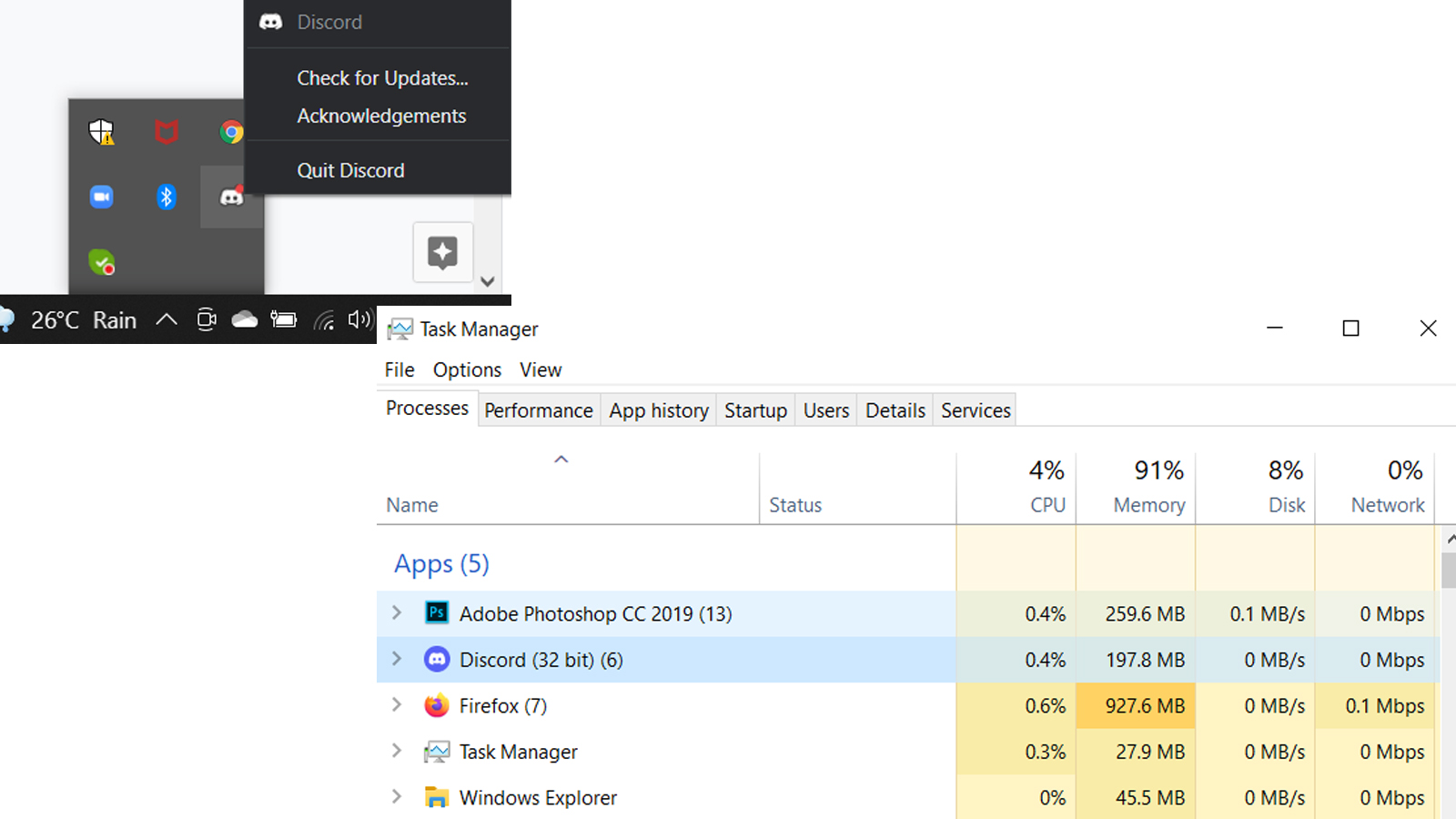
On a Mac, select Discord from the App Menu and select ‘Quit’. You can also press the ‘Command + Q’ keys together.
Now, restart your computer and see if the problem persists.
Change the system language settings
By changing the system’s language, you are changing your Discord client’s appearance settings. This can prove effective in making BetterDiscord work, as it deals with appearance.
- Click on the gear icon at the bottom left of the screen, next to your username to access the ‘User Settings’.
- Here, scroll down on the left menu to access the language settings. Change your language to any other, from the options available.
- Next, restart Discord and check if your issue persists.
- Make sure to revert the language to what it was once done.
In case the above fix did work for you, then your search ends here. But, if you find that none of the methods so far have worked, you can try to uninstall BetterDiscord. Make sure to reinstall it later.
Log out and into Discord
This might not always work out, but it did for a few users. You can log out of Discord by pressing the gear icon at the bottom of the screen, to go to ‘User Settings’. Here, scroll down to ‘Log out’ on the left menu, click and confirm it. Now, you can close the Discord app and restart it, then log in. Check to see if BetterDiscord is still not working.

Remove the ‘bdstorage.json’ file temporarily on Windows
You can try to remove the bdstorage.json file. Some users have found this method as a good solution for BetterDiscord not working.
To do so, press ‘Windows key + R’ to access Run. Now type ‘%AppData%’ into the text box and ‘OK’. Go to the BetterDiscord folder and move the ‘bdstorage.json’ to a different folder.
Restart Discord and check if the issue is solved. Restore the file in the relevant folder.
Uninstall and reinstall BetterDiscord to fix the issue.
You can uninstall BetterDiscord using the app installer, or removing the Discord app. We have explained the steps to do so on Windows as well as MacOS in detail on this blog.
In case you are using the BandagedBD extension, then you can do as follows:
- Open the BandagedBD installer (available for download here).
- Select ‘Uninstall BandagedBD’ on the next screen.
- Check the box next to ‘Remove from Stable’ and both options under ‘Additional options’. This ensures that you keep no file data on your computer.
- You can also follow this up by deleting the Discord app from your computer.

Once done, reinstall both Discord and BetterDiscord/ BandagedBD. While installing BandagedBD, make sure to check the ‘Install to Stable’ option. For more details on installing BetterDiscord, check out the steps given here.
Report to Support
If you still find that BetterDiscord isn’t working, then you can report to their support. BetterDiscord’s official Discord has a dedicated channel to resolve your grievances.