5 простых шагов: Как полностью удалить игру Валорант с вашего устройства
Игра Валорант (Valorant) — это многопользовательский онлайн-шутер от Riot Games, который включает в себя тактические элементы и командный геймплей. Но если вы решили удалить игру Валорант с вашего устройства по каким-либо причинам, вот 5 простых шагов, которые помогут вам сделать это.
Шаг 1: Остановка игры и клиента Riot Vanguard
Прежде чем начать процесс удаления, убедитесь, что игра Валорант и клиент Riot Vanguard полностью закрыты. Приложение Riot Vanguard обязательно должно быть закрыто, чтобы удалить игру правильно.
Шаг 2: Удаление игры из панели управления
- Откройте "Панель управления" на вашем устройстве.
- Найдите раздел "Программы" или "Программы и компоненты".
- Найдите и выберите "Valorant" из списка установленных программ.
- Щелкните правой кнопкой мыши и выберите "Удалить" или "Изменить/удалить".
- Следуйте инструкциям на экране, чтобы завершить процесс удаления игры.
Шаг 3: Удаление остатков игры и папок
После удаления игры из панели управления, вам нужно очистить остатки, которые могут оставаться на вашем устройстве.
- Откройте проводник на вашем устройстве.
- В адресной строке введите путь до папки установки игры. Обычно это "C:\Program Files\Valorant" или "C:\Program Files (x86)\Valorant".
- Если вы все еще видите папку "Valorant", удалите ее.
- Перейдите в папку "Пользователи" или "Users" на вашем устройстве. Обычно она находится на диске "C:".
- Перейдите в папку с вашим именем пользователя.
- Если вы все еще видите папку "Riot Games", удалите ее.
Шаг 4: Удаление клиента Riot Vanguard
Клиент Riot Vanguard — это программа, необходимая для запуска и обновления игры Валорант. Чтобы полностью удалить игру, вы должны также удалить клиент Riot Vanguard.
- Откройте "Панель управления" на вашем устройстве.
- Найдите раздел "Программы" или "Программы и компоненты".
- Найдите и выберите "Riot Vanguard" из списка установленных программ.
- Щелкните правой кнопкой мыши и выберите "Удалить" или "Изменить/удалить".
- Следуйте инструкциям на экране, чтобы завершить процесс удаления программы.
Шаг 5: Перезагрузите ваше устройство
После завершения всех предыдущих шагов рекомендуется перезагрузить ваше устройство. Это поможет очистить систему от остатков игры и клиента Riot Vanguard.
Поздравляем, вы успешно удалили игру Валорант с вашего устройства!
Примечание: Удаление игры Валорант с вашего устройства влечет за собой потерю всех данных, связанных с игрой, включая сохранения, настройки и т.д. Убедитесь, что предварительно создали резервные копии, если они вам нужны в будущем.
Теперь ваше устройство полностью очищено от игры Валорант и связанных файлов. Если в будущем вы решите снова установить игру, вам придется выполнить установку заново.
How To Uninstall Games On Riot Client
As an expert software engineer, I often receive queries from users who want to know how to uninstall games on the Riot Client. It’s important to understand that Riot Games, the publisher of popular titles like League of Legends and VALORANT, has designed their client to make the process of installation and uninstallation as seamless as possible. However, some users still find it challenging to remove games from their system.
In this article, I’ll walk you through the five essential steps to effectively uninstall games on the Riot Client without any hassle. By the end of this article, you’ll be able to free up your computer’s resources, manage your game library efficiently, and save valuable storage space. So, let’s dive in and explore the world of Riot Games uninstallation.
**Step 1: Navigate to the Riot Client Settings**
The first step in uninstalling a game on the Riot Client is to access the settings menu. To do this, follow these steps:
1. Launch the Riot Client by double-clicking its icon on your desktop or accessing it through the Start menu.
2. Log in using your Riot Games account credentials, if prompted.
3. Click on the gear icon located on the top right corner of the client to open the Settings menu.
**Step 2: Find the Installed Game**
In the Settings menu, you will find the list of installed games under the ‘My Games’ tab. This section displays all the games currently installed in your system through the Riot Client. Locate the game you wish to uninstall.
**Step 3: Initiate the Uninstallation Process**
Now that you’ve found the game you want to remove, it’s time to start the uninstallation process:
1. Click on the “…” next to the game’s name.
2. In the dropdown menu, select “Uninstall.”
This process will remove all game files and data from your computer. However, some residual files may still be present, which we’ll address in the next step.
**Step 4: Remove Residual Game Files (Optional)**
Although the Riot Client does an excellent job of removing game data during the uninstallation process, there might be leftover files or folders on your system. These residual files usually do not interfere with computer operations but can consume extra storage space. If you want to remove these files, follow these steps:
1. Open File Explorer and navigate to the directory where the game was installed (usually within the “Riot Games” folder located in your system’s primary drive).
2. Locate the game’s folder and delete it manually by right-clicking on it and selecting “Delete.”
Please note that performing this step is optional and should be done with caution. Make sure you only delete files and folders associated with the uninstalled game to avoid accidentally removing essential system files or data from other games.
**Step 5: Verify Successful Uninstallation**
The last step in the process is to ensure that the game has been completely removed from your system. To verify the successful uninstallation, perform the following checks:
1. Launch the Riot Client and access the Settings menu as described in Step 1.
2. Verify that the game no longer appears in the ‘My Games’ tab.
3. Check the available storage space on your computer and confirm that the game’s data has been removed successfully.
If everything checks out, you have successfully uninstalled the game from your Riot Client!
Uninstalling games on the Riot Client might seem daunting at first, especially for users who are not well-versed in software engineering concepts. However, by following these five essential steps, you can easily remove any game from your Riot library and reclaim valuable storage space. Remember to exercise caution while removing residual files, and always double-check that the game has been successfully uninstalled.
Now that you know how to uninstall games on Riot Client, you can better manage your game library and optimize your computer’s resources. Good luck, and happy gaming!
Table of Contents
FIX VANGUARD USER MODE SERVICE HIGH CPU (2023) | How to Uninstall Vanguard

I Fixed League Of Legends

How do I delete games from Riot client?
To delete games from the Riot client, follow these simple steps:
1. First, open the Riot client on your computer by double-clicking on the Riot Games icon or searching for it in your start menu.
2. Sign in to your account if you are not already signed in.
3. Once you have signed in, locate and click on the game tile for the game you want to uninstall.
4. On the game’s page, click on the gear icon located at the top right corner of the screen.
5. In the drop-down menu, select “Uninstall”.
6. You will be prompted with a confirmation message. Click on “Uninstall” again to confirm that you would like to delete the game from your computer.
7. The game will begin uninstalling. Please wait for the process to complete.
8. Once the game has been uninstalled, the game tile will no longer appear in the Riot client.
Note: If you wish to reinstall the game in the future, simply search for it in the Riot client and click on the “Install” button.
How do I uninstall LOL and Riot Games?
Uninstalling **League of Legends (LoL)** and **Riot Games** can help free up valuable space on your computer, and it’s a fairly simple process. Follow these steps to successfully remove the game and the launcher from your system:
For Windows:
1. Press the **Windows key** or click the **Start button** in the lower-left corner.
2. Type **Control Panel** in the search bar, and press **Enter** to open it.
3. Click on **Programs and Features** (or **Uninstall a Program**).
4. Scroll down the list of installed programs and locate **League of Legends** and **Riot Games**.
5. Click on **League of Legends** to select it, then click **Uninstall/Change** near the top of the window.
6. Follow the on-screen instructions to complete the uninstallation process.
7. Repeat steps 5 and 6 for **Riot Games**.
For macOS:
1. Open the **Finder**.
2. Click on **Applications** in the sidebar.
3. Locate the **League of Legends** app and the **Riot Games** app in the Applications folder.
4. Click and drag both the **League of Legends** app and the **Riot Games** app to the **Trash** icon in the dock.
5. Empty the **Trash** to complete the uninstallation process.
After following these steps, both **LoL** and the **Riot Games** launcher should be fully uninstalled from your computer. Don’t forget to restart your computer to ensure all changes take effect.
How do I uninstall games from Riot client Mac?
Uninstalling games from the Riot client on Mac is a straightforward process. Follow these simple steps to remove the games you no longer want from your system:
1. Open the Riot client by clicking on its icon in the Applications folder or from the Dock.
2. Log in to your Riot account if necessary.
3. Once logged in, click on the game you want to uninstall from the left sidebar. This will take you to its main page.
4. In the game’s main page, click the cogwheel icon located at the top right corner of the client to access the Settings menu.
5. From the Settings menu, select Manage Games.
6. Find the game you wish to uninstall in the list of installed games, then click the Uninstall button (it usually looks like a trash bin icon) next to the game’s title.
7. A confirmation prompt will appear; click Uninstall to confirm the action.
8. The uninstallation process will start, and once completed, the game will be removed from your Riot client and your Mac.
Remember to empty your Trash after uninstalling a game to free up space on your Mac completely.
How do I clean install Riot client?
To clean install the Riot Client, you should first uninstall the current version, remove any remaining files, and then reinstall the client. Here’s a step-by-step guide on how to do this:
1. Uninstall Riot Client:
– Close the Riot Client if it’s running.
– Press the Windows key and search for “Add or Remove Programs” in the Start menu.
– Find the Riot Client in the list of installed programs, click on it, and then click on “Uninstall.”
– Follow the on-screen instructions to complete the uninstallation process.
2. Remove leftover files and folders:
– Press the Windows key + R to open the Run dialog.
– Type “%appdata%” (without quotes) in the Run dialog and press Enter.
– Delete the “Riot Games” folder if it exists.
– Go back to the parent folder (AppData) and open the “Local” folder.
– Delete the “Riot Games” folder if it exists.
3. Download and install the latest Riot Client:
– Visit the official Riot Games website (https://www.riotgames.com/) and download the latest Riot Client installation file.
– Run the installation file and follow the on-screen instructions to install the client.
– Launch the Riot Client after the installation is complete, and log in with your account credentials.
By following these steps, you’ve successfully performed a clean install of the Riot Client.
What is the step-by-step process to uninstall games from the Riot Client?
Uninstalling games from the Riot Client is a simple process. Here’s a step-by-step guide to help you remove games from the Riot Client:
**Step 1**: Launch the Riot Client on your computer.
**Step 2**: Log in to your Riot Games account if you haven’t already.
**Step 3**: Once logged in, click on your profile icon in the top right corner of the client window.
**Step 4**: Select ‘Settings’ from the dropdown menu. This will open the settings panel for the Riot Client.
**Step 5**: In the Settings panel, navigate to the ‘Apps’ tab. Here you will see a list of all installed games from Riot on your computer.
**Step 6**: Locate the game you wish to uninstall from the list, and click on the ‘Uninstall’ button located below the game’s title.
**Step 7**: A confirmation prompt will appear. Click on ‘Uninstall’ again to confirm that you want to remove the game from your system.
**Step 8**: The Riot Client will now start the uninstallation process. This might take a few minutes depending on the size of the game files. Once completed, the game will be removed from your computer.
**Step 9**: Close the Settings panel and return to the main Riot Client window. The uninstalled game should no longer appear on your list of available games to play.
And that’s it! You have successfully uninstalled a game from the Riot Client. If you ever wish to reinstall the game, simply go through the download and installation process via the Riot Client again.
Are there any specific settings or options to consider when uninstalling games on Riot Client?
When uninstalling games on the Riot Client, there are a few specific settings and options to consider:
1. Backup game settings: Before uninstalling a game, make sure to backup any customized settings, such as keybindings or in-game preferences. These settings might not be saved when you reinstall the game later.
2. Removing game files: The Riot Client offers an automated uninstall process, but it is wise to double-check that all game files have been removed after uninstallation. Manually delete any remaining folders or files related to the game, which could be found in the installation directory or the Documents folder.
3. Clear cache and temporary files: To ensure a clean uninstall, clear the cache and temporary files associated with the game. This step can help prevent potential issues if you decide to reinstall the game later.
4. Unlink game accounts: If you have linked your Riot account to other platforms, such as Twitch or Discord, consider unlinking them before uninstalling the game. You may need to relink these accounts when reinstalling the game.
By following these steps and keeping important settings and options in mind, you can ensure a smoother and more effective uninstallation process for games on the Riot Client.
How can I troubleshoot issues that may arise while trying to uninstall games from the Riot Client?
Troubleshooting issues when trying to uninstall games from the Riot Client can be a bit tricky, but here are some key steps to follow:
1. Restart your computer: Before trying anything else, restart your computer to rule out any temporary issues that could be causing the problem.
2. Ensure you’re logged in as an administrator: Make sure you’re logged in with an account that has administrative privileges on your computer. This will ensure you have the necessary permissions to remove applications.
3. Update the Riot Client: Sometimes, issues with uninstalling games can be caused by running an outdated version of the Riot Client. Make sure you’re running the latest version of the client by checking for updates.
4. Run the Riot Client as Administrator: Right-click on the Riot Client shortcut and select “Run as Administrator.” This will grant the client the necessary permissions to uninstall your game.
5. Manually uninstall the game folder: If none of the above steps work, you can manually remove the game folder from your computer. To do this, navigate to the installation folder (usually located in C:Riot Games) and delete the entire game folder. Keep in mind that this may also delete your game settings and saved data.
6. Contact Riot Support: If you’re still experiencing issues when trying to uninstall games from the Riot Client, consider reaching out to Riot Support for assistance. They should be able to provide detailed guidance on resolving your specific issue.
Remember, patience is key while troubleshooting these types of issues. Follow these steps carefully and you should be able to successfully uninstall any game from the Riot Client.
Как удалить Valorant с ПК — Пошаговая инструкция
Иногда нужно удалить игру с компьютера. Например, если требуется освободить место на накопителе для чего-то более важного. Рассказываем, как удалить Valorant с ПК.
Процедура удаления
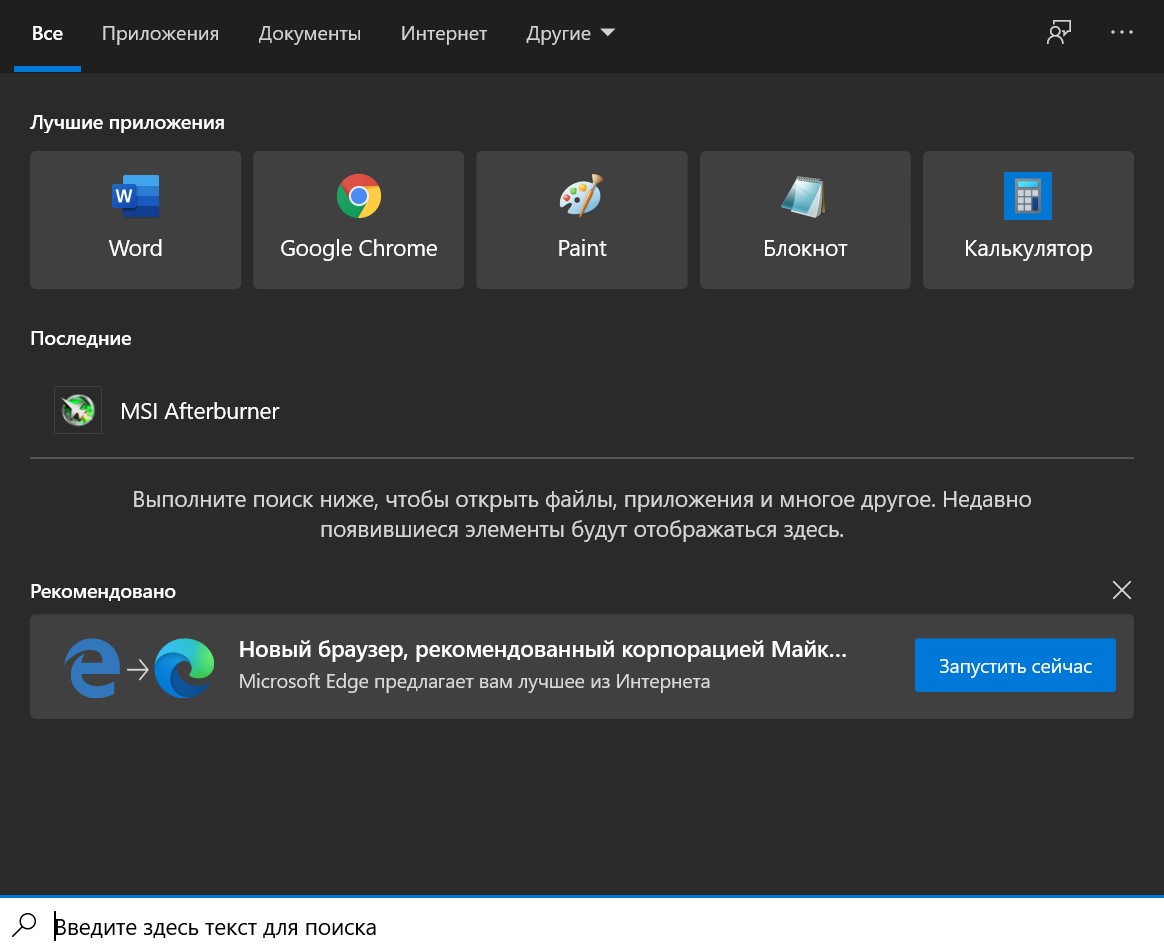
Удаление Valorant не отличается от деинсталляции любой другой программы. Оно производится через панель управления. Другое дело, что в Windows 10 она скрыта. Но найти ее несложно. Для этого вызываем меню поиска, нажав на расположенное на панели задач увеличительное стекло:

После этого появится вот такое окно:
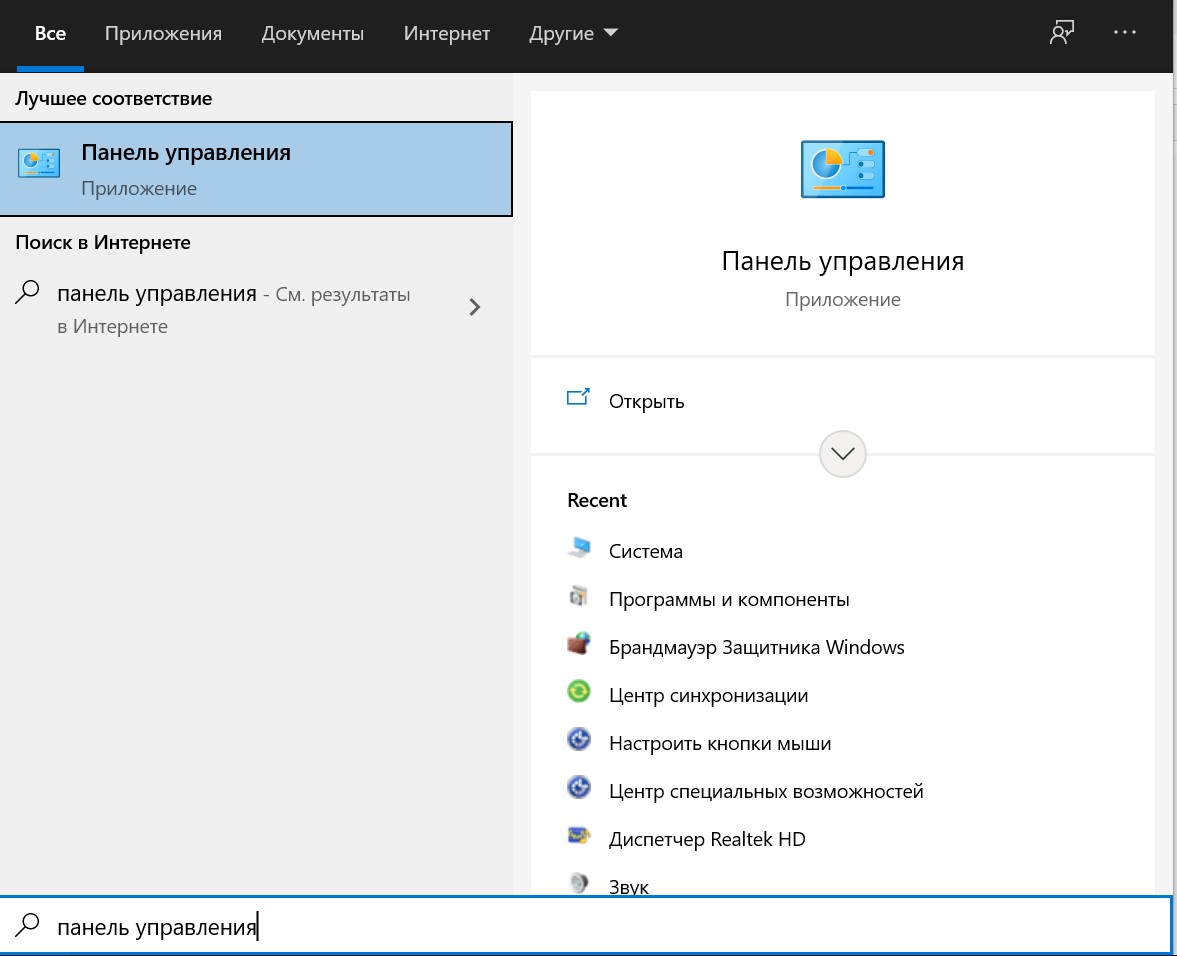
Вводим в строку поиска словосочетание «Панель управления» После этого в меню появится ссылка на нее.
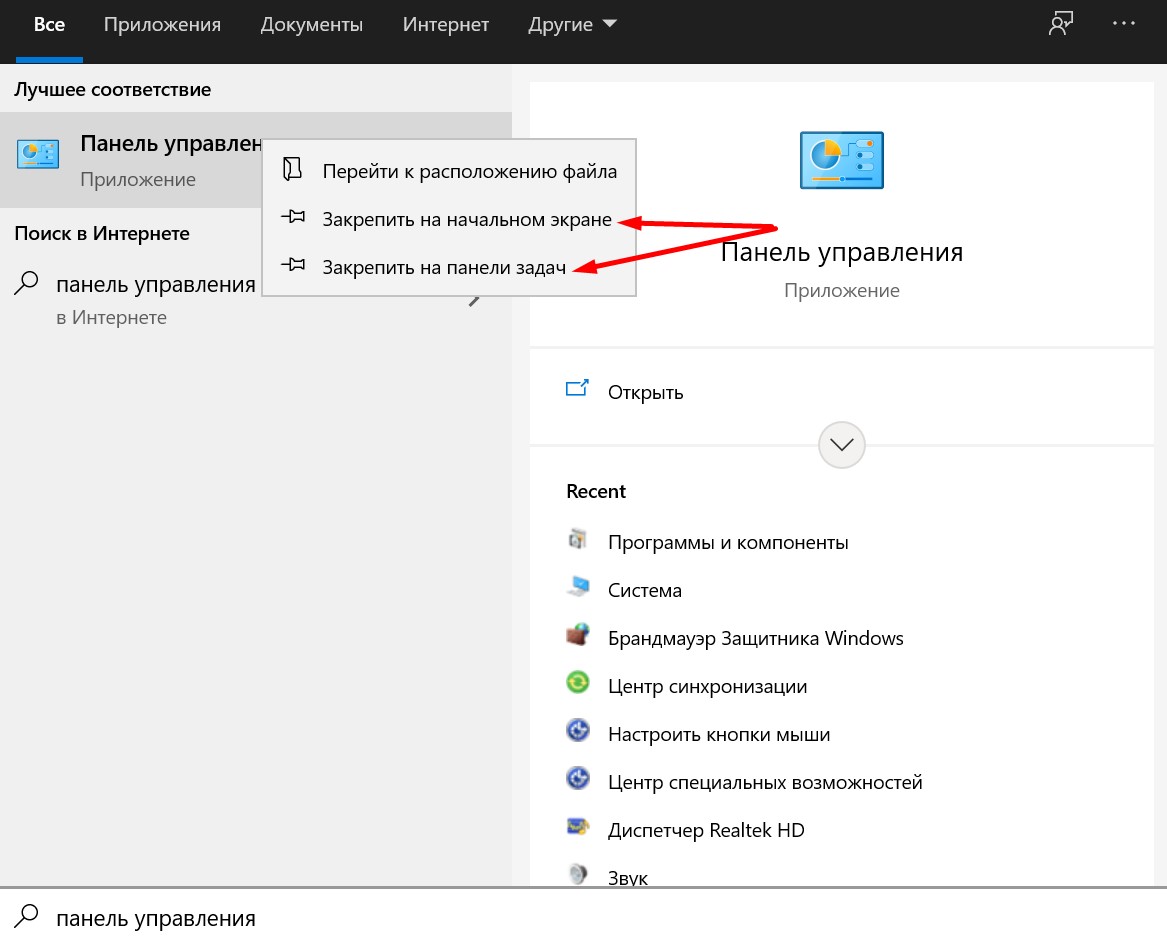
Кстати, чтобы облегчить себе жизнь в дальнейшем, ярлык панели управления можно закрепить на панели задач или в меню «Пуск». Для этого щелкаем правой кнопкой мыши по значку и выбираем нужный пункт:
Все, теперь панель управления можно вызвать гораздо быстрее:

Если пользуетесь Windows 7, просто вызовите меню пуск и в его правой части выберите пункт «Панель управления».
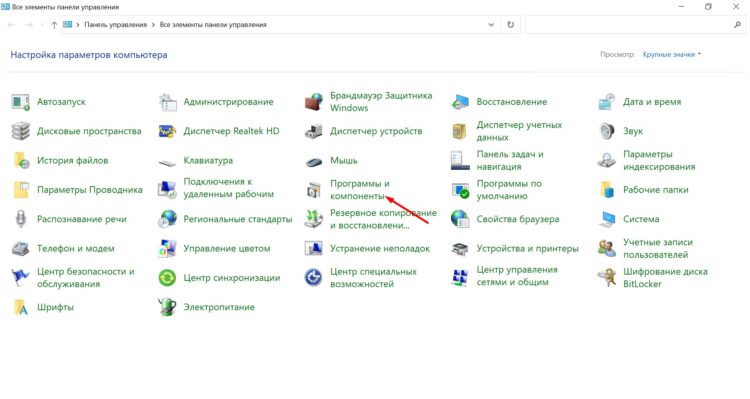
Затем находим значок раздела «Программы и компоненты»:
В нем находим иконку Valorant:
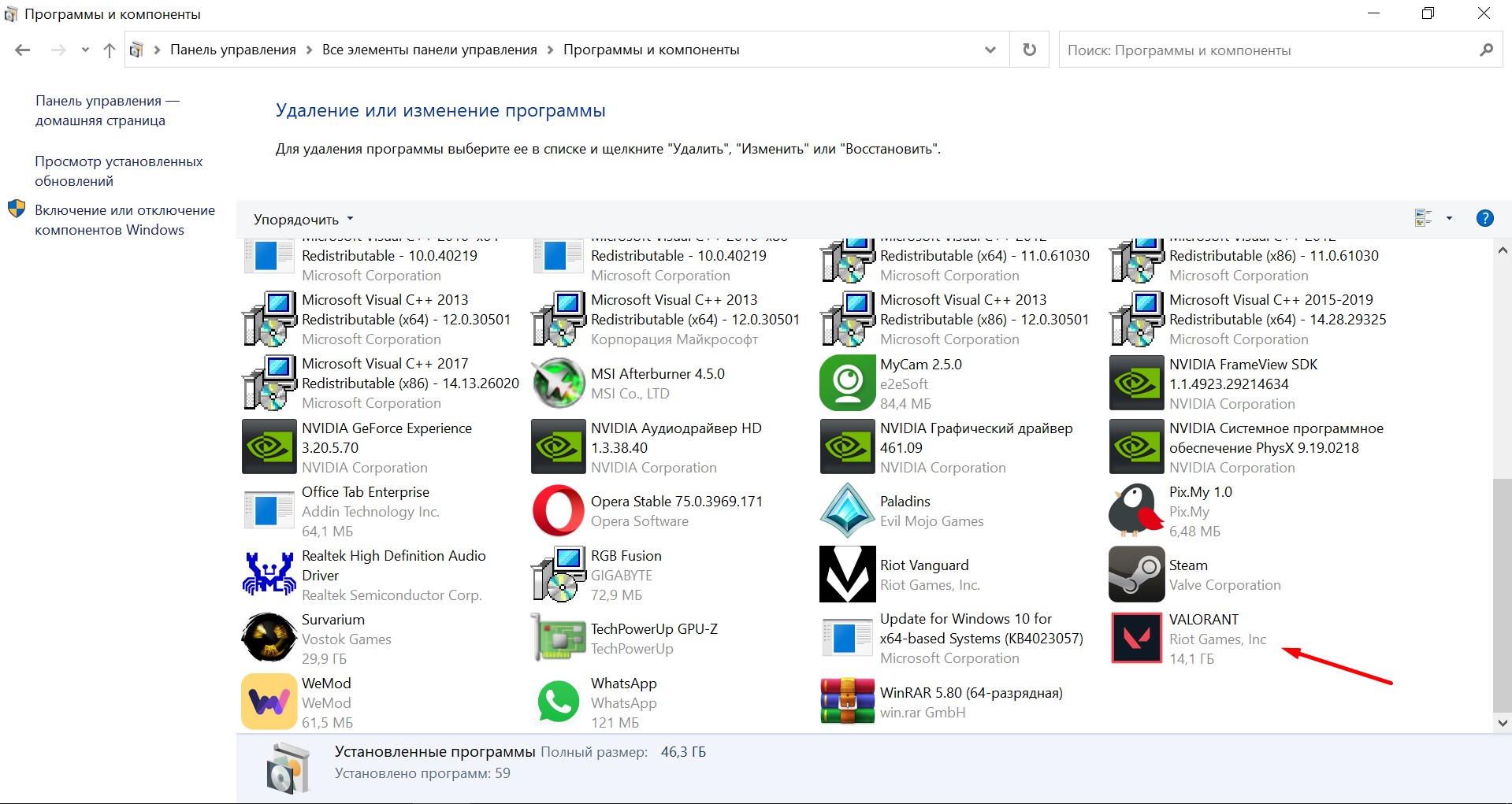
Просто щелкаем на нее два раза. После этого сразу запускается процесс удаления игры. Интересно, что в случае с Valorant подтверждать намерение деинсталлировать ПО не требуется. Процедура запускается сразу после нажатия. Длится она недолго – не больше половины минуты.
Когда процесс завершится, на экране появится диалоговое окно с соответствующим сообщением. Подтверждаем, что приняли информацию. На этом все – игра удалена.
Последствия удаления и повторная установка
В результате деинсталляции Valorant с ПК удаляются только компоненты игры. На аккаунт Riot Games это никак не влияет, поэтому на нем сохраняются:
- достижения в ранговой игре;
- открытые агенты, скины, звания, граффити и карточки;
- награды за прокачку боевого пропуска;
- внутриигровые предметы, купленные за донат;
- пользователи, добавленные в друзья.
Также сохраняются все настройки графики, управления, прицела и остального. Это связано с тем, что они хранятся в папке, расположенной по адресу C:\Riot Games, а она в ходе деинсталляции остается на жестком диске.
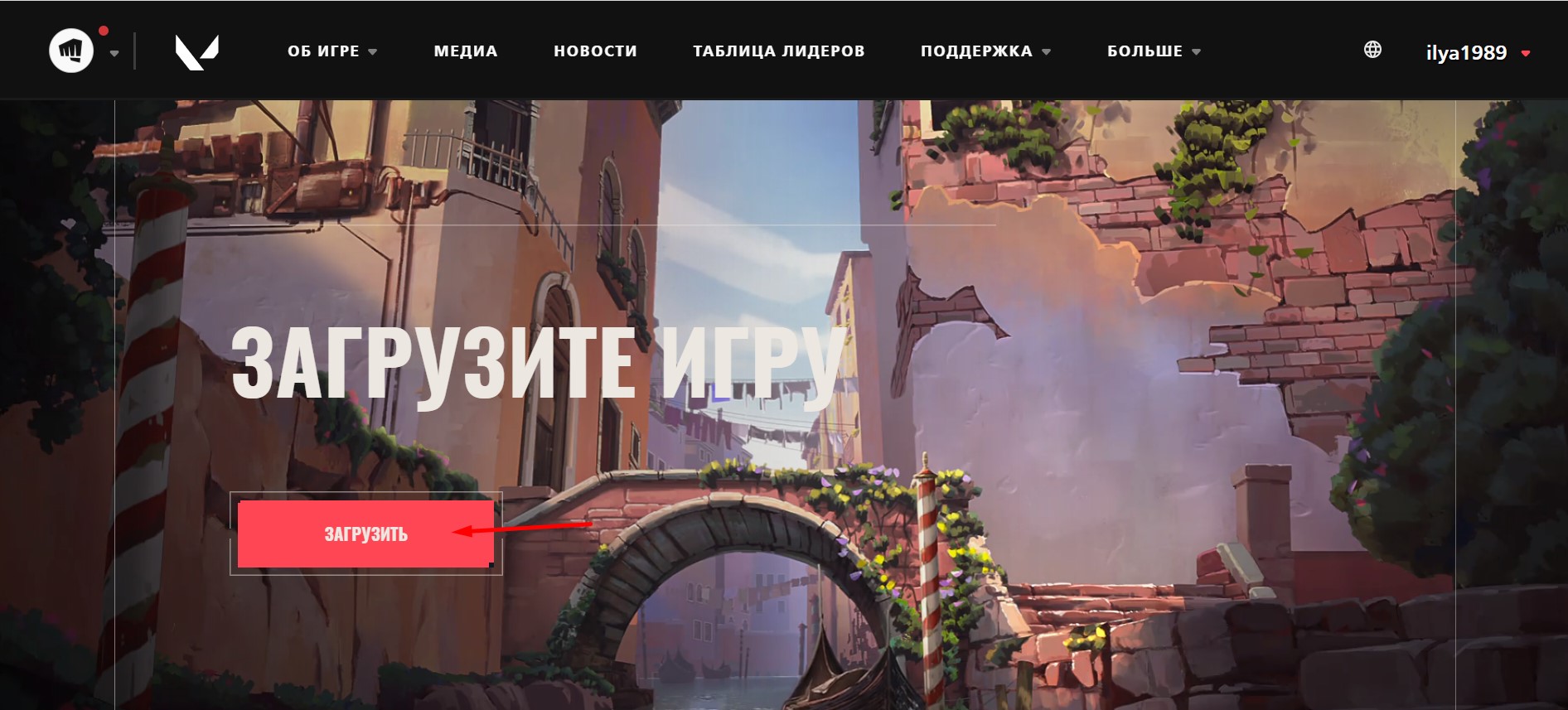
Если захотелось поиграть снова, достаточно зайти на сайт playvalorant.com, авторизоваться на нем и нажать кнопку «Загрузить»:
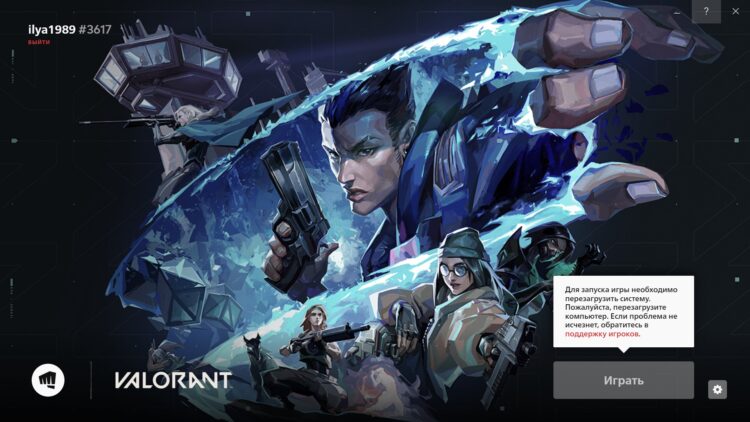
На компьютер скачается установщик с расширением .exe. Нужно запустить его и дождаться завершения инсталляции. После окончания процедуры надо будет перезагрузить компьютер – без этого клиент игры не запустится.
Вывод
Игровой клиент Valorant удаляется с компьютера стандартным образом – как и все остальные программы. То есть через панель управления. В ней нужно зайти в подраздел «Программы и компоненты», найти иконку игры, а затем кликнуть по ней. Процедура не затрагивает аккаунт Riot Games. Поэтому весь контент остается на учетной записи. Так что если захотите установить игру снова, им можно будет спокойно пользоваться, ничего не исчезнет. Сохраняются и настройки, выставлять их заново после повторной инсталляции не придется.
Как полностью удалить League of Legends
League of Legends можно удалить с компьютера и установить заново без всяких проблем. Только есть один момент: игру с компьютера надо удалить правильно. Об этом мы и расскажем.
Удали лигу легенд
Сперва немного разберемся с тем, зачем переустанавливать игру.
- Редкий случай, но бывает. Если вы взяли свой жесткий диск и вставили в новый компьютер с уже установленным Windows и игрой. Отказаться от жесткого диска (ни одного из них) нельзя, поэтому придется переустановить игру. Иначе может выскочить ошибка.
- Если у вас уже выскочила ошибка, которая мешает игровому процессу. Например, если игра в принципе перестала запускаться.
В принципе, это основные причины для того, чтобы окончательно удалить игру. Есть ещё одна, но она не касается переустановки: если вам просто надоело играть в League of Legends и вы решили полностью убрать её с компьютера.
Удалите саму игру
Для того, чтобы полностью стереть LoL с компьютера, вам нужно:
- Открыть Пуск
- Далее открыть панель управления.
- Перейти в «Установка и удаление программ».
- Найти League of Legends.
- Кликнуть по ней левой кнопкой мыши. У вас откроется небольшое меню. Нажимаем «Удалить».
Как удалить лигу легенд
Важно! Перед удалением посмотрите в диспетчере задач — нет ли там открытого лаунчера или самой игры
Убедитесь, что игры нет на диске
Этот пункт обязательный. Вам нужно зайти в ту папку, где была установлена игра. Как правило она находится на диске C, и называется Riot Games. Теперь, если у вас остались старые установочные файлы (которые скачиваются с сайта Riot Games — League of Legends), вам нужно удалить и их. После чего очистить корзину и перезагрузить компьютер.
Как удалить и переустановить League of Legends
С удалением мы разобрались. Вам нужно проделать все шаги, описанные выше. Теперь перейдем к установке.
- Скачайте установщик на компьютер.
Важно! Если у вас уже установлена, например, League of Runeterra или Valorant, то нужно зайти в лаунчер Riot Games и найти там League of Legends. Устанавливайте её через лаунчер. Это практичнее
- Откройте его, начните установку. После начала инсталляции у вас будет открыт лаунчер. Дождитесь окончания загрузки и установки игры.
Теперь вы сможете зайти в Лигу Легенд и снова начать играть. Никаких ошибок быть не должно.
Главное удалите папку с настройками
Этот пункт относится только к тем игрокам, которые переустанавливали League of Legends с учетом изменения всех настроек. Если вы не будете удалить конфиг, то прежние настройки останутся и будут с вами до изменения. Поэтому:
- Зайдите в League of Legends. Введите логин и пароль.
- Параллельно откройте папку, куда установлена игра. Обычно это Диск C, Riot Games, LoL.
- Найдите папку с названием «config».
- Удалите её полностью.
Теперь нужно создать свою игру с ботами, либо запустить тренировку. Все прошлые настройки — графика, управления, кнопки, горячие клавиши, звуки и прочее — будут сброшены до первоначального, дефолтного вида. Останется только подобрать для себя удобный конфиг.