Запускать AMD Radeon Software вместе с Windows
AMD Radeon Software представляет собой драйвер и программное обеспечение, которое позволяет оптимизировать использование графического процессора AMD Radeon. Чтобы гарантировать наилучшие возможности и стабильную работу вашей видеокарты, рекомендуется настроить AMD Radeon Software для запуска вместе с операционной системой Windows. В этой статье мы рассмотрим простые шаги, которые помогут вам настроить автоматический запуск AMD Radeon Software.
Что нужно знать о запуске AMD Radeon Software с Windows
AMD Radeon Software можно настроить для автоматического запуска при загрузке операционной системы Windows. Это позволяет видеокарте быть готовой к работе с самого начала, и вам не придется запускать программу вручную после каждой перезагрузки компьютера.
Шаги по настройке автоматического запуска AMD Radeon Software
Первым шагом является открытие программы AMD Radeon Software. Для этого щелкните правой кнопкой мыши на панели задач и выберите "AMD Radeon Software". Если иконка отсутствует, вы можете найти приложение в меню "Пуск" или в поиске операционной системы.
После открытия программы AMD Radeon Software, перейдите в раздел "Параметры". Вы можете найти его в верхнем правом углу окна программы.
В разделе "Параметры" найдите вкладку "Общее". Нажмите на нее, чтобы открыть дополнительные параметры.
В дополнительных параметрах вам нужно будет найти опцию "Запускать AMD Radeon Software при загрузке системы". Убедитесь, что эта опция включена, поставив галочку в соответствующем поле.
После настройки автоматического запуска AMD Radeon Software, закройте программу и перезагрузите компьютер. При следующей загрузке операционной системы Windows AMD Radeon Software будет запускаться автоматически.
Польза от настройки автоматического запуска AMD Radeon Software
Настройка автоматического запуска AMD Radeon Software имеет несколько преимуществ:
Готовность к работе: AMD Radeon Software будет готова к использованию с самого начала, что значительно сокращает время, необходимое для подготовки видеокарты к работе.
Удобство: вам не придется искать и запускать программу вручную после каждой перезагрузки. AMD Radeon Software будет запускаться автоматически, предоставляя вам простой и удобный доступ к настройкам видеокарты.
Обновления драйвера: при наличии автоматического запуска AMD Radeon Software вы будете получать уведомления о доступных обновлениях драйверов, что поможет вам поддерживать вашу видеокарту в актуальном состоянии.
В заключение, запуск AMD Radeon Software вместе с операционной системой Windows является хорошей практикой для оптимизации вашей видеокарты и обеспечения стабильной работы вашего компьютера. Следуя вышеуказанным шагам, вы сможете легко настроить автоматический запуск AMD Radeon Software и насладиться всеми возможностями, которые она предоставляет.
Radeon Host Service High GPU, CPU, Memory, Disk Usage
This post helps to fix Radeon Host Service High GPU, CPU, Memory, and Disk Usage problem on a Windows computer. Some users have complained that when the Radeon Settings: Host Service (AMDRSServ.exe), a component of AMD Radeon Software, is running on their Windows 11/10 PC, it consumes more than 60% of GPU and CPU usage, while the Memory or RAM usage goes beyond 50% or 80%, and disk usage is occupied to 100% sometimes. We have included some handy solutions to fix this issue.

Before proceeding, you should update your AMD Radeon software and see if it helps. If you are using AMD Radeon Software 2019 edition, update it to the latest AMD Radeon Software Adrenalin Edition (23.1.1). If the latest version is not compatible with your graphics card, then you can download the compatible software for your graphics card from the official website and use it.
Fix Radeon Host Service High GPU, CPU, Memory, Disk Usage
- Disable Instant Replay
- Turn off the Record Desktop feature
- Terminate the AMDRSServ.exe process
- Use AMD Cleanup Utility.
1] Disable Instant Replay

- Open the interface of AMD Radeon Software (latest version Adrenalin Edition)
- Click the Settings icon (or cogwheel) available on the top-right part
- Access the Record & Stream menu
- In the Media section, use the Disabled button available for the Instant Replay option.
You should also turn off the Instant GIF option if it is enabled. Later, whenever you want to use these features, enable them using the above steps.
2] Turn off the Record Desktop feature

This is one of the effective solutions to fix this Radeon Host Service high GPU, CPU, memory, or disk usage problem. AMD Radeon Software Adrenalin Edition comes with a Recording feature (previously called ReLive) that lets you record your gameplay. But, if you are not using this feature for the time being, then you should turn off the Record Desktop feature present in the Recording section. Some users saw a significant improvement in GPU usage, memory usage, etc., after turning it off. Here are the steps:
- Right-click on your Windows 11/10 desktop
- Select the AMD Radeon Software option to open the Settings window
- Press the Settings icon present in the top-right section
- Select the Record & Stream menu
- Now under the Recording section, turn off the Record Desktop option to disable it using the given button
- In addition, you should also turn off the Borderless Region Capture option.
Also, turn off Live Stream (if configured) for any of the connected accounts (Twitch, YouTube, Facebook, etc.).
In case you need to record your game later, you can enable the same feature and then use the associated hotkeys to start and stop the recording. Otherwise, keep this feature turned off when not in use to save GPU and system resources.
3] Terminate the AMDRSServ.exe process
- Switch to the Details tab
- Look for exe process
- Right-click on that process, and select the End task option.
4] Use AMD Cleanup Utility

If the above solutions don’t help, then there might be a problem with the AMD Radeon Software installed on your system. In that case, you should re-install AMD Radeon software. Before doing that, it is good to use AMD Cleanup Utility. This official tool from the company helps to remove previously installed AMD audio drivers, graphics drivers, and AMD Radeon Software, that might be conflicting with the software installed on your PC.
First, uninstall the AMD Radeon Software from your computer. Now grab this tool from amd.com. Run the downloaded application file of this tool and it will prompt you to reboot in safe mode. You can press the No button to continue the clean-up process in the normal mode (safe mode is recommended though). Press the OK button to begin the clean-up process. It will start removing Radeon drivers, applications, and other utilities.
Finally, use the Finish button to close the tool. You can also use the View Report button to check the list of components removed. After this, restart your Windows computer.
Now download the AMD Radeon Software from the official website compatible with your graphics card and install it. This should solve your problem.
Can I disable the Radeon software startup task?
If you don’t want AMD Radeon Software to run automatically when Windows starts, then you can disable it from the Startup programs list. For this, open the Settings app (Win+I) of Windows 11/10, access the Apps category, and open the Startup page. Look for AMD Radeon Software and use the toggle to turn it off.
Is it OK to delete Radeon software?
If you face any trouble with the installed version of AMD Radeon Software like you’re having trouble while recording the games, the In-Game Overlay menu is not appearing, AMD Radeon Software is not opening at all, and all the possible fixes don’t work for you, then you should delete or uninstall AMD Radeon Software from your system. Also, make sure all its leftovers and other data are removed completely before installing it again.
Radeon Software Startup Task(How To Disable)

So you’re bothered by the radeon software startup task popping up again and again and eating up the resources of your computer, especially if you have an old computer, the radeon software can be quite a menace and difficult to turn off since it keeps nagging you to install it’s “updates”.
But at the end of the day it is still a software and it’s simply a product of bad programming, but not to worry! in this post I’ll tell you how to get rid of the problem once and for all but before that you need to know why the radeon software is important.
Table of Contents
Here’s Why It’s Important
The Radeon Software comes preinstalled with almost every AMD Radeon product, here’s why:
- The software keeps all of your radeon devices upto date, which is important for their proper functioning.
- The software enables you to overclock your graphics cards and tweak them, enhancing their functionality.
- It helps you choose the best overall graphics settings for all of your games.
- It helps you change to different performance profiles and helps you adjust graphics settings for individual applications and programs. And it helps to monitor your GPU as well.
The Problem
The software is great, but the problem is that the radeon software keeps opening as a start up task which can be extremely annoying. Plus there’s the fact that it’s hard to permanently eliminate the process from your computer, because if you do so then it might cause conflicts within your radoen hardware.
So What Should You Do?
How To Disable The Radeon Software Startup Task
You can choose to disable the radoen software start up task via 3 main ways which we’ll go through in this post.
- Disable It In The Task Manager: When you turn on your PC/Laptop, right click on your task-bar> open task manager, go into the “startup” tab, right click the AMD software and click on disable.
- Disable It In The Task Schedular: If that doesn’t work then type “task scheduler” in the windows search bar, open it, look for the application called “StartCn” , right click it then disable it.
- End Task From Task Manager: This is the simplest one, all you have to do is go into the task manager, right click on the software and click “End task”
Conclusion: Is There A Permanent Fix To The Problem?
The only known permanent way to get rid of the problem is to disable it from the task scheduler, I would strongly advise against uninstalling the software because it might result in your AMD hardware underperforming.
I would even advise against disabling it unless you have a computer that’s incapable of accommodating resources to the software, otherwise you should keep it turned on for maximum hardware performance and it would even be beneficial to you if you want to increase GPU fan speed or overclock your graphics card in the future.
Radeon software startup task что это

Данное приложение могут увидеть пользователи на своих компьютерах и ноутбуках, оснащенных видеокартами от компании AMD. Оно и понятно, ведь в названии присутствует имя их бренда.
AMD Radeon Settings можно обнаружить как в автозагрузке, так и в списке установленных программ.
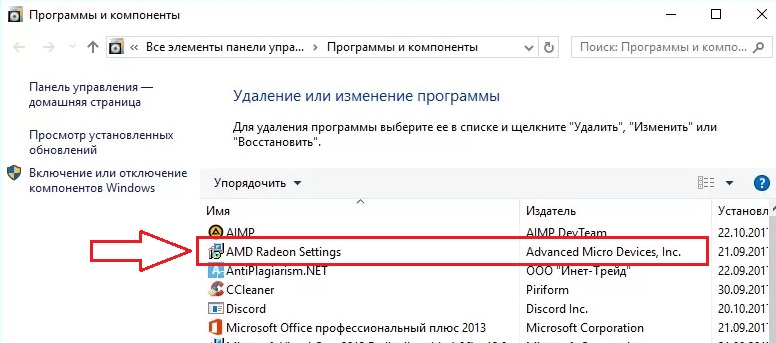
Список установленных программ
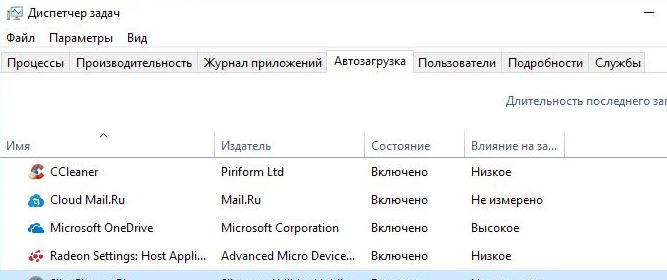
Нахождение в автозагрузке
В данной статье мы расскажем что это за программа, для чего она нужна, откуда берется на компьютере и можно ли ее удалить.
Назначение и происхождение
Если скачать и начать устанавливать драйвер для видеокарты AMD, то в списке приложений для установки можно увидеть тот самый AMD Radeon Settings.
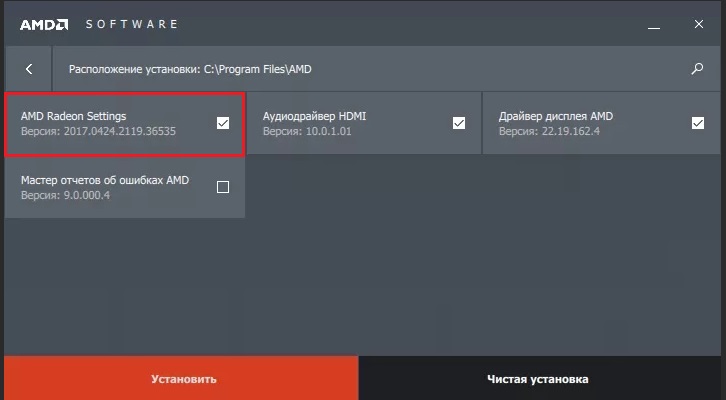
Установка драйвера видеокарты AMD
На основании этого можно сделать вывод, что данная программа устанавливается вместе с драйверами для видеокарт AMD Radeon и, грубо говоря, является их частью.
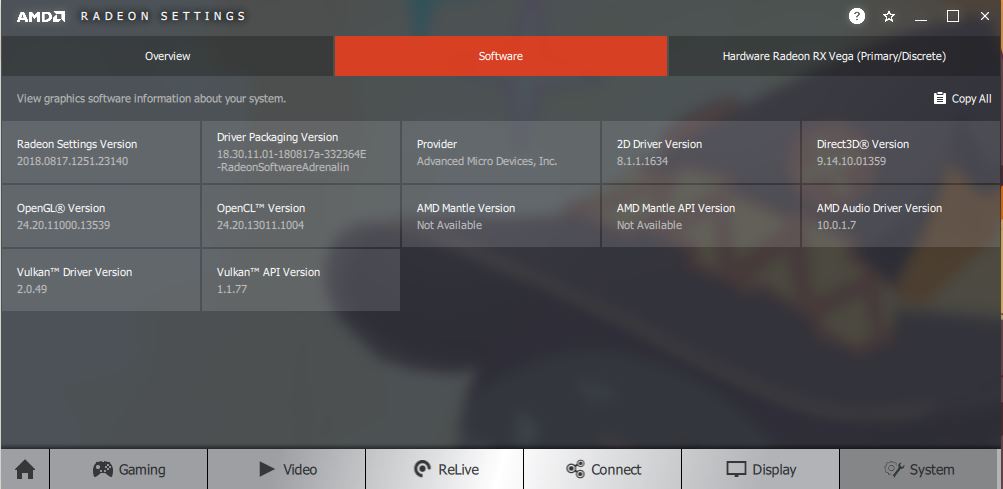
Просмотр версии программного обеспечения
При помощи AMD Radeon Settings можно просматривать технические аспекты видеокарты, версию программного обеспечения, а также выполнять различные графические настройки, касающиеся изображения в 2D и 3D режимах.
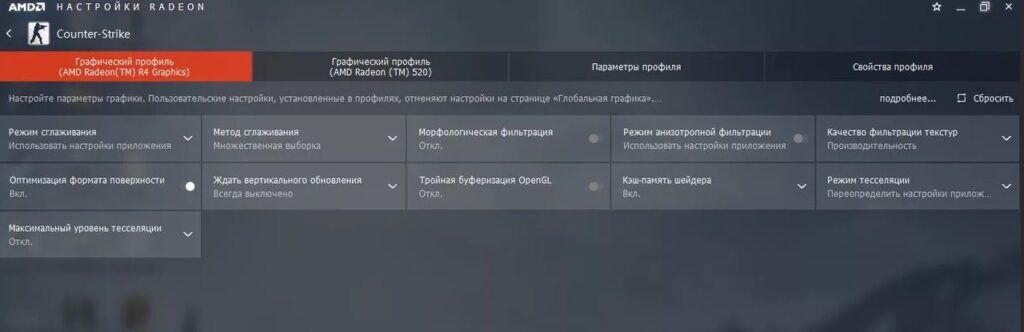
Настройка графики для конкретного приложения
Удалять данную программу не рекомендуется в силу того, что она является официальным приложением к графическому драйверу видеокарты, установленной в вашем компьютере.
Лучшая благодарность автору — репост к себе на страничку:
DemonF2016
Asrock Motherboard Utility что это?
Intel Computing Improvement Program что это?
Среда выполнения Microsoft Edge WebView2 Runtime что это?
6 комментариев
Татьяна Белова
УВАЖАЕМЫЕ! На каком основании на моем ноутбуке установлена программа?
Анатолий
Татьяна Белова, на том основании, на котором ты купила этот ноутбук с графикой от AMD
Владимир
товарищи! я профессиональный геймер и привык ставить свои, проверенные временем, дрова, которые не лагают и не вырубают мой монитор на 30 сек. вот после установки этого гомна оно самое и происходит в самый неподходящий момент. а еще у меня монитор со 144 герцовой разверткой, но с этой прогой он работает как буд то 60 гц. И не говорите мне что я не шарю в настройках – в абсолютно всех настройках стоит 144. но стоит в запущенной игре пару раз сделать аль+таб и о чудо. заработали мои 144. это легко проверить у кого есть игровой моник, тот поймет. Меня заебало уже это говно, которое впаривает мне винда вместе со своими обновами . я не против обновы винды, но пусть она не трогает мои проверенные дрова видяхи.
Radeon software startup task что это за программа
Axelar запускает программу экосистемы стартапов стоимостью 60 миллионов долларов
Программа направлена на ускорение разработки децентрализованных приложений и протоколов для замены централизованных бирж.
Блокчейн proof-of-stake (PoS) Axelar запустил 19 декабря программу финансирования стартапов стоимостью 60 миллионов долларов, предназначенную для ускорения разработки децентрализованных приложений и протоколов, которые могут заменить централизованные биржи. Инициативу поддерживают более 15 блокчейн-инвесторов.
Инициатива, получившая название Axelar Ecosystem Startup Funding Program, была разработана для содействия разработке приложений Web3, решающих глобальные проблемы, которые не могут быть решены централизованным Интернетом. Чтобы претендовать на финансирование, проекты также должны обеспечивать цифровой суверенитет, безопасность и конфиденциальность, а также легко работать с конкретными блокчейнами или токенами, отметили в компании.
Сергей Горбунов, соучредитель и генеральный директор Axelar, рассказал о разработке:
How to fix The Version of AMD Radeon Software You Have Launched Is Not Compatible
“В 2021-2022 годах наблюдался беспрецедентный приток новых разработчиков в Web3. В 2023 году мы ожидаем увидеть меньше количества, но больше качества. Для тех, у кого есть убежденность и способность создавать действительно системы без ограничений, крах FTX только подпитывает их решимость”.

Финансирование связано с грантовой программой Axelar, которая была запущена в 2022 году и предоставила гранты более чем 50 проектам, примерно 33% из которых смогли привлечь начальное или предстартовое финансирование.
“Такие переменные, как рыночные условия, могут повлиять на поток сделок, но программа финансирования экосистемы Axelar направлена на ускорение темпов финансирования проектов в экосистеме Axelar — независимо от того, участвуют они в программе грантов или нет — в 2023 году”, — отметил Горбунов.
Программа поддерживается группой блокчейн-инвесторов, включая Blockchange, Chorus One, Collab+Currency, Cygni, dao5, DCVC, Divergence Ventures, Dragonfly Capital, Lemniscap, Morningstar Ventures, Nima Capital, Node Capital, North Island Ventures, Rockaway Blockchain Fund и SCB 10X.
Программа направлена на установление связи между инвесторами и разработчиками, создающими интерчейн dApps. Партнерами по разработке являются Arbitrum, Circle, Osmosis и Polygon.
Radeon software startup task что это за программа
Всем привет.
В общем когда загружаю windows 10, сразу выскакивает установщик драйвера видеокарты, процесс «Radeoninstaller.exe», находится он в папке «C:/Program Files/AMD/CIM/BIN64, помимо него там еще кучка «ехе» и других файлов радеон. Вот, думаю тупо удалить этот ехе — «Radeoninstaller.exe», чтобы он больше не загружался вместе с виндой. Можно ли это сделать? учитывая то, что вроде как это папка идёт с самим установленным драйвером. Не нарушу ли его работу? или как можно отключить запуск установщика, в автозагрузках смотрел его там нет вроде как чз диспетчер задач.
AMD Software Adrenalin EditionでFPSを上げる設定
Регистрация: 31.07.2018
Сообщений: 1,437
в планировщике заданий походу висит при загрузке запускать этот экзешник
Регистрация: 11.08.2014
Адрес: Екатеринбург.
Сообщений: 334
sam55, а где это найти? чтобы отключить
Добавлено через 4 минуты
зашел туда, ничего не понял и вышел)) в общем вопрос актуален. Нужно отключить автоматическую загрузку «инстала» драйвера Радеон при старте винды.
Регистрация: 31.07.2018
Сообщений: 1,437
планировщик заданий ошибся немного) панель управление- администрирование- планировщик заданий
заходим туда, далее в «библиотеку планировщика» ( возможно придётся для поиска по нижеописанному заходить в подпапки библиотеки планировщика) и в таблице делаем фильтрацию по 3 ему столбцу «триггеры»
ищем в отфильтрованном списке триггеры » при входе пользователя», «при запуске «или подобные
среди них ищем по графе таблицы «файл» всё что связанно с AMD, Radeon и тд..
соответственно находим близкое по двойному клику открываем и смотрим вкладку действие и ищем там: запуск C:/Program Files/AMD/CIM/BIN64/Radeoninstaller.exe
если нашли то закрываем окно выделяем и по ПКМ будет отключить задачу, соответственно отключаем проверяем
если помогло то радуемся жизни
в других местах сильно не лазайте и не рубите всё подряд, можно поднакосячить если всё остальное поотключать
Последний раз редактировалось sam55, 31.01.2019 в 13:36 .
« Предыдущая тема | Следующая тема »
| Здесь присутствуют: 1 (пользователей: 0 , гостей: 1) |
| Опции просмотра |
| Линейный вид |
| Комбинированный вид |
| Древовидный вид |
Как удалить RadeonSoftware
RadeonSoftware.exe — это исполняемый файл (программа) для Windows. Расширение имени файла .exe — это аббревиатура от англ. слова executable — исполнимый. Необходимо запускать исполняемые файлы от проверенных производителей программ, потому что исполняемые файлы могут потенциально изменить настройки компьютера или нанести вред вашему компьютеру. Бесплатный форум с информацией о файлах может помочь вам разобраться является ли RadeonSoftware.exe вирусом, трояном, программой-шпионом, рекламой, которую вы можете удалить, или файл принадлежит системе Windows или приложению, которому можно доверять.
Вот так, вы сможете исправить ошибки, связанные с RadeonSoftware.exe
- Используйте программу Настройщик Windows, чтобы найти причину проблем, в том числе и медленной работы компьютера.
- Обновите программу Radeon Software. Обновление можно найти на сайте производителя (ссылка приведена ниже).
- В следующих пунктах предоставлено описание работы RadeonSoftware.exe.
Информация о файле RadeonSoftware.exe
Описание: RadeonSoftware.exe не является необходимым для Windows. RadeonSoftware.exe находится в подпапках «C:Program Files». Размер файла для Windows 10/11/7 составляет 13,179,660 байт.
Это не системный файл Windows. Поставлена цифровая подпись. Процесс можно удалить, используя панель инструментов ДобавитьУдалить программу. Приложение не видно пользователям. RadeonSoftware.exe способен подключится к интернету и мониторить приложения.
Поэтому технический рейтинг надежности 24% опасности.
Вы можете удалить Advanced Micro Devices, Inc. или Advanced Micro Devices Inc., или попросить помощи у технической поддержки. Перейдите к Advanced Micro Devices, Inc. или Advanced Micro Devices Inc.
в Панели управления Windows (раздел Программы и компоненты) для удаления программы, или перейдите к support.amd.com Службе Поддержки Клиентов.
Важно: Некоторые вредоносные программы маскируют себя как RadeonSoftware.exe, особенно, если они расположены в каталоге c:windows или c:windowssystem32. Таким образом, вы должны проверить файл RadeonSoftware.exe на вашем ПК, чтобы убедиться, что это угроза. Мы рекомендуем Security Task Manager для проверки безопасности вашего компьютера.
Комментарий пользователя
Пока нет комментариев пользователей. Почему бы не быть первым, кто добавить небольшой комментарий и одновременно поможет другим пользователям?
Лучшие практики для исправления проблем с RadeonSoftware
Аккуратный и опрятный компьютер — это главное требование для избежания проблем с RadeonSoftware. Для этого требуется регулярная проверка компьютера на вирусы, очистка жесткого диска, используя cleanmgr и sfc /scannow, удаление программ, которые больше не нужны, проверка программ, которые запускаются при старте Windows (используя msconfig) и активация Автоматическое обновление Windows. Всегда помните о создании периодических бэкапов, или в крайнем случае о создании точек восстановления.
Если у вас актуальные проблемы, попробуйте вспомнить, что вы делали в последнее время, или последнюю программу, которую вы устанавливали перед тем, как появилась впервые проблема. Используйте команду resmon, чтобы определить процесс, который вызывает проблемы. Даже если у вас серьезные проблемы с компьютером, прежде чем переустанавливать Windows, лучше попробуйте восстановить целостность установки ОС или для Windows 8 и более поздних версий Windows выполнить команду DISM.exe /Online /Cleanup-image /Restorehealth. Это позволит восстановить операционную систему без потери данных.
Следующие программы могут вам помочь для анализа процесса RadeonSoftware.exe на вашем компьютере: Security Task Manager отображает все запущенные задания Windows, включая встроенные скрытые процессы, такие как мониторинг клавиатуры и браузера или записей автозагрузки. Уникальная оценка рисков безопасности указывает на вероятность процесса быть потенциально опасным — шпионской программой, вирусом или трояном. Malwarebytes Anti-Malware определяет и удаляет бездействующие программы-шпионы, рекламное ПО, трояны, кейлоггеры, вредоносные программы и трекеры с вашего жесткого диска.
RadeonSoftware сканер
Security Task Manager показывает все запущенные сервисы Windows, включая внедренные скрытые приложения (например, мониторинг клавиатуры или браузера, авто вход). Уникальный рейтинг надежности указывает на вероятность того, что процесс потенциально может быть вредоносной программой-шпионом, кейлоггером или трояном.
Radeon Software Startup Task(How To Disable)
So you’re bothered by the radeon software startup task popping up again and again and eating up the resources of your computer, especially if you have an old computer, the radeon software can be quite a menace and difficult to turn off since it keeps nagging you to install it’s “updates”.
But at the end of the day it is still a software and it’s simply a product of bad programming, but not to worry! in this post I’ll tell you how to get rid of the problem once and for all but before that you need to know why the radeon software is important.
Table of Contents
Here’s Why It’s Important
The Radeon Software comes preinstalled with almost every AMD Radeon product, here’s why:
- The software keeps all of your radeon devices upto date, which is important for their proper functioning.
- The software enables you to overclock your graphics cards and tweak them, enhancing their functionality.
- It helps you choose the best overall graphics settings for all of your games.
- It helps you change to different performance profiles and helps you adjust graphics settings for individual applications and programs. And it helps to monitor your GPU as well.
The Problem
The software is great, but the problem is that the radeon software keeps opening as a start up task which can be extremely annoying. Plus there’s the fact that it’s hard to permanently eliminate the process from your computer, because if you do so then it might cause conflicts within your radoen hardware.
So What Should You Do?
How To Disable The Radeon Software Startup Task
You can choose to disable the radoen software start up task via 3 main ways which we’ll go through in this post.
- Disable It In The Task Manager: When you turn on your PC/Laptop, right click on your task-bar> open task manager, go into the “startup” tab, right click the AMD software and click on disable.
- Disable It In The Task Schedular: If that doesn’t work then type “task scheduler” in the windows search bar, open it, look for the application called “StartCn” , right click it then disable it.
- End Task From Task Manager: This is the simplest one, all you have to do is go into the task manager, right click on the software and click “End task”
Conclusion: Is There A Permanent Fix To The Problem?
The only known permanent way to get rid of the problem is to disable it from the task scheduler, I would strongly advise against uninstalling the software because it might result in your AMD hardware underperforming.
I would even advise against disabling it unless you have a computer that’s incapable of accommodating resources to the software, otherwise you should keep it turned on for maximum hardware performance and it would even be beneficial to you if you want to increase GPU fan speed or overclock your graphics card in the future.
How to Fix Radeon Settings: Host Service (AMDRSServ.exe) High GPU, CPU, Memory, Disk Usage on Windows 11 & 10

This post aims to resolve the issue of high GPU, CPU, Memory, and Disk Usage caused by Radeon Host Service on Windows 11/10 computers. The users have reported that the AMD Radeon Software’s component, Radeon Settings: Host Service (AMDRSServ.exe), consumes a significant amount of GPU and CPU usage, with memory usage crossing 50% or 80% and sometimes, occupying 100% of the disk usage. Here are some practical solutions to fix this problem.
Attention Windows Users!!
Facing issues on your Windows PC every now and then? We would recommend you use the Restoro PC Repair tool.
It is a one-stop solution to repair common computer errors, protect your Windows PC from data loss, malware, hardware failure, Registry issues, BSOD errors, etc. and optimize your PC for maximum performance in just three simple steps:
- Download Restoro Tool that comes with Patented Technologies (see patents here).
- Install and click on Start Scan to find the issues on your Windows PC.
- Finally, click on Repair All to fix the issues.
4,533,876 users have downloaded Restoro till now.
Fix Radeon Settings: Host Service (ANDRSServ.exe) High CPU, GPU, Memory, and Disk Usage on Windows
The first solution is to update your AMD Radeon software and see if it helps. If you are using AMD Radeon Software 2019 edition, update it to the latest AMD Radeon Software Adrenalin Edition (23.1.1).
If the latest version is not compatible with your graphics card, then you can download the compatible software for your graphics card from the official website and use it.
1. Disable Instant Replay & Instant GIF
Instant Replay is a built-in feature in AMD Radeon software that allows recording the last gaming moments as a video. Although it’s a useful feature, it consumes the GPU and system resources unnecessarily.
Disabling this feature might help you to reduce high GPU, Memory, CPU, or Disk Usage caused by Radeon Host Service. Follow the steps below to disable the Instant Replay feature:
1. Open the AMD Radeon Software interface (latest version Adrenalin Edition).
2. Click on the Settings icon present in the top-right section.
3. Switch to the Record and Stream tab available in the top bar of the window.
4. In the Media section, select the Disabled button available for the Instant Replay and Instant GIF options.

Remember to turn off the Instant GIF option if it is enabled. You can always enable these features later.
2. Disable Record Desktop
AMD Radeon Software Adrenalin Edition has a Recording feature that allows recording gameplay. But, if you are not using this feature, you should turn off the Record Desktop feature present in the Recording section.
Some users have seen a significant improvement in GPU and memory usage after turning it off. Follow the steps below to turn off the Record Desktop feature:
1. Right-click on your Windows desktop and select the AMD Radeon Software option to open the Settings window.
2. Click on the Settings icon present in the top-right section.
3. Select the Record & Stream menu.
4. Under the Recording section, turn off the Record Desktop option using the given button.

Tip: Also, turn off the Borderless Region Capture option. Don’t forget to turn off Live Stream (if configured) for any connected accounts (Twitch, YouTube, Facebook, etc.). You can enable the recording feature later when needed.
3. End AMDRSServ.exe
AMDRSServ.exe is associated with AMD Radeon: Host Service. Terminate this process to reduce GPU, disk usage, RAM, or CPU usage. Follow the steps below to terminate this process:
1. Search and open Task Manager.

open task manager windows 11
2. Switch to the Details tab and look for the AMDRSServ.exe process.
3. Right-click on that process and select the End task option.
4. Utilize AMD Cleanup Utility
If none of the aforementioned solutions have resolved your issue, it could be due to a problem with the AMD Radeon Software installed on your system. If that’s the case, re-installing the software may be necessary. Before proceeding with the re-installation process, it’s advisable to utilize the AMD Cleanup Utility.
This official tool provided by the company assists in removing any previously installed AMD audio drivers, graphics drivers, and AMD Radeon Software that may be conflicting with the software currently installed on your PC.
1. Begin by uninstalling the AMD Radeon Software from your computer. Press Win + R to open the Run tool, type appwiz.cpl, and hit Enter.

appwiz.cpl run dialogbox
2. Next, click on the AMD Radeon Software and select Uninstall.

3. Now, download the AMD Cleanup Utility. Once the application file is downloaded, run it.

4. It will prompt you to reboot your computer in safe mode. While it is recommended to reboot in safe mode, you may choose to continue the clean-up process in normal mode by selecting the No button.
Select OK to begin the clean-up process, which will remove all Radeon drivers, applications, and other utilities.
5. Once the clean-up process is complete, click on the Finish button to close the tool.
You may also click on the View Report button to review the list of components that were removed.
6. Afterward, restart your Windows computer.
7. Finally, download the appropriate version of the AMD Radeon Software from the official website that is compatible with your graphics card and install it.
This should resolve your problem.
Can I disable Radeon Settings Host Service?
In case you do not utilize Radeon Settings, it is possible to deactivate them. To carry out this action, you may launch the Task Scheduler and disable the tasks labeled StartCN and StartDVR. However, if you manually initiate Radeon Settings, its constituents will automatically commence.
Can I disable the Radeon software startup task?
If you prefer AMD Radeon Software not to run automatically when Windows starts, you may disable it from the list of startup programs. To do so,
1. Access the Apps category in the Windows Settings app (Win+I) and open the Startup page.
2. Locate the AMD Radeon Software and turn it off by toggling the switch.
Is AMD software necessary?
If you experience any problems with the installed version of AMD Radeon Software, such as difficulty while recording games, the In-Game Overlay menu not appearing, or AMD Radeon Software not opening at all, and none of the possible solutions have worked, you may need to delete or uninstall AMD Radeon Software from your system. It is also important to ensure that all remnants and data associated with the software are completely removed before reinstalling it.