How To Stream Genshin Impact In Streamlabs & OBS [Black Screen Fix]
If you have tried to stream Genshin Impact using Streamlabs or OBS Studio you may have run into a few problems. Lots of people experience a black screen when they try to add the game source into the streaming program.
In this article, we are going to show you how to avoid the issue and stream Genshin Impact to your fans using Streamlabs & OBS.
How To Stream Genshin Impact
Due to the way Genshin Impact is built you may experience a black screen when you try to add the game to your streaming software via Window Capture or Game Capture. There are multiple ways to fix this. The first is to run OBS or Streamlabs in Administrator Mode and the second is a little more complicated. Let’s jump in.
Fix 1 – Run OBS or Streamlabs In Administrator Mode
One of the reasons for the black screen appearing is that Streamlabs or OBS Studio does not have permission to capture the game. Follow the steps below to run Streamlabs or OBS in Administrator mode.
- Click on the Windows button and search for your streaming software. In this example, we will be using Streamlabs.
- Right-click on Streamlabs and select “Run As Administrator“
- Select “Yes” when asked to allow this app to make changes to your device.
- Streamlabs will now open in Administrator mode and you should be able to add Genshin Impact as a Game Capture source or Window Capture source.
If this fix does not work you can check out Fix 2 below.
Fix 2 – Using Windowed Mode
If the administrator mode did not work you can next try this fix. By putting your game in windowed mode your software will be able to pick it up and display it correctly in your streaming software.
- In Genshin Impact navigate to Menu –> Settings –> Graphics
- Scroll down until you see the Display Mode setting
- Select a Windowed mode that is lower than the resolution of your monitor
- Open up Streamlabs or OBS and navigate to the sources section. Select the “+” to add a new source to your stream. Add a Window Capture Source and select Genshin Impact from the dropdown menu. Click on Done.
- You should now be able to see Genshin Impact displayed correctly in Streamlabs
You have now solved the black screen problem but now your game is in Windowed mode which can be annoying to play in. If you want to play on full screen you can.
Just go back to your display settings in Genshin Impact and switch back to full-screen mode. When you switch back your game should still be displayed correctly in Streamlabs.
Once you have added the game once in Windowed mode, Streamlabs should pick up the game every time it runs. This means once you do this fix once, you should not have to do it again.
If your PC is struggling to stream Genshin Impact check out our Best OBS Settings For Low End PCs.
Wrapping Up
You have now successfully fixed Genshin Impact not displaying in Streamlabs. You can now stream this amazing game to your audience without any issues. Enjoy!
Genshin Impact Not Showing on OBS? [4 Ways To Fix This!]
 Written By Rawnak Islam Rumi
Excited to flex your gacha drops or Raiden Shogun gameplay in Genshin Impact with OBS? Well, even well-known screen-capture services can often face technical issues.

Many gamers, including myself, got a black screen while capturing Genshin Impact’s gameplay with OBS/Streamlabs. It just wasn’t showing up on either of those apps. Thankfully, later, I managed to solve the issue.
In this article, I’ve shortlisted such troubleshooting methods that can help you capture gameplay with OBS in no time. So let’s get started.
- How to Fix Genshin Impact Black Screen Issue on OBS
- 1. Run Genshin Impact in Windowed Mode
- 2. Launch OBS as Administrator
- 3. Run OBS with Dedicated GPU
- For Nvidia Users
- For AMD users
How to Fix Genshin Impact Black Screen Issue on OBS
Getting a black screen when trying to capture Genshin Impact with OBS? It’s most likely due to the game not being recognized by OBS’s window capture plug-in/couldn’t hook the capture window properly. To resolve it, run the game in windowed mode & start the screen recording.
It would hook the game’s capture window with OBS and keep it hooked even when you switch the game to fullscreen mode.
This was the fix that resolved the issue for most users. In my case, I just disabled all the apps(MSI Afterburner, GeForce Experience) that had screen overlay feature. After that, OBS/Streamlabs captured my Genshin Impact gameplay just fine.
Additionally, there are some other troubleshooting methods that you can apply in case the above-mentioned solutions don’t work for you. Below, I have thoroughly discussed all these methods to fix the aforementioned issue effortlessly.
But before we begin, make sure you’re using the latest version of the OBS/Streamlabs. Also, ensure that the software has all the necessary permissions to capture your computer’s screen.
Here’s how to fix the black screen issue on OBS:
1. Run Genshin Impact in Windowed Mode
If OBS is working perfectly fine with other apps but only having trouble with Genshin Impact, it’s mostly due to the display mode(windowed/fullscreen) in which the game is running.
OBS can sometimes have trouble capturing certain games running in fullscreen mode. It happens when the software fails to recognize the capture window but still initiates the capturing process. As a result, you get a black screen instead of a gameplay recording.
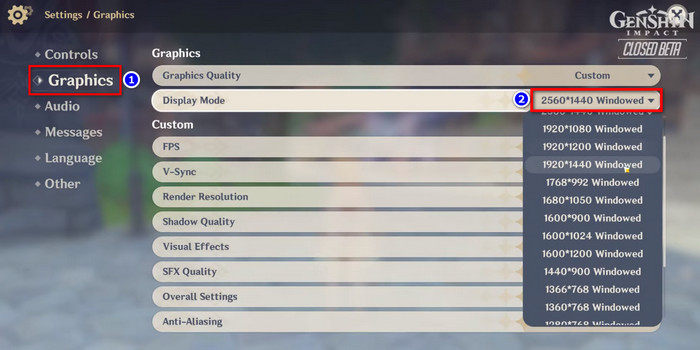
The solution to such an issue is quite simple. While in-game, press Esc and click on the gears icon from the left side pane to open Settings. Now, select Graphics and expand the Display Mode options.
Then, choose a windowed option according to your screen resolution, like 1920*1080 Windowed or 2560*1440 Windowed, and save the changes. Now launch OBS and start capturing the gameplay. You can now switch to fullscreen mode if you want to.
2. Launch OBS as Administrator
If the OBS is still not capturing Genshin Impact, the capture software might not be getting all the necessary permissions to capture the screen of other apps.
In such cases, running the OBS as administrator is an effective solution as it grants the app all the admin-level permissions and allows it to capture the screen properly. So if Genshin Impact is not capturing on OBS, follow these steps to run the screen recording app as admin:
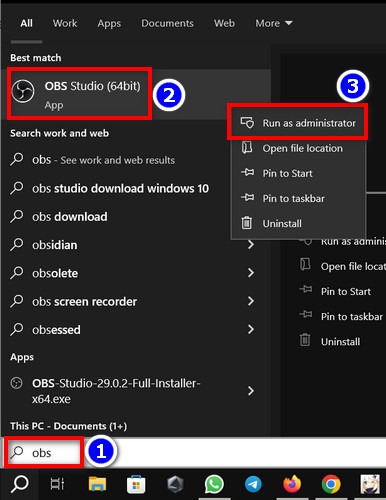
- Click on the Windows search bar and type obs.
- Right-click on OBS Studio(64-bit) from the search result.
- Select Run as administrator.
While you’re at it, try running the game’s EXE file as an admin as well. Now launch Genshin Impact and check if the OBS is able to capture the game window. If not, move on to the next method.
3. Run OBS with Dedicated GPU
When your computer/laptop has both integrated and external/dedicated GPU, you need to run the game and OBS via the same graphics adapter.
In case the OBS is running on an integrated GPU and the game is running on the dedicated graphics card, the capture software might not have the screen data due to being on different graphics adapters.
So make sure you’re using OBS with the dedicated GPU, the same as the Genshin Impact game. Here’s how:
For Nvidia Users
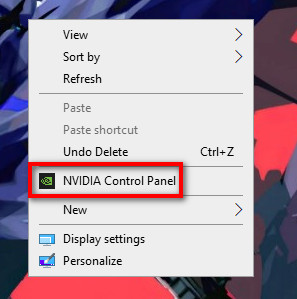
- Right-click on an empty space on your desktop screen and select Nvidia Control Panel from the context menu.
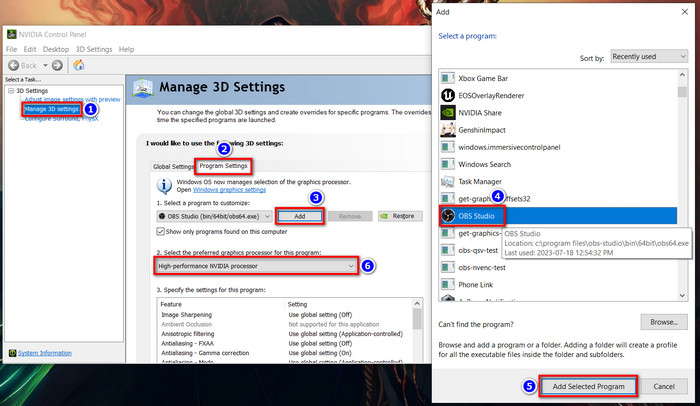
- Select Manage 3D settings from the left side pane.
- Go to the Program Settings tab and click on Add.
- Choose OBS from the program list. If you can’t find it there, click on Browse and go to OBS’s installation path.
- Select the OBS.exe file and click on the drop-down menu for the Select the preferred graphics processor for this program option.
- Choose High-performance NVIDIA processor and hit Apply.
For AMD users
- Right-click anywhere on your desktop screen and select AMD Radeon Settings.
- Go to Preferences and select Radeon Additional Settings.
- Click on Switchable Graphics Application Settings from the left bar and select Add Application.
- Choose obs.exe, and set it to High performance.
- Hit Apply.
After you’re done, launch the game first, then launch OBS and try to record the gameplay to see if the OBS black screen issue on Genshin Impact has been fixed.
4. Close MSI Afterburner or Other Conflicting Apps
If the above-listed methods haven’t worked for you, close any background running apps that might have a screen overlay feature, such as MSI Afterburner or GeForce Experience. Sometimes these apps can conflict with OBS’s capture window and cause black screen issues.
But what can you do when the problem still doesn’t get resolved? You can try using alternate capture and streaming program for your Genshin Impact gameplay, which brings us to our next topic…
How to Stream Genshin Impact with GeForce Experience
Nvidia’s GeForce Experience is an amazing alternative for screen recording and streaming. As a matter of fact, I prefer this over OBS Studio due to the stability of the software. This streaming solution comes built-in with Nvidia’s graphics driver.
And since it’s a proprietary solution(along with a custom NVENC codec and greater AV1 support), the performance hit is very minimal, less than OBS. The UI is also very intuitive and user-friendly. So let’s see how you can start streaming your gameplay with Geforce Experience:
- Download GeForce Experience from Nvidia’s website if you have manually unchecked its installation during the Nvidia GPU driver setup process. If not, simply search for GeForce Experience from the Windows search bar and launch the program.
- Sign in/register your Geforce account.
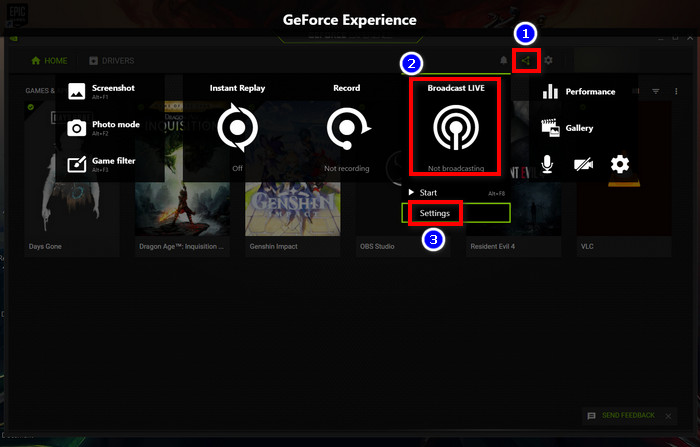
- Click on the ⊲ like icon from the top navigation bar of the app to open the in-game overlay. Here, you can find all kinds of options, such as Instant Reply, Record, Screenshot, Photo mode, etc.
- Select Broadcast LIVE and click on Settings.
- Click on the Facebook, Twitch, or YouTube icon below the Destination option to link those corresponding accounts with your GeForce Experience app.
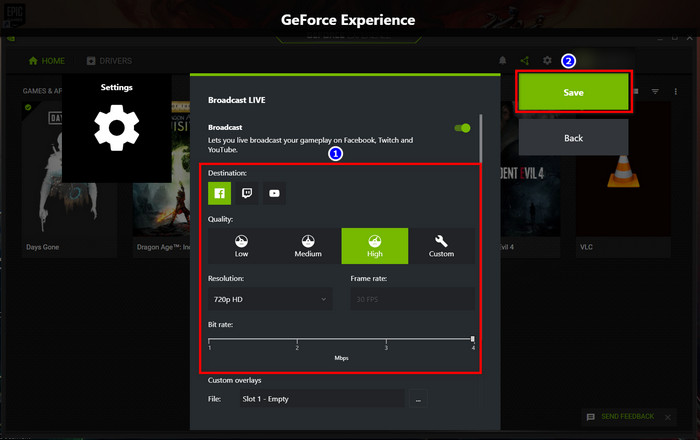
- Customize the additional broadcast settings, such as streaming resolution, frame rate, audio source, etc, according to your preference.
- Close the app and launch Genshin Impact.
- While in-game, press Alt+Z to open the overlay.
- Click on Broadcast LIVE and select Start.
- Choose your streaming platform(Facebook, Twitch, or YouTube) and set the title, location, and audience for your stream.
- Hit Go Live.
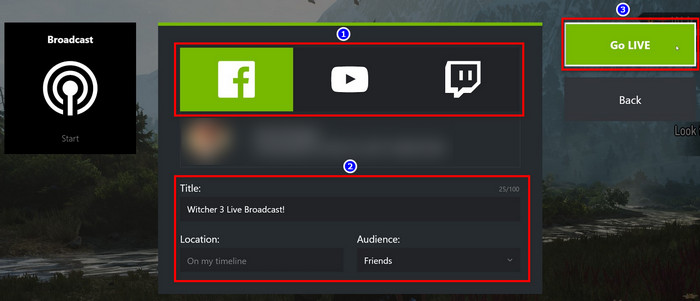
Done! Now you’re Genshin Impact gameplay will start to stream on your chosen platform.
Additionally, you can set up a webcam and viewer+comment location on the screen overlay. Overall, the Nvidia Share/GeForce Experience is a much easier screen capture+recording app compared to other screen capture solutions on the market.
Frequently Asked Questions
Did Genshin Impact ban OBS?
No. miHoYo hasn’t released any press note on banning OBS for Genshin Impact. So it is safe to assume that they haven’t banned OBS.
Why is OBS not showing game?
Most of the time, OBS fails to show gameplay when the software doesn’t have the necessary permissions to capture the screen. The issue can also occur if the game fails to hook with the capture software due to windowed/fullscreen variation.
Can you get banned on Genshin Impact if you use OBS?
No. You will not get banned on Genshin Impact if you use OBS, Streamlabs, or any other well-known capture solution. Also, it is highly unlikely that miHoYo would ban such apps in the foreseeable future.
Как захватить genshin impact в obs
First of all, hi!
Second, I've got quite the interesting issue here, very much like what we've seen with games like Destiny 2.
So here it is, GI doesn't seem to capture at all with Game- or Window Capture. Both only gives black screen. Window Capture doesn't even list it. No idea why. It CAN be captured with Display Capture, but it becomes a stuttery mess (can be my OBS Rec settings, but I dont think so since I've played very demanding games om my machine with those settings and had perfect quality and zero stuttering / dropped frames.) GI must be a beast to capture it seems.
And to consider, here's my specs:
CPU: Intel 4790k @ stock
RAM: 4x4Gb Corsair Vengance 1600Mhz
GPU: MSI GTX 1080 Gaming X
My OBS Settings:
OBS Version: 25.0.8
Psycho Visual Tuning
Hope somebody's got a good idea on how to (if at all possible) get GI to capture willingly.
It started working capturing GI with Game Capture, for some unknown reason. It may have been because I tried running OBS in admin mode. If you have the same issue, try it!
How to fix Genshin Impact not visible in OBS Game Capture Mode.
Are you having trouble getting Genshin Impact to appear in OBS Game Capture Mode? This tutorial will show you how to configure Genshin Impact and OBS to work together correctly, allowing you to stream the game without using the resource-intensive Display Capture option.

Genshin Impact is one of the most popular free-to-play games in the gaming industry right now. It offers a visually stunning and immersive experience in a magical world filled with unique characters, creatures, and quests. For fans of FPS games like Halo, Doom, and Apex Legends, Genshin Impact offers a refreshing change of pace in your game playlist. Fans of Breath of the Wild will particularly enjoy the game. In addition to being a great single-player game, Genshin Impact’s co-op system is one of its main draws, allowing players from around the world to connect and help each other out.
Genshin Impact is also highly optimized and runs smoothly on most hardware from the past five years. The only notable issue is that streaming the game using OBS can be difficult. While Display Capture Mode in OBS can make streaming easy, it uses more resources than the proper Game Capture Mode. However, there are a few adjustments you can make to OBS and Genshin Impact to successfully stream the game using Game Capture Mode.
How do you fix Genshin Impact not showing in Game Capture Mode on OBS?
To begin, there are two changes you need to make in order to get Genshin Impact to appear in OSB Game Capture Mode.
- The first is within OBS and requires you to start OBS with full administrator privileges.
- The second requires you to configure Genshin Impact to run in Windows 8 compatibility mode (weird I know).
How to make OBS Studio always run with Administrator privileges to get Genshin Impact to appear in OSB Game Capture Mode.
- In order to force OBS to run in admin mode whenever it starts, find the shortcut you always use, then right-click on it and select Properties.
- In the new window change to the Compatability tab, then place a tick in the Run this program as an administrator check box. Finally, click Apply to save the change.
Note: You will need to do this for all the shortcuts you use to open OBS. If you use more than one of course.
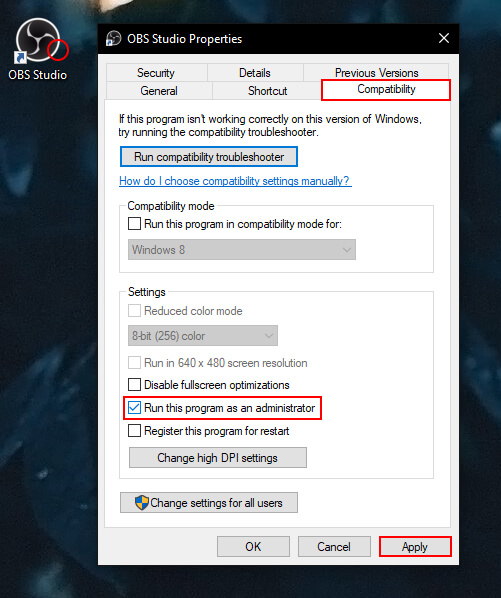
How do you make Genshin Impact run in compatibility mode?
- In order to force Genshin Impact to run in compatibility mode whenever it starts, find the shortcut you always use, then right-click on it and select Properties.
- In the new window change to the Compatability tab, place a tick in the Run this program in compatibility mode for box and choose Windows 8.

Do you need to configure anything else in OBS to get things working?
Nope! Now that you have made these two changes, you can configure your streams as you normally would, using the Game Capture option. If you have any other solutions that may help, feel free to drop a few words in the comments below.
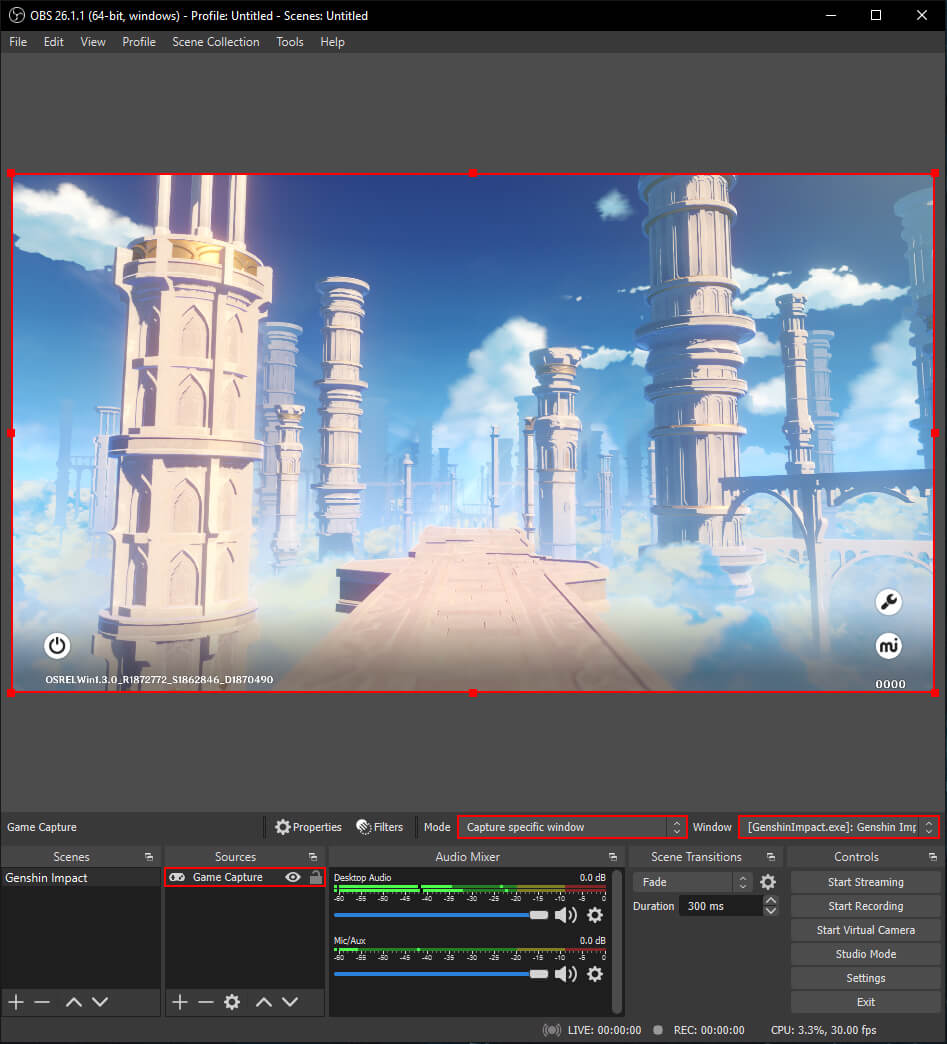
Fix the Epic Games version of Genshin Impact not showing in Game Capture Mode on OBS.
Unfortunately, the Epic Games version of Genshin Impact cannot to customised in this way so you will need to switch to the standard version if you want to stream Genshin Impact using OBS.