MemCLK Tristate C3/ATLVID — что это в биосе?

Приветствую. Биос содержит много настроек, которыми можно поднять производительность. Но иногда из-за неправильных настроек железо может выйти из строя. Поэтому незнакомые настройки лучше не трогать, оставляя их значение по умолчанию.
Приветствую. Биос содержит много настроек, которыми можно поднять производительность. Но иногда из-за неправильных настроек железо может выйти из строя. Поэтому незнакомые настройки лучше не трогать, оставляя их значение по умолчанию.
MemCLK Tristate C3/ATLVID — что это такое?
Опция улучшенной работы системы энергосбережения. При разгоне процессора стоит отключать — снижает стабильность при разгоне. Наиболее верное описание. Вообще информации в интернете мало.
Другие версии:
- В описании платы Foxconn A74MX-K указана информация: MemCLK Tristate C3/ATLVID — опция, позволяющая синхронизировать тактовые частоты памяти, когда включен альтернативный режим VID. Учитывая упоминание ATL VID, похоже на правду. Предположительно VID означает напряжение.
- Инфа с мануала к материнке MSI GF615M-P33: пункт позволяет активировать режим работы с тремя состояниями C3/ALTVID. C3 — это кажется один из режимов энергосбережения процессора.
По умолчанию данная опция выключена (выставлено Disabled).
Некоторые юзеры отмечают:
- При включенной настройке могут быть ошибки при проверка памяти в тесте S&M.
- Настройка связана с подачей напряжения при определенном состоянии памяти.
Параметр в биосе:

MemCLK Tristate C3/ATLVID — включать или нет?
Мое мнение — на 99% связано с работой энергосбережения, поэтому:
- При офисном ПК — включить, протестировать, при стабильной работе оставить включенной.
- При разгоне процессора разумеется стоит отключать, как и другие энергосберегайки.
- Также, скорее всего если оставить значение по умолчанию, то энергоэффективность не сильно снизится.
Процессор в простое сбрасывает частоту до минимальной, при которой нагрев и потребление энергии — максимально снижается. Поэтому дополнительное включение опции вряд ли кардинально что либо изменит.
Описание некоторых других пунктов
Также могут быть другие настройки, описание которых возможно будет полезным:
Foxconn C51XEM2AA-8EKRS2H User Manual
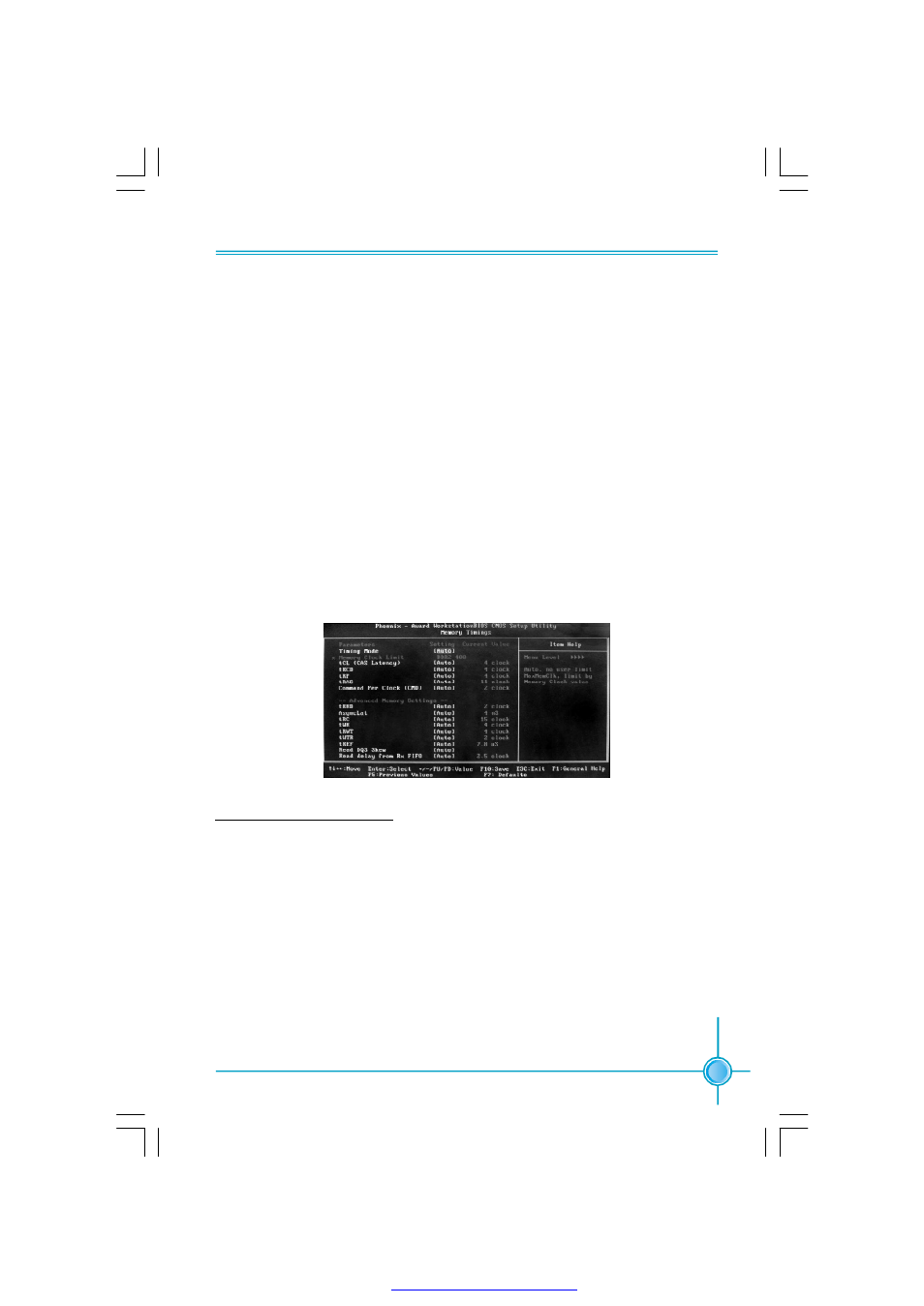
CKE power down mode selection. It should be set to “per channel” for non
mobile systems.
Memclock tri-stating
Memclock tri-stating during C3 and Alt VID.
Memory Hole remapping
Enable or disable memory hole remapping.
Auto Optimize Bottom IO
Auto optimize maximum DRAM size when kernel assigns PCI resources
done.
Оптимизация BIOS системной платы K9N SLI Platinum
На приведенном ниже изображении показан вид экрана режима настройки BIOS системной платы K9N SLI Plantium. Для повышения производительности пользователи могут изменить задержки памяти и настроить CPU FSB в разделе «Cell Menu».
Если вы незнакомы с настройкой BIOS, то для достижения оптимизации BIOS вы просто можете выбрать пункт «Load Optimized Defaults»(установить оптимальные насторойки). Это самый простой и быстрый способ.
| Внимание: Очень важно сохранять стабильность работы компьютера при установке операционной системы (ОС). Любая самая незначительная ошибка может привести к нестабильности (ОС). Поэтому мы настоятельно рекомендуем сохранять заводские настройки до установки ОС. |
Раздел Cell Menu системной платы K9N SLI Platinum
Все настройки, связанные с разгоном, сосредоточены в разделе «Cell Menu». В их число входят » Cool’n’Quite «(прохлада и тишина), «Adjust Extra CPU Voltage (V)»(настройка напряжения питания CPU), «CPU Frequency (MHz)»(тактовая частота CPU), «CPU Dynamic Overclocking»(динамический разгон CPU), «CPU Frequency Configuration»(конфигурирование частоты CPU), «Memclock Mode»(частотный режим памяти), «Adjust DDR Voltage (V)»(настройка напряжения питания DDR), «Memory Configuration»(конфигурация памяти), «PCIE Frequency (MHz)»(частота шины PCIE), «Spread Spectrum Configuration»(конфигурация ограничения спектра). Если вы обладаете опытом разгона, то, благодаря понятному интерфейсу и полному набору функций, содержащемся в этом меню, вы, определенно, получите удовольствие от разгона системной платы K9N SLI Platinum.
Прежде чем начать разгон, пожалуйста, отключите функцию Cool’n’Quite (прохлада и тишина) (По умолчанию она включена). В противном случае это помешает снижению частоты CPU при переходе ОС в спящий режим.
Мы рекомендуем также отключить все пункты в меню функции Spread Spectrum (ограничение спектра), поскольку они ограничивают степень разгона. Войдите, пожалуйста, в меню Cell Menu>Spread Spectrum Configuration (конфигурация ограничения спектра) и установите все 3 пункта в состояние «отключено». (По умолчанию они включены).
Далее мы более подробно остановимся на некоторых параметрах разгона:
1. Напряжение питания процессора:
Этот пункт предназначен для настройки напряжения питания процессора при разгоне. Напряжение питания CPU может быть увеличено от установленного по умолчанию значения до максимума 0.35 V с шагом 0.05V.
2. CPU Frequency (частота FSB CPU):
Вы можете установить желаемое значение частоты » с помощью клавиш «+,-«. Для процессора AMD Athlon™64 по умолчанию эта величина составляет 200MHz. Максимальное значение 425MHz.
3. Processor Frequency Multiplier (множитель частоты процессора):
При использовании процессоров Athlon64 ™ серии FX, диапазон настройки находится в пределах от 5x до 25x. Для процессоров Athlon64™ он зависит от модели. Процессоры Sempron 3000 и 3200 не поддерживаются.
4. Dynamic Overclocking (динамический разгон):
Это эксклюзивная технология разгона от компании MSI. Она обеспечивает автоматический разгон 6 различных уровней в соответствии с изменениями температуры.
5. Memclock Mode (частотный режим памяти):
Частота памяти является важным параметром. Она может иметь 4 различных значения. Имеется функция автоматического определения для совместимости с различными типами разгоняемых модулей памяти. Значения частоты памяти составляют 400, 533, 667 и 800MHz.
6. Adjust DDR Voltage (настройка напряжения питания DDR):
Этот пункт позволяет настроить напряжения питания модулей памяти при разгоне. Значение по умолчанию составляет 1.80V, максимум — 2.45V. Величина шага — 0.05V.
7. Конфигурация памяти
Этот раздел более сложен и имеет множество параметров настройки. Большая их часть касается тактового режима памяти. На следующем рисунке приведенеы опции ручной настройки соответствующие пожеланиям опытных игроков. Системная плата K9N SLI Platinum предоставляет множество опций настройки. В каждом пункте уменьшение количества тактов означает уменьшение времени на обработку данных. Перед настройкой каждого из пунктов следует уяснить смысл соответствующего параметра спецификации используемой памяти. Например, если параметр вашей памяти CL=5, это означает, что для повышения производительности можно попробовать переключить CAS Latency (задержку CAS) на значение 4. Аналогично можно поступать и с остальными пунктами. Для достижения большей производительности попробуйте шаг за шагом уменьшить значения параметров. Тактовая последовательность 4-4-4 -1 2 может дать большую производительность, однако одновременно снизит потенциальную стабильность системы. Возможно, ваши действия вызовут нестабильность в работе системы. Это потребует очистить CMOS и войти в режим настройки BIOS, чтобы установить иные значения параметров.
Кроме того, если для разгона вы используете обычные, имеющиеся в продаже модули памяти, мы рекомендуем войти в режим Cell Menu>Memory Configuration> (конфигурация памяти) CMD-ADDR Timing Mode(тактовый режим CMD-ADDR), и для получения лучшей производительности памяти переключить эту опцию в режим 1T ( По умолчанию 2T ).
8. Hyper Transport MCP55 Configuration (конфигурация интерфейса Hyper Transport MCP55):
Этот пункт предназначен для настройки связи между CPU и компонентами чипсета, или частоты шины, связывающей микросхемы чипсета, и является ключевой опцией разгона. В отличие от предыдущих настроек, на системной плате K9N SLI Platinum этот пункт размещен в разделе Advanced Chipset Features (специальные настройки чипсета). Значение по умолчанию составляет 1000MHz. Если вы решили повысить частоту в диапазоне от 201MHz до 250MHz, установите частоту HT на значение 800MHz. Если вы желаете повысить частоту до значения между 251MHz и 300MHz, установите частоту HT на 600MHz. Если вы желаете установить частоту более 300MHz, установите частоту HT на 400MHz. Помните, что перед установкой частоты следует установить опцию Freq Auto в состояние «отключено».
9. PCIE Frequency (частота PCIE ):
Эта частота может принимать значения от стандартного 100MHz до максимального 148MHz. (Пожалуйста, избегайте увеличения этой частоты свыше 110MHz, поскольку это может вызвать повреждение графической карты.)
Чтобы предупредить пользователей о рискованном повышении напряжения, опасные величины обозначаются красным цветом. Несмотря на то, что системная плата K9N SLI Platinum предоставляет широкий диапазон настройки напряжений, при наличии возможной опасности значения напряжений будут обозначаться красным цветом.
DDR3 timing trimming!
This is my mobos memory timing selection once you hit manual:
8T, 10T, 12T, 14T, 16T.
9T. (Note: This is only 4-9 or 10 I think in the actual bios)
Regeneration
NGOHQ.COM
- Apr 3, 2019
- #2
DDR clock is more important than timing (25GB/s vs. 32GB/s).
You can use Thaiphoon Burner to determine which memory chips are used and search online for a preset of timing.
For example, most of recent Samsung DDR3 1333-1600 modules can be pushed to the 2000-2400 range (see this thread for more details).
Your motherboard must support high tRFC value (100-300).
You’ll need multi-threaded software to test for stability (MemTest64, HCI MemTest).
Greasy
| System Name | Computor! |
|---|---|
| Processor | Phenom II 1100t black edition |
| Motherboard | GA-970A-D3 |
| Cooling | Defualt Case Air; PCI fan blower, some HDD fans. |
| Memory | (2x4GB) DDR3 PC3-16000 9-11-9-27 Blackline (996991); Black Mamba (2 x 4GB) 1600MHz (PV38G160C9K) |
| Video Card(s) | PNY 1060 3gb xlr8 |
| Storage | 250gb ssd, 750gb easy raid 10 |
| Display(s) | Asus VK278Q Black 27" 1920×1080 2ms Full? HD HDMI LED BackLight LCD 300 cd/m2 10,000,000 :1 (ASCR) |
| Case | Aspire/Apevia? X-Superalien case(blue) |
| Power Supply | Corsair TX650W |
| Mouse | Logitech G402 |
| Keyboard | Emachines generic keyboard |
| Software | Fedora 28 |
| Benchmark Scores | Unigine: heaven: 1300ish(custom), 1611(Extreme); Valley: 1864(ExtremeHD) |
- Apr 4, 2019
- #3
I’ve been testing with : memtester version 4.3.0 (64-bit)
I’m not sure what of those work on linux. I do have memtest64 on a bootup linux thumbdisk. I ran that in the past to check the range of stuff. I think it’s well within it now.
And trfc from the bios goes from 90-350. Is it safe to modify this value? It’s default at 160ns. BTW, the values are in the really big crowded spoiler in the OP thread. It might be hard to see.(and read) BTW, do I need to change the trfc if I change the mhz of the ram and fsb? Can I lower it to get a similar result?
I was trying to get the timings within the best range at 1600mhz because this board cannot access 1866 or get to 2000 with this cpu(AM3 vs AM3+) without raising the fsb speeds and I didn’t want to raise those for long term life of the system potentially. Or is it that good of a bonus. I thought it didn’t make a different because of the timings. Does my mobo get an advantage from the increase in bandwidth? It’s a really old board.
Edit: Other odd question. One of my kits is 2000mhz ram that can run at 1.65v. The other is 1600mhz that can run at 1.5v. Is it likely safe to run them both at 1.65 and try to get 1866 or 2000mhz speeds? Some stuff I read seem to indicate it’s safe up to around 1.7v. Is this really ok for long term lifespan? I always thought any voltage increase would lower life span.
The board officially supports 1600 max with AM3, 1866 with AM3+ and 2000 with am3+ and OCing. Not sure if I can do 2000mhz with an AM3 cpu and the 1600mhz ram. Not sure if this is bad for lifetime of time of the system. (Despite it being old. Not planning on upgrading any time soon.)
Edit2: There are actually more E.O.C.P settings than I thought. 1600, 1866, 2000, 2133, 2200, 2400. Even though the board should only do up to 2000. Non worked out the box(They worked, but it beeped at me.). Not sure what to do to get the 2000mhz to work. Might have to remove some ram or something.
It changes this to 250:
CPU Host Clock Control, CPU Frequency (MHz), Set Memory Clock, Memory Clock
The settings under the four items above are synchronous to those under the same items on the MB In- tel-
ligent Tweaker(M.I.T.) main menu.
And set the ram voltage to 1.655. No go though. Not sure what other voltage to raise or what to change to get the system too boot without a bios beeping at me at the start. It does try to startup though. I didn’t log in to my OS to test it. It gave 2 long beeps which I don’t have a reference too in the MB manual.
3.170V
The adjustable range is from 2.060V to 3.170V.
Note: Increasing CPU voltage may result in damage to your CPU or reduce the useful life of the CPU.
DRAM Voltage control
Allows you to set memory voltage.
Normal
Supplies the memory voltage as required. (Default)
1.035V
2.145V
The adjustable range is from 1.035V to 2.145V.
Note: Increasing memory voltage may result in damage to the memory or reduce the useful life of the
memory.
DDR VTT Voltage Control
Allows you to set the DDR VTT voltage.
Normal
Supplies the South Bridge voltage as required. (Default)
0.515V
1.145V
The adjustable range is from 0.515 to 1.145V.
Note: Increasing memory voltage may result in damage to the memory or reduce the useful life of the
memory.
NB Voltage Control
Allows you to set the North Bridge voltage.
Normal
Supplies the North Bridge voltage as required. (Default)
0.870V
1.500V
The adjustable range is from 0.870 to 1.500V.
HT Link Voltage Control
Allows you to set the HT Link voltage.
Normal
Supplies the North Bridge voltage as required. (Default)
0.735V
1.520V
The adjustable range is from 0.735 to 1.520V.
NB/PCIe/PLL Voltage Control
Allows you to set the North Bridge PCIe PLL voltage.
Normal
Supplies the North Bridge PCIe PLL voltage as required. (Default)
1.335V
2.445V
The adjustable range is from 1.335V to 2.445V.
CPU NB VID Control
Allows you to set the CPU North Bridge VID voltage. Auto sets the CPU North Bridge VID voltage as
required. The adjustable range is dependent on the CPU being installed. (Default: Normal)
Note: Increasing CPU voltage may result in damage to your CPU or reduce the useful life of the CPU.
CPU Voltage Control
Allows you to set the CPU voltage. Auto sets the CPU voltage as required. The adjustable range is de-
pendent on the CPU being installed. (Default: Normal)
Note: Increasing CPU voltage may result in damage to your CPU or reduce the useful life of the CPU.
Normal CPU Vcore
Displays the normal operating voltage of your CPU.
Regeneration
NGOHQ.COM
- Apr 4, 2019
- #4
Tweaking memory is a problem with mixed vendor/model configuration. Every module uses a different chip. Its better to stick to single vendor/model.
1.65v is the maximum safest voltage for 24/7.
I’m not familar with memtester, but I do know the non-UEFI versions of MemTest86 don’t support multi-threading.
Phenom II Black Edition is intended for overclockers. it has unlocked multiplier. You can boost the FSB and HT link, and still run it @ stock clocks. A slight overclock shouldn’t damage the CPU.
tRFC should be adjusted according to the memory’s SPD. Lower is better, but this must be relaxed for higher clocks.
Mr.Scott
| System Name | Master |
|---|---|
| Processor | Pair of Xeon X5675's @ 4.3 |
| Motherboard | SR-2 Classified |
| Memory | 12 GB of Corsair Dominator GT's @ 2000 7-7-7-21 |
| Video Card(s) | EVGA GTX680 |
| Power Supply | EVGA Supernova 750 |
- Apr 4, 2019
- #5
This is my mobos memory timing selection once you hit manual:
8T, 10T, 12T, 14T, 16T.
9T. (Note: This is only 4-9 or 10 I think in the actual bios)
eidairaman1
The Exiled Airman
| System Name | PCGOD |
|---|---|
| Processor | AMD FX 8350@ 5.0GHz |
| Motherboard | Asus TUF 990FX Sabertooth R2 2901 Bios |
| Cooling | Scythe Ashura, 2×BitFenix 230mm Spectre Pro LED (Blue,Green), 2x BitFenix 140mm Spectre Pro LED |
| Memory | 16 GB Gskill Ripjaws X 2133 (2400 OC, 10-10-12-20-20, 1T, 1.65V) |
| Video Card(s) | AMD Radeon 290 Sapphire Vapor-X |
| Storage | Samsung 840 Pro 256GB, WD Velociraptor 1TB |
| Display(s) | NEC Multisync LCD 1700V (Display Port Adapter) |
| Case | AeroCool Xpredator Evil Blue Edition |
| Audio Device(s) | Creative Labs Sound Blaster ZxR |
| Power Supply | Seasonic 1250 XM2 Series (XP3) |
| Mouse | Roccat Kone XTD |
| Keyboard | Roccat Ryos MK Pro |
| Software | Windows 7 Pro 64 |
- Apr 4, 2019
- #6
Bones
| Processor | Ryzen 2700X |
|---|---|
| Motherboard | X470 Tachi Ultimate |
| Cooling | Scythe Big Shuriken 3 |
| Memory | C.R.S. |
| Video Card(s) | Radeon VII |
| Software | Win 7 |
| Benchmark Scores | Never high enough |
- Apr 4, 2019
- #7
Another thing is exactly what sticks are you trying to tweak?
G. Skill Ripjaws X, OCZ Platinums, G. Skill Tridents. That makes a huge difference in what you get. If just tweaking a generic set of sticks you’re wasting your time with it, those aren’t hardly tweakable to be worth the effort because they weren’t made to be tweaked, just to pop in the system and that’s about it — You could call those sticks for an office machine or something.
Also know many sticks just can’t go much tighter than their stock specs anyway.
So. Exactly what sticks are you trying to tweak?
Greasy
| System Name | Computor! |
|---|---|
| Processor | Phenom II 1100t black edition |
| Motherboard | GA-970A-D3 |
| Cooling | Defualt Case Air; PCI fan blower, some HDD fans. |
| Memory | (2x4GB) DDR3 PC3-16000 9-11-9-27 Blackline (996991); Black Mamba (2 x 4GB) 1600MHz (PV38G160C9K) |
| Video Card(s) | PNY 1060 3gb xlr8 |
| Storage | 250gb ssd, 750gb easy raid 10 |
| Display(s) | Asus VK278Q Black 27" 1920×1080 2ms Full? HD HDMI LED BackLight LCD 300 cd/m2 10,000,000 :1 (ASCR) |
| Case | Aspire/Apevia? X-Superalien case(blue) |
| Power Supply | Corsair TX650W |
| Mouse | Logitech G402 |
| Keyboard | Emachines generic keyboard |
| Software | Fedora 28 |
| Benchmark Scores | Unigine: heaven: 1300ish(custom), 1611(Extreme); Valley: 1864(ExtremeHD) |
- Apr 4, 2019
- #8
They are in my system specs under my name.
What about secondary timings? Are they worth lowering or changing. Is it safe or useful to lower trfc for each channel set. it’s default at 160ns. It can be lowered to 110ns or 90ns. Not sure about the other ones. I can’t find good info on anything about ram timings. The descriptions are just vague to show people they can change them. Nothing actually going into the engineering side and actually say why it works etc for either timings or the ram as a whole. Seems to be a lack of proper in depth info everywhere or I have no idea why I can never find any.
It was technically working at 2000mhz. Just not sure what I need to adjust to make the bios not beep at me at post. I should have ran it to the OS to check I guess. What are you gaining by raising the spd?
I keep getting confused as to the meaning of certain terms. Trfc in some cases refers to:
Minimum RAS Active Time
Options are: Auto (default), 8T
I also have this:
Trfc1 for DIMM1, DIMM3
Options are: Auto (default), 90ns, 110ns, 160ns, 300ns, 350ns.
Trfc0 for DIMM2, DIMM4
Options are: Auto (default), 90ns, 110ns, 160ns, 300ns, 350ns.
I can’t get my Minimum Row Cycle Time below 33T. Is this because it won’t go lower because of the 160ns timing? Can I lower the 160 and drop the Row Cycle Time? I’m worried about lowering it if it kills my OS or hardware. Will it likely be save to change those to test them or does it cause any major problems. I’m assuming I might just need to change use a screw driver on the bios things to reset it at worse. Or is there a problem with changing those Trfc1/0? Does it need to be something in relation to the Minimum RAS active time or something other timings? This board/bios sadly have very different terminology than everything else.
If Row Cycle Time needs to be 9+15+2 or similar That means I should be able to get it as low as 24 or 26. But it won’t let me do this. Is this because of the ns the Trfc1/0 are set to or is it from another setting? I don’t know why I can’t get it below 33T.
Bones
| Processor | Ryzen 2700X |
|---|---|
| Motherboard | X470 Tachi Ultimate |
| Cooling | Scythe Big Shuriken 3 |
| Memory | C.R.S. |
| Video Card(s) | Radeon VII |
| Software | Win 7 |
| Benchmark Scores | Never high enough |
- Apr 4, 2019
- #9
OK — I have to ask if you are running both sets in the system or not.
You should ALWAYS run identical sticks because even if the timing specs are the same between them you could have different IC’s (Internal chips) between the two sets and each maker has their own specs for them.
Noted the specs between the sets you have are indeed different.
Mixing sticks by brand/type in the system can hurt efforts to get more from them, mixing sets in a system isn’t something that’s recomended.
The specs of your sticks and overall setup tells me about 850-900 in CPU-Z is about the limit, perhaps 925 — 950 if your lucky with those regardless. Although you’re running a Thuban it’s not too common to see a set get 1000 and that’s with higher voltages to the sticks requiring better than stock cooling, looser timings and such, certainly not for everyday use. The board you have isn’t that bad but it’s not a top of the line clocker either, even my Crosshair V-Z can’t really push a set to 1000 running my 1100T chip — It’s done it before but had to lean on it hard and will only do it with a select few sets of RAM I happen to have.
Best thing I can suggest is keep it at 800MHz (1600) and simply tweak timings but as said before it’s really a waste of time since you won’t get much if any difference you’ll be able to notice except with certain things like a run of Super PI as an example.
For gaming and just all around use you won’t notice it at all.
Regeneration
NGOHQ.COM
- Apr 4, 2019
- #10
eidairaman1
The Exiled Airman
| System Name | PCGOD |
|---|---|
| Processor | AMD FX 8350@ 5.0GHz |
| Motherboard | Asus TUF 990FX Sabertooth R2 2901 Bios |
| Cooling | Scythe Ashura, 2×BitFenix 230mm Spectre Pro LED (Blue,Green), 2x BitFenix 140mm Spectre Pro LED |
| Memory | 16 GB Gskill Ripjaws X 2133 (2400 OC, 10-10-12-20-20, 1T, 1.65V) |
| Video Card(s) | AMD Radeon 290 Sapphire Vapor-X |
| Storage | Samsung 840 Pro 256GB, WD Velociraptor 1TB |
| Display(s) | NEC Multisync LCD 1700V (Display Port Adapter) |
| Case | AeroCool Xpredator Evil Blue Edition |
| Audio Device(s) | Creative Labs Sound Blaster ZxR |
| Power Supply | Seasonic 1250 XM2 Series (XP3) |
| Mouse | Roccat Kone XTD |
| Keyboard | Roccat Ryos MK Pro |
| Software | Windows 7 Pro 64 |
- Apr 4, 2019
- #11
OK — I have to ask if you are running both sets in the system or not.
You should ALWAYS run identical sticks because even if the timing specs are the same between them you could have different IC’s (Internal chips) between the two sets and each maker has their own specs for them.
Mixing sticks by brand/type in the system can hurt efforts to get more from them.
The specs of your sticks and overall setup tells me about 850-900 in CPU-Z is about the limit, perhaps 925 — 950 if your lucky with those regardless. Although you’re running a Thuban it’s not too common to see a set get 1000 and that’s with higher voltages to the sticks requiring better than stock cooling, looser timings and such, certainly not for everyday use. The board you have isn’t that bad but it’s not a top of the line clocker either, even my Crosshair V-Z can’t really push a set to 1000 running my 1100T chip — It’s done it before but had to lean on it hard and will only do it with a select few sets of RAM I happen to have.
Best thing I can suggest is keep it at 800MHz (1600) and simply tweak timings but as said before it’s really a waste of time since you won’t get much if any difference you’ll be able to notice except with certain things like a run of Super PI as an example.
For gaming and just all around use you won’t notice it at all.
Bones
| Processor | Ryzen 2700X |
|---|---|
| Motherboard | X470 Tachi Ultimate |
| Cooling | Scythe Big Shuriken 3 |
| Memory | C.R.S. |
| Video Card(s) | Radeon VII |
| Software | Win 7 |
| Benchmark Scores | Never high enough |
- Apr 4, 2019
- #12
Greasy
| System Name | Computor! |
|---|---|
| Processor | Phenom II 1100t black edition |
| Motherboard | GA-970A-D3 |
| Cooling | Defualt Case Air; PCI fan blower, some HDD fans. |
| Memory | (2x4GB) DDR3 PC3-16000 9-11-9-27 Blackline (996991); Black Mamba (2 x 4GB) 1600MHz (PV38G160C9K) |
| Video Card(s) | PNY 1060 3gb xlr8 |
| Storage | 250gb ssd, 750gb easy raid 10 |
| Display(s) | Asus VK278Q Black 27" 1920×1080 2ms Full? HD HDMI LED BackLight LCD 300 cd/m2 10,000,000 :1 (ASCR) |
| Case | Aspire/Apevia? X-Superalien case(blue) |
| Power Supply | Corsair TX650W |
| Mouse | Logitech G402 |
| Keyboard | Emachines generic keyboard |
| Software | Fedora 28 |
| Benchmark Scores | Unigine: heaven: 1300ish(custom), 1611(Extreme); Valley: 1864(ExtremeHD) |
- Apr 4, 2019
- #13
Does anyone have any idea how to push the Row Cycle Time below 33. That might help get performance. I currently have the two settings that make it up at 9+15(+2?) (Row Precharge Time+ Minimum RAS Active Time) for 24-26 Row Cycle Time potentially. But it has never gone below 33T or maybe 32T if lucky.(anything below 32 will usually make me reset the bios) Is there something else that needs to be changed to get it lower. Like the 160ns timings that say they are Trfc0/1 for the duel channel stuff.
Yes I’m running all 4 in the system. Should I take out the Viper 3 and see how it overclocks, or is there no real gain from going to 2000mhz. The Mushkin enhanced are actually 2000mhz PC16000 modules. I just never ran them at that speed because I didn’t think I could safely get the board up. Although I have no idea what could be safely done for long term use. Can you run with the FSB at 250mhz safely on this board?
BTW, I’m in ganged mode if it matters.
To be more specific. The mushkins are populating Dimms 1 and 3. The partriot ram is in Dimms 2 and 4.
Also, is it odd that I can run the Minimum RAS Active Time at 15T when running 9T — CAS# latency and 9T — RAS to CAS R/W Delay
Bones
| Processor | Ryzen 2700X |
|---|---|
| Motherboard | X470 Tachi Ultimate |
| Cooling | Scythe Big Shuriken 3 |
| Memory | C.R.S. |
| Video Card(s) | Radeon VII |
| Software | Win 7 |
| Benchmark Scores | Never high enough |
- Apr 4, 2019
- #14
freeagent
Moderator
| System Name | Altered Beast |
|---|---|
| Processor | AMD R9 5900X, 5800X3D |
| Motherboard | Asus Crosshair VIII Dark Hero |
| Cooling | Thermalright Frost Commander 140, NF-A14 3K, T30 |
| Memory | 2×8 G.Skill Trident Z Royal 3200C14, 2x8GB G.Skill Trident Z Black and White 3200 C14 |
| Video Card(s) | Zotac 4070 Ti Trinity OC |
| Storage | WD SN850X 2TB, SN850 1TB, SN770 1TB — Asus Hyper M.2, SN770 1TB, SN750 500GB |
| Display(s) | LG 50UP7100 |
| Case | Fractal Torrent Compact RGB |
| Audio Device(s) | JBL 2.1 Deep Bass |
| Power Supply | EVGA SuperNova 750w G+, Monster HDP1800 |
| Mouse | Zowie EC2 Evo |
| Keyboard | Logitech G213 |
| Software | Yes |
| Benchmark Scores | Yes |
- Apr 4, 2019
- #15
Honestly, with that ram you are just better off to find your max clock, and just leave it, don’t worry about timings, you aren’t going to knock em down enough to gain anything tangible. You aren’t going to be able to drop the cas. Speed them up to see if you can drop some latency and pick up a little bandwidth, and call it a day. You need enthusiast ram to do what you want to do.. Some good BBSE, PSC or maybe some Hypers if you can find either. I’ve got a few sets but I doubt I would part with them, and I’m pretty sure I’m not the only one that feels that way Nothing wrong with playing around though. I am running BBSE with whatever is in these RipJawsX.. They suck. But I like the extra ram. And to be honest.. I can populate all four dims with BBSE on this board at 2133 8-9-8-24 1T but outside of some benchmarks, cant see a difference between that and 1866 9-10-9-28 2T. Or even 1600 9-9-9-24. I bought some hyperx 2400s that were complete shite. I did get them to run, but they wouldn’t deviate from their timings at all, which were looser than sloppy seconds, probably terrible thirds, if I were to stoop that low.. Lol sold them a few hours later. I haven’t looked lately, but the last time I looked, good ram was hard to find
I run Super Talent Chrome Hypers on my X58. The difference between 1600 6-6-6-20 1T, 1800 7-7-7-21 1T, and 2000 8-8-8-24 1T is all in the benchmarks.
Greasy
| System Name | Computor! |
|---|---|
| Processor | Phenom II 1100t black edition |
| Motherboard | GA-970A-D3 |
| Cooling | Defualt Case Air; PCI fan blower, some HDD fans. |
| Memory | (2x4GB) DDR3 PC3-16000 9-11-9-27 Blackline (996991); Black Mamba (2 x 4GB) 1600MHz (PV38G160C9K) |
| Video Card(s) | PNY 1060 3gb xlr8 |
| Storage | 250gb ssd, 750gb easy raid 10 |
| Display(s) | Asus VK278Q Black 27" 1920×1080 2ms Full? HD HDMI LED BackLight LCD 300 cd/m2 10,000,000 :1 (ASCR) |
| Case | Aspire/Apevia? X-Superalien case(blue) |
| Power Supply | Corsair TX650W |
| Mouse | Logitech G402 |
| Keyboard | Emachines generic keyboard |
| Software | Fedora 28 |
| Benchmark Scores | Unigine: heaven: 1300ish(custom), 1611(Extreme); Valley: 1864(ExtremeHD) |
- Apr 4, 2019
- #16
agent_x007
| System Name | BOX |
|---|---|
| Processor | Core i7 6950X @ 4,26GHz (1,28V) |
| Motherboard | X99 SOC Champion (BIOS F23c + bifurcation mod) |
| Cooling | Thermalright Venomous-X + 2x Delta 38mm PWM (Push-Pull) |
| Memory | Patriot Viper Steel 4000MHz CL16 4x8GB (@3240MHz CL12.12.12.24 CR2T @ 1,48V) |
| Video Card(s) | Titan V ( |
- Apr 4, 2019
- #17
0) RAM performance is measured (mostly) by two factors :
— Bandwidth (how much data can be tranfered per second)
— Latency (how long it takes to get any data from memory)
Both are important, some CPUs prefer one over the other though.
1) Timings are measured in Clock Cycles (how many DRAM clock cycles memory controller has to wait for a given operation), NOT in nanosecods.
Why ?
Because nanoseconds are frequency dependant, and higher frequency = less nanosecods for all timings.
Frequency also directly increases bandwidth.
2) IMCs "kill" OC’ing FSB as means to increase RAM speed. It only helps with bypassing multiplier steps to some degree (since BCLK/HTT are determining what base is being multiplied to get to desired frequency)
3) No one timing will give you "magic bullet" to increase RAM performance by 10%+. Forcing one timing too low will make RAM unstable and you might increase others to regain it. Which of course decreases the perf. gains from that one timing.
4) There are rules about how timings affect each other, but those way more flexible than you think.
If you like tinkering, try weird settings yourself.
5) Temps for RAM are in line with Voltage.
In your case 1,65v on all four should be fine with little bit of airflow.
Going beyond that may be difficult without proper airflow between DIMMs.
I do not recommend increasing voltage beyond 1,65-1,7V range when you have four RAM modules installed.
PS. When (year/month), your modules were made ?
It should be in "SPD" table in CPU-z.
Greasy
| System Name | Computor! |
|---|---|
| Processor | Phenom II 1100t black edition |
| Motherboard | GA-970A-D3 |
| Cooling | Defualt Case Air; PCI fan blower, some HDD fans. |
| Memory | (2x4GB) DDR3 PC3-16000 9-11-9-27 Blackline (996991); Black Mamba (2 x 4GB) 1600MHz (PV38G160C9K) |
| Video Card(s) | PNY 1060 3gb xlr8 |
| Storage | 250gb ssd, 750gb easy raid 10 |
| Display(s) | Asus VK278Q Black 27" 1920×1080 2ms Full? HD HDMI LED BackLight LCD 300 cd/m2 10,000,000 :1 (ASCR) |
| Case | Aspire/Apevia? X-Superalien case(blue) |
| Power Supply | Corsair TX650W |
| Mouse | Logitech G402 |
| Keyboard | Emachines generic keyboard |
| Software | Fedora 28 |
| Benchmark Scores | Unigine: heaven: 1300ish(custom), 1611(Extreme); Valley: 1864(ExtremeHD) |
- Apr 4, 2019
- #18
By fsb I mean the IMC. In this motherboard it simultaneously changes the FSB/integrated contoller/something else at the same time. It’s just called the fsb in one area of the bios.
Can anyone explain to me what the Trfc is in my bios.
Trfc1 for DIMM1, DIMM3
Options are: Auto (default), 90ns, 110ns, 160ns, 300ns, 350ns.
Trfc0 for DIMM2, DIMM4
Options are: Auto (default), 90ns, 110ns, 160ns, 300ns, 350ns.
They default at 160ns.
This is why I’m refering to ns because this setting calls it ns. Is it wise to change this? And what is this referring too?
Also, isn’t Trfc normally what my bios calls:
Minimum RAS Active Time
Options are: Auto (default), 8T
The fourth number in the normal list of timings. This for me is currently set to 15(Although everything says it shold be
9T — CAS# latency + 9T — RAS to CAS R/W Delay +2
Default for the patriot viper 3 is 9-9-9-24 and Mushkin 9-11-9-27. So, apparently this goes down really far without causing problems. At least so far. It doesn’t show errors in my memtester program at least. Haven’t run Memtest64 in a long time though. It takes too long.
Or is Trfc related to row cycle time?! I’m completely confused at this point. Row cycle time I can’t get below 33 atm. Will changing the Trfc per bank help me lower the Row cycle time? If so what do you go by to change it. I only have a few options, but is there some rule it normally goes by. Is it safe to adjust Trfc in this case. It’s per bank. Not sure what that is for. The banks refresh rate itself somehow? Not sure what that means. Or the Dimms or something?
I can’t find any solid information explaining what this is anywhere. Too many websites with different terms and too little explanation on what the terms mean. The closest I found was the gamenexus website one, but it literally uses term to describe terms in a loop that is literally impossible to understand. And their video over the subject(Which is not linked to the webpage while using the webpage in the video. ) is such gobblygoop it’s impossible to unwind it to understand any of what they are talking about solidly. We really need more or easier to find webpages on proper engineering in these subjects again. The information everywhere is aweful now and incomplete on all levels.
Still could use more info understanding the specifics. But I have no idea why this didn’t pop up in my searched before.
Edit: Would increasing the trfc help get the cas down? Cas won’t go down at 1600mhz to 8 without errors even at 1.65 voltage. Or would changing the trfc to 90ns boost performance overall or at all?
Editagain: miracle has occured. 8 Cas did not produce an error in memtestor. I will need to test with memtest64 at some point. I wonder if the update to the new kernel 5.0.# in linux has maybe fixed something. Still afraid to drop the row cycle time down. I don’t want to have to reset the bios and have cas 8 never work again. I fear the row cycle time!
$ sudo memtester 12GB 1
memtester version 4.3.0 (64-bit)
Copyright (C) 2001-2012 Charles Cazabon.
Licensed under the GNU General Public License version 2 (only).
pagesize is 4096
pagesizemask is 0xfffffffffffff000
want 12288MB (12884901888 bytes)
got 12288MB (12884901888 bytes), trying mlock . locked.
Loop 1/1:
Stuck Address : ok
Random Value : ok
Compare XOR : ok
Compare SUB : ok
Compare MUL : ok
Compare DIV : ok
Compare OR : ok
Compare AND : ok
Sequential Increment: ok
Solid Bits : ok
Block Sequential : ok
Checkerboard : ok
Bit Spread : ok
Bit Flip : ok
Walking Ones : ok
Walking Zeroes : ok
8-bit Writes : ok
16-bit Writes : ok
Just booted up in 8-8-8-16. Hopefully no bad tests. Although I booted up because the system froze! ><
$ sudo memtester 1GB 1
memtester version 4.3.0 (64-bit)
Copyright (C) 2001-2012 Charles Cazabon.
Licensed under the GNU General Public License version 2 (only).
pagesize is 4096
pagesizemask is 0xfffffffffffff000
want 1024MB (1073741824 bytes)
got 1024MB (1073741824 bytes), trying mlock . locked.
Loop 1/1:
Stuck Address : ok
Random Value : ok
Compare XOR : ok
Compare SUB : ok
Compare MUL : ok
Compare DIV : ok
Compare OR : ok
Compare AND : ok
Sequential Increment: ok
Solid Bits : testing 19FAILURE: 0x00000000 != 0x400000000000 at offset 0x185e1a30.
FAILURE: 0x00000000 != 0x400000000000 at offset 0x185e3350.
FAILURE: 0x00000000 != 0x400000000000 at offset 0x185e3d10.
Block Sequential : ok
Checkerboard : testing 9FAILURE: 0x5555155555555555 != 0x5555555555555555 at offset 0x1a34be08.
Bit Spread : testing 0FAILURE: 0xfffff7fffffffffa != 0xfffffffffffffffa at offset 0x1ac4b0a8.
Bit Flip : testing 3FAILURE: 0x00000001 != 0x40000000001 at offset 0x04165c40.
Walking Ones : testing 47FAILURE: 0xffff7fffffffffff != 0xffff3fffffffffff at offset 0x082daf10.
Walking Zeroes : testing 46FAILURE: 0x00000000 != 0x400000000000 at offset 0x1abdfe08.
8-bit Writes : ok
16-bit Writes : ok