How to convert PDF to Word on Mac
Having spent some years coding applications for macOS, we’ve created a tool that everybody can use. The all-round problem fixer for Mac.
So here’s a tip for you: Download CleanMyMac to quickly solve some of the issues mentioned in this article. But to help you do it all by yourself, we’ve gathered our best ideas and solutions below.
Features described in this article refer to the MacPaw site version of CleanMyMac X.
PDF is the most common file type that can be easily shared and opened in any operating system. Still, editing PDF files is quite tricky. That is when Microsoft Word comes in handy. All you have to do is to convert your PDF file into DOC or DOCX, make necessary changes, and turn it back to the original format.
But how to turn PDF into Word? Today, we’ll show how to do that with Preview, Google Drive, Automator, and some dedicated PDF converters.
Method 1. How to convert PDF to Word on Mac using Preview
Consider copying and pasting as a low-tech approach? Sometimes, it works surprisingly well, especially when the PDF is primarily text-based. Other times, it’s a real hassle — it all depends on the type of PDF file you have.
In any case, with such minimal effort involved, this method is worth a shot. Follow these steps to try it out:
- Right-click your PDF file, go to Open With, and choose Preview.
- Select the text you want to copy and hit Command‐C.
- Navigate to Pages or Microsoft Word on Mac and paste the text into the document with Command‐V.
- Save the file as DOC or DOCX (go to File > Export To > Word, if you use Pages). That’s all!
Use Command‐A for Select All if you want to copy the entire document content all at once.
Method 2. Turn PDF Files into DOCX using Google Docs
Google Docs is a popular web-based editing tool, pretty good at transforming PDF files into Word. Here’s how to use it:
- Go to Google Drive and log in to your Google account.
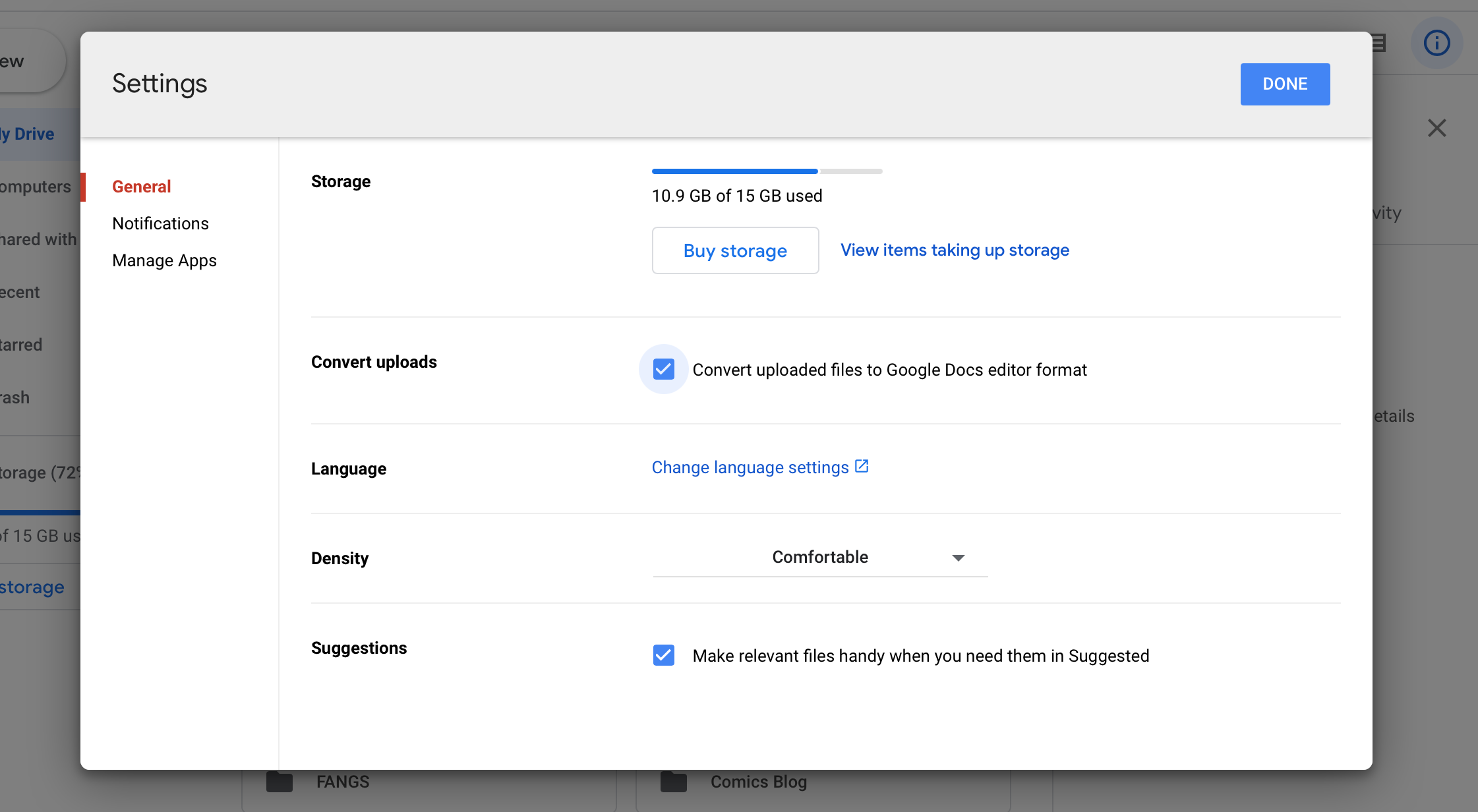
- Click the gear icon and choose Settings.
- Check the box next to “Convert uploaded files to Google Docs editor format” in the General tab.

If a PDF file includes images, Google Docs might remove them from the final DOCX document. This method is preferable only for a text-based PDF file.
Google Docs can also be the answer to how to convert Word to PDF on Mac. The main downside to this method is that it requires an internet connection.
Method 3. Transform PDF to Word with Automator
Automator is a built-in macOS utility developed for simple repetitive tasks like renaming files or resizing images. It helps make the same changes to multiple files at a time by creating a custom workflow.
Just like Preview, Automator can’t convert PDF to Word. But it is powerful enough to extract the text from your PDF and turn it into a plain or rich text format (RTF). Then, you can edit it in any text editor. To use Automator:
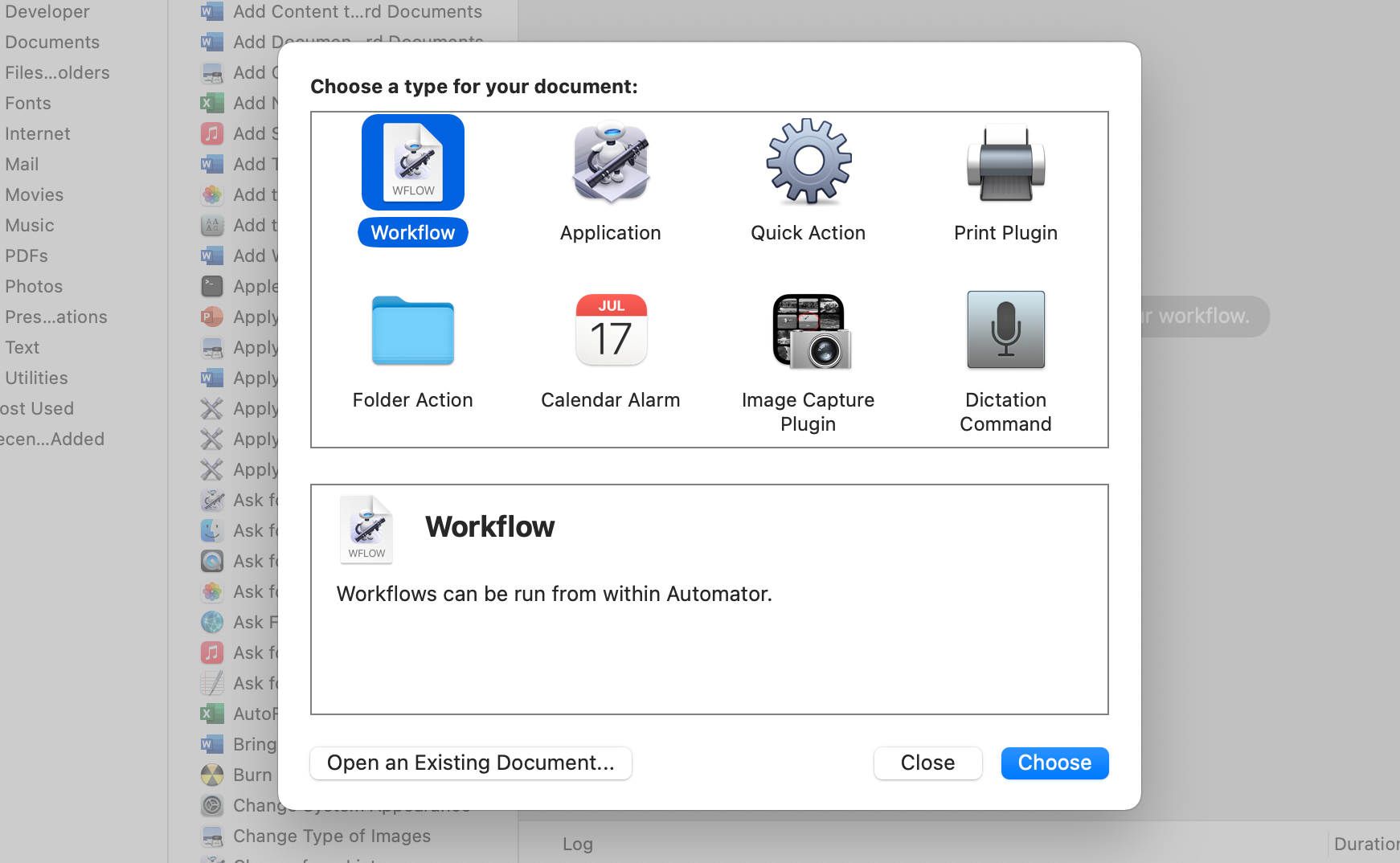
- Launch Automator from the Application folder.
- Choose Workflow as a type for your document.

Now, you can go to the folder you chose and find your converted file.
Method 4. Convert PDF to Word with third-party converters
Using a dedicated converter is the way to go if you have tons of PDFs with lots of graphics and different types of text blocks to convert. But what’s the best one to choose?
By far, the highest quality solution is Adobe Acrobat by Adobe. It’s no surprise that the company has a tool to solve all your PDF editing needs, as they created this format. This tool can convert PDFs into almost all sorts of file types: from DOCX to RTF and beyond. Even if your document contains any scanned text, Acrobat will recognize it automatically.
The alternatives are PDFelement and Smallpdf. Both these services have free trials, so you can find out whether the tool works for you before purchasing.
Need extra help with your Mac performance?
If Microsoft Word glitches or runs sluggishly, deep Mac cleaning may help you fix the issue. Every computer needs it from time to time. System junk, temporary files, and old cache — all these can decrease performance a lot. Luckily, there are tools to help you out.
To keep my Mac safe from months-old clutter, I use CleanMyMac X. This powerful junk cleaner offers a bunch of features to solve Mac-specific issues. ProductHunt even called CleanMyMac X “Marie Kondo for your Mac.” That fact alone says a lot!
Here’s how to speed up the system with its help:
- Grab your copy of CleanMyMac X (get a free one here).
- Launch the app and go to the System Junk tab.
- Press Scan and wait for a few seconds.
- Hit the Clean button to get rid of items that slow down your Mac.

If Microsoft Word still malfunctions, I recommend using the Uninstaller feature of CleanMyMac X to reset the app.
Turning PDF to Word is a piece of cake if you have the right tool at hand. If you need to convert text-based PDF, using Preview, Automator, or Google Docs would be enough. But if you regularly deal with image-heavy files, consider using dedicated PDF converters like Adobe Acrobat Exporter.
How to Convert PDF to Word on Mac Free 2023

It’s often essential to be able to convert PDF to Word on a Mac device, especially if you need to edit your PDF. Even though PDF documents are often the default format for sharing files online unless you have the right know-how or the right software, editing a PDF document can be a challenge. The best course of action is usually to change PDF to Word on Mac. This article offers you a complete guide on how to export PDF to Word on Mac (including macOS 11 Big Sur) with PDFelement for Mac.
Convert PDF to Word on Mac with PDFelement
PDFelement is regarded as the best and most recommended option for PDF to Word conversion on Mac. That’s because this application has been intricately crafted to help you solve all of your PDF file editing needs with ease, convenience, and flexibility.


PDFelement is a full-featured PDF editor that has solutions for all your PDF problems.
- Superior OCR capabilities simplify the process of transferring any images or scanned PDF files into easily editable and searchable text formats.
- Numerous word document editings features like edit text and image, spell check, line mode, and paragraph mode.
- It allows creating and converting PDF files into any other document format like Word.
- It increased data security features in the form of permissions, passwords, digital signatures, text redaction, and so on.
- It makes it easy to leave comments, and notes, and highlight text on PDF files.
- It has a charming and user-friendly interface.
- It supports Mac OS 10,11,12,13 and more.
Step 1: Open the PDF
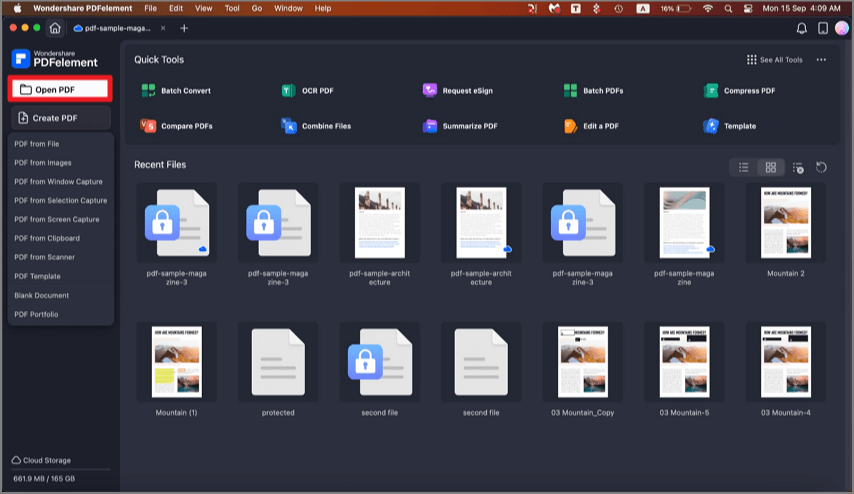
Drag and drop your PDF file into PDFelement’s main window to open the file. Or click on the «Open File» button or «Open» button to select and open the PDF.
Step 2: Convert PDF to Word Mac
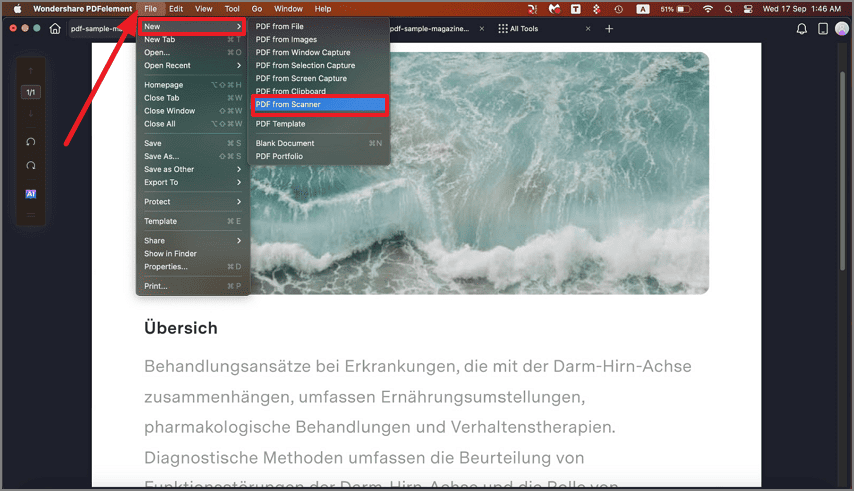
Once the file has been opened in PDFelement, click on the «File» button to enable the «Export To» function. You can then click the «To Word» button to choose Microsoft Word as the output format. You can rename the file and select the output folder in the pop-up window. Once you are happy with all the changes, click «Save» and your document will be converted within a few seconds.
Step 3: Convert Scanned PDF to Word on Mac (Optional)
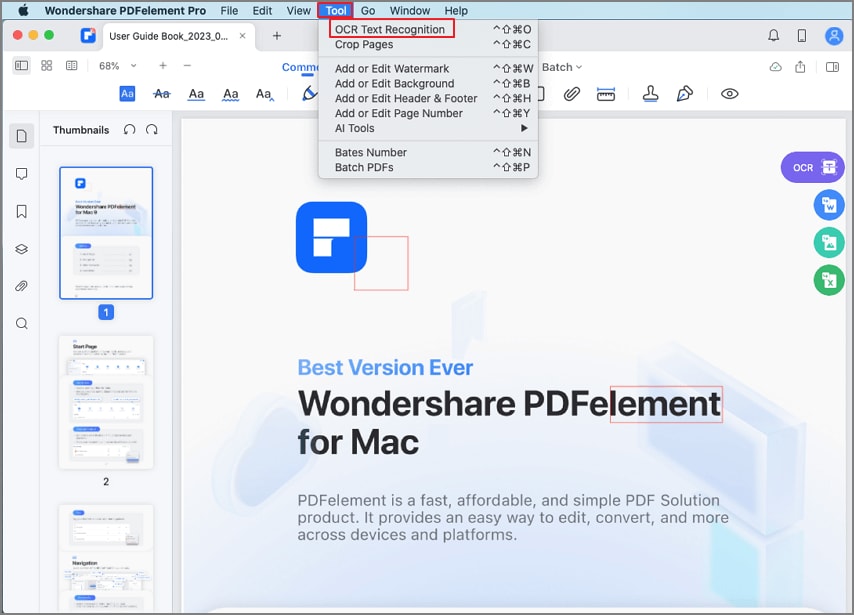
To convert a scanned PDF file, you need to click the «Tool» > «OCR Text Recognition» button on the top menu first. After recognizing the scanned PDF, click on «File» > «Export To» and select «To Word» in the menu bar. Then click «Save» to start the conversion.
How to Export PDF to Word on Mac with Automator
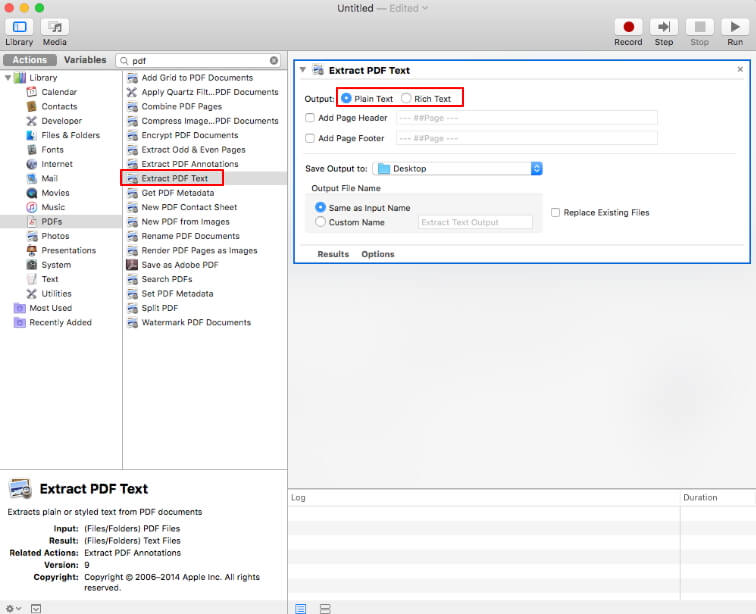
There is also another free method available for Mac users to convert PDF to Word. This is the built-in Mac app, Automator. It can help you convert a PDF file to a plain or rich text format.
- 1. Search for «Automator» in your Application and open it.
- 2. Search for «Extract PDF Text,» then select «Rich Text» (RTF) or «Plain Text» (TXT) on the right side to save your PDF. You can also set other options as needed.
- 3. Click the «Run» button, and choose a PDF file to convert to a text document directly.
Convert PDF to Word on Mac Free with Google Docs
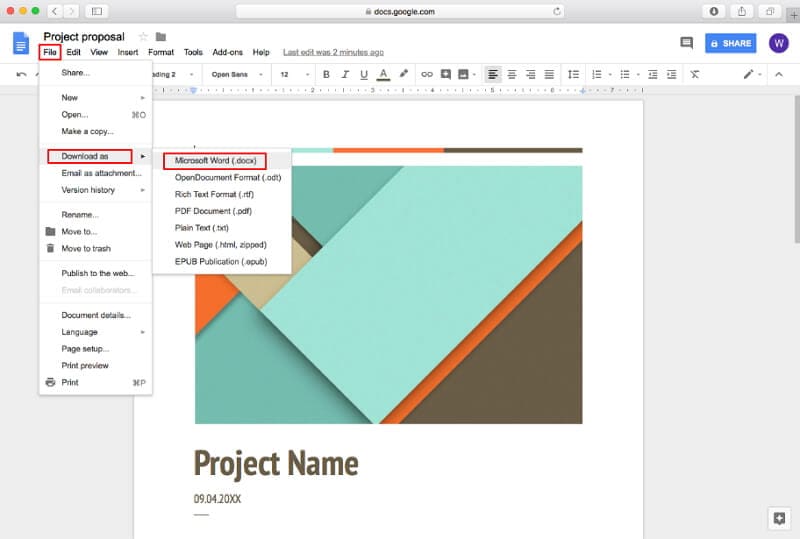
Another option is the widely used program, Google Docs. It can also help you convert PDF to Word Mac free online. Here are the steps to follow:
- 1. Log in to your Google account on the Google Docs website.
- 2. Upload the PDF document that you want to convert to Word.
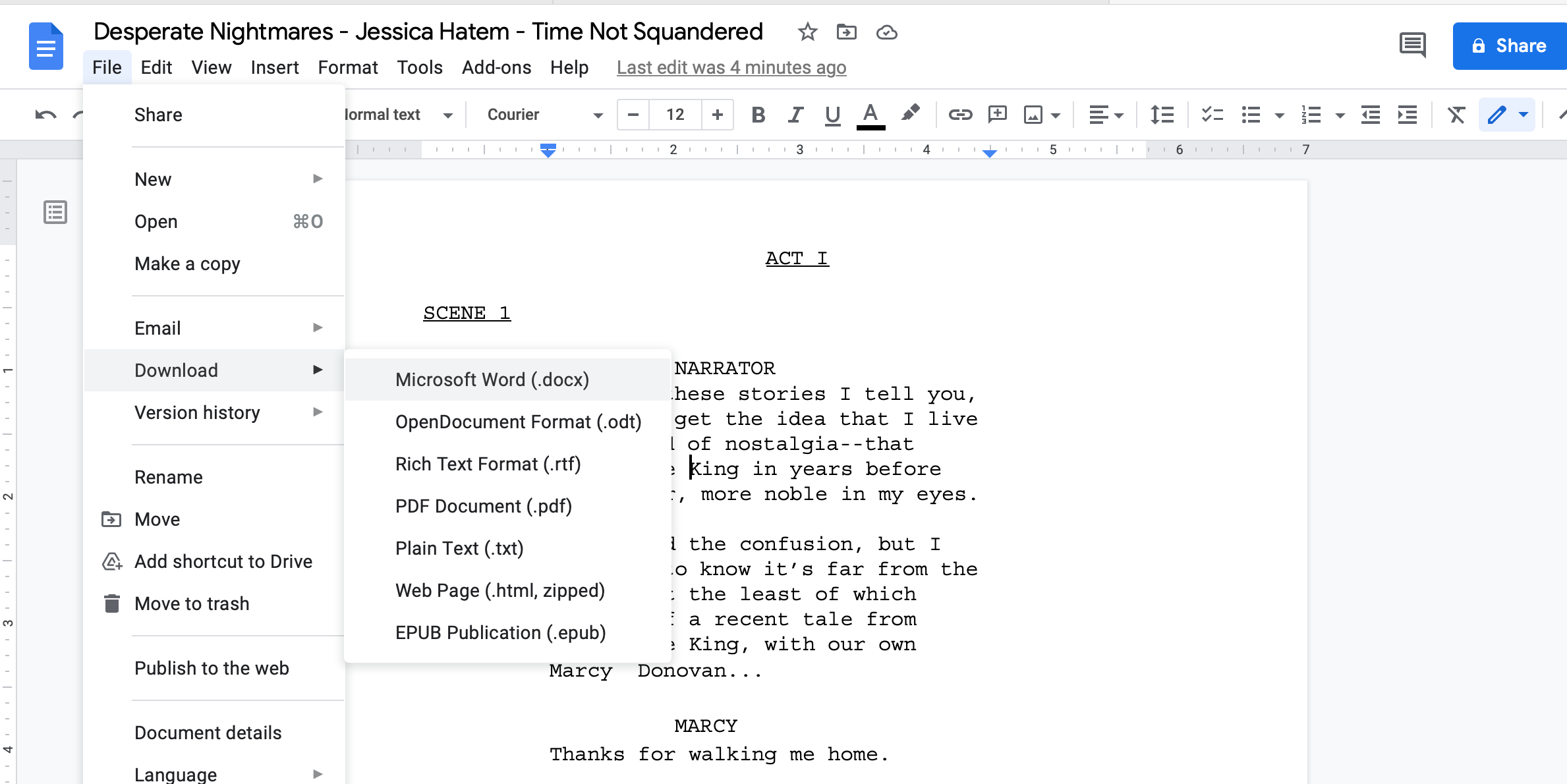
- 3. Navigate to the «File» tab. Select » Download as» > «Microsoft Word(.docx)» to export your PDF to a Word document.
Convert PDF to Word on Mac Free Online
It’s very easy to convert PDF to Word on a Mac using online methods. The following sections explain three different ways to do this using your browser. As such, no software installation is required and you can be done in just a couple of minutes. Let’s look at how the ‘convert PDF to Word Mac online’ process works.
Method 1: Wondershare HiPDF PDF to Word
The first method involves the use of Wondershare HiPDF, a comprehensive suite of online tools to handle PDF files and other document workflows. It’s simple to use, fast, and efficient, and the conversion accuracy in terms of preserving the original content is best-in-class. So, how does it work? Let’s take a closer:
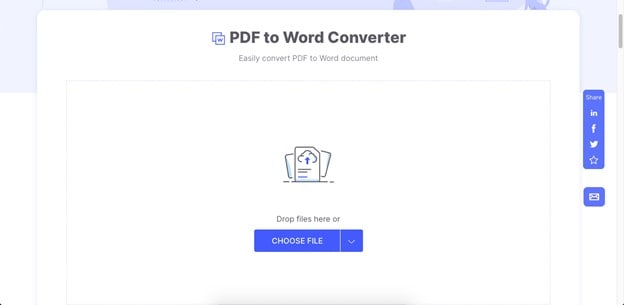
1. Go to the web page for the HiPDF free PDF to Word conversion utility and click Choose File to upload the source PDF document — you can also drop a file into the window or import one from a cloud service such as Google Drive or Dropbox.
2. Once the file is uploaded, click Convert and it will be instantly modified into a Word document.
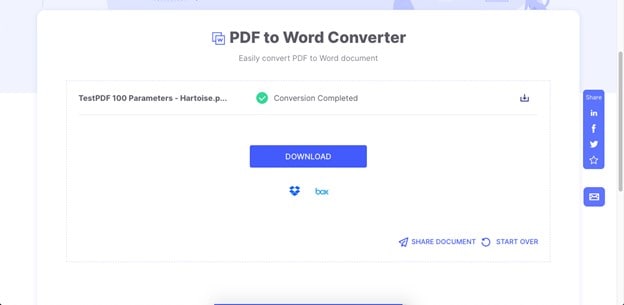
3. Finally, click the Download button or use the sharing option to generate and send a link to others.
Method 2: Adobe PDF to Word Converter Online
Adobe has an equally efficient file conversion service that is free to use for single file conversions from PDF to Word. The interface is user-friendly and the conversion accuracy is excellent. Here’s the process outlined for you:
1. Drag and drop a file into the Adobe PDF to Word online conversion URL or use the Select a File option to import it.
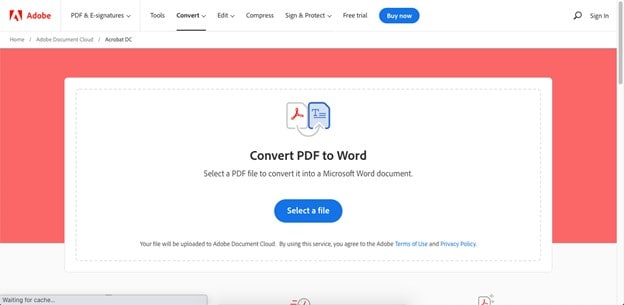
2. When the PDF has been uploaded, it will be processed automatically and you’ll see a new window to download the Word file and perform other actions
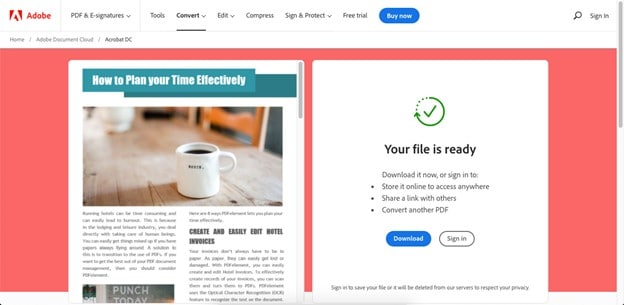
3. Click Download and save the file to a local Mac Finder folder
The only problem with this method is that you’ll need an Adobe account and be signed in to share the document with others as a link, store it online, or put another file in the conversion queue. Nevertheless, if you have just one file to convert, this is a great option to consider.
Method 3: PDF.online PDF to Word
Xodo PDF was a well-known online PDF utility that has undergone some rebranding. It is now simply known as PDF.online but still belongs to the PDFTron brand alongside the desktop and mobile versions of the app. Here’s how to use the service to convert PDF to Word free online.
1. Go to the PDF to Word conversion URL and click one of the file upload options — you can also drag and drop a file, as with the previous two methods.
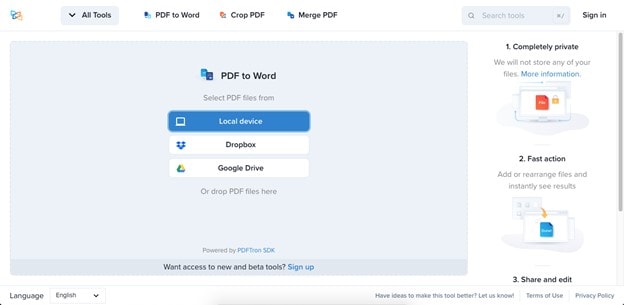
2. On the next page, you can simply click the Convert button or add more files.
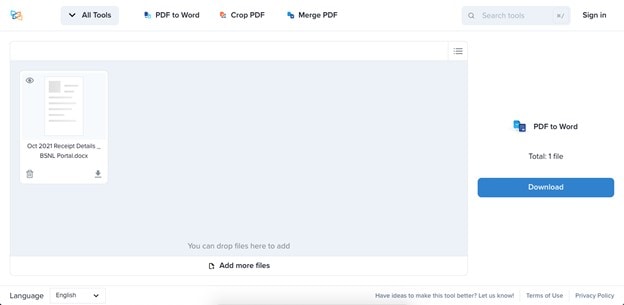
3. Save the converted files to a local folder once the conversion is completed and you see the download option on your screen.
All of these methods are equally effective, but we recommend HiPDF due to the fact that it offers a whole range of other PDF tools as well as a robust desktop PDF editor called PDFelement. Moreover, even if you decide to upgrade to a paid subscription or license, you’ll find that it is much more affordable than most equivalent solutions, especially those from Adobe.
1. Can I Convert PDF to Word on Mac with Preview?
If you are more interested in using a free PDF editor, you can try using Preview. However, despite the fact that it is an inbuilt Mac PDF editor, it tends to fall short when it comes to functionality and features. Below are a few of its best features. It allows users to edit, annotate, add images, and highlight sections of the text in a PDF file but is a bit limited in terms of functionality. It enables users to combine files, and it is free to use. However, it can’t convert PDF to Word in macOS, and it only supports converting PDF into JPEG, PNG, and TIFF.
2. How to convert a PDF to Word on Mac without losing formatting?
You can convert a PDF to Word on Mac without losing formatting by using a reliable and trustworthy converter tool like PDFelement, or Adobe Acrobat. These tools preserve the original layout and formatting of the document while converting it to Word. Another option is to copy and paste the text from the PDF into a Word document, but this may result in some formatting errors.
PDF в WORD: Конвертер DOC 4+
Конвертер PDF в Word поможет вам быстро преобразовать документ PDF в формат Word или документ Word в формат PDF. Самое лучшее в этом приложении то, что для преобразования файла не требуется Интернет.
1. Выберите входной файл.
2. Выберите формат вывода (PDF, DOC, DOCx и т. Д.)
3. Конвертируйте! Это займет всего несколько секунд.
4. Сохраните файл.
Вот форматы вывода, которые вы можете выбрать:
PDF, Doc, Docx
После преобразования вы можете сразу же передать свой документ AirDrop прямо на свой Mac или другое устройство.
Преобразование обычно занимает менее 15 секунд!
Преобразование выполняется на очень безопасном облачном сервере, что делает преобразование безопасным, простым и быстрым. У вас должно быть подключение к Интернету, чтобы использовать это приложение. После конвертации файлы сразу удаляются с сервера. Хотя файлы сразу же удаляются после преобразования или отмены, вы должны знать, что, используя это приложение, вы соглашаетесь с тем, что ваши файлы будут отправлены в Интернет из приложения на сервер преобразования.
Это приложение включает в себя дополнительную автоматически возобновляемую подписку (Premium Pass): Premium Pass включает бесплатный пробный период, а затем автоматически возобновляемую ежемесячную подписку по окончании пробного периода. Оплата будет снята с вашей учетной записи Apple при подтверждении покупки и будет автоматически продлеваться (с выбранной продолжительностью / ценой), если автоматическое продление не будет отключено по крайней мере за 24 часа до окончания текущего периода. Плата за продление будет взиматься с учетной записи в течение 24 часов до окончания текущего периода. Текущая подписка не может быть отменена в течение активного периода подписки; однако вы можете управлять своей подпиской и / или отключить автоматическое продление, посетив настройки своей учетной записи Apple после покупки. Любая неиспользованная часть бесплатного начального периода будет аннулирована при покупке подписки.
Как конвертировать PDF в Word на Mac
Как ни замечательно иметь текстовый документ в формате PDF, когда вы читаете его на своем Mac, почти невозможно редактировать текст в документе в формате PDF.
Для этого есть решение – преобразовать PDF в DOCX, формат, с которым могут работать Microsoft Word и другие текстовые редакторы.
Ваш Mac может легко выполнить это преобразование. Мы собрали для этого несколько наиболее эффективных методов ниже, поэтому в следующий раз, когда вам понадобится отредактировать PDF-файл на вашем Mac, вы можете преобразовать его в документ Word за считанные минуты.
1. Преобразование из PDF в Word с помощью Automator на Mac
Automator – это встроенное приложение на вашем Mac, которое позволяет автоматизировать задачи. Вы можете использовать его для переименования файлов, открытия веб-страниц в определенное время , а также для экспорта файлов в различные форматы. Сюда входит экспорт PDF-файлов как документов Word.
Чтобы использовать Automator для преобразования PDF-файла в документ Word на вашем Mac, откройте приложение из папки Utilities в ваших приложениях .
Нажмите кнопку « Новый документ» и выберите « Рабочий процесс» в качестве типа документа. Затем нажмите кнопку « Выбрать» .
Перетащите PDF-файл или файлы, которые вы хотите преобразовать, в правую часть окна Automator. Здесь вы будете строить свой рабочий процесс.
В крайнем левом меню щелкните стрелку рядом с Библиотекой, чтобы отобразить ее содержимое, затем щелкните параметр PDF-файлы . В среднем меню выберите « Извлечь PDF-текст» и перетащите его в область построения рабочего процесса справа.
Действие «Извлечь PDF-текст» появится под вашим PDF-файлом. Рядом с полем «Вывод» выберите «Форматированный текст», чтобы сохранить форматирование текста в документе PDF. Выберите « Обычный текст», чтобы просто получить текст.
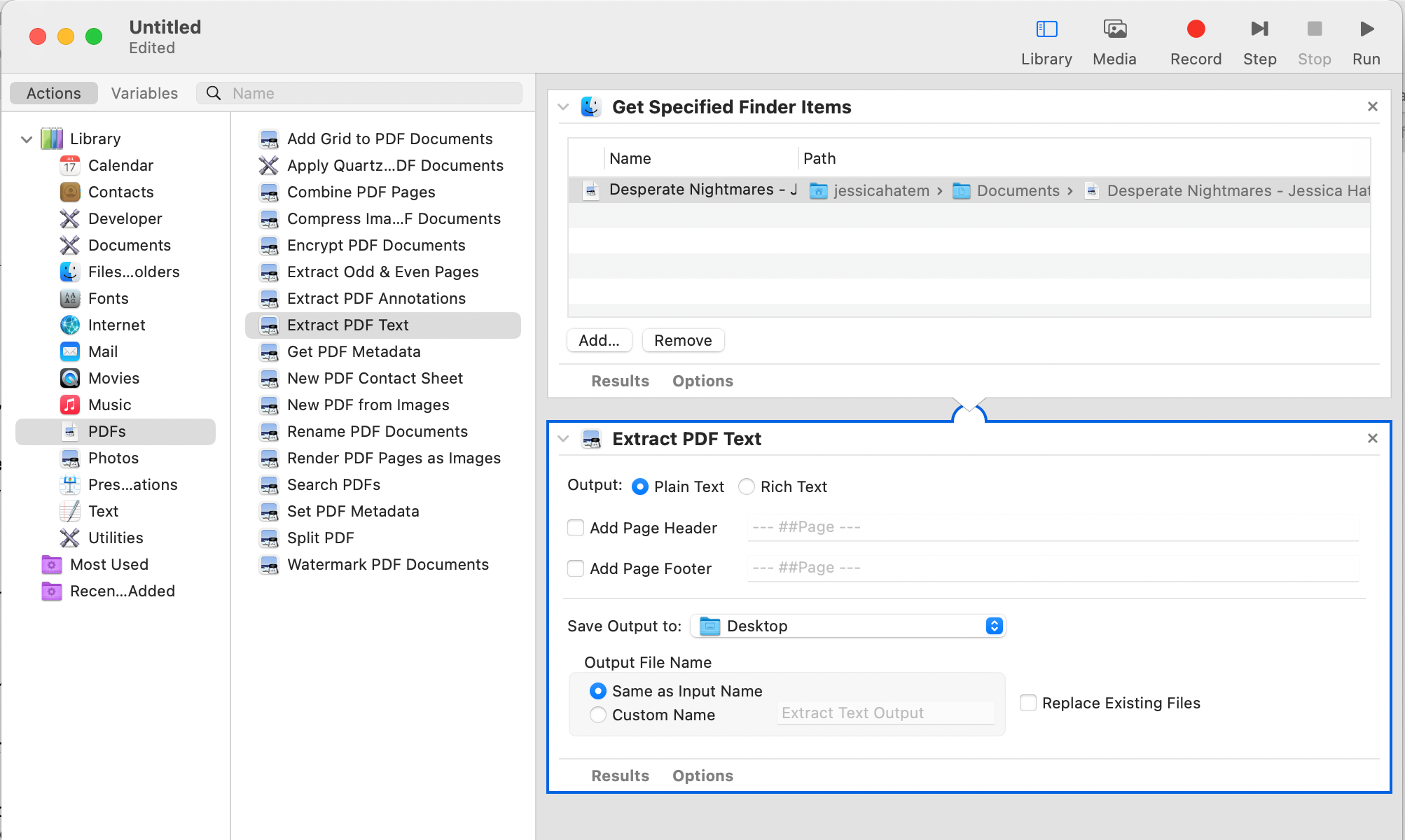
Измените Сохранить вывод на желаемое место для нового текстового документа, который вы создаете. В разделе « Имя выходного файла» выберите « То же, что и входное имя», чтобы использовать то же имя файла PDF, или выберите « Пользовательское имя», чтобы изменить имя текстового файла.
Нажмите кнопку « Выполнить» в верхней правой части окна. Когда преобразование будет завершено, вы увидите зеленую галочку рядом с « Рабочий процесс завершен» в нижней части окна.
Перейдите туда, где вы сохранили свой новый текстовый документ. Он должен быть там в виде файла RTF, который вы можете редактировать в текстовых редакторах, таких как Word, TextEdit, Notes и почти во всем остальном на вашем Mac!
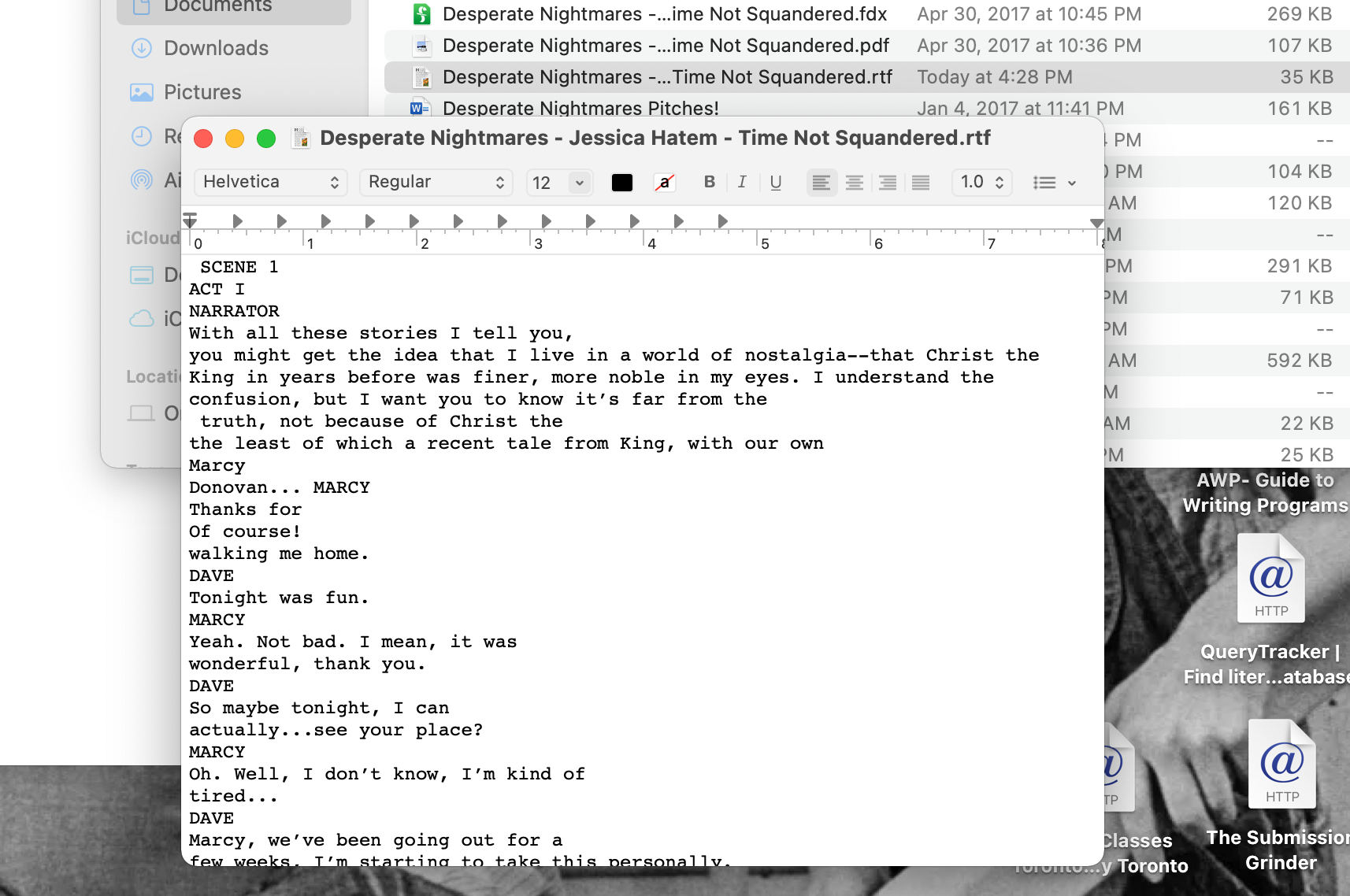
Если вы хотите сохранить файл RTF в формате Word, откройте файл в Word, нажмите « Файл»> «Сохранить как» и выберите DOCX или DOC в качестве нового формата. После того, как вы нажмете « Сохранить» , ваш PDF-текст будет существовать в формате файла Word!
2. Преобразование PDF в Word с помощью Adobe Acrobat Pro DC.
Adobe Acrobat Pro DC – это приложение для Mac, которое читает, комментирует, изменяет и позволяет подписывать документы PDF. Он также может конвертировать PDF-файлы в форматы Word, Excel и PowerPoint.
Чтобы выполнить одно из этих преобразований, откройте PDF-файл, щелкнув его, удерживая нажатой клавишу « Control», и выбрав « Открыть с помощью»> «Adobe Acrobat Pro DC» . Затем нажмите « Файл»> «Преобразовать в Word, Excel или PowerPoint» .
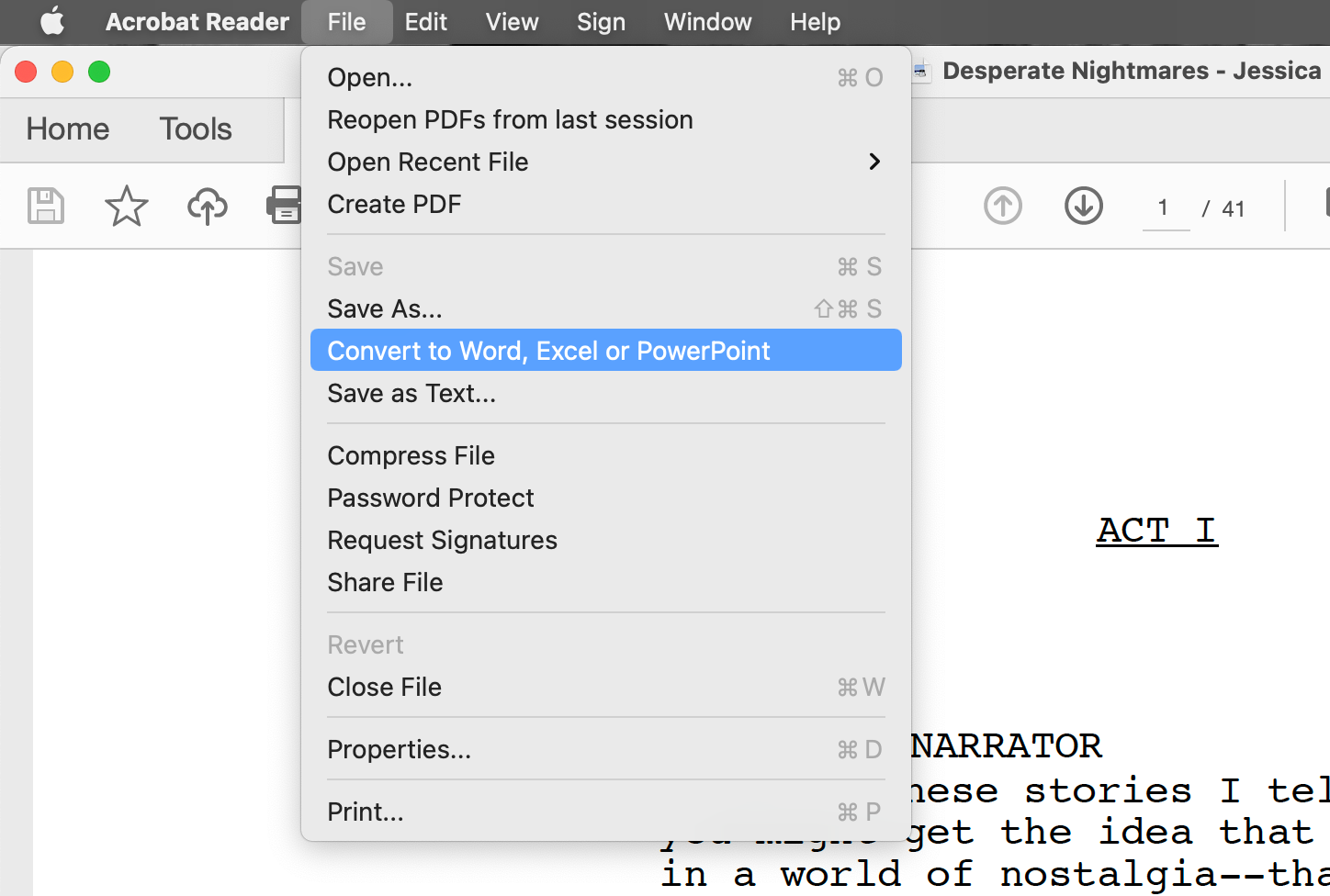
Щелкните раскрывающееся меню « Преобразовать в» и выберите документ Microsoft Word (* .docx) или документ Microsoft Word 97-2003 (* .doc), чтобы преобразовать PDF в формат Word.
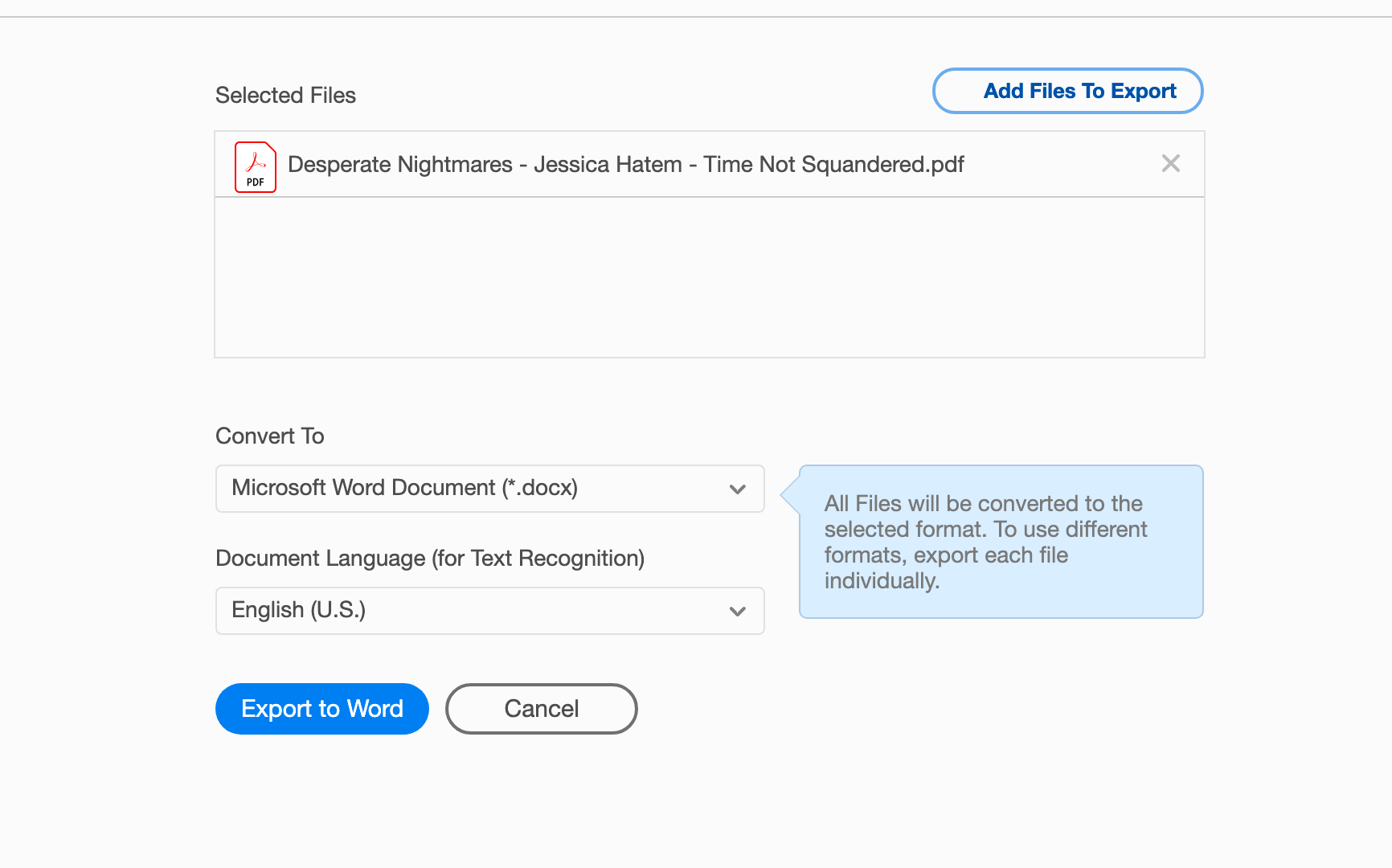
Убедитесь, что в раскрывающемся списке « Язык документа» выбран язык текста в PDF-файле, чтобы сохранить акценты и орфографию.
Если вы хотите преобразовать более одного PDF-файла в Word одновременно, нажмите кнопку « Добавить файлы для экспорта» в верхней части окна, выберите любые дополнительные PDF-файлы и нажмите « Продолжить» . Вы должны увидеть, что другие PDF-файлы появятся в списке « Выбранные файлы» .
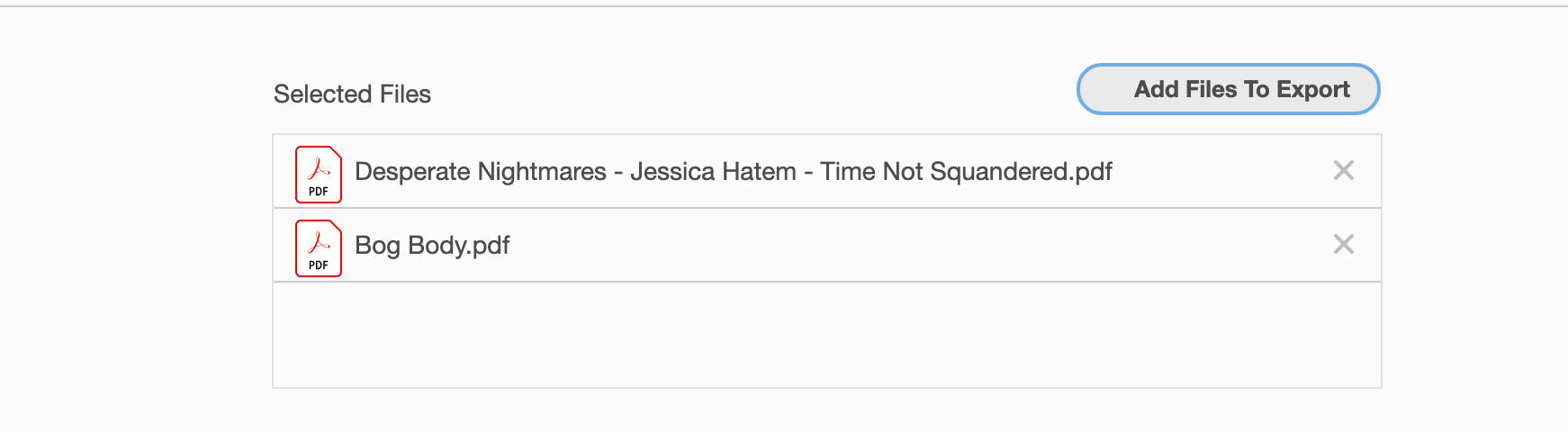
Нажмите кнопку « Экспорт в Word» . При появлении запроса выберите, где вы хотите сохранить новые файлы Word, и отредактируйте их имена, если хотите. Теперь ваши PDF-файлы будут в формате, который Word может читать и позволять вам редактировать!
Вы можете использовать Adobe Acrobat Pro DC бесплатно в течение недели, но это будет стоить 14,99 долларов в месяц после окончания пробного периода.
Кроме того, вы можете получить Adobe Acrobat Export PDF для преобразования PDF-файлов в форматы Microsoft Office всего за 1,99 доллара в месяц. Так что, если вы хотите что-то только для преобразования PDF по более низкой цене, подумайте о том, чтобы вместо этого получить экспорт PDF!
3. Преобразование PDF в Word в Word для Mac.
Вы можете вставлять PDF-файлы в документы Word на своем Mac. Вы также можете использовать Word, чтобы преобразовать PDF в редактируемый документ Word.
Чтобы сделать это преобразование, откройте Word и нажмите « Файл»> «Открыть» . Перейдите к PDF-файлу, который хотите отредактировать, и нажмите « Открыть» .
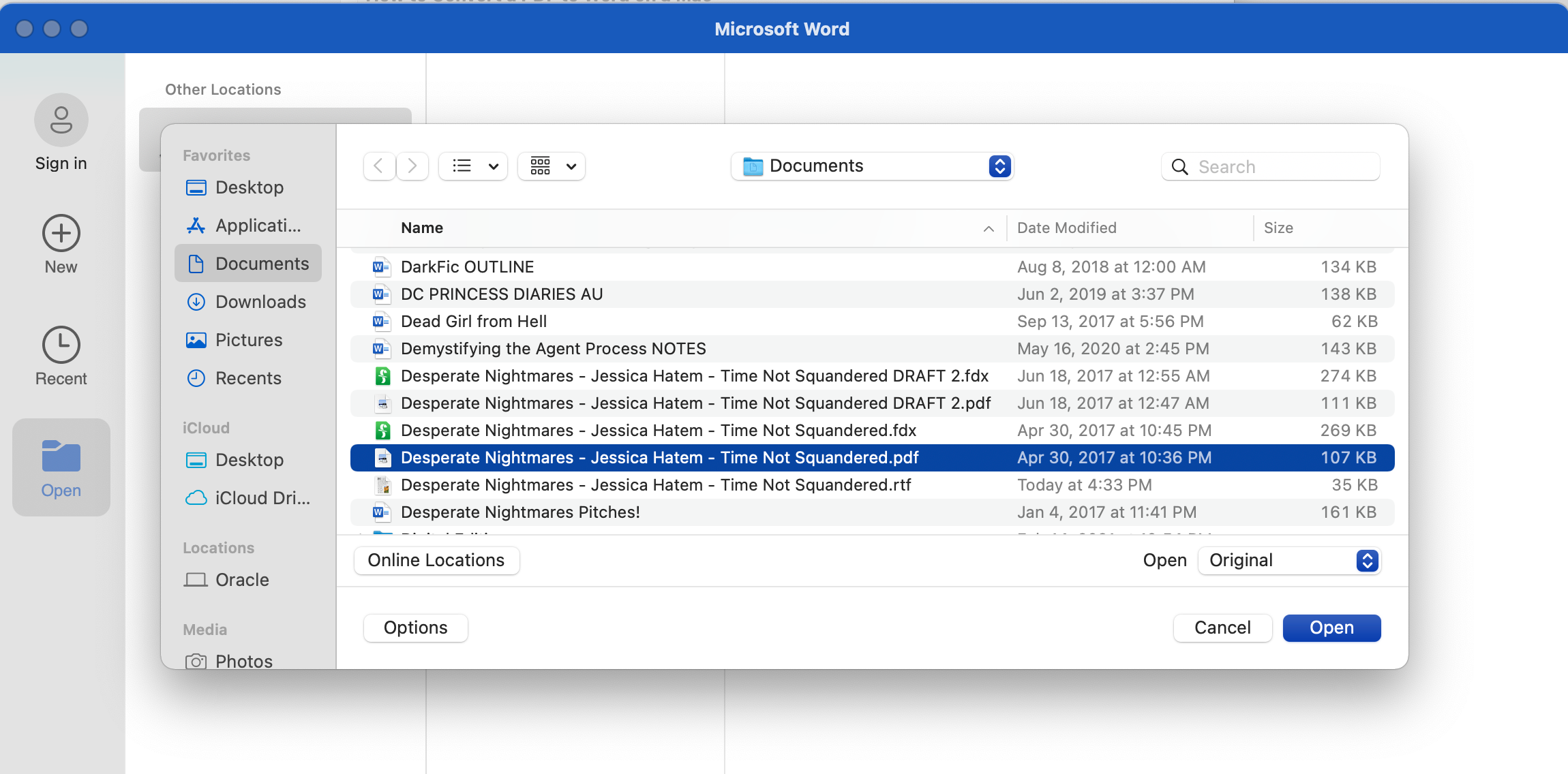
Затем Word может выдать предупреждение о том, что при преобразовании из PDF в Word часть форматирования текста может быть потеряна. Нажмите « ОК» , и Word потребуется некоторое время, чтобы выполнить преобразование.
После завершения преобразования PDF-файл и его текст будут в документе Word, который вы можете сохранять и редактировать, как любой другой документ Word!
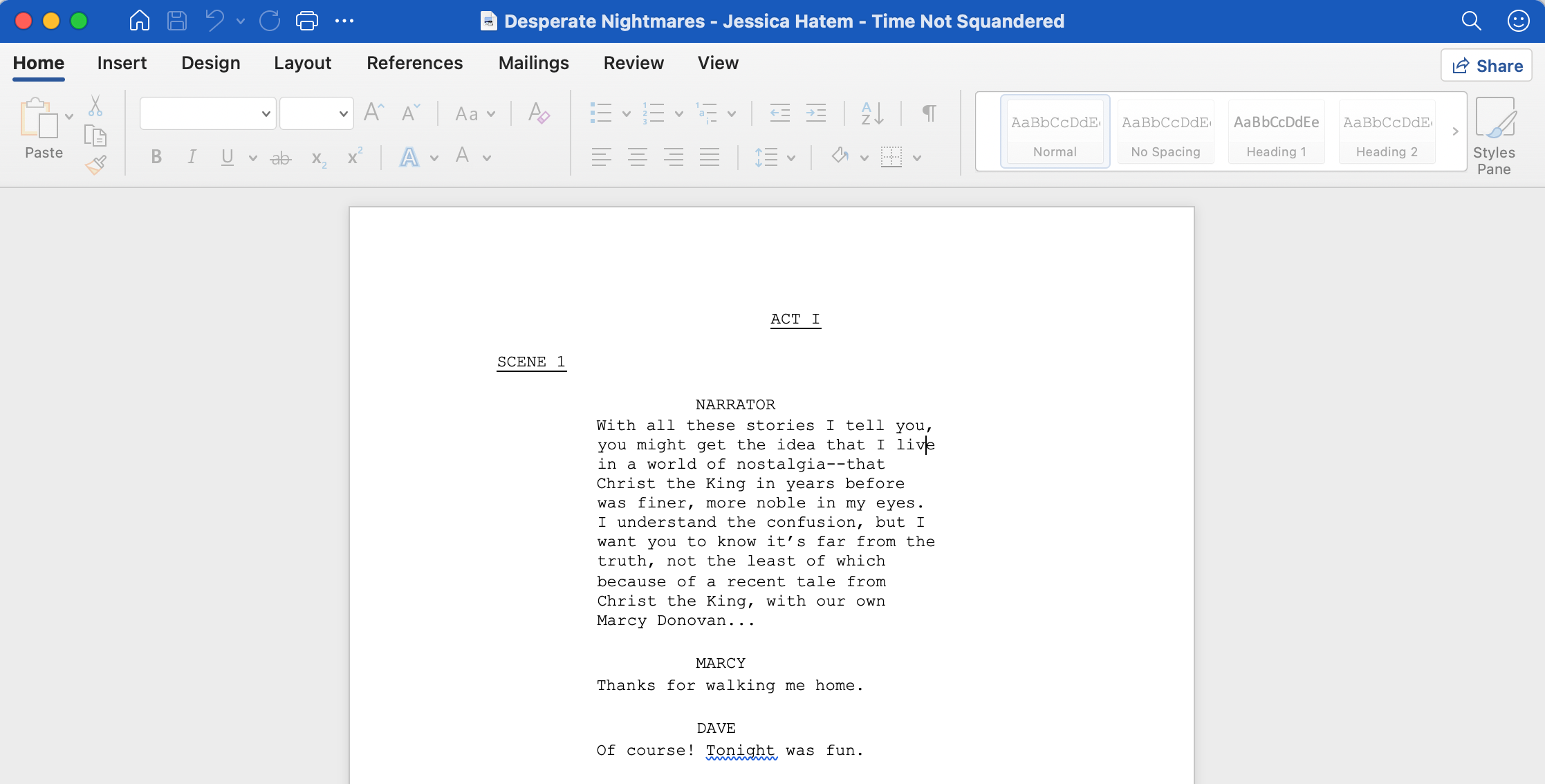
Вы можете снова сохранить этот преобразованный PDF-файл как PDF-файл прямо из Word или просто сохранить его в форматах DOCX или DOC для любого будущего редактирования, которое вам может понадобиться.
4. Используйте Документы Google для преобразования PDF-файлов в Word.
Есть несколько веб-сайтов, на которых вы можете загружать PDF-файлы и преобразовывать их в файлы DOCX всего за несколько секунд. Мы уже перечислили несколько наших любимых веб-сайтов для преобразования PDF , но еще один веб-сайт, который вы можете использовать для преобразования PDF в Word, – это Google Docs.
Чтобы использовать для этого Google Документы, откройте сайт Google Диска и щелкните значок шестеренки в верхней правой части окна.
Выберите « Настройки» и установите там флажок « Преобразовывать загруженные файлы в формат редактора Google Документов» . Затем нажмите кнопку « Готово» .
Загрузите PDF-файл, который вы хотите преобразовать, на Google Диск, нажав « Создать»> «Загрузить файл» и выбрав PDF-файл, или перетащив PDF-файл на Google Диск.
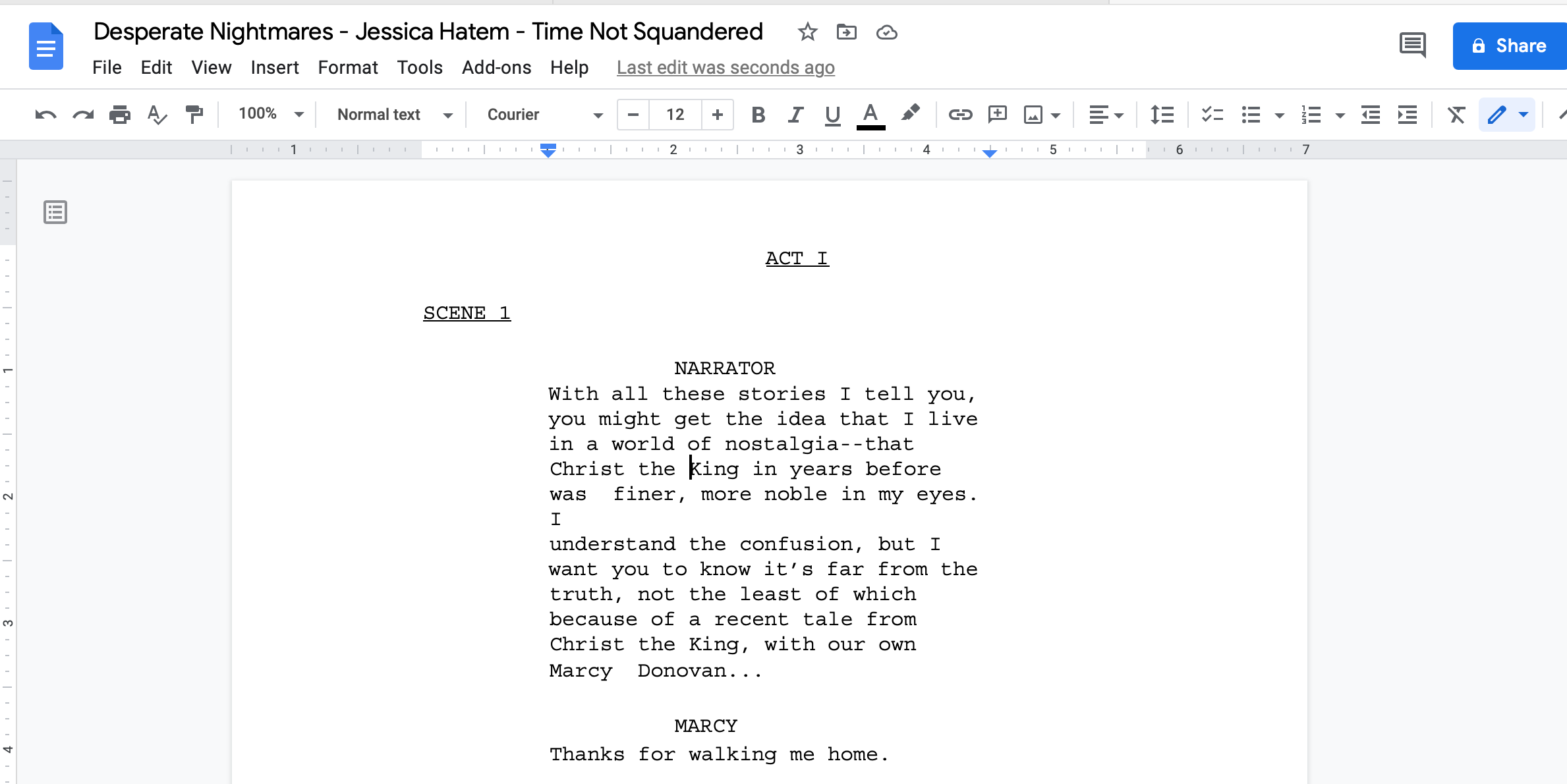
Удерживая нажатой клавишу Control, щелкните загруженный PDF-файл и выберите Открыть с помощью> Документы Google . Откроется документ Google, содержащий редактируемый текст вашего PDF-файла в том же формате, что и PDF-файл (хотя, как и в Microsoft Word, иногда форматирование теряется в процессе преобразования).
Вы можете редактировать текст PDF прямо здесь или загрузить его как документ Word, щелкнув Файл> Загрузить> Microsoft Word (.docx) . В любом случае вы сможете внести изменения в содержимое PDF-файла и при необходимости снова сохранить его как PDF-файл.
Есть так много способов конвертировать PDF-файлы
Мы думаем, что это здорово, что есть так много способов конвертировать PDF-файлы в форматы Word на вашем Mac. Независимо от того, являются ли эти методы бесплатными или платными (большинство из них бесплатны), они значительно упрощают редактирование и получение текста из PDF-файлов, чем раньше.