Как включить JavaScript в Firefox
Как включить JavaScript в Firefox? Не так просто, как кажется на первый взгляд. Вся процедура делится на два этапа. И новичкам в этом плане будет трудно. Поэтому мы должны расставить все точки над «i» в данном вопросе.
Что такое JavaScript
Итак, JavaScript – это язык программирования, который позволяет создавать интерактивные элементы на сайтах (механизмы для публикации комментариев, скрипты для работы некоторых кнопок и прочее). В общем, компонент весьма важный.
Проще говоря, без поддержки данных языков современные сайты потеряют львиную долю своих элементов. Могут не работать некоторые кнопки, анимации, поля для ввода данных и прочее в том же духе. Без JavaScript нынче никак не обойтись.
Именно поэтому все современные браузеры имеют интегрированную поддержку данного языка. Несмотря на то, что некоторые специалисты считают его безнадежно устаревшим. Но ничего нового пока придумано не было. Это альфа и омега современного интернета.
Обычно поддержка JavaScript включена в браузерах по умолчанию. Но бывает, что в результате сбоев настройки сбрасываются. И тогда без нашего вмешательства никак не обойтись.
Ручное включение
Теперь поговорим о том, как активировать плагин Java для Firefox. Сразу стоит оговориться, что в стандартных параметрах веб-обозревателя такого пункта нет. Нам придется посетить скрытые настройки браузера.
А копаться в них весьма опасно. Ведь малейшее неверное движение способно повесить программу. Поэтому нужно строго следовать той инструкции, которую мы предоставим. А вот и она. С четким алгоритмом действий:
- Сначала запускаем веб-обозреватель.
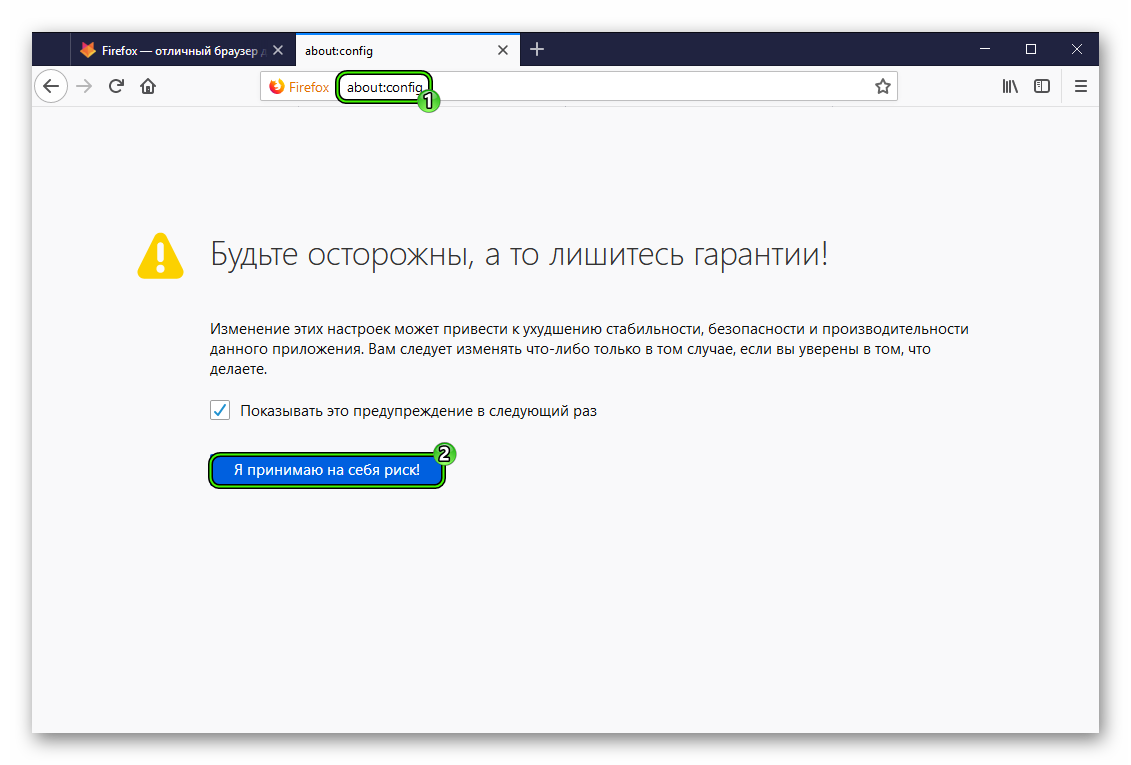
- Затем в адресной строке (которая находится в самом верху главного окна) следует ввести about:config и нажать на кнопку Enter .
- Появится сообщение о том, что вы из-за своих действий можете потерять гарантию. Кликните по кнопке «Я принимаю…».
- Вот теперь мы попали в меню скрытых настроек. В строку поиска нужно ввести javascript.enabled.
- Для найденного параметра должно быть значение true.
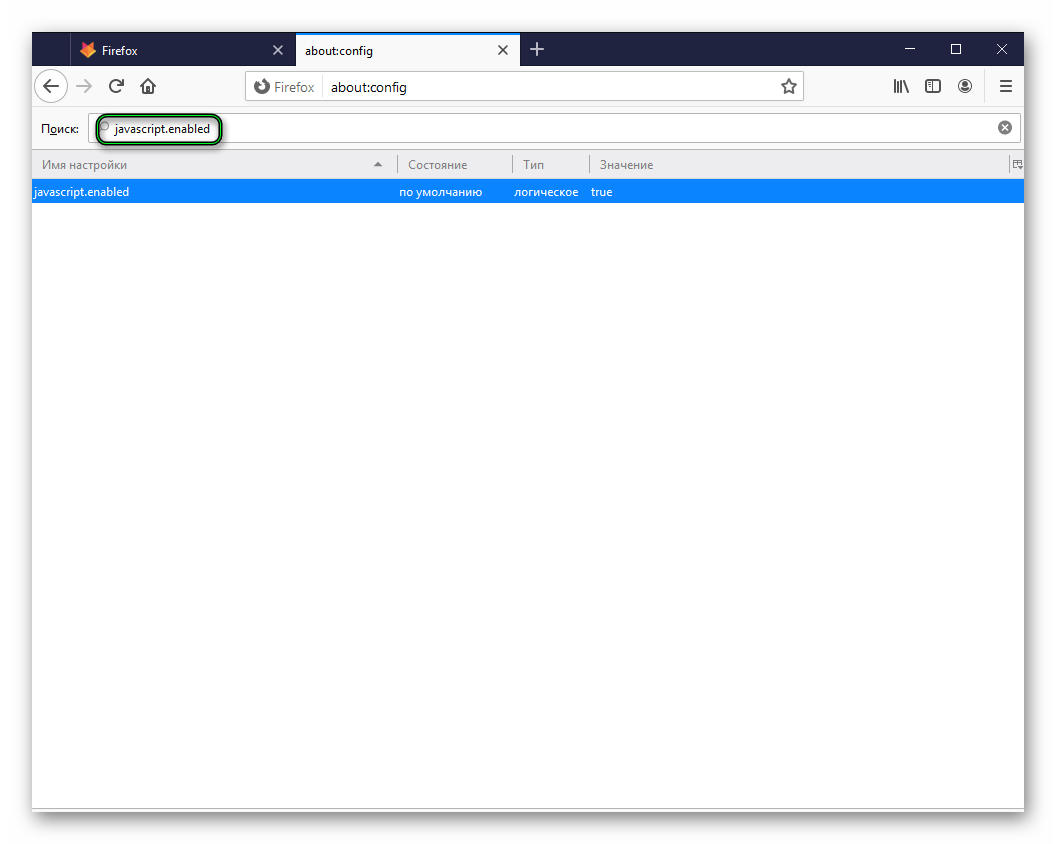 Если это не так, то кликните по нему два раза ЛКМ.
 - Остается только перезапустить веб-обозреватель.
Вот так активируется Ява Скрипт в браузере Мазилла Фаерфокс. На самом деле, ничего здесь сложного нет. Но строго следовать инструкции нужно обязательно. Ведь от этих настроек зависит работоспособность веб-обозревателя.
Заключение
А теперь подведем итоги, обобщим всю полученную информацию и сделаем соответствующие выводы. В рамках данного материала мы поговорили о том, как скачать и установить Ява для Мазилы. А также рассказали, для чего нужна эта штука.
Оказывается, что без Java современный интернет представить невозможно. И поэтому если данная опция деактивирована в браузере, то ее обязательно нужно включить. В противном случае вы не сможете пользоваться всем необходимым контентом сайта.
Как включить и отключить JavaScript в Mozilla
JavaScript – язык программирования, обрабатывающий данные на стороне клиента. Он используется для пр.

Включить JavaScript в Firefox
Включить ДжаваСкрипт в версии Firefox 23+
- Запустите браузер и откройте новое окно.
- В адресной строке напишите «about:config» и нажмите «Enter».
- Появится предупреждение, в котором нужно будет принять условия.
- Напишите в строке поиска «javascript.enabled».
- После этого будет выведена строка настройки JS. В ней выберите колонку «Value», чтобы включить JavaScript в Firefox, и замените значение на «True».
- Обновите страницу с помощью клавиши «F5».
Включить JavaScript в Firefox версии 22-
- в открытом браузере зажмите клавишу «Alt»;
- в появившейся сверху строке выберите «Инструменты»;
- затем перейдите в пункт «Настройки»;
- откроется окно, в котором активируйте вкладку «Содержимое» и поставьте галочки рядом со строкой «Включить JavaScript»;
- перезапустите Mozilla.
- войдите в «Меню» – «Дополнения»;
- выберите «Расширения», и выключите активные расширения;
- для этого найдите в списке строки, значения которых не выделены серым цветом, и кликните «Отключить»;
- затем в верхней части браузера нажмите «Перезагрузить сейчас».
- В предыдущем меню выберите «Плагины», откроется список.
- Отключите ненужные, нажав по ним, и в выпадающем списке выберите «Никогда не выключать».
- выберите «Справка»;
- перейдите в пункт «Информация для решения проблемы»;
- нажмите «Очистить Firefox».
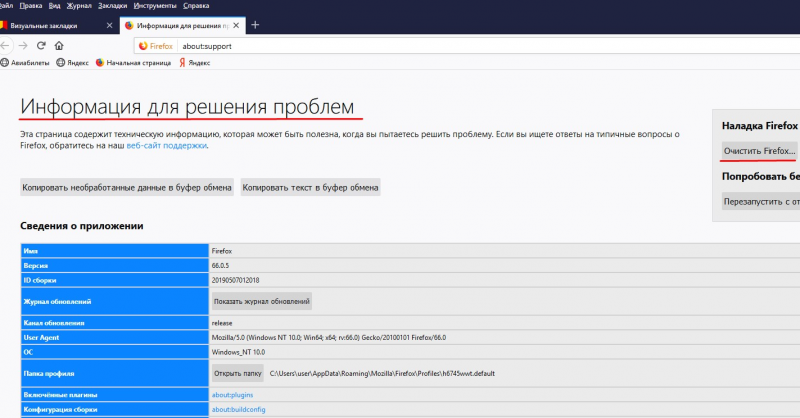
Включение JavaScript в Firefox версии 3.5+
- Откройте меню «Инструменты», и перейдите в «Настройки».
- Затем во вкладку «Содержимое», и поставьте галочку напротив «Использовать JavaScript». Это должно включить Джаву в веб-обозревателе.
- Сохраните изменения и перезагрузите страницу.
Включение JavaScript в Firefox через расширения
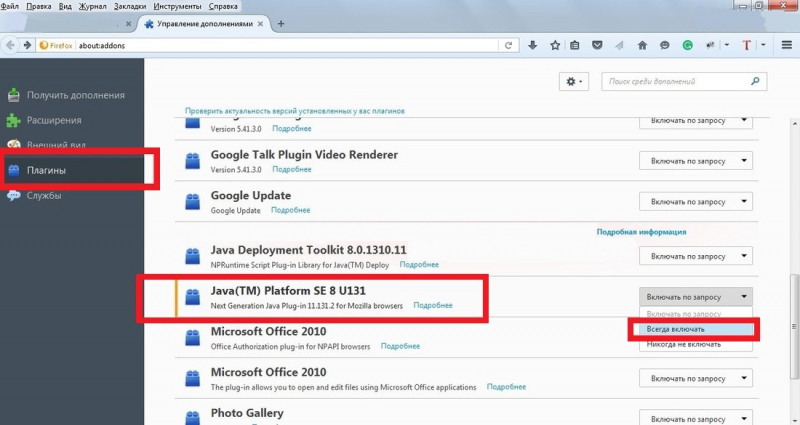
- Зайдите в меню «Сервис» – «Дополнения».
- В открывшемся окне перейдите на вкладку «Плагины».
- Нажмите на подключаемый модуль «платформа Java(TM)».
- Переключите его в режим «Активировать всегда».
How to Fix a JavaScript Error in Mozilla Firefox?
Learn the guide how to fix a JavaScript error in Mozilla Firefox. Enable JavaScript in Firefox to get the most out of it.


To fix this JavaScript error in Mozilla Firefox, try clearing your browser’s cache and cookies. If these steps don’t work, you can try enabling JavaScript in the browser’s settings. This article will also show you how to reload the triggered website. The JavaScript error occurs when the script on a website is busy or running out of control.
Here are some other tips to fix it:
Have a JavaScript error in Mozilla Firefox? Here are some tips to fix it. Regardless of what the cause is, there are several things you can do to fix it. Here are three easy steps to follow.
Clearing the cache and cookies of your browser
One of the most basic ways to fix JavaScript errors is to clear your browser’s cache and cookies. Often, this will improve your browser’s performance. Clearing the cookies and cache can be done using the Settings menu. Open the “Clear browsing data” window and select the Advanced tab. Here, you can select the period you want to clear. Then, click “Clear browsing data.”
Another common cause of this error is an issue with the local web development solution. It is the cache that prevents the webpage from displaying the latest version. By clearing the cache, you will force the browser to reload the latest page and fix the error. Once the cache is cleared, the JavaScript error should go away. If the problem persists, you may want to contact the site’s developer.
If you use a computer with a Windows operating system, you can delete the data in your computer’s hard drive as well. Using the Delete All Data option in the browser’s settings will erase all previously cached information, including cookies. This process will fix the error and make your computer run more smoothly. It may take several restarts to fix the problem.
If the error is not fixed after clearing your cache and cookies, you can try refreshing your browser’s cache. By doing this, your browser will refresh any corrupt or outdated data it has cached. This method can be done by pressing the shortcut CTRL + F5 or Command + Shift + R on your keyboard. To refresh your cache, select the tabs containing Cookies and Temporary Internet Files.
To clear the cookies and cache data in Firefox, go to the Tools menu and select “Clear Cookies and Site Data”. Next, click “OK” to proceed. If you’re still experiencing this issue, clear the cache and cookies of your browser. Then, go back to the webpage and try again. There’s a good chance that it’ll be fixed.
Lastly, you can try clearing your browser’s cache and cookies. The steps to clear your cache and cookies are the same for both Chrome and Firefox. You can also try clearing the browsing history. It may be difficult to find the exact solution for your JavaScript Void 0 error, but clearing your cache and cookies may fix the issue. If none of these steps work, try clearing your cache and cookies and try again.
Scripting languages are usually installed on modern browsers. But, they respond differently to different versions of the same languages, and thus, JavaScript errors occur. Browsers often fail to run script instructions in a browser, and you can resolve them by enabling them. If you’re not able to fix the JavaScript error in Firefox, you can disable JavaScript in Internet Explorer by changing the settings in your browser’s security settings.
Enabling JavaScript
If you are getting the “Proceed with Caution” error while visiting a site, you may need to enable JavaScript to view the website correctly. You can enable JavaScript in your Firefox settings in the Privacy, Security, and Content settings menus. Next, you must click on the “Reload this page” button to reload the site. If the problem persists, you should restart Firefox and reload the page.
The solution is to enable JavaScript in Mozilla Firefox. Open Firefox and click on the Options link in the Tools menu bar. From there, select the Content tab. You will see an option named “Enable JavaScript.” Check this box and restart the browser to apply changes. Once you have successfully enabled JavaScript, you will be able to view secure mail messages in Firefox. This method is recommended for all users. But it is not fool-proof and can be frustrating.
Disabling JavaScript in Firefox will prevent you from using most websites on the Internet. This means that you won’t be able to use Facebook or Twitter or browse YouTube since these sites require JavaScript. In addition, you won’t be able to use websites such as Amazon or YouTube if you disable JavaScript. If you want to use the Internet safely, you must enable JavaScript in your browser first.
To enable JavaScript, you must first enable hardware acceleration. This feature is disabled by default in many browsers. You must enable it manually. To enable JavaScript in Internet Explorer, click the Tools menu and then select Security. In the Security tab, click the Custom Level button. Select “Scripting of Java applets” and click “Enable.”
You can enable JavaScript in Mozilla Firefox by selecting the Java status icon (a triangle with three horizontal dashes). Click the Settings tab, and then select “Enable JavaScript” under Content Settings. After that, choose “Allow all sites to run JavaScript, and reload the page if necessary. The process may vary from web browser to web browser. However, these methods can help you fix the JavaScript error.
· Enable It:
If JavaScript is disabled, the first step is to enable it. Click the menu button, go to the settings menu, and select the content tab. Select Allow all sites to run JavaScript. After that, click the OK button. Then, you’re ready to go!
To view JavaScript errors in Mozilla Firefox, go to “about: config” and type “javascript” into the box. You should see a list of error messages. If none of them are causing the error, you can also try disabling the add-on and restarting the browser. Once this has been done, you can try to access the website again. However, if the problem persists, you should contact the add-on developer for help.
Script on this page may be busy
Sometimes a website will give a “Script on this page may be busy” warning, but there are several reasons that the script may be running slow. It may be unable to load, or it may have a timeout that prevents the script from responding. You can change this preference to reduce the timeout, or even disable it altogether. Regardless of the reason, this message can be a sign of other problems with your computer.
One simple step to take is to update your operating system. This will have numerous security benefits and improvements. Updating your operating system can also fix the warning: Unresponsive script.
You may also want to install antivirus software, which will detect and remove viruses from your computer. While it’s not always possible to completely remove a virus, you should install one to protect your system from these malicious programs. Script on this page may be busy errors can be fixed by downloading and installing the latest version of antivirus software.
Running out of control
Several methods are available to fix the Running out of control JavaScript error in your Mozilla Firefox browser. It can be triggered by a proxy server or a resident pop-up blocker in your internet browser. However, the most effective way to fix the JavaScript error is to reload your files and start again. Alternatively, you can also press CTRL + F5 or Command + Shift + R to refresh the files.
If this method does not work, you can use the Debug tab of the developer tools to see the JavaScript file that is causing the error. Then, you can view the line and character number on which the error first appeared. After that, reloading the page may solve the problem. If you are on a Mac, you can use Command+Option+K to access the Web Console. If you are using Windows, you can use the Web Console menu under Development.
Alternatively, you can open the Troubleshoot mode to see what the problem is. Troubleshoot mode temporarily disables add-ons, hardware acceleration, and certain customizations. While these changes may temporarily solve the problem, you should note that your browser will return to the same settings as before you entered Troubleshoot Mode. If this doesn’t work, try restarting Firefox in troubleshoot mode and see if the problem persists.
The second possible reason for your Firefox to hang is because your place’s database is damaged. This “places” file stores bookmarks, annotations, input history, and keywords from your browsing history. If you are unable to close the tab, you might have a corrupted places database. To fix this error, you must clear your browsing history. After clearing the history, you will need to restart Firefox.
How to Enable JavaScript on Mozilla Firefox
Mozilla Firefox is an open-source internet browser created by Mozilla Corporation. Now at version 70.0.1, Mozilla continues its trend of being a full-featured browser that’s packed full of strong security and privacy features. Other exclusive features of Mozilla Firefox include an ad-free browsing mode, track-protected private browsing mode and more.
Mozilla Firefox also provides users with a clean interface and is supported across popular operating systems such as Windows, Mac/iOS and Android, among others. As with most modern browsers, Mozilla also supports JavaScript, which is enabled by default to allow users view interactive elements like display ads and animations on web pages.
In this guide, we will provide you with the basics about JavaScript in Mozilla Firefox as well as how you can activate or disable it in no time. If you don’t have Firefox installed, you can simply download it from the Mozilla Foundation’s website.
Instructions for Web Developers
You may want to consider linking to this site, to educate any script-disabled users on how to enable JavaScript in six most commonly used browsers. You are free to use the code below and modify it according to your needs.
On enablejavascript.io we optimize the script-disabled user experience as much as we can:
- The instructions for your browser are put at the top of the page
- All the images are inlined, full-size, for easy perusing
We want your visitors to have JavaScript enabled just as much as you do!
What Is JavaScript and Why Do I Need It?
JavaScript is a browser-based scripting language that is used to add dynamic interactions and functionalities to web pages. Today, modern web browsers like Mozilla Firefox have JavaScript enabled by default, allowing users access to enjoy user-interactive experiences on web pages.
With JavaScript turned off, Firefox users will be unable to view or experience dynamic features on the internet. For example, if you turn off JavaScript in your Firefox browser, you can say goodbye to automated updates on your Facebook and Twitter timeline. Similarly, websites like Amazon and YouTube become almost impossible to use when you turn off JavaScript because it contributes in large part to their interactivity capabilities.
How to Check if JavaScript is Enabled in Firefox
If you want to tell if JavaScript is already enabled in your Firefox browser, then follow this simply procedure to know how.
All you have to do is make use of the <noscript> element. The <noscript> tag is used to control or run websites that neither support scripting nor recognize the <script> tag. The <noscript> element will be displayed as an alternative text message if JavaScript is disabled on your Firefox browser.
How to Unblock JavaScript on Firefox
1. Open your Mozilla Firefox browser.
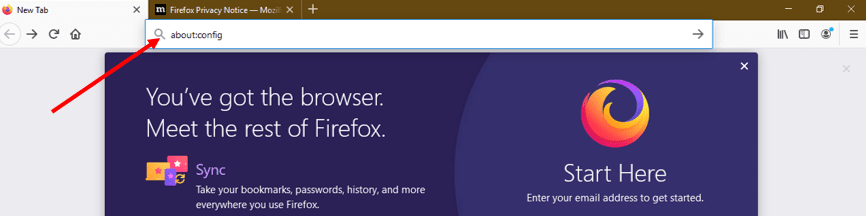
2. Type “about:config” into the address bar of your Firefox browser window, and click enter.
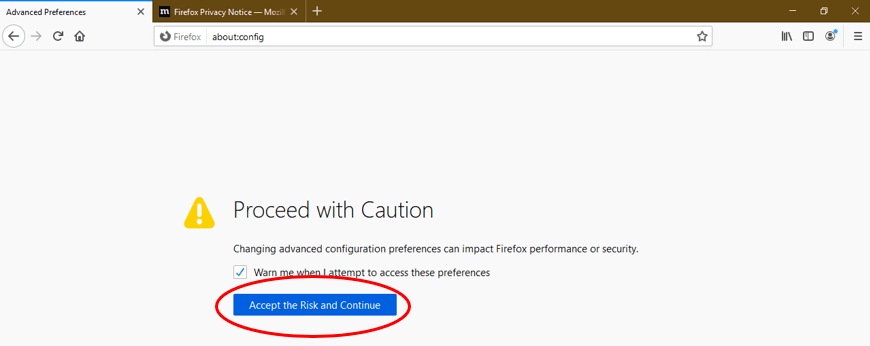
3. A warning message will display on your browser; click “Accept the Risk and Continue” button to proceed.
4. On the following page, enter “javascript.enabled” in the search box to find the preference result of the same name.

5. Next, locate the option labeled “javascript.enabled” on the search result and select toggle to turn on JavaScript. The Value column should read as “true”.

6. And that’s it, you’ve successfully unblocked JavaScript. Restart your Firefox browser to enjoy a user-interactive internet experience.
7. Click OK and restart your browser.
How to Enable JavaScript in Firefox on Windows 10
Windows 10 users who wish to turn on JavaScript in Firefox can do so in just a few easy steps:
1. Open your Firefox browser
2. Type “about:config” into the address bar of your 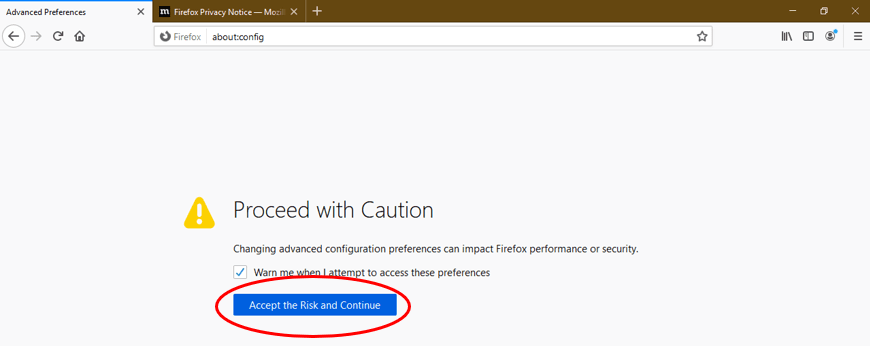 Firefox window, and click enter.
.png)
3. A warning message will display on your browser; click the “Accept the risk and continue” button to proceed to the next page.
4. On the following page, type “javascript.enabled” in the search box to find the preference option of the same name.

5. Next, locate the option labeled “javascript.enabled” in the search results and select Toggle to enable JavaScript. The Value column should read as “true”.

6. And that’s it, you’ve successfully activated JavaScript. Restart your Firefox browser to enjoy a user-interactive internet experience.
7. Click OK and restart your Mozilla Firefox browser.
How to Enable JavaScript in Firefox on Windows 8
Windows 8 users who wish to turn on JavaScript in Firefox can do so in just a few easy steps:
- Start your Firefox browser and open a browser window.
- Click the drop-down Menu on the browser window and then select the “Options” tab.
- Under the Options tab, find the section labeled “Content” and click it – it’s normally located at the top of the tab.
- Next, mark all boxes for “Block pop-up notifications”, “Enable JavaScript” and “Load images automatically” in the Content section.
- Click OK and restart your Firefox browser afterwards.
How to Enable JavaScript in Firefox on Windows 7
Windows 7 users who wish to turn on JavaScript in Firefox can do so in just a few easy steps:
- Start your Mozilla Firefox and open a new browser window.
- Type “about:config” in the address bar of your browser window, and press enter.
- A pop-up menu will appear. Mark “Choose to accept risk” on this menu and press continue to go to the Settings page.
- Under the Settings page, locate the setting search box and type “javascript.”
- Next, locate the option labeled “javascript.enabled” in the search results and click Toggle to enable JavaScript. The Value column should change from “false” to “true”.
- Click on OK and then restart your browser.
How to Enable JavaScript on Mac Firefox
Mac users who wish to turn on JavaScript in Firefox can do so in just a few easy steps:
- Run your Firefox web browser and open a new window.
- Type “about:config” in the address bar of your browser window and hit enter.
- Next, check the “Agree to be careful” button, and press continue to go to the Settings page.
- Under the Settings page, locate the section labeled “Preferences”, and then double click on the “javascript.enabled” row.
- Refresh your Mac Firefox browser.
How to Disable JavaScript on Firefox
Follow the steps below to turn off JavaScript in your Firefox browser:
1. Start your Mozilla Firefox browser.
2. Open a new window and type “about:config” in the address bar and press enter – a warning menu will display.
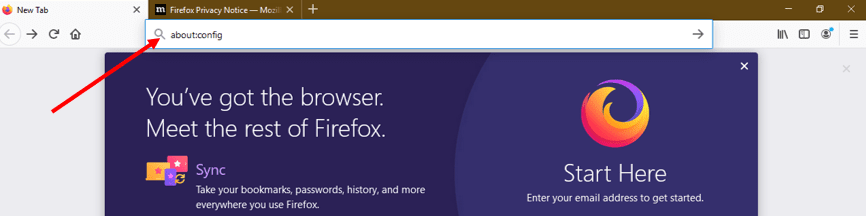
3. On the menu, select “Accept the Risk and Continue” to proceed to the next page.
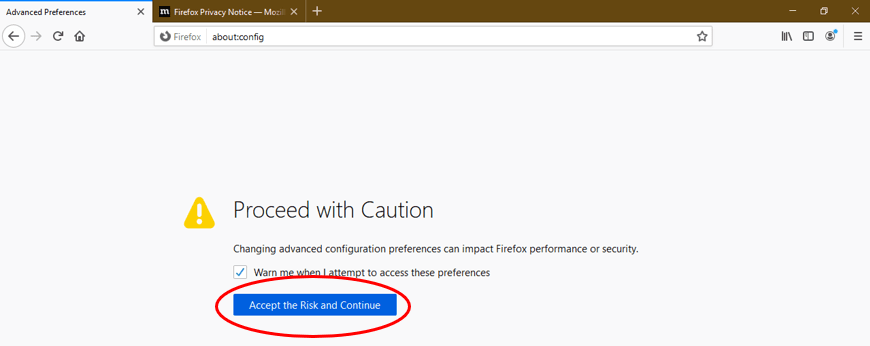
4. Now locate the preference search box and enter “javascript.enabled”.

5. On the search result page, locate the “javascript.enabled” option, and toggle the switch beside it to “false.”

6. That’s it. JavaScript is now disabled.
Why do I need JavaScript enabled on Mozilla Firefox?
JavaScript is a popular programming language that’s essential for modern websites to function correctly on Mozilla Firefox. It powers most of the dynamic features you see on web pages, including button clicks, navigations, and form submissions. Enabling JavaScript in your Firefox browser is an easy process. In fact, it should only take you only a minute or so to complete.
How do I know if JavaScript is working on Mozilla Firefox?
On Mozilla Firefox, JavaScript is enabled by default, but you can check it reasonably quickly to verify if it is working correctly. To do that, simply input «about:config» into the Address Bar of your Firefox browser and press the Enter key on your keyboard. Next, accept the warning about changing advanced settings by clicking the «I’ll be careful, I promise» button. On clicking the «Accept the Risk and Continue» button, a search feature will appear. Type in «javascript» into this search bar. As you type this, every JavaScript-based setting appear. If the «javascript.enabled» is set to «true,» then your JavaScript is working correctly.
What happens if I disable JavaScript on Mozilla Firefox?
The use of JavaScript on your Firefox browser is virtually crucial because it enables the best use of modern websites such as Gmail, Facebook, YouTube, and more. If you have JavaScript disabled, most of what makes these websites work won’t load in your Firefox browser. Some web page features such as buttons that change when they’re clicked or images with zoom capabilities may not work properly while others may not work at all.
Olumide is a longtime writer who started his career as a digital marketer before transitioning into a copywriter almost eight years ago.