Flipping, Mirroring, Rotating and Arrays
With SketchUp’s flipping and rotating tools, your geometry becomes as nimble as an acrobatic troupe. The Flip Along command enables geometry to backflip 180 degrees along any axis. With the Rotate tool, your geometry can spin and fold like a professional gymnast.
Table of Contents
Using the Flip Tool
The Flip ( ) tool does exactly what it says on the box, helps you flip your geometry so that you can quickly re-orient objects or make symmetrically oriented copies.
You’ll find the Flip tool in one of the following locations:
- The Getting Started toolbar
- The Large Toolset
- The Edit menu
- (iOS) The Standard toolbar
Just like other tools you can always use SketchUp’s search bar and assign it your own keyboard shortcut.
- Select the geometry you want to flip before activating the Flip tool, or simply activate the Flip tool and hover over the geometry you want to flip.After hovering, clicking once begins the Flip operation
- Three semi-transparent planes appear, each corresponding to the selection’s cardinal orientation.
- If needed, adjust each plane by click-dragging along one of the primary axes. Inferences will appear when dragging to help with placement. Each time you click and drag a plane adjusts the flip operation.
- Hover over one of the planes and click once to flip the geometry about that plane.
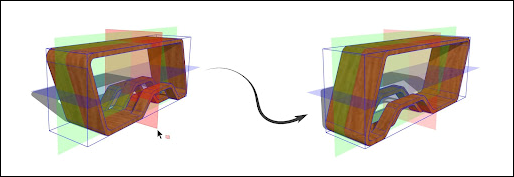
Flip Tool Modifiers
Copy Mode
With the Flip tool active, pressing Ctrl (Windows) or Option (macOS) engages Copy mode. When engaged, click and drag a plane to the desired spot. When you release your mouse button, SketchUp creates a flipped copy of your selected geometry.
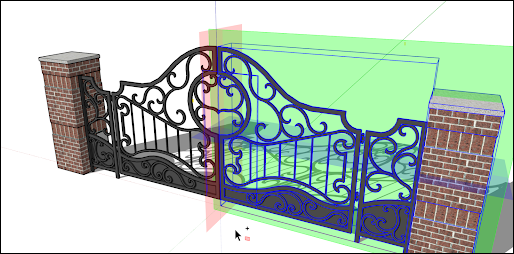
Axes Mode
If you prefer to flip an object using its parent (or context) axes, use the Alt key on Windows or Command on Mac. Activating this mode toggles Flip between a selected object axes orientation and the parent axes orientation.
Custom Flip Plane
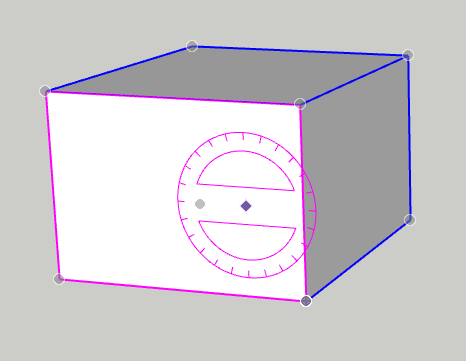
If you need to flip something outside of the default axes, you can identify a custom flip plane. To flip using a custom plane, activate the Flip tool and hover over a face in the modeling window. A custom, magenta colored, flip plane will appear. As with other planes, click on that magenta plane to flip, or click or click and drag that magenta plane.
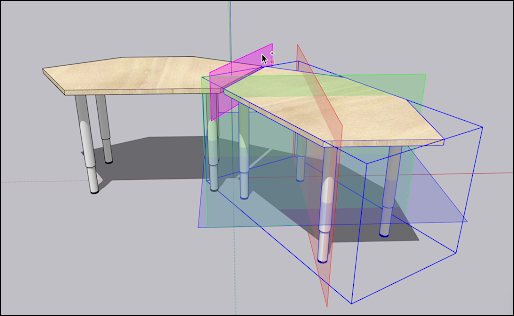
Rotating geometry at an angle
With the Rotate tool, you can rotate geometry at any angle. For example, say you want to rotate this telescope so that it points at a different angle or a different part of the sky.
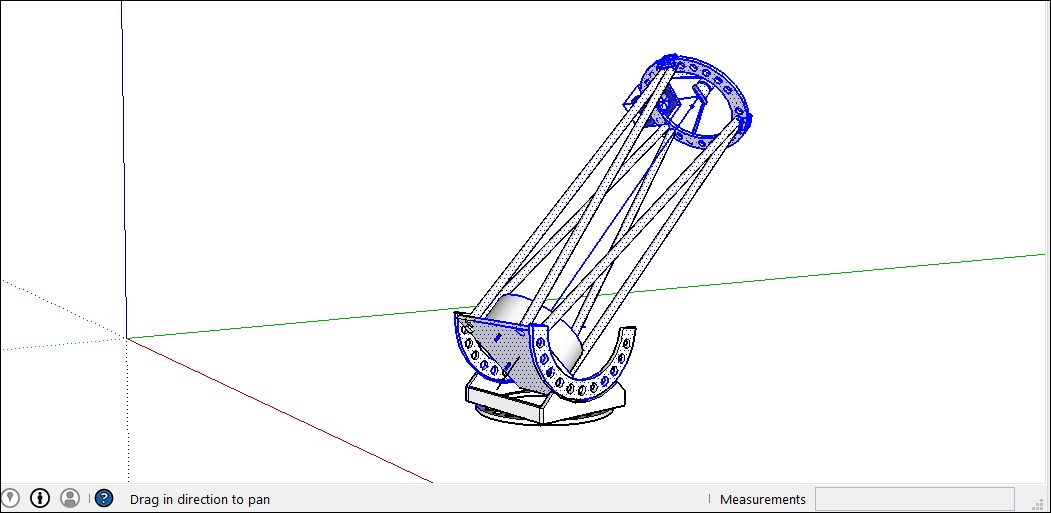
Here’s how to use the Rotate tool to spin geometry around:
- With the Select tool (
 ), select the geometry you want to rotate. Here, the geometry that points the telescope into the sky is selected, but not the base, which needs to stay on the ground.
 - Select the Rotate tool (
 ). The Rotate tool’s protractor-shaped cursor appears
 - Move the cursor around until it’s on the plane you want to use for your rotation. To lock the plane, press the Shift key until you click to set the angle’s vertex. When your plane is perpendicular to an axis, the cursor turns red, green, or blue, respectively, as shown in the figure.
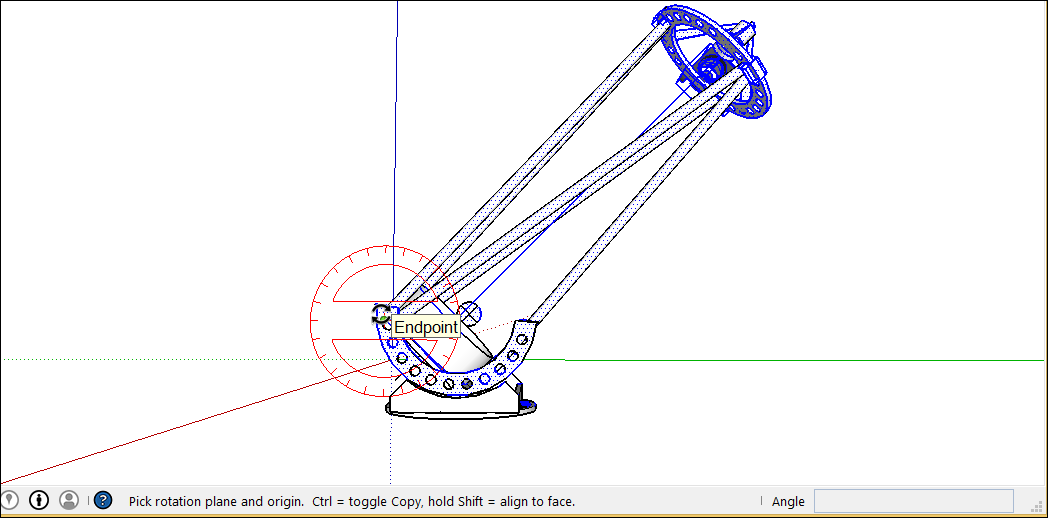
Tip: In this example, inferring from a face that’s on the same plane as the desired rotation is the easiest way to find the right plane. Hold down the scroll wheel of your three-button mouse to temporarily switch to the Orbit tool ( ) and find a good view of your desired plane. See Viewing a Model for details about viewing options.
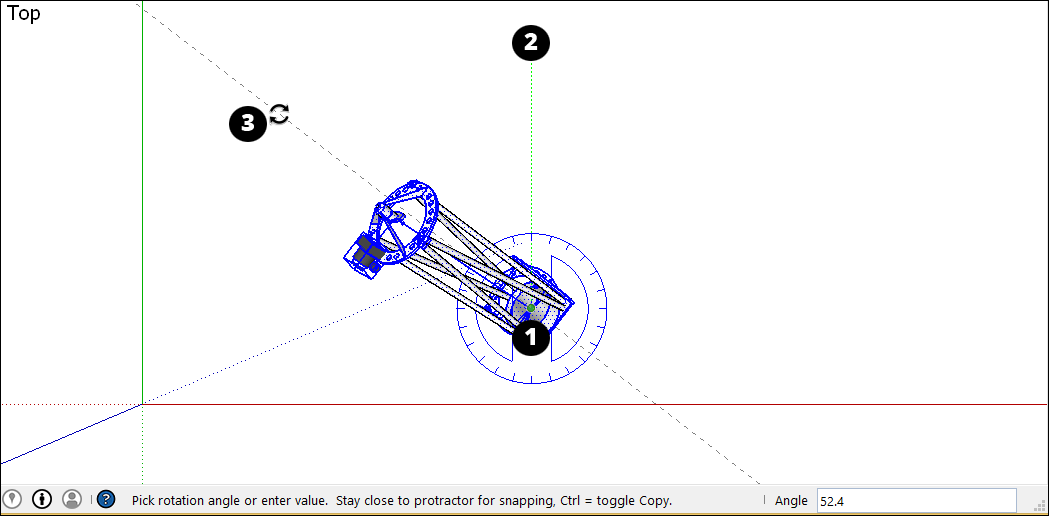
Here’s another example to help you understand how to achieve your desired rotation angle. Imagine you need to rotate the whole telescope to a different part of the sky (northwest, say, instead of due north). Start by selecting the whole telescope and then select Camera > Standard Views > Top to see the telescope from above. (Viewing a Model explains SketchUp’s viewing options.) With the Rotate tool selected, you then lock the protractor cursor in the blue direction and click the top to set the angle’s vertex (Callout 1). Click to start your angle at due North (2) and then click again to complete the angle at your desired Northwest direction (3).
In the following video, watch the Rotate tool in action, where you see how to rotate clock hands and open a vault door, fold a SketchUp face into a paper airplane, and more.
Corner Inference Grips
When selecting or hovering over a component/group, you’ll notice there are inference icons. These reference icons are presented differently depending on the geometry and action being performed. In the image below, the corners of the component/group’s bounding box to help you better rotate the component/group. The component/group grips are represented as a gray dot at every corner of the box. You can grab and rotate the object using these grips.
When you move your cursor over a corner which is obscured by other geometry, the gray dot will become blue and your component will display as transparent to help you see the obscured corner and geometry behind for placement.
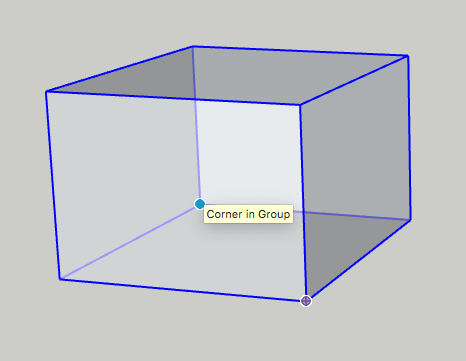
You can cycle through available grips, Object Center, Context Edge Center and Context Edge Corner by finding your first grip, then toggling through them using Command on Mac or Alt on Windows.
Folding geometry along an axis
SketchUp geometry is so flexible, you can fold it like paper. Follow these steps:
- With the Select tool (), select the geometry you want to fold.
- Select the Rotate tool ().
- With the Rotate tool’s protractor-shaped cursor, click and drag from one endpoint on the fold line to the other endpoint. Release the mouse button when you’re done. In this example, the line that bisects the polygon is the fold line.
- Click at the starting point of the rotation. In the figure, the circular arrows cursor is where the rotation begins.
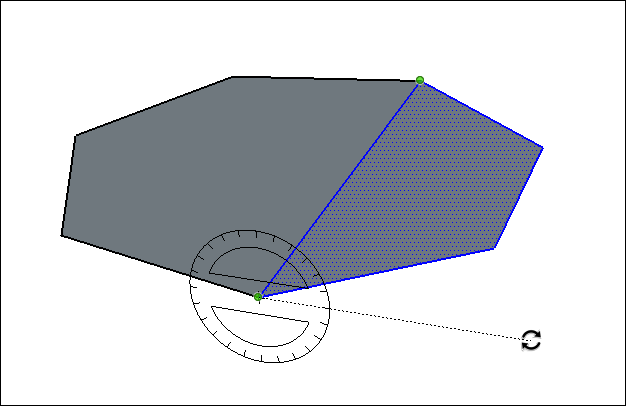
- Move the mouse to rotate. If angle snaps are active under preferences, movements close to the protractor result in angle snaps, whereas those farther away allow free rotation. Also, as you move the cursor, notice that the angle degrees of rotation appear in the Measurements box.
- Click at the ending point to complete the rotation. The following figure shows the rotation’s ending point and the dynamic preview of the folded polygon.
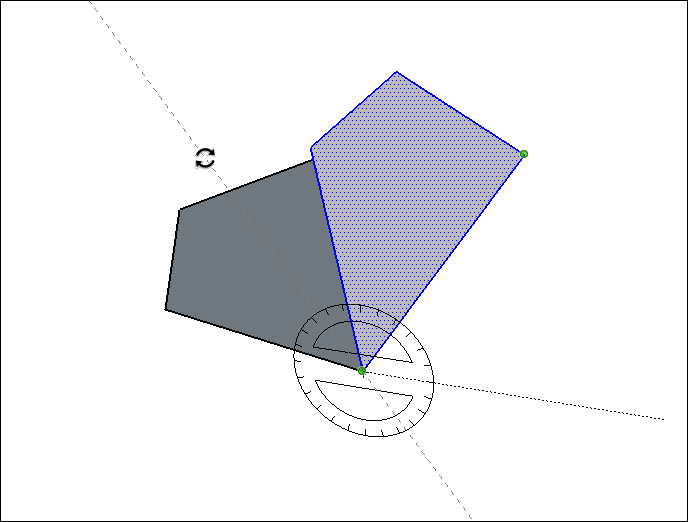
- (Optional) Type a precise angular rotation or slope value and then press Enter. See the earlier table for details about how to specify each value. Negative values fold the geometry in a counter-clockwise direction.
SketchUp Mirror
SketchUp Mirror is a process through which you can reflect any object to the opposite side of it for different types of purposes. There are a number of ways through which you can mirror any object or component in this software. You can also use Mirror extension for doing this work for your components, and you can download it from the Extension Warehouse of this software. For doing a mirror of any object or for making the mirrored object of any component, you should understand some of the features and parameters of different tools as well as the methodology of this software. So let me explain to you some of the ways in a very exciting manner through which you can do this.
How to use the Mirror tool in SketchUp?
There is no specific tool with the name Mirror tool in SketchUp, but we can do a mirror of objects through several ways. You can also make a copy of any object and then mirror it. You can also have a Mirror extension from the Extension warehouse and use that as a mirror tool. So let us find what these ways are?
3D animation, modelling, simulation, game development & others
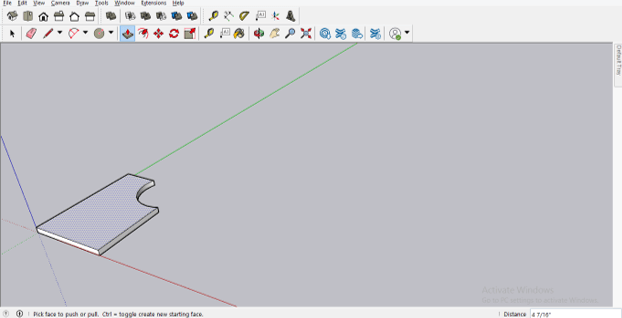
First of all, I will create an object like this which we will mirror in different ways, and I have been drawn this shape by using Rectangle as well as Circle tool of the tool panel.
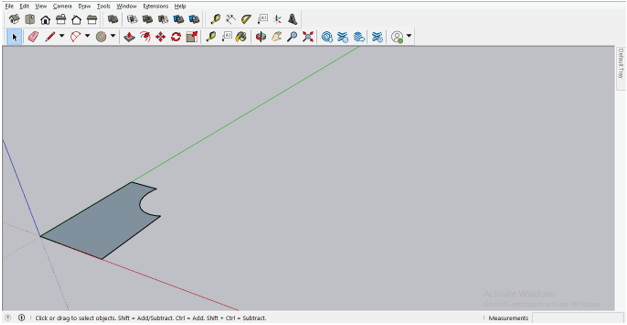
Now I will add some height to this shape with the help of the Push/Pull tool. I am not using standard dimensions for creating this object.
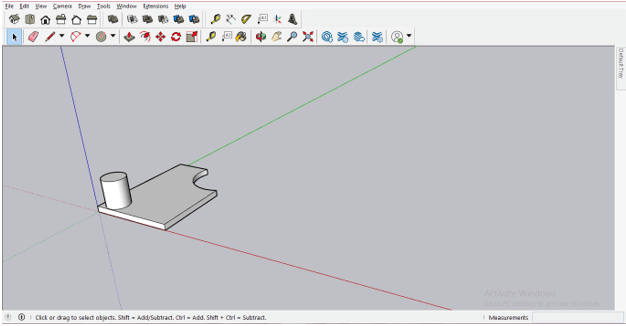
I will make a cylindrical shape here, also like this by using the push/pull tool again on a circular surface.
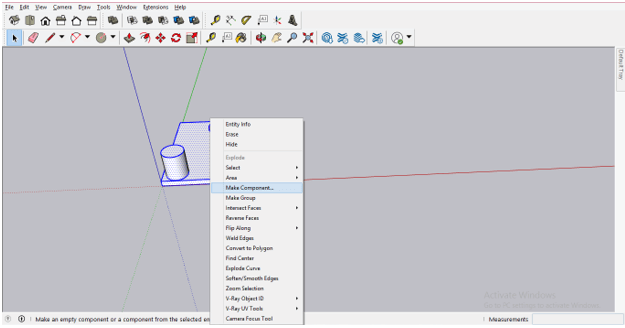
Now I will make this selected object as a component and, for that, select the whole object and then make right-click. Click on the Make Component option of the drop-down list.
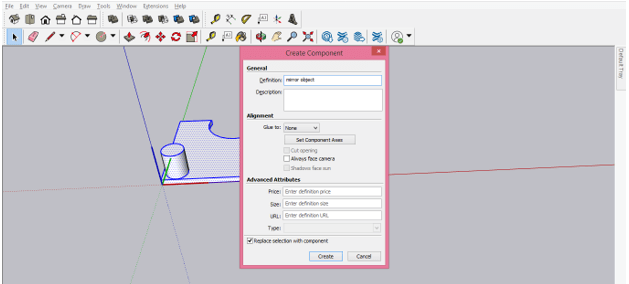
Once you click on this option, it will ask you to name your component, and I will name it as a mirror object, then click on Create button of this dialog box.
Now select this object and again make right-click. Now this time, go to the Flip Along with the option of scroll down list.
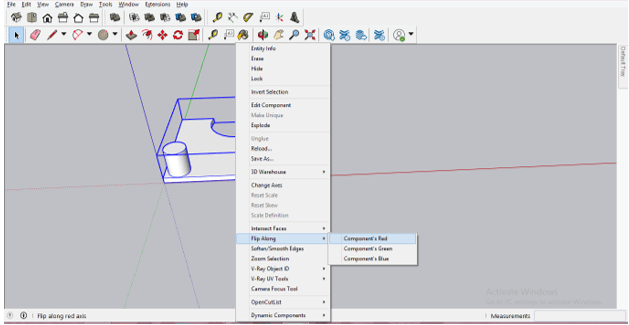
Here in this option, you will find Component’s Red, Component’s Green, and Component’s Blue options. That means if you want to mirror this object along the Red axis, then go with the Component’s Red option; for mirroring along with the Green axis, go with Component’s Green option, and so on.
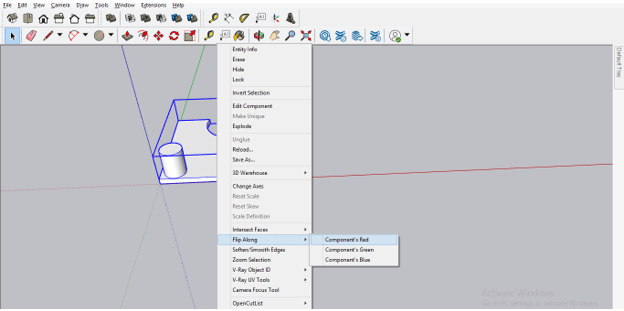
Now I will first select the component and then click on Component’s Red option.
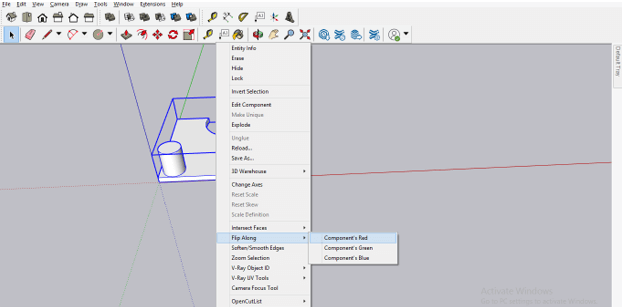
And it will flip like this along with the red axis.
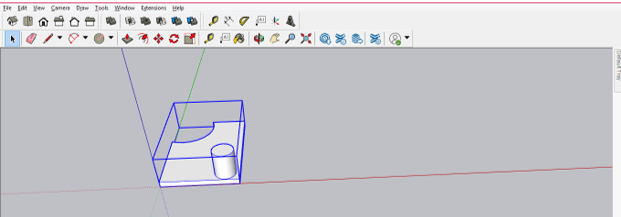
On the other hand, if you go with Component’s Blue option of Flip along to mirror this component from other side.
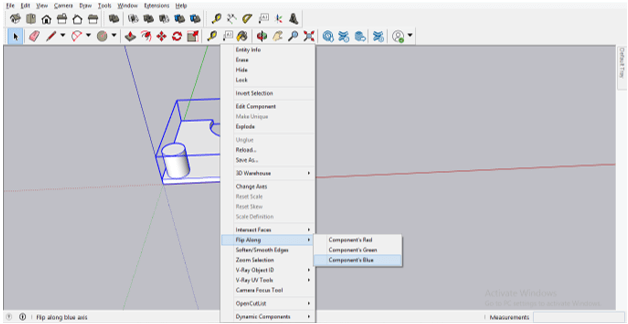
Then it will mirror like this. So it totally depends upon you how you want to mirror your component, and according to your requirement, you can choose anyone of the three options for your component.
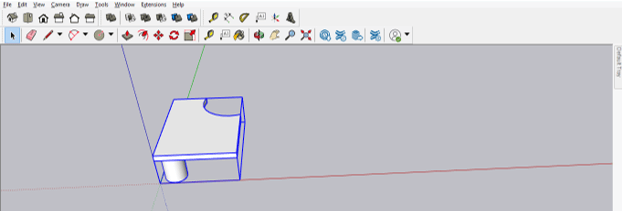
The second way through which you can mirror any object is through the scale tool of SketchUp. So take the scale tool from the tool panel, which is the top of the working screen of this software.
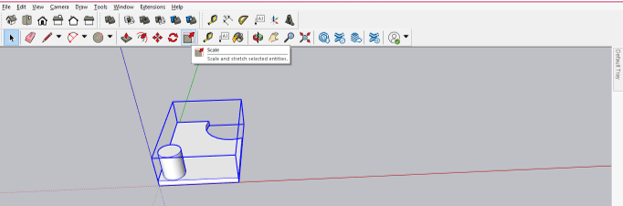
Now click on one of the red anchor points of the scale box of scale tool, which is around this component.
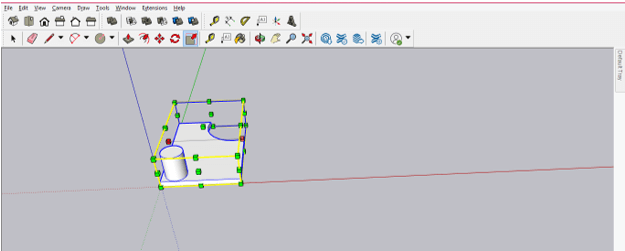
And drag it in the opposite direction of the chosen achorn point.
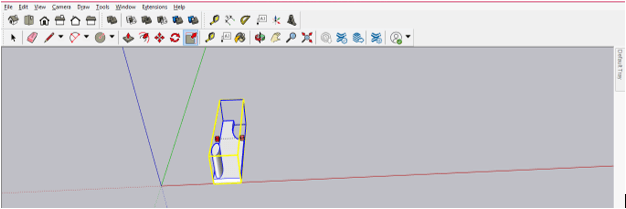
And once you reach the same size of this component in other direction, it will automatically snap there, and this was, you can do a mirror of this component. You can increase or decrease the size of the component as per your choice during doing this.
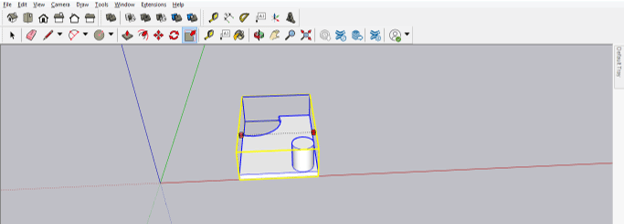
Now, if you hold a red anchor point from this direction and start dragging it in the opposite direction.
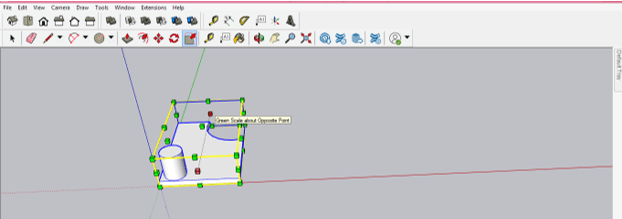
Then you can mirror it from this side like this.
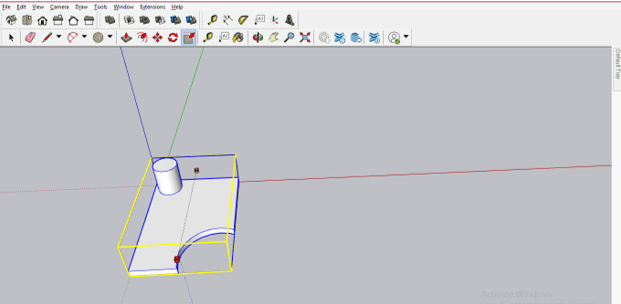
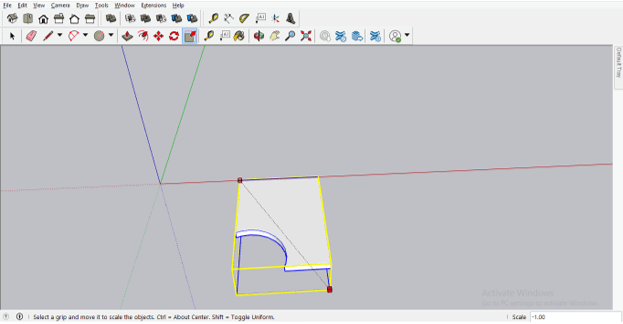
You can not only mirror components or object from lengthwise or widthwise direction by using the scale tool but also from diagonals, and for that, select diagonal red anchor points of the scale box and then start dragging diagonally.
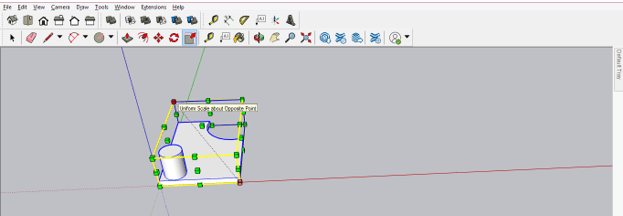
And it will mirror diagonally like this.
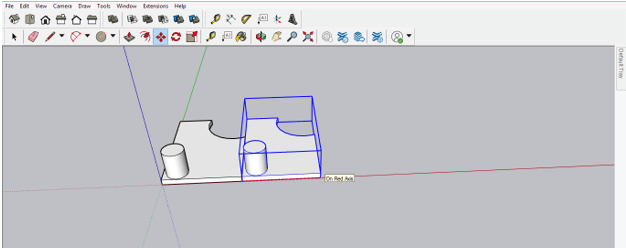
Let us make a copy of this component, and for making a copy, I will select this component first with the select tool and then take the move tool from the tool panel. Now I will move it by holding the Ctrl button on the keyboard, and it will make a copy like this.
Now let us mirror it in the opposite direction with the help of the Scale tool of the tool panel. Do the same for mirror it as we did in previous steps using the scale tool.
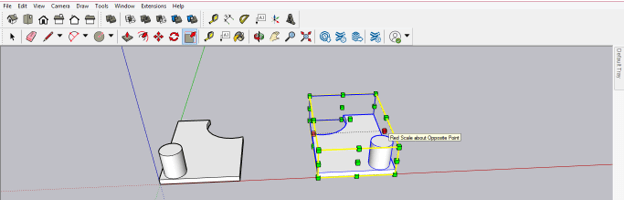
There is one advantage for making a copy of source component and then mirror it by using the scale tool, that although it is a copy of component object so when you are making any changes in anyone of them then the change will apply to both object automatically. For example, if I go to the editable mode of the first component and decrease the size of the cylindrical part of this component with the help of the Push/Pull tool, then you can see the change is also applied to the copied component.
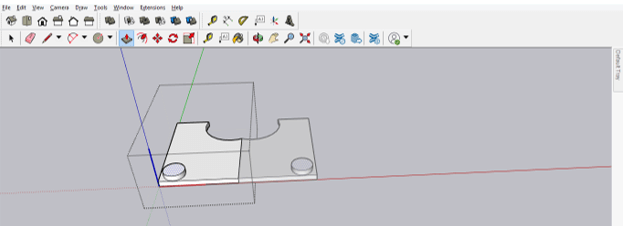
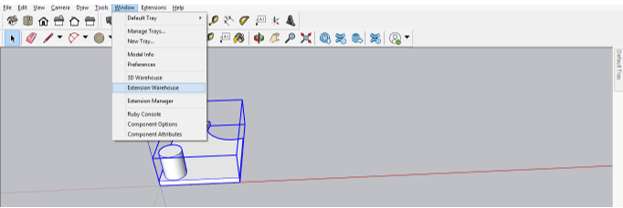
So you can use this technique in your designing to speed up your work. Now, if you want, you can install the Mirror extension and use that as a mirror tool. You can download a mirror extension from the Extension Warehouse of this software, and you can find the Extension Warehouse option in the scroll-down list of the Window menu. So go to the Window menu and click on the Extension Warehouse option of the list.
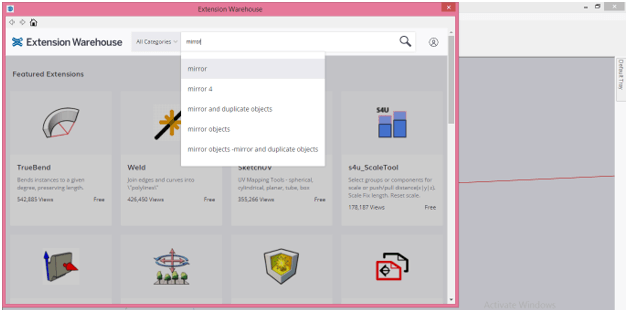
Now search for Mirror in the search box of this open dialog box of Extension Warehouse.
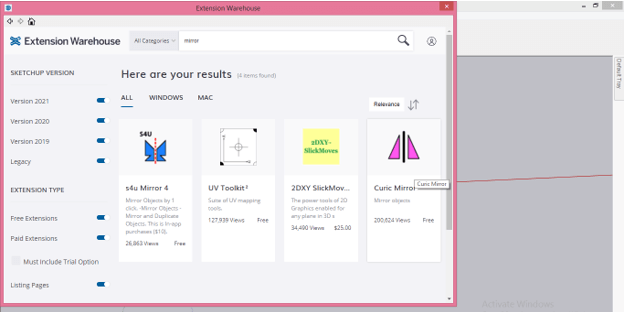
Once you search it, you will have the result of mirror extensions, and you can download anyone from the list as per your choice.
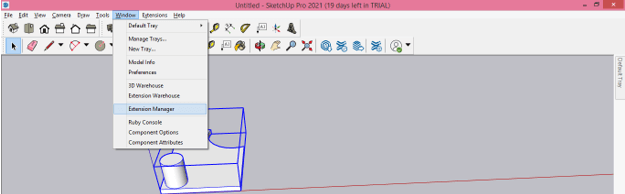
And you can enable the downloaded Mirror extension from the Extension Manager of this software. So for the Extension manager, go to the Window menu again and this time, click on the Extension Manager option of the drop-down list of this menu.
Conclusion
I am sure that the Mirror tool will take no more an unknown word for you in context of SketchUp and you can do a mirror of objects by the several ways using different options and tools of this software. You just have to understand all techniques properly, and after that, you can do a mirror of any object very easily.
Recommended Articles
This is a guide to SketchUp Mirror. Here we discuss the Introduction, How to use Mirror tool in SketchUp? Several ways using different options and tools. You may also have a look at the following articles to learn more –
How to Mirror in Sketchup
Mirroring and flipping objects in Sketchup is a quick way to create variation in your CAD design and make it stand out. It’s also an excellent way to check for errors in your design since any mistakes will be immediately obvious when viewed in reverse.
In this article, we’ll discuss how to mirror in SketchUp using several methods, including the Scale Tool, the Flip Along command, and various extensions. We’ll also share with you some useful tips like how to mirror geometry in SketchUp without losing its original position, how to mirror a group of objects, and more.
Using the Sketchup Scale Tool to Mirror
Unlike other 3D design programs, Sketchup does not have a dedicated “mirror” tool. However, there are several ways to mirror objects and geometry using the existing tools in Sketchup.
Out of them all, the SketchUp Scale tool is by far the most popular.
It’s easy enough for SketchUp novices to pick up yet versatile enough for designers working on more complex projects.
Here’s how to use the SketchUp Scale tool to mirror an object:
- First, select the object you want to mirror.
- Then, copy and duplicate the object (Ctrl + Move) .
- Next, position the duplicate where you want the mirror image to appear.
- With the duplicate selected, click on Scale and enter a negative number (e.g., -1). This will create the mirror image.
- After that, press the Enter button to confirm the change and exit the Scale tool.
Repeat the process for each object you want to mirror.
Keep in mind that you can also use the Scale tool on SketchUp to resize objects, not just mirror them. To do so, simply enter a positive number to increase the size of an object or a negative number to decrease it.
Together, these techniques give you a lot of control over the look and feel of your SketchUp design.
Using the Flip Along Command to Mirror
Another way to mirror in SketchUp is to use the “Flip Along” command.
To mirror an object in SketchUp using the Flip Along command, follow these steps below:
- To get started, select the object you want to mirror.
- Next, similar to the Scale tool, create a duplicate by copying and pasting the object (Ctrl + Move).
- After that, select the duplicate.
- Then, right-click before choosing the “Flip Along” option. This will instantly mirror the object.
- Repeat the process for each object you want to mirror.
This method is just as simple as using the Scale tool but gives you a bit more control over the orientation of your mirror image.
For example, it also allows you to flip geometry along an axis. This technique can be especially useful when working on designs with a lot of symmetry, like furniture or buildings.
To flip your geometry, simply follow these steps:
- First, choose the geometry you want to flip using the Select tool ().
- Then, context-click the geometry you selected.
- From the resulting menu, choose Flip Along .
- Finally, in the submenu that appears, select an axis.
This will create a mirror image of the original geometry, flipped along the axis you selected. Manipulate and position the new geometry as needed.
Using a Sketchup Extension to Mirror
One of the best things about using SketchUp is the huge library of extensions and plugins available to customize your experience.
These extensions can do everything from speed up the modeling process to adding new tools and features.
There are also a number of SketchUp plugins that allow you to mirror objects, geometry, and groups of objects with just a few clicks.
Many of these extensions are free to download and use. Others are available for a small fee, but these usually come with even more powerful features and customization options. In addition, most of them work on both Mac and Windows platforms, making them accessible no matter what type of computer or operating system you’re using.
That said, here are a few of the best SketchUp plugins for mirroring objects:
TIG Mirror (FREE SketchUp Plug-in)
The TIG Mirror plug-in for SketchUp is a free extension that allows you to mirror selected objects.
To use it, simply define a plane, line, or point by picking 1/2/3 points. This will mirror the selected objects. You can then choose to keep or delete the original objects.
This plugin is compatible with all versions of SketchUp and works on both Mac and PC.
Magic Mirror (FREE SketchUp Plug-in)
The Magic Mirror plugin is another free SketchUp extension that allows you to quickly mirror objects with just one click. It’s faster and easier to use than the TIG Mirror plugin, making it a good choice if you’re looking for something that’s quick and simple.
The Magic Mirror plug-in was created by CyberAvocado and is compatible with both Windows and Mac operating systems.
S4U Mirror 4 (PAID SketchUp Plug-in)
S4U Mirror 4 is a SketchUp plug-in that also lets you mirror objects. It’s a bit more powerful than the previous two plugins.
Aside from one-click mirroring, you can also use it to mirror and duplicate objects. On top of that, you can also set the plane by selecting 2 points and the Z-axis, 3 points, or an edge, axis, guide line, or face.
S4U Mirror 4 is an in-app purchase and costs $10. You can use it on both Windows and Mac operating systems. They offer a free trial, so you can test it out before you buy.
These are just a few of the many useful extensions you can use with SketchUp. Browse the SketchUp Extension Warehouse to find more plugins that can help you execute your CAD designs.
How to Mirror Objects in Sketchup
Aside from basic object mirroring, Sketchup also offers several ways to flip or rotate geometry. CAD designs often include a lot of symmetry, and being able to quickly mirror or rotate geometry can save a lot of time in the design process.
Additionally, SketchUp allows you to mirror a variety of objects, including group geometry and raw geometry. This functionality expands what you can do with the software even further. You also get to experiment with different variations of your design without having to start from scratch each time.
Again, the most common way to mirror geometry in SketchUp is by using the Scale tool. Here’s what you can do:
- First, select the raw geometry, component, or grouped geometry you want to mirror.
- Then, use the Copy/Paste or Duplicate function to create a copy of the object. The fastest way to do this is with the CTRL + Move shortcut.
- Next, position the resulting duplicate carefully. You’ll want to make sure there’s enough space to allow for negative scaling.
- After that, enter a negative value in the Scale dialog box. This will create a mirror image of the original raw geometry, component, or grouped geometry.
- Repeat this process as necessary to create additional objects.
As we touched on earlier, you can also use the Flip Along command to mirror geometry in SketchUp. The difference is the “axis” element. Flipping along an axis will result in a mirror image while flipping along a plane will simply rotate the geometry.
To use the Flip Along command, simply follow these steps below:
- To get started, select the geometry you want to mirror. This can be grouped geometry, raw, or components.
- Next, duplicate your chosen object.
- With the object selected, right-click on it, then select Flip Along from the options.
- A sub-menu will appear, from which you can select the axis along which you want to flip the object.
- The geometry will be mirrored along the chosen axis.
- Finally, manipulate the geometry as necessary to achieve the desired results.
Wrapping It Up
Knowing how to mirror objects in SketchUp is an essential skill for anyone who uses the software for CAD design. You can use SketchUp’s native tools like the Scale tool and the Flip Along command to quickly create mirror images of your geometry.
Additionally, there are a number of plugins that can help you mirror objects in SketchUp, including TIG Mirror, Magic Mirror, and S4U Mirror 4.
Feel free to give each one a try until you find the tool that works best for you and your workflow.
Вопрос: Как отразить в SketchUp?
Чтобы перевернуть геометрию, выполните следующие действия:
- С помощью инструмента «Выбор» ( ) выберите геометрию, которую нужно отразить.
- Контекстно щелкните свой выбор и выберите «Перевернуть».
- В подменю выберите ось.
Есть ли в SketchUp инструмент «Зеркало»?
1 Ответ. Зеркальное отражение не является стандартным инструментом в SketchUp, но существует несколько способов зеркального отражения объектов с использованием различных методов. … Мы можем выбрать объект, который хотим отразить, щелкнуть по нему правой кнопкой мыши и выбрать «Отразить вдоль»: это даст нам возможность выбрать, какую плоскость (красную, зеленую или синюю) объекта использовать в качестве плоскости отражения.
Как вы используете инструмент поворота в SketchUp?
Основной способ использования поворота в SketchUp
- Выберите все, что вы хотите повернуть.
- Активируйте инструмент «Повернуть». Сочетание клавиш по умолчанию для поворота — Q, если вам интересно.
- Щелкните один раз, чтобы установить ось вращения. …
- Щелкните еще раз, чтобы начать вращение. …
- Двигайте мышью; затем нажмите еще раз, чтобы закончить вращение.
Как отразить изображение в фотошопе?
Как отразить изображение в фотошопе
- Перевернуть изображение без слоев довольно просто. …
- Выберите слой изображения, который вы хотите отразить, и нажмите «Правка» -> «Трансформировать» -> «Отразить по горизонтали/Отразить по вертикали».
- Нажмите «Правка» -> «Свободное преобразование», а затем щелкните правой кнопкой мыши внутри поля преобразования, которое появляется вокруг изображения.
Как добавить плагины в SketchUp?
Установка расширений вручную в настройках SketchUp
- В SketchUp выберите «Окно» > «Настройки» (Microsoft Windows) или «SketchUp» > «Настройки» (Mac OS X).
- В появившемся диалоговом окне выберите «Расширения» на боковой панели слева.
- На панели «Расширения» нажмите кнопку «Установить расширение».
Как вырезать в SketchUp?
Чтобы выполнить обрезку, выполните следующие действия:
- Выберите инструмент обрезки ( ). Совет. Пока вы не наведете указатель мыши на сплошную группу или компонент, вы увидите курсор в виде стрелки с кружком и косой чертой. …
- Нажмите, чтобы выбрать группу резки или компонент. …
- Щелкните группу или компонент, который вы хотите вырезать.
Как сделать эффект стекла в Sketchup?
Прозрачность стекла и воды задается с помощью меню «Материал SketchUp». Перейдите на вкладку «Правка» и выберите Picker HLS (рис. 27.25).
.
Стекло
- Отражающее стекло: от 30 до 49.
- В основном отражающие: от 50 до 75.
- Слегка отражающий: от 76 до 90.
- В основном прозрачный: от 91 до 96.
- Прозрачный: от 96 до 100.
Как повернуть на 90 градусов в Sketchup?
С помощью инструмента «Выбор» (пробел) выберите объект, который вы хотите повернуть. Активируйте инструмент «Поворот», нажав (Q) на клавиатуре. Щелкните точку, из которой вы хотите повернуться, но на этот раз, удерживая нажатой кнопку мыши, перетащите ее наружу, перпендикулярно плоскости, на которой вы хотите повернуться.
Как переключаться между осями в Sketchup?
Чтобы переместить и повернуть оси относительно их текущего положения, выполните следующие действия: