How To Enable Direct Messages On Discord

Discord is an excellent app to use if you need to connect with various people, whether family, fellow gamers, friends, or foes.
There are generally three ways to direct message them: through a server, a channel, or a DM (direct messages). The following article will show you how you can enable direct messages on Discord and manipulate some privacy settings while you’re at it—so that it’s safe for everyone!
Safe messaging on Discord
If you’re someone who uses Discord for school or work purposes, you might not want to change any settings. But the following method is highly recommended to anyone who is a part of large servers, channels, or actively chatting with users with whom they are not familiar. And there’s no harm in doing that!
Safe Messaging on Discord adds a layer of protection to your DMs, so you don’t have to worry about receiving unwanted messages and/or pictures. There are essentially three levels of protection Discord offers:
- Keep me safe: This is the best option for anyone who qualifies for the criteria mentioned above. This setting will allow Discord to scan all photos that a person sends you, no matter who they are or whether you have them added as a friend or not.
- My friends are nice: This is perhaps the most widely-used option since it’s not too extreme or basic. This setting will allow Discord to scan photos sent from users that are not on your friends’ list.
- I live on the edge: This option takes away all permissions from Discord to scan images in DMs. Once you enable this option, you’re on your own. It is highly recommended that you don’t enable this option unless you feel like you’re safe on Discord. Users who are part of large organizations/servers on Discord and have this option enabled will be prone to spam and inappropriate messages.
You can navigate to “User Settings” to enable any of these options. This is the little gear icon found beside your Discord tag on the bottom left of your Discord homepage. From there, go to “Privacy & Safety” > “Safe Direct Messaging.”
More privacy settings
You should know that you can’t send anyone on Discord a direct message unless you have them added as a friend. However, this also depends on the settings of the person you’re trying to message.
- To change these settings, you can navigate to “User Settings.”
- This is the little gear icon found beside your Discord tag on the bottom left of your Discord homepage.
- From there, go to “Privacy & Safety.”
- Scroll down to see where it says “Who Can Add You As a Friend.”
- Here, you will see three toggles: Everyone, Friends of Friends, and Server Members. By default, all of these will be enabled. Here is what they mean:
Everyone: This means that anyone and everyone on Discord will be able to DM you.
Friends of Friends: This means that friends of people you are mutual friends with can DM you on Discord.
Server Members: This means that anyone you share servers with can message you on Discord .
How To DM Someone in Discord
By Gregory Gregory Author Read more • Edited by Cassandra McBride Cassandra McBride Editor With over eight years of experience, Cassandra specializes in editing and technical writing. In her previous role as a technical consultant, Cassandra was responsible for writing user guides, training materials, and other documentation to support the new systems. Read more August 11, 2022
Discord is a messaging application popular among gamers. Using servers and group chats, friends can communicate quickly with each other through group chats or direct messages.
Direct messaging allows you to converse with someone who is not a member of the same servers. When a private conversation is necessary or preferred, Discord offers both Direct Messages (DM) and Group Chat.
Here’s how to DM someone on Discord.
What is a Discord DM?
Discord’s direct messages allow you to have one-on-one conversations with other users in the Discord community. These are private conversations that won’t be seen on a public chat server.
You can send direct messages and start group chats regardless of the server in which you’re all currently engaged. If you’re stuck trying to figure out how to send a DM, read on to learn more.
How to Send a Direct Message in Discord
Whether you’re using a PC or Mac, Android, or an iOS device (iPhones and iPad), here’s how you can send a direct message to someone in Discord.
Note: Before getting started, it’s important to mention some users may have their DM settings set to “Friends Only,” meaning you won’t be able to message them unless they’re on your friends’ list.
Send DMs via PC & Mac
If you have a PC or a Mac, follow these instructions to send a DM:
- Log in to Discord.
- Click the Discord icon at the top right of the screen and choose Friends from the list.

- Swap to the All tab to see all friends available on your list, or keep it on the Online tab to message a friend currently online.

- Click on the user you’d like to message. This will open up a Direct Message between you.
- Enter your message in the text box and press ENTER to send the message.

- To DM a member of a server you are a member of, log in to the Discord server by clicking on it from the server menu on the far left side.

- Scroll through the list of member names from the menu to the far right until you find who you’re looking for.
- Right-click the member’s name and choose Message in the dialogue menu.

- Enter your message into the text box and press ENTER to send the message.

Now you know how to DM on a PC or a Mac, but what about for mobile? Next, we’ll show you how to send Direct Messages for Android devices and your iOS devices (iPhone and iPad).
Send DMs via Android Devices
- Log in to Discord.
- Make sure you’re on the Direct Messages section of the app; if not, tap the direct messages icon in the top-left corner of the screen.

- Choose a contact from your list of friends.

- Tap the text box at the bottom to create a DM.

- Enter your message and tap Send.

Send DMs via iOS Devices
- Log in to Discord.
- Tap the Friends logo at the bottom of the screen. You may need to tap the three white lines to get to this window.

- Tap on the recipient’s name to pull up a window.

- Tap Message in the pop-up window.

- Type your message and tap Send.
How to Create a Discord Group Chat
When it comes to creating a group chat, you’re only allowed to invite those who are on your Friends List.
Once all those you want to add to the Group Chat have been made friends, a new button labeled “New Group DM” will be available.

Click on this button at the top-right of the window to open a window with all of your friends.
You can add up to 9 friends to a Group Chat, which, counting you, makes a total of 10 Discord users.

Another way to open up a Group Chat is by adding additional friends to a conversation already in progress. Open up a DM in progress between yourself and a friend, and at the top-right of the window, then click the Add Friends To DM button.
This keeps the DM available between you and the original recipient separate and opens up a new conversation between the two of you and additional friends.
Kicking Members Out of a Group Chat
Any member in the Group Chat can add additional members (up to the maximum). However, only the individual who started the Group Chat can actually kick anyone out of it.
To remove a member from the Group Chat:
- To the right side of the window, locate the list of Group Chat members.

- Find the member you want to be kicked out and right-click on the name.

- From the options provided, choose Remove From Group.

How to DM Someone Who Isn’t a Friend
Assuming you’re on a server with someone who isn’t your friend and you’d like to send them a direct message, it is possible if you follow these steps:
- Tap on the icon that looks like two people together. Scroll down and tap on the user that you’d like to message.

- Tap on the option to Message.

- Next, you can type and send your message like you usually would.
As mentioned previously, if you do not have this option, it’s likely due to the user’s privacy settings. In that case, you can send them a friend request to begin messaging.
Frequently Asked Questions
Here are the answers to more questions you may have about sending messages on Discord.
How do I know who is a moderator or admin on Discord?
If you’re on a server and need to private message an admin or moderator, you can quickly find them in the menu to the right of the Discord chat. Look at the very top of the channel’s members, and you will see those with administrator privileges.
Right-click on the user you’d like to chat with and click Message. Then, you can message the moderator or admin privately.
Can I unsend a DM on Discord?
Yes! If you unsend a DM on Discord, it will disappear for you and the recipient. You can even unsend the message days later. Another neat aspect of Discord’s unsend feature is the recipient won’t receive a notification that a message was removed. This means you can unsend chats, and the recipient will never know.
What do Message Requests look like In Discord Desktop?
If someone you are not friends with sends you a direct message (DM), Discord may filter that DM into a separate “Message Requests” folder. You will need to approve the message request before being able to chat directly with the message requestor.
To view Message Requests on the desktop or web browser client, you can click into your Home tab and find the folder located.
From this tab, you’ll be able to view user profiles to check shared servers, and accept or deny Message Requests. While it isn’t possible to retrieve declined requests, people will be able to resend Message Requests to your account depending on your Server Settings and User Settings then Privacy & Safety settings.
Note: The Message Requests tab will only display if there is at least one pending request. All Message Requests will display a notification badge on the client.
What Happens When You Close a DM on Discord

In this guide about what happens when you close a DM on Discord we will walk you through the steps on how to send a DM to someone, and also what actually happens when you send a DM. If you want to learn more about Discord, this is your chance.
Is it difficult for you to access your Direct messages on Discord? You can close DMs to remove them from recent messages if necessary. We’ll walk you through the essentials in the following fast tutorial.
Your friends and other server members can send you private messages in Discord. You may use this functionality to connect with others without using a channel on a shared server.
Once a discussion has started, Discord will include it in your recent messages. If you’re getting many messages from many individuals, you may have a hard time finding your most crucial ones.
Closed conversations in Discord are hidden and removed from the list of your recent messages. Here is a step-by-step tutorial to help you get started.
Discord: What is a DM?
Via Remote.Tools
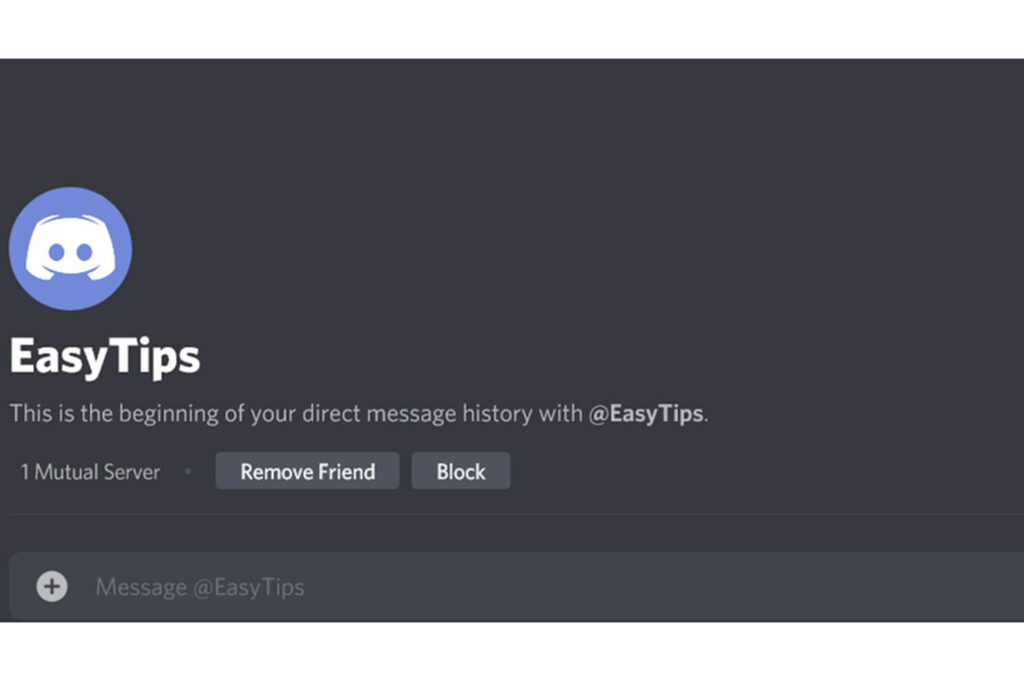
Direct Messages (or DMs) on Discord refer to one-on-one chats between you and another user. You can send them to anyone, even if they aren’t on the same server as you. No one can read your messages. You can send Discord DMs via PC, iOS, Mac, or Android.
How can I send a Discord DM to someone?
Step#1: Go to the top-left corner of your screen and click the Discord icon.
Step#2: Go to the ‘All’ tab by clicking the ‘Friends’ button.
Step#3: Click on the avatar of a user you’re interested in finding out more about.
Step#4: DM someone by typing the message you wish to send in the textbox and pressing the ‘Enter’ key
Can you Send DMs to People that are not on your Friendlist?
Your user privacy settings can determine whether or not you can send a private message to unknowns. To send a DM to a user, you must be on their ‘friends’ list, which means you can’t do so if you are not on their DM list.
Discord’s ‘Privacy and Safety settings include this function, which aims to keep users safe and secure on the platform. Chatting without spam, trolls, or other irritating messages is now possible. You may be unable to communicate with someone who is not a buddy on Discord due to this.
To DM someone on Discord, you must be a friend of that person, and unless they’ve altered their settings, you can’t do so.
How can One Close a Discord DM?
Are you a person that does not like DMs to show up in your Discord’s recent messages? Good for you; you can close DMs on the platform. You’ll be able to spend more time participating in conversations that matter to you this way.
Even if you’re using Discord on your phone or PC, you can close the DMs. Go to the lessons provided below to learn how to accomplish this on Android and iOS.
On your PC:
Via SwipeTips
Step#1: Sign in to your Discord account using the online or desktop app.
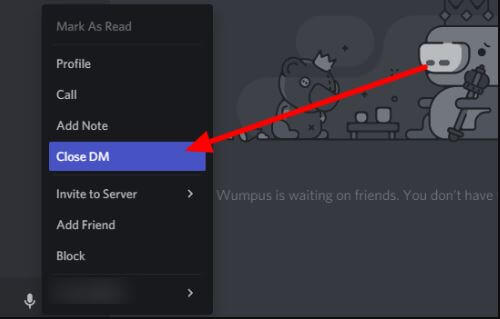
Step#2: When you’re on the Direct Messages area of the Home tab, right-click on the communication you wish to delete.
Step#3: Close DM is the third option when the menu is shown.
Closing a direct message does not remove the contents of the Chat. On Discord, this will erase the Chat from your Direct Messages. You may utilize the search bar to open the previously closed DM. Go to the user’s profile and start a discussion with them there.
On the Mobile Discord App:
Via SwipeTips
Step#1: Open the app and navigate to the Home tab by tapping the hamburger symbol in the upper left corner of the current channel.
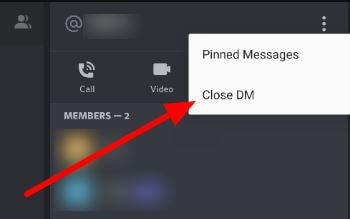
Step#2: If you’d like to send a direct message, open it and hit the symbol in the chat header’s upper right corner.
Step#3: Tap the three-dot symbol on the top right of the screen and select “Close DM” to exit the conversation.
You can close Discord DMs in this way. Your Direct messages list will no longer contain any previously closed conversations. However, if you use the search bar, you may always reopen a previously closed chat.
Do Discord Communications Expire?
No formal method exists for retrieving a communication that the sender has removed. As a result, when a user deletes a message on Discord’s servers, the message is immediately deleted. On the other hand, Discord has a wide range of Bots that we’ll discuss in a moment.
FAQs
Q1: When you delete a Discord account, what happens?
A. You cannot reactivate the Erased accounts, and Discord will permanently delete them. It would help if you did not temper with this feature. It is not the wiki’s responsibility if any harm occurs. A user can remove their Discord account if they no longer want to utilize it.
Q2: Can Discord save chat logs?
A: You may use Discord History Tracker, a browser script, to record all the chats you’ve had on servers, groups, and privately. You can download all messages from a particular text channel to the first message that the script has loaded for offline reading.
Q3:How can I view past Discord messages?
A:You may access settings by clicking on the gear icon in the screen’s bottom-left corner. You may find the “Advanced” part by clicking on “Appearance” and then searching for it. You can activate the “Developer Mode” by turning on the option next to it. Right-click on the user’s name and pick “Copy ID” from the context menu.
Q4: Can Discord Server Owners View Deleted Messages?
A: Are Deleted Messages Visible to Discord Server Admins? You cannot view the deleted messages even if you are the administrator of a Discord server. You can see a message notification that says it is no longer available, but not its content, using an automated tool like Dyno Bot.
Conclusion
Keeping track of the conversations you’ve had recently in Discord is easier now that you’ve learned how to close DMs. Use the methods in this guide for easy access to interactions with friends and other users on the app. When you close a discord DM, this article explains exactly what happens. We sincerely hope that this post has answered some of your questions.