 Как узнать IP адрес сетевого принтера в Windows
Иногда, возникает необходимость узнать IP адрес сетевого принтера, подключенного к вашему компьютеру. Сделать это достаточно легко, нужно только зайти в настройки принтера.
При подключении принтера как WSD устройство
Данный способ подойдет в том случае, если принтер или МФУ подключено через WSD порт. В таком случае, посмотреть адрес можно через свойства устройства.
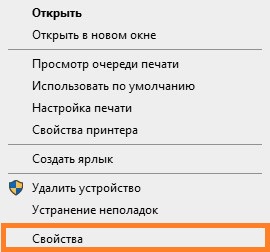
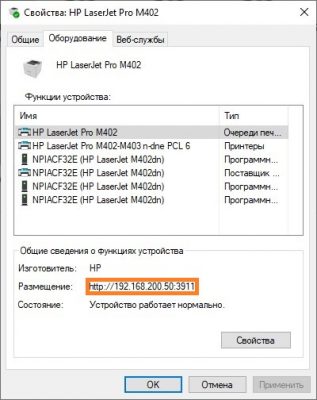
- Открываем Панель управления — Устройства и Принтера, ищем нужное устройство. Нажимаем на нем правой кнопкой и выбираем «Свойства» (не путать с пунктом «Свойства принтера»!).
- Находим вкладку «Оборудование», и переходим на неё.
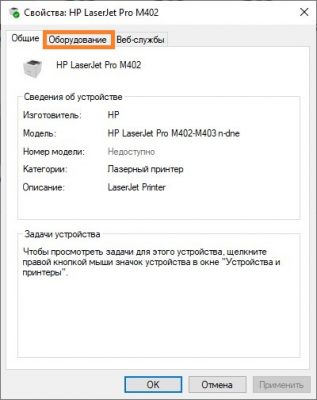
- В самом низу, можно найти раздел «Общие сведения о функциях устройства», и там будет пункт «Размещение», в котором можно увидеть IP адрес устройства.
При подключении принтера как TCP/IP устройство
Если сетевой принтер подключен просто как TCP/IP устройство, можно посмотреть его IP адрес по используемому порту.
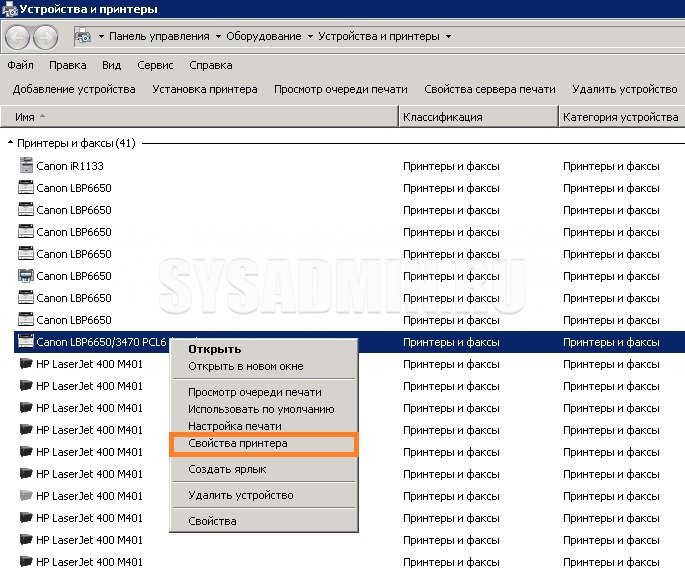
- Для этого, нужно открыть Панель управления — Устройства и Принтеры, и там найти нужное устройство. Далее на нем необходимо нажать правой кнопкой мыши, и выбрать пункт «Свойства принтера» (не путать с пунктом «Свойства»!).
- В появившемся окне свойств принтера переходим на вкладку «Порты».
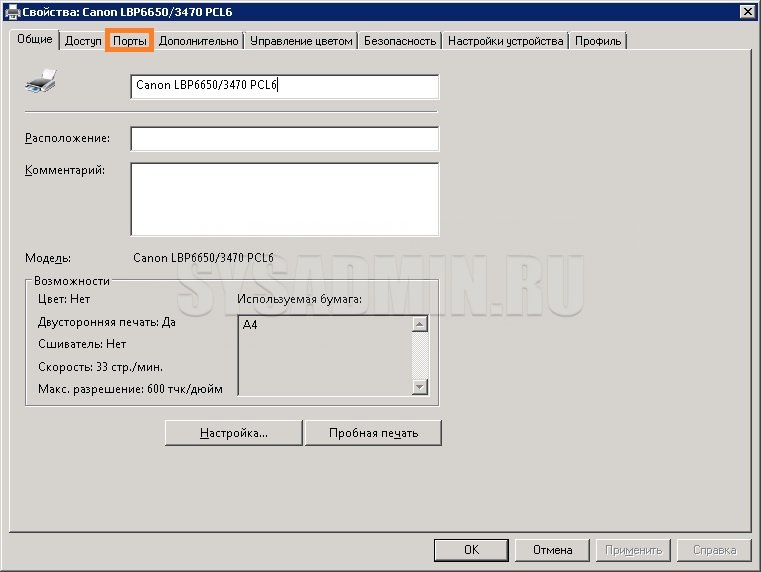
В списке портов ищем тот, который отмечен галочкой — это и есть принтер, свойства которого мы просматриваем. Сразу после галочки должно идти название порта, которое обычно содержит в себе ip адрес принтера.
Find IP Of A Printer Thats Using A WSD Port
The WSD Port Monitor is a new printer port monitor in Windows Vista and Windows Server 2008. This port monitor supports printing to network devices that are designed to include Web Services for Devices (WSD) technology. Web Services for Devices allows network-connected IP-based devices to advertise their functionality and offer these services to clients by using the Web Services protocol. WSD-based devices and clients communicate over the network using a series of SOAP (Simple Object Access Protocol) messages over UDP and HTTP(S). WSD for Devices provides a network plug-and-play experience that is similar to installing a USB device. Web Services for Devices also defines a security profile that may be extended to provide additional protection and authentication using device-based certificates.
This is for WSD ports on printers: Most software that comes with network printers ( HP, Brother or Lemark ) add printers through a WDS Printer Port Interface. This is good when it works, because printers advertise themselves on networks so windows can find them as well as their device driver. Sometimes I find the WDS Service stops on local machines causing issues. Trying to diagnose whether the problem is communication related between the computer and the printer or an actual printer issue is hard through WDS. To troubleshoot issues with a printer that is using a WSD port, try re-adding the printer using an IP port.
To Resolve:
Run => control printers => Right click the printer => Printer Properties => Web Services Tab => Bottom of the page should have the IP address.
If the Web Services tab is unavailable, see if you have the Services tab => Select that and go to the drop down and change it to “Device and Supplies Status” and then select “Go”. Once this launches, it should have the printer’s IP address with it.
As mentioned, remove the printer that is using the WSD port and re-add the printer using its IP Address instead.
Wsd port как узнать ip
Thanks for your replay.
But I cannot understand how to write C++ code.
I know printer name.
I can get the port name from PORT_INFO.
Then how to get the IP Address from printer name or port name?
If you know the site of sample code, please tell me the URL.
for a newbie like me what you said sound like a solution however , what I don’t understand is, which tool gives you this " PKEY_PNPX_IpAddress."
also you mentioned WSD API. do you have any example on this subject?
thanks in advance.
The Windows SDK include a header file named FunctionDiscoveryKeys.h that defines PKEY_PNPX_IpAddress. Its definition looks like this:
DEFINE_PROPERTYKEY(PKEY_PNPX_IpAddress, 0x656A3BB3, 0xECC0, 0x43FD, 0x84, 0x77, 0x4A, 0xE0, 0x40, 0x4A, 0x96, 0xCD, 0x00003009); // VT_LPWSTR | VT_VECTOR
You can use it from C code. Or, in Windows 10, you can query it from powershell:
Get-PnpDeviceProperty -KeyName ‘ <656A3BB3-ECC0-43FD-8477-4AE0404A96CD>12297′ -InstanceId ‘UMB\http://schemas.microsoft.com/windows/2006/08/wdp/print/PrinterServiceType\some_instance_path’
The InstanceId uniquely identifies the device on the system. Get-PnpDevice lists all the devices, and you can find the one you’re interested in. So you could write a bit of powershell to print a table of all the WSD devices and their IP addresses. I don’t actually have any WSD devices handy right now, so I can’t give you finished code, but here’s a starting point that might give you an idea:
how to find out IP address of WSD printer ? i want to use WSD APIs, but unable to get using IWSDDiscoveredDevice
I have tried with WSDDeviceProxy & in that particularly GetMetadata, i am getting all printer information except the IP Address. in one site i have read that IP can be get through IWSDDiscoveredDevice but How create IWSDDiscoveredDevice ?
1 Answer 1
Some time ago I faced a similar issue: find the transport address of the installed WSD printing queue. The good point to start from is to read the specification: http://docs.oasis-open.org/ws-dd/discovery/1.1/wsdd-discovery-1.1-spec.pdf.
If you deal with the installed WSD printer queue, you have printer UUID and may simply send a Resolve request and listen for the ResolveMatch response. The simplest practical way is:
- Get the printer queue port name via EnumPrinters (I used level 5)
- Get the port monitor via EnumPorts
- Get the "Printer UUID" from the registry path
Send UDP packet to address 239.255.255.250 port 3702 with utf-8 encoded data
where messageId is urn:uuid:<GENERATED_GUID> and address is urn:uuid:<PRINTER_UUID>
Receive UDP unicast response
Tranport addresses is stored inside <wsd:XAddrs>
If you don’t deal with the installed printing queue, you have to perform a Probe request, listen to ProbeMatch and only then go for Resolve / ResolveMatch.
I ended up with fully managed minimal solution in 200 lines. In case you are looking for WSDAAPI have a look at the below sample (just an idea, surely not production ready):