Как в браузере перевести сайт на русский язык
 Доброго времени суток.
Вот так бывает «бродишь» по интернету в поисках какой-нибудь нужной информации, и натыкаешься на иностранный сайт . Судя по картинкам, понимаешь, что там разбирается как раз твоя проблема, а прочитать, что написано — не можешь, т.к. в английском слаб (или в немецком, или еще в каком. ). 👀
Конечно, можно пользоваться различными 📌онлайн-переводчиками, копируя и переводя по абзацу нужные данные. Однако, когда имеешь дело с иностранным сайтом — это крайне неудобно (ведь для работы нужно видеть не только абзац, но и перевод меню, каких-то примечаний, да и постоянно переходить из одного окна в другое — удовольствие то еще. ).
Однако, сейчас есть превосходное решение: иностранные сайты можно переводить «на лету» прямо в самом браузере! Почти все современные браузеры поддерживают данную возможность. Ниже рассмотрю, как включить это.
Перевод веб-страниц с иностранного («на лету»)
Chrome
Ссылка на оф. сайт браузера: https://www.google.ru
В одном из самых популярных браузеров, естественно, есть встроенная функция для перевода сайтов на иностранных языках.
Вообще, обычно современная версия Chrome (по умолчанию) автоматически предлагает перевести веб-страничку, если ее язык отличается от вашего. Небольшое окно с предложением появляется в верхнем углу экрана, как только вы заходите на иностранный сайт.
Если этого окна нет — обратите внимание на значок  в адресной строке браузера. Щелкнув по нему — вы сможете автоматически перевести текущую веб-страничку (см. пример ниже 👇).
📌 В помощь!
Что делать, если браузер Chrome не предлагает перевод страницы — [см. инструкцию]
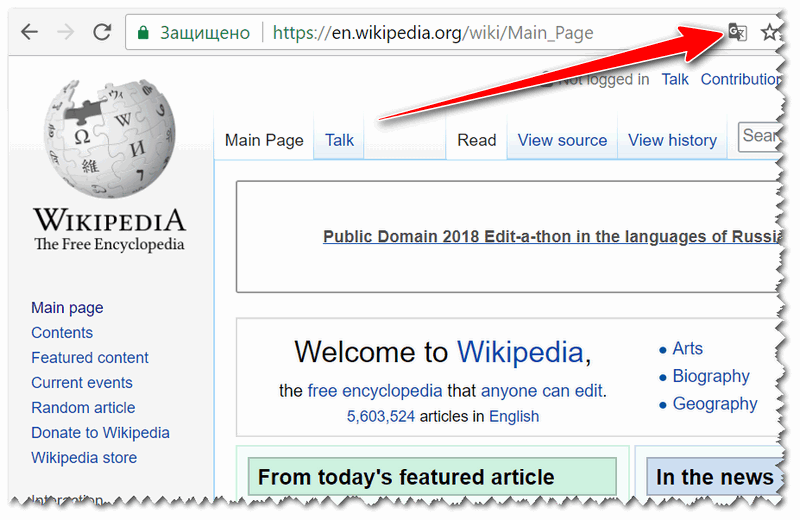
Переводим главную страничку Википедии
Стоит отметить, что качество перевода довольно-таки неплохое: с сайтом можно вполне комфортно работать (просто лет 5-10 назад о таком переводе можно было только мечтать. Смысл многих фраз просто не переводился и приходилось многое домысливать).
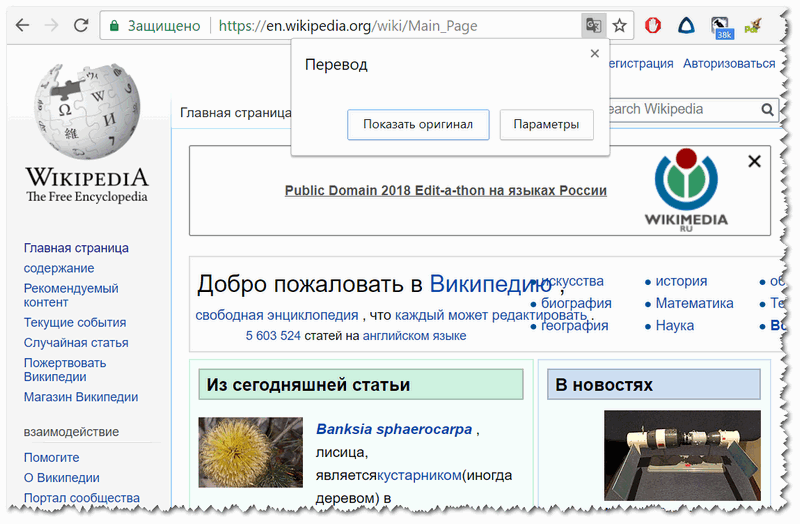
Страничка на русском!
Если у вас нет такого значка и браузер вам не предлагает совсем ничего, когда вы заходите на иностранные сайты, то:
- откройте настройки (страничка: chrome://settings/ );
- затем внизу экрана раскройте «Дополнительные» настройки;
- в разделе «Языки» обратите внимание на настройку «Предлагать перевод страниц, если их язык отличается от используемого в браузере» (включите ее, если она у вас выключена);
- обновите страничку на иностранном языке (кнопка F5 в браузере).
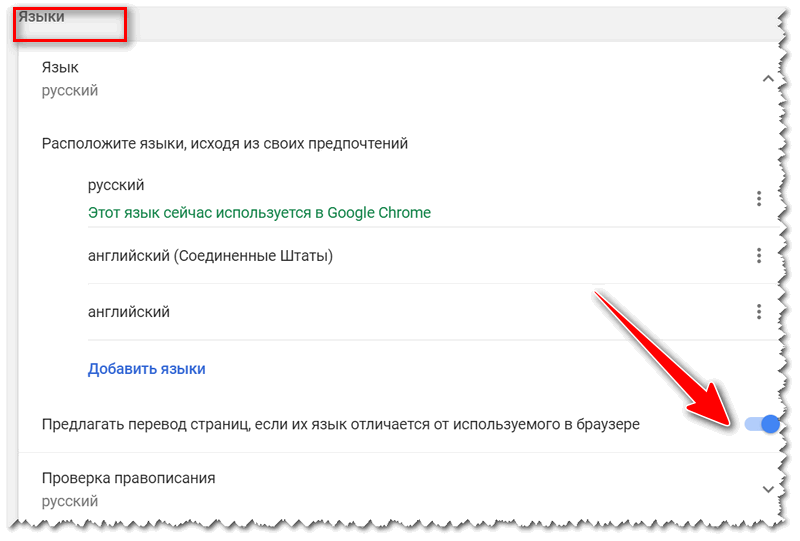
Языки — настройки в Chrome
Если у вас очень старая версия Chrome, то просто обновите (переустановите) браузер (ссылка на официальный сайт приведена чуть выше).
Яндекс-браузер
Прямой конкурент Chrome.
Что касается перевода : то в чем-то он лучше, чем в Chrome, в чем-то хуже (кстати, в новой версии браузера — есть опция для перевода просматриваемого видео! Т.е. вы будете слышать русскую речь вместо английской, оригинальной!).
В плане использования — то разницы нет: при открытии сайта на английском (например), также в верхнем меню появляется предложение перевести на русский.
Если соглашаетесь — видите оптимизированную страничку, перевод достаточно качественный (см. пример ниже 👇).
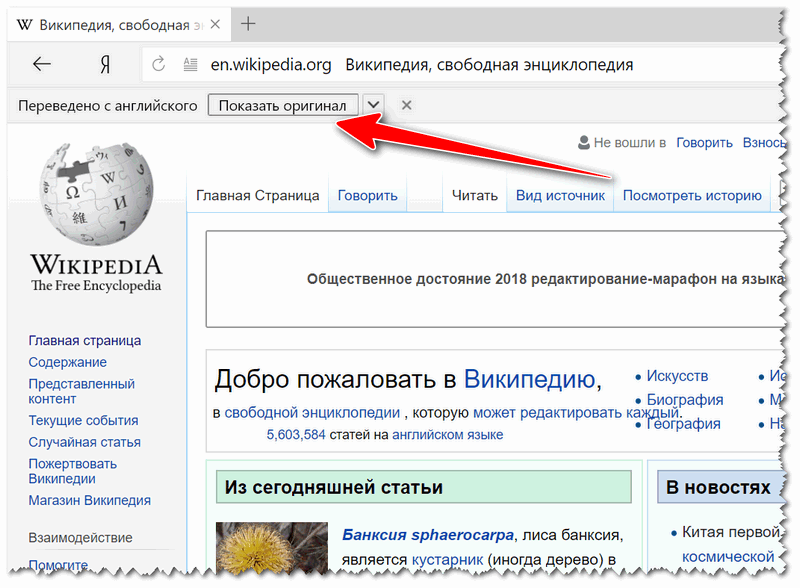
Если у вас не появляется сообщение о возможности перевода странички, то скорее всего опция отключена в настройках браузера. Чтобы включить, необходимо:
- открыть параметры;
- нажать на кнопку просмотра дополнительных опций;
- в разделе «Языки» проверьте, чтобы стояли три галочки: «Предлагать перевести страницы, язык которых отличается от языка интерфейса», «Предлагать перевод слов и фраз при выделении текста», «Переводить слова по наведению курсора и нажатию кнопки Shift».
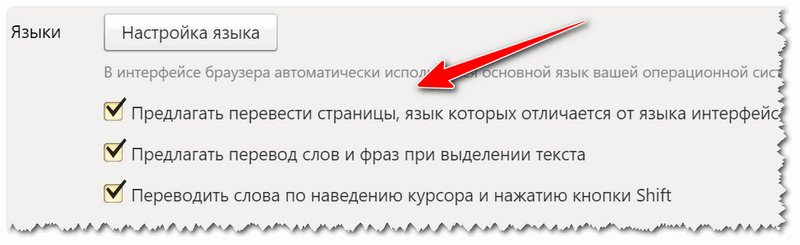
Языки — настройки Яндекс-браузера
Собственно, задав подобные настройки, обновите страничку (клавиша F5) и посмотрите на верхнее меню: браузер должен предложить осуществить перевод.
Opera
К сожалению, непосредственно переводчик в сам браузер не встроен. Однако, для перевода есть большое число различных дополнений (аддоны). Я рекомендую попробовать дополнение Translator (ссылку на него привел чуть выше).
После его установки, в правом верхнем углу у вас появится небольшой значок. Когда вы зашли на иностранный сайт — вы можете щелкнуть по этому значку и у вас откроется небольшое окно:
- в нем можно перевести отдельные фразы и словосочетания;
- а можно перейти по ссылке «Перевести активную страницу. « — затем должна открыться новая вкладка с полным переводом странички.
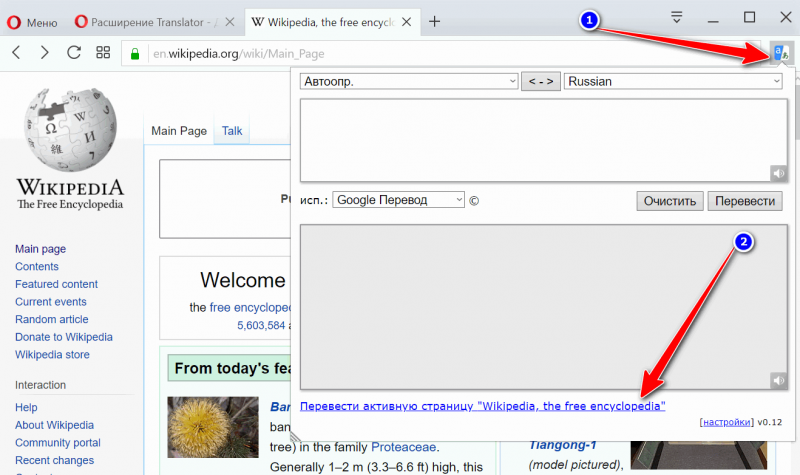
Перевод в OPERA
Перевод осуществляется технологией Google (кстати, вам будет рекомендовано установить Chrome). В принципе, далее можете переходить по любым ссылкам на сайте — следующие открытые странички будут переводиться в этой вкладке автоматически (каждый раз открывать аддон ненужно!).
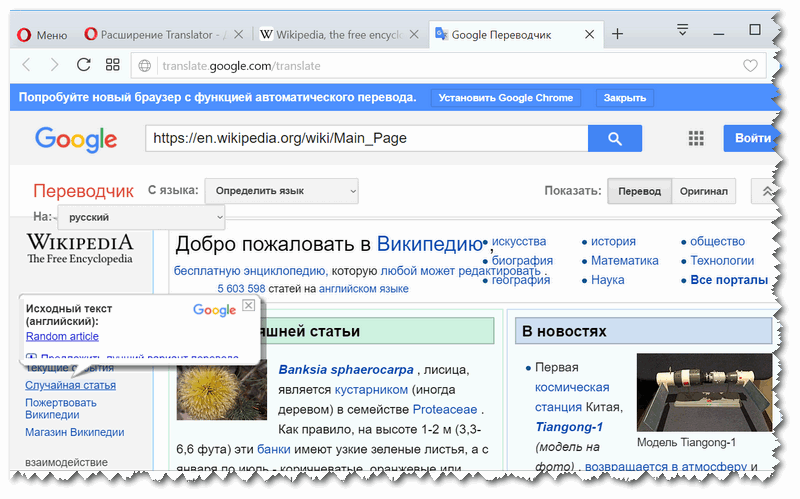
Открывается новая вкладка с результатами
Firefox
Firefox аналогичен Opera — также не имеет встроенного переводчика. Поэтому, чтобы добавить данную функцию в браузер — придется использовать какое-нибудь дополнение (аддон).
Их, конечно, сотни, но протестировав с десяток из них — я все же пришел к выводу, что выигрывает Google Translator (ссылку привел выше).
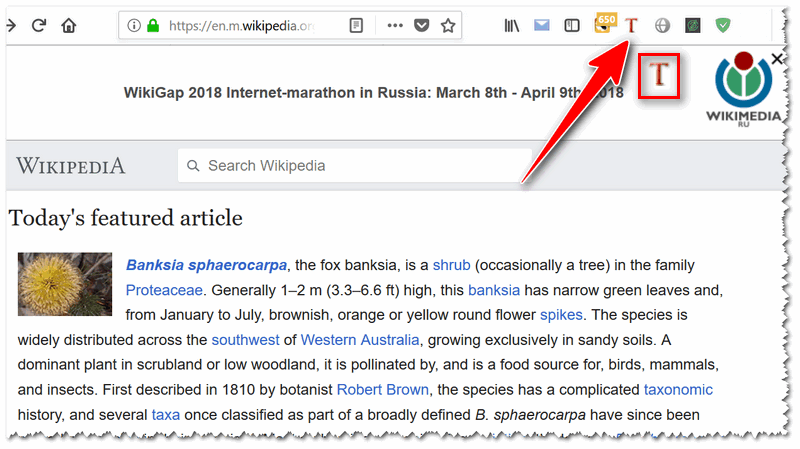
Буква «T» в Firefox
Аддон крайне простой: после его установки у вас в верхнем меню программы появится значок с буквой «T». Достаточно щелкнуть по нему левой кнопкой мышки — и ваша страничка будет переведена. Быстро и удобно!
👉 Еще по теме!
Переводчик с фото онлайн: для компьютера и смартфона (перевод того, что попало в камеру/объектив телефона)
Виджет «Google Переводчик»
Виджет «Google Переводчик» позволяет посетителям сайта быстро перевести содержимое сайта на другой язык.
В этом руководстве
Добавление виджета «Google Переводчик»
Чтобы добавить виджет на сайт, выполните указанные ниже действия.
- В консоли щёлкните Внешний вид →Виджеты.
- Выберите место для размещения виджета на сайте. Обычно используются подвал и боковая панель, но выбор зависит от вашей темы.
- Нажмите любую кнопку + вставки блоков (см. справа), чтобы увидеть список всех доступных блоков и виджетов.
- Прокрутите раздел Виджеты вниз и щёлкните один раз виджет, чтобы добавить его на свой сайт.
Общие сведения о работе с виджетами см. в этом руководстве.

Кнопки вставки блоков
Добавление виджета «Google Переводчик» в редакторе сайта
Этот раздел руководства применяется к сайтам с тарифными планами WordPress.com Business или eCommerce. Если на вашем сайте действует один из устаревших тарифных планов, эта функция доступна для плана Pro.
В темах, поддерживающих редактор сайта, не используются виджеты, поэтому вы не увидите раздел Внешний вид → Виджеты на своей консоли.
Вместо этого можно использовать блок «Произвольный HTML», чтобы отобразить Google Переводчик на веб-сайтах с поддержкой плагинов.
Для этого выполните следующие действия:
-
на страницу или в шаблон, где требуется отобразить Google Переводчик.
- Скопируйте и вставьте указанный ниже код в блок «Произвольный HTML».
При предварительном просмотре или после публикации страница будет выглядеть вот так:

Использование виджета «Google Переводчик»
Читатели могут щёлкнуть раскрывающееся меню выбора языка, чтобы увидеть список доступных языков для перевода. После выбора языка из списка содержимое сайта будет переведено.


После перевода содержимого сайта в верхней части окна отобразится панель Google Переводчика с указанием выбранного языка. На ней можно щёлкнуть стрелку рядом с текущим языком, чтобы отобразить полный список и выбрать другой язык для перевода, или нажать «Показать оригинал» для перехода к исходной языковой версии сайта. Кроме того, переключаться между языками можно непосредственно с помощью виджета.

Перенаправление посетителей на определённую языковую версию
Альтернативой виджету является ссылка на автоматический перевод содержимого сайта, которая позволяет перенаправить посетителей на определённую языковую версию.
После включения виджета «Google Переводчик» на вашем сайте можно добавить языковой код к URL-адресу сайта, чтобы автоматически перевести его на нужный язык. Например:
- ?lang=id переводит страницу на индонезийский
- ?lang=de переводит страницу на немецкий
- ?lang=es переводит страницу на испанский
- ?lang=fr переводит страницу на французский
- ?lang=zh-TW переводит страницу на тайваньский вариант китайского языка
Для большинства языков достаточно использовать двухбуквенную аббревиатуру в нижнем регистре. Узнать код нужного языка можно в этом списке кодов ISO 639-1. Однако к аббревиатуре некоторых языков необходимо применить код регионального варианта, например ?lang=zh-TW для тайваньского варианта китайского языка.
Кастомный виджет googleTranslate для сайта
Получить доступ к переводчику сайтов больше нельзя. Это никак не отразится на тех, кто уже установил соответствующий плагин.
Советуем пользователям переводить веб-страницы с помощью браузеров, имеющих встроенную функцию перевода.
Не сложно догадаться какой браузер имеет ввиду Google, но речь не об этом. Самое главное, что плагин все также остается рабочим и мы можем им пользоваться. Кроме того, за неимением возможности генерировать виджет, данная тема становиться еще более актуальной, ведь потребность в машинном переводе никуда не исчезла, а Google Translate, на мой взгляд, один из самых мощных инструментов для этого.
Как будет выглядеть наш пример:
Для корректной работы нашего кастомного виджета необходимо подключить файлы:
Содержимое style.css:


Разметка кастомного виджета:
Содержимое google-translate.js:
При смене языка добавляется куки с ключом googtrans и значением вида /ru/en
- /ru — это язык который переводим
- /en — это язык на который переводим
Это стандартное поведение, поэтому я им и воспользовался для кастомизации виджета. Кликая по флажкам необходимых языков, из атрибута data-google-lang в куки записываются соответствующие значение вида /auto/выбранный_язык. Затем происходит перезагрузка и auto заменяется на язык записанный отдельно в конфиг:
Это сделано для того, чтобы мы не привязывались к одному языку. Если к примеру сайт переведен на 2 языка, русский и английски, то мы можем передать текущий язык в конфиг и правильно обработать его. Все доступные языки и их код стандарта ISO-639-1 можно найти тут.
Функции добавления и очисти куки я вынес отдельно, чтобы была возможность провести дополнительные проверки и вызвать в других местах. Важный момент, куки необходимо менять для основного домена и всех поддоменов.
Теперь, имея контроль над нашим виджетом, мы можем без проблем реализовывать более сложные дизайны:
8 Best WordPress Translation Plugins 2023: Free and Paid
If you want your website to reach a wider audience, enabling a multilingual feature is one way to achieve that. WordPress doesn’t come with such a function, but with the help of translation plugins, creating a multilingual WordPress website is still relatively easy.
This tutorial will discuss what a WordPress translation plugin is and the benefits of using one.
We will also list the best WordPress translation plugins, which offer functions like automated translation and integrations to improve the process. The premium options also include additional tools for WordPress search engine optimization (SEO) and eCommerce features.

What Is a Translation Plugin
A WordPress translation plugin translates your site’s content into multiple languages, allowing visitors to browse the website in their preferred one.
Translation plugins for WordPress usually fall into one of these categories: automatic machine translation and self-translation.
The first type of plugin uses a translation API, such as Google Translate, to translate your website’s content. Even though these automatic machine translations have improved over time, they might still contain mistakes and misused words.
Keep in mind that some plugins do not allow you to edit automated translations, while others require that you pay extra to access that kind of function.
Compared to automatic translation, using a self-translation plugin requires a lot of work, but it is one of the surest ways to produce high-quality translations.
With this type of plugin, you can edit the translations and adjust them to fit your style. However, you might need to hire a professional translator, increasing your total costs.
If you only intend to translate buttons, menus, and simple text, the automated translation plugins are an excellent choice.
We included both types of WordPress translation plugins in our list, so you’ll be able to find a tool that fits your budget and offers your preferred translation methods.
The Best Free WordPress Translation Plugins
- GTranslate
- TranslatePress
- Google Website Translator
- Loco Translate
These are some of the best WordPress translation plugins that you can download for free to create your multilingual website. All of them can be easily installed and used on your website hosted with Hostinger’s WordPress shared hosting.
1. GTranslate
The GTranslate plugin by Translate AI Multilingual Solutions is a freemium WordPress plugin. It uses the Google Translate API to translate your WordPress site automatically.
It supports over 100 languages, making it more flexible than many other translation plugins. It also provides unlimited words and page views, which is an excellent feature for sites that need to translate a lot of content.
GTranslate is also an SEO-friendly plugin. It also offers two custom URL structures to choose from, helping you manage the translated content. The customizable language-switcher widget is a feature that will let your customers switch languages with ease.
This plugin’s free version is an excellent option for all WordPress users. However, features like editing machine translations, language hosting, and search engine indexing are only available in its paid plan, which starts at $9.99/month.
2. TranslatePress

TranslatePress is a freemium WordPress translation plugin. It can translate content, media, custom post types, WordPress themes, plugins, and more.
Like Lingotek, TranslatePress supports both manual and automatic translation. Users are free to add a language switcher to their website, giving visitors a chance to adjust the language settings to fit their preferences.
A unique aspect of TranslatePress is that it lets users translate directly on the front-end. The live-preview feature also makes it easier to go back and forth between languages when translating. This way, you can quickly spot mistakes and edit them as you go.
TranslatePress doesn’t link you directly to translation services, which can be an inconvenience if you’re looking to outsource your translations.
If you want extra features such as translator accounts and the possibility of translating meta information, you’ll need a premium plan. You can purchase it from €79/year for a single site.
3. Google Website Translator

Google Website Translator is a plugin made by Prisna. It is open-source software that people can use for free to create their multilingual websites.
Similar to the GTranslate plugin, it lets you translate your content automatically with Google Translate to over 100 languages.
Google Website Translator is easy to use, and it doesn’t limit the number of words you can translate. It is also a lightweight plugin, so it will not affect your page speed.
However, Google Website Translator Plugin isn’t very flexible. It cannot translate your website’s URLs, which puts your posts at a disadvantage when it comes to search engines. Another downside is that it does not allow you to edit the translated content.
4. Loco Translate
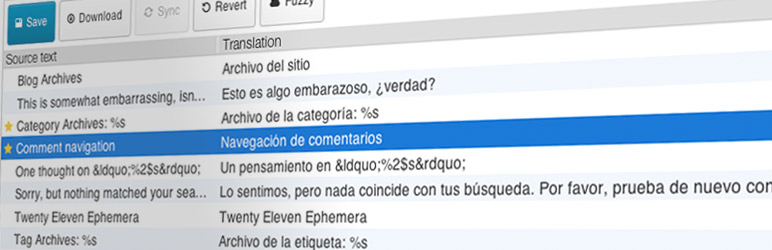
Loco Translate is a freemium WordPress translator plugin targeted at developers.
It has a simple user interface for translators to work on, allowing them to focus on their work entirely.
To make the translation process simpler, Loco Translate integrates well with famous translating APIs like DeepL and Google.
Loco Translate is mainly used to translate themes and plugins from your WordPress admin area. However, when the themes or plugins release their new versions, you will have to update the translation manually as Loco Translate doesn’t automatically update it for you.
The plugin is free for up to 2,000 translations. Loco Translate’s paid version is available from $5.95/month, and, besides unlimited translations, it also offers unlimited languages and revision history.
The Best Paid WordPress Translation Plugins
- Weglot
- Polylang Pro
- WPML
- MultilingualPress
If you’re looking to translate a high volume of content or rid yourself of the limitations of free plugins, check our recommendations for the best WordPress premium translation plugins.
1. Weglot
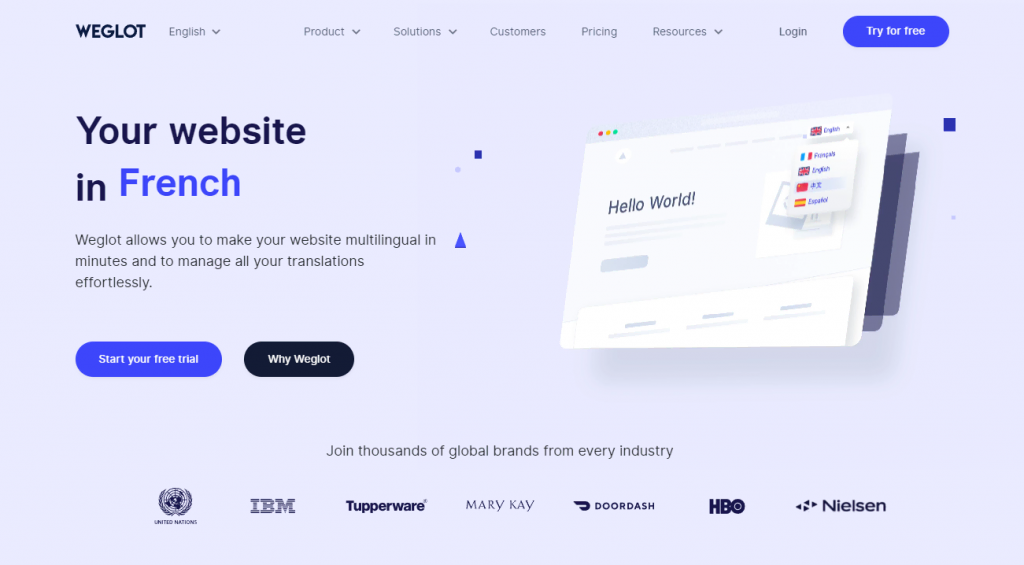
Weglot is a popular paid plugin that supports 100+ languages.
This plugin focuses on automatic and manual translations for the best results. Depending on your target audience, Weglot integrates the best-automated translation providers, such as Google, DeepL, and Microsoft.
Weglot is a user-friendly tool offering two translation interfaces.
The first is a side-by-side interface displaying the original language next to the translated version. This feature makes it easier to further modify the translations.
Secondly, Weglot has a visual translation editor to show a live preview of the website’s front-end. You can see the translated version directly on your website with this interface.
Translators can manage projects and collaborate easier with Weglot’s translation management system. If you don’t have enough people on your team, you can commission its translation service directly from the dashboard.
However, the main dashboard is not integrated into WordPress. Users must sign in to their Weglot account to use this plugin.
Weglot offers six pricing options. The most affordable plan costs around $9.99/month for one translated language and up to 10,000 words. The exact pricing will depend on the EUR/USD rate on your subscription date.
2. Polylang Pro

The Polylang Pro plugin allows you to translate the posts, menus, categories, and even the WordPress widgets of your website.
What’s especially great about the Polylang plugin is that it allows you to add as many languages as you want. You can conveniently separate the translations into subdirectories, subdomains, or even different domains based on language.
To help visitors quickly change to their preferred language, it is also possible to add a language switcher in the navigation menu or as a widget.
Polylang Pro also gives you the option to integrate Lingotek as an add-on. It will make it easier for you to manage your translation projects since it will provide access to automatic and professional translation services.
Its compatibility with Yoast SEO and other WordPress SEO plugins makes it a popular option for website owners who want to make their content SEO-friendly.
Even though Polylang has a free version available, it comes with limited features. It cannot translate URL slugs or give access to premium support, for example.
Polylang Pro is available for €99 for usage on one site.
3. WPML

WPML is one of the best translation plugins for WordPress. Its functionality is extensive, as it allows for the translation of a website, its theme, plugins, taxonomies, strings, custom fields, and many more fields.
This plugin comes with its own translation management system. It lets you assign translator roles to other users without giving them admin access and pair translators with specific languages.
Like Lingotek, WPML gives you three options to translate content. The first is machine translation using either Microsoft Azure, Google, or DeepL.
You can also translate manually or outsource the work to professional translators as WPML allows you to connect the website to third-party services.
It also gives you three options when it comes to URL structure to ensure an SEO-friendly translated website.
However, WPML only comes with around 40 language options, which is significantly less, compared to other paid translation plugins.
WPML automatic translations are also very limited, providing only 2,000 credits/month at no additional cost. The value of each credit depends on the machine translation software you choose. If you use up all the credit, you have to pay as you go.
For $29/year, you can get the Multilingual Blog bundle. The yearly renewals cost less than the initial price, making it a great investment in the long term.
4. MultilingualPress
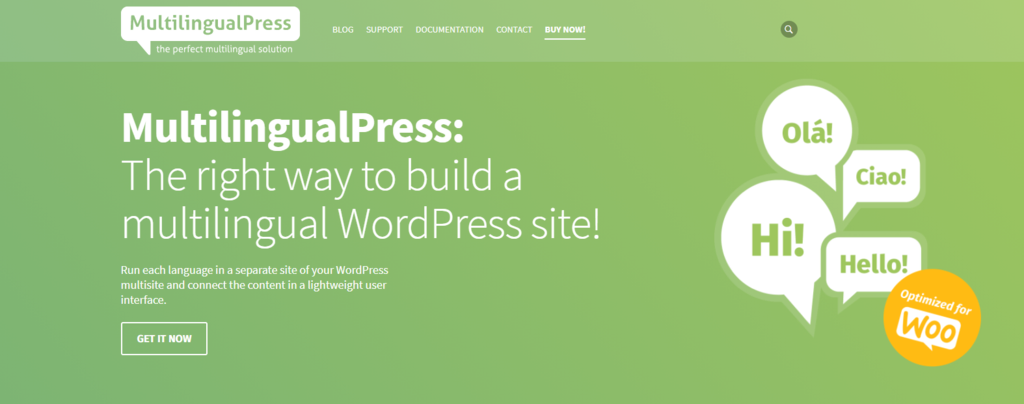
MultilingualPress lets you separate your translations to different sites based on their language using the WordPress multisite network.
This creates different versions of your site, which is great if you want to expand while including specific local content.
MultilingualPress lets users manage their custom fields and translations in one central place thanks to its compatibility with the Advanced Custom Fields plugin.
If you own an eCommerce site, the plugin allows you to easily create multiple stores and translate your posts. MultilingualPress is also optimized for WooCommerce, making it great for enterprises who want to expand their market.
In addition to that, there are more than 800 languages available when you first download the plugin. You can keep adding more languages as you go.
Based on the user’s browser language, MultilingualPress will redirect them to their preferred language as well.
MultilingualPress is a bit more expensive when compared to other multilingual plugins. Its top seller is the Pro plan, which includes six languages and three multi-sites for $299/year.
Benefits of Multilingual Websites
There are a few reasons why you should consider having a multilingual site, the main ones being localization and SEO.
Language can be a barrier that keeps your products away from potential customers. People might be aware your brand exists, but you also want them to know more about your products and the unique features they offer.
Localizing content is a great way to bridge the gap. If your WordPress website provides multiple options, visitors can choose whichever language they feel most comfortable with.
Besides, being on top of SEO can help businesses get the edge over their competitors.
When you use a particular language, your WordPress website will compete with other sites that do so. Depending on the language you choose, you may have less competition in the search engines.
It also allows you to focus your SEO strategy on region and language-specific keywords. Ranking higher in search engine results means your WordPress website is more likely to be noticed, resulting in a wider audience.
Discover Other WordPress Plugins to Help Build Your Website
Conclusion
Creating a multilingual site is an excellent investment for your business. It helps your site reach a wider audience through localization, helps your content rank higher in search engine results, and helps your site stand out from the competition.
There are many multilingual plugins to choose from, both free and paid. If you are still unsure about which WordPress plugin to go for, our top recommendations are:
- Best free translation plugin: GTranslate. GTranslate is a free plugin that requires minimal management. It is easy to use and extremely convenient for quick translations.
- Best paid translation plugin:Weglot. Provides an extensive set of features at a reasonable price. Weglot offers both automatic and manual translation – excellent for optimizing your multilingual website to its full potential.
In the end, the choice of the best WordPress translation plugin depends entirely on your website’s needs and budget.
Let us know in the comments below which plugin you end up choosing.
Domantas leads the content and SEO teams forward with fresh ideas and out of the box approaches. Armed with extensive SEO and marketing knowledge, he aims to spread the word of Hostinger to every corner of the world. During his free time, Domantas likes to hone his web development skills and travel to exotic places.