Configuring networks
Ubuntu ships with a number of graphical utilities to configure your network devices. This document is geared toward server administrators and will focus on managing your network on the command line.
Ethernet interfaces
Ethernet interfaces are identified by the system using predictable network interface names. These names can appear as eno1 or enp0s25. However, in some cases an interface may still use the kernel eth# style of naming.
Identify Ethernet interfaces
To quickly identify all available Ethernet interfaces, you can use the ip command as shown below.
Another application that can help identify all network interfaces available to your system is the lshw command. This command provides greater details around the hardware capabilities of specific adapters. In the example below, lshw shows a single Ethernet interface with the logical name of eth4 along with bus information, driver details and all supported capabilities.
Ethernet Interface logical names
Interface logical names can also be configured via a Netplan configuration. If you would like control which interface receives a particular logical name use the match and set-name keys. The match key is used to find an adapter based on some criteria like MAC address, driver, etc. The set-name key can be used to change the device to the desired logical name.
Ethernet Interface settings
ethtool is a program that displays and changes Ethernet card settings such as auto-negotiation, port speed, duplex mode, and Wake-on-LAN. The following is an example of how to view the supported features and configured settings of an Ethernet interface.
IP addressing
The following section describes the process of configuring your system’s IP address and default gateway needed for communicating on a local area network and the Internet.
Temporary IP address assignment
For temporary network configurations, you can use the ip command which is also found on most other GNU/Linux operating systems. The ip command allows you to configure settings which take effect immediately – however they are not persistent and will be lost after a reboot.
To temporarily configure an IP address, you can use the ip command in the following manner. Modify the IP address and subnet mask to match your network requirements.
The ip can then be used to set the link up or down.
To verify the IP address configuration of enp0s25 , you can use the ip command in the following manner:
To configure a default gateway, you can use the ip command in the following manner. Modify the default gateway address to match your network requirements.
You can also use the ip command to verify your default gateway configuration, as follows:
If you require DNS for your temporary network configuration, you can add DNS server IP addresses in the file /etc/resolv.conf . In general, editing /etc/resolv.conf directly is not recommended, but this is a temporary and non-persistent configuration. The example below shows how to enter two DNS servers to /etc/resolv.conf , which should be changed to servers appropriate for your network. A more lengthy description of the proper (persistent) way to do DNS client configuration is in a following section.
If you no longer need this configuration and wish to purge all IP configuration from an interface, you can use the ip command with the flush option:
Note
Flushing the IP configuration using the ip command does not clear the contents of /etc/resolv.conf . You must remove or modify those entries manually (or re-boot), which should also cause /etc/resolv.conf , which is a symlink to /run/systemd/resolve/stub-resolv.conf , to be re-written.
Dynamic IP address assignment (DHCP client)
To configure your server to use DHCP for dynamic address assignment, create a Netplan configuration in the file /etc/netplan/99_config.yaml . The following example assumes you are configuring your first Ethernet interface identified as enp3s0 .
The configuration can then be applied using the netplan command:
Static IP address assignment
To configure your system to use static address assignment, create a netplan configuration in the file /etc/netplan/99_config.yaml . The example below assumes you are configuring your first Ethernet interface identified as eth0 . Change the addresses , routes , and nameservers values to meet the requirements of your network.
The configuration can then be applied using the netplan command.
NOTE
netplan in Ubuntu Bionic 18.04 LTS doesn’t understand the “ to: default ” syntax to specify a default route, and should use the older gateway4: 10.10.10.1 key instead of the whole routes: block.
The loopback interface is identified by the system as lo and has a default IP address of 127.0.0.1. It can be viewed using the ip command.
Name resolution
Name resolution (as it relates to IP networking) is the process of mapping hostnames to IP addresses, and vice-versa, making it easier to identify resources on a network. The following section will explain how to properly configure your system for name resolution using DNS and static hostname records.
DNS client configuration
Traditionally, the file /etc/resolv.conf was a static configuration file that rarely needed to be changed, or it automatically changed via DCHP client hooks. systemd-resolved handles nameserver configuration, and it should be interacted with through the systemd-resolve command. Netplan configures systemd-resolved to generate a list of nameservers and domains to put in /etc/resolv.conf , which is a symlink:
To configure the resolver, add the IP addresses of the appropriate nameservers for your network to the netplan configuration file. You can also add optional DNS suffix search-lists to match your network domain names. The resulting file might look like the following:
The search option can also be used with multiple domain names so that DNS queries will be appended in the order in which they are entered. For example, your network may have multiple sub-domains to search; a parent domain of example.com , and two sub-domains, sales.example.com and dev.example.com .
If you have multiple domains you wish to search, your configuration might look like the following:
If you try to ping a host with the name server1 , your system will automatically query DNS for its Fully Qualified Domain Name (FQDN) in the following order:
If no matches are found, the DNS server will provide a result of notfound and the DNS query will fail.
Static hostnames
Static hostnames are locally defined hostname-to-IP mappings located in the file /etc/hosts . Entries in the hosts file will have precedence over DNS by default. This means that if your system tries to resolve a hostname and it matches an entry in /etc/hosts , it will not attempt to look up the record in DNS. In some configurations, especially when Internet access is not required, servers that communicate with a limited number of resources can be conveniently set to use static hostnames instead of DNS.
The following is an example of a hosts file where a number of local servers have been identified by simple hostnames, aliases and their equivalent Fully Qualified Domain Names (FQDN’s):
Note
In this example, notice that each of the servers were given aliases in addition to their proper names and FQDN’s. Server1 has been mapped to the name vpn, server2 is referred to as mail, server3 as www, and server4 as file.
Name Service Switch (NSS) configuration
The order in which your system selects a method of resolving hostnames to IP addresses is controlled by the Name Service Switch (NSS) configuration file /etc/nsswitch.conf . As mentioned in the previous section, typically static hostnames defined in the systems /etc/hosts file have precedence over names resolved from DNS. The following is an example of the line responsible for this order of hostname lookups in the file /etc/nsswitch.conf .
files first tries to resolve static hostnames located in /etc/hosts .
mdns4_minimal attempts to resolve the name using Multicast DNS.
[NOTFOUND=return] means that any response of notfound by the preceding mdns4_minimal process should be treated as authoritative and that the system should not try to continue hunting for an answer.
dns represents a legacy unicast DNS query.
mdns4 represents a multicast DNS query.
To modify the order of these name resolution methods, you can simply change the hosts: string to the value of your choosing. For example, if you prefer to use legacy unicast DNS versus multicast DNS, you can change the string in /etc/nsswitch.conf as shown below:
Bridging multiple interfaces
Bridging is a more advanced configuration, but is very useful in multiple scenarios. One scenario is setting up a bridge with multiple network interfaces, then using a firewall to filter traffic between two network segments. Another scenario is using bridge on a system with one interface to allow virtual machines direct access to the outside network. The following example covers the latter scenario:
Configure the bridge by editing your netplan configuration found in /etc/netplan/ , entering the appropriate values for your physical interface and network:
Now apply the configuration to enable the bridge:
The new bridge interface should now be up and running. The brctl provides useful information about the state of the bridge, controls which interfaces are part of the bridge, etc. See man brctl for more information.
networkd-dispatcher for hook scripts
Users of the former ifupdown may be familiar with using hook scripts (e.g., pre-up, post-up) in their interfaces file. Netplan configuration does not currently support hook scripts in its configuration definition.
Instead, to achieve this functionality with the networkd renderer, users can use networkd-dispatcher. The package provides both users and packages with hook points when specific network states are reached, to aid in reacting to network state.
Note:
If you are on Desktop (not Ubuntu Server) the network is driven by Network Manager — in that case you need NM Dispatcher scripts instead.
The Netplan FAQ has a great table that compares event timings between ifupdown / systemd-networkd / network-manager .
It is important to be aware that these hooks run asynchronously; i.e. they will not block transition into another state.
The Netplan FAQ also has an example on converting an old ifupdown hook to networkd-dispatcher .
Resources
The Ubuntu Wiki Network page has links to articles covering more advanced network configuration.
The Netplan website has additional examples and documentation.
The Netplan man page has more information on Netplan.
The systemd-resolved man page has more information on systemd-resolved service.
Как настроить статический IP-адрес в Ubuntu Server 20.04
Настройка сети в Ubuntu Server 20.04 LTS осуществляется через утилиту Netplan.
NetPlan — это инструмент для управления настройками сети, представленный в Ubuntu начиная с версии 17.10 и выше.
Этот инструмент заменяет файл статических интерфейсов /etc/network/interfaces , который ранее использовался для настройки сетевых интерфейсов в Ubuntu. Теперь нужно использовать /etc/netplan/*.yaml для ваших изменений в настройках сетевых интерфейсов.
Определение сетевых интерфейсов
Определите все доступные сетевые интерфейсы используя команду ip или lshw :
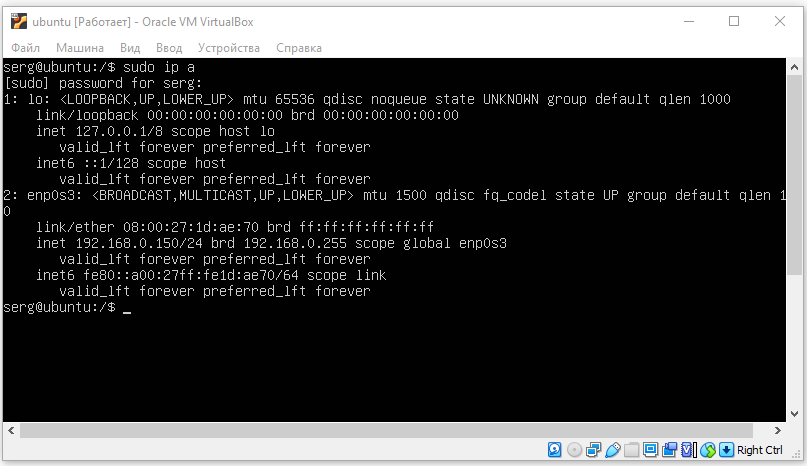
У меня уже настроен IP адрес: 192.169.0.150. Я изменю его.
Настройки локальной сети
Отредактируйте файл конфигурации netplan который находится в директории /etc/netplan/ :
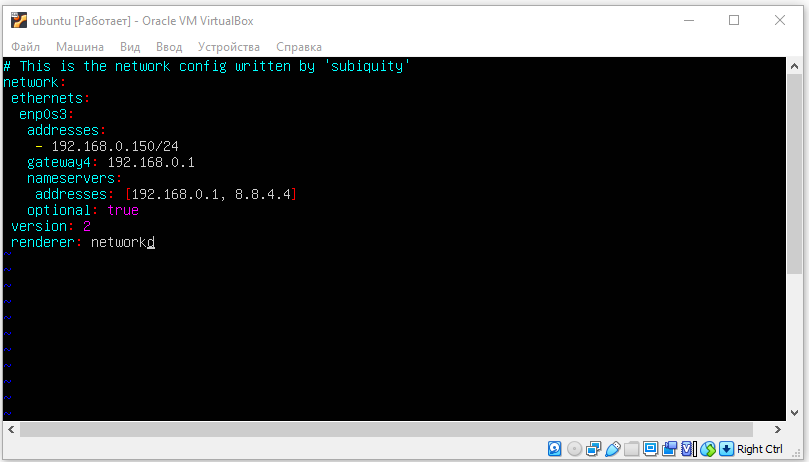
Здесь придётся прописать всё ручками, если у вас ещё нет доступа по SSH. У меня этот файл уже редактировался, мне необходимо изменить только IP адрес.
Основные настройки:
- addresses — ip адрес который будет назначен вашей сетевой карте.
- gateway4 — ip адрес вашего роутера.
- nameservers — DNS сервера. Первый — наш роутер.
- search — домен в котором будет произведен поиск. Домен можно настроить при помощи DNS сервера
Мои настройки:
ВАЖНО!
Обратите внимание на пробелы! Именно пробелы должны быть, а не табуляция. Если у вас после сохранения файла не появилась ошибка типа: Error while loading /etc/netplan/00-installer-config.yaml, то файл отредактирован правильно с точки зрения его синтаксиса.
После редактирования файла: Esc -> Shift + : -> wq! -> Enter .
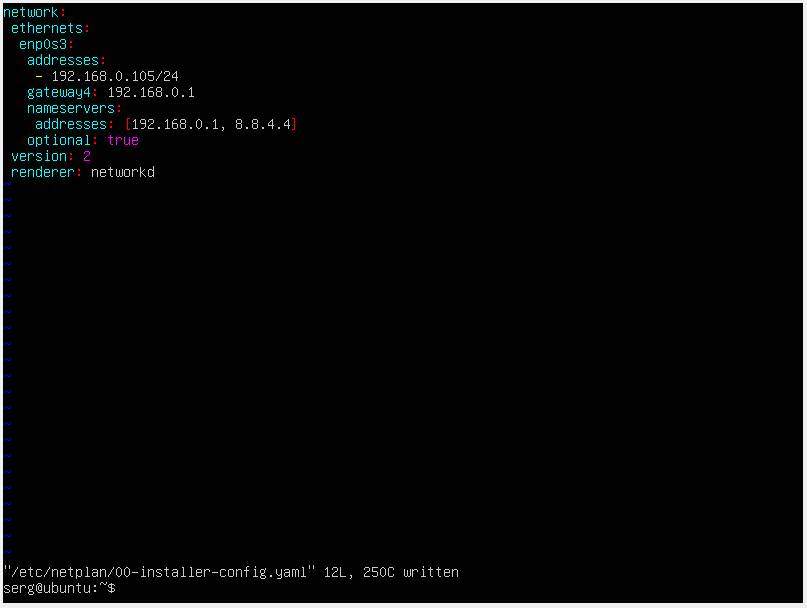
Если есть необходимость передать управление сетевыми устройствами утилите NetworkManager:
Настройки беспроводной сети
Для корректной работы беспроводного интерфейса вам потребуется установить утилиту WPA supplicant , которая позволяет подключиться к точкам доступа с WPA. WPA и WPA2:
Добавьте новый файл конфигурации в каталог /etc/netplan/ :
Отредактируйте файл конфигурации беспроводной сети с динамическим ip-адресом (DHCP):
Для беспроводной сети в которой используются статические ip-адреса подойдет следующая конфигурация:
Применение конфигурации
Использование netplan для генерации необходимой конфигурации:
Для подробного вывода информации при генерации, используйте опцию —debug :
Применение конфигурации netplan:
Для подробного вывода информации при применении, используйте опцию —debug :
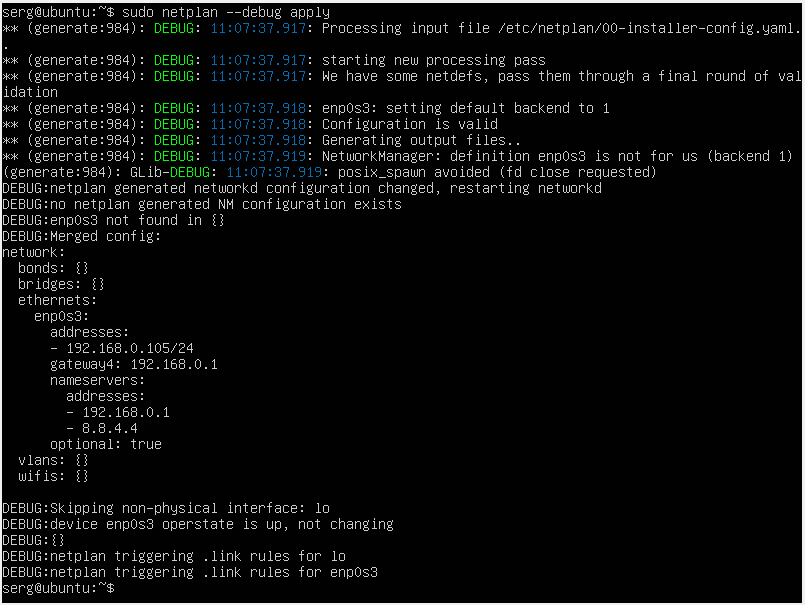
Далее рекомендуется перезапустить интерфейсы или перезагрузить сервер:
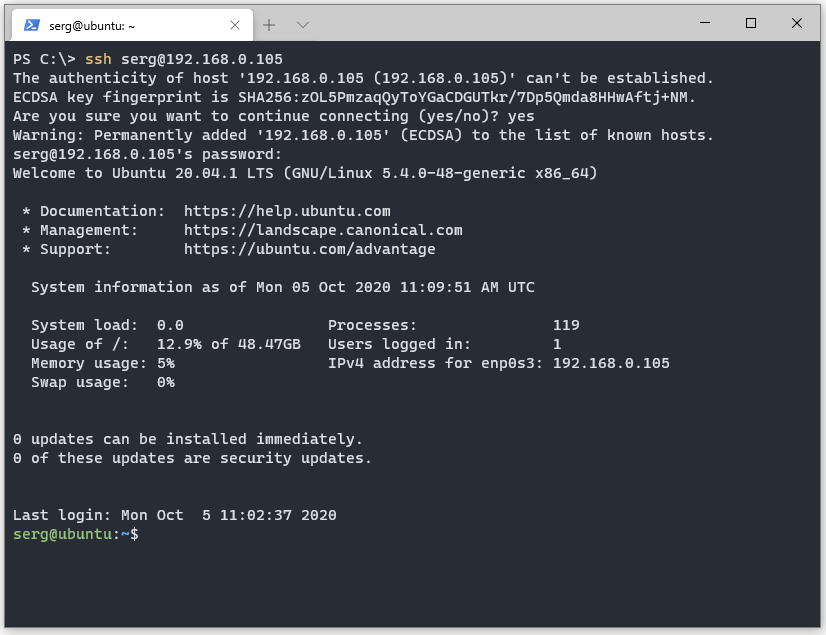
Подключение по SSH
В Windows PowerShell:
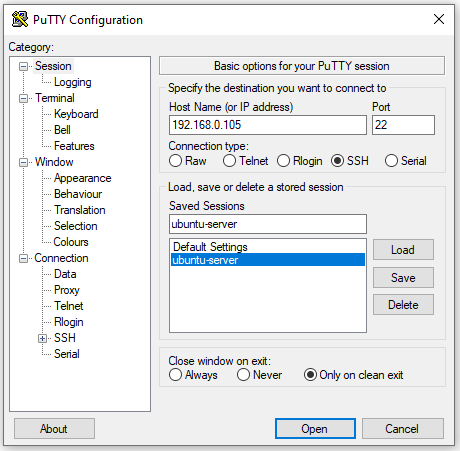
Используем Putty. Указываем IP адрес и задаем имя сессии, жмём Open:
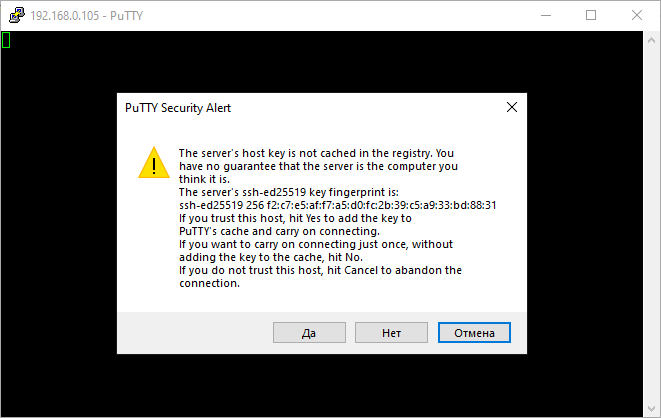
При первом подключении к серверу мы увидим сообщение. Жмём ДА.
Вводим имя пользователя и пароль. Если всё прошло успешно, увидим:
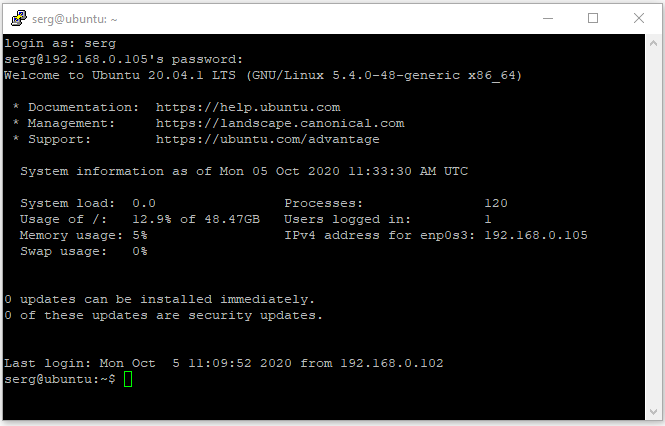
На этом настройка статического IP-адреса в Ubuntu Server 20.04 LTS закончена.
Настраиваем статический IP-адрес в Ubuntu 22.04
Сегодня IP-адрес большинства устройств генерируется сервером протокола динамической конфигурации хоста (DHCP). DHCP-сервер назначает динамический IP-адрес вашему устройству, когда оно подключено к сети. Таким образом, у вас есть возможность время от времени менять этот IP-адрес.
С другой стороны, статический IP-адрес относится к фиксированному, неизменному адресу, отличному от динамических IP-адресов. Вы можете установить статические параметры IP в Ubuntu 22.04 LTS тремя различными способами.
Установите статический IP-адрес в Ubuntu с помощью команды nmcli
Статические IP-адреса в Ubuntu 22.04 легко установить с помощью команды nmcli. nmcli — это текстовая утилита, используемая для проверки состояния проводных подключений, которые вы используете на своем устройстве.
С помощью этой команды вы можете получить доступ к дополнительной сетевой информации, такой как состояние вашего подключения, имя вашего хост-устройства и общие разрешения в конфигурации вашей сети.
Выполните следующие шаги, чтобы установить статический IP-адрес с помощью команды nmcli.
Вы можете получить информацию о вашем соединении с помощью следующей команды:
Вывод этой команды будет следующим:
Создайте статическую ссылку с помощью приведенной ниже команды. Затем вручную настройте параметры enp0s3 и ipv4 с соответствующими параметрами в команде nmcli.
Если вы снова воспользуетесь командой nmcli connection show, вы увидите, что статическая ссылка была добавлена.

После этого процесса добавьте статическое соединение, которое вы создали, к IP-адресу DNS.
Теперь используйте команду ниже, чтобы активировать соединение:
Если на выходе отображается «connection successfully activated», вы успешно настроили статический IP-адрес на своем компьютере.
Вы можете проверить статический IP-адрес, который хотите назначить своему устройству, выполнив следующую команду:

Использование Netplan для настроек статического IP-адреса в Ubuntu
Подобно nmcli, команда netplan позволяет установить статические параметры IP-адреса в Ubuntu 22.04 LTS. Для этого выполните следующие действия.
Сначала узнайте имя своего сетевого интерфейса с помощью команды ниже:
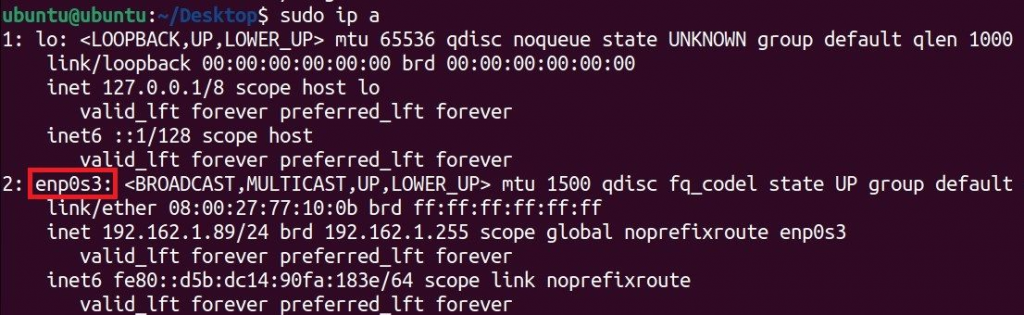
Здесь вы видите имя вашего сетевого интерфейса. Это имя может быть разным на каждом устройстве.
Теперь создайте файл с именем 01-netcfg.yaml в папке /etc/netplan. Отредактируйте его в своем любимом текстовом редакторе.
Добавьте в файл следующие строки:
Как видите, вы отключили настройку IP-адреса DHCP с помощью инструкции dhcp4: no. Затем вы добавили IP-адрес и настройки DNS, назначенные Google.
После сохранения этого файла выполните следующую команду, чтобы применить изменения:
Настройте статического IP-адреса в графическом интерфейсе
Графический интерфейс сетевых настроек в Ubuntu 22.04 очень удобен, если вам не нравится иметь дело с командной строкой. Вы можете установить статический IP-адрес, который вы хотите, используя этот интерфейс.
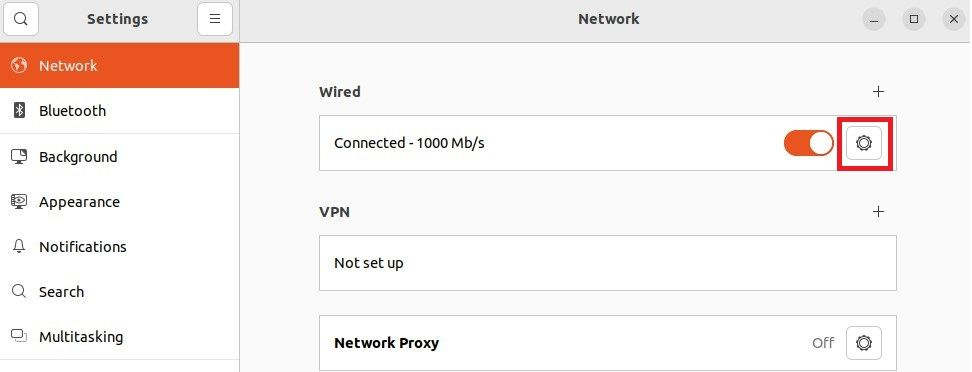
Для этого нажмите на значок Network в правом верхнем углу рабочего стола. Затем выберите «Wired Settings» в раскрывающемся меню. Нажмите на значок Шестеренки, чтобы открыть окно настроек.
Затем перейдите на вкладку IPv4 в открывшемся окне.
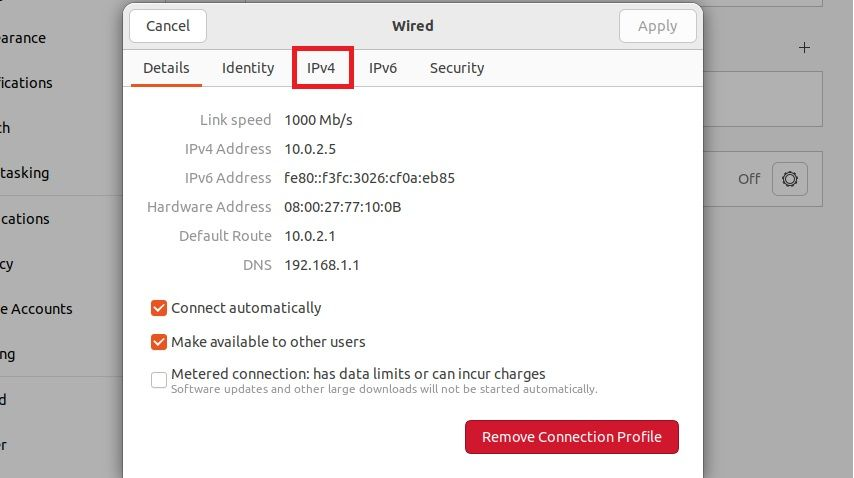
Как видите, DHCP включен по умолчанию. Измените IPv4 Method на «Manual», так как вы хотите использовать статический IP-адрес вместо динамического. Затем измените свой адрес, сетевую маску и настройки шлюза. Наконец, измените настройки DNS и нажмите кнопку «Apply».
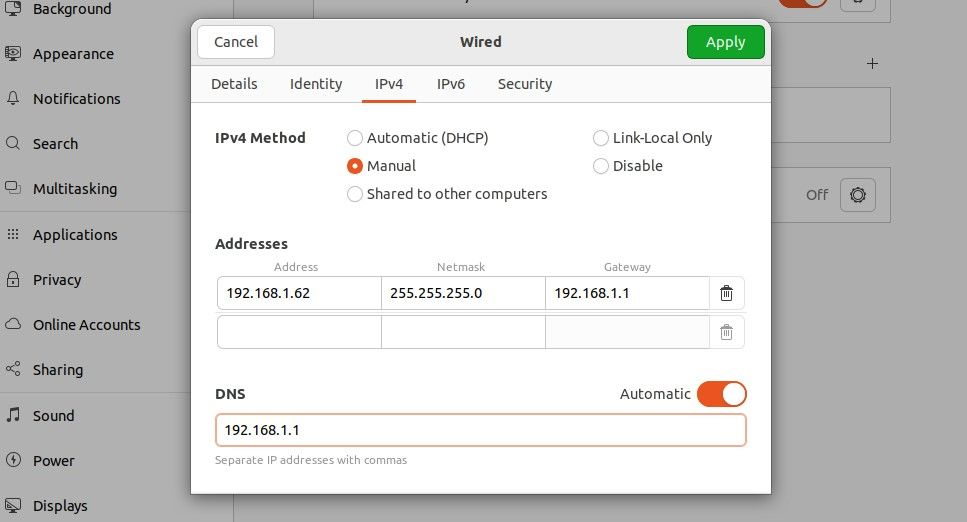
Чтобы все эти действия вступили в силу, необходимо перезапустить это проводное соединение. Для этого просто включите, а затем выключите переключатель рядом с названием сети.
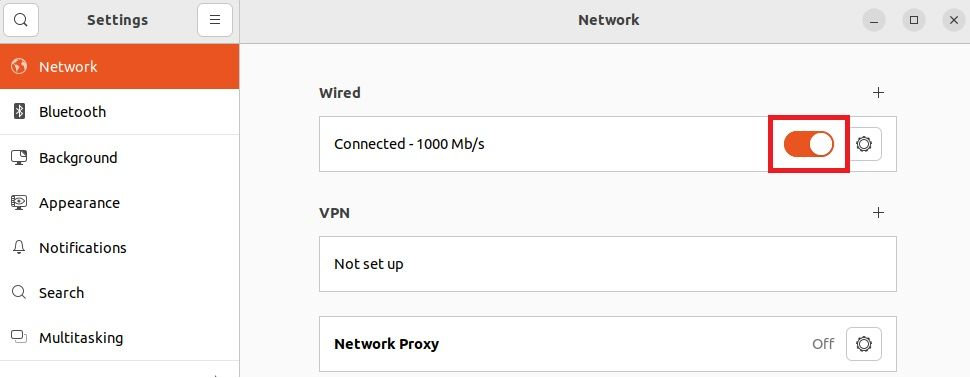
Зачем использовать статические IP-адреса?
Вы узнали, как настраивать параметры статического IP-адреса в «Jammy Jellyfish» 22.04, последней LTS-версии Ubuntu, используя как графический интерфейс настроек, так и две команды терминала: nmcli и netplan.
Вы можете использовать статические IP-адреса, чтобы избежать проблем с подключением, вызванных динамическими IP-адресами. Статический IP-адрес позволяет вам иметь фиксированную личность и местоположение при подключении к Интернету.
Из-за недостаточного количества IP-адресов некоторые поставщики услуг могут назначать один и тот же адрес двум разным пользователям. В этом случае могут возникнуть проблемы с подключением. Вместо этого использование статических IP-адресов не вызывает таких проблем, поскольку зависит от пользователя.
Как настроить статический IP-адрес в Linux и Unix
Настройка IP-адреса — один из основных навыков, который должен освоить каждый администратор Linux и Unix. Настроить IP-адрес в режиме графического интерфейса намного проще, поэтому мы не будем описывать это в этом руководстве. Но что в режиме командной строки? Это не так уж сложно. Этот статья описывает, как настроить статический IP в ваших системах Linux и Unix. В этой статье описано, как это сделать в дистрибутивах Linux, таких как CentOS, Debian, Ubuntu и Unix, таких как FreeBSD.
В RHEL/CentOS/Fedora/Scientific Linux
В Fedora, RHEL и его клонах, таких как CentOS, Scientific Linux, конфигурация сетевой карты (кратко NIC) хранится в каталоге /etc/sysconfig/network-scripts/. Для выполнения следующих команд используйте пользователя root. Если же вы вошли в систему как обычный пользователь, просто используйте sudo перед каждой командой.
Сначала необходимо узнать имя сетевой карты. Для этого запустите:
Обычно имя проводной сетевой карты начинается с буквы «е», а имя беспроводной карты начинается с буквы «w».
Как видно из вышеприведенного вывода, имя моей проводной сетевой карты enp0s3. Он может отличаться в вашем дистрибутиве, но обычно начинается с буквы «е».
Давайте настроим статический IP-адрес для этого сетевого адаптера.
Откройте файл конфигурации сетевой карты в любом редакторе:
nano — текстовый редактор. Вы можете использовать любой текстовый редактор на ваш выбор, например, vi или gedit.
Добавьте IP-адрес, маску подсети, шлюз и DNS -сервер, как показано ниже.
После того, как вы настройки, сохраняем и закрываем файл. Перезапускаем сетевой сервис, чтобы изменения вступили в силу.
Или перезагружаем систему.
Проверим правильность настройки сетевых интерфейсов:
Или можно проверить адрес конкретной сетевой карты, как показано ниже.
Пример вывода последней команды
Кроме того, вы можете использовать команду nmtui для настройки IP-адреса.
Введите IP-адрес, маску сети, шлюз, DNS и т.д.

Нажмите OK, чтобы сохранить изменения, и перезапустите сетевую службу или перезагрузите систему, чтобы изменения вступили в силу.
В Ubuntu/Debian/Linux Mint
Чтобы настроить статический IP-адрес в любых системах на основе DEB, выполните следующие действия.
Отредактируйте файл /etc/network/interfaces в любом удобном текстовом редакторе
Добавьте или измените следующие строки для настройки статического IP-адреса.
Сохраните и закройте файл
Перезапустите сетевой интерфейс:
Или перезагрузите систему.
Теперь проверьте новый статический IP-адрес с помощью одной из следующих команд:
Пример вывода последней команды
В Unix
Мы уже знаем, как настроить статический IP-адрес в Linux из командной строки. Теперь настроим статический IP-адрес в Unix. В этой статье мы будем использовать FreeBSD 10.3.
Как и в Linux, мы используем команду ifconfig, чтобы узнать имя сетевой карты. Здесь я вошел в систему как пользователь root для выполнения следующих команд.
Здесь em0 — имя сетевой карты.
Чтобы настроить статический IP-адрес, отредактируем файл /etc/rc.conf:
Добавим или изменим строки, как показано ниже.
Сохраним и закроем файл.
Теперь перезапустим сетевой интерфейс
Чтобы настроить сетевую карту для получения IP-адреса от сервера DHCP, добавьте или измените только следующие строки:
Сохраните и закройте файл. Перезапустите сетевой сервис или перезагрузите систему, чтобы изменения вступили в силу.
И это все. Теперь вы знаете, как настроить статический IP-адрес в дистрибутивах Unix и Linux. Как видно из приведенных выше примеров, настройка IP-адреса из командной строки не очень сложна, как может показаться.


Если не указано иное, содержимое этой вики предоставляется на условиях следующей лицензии:
CC Attribution-Noncommercial-Share Alike 4.0 International