C# Разработка
Итак, что же мы будем делать, для того, что бы научиться штамповать XML на основе вашего эталона? Опишу всё по порядку.
Имеется:
Какой то XML (xmlfile.xml), сохраненный в текстовом формате в файл. Ниже приведу текст:
- Сначала используя утилиту XSD.exe, либо воспользовавшись онлайн сервисами (искать «xml to xsd» один из них www.freeformatter.com/xsd-generator.html), мы будем создавать из имеющейся XML ее примитивное XSD описание. На выходе мы будем иметь полностью, автоматическим образом, созданный output.xsd файл, который уже подходит к использованию но может быть не полным.
- Далее, на основе output.xsd, будут созданы классы на языке C# xmlclass.cs. После чего, мы добавляем его в наш проект. Создавать класс можно используя XSD.exe, либо xsd2code утилитой, или же любым онлайн сервисом.
- Теперь мы готовы использовать классы файла xmlclass.cs. Поэтому создадим и наполним данными экземпляры xmlclass, а потом, используя процесс сериализации, будем преобразовывать объекты в XML строку, и после чего сохраним ее в новый файл. Тем самым получим XML на основе имеющегося.
Шаг 1. Создание XSD из XML.
- Утилита xsd.exe — создатель Microsoft.
- Утилита xsd2code.exe — стороннее приложение, которое умеет все тоже самое, что и xsd.exe, но доступно для скачивания напрямую (на данный момент стала платной с Trial периодом).
- Использование любых онлайн сервисов.
— Ссылка для скачивания и установки одного из SDK:
Windows SDK for Windows 7 and .NET Framework 4.
— Далее перейдя в папку:
C:\Program Files (x86)\Microsoft SDKs\Windows>
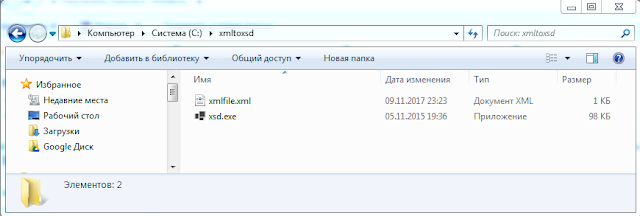
— Воспользуемся поиском, и найдем файл xsd.exe, после чего (что бы упростить себе работу), скопируем его в созданную в корне диска папку C:\xmltoxsd. Далее в эту же папку мы копируем наш xmlfile.xml и все готово к началу.
Отрываем «Командную строку» (Пуск -> «Выполнить» -> «cmd»), переходим в наш каталог и вызываем с параметрами по умолчанию xsd.exe, передавая наш xmlfile.xml параметром:
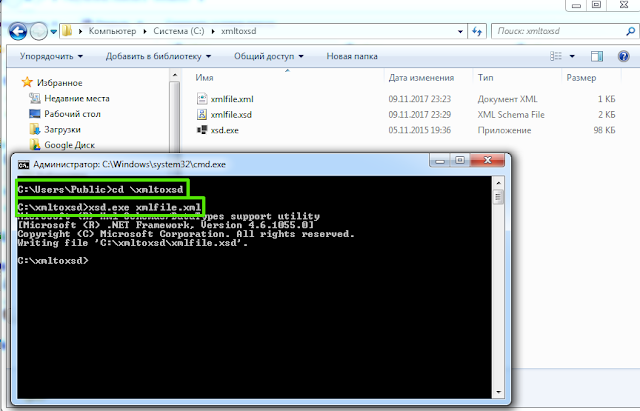
И видим, что рядом появился файл xmlfile.xsd с содержимым.
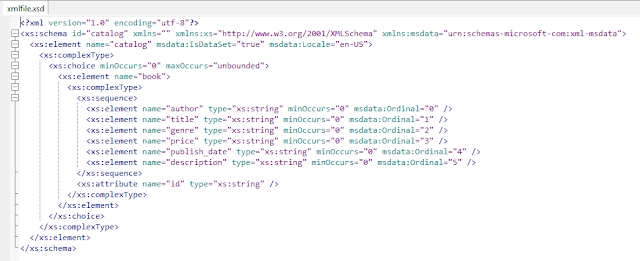
Вот и все! Этих действий достаточно, для создания примитивного XSD файла, с которым можно работать. Но стоит понимать, что сам xsd.exe, как и любая другая утилита, ничего не знает про типы ваших полей (поэтому почти всегда тип полей будет string), а так же о всех вариациях атрибутов и параметров. То есть, если у какого-то тега нет атрибута в вашей XML, тогда его и не будет в описании. Поэтому XML должен быть наиболее полным и в случае, если элемент может содержать несколько дочерних полей, лучше добавить как минимум два, что бы xsd.exe понял, что это коллекция.
Синтаксис XSD не очень сложный, поэтому, если пишется достаточно серьезное описание, возможно придется поработать и напильником.
Шаг 2. Создание Class из XSD.
Для создания класса на языке C#, нам понадобится вновь использоваться xsd.exe но уже с другим параметром /classes, передав путь к нашему xmlfile.xsd.
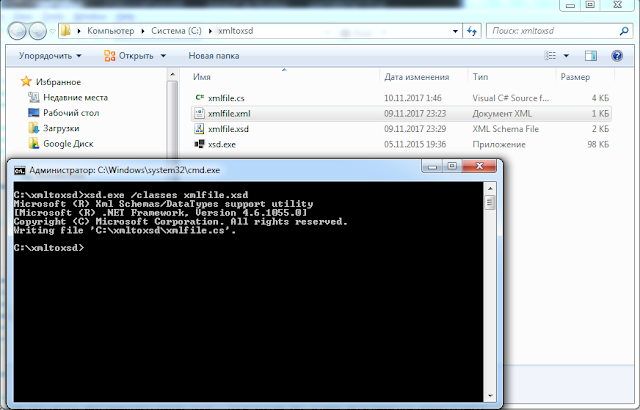
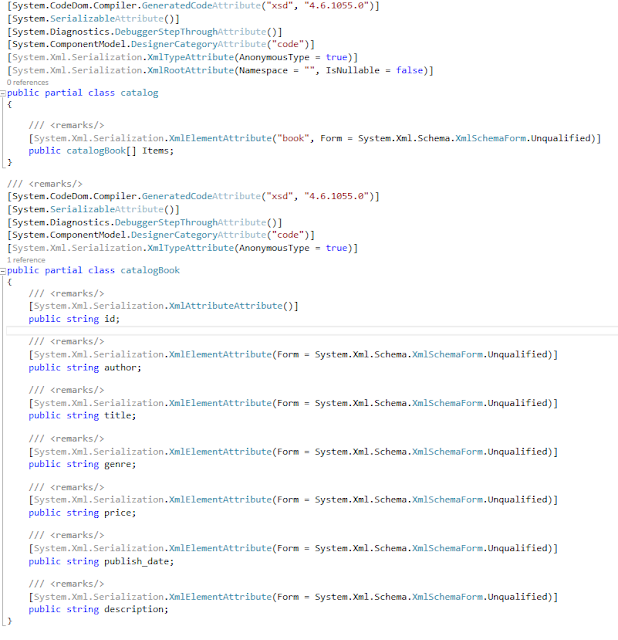
После выполнения появится файл xmlfile.cs, содержимое которого приведено ниже в сжатом виде:
Шаг 3. Сериализация объектов в XML.
Получившиеся классы у нас лежат в файле xmlfile.cs. Далее его содержимое или сам файл добавляем в проект Visual Studio, после чего можно с ним работать. Я создам демонстративный объекты книг, после чего сохраню в файл в формате XML.
После запуска и открытия Output.xml можно увидеть, что мы сохранили так, как мы хотели (Нижний файл — «Созданный кодом«).

Как мы видим, форматирование было соблюдено, а данные были наполнены нами.
Step by Step: How to Create an XSD File to Validate Data in XML?

In previous section, we mentioned about what is an XSD file and how do we use it in data validation, specifically in XMLs. If you haven’t read it, you can go and read that section before you continue from here. Here is the link of the previous section.
In this section, we are going to see how we can create an XSD file in order to validate data in XML. We will go step by step.
First, we need to create an XSD file to check our XML file. Remember that your XSD file’s file extension should be “.xsd”. I already created an XSD file for you to show the details on it. Here you can see it;
In this XSD file, there are important check rules for our XML file. Let’s look each of them.
1- <xs:element ref=”EmployeeRow” minOccurs=”0" maxOccurs=”unbounded”/>
Here we say that EmployeeRow can have zero occurrence as minimum and there is no limit for maximum. We can have zero record, or we can have unlimited records in our data set.
2- <xs:restriction base=”xs:string”>
In some lines in above XSD file as you can see, there are these lines which says that there is a restriction about being a string for values. When we write this type of a restriction, XSD checks whether the related value is string or not. If a value is not a string data type, then you will get a message about it.
When we enter a pattern value, then we expect a value as specified in the pattern. For example in this example, we are saying that we are expecting date values as dd/mm/yyyy format. If a value is in this format like 01–01–2020, then it is wrong. It should be like this one: 01/01/2020.
4- <xs:enumeration value=”GBP” />
These restrictions tells that in the specified column, values can have one of these three values and cannot have any other value.
Finally, in order to see our XSD file running, we need to open our both XML and XSD files in Notepad++ and use XML Tools plugin. If you haven’t Notepad++, please download it from here. After you download and install it, you need to install XML Tools plugin. In Notepad++, go to Plugins menu and find Plugins Admin. After you open Plugins Admin, you can search for XML Tools plugin and install it.
I assume that you did all the things as mentioned above paragraph. After that, you can open your both XML and XSD files in Notepad++. When your XML file is active on Notepad++, go to Plugins menu and find XML Tools sub menu under it. Once you hover XML Tools sub menu, you will see its functions listed. As the last step, click Validate now. If you did all steps correctly until now, then you will see a similar message like this;
Note: You can also check this blog post and some other interesting topics on my personal web page.
Free Online XML to XSD Converter
Uses the sample XML document to infer an XML schema (XSD).
Sample XML Document
| Occurrence options |
| Type inference options |
| Indent character |
| Indent depth |
| Indent attributes |
Document Valid
Errors
| Severity | Location | Filename | Message |
|---|
Please Note:
All data is stored in our log files and periodically deleted, if you have sensitive data, please Download the Free Liquid Studio Community Edition and use the tools directly from your desktop.
More Editors and Tools
FEATURE DETAILS
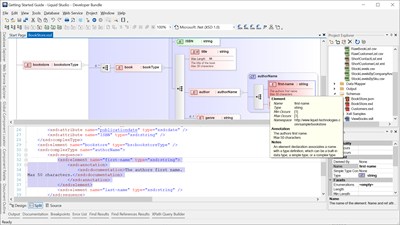
Graphical XML Schema Editor(XSD)
FEATURE DETAILS
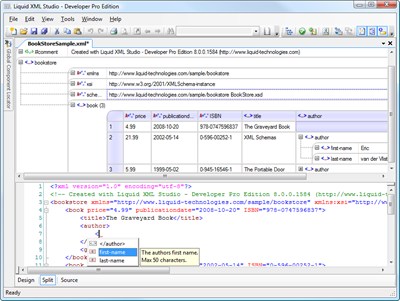
Graphical XML Editor
FEATURE DETAILS
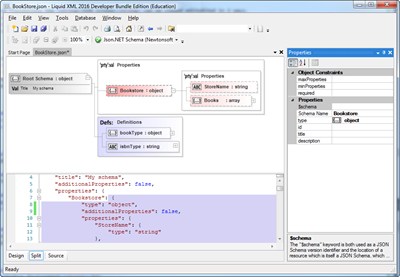
Graphical JSON Schema Editor
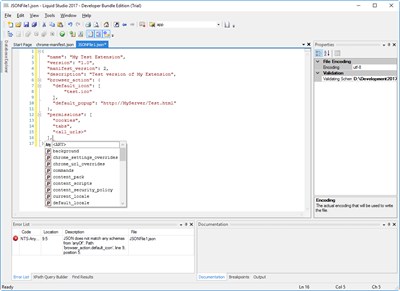
FEATURE DETAILS
JSON Editor
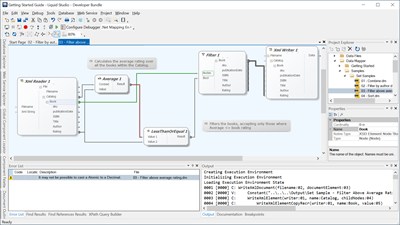
FEATURE DETAILS
Data Mapper
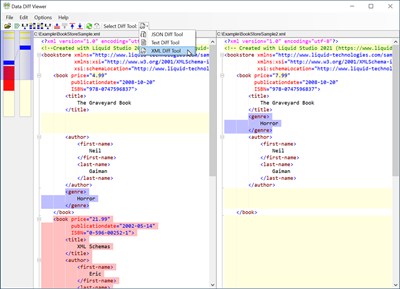
FEATURE DETAILS
Data Diff Viewer
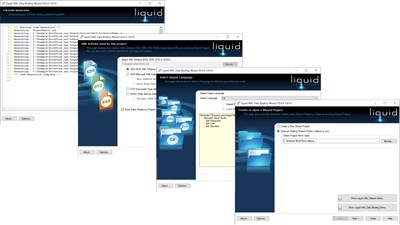
FEATURE DETAILS
XML Data Binder (C++, Java, VB6)
FEATURE DETAILS
Any tools to generate an XSD schema from an XML instance document? [closed]
Questions asking us to recommend or find a tool, library or favorite off-site resource are off-topic for Stack Overflow as they tend to attract opinionated answers and spam. Instead, describe the problem and what has been done so far to solve it.
Closed 9 years ago .
I am looking for a tool which will take an XML instance document and output a corresponding XSD schema.
I certainly recognize that the generated XSD schema will be limited when compared to creating a schema by hand (it probably won’t handle optional or repeating elements, or data constraints), but it could at least serve as a quick starting point.
10 Answers 10
the Microsoft XSD inference tool is a good, free solution. Many XML editing tools, such as XmlSpy (mentioned by @Garth Gilmour) or OxygenXML Editor also have that feature. They’re rather expensive, though. BizTalk Server also has an XSD inferring tool as well.
edit: I just discovered the .net XmlSchemaInference class, so if you’re using .net you should consider that
You can use an open source and cross-platform option: inst2xsd from Apache’s XMLBeans. I find it very useful and easy.
Just download, unzip and play (it requires Java).
Trang is the best option here. Open source and cross platform (although Java is required)
From the Trang Website:
- RELAX NG (XML syntax)
- RELAX NG compact syntax
- XML 1.0 DTDs
- W3C XML Schema
In VS2010 if you load an XML file into the editor, click the XML menu >> Create Schema.
It can take multiple xml files and extract a common XSD from all of those files.

If you have .Net installed, a tool to generate XSD schemas and classes is already included by default.
For me, the XSD tool is installed under the following structure. This may differ depending on your installation directory.
Normally the classes and schemas that this tool generates work rather well, especially if you’re going to be consuming them in a .Net language
I typically take the XML document that I’m after, push it through the XSD tool with the /o:<your path> flag to generate a schema (xsd) and then push the xsd file back through the tool using the /classes /L:VB (or CS) /o:<your path> flags to get classes that I can import and use in my day to day .Net projects