How To Open Ubuntu Software Center via Terminal
 By Jacob Hicks July 21, 2023 July 21, 2023
In this article, we will provide a comprehensive guide on how to open the Ubuntu Software Center via the Terminal. This is a useful skill for those who prefer using command-line interfaces or when the graphical user interface is not available.
Introduction
The Ubuntu Software Center is a user-friendly app store that you can use to search, install, and remove software on Ubuntu. While it is typically accessed through the desktop environment, it can also be opened and managed via the Terminal, Ubuntu’s command-line interface.
Accessing the Terminal
Before we start, let’s explain how to open the Terminal. You can access the Terminal by pressing Ctrl + Alt + T on your keyboard. This keyboard shortcut should work on most Ubuntu versions and flavors. Alternatively, you can search for ‘Terminal’ in your application menu and open it from there.
Opening the Ubuntu Software Center
Depending on the version of Ubuntu you are using, the command to open the Software Center may differ. Here are the commands for different Ubuntu versions:
Ubuntu Versions Before 21.04
For older versions of Ubuntu, you can open the Software Center by typing the following command into the Terminal and pressing Enter :
Ubuntu 21.04 and Later
In Ubuntu 21.04 and later versions, the Ubuntu Software Center has been replaced by the Gnome Software. You can open it by typing the following command:
Using the Snap Store
In recent versions of Ubuntu, the Snap Store is the default software center. You can open it using the following command:
Understanding the Commands
Let’s break down what these commands mean:
- software-center : This command calls the executable for the Ubuntu Software Center. When you run this command, the system will launch the Software Center application.
- gnome-software : This command is similar to the one above, but it calls the Gnome Software application instead. Gnome Software is the default software center in recent versions of Ubuntu.
- snap-store : This command opens the Snap Store, which is another software center that comes pre-installed with Ubuntu. The Snap Store provides access to snap packages, which are universal Linux packages that come with all their dependencies, making them easy to install on any Linux distribution.
Troubleshooting
If any of these commands result in an error or the message ‘command not found’, it means the corresponding software center is not installed on your system. You can install it using the apt package manager. For example, to install Gnome Software, you would use the following command:
The sudo command gives you administrative privileges (required for installing software), apt is the package manager tool, install is the command to install a package, and gnome-software is the name of the package to install.
Conclusion
Opening the Ubuntu Software Center via the Terminal can be a quick and efficient way to manage your software, especially for those who prefer using the command line. Remember that the specific command you need to use will depend on your Ubuntu version and the software center you want to access. If you encounter any issues, make sure the software center is installed on your system, and don’t hesitate to seek help from the Ubuntu community.
To open the Terminal in Ubuntu, you can press Ctrl + Alt + T on your keyboard. Alternatively, you can search for ‘Terminal’ in your application menu and open it from there.
The Ubuntu Software Center is an app store that allows you to search, install, and remove software on Ubuntu. It provides a user-friendly interface for managing software packages on your system.
To open the Ubuntu Software Center via the Terminal, you can use the command software-center for older versions of Ubuntu, gnome-software for Ubuntu 21.04 and later versions, or snap-store for recent versions of Ubuntu that use the Snap Store as the default software center.
The Ubuntu Software Center and Gnome Software are both software centers for Ubuntu, but they have different user interfaces and features. The Ubuntu Software Center was the default software center in older versions of Ubuntu, while Gnome Software is the default software center in Ubuntu 21.04 and later versions.
If a software center is not installed on your system, you can use the apt package manager to install it. For example, to install Gnome Software, you can use the command sudo apt install gnome-software . Replace gnome-software with the name of the software center you want to install.
Yes, you can use the Terminal to manage software even if you have a graphical user interface. Opening the software center via the Terminal can be useful for those who prefer using command-line interfaces or when the graphical user interface is not available.
Установка Менеджера приложений в Ubuntu
Программы и дополнительные компоненты в операционной системе Ubuntu могут быть установлены не только через «Терминал» путем ввода команд, но и через классическое графическое решение — «Менеджер приложений». Такой инструмент кажется удобным для некоторых пользователей, особенно тех, кто никогда не имел дело с консолью и испытывает трудности с всеми этими наборами непонятного текста. По умолчанию «Менеджер приложений» встроен в ОС, однако из-за определенных действий пользователя или сбоев он может исчезнуть и тогда требуется повторная инсталляция. Давайте детально рассмотрим этот процесс и разберем часто встречающиеся ошибки.
Устанавливаем Менеджер приложений в Ubuntu
Как мы уже написали выше, «Менеджер приложений» имеется в стандартной сборке Ubuntu и не требует дополнительной инсталляции. Поэтому перед началом выполнения процедуры убедитесь в том, что программа точно отсутствует. Для этого зайдите в меню, попытайтесь выполнить поиск и обнаружить необходимый инструмент. Если попытка оказалась тщетной, обратите внимание на следующую инструкцию.
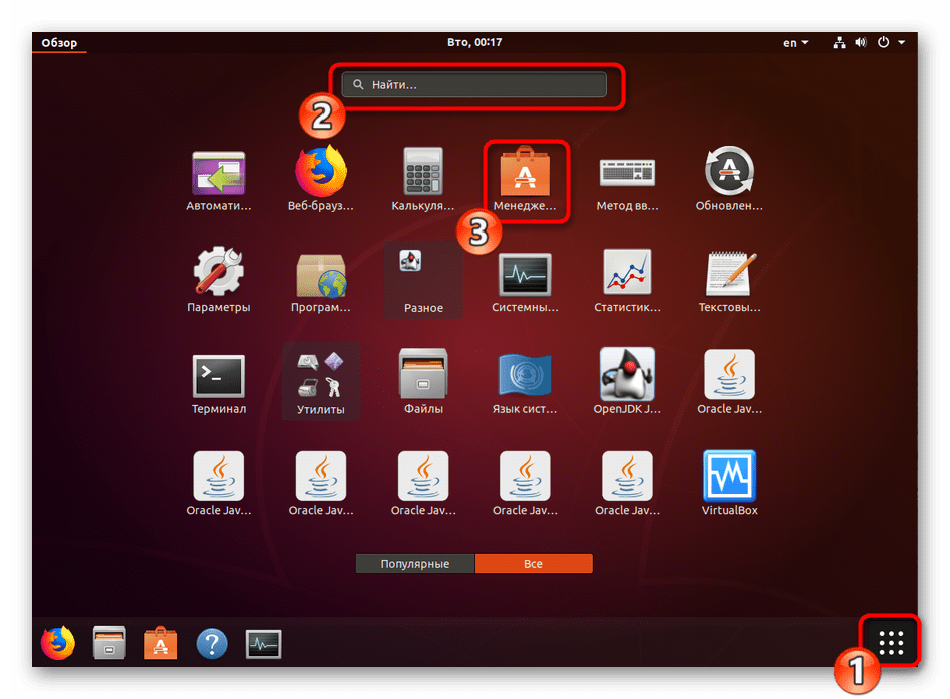
Использовать мы будем стандартную консоль, дав подробную информацию о каждой необходимой вам команде:
- Откройте меню и запустите «Терминал», сделать это можно также через горячую клавишу Ctrl + Alt + T.
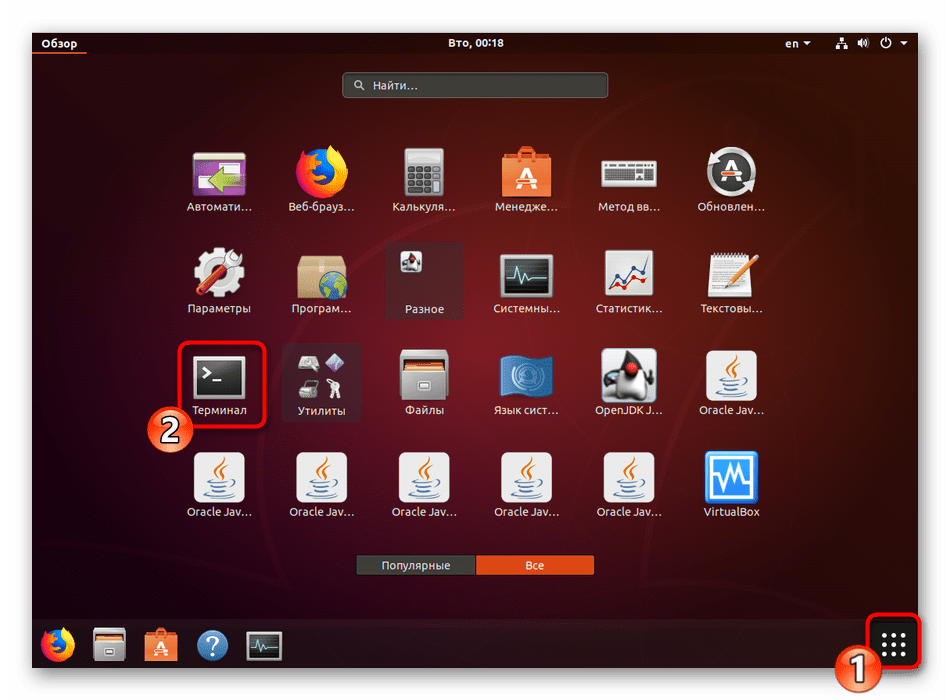
- Вставьте в поле ввода команду sudo apt-get install software-center , а затем нажмите на Enter.
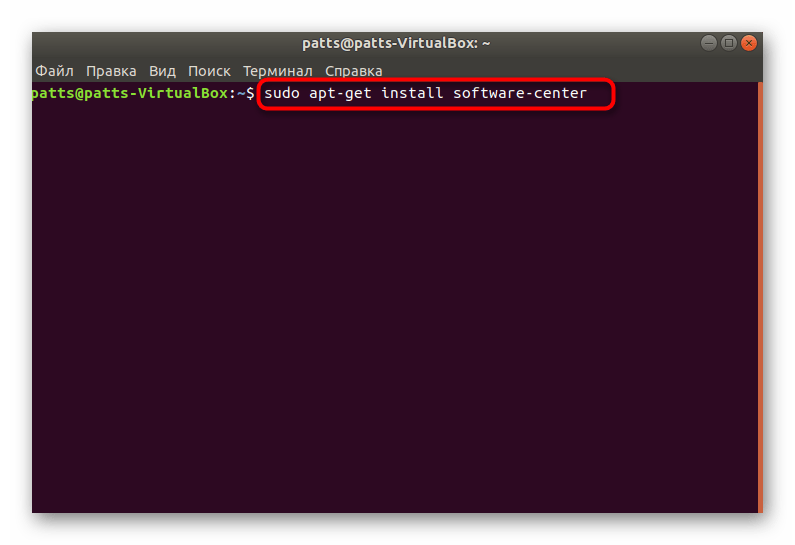
Кроме этого, можете попробовать ввести поочередно указанные ниже команды в случае возникновения проблем с этой.
sudo apt purge software-center
rm -rf
/.cache/software-center
rm -rf
/.config/software-center
rm -rf
Напоследок мы можем порекомендовать использовать команду rm
/.cache/software-center -R , а затем unity —replace & , чтобы очистить кэш «Менеджера приложений» — это должно помочь избавиться от различного рода ошибок.
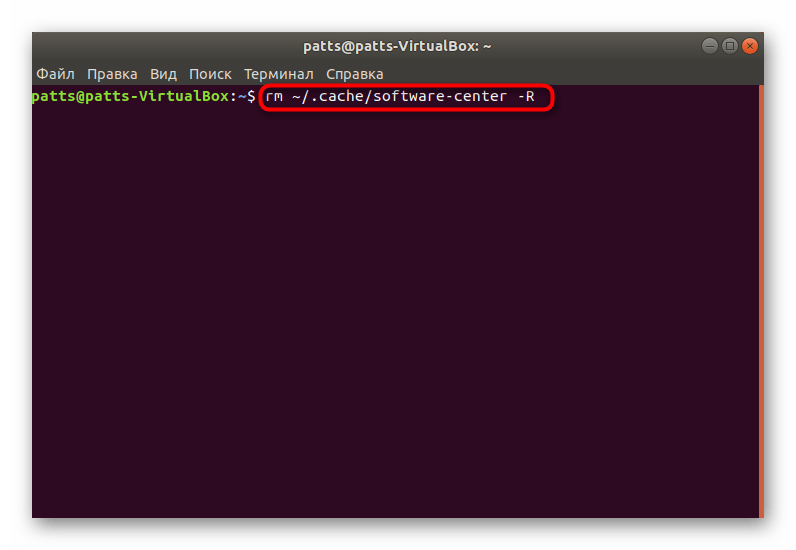
Как видите, ничего сложного в инсталляции рассматриваемого инструмента нет, только иногда возникают трудности с его работоспособностью, которые решаются приведенными выше инструкциями буквально за пару минут.
Еще статьи по данной теме:
Помогла ли Вам статья?
E: Для пакета «software-center» не найден кандидат на установку
Здравствуйте, Аноним. Скорее всего, пакеты уже установлены в операционной системе. Попробуйте выполнить те действия, которые описаны в данной статье в разделе про удаление существующих пакетов, а затем повторите процесс установки. Это должно помочь избавиться от возникшей неполадки.
Дополнительно советую перед удалением более внимательно ознакомиться с операционной системой. Скорее всего, Менеджер приложений уже установлен, просто вам не удалось найти его с первого раза.
sudo apt remove software-center
Чтение списков пакетов… Готово
Построение дерева зависимостей
Чтение информации о состоянии… Готово
Пакет «software-center» не установлен, поэтому не может быть удалён
Обновлено 0 пакетов, установлено 0 новых пакетов, для удаления отмечено 0 пакетов, и 0 пакетов не обновлено.
переустанвока / установка не проходит
$ sudo apt-get install software-center
Чтение списков пакетов… Готово
Построение дерева зависимостей
Чтение информации о состоянии… Готово
Пакет software-center недоступен, но упомянут в списке зависимостей другого
пакета. Это может означать, что пакет отсутствует, устарел или
доступен из источников, не упомянутых в sources.list
После всех, указанных в статье действий, терминал все равно выдает следующее:
Пакет software-center недоступен, но упомянут в списке зависимостей другого
пакета. Это может означать, что пакет отсутствует, устарел или
доступен из источников, не упомянутых в sources.list
E: Для пакета «software-center» не найден кандидат на установку
агрузки$ sudo apt install software-center ubuntu-desktop
Чтение списков пакетов… Готово
Построение дерева зависимостей
Чтение информации о состоянии… Готово
Пакет software-center недоступен, но упомянут в списке зависимостей другого
пакета. Это может означать, что пакет отсутствует, устарел или
доступен из источников, не упомянутых в sources.list
E: Для пакета «software-center» не найден кандидат на установку
user212@server:
/Загрузки$ sudo dpkg-reconfigure software-center —force
dpkg-query: пакет «software-center» не установлен, информация о нём недоступна
Use dpkg —info (= dpkg-deb —info) to examine archive files.
dpkg-query: ошибка: пакет «software-center» не установлен
у меня тоже самое
sudo apt-get install software-center
[sudo] пароль для kali:
Чтение списков пакетов… Готово
Построение дерева зависимостей
Чтение информации о состоянии… Готово
Пакет software-center недоступен, но упомянут в списке зависимостей другого
пакета. Это может означать, что пакет отсутствует, устарел или
доступен из источников, не упомянутых в sources.list
E: Для пакета «software-center» не найден кандидат на установку
Правильная команда:
sudo apt install gnome-software
sudo apt-get install software-center
Чтение списков пакетов… Готово
Построение дерева зависимостей
Чтение информации о состоянии… Готово
Пакет software-center недоступен, но упомянут в списке зависимостей другого
пакета. Это может означать, что пакет отсутствует, устарел или
доступен из источников, не упомянутых в sources.list
E: Для пакета «software-center» не найден кандидат на установку
Здравствуйте. В таком случае Вам необходимо попробовать установить Менеджер приложений с помощью других инструкций, приведенных в данной статье. Кроме этого, перепроверьте еще раз наличие данного приложения на компьютере. Возможно, оно просто не отображается на панелях в меню.
Здравствуйте, на ноутбуке стоит KDE Plasma 5.16.5, почему-то перестал работать скроллинг на мышке, пользователь Linux я никакой после использования Windows. Перелопатила кучу сайтов с видео- и текстовыми рекомендациями, но… Для меня, как оказалось, вся эта информация из разряда космических технологий, хотя при работе на Windows всегда достаточно быстро разбиралась, как устранять те или иные сбои. Буду очень благодарна за помощь
Здравствуйте, Мария. Первое подозрение падает на проблемы с совместимостью между операционной системой и самой мышкой. Для начала давайте проверим, корректно ли она вообще отображается в Linux. Для этого запустите «Терминал», введите там команду xev и нажмите на клавишу Enter. Через несколько секунд появится небольшое белое окно. Осуществляйте в нем различные действия мышкой и следите за строками в консоли. Там должны быть показаны все события. В случае отсутствия результатов попробуйте переподключить мышь или вставить ее в другой разъем.
Дополнительно рекомендую использовать программу btnx. Через нее можно настроить значение кнопок и вообще проверить, насколько корректно работает мышь в ОС. Если действительно проблема заключается в совместимости, придется искать индивидуальное решение для конкретной мыши. Можете написать нам ее модель или самостоятельно через поисковик найти инструкции по решению проблем с совместимостью.
UbuntuSoftwareCenter
Ubuntu Software Center is a one-stop shop for installing and removing software on your computer. It is included in Ubuntu 9.10 and later.
- Launching Ubuntu Software Center
- Overview
- Installing software
- Reinstalling purchases
- Removing software
- Managing software sources
- Troubleshooting
Launching Ubuntu Software Center
- Open the “Applications” menu. Ubuntu Software Center is at the bottom.
- Ubuntu Software Center is in the Launcher.
- If it has been removed from the Launcher, you can find it by clicking the Ubuntu button, then “More Apps”, then “Installed — See more results”, then scrolling down.
- Alternatively, search for “software” in the Dash search field.
Overview

The interface is simple and easy to work with, especially once you know how to navigate around. Lets break down the different sections.
- This is the main area of USC. When first launched, the different categories for applications are shown. Users can simply click one of these icons, and a list of applications in that category will fill this area. The “Featured Applications” option displays several applications that are popular throughout the Ubuntu community. Most of the interaction occurs here.
- When the left pane is expanded, you are provided with the different sources of software currently available. Initially, only the “Provided by Ubuntu” and “Canonical Partners” sub-options are present. If you add any PPAs (Personal Package Archives), they will appear here as well. Clicking any of these sources will filter the software shown in the main window so it only shows applications in that repository. The “Installed Software” option also displays all of the applications currently installed on your system, making it easy to go through and remove software you no longer use.
- This top area is used to navigate. The left and right arrows function similarly to the arrows in a web browser: the left area will bring you to the previous screen, the right arrow will bring you forward a screen. Next to the arrows is a bread-crumb navigation bar. As you navigate through menus, this bar will allow you to easily switch between different sections faster than using the arrows. The search bar can be used to find an application more quickly.
- Finally, up top are your standard menus: File, Edit, View, and Help.
Installing software
Now to figure out how to use Ubuntu Software Center for its main purpose: installing applications! In order to do so, you must first find the application that you want to install. If you do not know the exact program, you can look in the different categories to find what you are looking for. Many categories have subcategories to make this easier. For example, the Graphics section has the following subcategories:

Clicking on a subcategory will further filter the list of applications, making it easier to find what you are looking for. However, if you know the name of the application, then you can type it into the search box and it should show up for you:

Next, you highlight the application’s listing. If the application is not already installed on your system, you will see two buttons: “More Info” and “Install.” Clicking “More Info” brings up a window that provides a detailed description of the application, along with a screen-shot in many cases:

Either from the application’s details, or from the previous list of applications, users have the option to click “Install.” Doing so will ask for your system’s password and then install the software. When installing, an option will be displayed in the left pane allowing you to see the progress of the installation:

Note: You may notice that the “Install” button on the applications description page also says that the software is Free. Later on, the developers plan to add a way for users to purchase software, so this is displayed to show how much the software costs.
In the event that you want to install multiple programs at once, you can select to Install each application one at a time and they will be added to a queue. After a program is successfully installed, Ubuntu Software Center will automatically move on to the next application in the queue.
After the progress bar finishes, the application will be available on your system!
Reinstalling purchases
- From the “File” menu, choose “Reinstall Previous Purchases”.
- If prompted, sign in to your Ubuntu Single Sign-On account.
- Select a title, click it, and click “More Info”.
- Click “Install”.
- — Command line:
- Start a terminal. b. Obtain root privileges by running ‘sudo bash’. c. Using your favorite text editor, paste the deb line (as one line) at the end of a file called /etc/apt/sources.list d. Run "apt-get update".
— Update Manager:
- Run update-manager, or invoke it from the software update icon at the top of the screen. b. Click "Settings. ", and enter your password. c. Click "Other Software". d. Click "Add. " e. Paste the deb line into the dialog box. f. Click "Add Source". g. Click "Close". h. If prompted, click "Reload".
- Close Update Manager.
Removing software
If you realize that there is software on your system you no longer use, Ubuntu Software Center makes it easy to remove the application. Clicking on the “Installed Software” option in the left pane will show the software currently installed on your system. If you highlight any of these programs, you will see a “Remove” button. Simply click this button, enter your password, and the application will be removed.
In the event that you want to remove multiple programs at once, you can select to Remove each application one at a time and they will be added to a queue. After a program is successfully removed, Ubuntu Software Center will automatically move on to the next application in the queue.
Managing software sources
Ubuntu provides users with a lot of great software by default in the official Ubuntu repository, but sometimes users want more options. True to the nature of Linux, Ubuntu users are able to access a variety of repositories, allowing for many different options for programs. Thankfully, the Software Center now supports the management of repositories, including PPAs (Personal Package Archives). In order to edit the repositories that your system has access to, go to Edit > Software Sources. This will bring up the Software Sources window, which is also accessible through System > Administration > Software Sources. Here, users can select what official repositories they would like to access, and what PPAs they use:


Check the repositories you would like Ubuntu Software Center to use, close the window, then allow it to refresh. Once you do, the applications available in the repositories you selected will now show up when you search through categories or by using the search bar.
Troubleshooting
A good general procedure not only for Ubuntu Software Centre is
1 — start up the computer
2 — run the commands
3 — if there are still problems, also run
UbuntuSoftwareCenter (последним исправлял пользователь eth0 2011-09-30 17:31:43)
The material on this wiki is available under a free license, see Copyright / License for details
You can contribute to this wiki, see Wiki Guide for details
Установка программ в Ubuntu
Рассмотрим, как устанавливать программы в Ubuntu Linux. Устанавливать программное обеспечение (ПО) в Ubuntu можно несколькими способами. Один из самых простых способов это использовать Центр приложений Ubuntu (Ubuntu Software Center). Эта программа представляет собой огромную базу ПО, позволяет легко находить нужное приложение, устанавливать и удалять ПО. Содержит описания программ, оценки и отзывы. Помимо бесплатного ПО можно установить и оплатить платные программы.
Раньше для установки программ в Ubuntu использовался менеджер пакетов Synaptic. На смену ему пришел Центр приложений Ubuntu. Стоит также сказать, что устанавливать ПО в Ubuntu можно используя командную строку (семейство команд apt-get, aptitude), можно использовать deb файлы (что-то вроде setup.exe в Windows), или компилировать и устанавливать программы прямо из исходных кодов. Но это все темы для отдельных статей. В данной статье мы рассмотрим как пользоваться Центром приложений Ubuntu, как искать, устанавливать и удалять программы.
Запуск Центра приложений Ubuntu
Рассмотрим, как запустить Центр приложений Ubuntu в Unity. Обычно при свежей установке Ubuntu значок Центра приложений отображается прямо в Лаунчере (панель с кнопками) и Центр приложений можно запустить кликнув по нему.
Также Центр приложений можно запустить из меню Dash (Ubuntu Start).
Если вы используете Gnome 2, то вам нужно выбрать в главном меню пункт Приложения->Центр приложений Ubuntu.
Работа с Центром приложений Ubuntu, установка программы
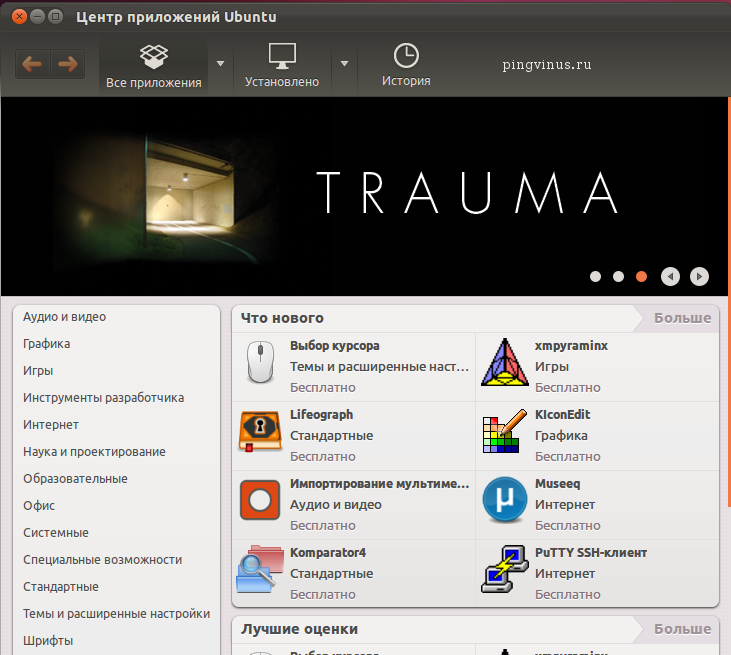
В верхней части программы расположены вкладки: Приложения (Все приложения) — поиск и установка приложений; Установлено — просмотр установленных приложений и удаление; История — история всех действий, связанных с приложениями. Для установки какой-нибудь программы вы должны перейти в соответствующую категорию и найти в списке нужное название или же ввести название программы в строку поиска (вверху справа, на скриншоте не видно). Рассмотрим, как найти программу в определенной категории.
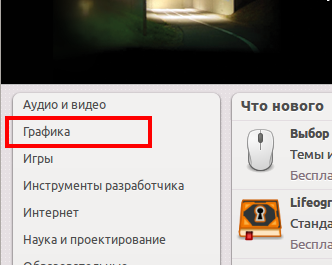
Чтобы установить какую-либо программу вы должны перейти на вкладку Все приложения и выбрать в списке соответствующую категорию. Например, мы хотим установить графический редактор GIMP, для этого выберем в меню пункт Графика.
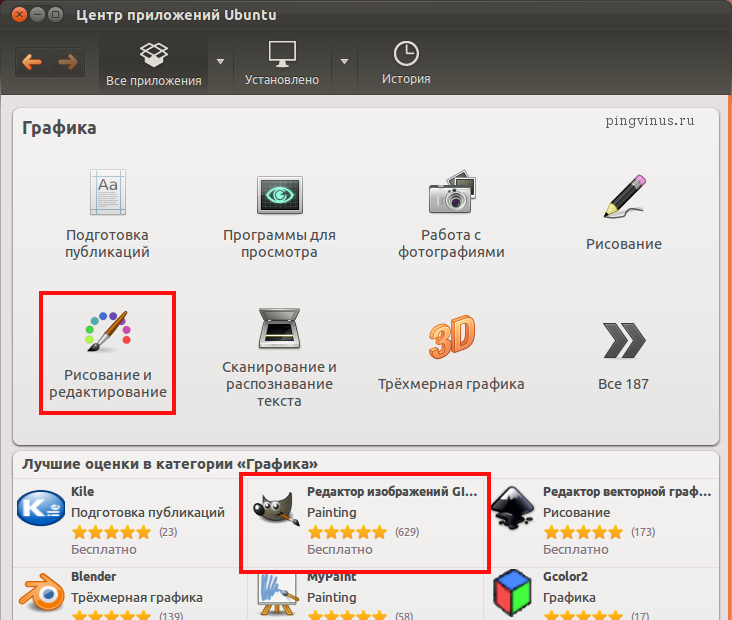
В каждой категории вы можете выбрать подкатегорию, в частности нас интересует пункт Рисование и редактирование. Обратите внимание, под списком категорий расположены программы с наилучшими оценками по мнениям пользователей, вы можете выбрать GIMP оттуда.
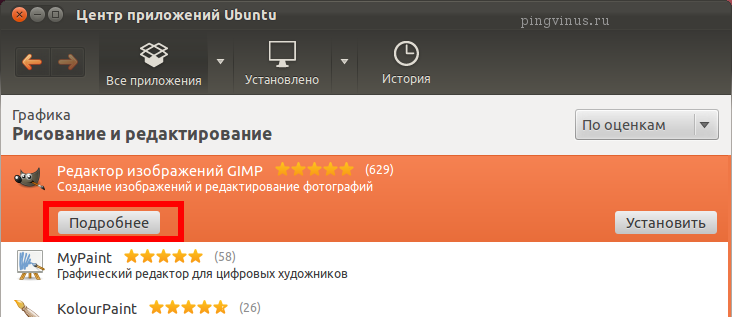
В категории Рисование и редактирование вы можете найти нужно приложение. GIMP в моем случае был первым в списке (сортировка по оценкам). Кликните на него и нажмите кнопку Подробнее, вы перейдете на страницу программы. Также вы можете кликнуть кнопку Установить, чтобы сразу перейти к установке программы.
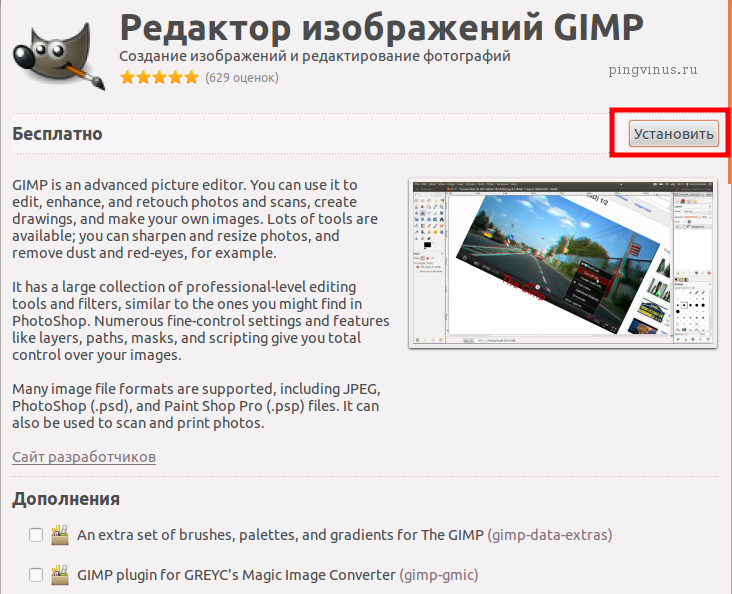
На странице программы вы можете ознакомиться с описанием, скриншотами, дополнениями, отзывами и получить другую информацию по выбранной программе. Чтобы установить программу нажмите кнопку Установить.
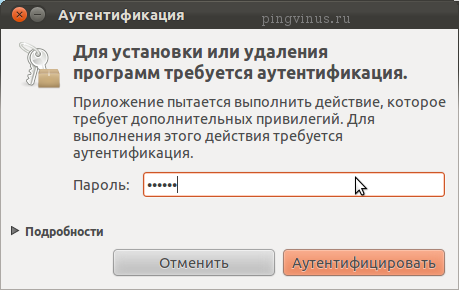
Для продолжения вам нужно будет ввести пароль.

Начнется процесс установки программы, и вы увидите строку состояния.

В результате установки мы получим надпись «Установлено». Здесь же вы можете нажать на кнопку Удалить, чтобы удалить приложение.
Запуск установленной программы
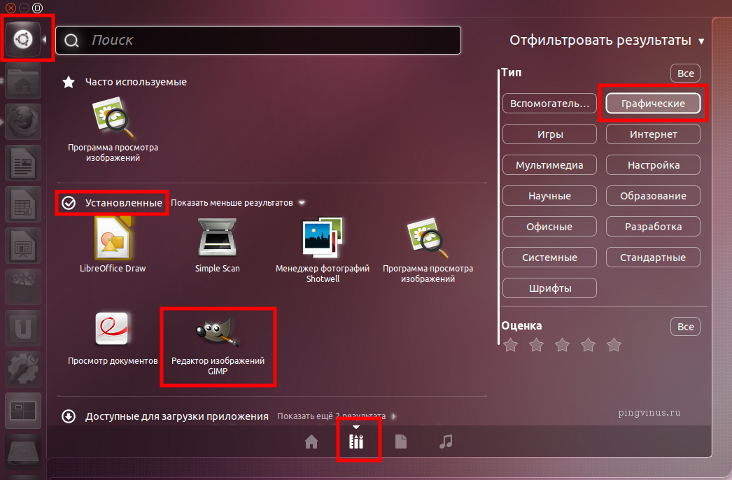
Когда вы установили какое-либо приложение, то ссылка (ярлык) на него добавляется в главное меню системы (меню Приложения). Например, в нашем примере с графическим редактором GIMP, ссылка на него появилась в меню «Приложения->Графика->Редактор изображений GIMP». В интерфейсе Unity вы можете найти GIMP в категории Графика в меню Dash (Ubuntu Start).