Как обойти ошибку 0x80a40401 на консолях Xbox

Многие российские геймеры на Xbox Series X и S столкнулись с ошибкой 0x80a40401. При попытке зайти в аккаунт консоль выдает сообщение, что она «находится в регионе, где служба недоступна». Приставка фактически превращается в кирпич: теряется доступ к онлайн-функциям, становится недоступной библиотека игр. Разберемся, как временно решить эту проблему, пока Microsoft отмалчивается и бездействует.
Настройка DNS в роутере
Не самый простой, но наиболее эффективный способ. Мы укажем подменный адрес только для сервиса входа. Остальные функции консоли будут работать через провайдера — без ограничений скорости.
Сперва зайдите в настройки роутера, введя в браузере указанный на самом девайсе адрес (чаще всего это 192.168.0.1 или 192.168.1.1). Стандартные логин и пароль тоже есть на наклейке (обычно admin).
Затем нужно найти раздел «службы DNS», «службы имен», «локальные сети» или нечто подобное. Обычно он находится где-то в расширенных настройках — здесь все зависит от роутера. Если у вас этой функции нет — переходите к одному из следующих разделов. Гайды по конкретным моделям популярных роутеров можно найти здесь.
Далее нужно добавить IP-адрес 50.7.85.221 и доменное имя xsts.auth.xboxlive.com.

Если требуется, активируем функцию перенаправления на локальный DNS (должна быть в этом же разделе настроек). Затем перезагружаем консоль и успешно заходим в аккаунт.
Смена DNS на приставке
Самый простой вариант — потребуется только сама приставка. Заходим в приложение настроек Xbox, далее в «Общие», а оттуда — в дополнительные опции.

Жмем «Параметры DNS» и вводим вручную адрес 37.220.84.124. В качестве второго (запасного) DNS прописываем 85.234.106.202.
В конце перезагружаем консоль и радуемся работе Xbox Live.
Минус способа в том, что при выключении консоли настройки сбросятся — нужно будет прописывать DNS заново. Поэтому рекомендуем использовать спящий режим.
Настройка через Adguard DNS
Идем на сайт Adguard и создаем аккаунт. Далее нажимаем «Подключить новое устройство». В графе «тип» оставляем Windows и придумываем название.

Переходим на вкладку «Через адреса DNS серверов» и запоминаем оба IP:

Их нужно прописать в настройках приставки. Как это сделать, мы уже описали в предыдущем разделе. После манипуляций возвращаемся к сайту и нажимаем «Готово, устройство подключено».
Осталось вручную добавить опции для успешного входа в аккаунт Microsoft. Слева в меню выбираем «Настройки сервера», включаем «Пользовательские правила» и открываем редактор.

Затем добавляем правила по одному:
В этом же разделе можно выключить списки блокировки, родительский контроль и антифишинг — чтобы не расходовать лимиты подписки. В месяц бесплатно дается 300 тысяч запросов — обычно этого хватает.
После перезагрузки консоли онлайн-сервисы должны заработать.
Использование VPN
Чтобы исправить ошибку 0x80a40401, можно настроить VPN в роутере. Подробнее про это можно почитать в специализированном материале. Для онлайн-игр такой вариант не подойдет: скорость может снизиться, а задержка — увеличиться.
Еще один нестандартный способ — раздача интернета с телефона. Включаем на смартфоне мобильный трафик и активируем функцию «точка доступа». Затем подключаем консоль к нашей портативной точке.

Сгодится как временное решение, но сработает не у всех. Лучше остальных себя показывают операторы «Мегафон» и «Tele2».
Общие рекомендации
Если ничего не помогает, то убедитесь, что:
- на вашем роутере отключен протокол IPv6 (оставляем только v4);
- не включены службы фильтрации трафика, в том числе ограничивающие контент для детей (например, YandexDNS);
- в настройках роутера не стоит запрет на прохождение DNS-трафика из сети в интернет.
Также помните, что после любых манипуляций лучше перезагружать роутер и полностью выключать и заново включать Xbox:
What is Xbox purchase host? – Ultimate Guide

You may have encountered the term “Xbox purchase host” as a gamer and wondered what it means. This post will explain what an Xbox purchase host is, how it works, and why you may need one.
- What is an Xbox purchase host?
- How does an Xbox purchase host work?
- Why would you need an Xbox purchase host?
- Conclusion
- FAQs
- Is using an Xbox purchase host safe?
- Can I use an Xbox purchase host for purchases other than Xbox Live Marketplace?
- Will using an Xbox purchase host affect my Xbox Live account?
- Are there any fees associated with using an Xbox purchase host?
- Can I use an Xbox purchase host to buy Xbox Live Gold or Game Pass subscriptions?
- Can I use an Xbox purchase host to buy DLC or add-ons for games?
- Can I buy Xbox Gift Cards with an Xbox purchase host?
- Can I use an Xbox purchase host to buy games on the Xbox Live Marketplace?
- Can I use an Xbox purchase host to make purchases on the Microsoft Store?
- How can I find a reputable Xbox purchase host?
- Can I use an Xbox purchase host to buy in-game items in a free-to-play game?
- Is it possible to refund or cancel a purchase made with an Xbox purchase host?
What is an Xbox purchase host?
An Xbox purchase host is a service allowing gamers to purchase on the Xbox Live Marketplace using a virtual credit card. It is useful for gamers who do not have credit cards or do not want to use their credit card for online purchases.
How does an Xbox purchase host work?
An Xbox purchase host works by providing gamers with a virtual credit card that can be used to make purchases on the Xbox Live Marketplace. The host will charge the gamer for the purchase and then purchase on the Xbox Live Marketplace using the virtual credit card.
Why would you need an Xbox purchase host?
There are several reasons why a gamer may need an Xbox purchase host. Some of the most common reasons include the following:
- Not having a credit card: A gamer needs a credit card to make purchases on the Xbox Live Marketplace. An Xbox purchase host provides an alternative way for these gamers to make purchases.
- Privacy concerns: Some gamers may be concerned about using their credit card for online purchases. An Xbox purchase host allows gamers to make purchases without having to share their personal credit card information.
- Geographic restrictions: Some Xbox Live Marketplace content may not be available in certain countries. An Xbox purchase host allows gamers to make purchases from any country.
Conclusion
An Xbox purchase host is a service allowing gamers to purchase on the Xbox Live Marketplace using a virtual credit card. It’s a great option for gamers who do not have a credit card or do not want to use their credit card for online purchases. Researching the host and reading reviews before purchasing is important to ensure it’s reputable and safe.
Is using an Xbox purchase host safe?
Using an Xbox purchase host is generally safe if you choose a reputable host. Be sure to research the host and read reviews before making a purchase.
Can I use an Xbox purchase host for purchases other than Xbox Live Marketplace?
No, an Xbox purchase host can only be used for purchases on the Xbox Live Marketplace.
Will using an Xbox purchase host affect my Xbox Live account?
No, using an Xbox purchase host will not affect your Xbox Live account.
Are there any fees associated with using an Xbox purchase host?
Some Xbox purchase hosts may charge a fee for their service. Be sure to read the host’s terms and conditions before purchasing to see if there are any fees.
Can I use an Xbox purchase host to buy Xbox Live Gold or Game Pass subscriptions?
You can use an Xbox purchase host to buy Xbox Live Gold and Game Pass subscriptions.
Can I use an Xbox purchase host to buy DLC or add-ons for games?
You can use an Xbox purchase host to buy DLC or add-ons for games.
Can I buy Xbox Gift Cards with an Xbox purchase host?
You can use an Xbox purchase host to buy Xbox Gift Cards.
Can I use an Xbox purchase host to buy games on the Xbox Live Marketplace?
You can use an Xbox purchase host to buy games on the Xbox Live Marketplace.
Can I use an Xbox purchase host to make purchases on the Microsoft Store?
No, an Xbox purchase host can only be used for purchases on the Xbox Live Marketplace and not on the Microsoft store.
How can I find a reputable Xbox purchase host?
You can find a reputable Xbox purchase host by researching different hosts and reading reviews from other users. It’s also important to check for any red flags, such as a lack of information about the host or multiple negative reviews.
Can I use an Xbox purchase host to buy in-game items in a free-to-play game?
Yes, you can use an Xbox purchase host to buy in-game items in a free-to-play game, as long as the game is available on the Xbox Live Marketplace.
Is it possible to refund or cancel a purchase made with an Xbox purchase host?
It depends on the policy of the Xbox purchase host. You should check the host’s terms and conditions before purchasing to see if refunds or cancellations are possible.
Ошибка 0x80a40401 на Xbox. Как восстановить доступ к сервисам Microsoft?
Многие пользователи в России стали сталкиваться с ошибкой 0x80a40401 при входе в аккаунт. Данная ошибка массовая и коснулась многих пользователей на Xbox One, Xbox One S, Xbox One X, Xbox Series S и Xbox Series X. Ошибка встречается на консолях разных регионов и разных версий ОС. Ошибка не зависит от провайдера и региона вашего профиля. Если у вас появилась такая ошибка, попробуйте сбросить настройки сети на Xbox и перезагрузить роутер или подключиться к сети, используя интернет с телефона. Если ошибка по прежнему сохраняется попробуйте один из способов указанных в этой инструкции .Бывший сотрудник европейского офиса Xbox заявил, что, по его мнению, проблема возникла из-за сокращения расходов на фоне глобальной рецессии и оптимизации. По его словам, Microsoft провела массовые сокращения в отделах продаж и маркетинга, а также урезала бонусы сотрудникам вроде семейных подписок и кодов Game Pass. Сама поддержка Microsoft никак не комментирует произошедшее. В этой статье мы рассмотрим известные способы решения данной проблемы.

Замена DNS на консоли
1. Зайдите в Настройки — Общие — Параметры сети

2. Выберите дополнительные настройки

3. Выберите Параметры DNS

4. Выберите Вручную


- 0.0.0.0;
- 127.22.122.100;
- 185.51.200.2
7. Перезагрузите консоль

Если после перезагрузки ошибка не исчезла, попробуйте еще один вариант:
1. Зайдите в Параметры — Параметры сети — Дополнительные настройки — Параметры DNS — Вручную — введите DNS — 37.220.84.124
2. Зайдите в Параметры — Система — Язык и местонахождение — США.
3. Перезагружаем консольСпособ с настройкой DSN на роутере
Для этого способа нужно настроить ваш роутер, а точнее фильтрацию запросов к домену xsts.auth.xboxlive.com через верный IP 50.7.85.221
1. Подключаете к Wi-Fi телефон или пк
2. В браузере вводите 192.168.1.1 или 192.168.0.1 чтобы попасть в панель управления вашим роутером
3. Заходите в Сетевые правила — Интернет фильтр — Настройки DNS — Добавить DNS сервер.
4. Вводите адрес сервера 50.7.85.221, домен xsts.auth.xboxlive.com и сохраняете изменения (если не заработает, то попробуйте заменить на этот DNS: 185.51.200.2);
5. На Xbox в настройках ставите DNS автоматические и перезагружаете устройство.Внимание! В зависимости от модели вашего роутера настройка может отличаться.
Настройка DNS от AdGuard
1. Для начала нужно зарегистрироваться на adguard-dns.io. На главной странице нажимаете Подключить новое устройство;

2. В типе устройства нужно выбрать Роутер, ввести его название и нажать кнопку Далее;

3. На следующем экране нужно найти Привязанный IPv4-адрес, будет указано 2 адреса — их нужно прописать в настройки вашего роутера. Копируете первый адрес, открываете панель управления роутером, оставляя эту страницу открытой

4. Заполняете первичный и вторичный сервера DNS соответственно (также они могут называться основной и альтернативный и т.д.), сохраняете изменения;
5. Возвращаетесь на adguard и нажимаете на Привязать IP-адрес и потом Готово, устройство подключено”;
6. На следующей странице находите и нажимаете на Пользовательские правила;
Microsoft Xbox Purchase Host Not Updating – 4 Fixes
If you are encountering the error Microsoft Xbox purchase host not updating due to SSD being buggy or network issues, then here is an easy-to-follow guide for you.
The latest Xboxes require the purchase host if you want to traverse and buy things in your store. However, recently the store has been nothing but a cesspool of bugs, with many users running into the problem of the Xbox purchase host not updating due to SSD being buggy or network issues. However, fret not, for I’ll lay down everything for you very simply.
Key Takeaways
- Upon occurring, the error will not let you update and will show that the update bar is stuck at 0%.
- Little is known as to why this error occurs, although some speculate that it has to do with the SSD being buggy, while others suggest that it happens due to network issues.
- To fix this, you can try clearing the MAC address and cache while doing offline updates and factory resets.
Why Is Microsoft Xbox Purchase Host Not Updating
- It’s an update that one must do before playing any other games. However, the update itself just does not go through.
- A user on the Microsoft forums described this best when they said that the installation wouldn’t go beyond 0% even after several hours had passed. This user on Reddit gave an hour-by-hour analysis over several hours.
- Some users also reported that it caused their games to lag, while it led others to errors like error 0x8b050033.
- One user on Quora suggested that the issue might lie with the internal SSD itself. However, they also said that that’s most likely the worst-case scenario here.
- Most likely, the case is that it has something to do with the network itself.
How To Fix The Issue Of Microsoft Xbox Purchase Host Not Updating?
There’s frighteningly little on the internet about this issue. However, do not let that scare you since I’ll be guiding you every step of the way. Before I begin, there’s one pre-fix that I might think will work well. You should restart your internet beforehand since that’ll help tremendously early on. Beyond that, here’s a list of potential fixes:
- Clearing MAC address
- Clearing cache
- Trying an offline system update
- Factory resetting the console
Clearing MAC Address
According to my testing, this is the method that has the most chance of working. Before you initiate the process, I’d recommend a hard reset. Here’s how to do that:
- Press the “Xbox Power Button” for 10 seconds until it turns off.
- Wait 1 minute with it being off
- Turn it back on.
Next, clear the MAC address. Here’s how to do that:
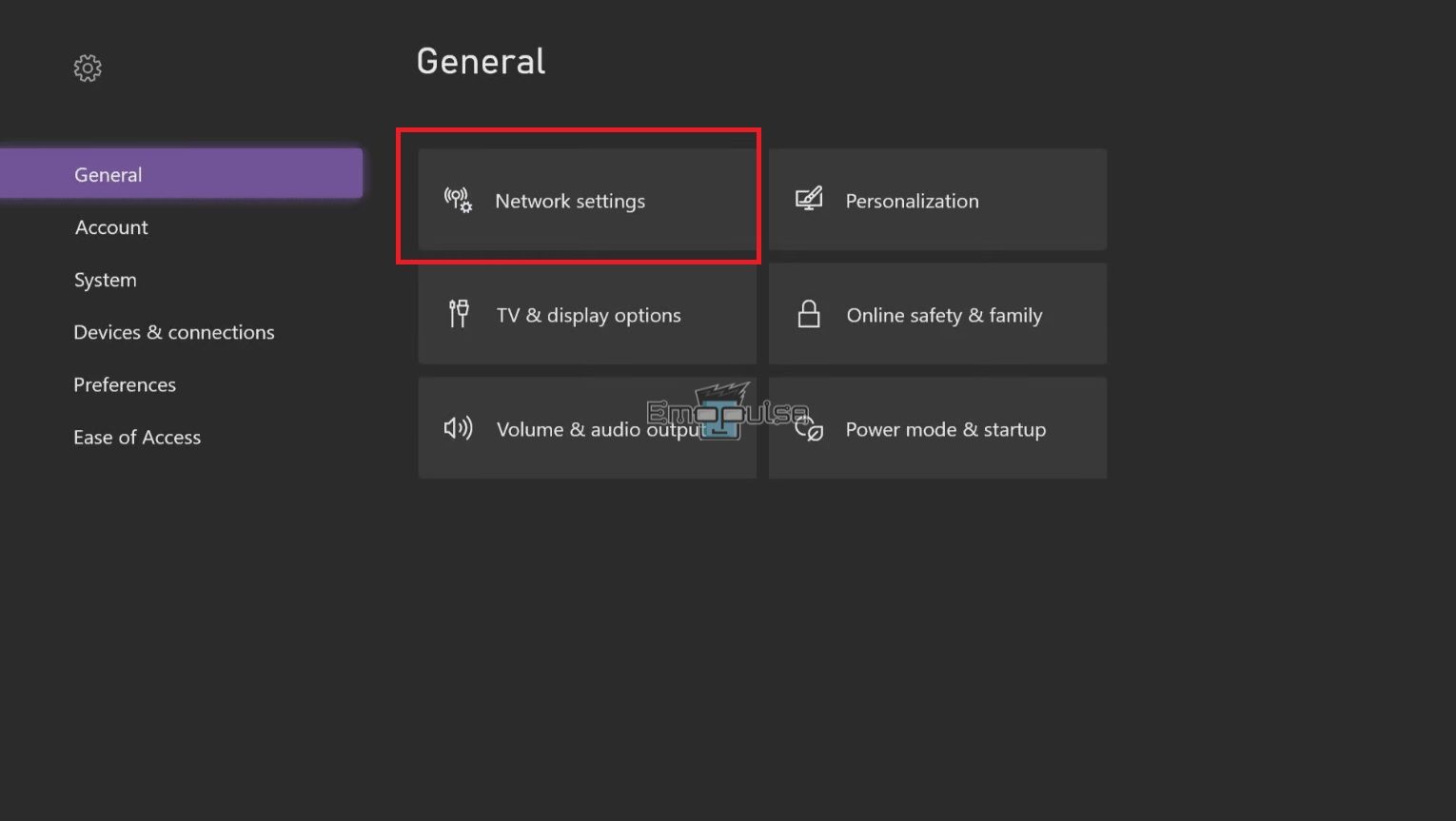
- Go to “Settings.”
- Navigate to “General.”
- Go to “Network Settings.”
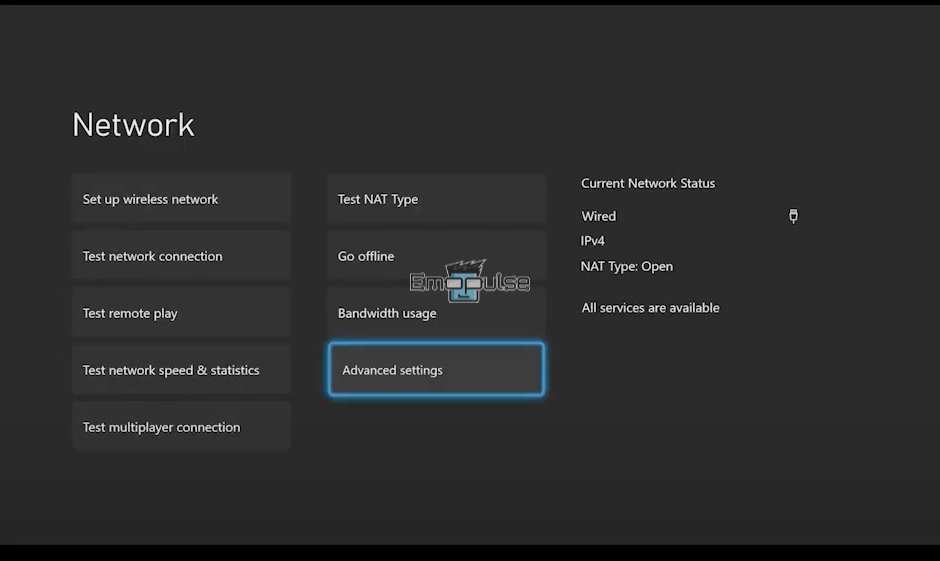
- Make your way to “Advanced Settings.”
- Click on “Alternative MAC Address” and then click Clear.
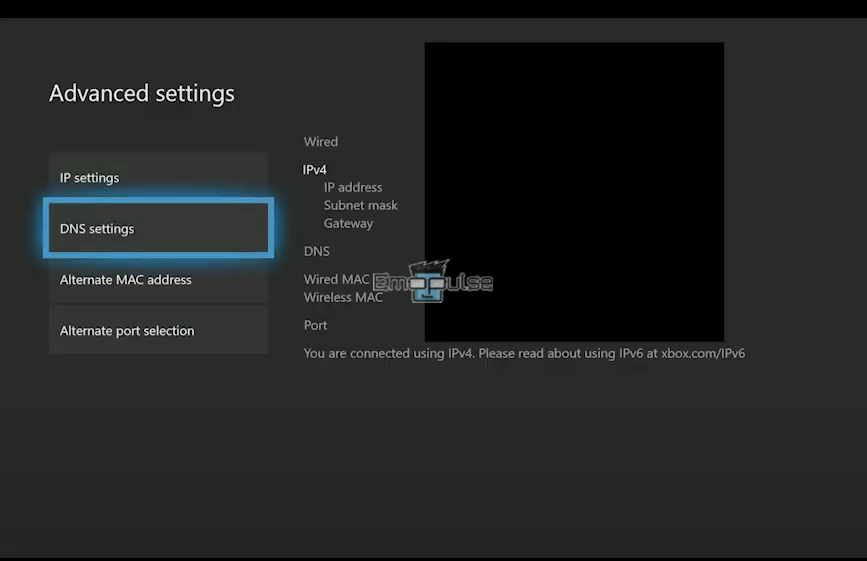
Now that you’ve cleared it, you’d want to restart your Xbox One, and this should hopefully help take care of your issue. If it persists, we move on to the next one.
Clearing Cache
- Hold the “Power Button” down.
- Unplug the power cord of your Xbox from its back.
- Press and hold the “Power button” on the Xbox One and then plug the cord back in.
- Wait and then press the Power button again.
Like that, your cache should be cleared, and you should be ready to go.
Trying An Offline System Update
An offline system update is exactly what the name suggests; for this, you’ll need a USB flash drive. Here’s how you can do this:

- Completely shut down your Xbox.
- Hold the “Controller Sync Button.”
- Now, your Xbox will boot into recovery mode, at which point you’ll plug in your flash drive.
- Next, you will select the “Offline System Update,” at which point, the system will give you instructions on how to proceed further.
This is one way of updating your device’s framework. However, I am aware that not everyone has a flash drive available at all times, which makes us move on to the final fix.
Factory Resetting The Console
My final solution here is to factory reset the console. Once you run into the error where the Microsoft Xbox Purchase Host is not updating, you must press the power button, sync button, and the CD eject button all at once to get the console to boot into safe mode. After which, here are the steps you need to follow:
- Go to “Settings” and then “System.”
- Move into “Console Info.”
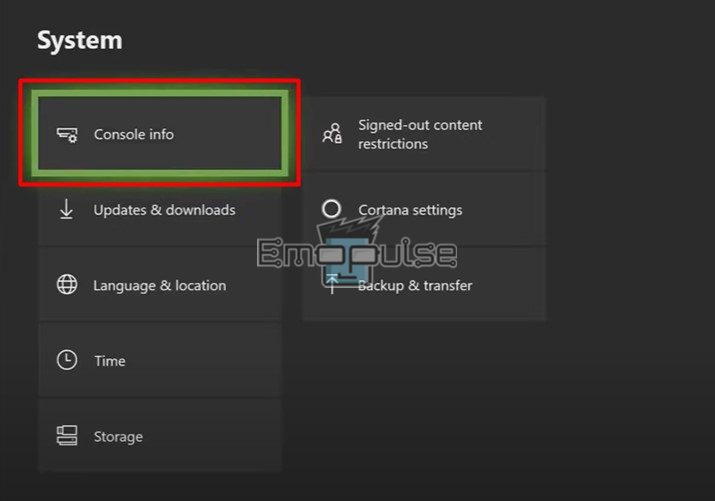
- Go into “Reset Console.”
- Lastly, click on “Reset and keep my games and apps.”
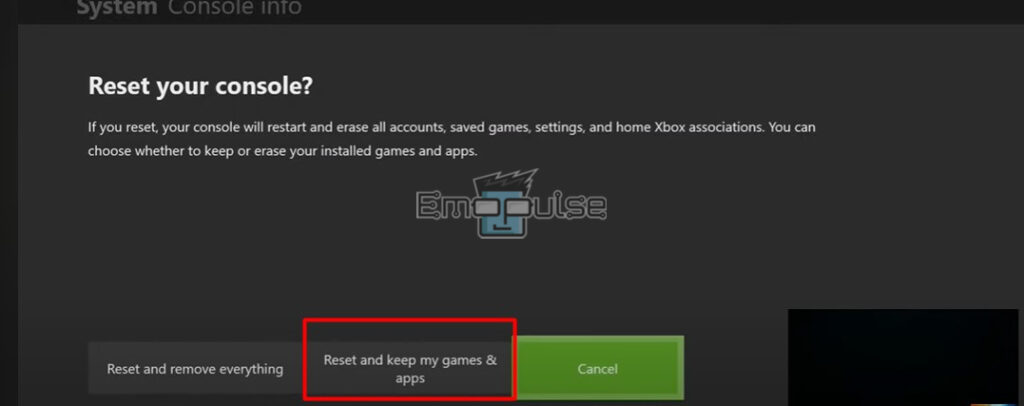
This should factory reset your console while retaining your games.k
What To Do If None Of The Fixes Work?
If you’re one of the unlucky ones and nothing seems to be doing the trick, you can contact Xbox support, and they will be happy to help you with the problem. You can contact them by going to their website.
Conclusion
The “Microsoft Xbox Purchase Host Not Updating” error typically indicates a network issue or SSD is being buggy. To troubleshoot the problem, I suggest you, clear the MAC address, clear the cache, try an offline system update, and factory reset the console.
Hopefully, this guide was of help, and you’re no longer facing any issues regarding the Microsoft Xbox purchase host not updating. So, let me know which of these methods resolved the problem for you.
If you’re here, chances are you’re an avid Xbox user. Here’s a bunch of my other guides that might interest you and come in handy:
Frequently Asked Questions
How do I change my Microsoft purchase settings?
Modify Microsoft Store sign-in preferences for purchases on Windows
Open the Microsoft Store, then click Profile to the right of the search field.
Go to App settings > Sign-in with purchases.What is a MAC address?
Each device on a network has a unique identity known as a Media Access Control address (MAC address). It is primarily assigned by the manufacturer. They are frequently located on the network interface controller (NIC) card of a device.
What is cache?
The main goal of a cache is to improve data retrieval performance by minimising access to the slower storage layer beneath. A cache often stores a subset of data transiently, sacrificing capacity for speed, as opposed to databases, whose data is normally comprehensive and long-lasting.
What is a hard reset?
You can reset your phone to factory settings to erase all of the data it contains. Hard resets and formatting are other names for factory resets.