VLC HowTo/Make VLC the default player
The simplest way to set VLC as the default media player for Windows is during installation of VLC. During set-up, VLC will ask you if you want to associate certain media file types (such as .mp3, .flv, .wav) with VLC; for each «association» chosen opening that file type will launch it in VLC. By default, all are selected, though you might (or might not) want to un-check file types you’d like to open with another programme.
If you’ve missed this chance at making it the default media player during set-up, perhaps the easiest way is to un-install it and then install it again.
A word of caution regarding re-installation—be sure to un-check the box that deletes your preferences and cache, or all your customisations will be gone!
Vista, 7, 8
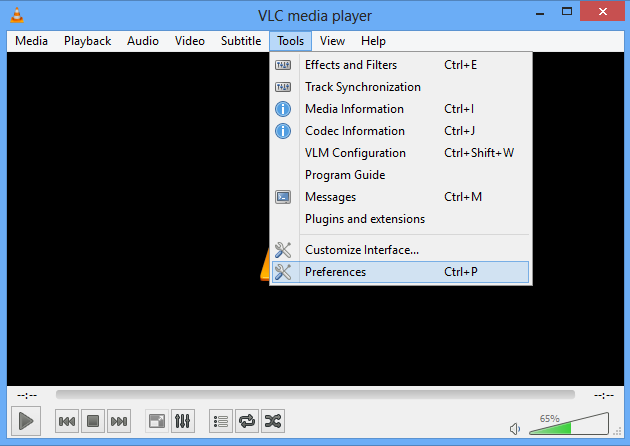
Open VLC player, click on Tools in the menu, and from there select Preferences.
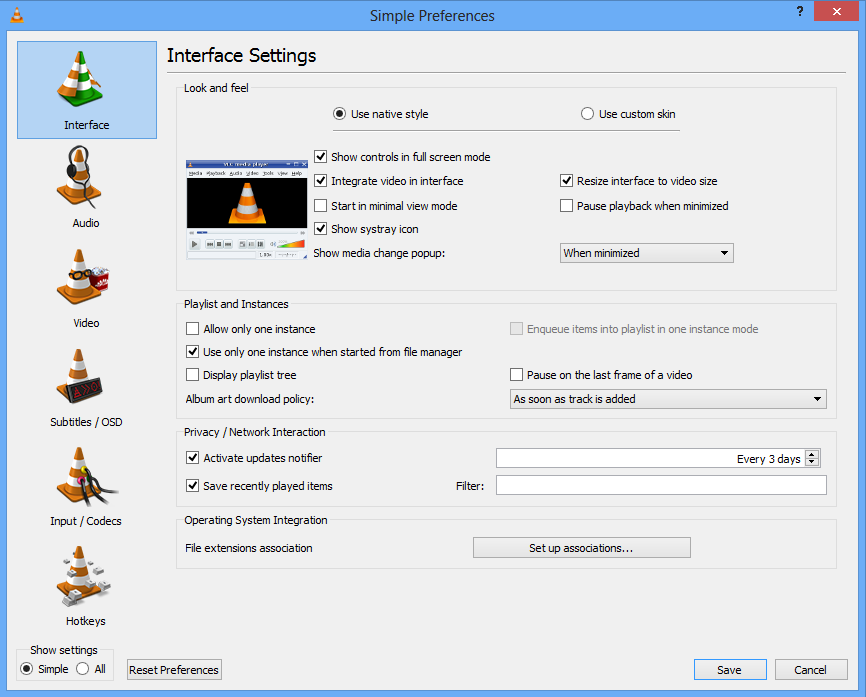
Click on the Interface button on the left panel and then click on Set up associations. (it’s close to the bottom).
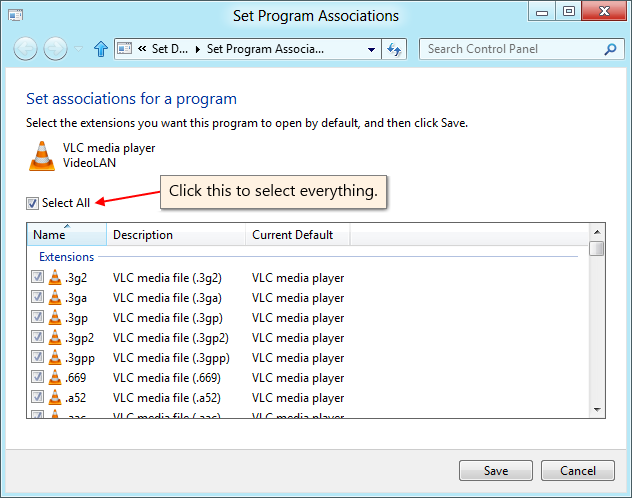
Select types of files from the list that appears. Check any file types for which you want VLC to be the default player, or just check the select all option.
Right-click on the type of file you want to always open with VLC. Click ‘Get Info’. In the ‘Open With’ section, select VLC from the drop-down menu. To apply this change to all files of this type, click the ‘Change All’ button.
For optical media, like CDs or DVDs, go to Apple -> System Preferences and choose «CDs/DVDs» in the Hardware section. Choose «Other Application» from the respective popup menu button. The list is alphabetical, so VLC should be near the bottom of the list.
Linux
Fedora
GNOME
Gnome uses two lists (located at /usr/share/applications/) – mimeinfo.cache and defaults.list – to register applications to file types.
You can either edit these manually or use the tools that GNOME has for this.
Instructions on how to do it in GNOME
Changing the default application for videos using menus (the easy way):
Using Nautilus 2.30.1, from the top menu bar choose «Places», then Home Folder -> Edit menu -> Preferences -> choose Media tab -> and in the drop-down list next to «DVD Video» choose «Open VLC media player».
Voilà.
Alternatively, try: System -> Preferences -> Personal -> Preferred Applications -> Multimedia -> Custom -> Type this: vlc %U
(P.S.: this alternative hasn’t been tested yet).
Changing the default application for videos using menus (the not-so-easy way):
- Right-click on the video file that you want VLC to open by default.
- Choose properties.
- Now in the properties window, click on the tab named Open With.
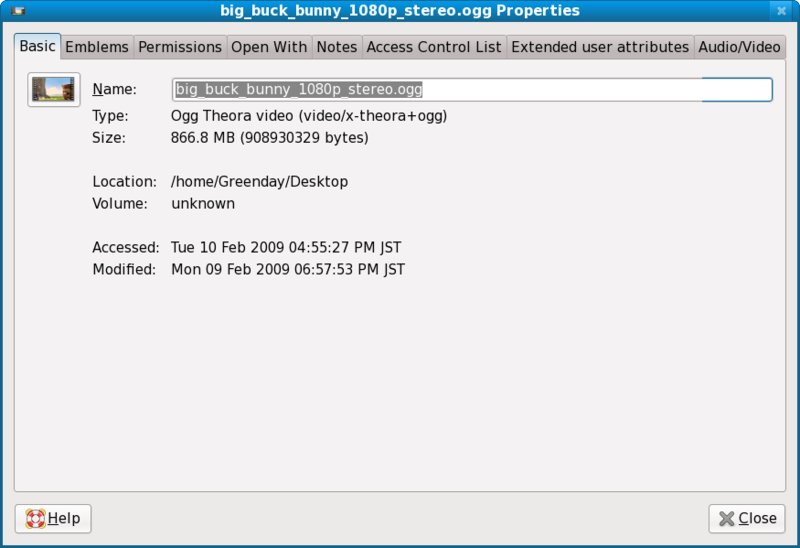
- In the tab Open With just choose VLC as your player for that type of file.
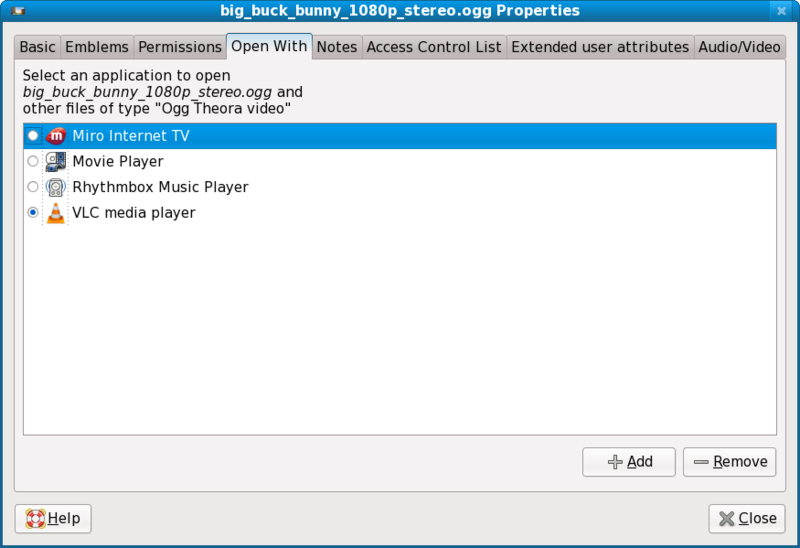
- If the VLC icon doesn’t show up on the Open With tab, click on the add button in the lower corner to the right of the window
that has a plus sign, and locate VLC on the window that pops up that is called Add Application.

Changing the default application for videos manually (the hard way):
In Fedora 10 the path /usr/share/applications/ will take you to these 2 files that configure what application opens a type of file.
defaults.list
mimeinfo.cache
P.S.: Both files will point to a Desktop Entry file ([name of the file].desktop) that is inside the applications folder, and the 2 important things inside that file are the configurations for what MIME Types the application can handle, and how to launch the application.
A Desktop Entry file is a data file that provides information about an item in a menu. The desktop entry specification describes desktop entries as files describing information about an application such as the name, MIME Types it handles, icon, and description. These files are used for application launchers and for creating menus of applications that can be launched.
If you don’t have the VLC Desktop Entry file, or it disappears for some reason you will have to make one. Look here for some pointers.
You only need to modify mimeinfo.cache, I hope. It works for me. If it doesn’t work for you, please edit this!
So what you have to do is:
- Open mimeinfo.cache as root.
- Search for the MIME Types for video.
- Change all of them to use VLC.
For example:
Registry of MIME Type (video/quicktime) in mimeinfo.cache to use VLC.
The format is:
[MIME Type]=[Name of the Desktop Entry file]
Note: You can put more than one Desktop Entry, but they need to be separated by a semi-colon (;), see the example above.
Those extra entries will appear as options when you right-click on the video file and go to the Open With submenu.
Tip: Nautilus don’t show the real names of the Desktop Entry files. Either drag and drop it on gedit so you see the name on the tab, or use ls to list the files on the command line.
How to make VLC your default player
This page will describe how VLC Media Player can be made the default audio/video player in Windows (10, Vista/7/8, XP), macOS, and Fedora.
Windows
Windows 10
For making VLC the default player for all kinds of audio/video files:
Go to settings. (Press Windows key, type “settings”, and click on Settings ).
Click on Default Apps .
For audio files, make VLC the default player for Music Player .
For video files, make VLC the default player for Video Player .
VLC is now the default Music and Video player. 
For making VLC the default player for a specific kind of media file:
Right click on a file with the extension that should open in VLC by default.
Go to Open with -> Choose another app .
Select VLC Media Player from the options.
Check the box Always use this app to open <file extension> files .
Where <file extension> is replaced by the extension of the kind of file selected.

Windows Vista, 7, 8
To make VLC the default player, follow these steps:
Open VLC and go to Tools -> Preferences . (Keyboard shortcut is Ctrl+P .)
In the Interface tab, scroll down to Operating System Intergration .
Click on the Set up associations… button.
A dialog box will appear with the list of various audio/video file formats.
-
If you want some particular media files to open through VLC, check the boxes associated to those file types.
-
If you want to set VLC the default media player for all kind of files, check the Select All box.
Click of the Save button.
Windows XP
The simplest way to set VLC as the default player in Windows XP is during installation. During the setup, VLC asks if the you want certain media files to be opened in VLC by default. All the file types are checked by default.
In case VLC is installed but is not the default player, the best way to set it is by uninstalling and reinstalling VLC.
To keep your customisations, make sure to uncheck the Delete preferences and cache while uninstalling.
While reinstalling VLC, keep the boxes of those media files checked which you wish would open in VLC by default.
macOS
To set VLC as the default player for a specific kind of media file:
Right-click on a file with the extension that you want to open with VLC.
Click on Get Info .
In the Open with section, select VLC from the drop-down menu.
To make this change for all files of this type, click the Change All button.
For optical media like CDs/DVDs,
Go to Apple -> System Preferences .
Choose “CDs/DVDs” in the Hardware section .
Choose Other Application from the respective popup menu.
Choose VLC from the list.
Linux
Fedora
To make VLC the default player for all audio/video media files:
Go to Activity . (Keyboard shortcut is pressing the Super Key.)
Type Default Applications in the search bar.
Select Settings -> Default Applications .
For audio files, select VLC media player under Music .
For video files, select VLC media player under Video .
VLC is now the default player for all kinds of audio and video files. 
To make VLC the default player for a specific kind of media file, we need to associate VLC with that type of media file. There are three ways to do this.
Method 1 (GUI based)
Right click on a file with the extension that you want to open with VLC.
Click on Properties .
Select the Open with tab.
Select VLC Media Player from the list of options.
Click on the button Set as default .
All “.mp3” files will now play in VLC media player by default. 
Method 2 (CLI based)
Fedora stores system defaults in /usr/share/applications/gnome-mimeapps.list and /usr/share/applications/mimeapps.list . To override these defaults, we need to make an entry in
/.config/mimeapps.list , which stores the user preference for default apps while opening files.
To make VLC the default player for a kind of media file (“.mp3” files for example), we need to associate the desktop entry of VLC ( vlc.desktop ) with the MIME type of “.mp3” ( audio/mpeg ).
To do this using the “xdg-mime” command:
Run the following code:
This will add the desktop entry audio/mpeg=vlc.desktop in both, the [Default Applications] and [Added Associations] groups in the
To check if “audio/mpeg” is associated with “vlc.desktop”, run the following code in the terminal:
The first part of this above code tells which file(s) were queried, while the second part tells which app will be invoked when opening a “.mp3” file. The output should be:
Where <username> is replaced by your user name.

Method 3 (Manual)
Instead of using the “xdg-mime” command, the entry can be manually made in the
/.config/mimeapps.list file. To do this, follow these steps:
Go to home directory.
Click on the hamburger menu and check the Show hidden files box.
The hamburger menu is located at the top-right hand side. 
Open the .config folder.
If mimeapps.list exists,
-
Open the file in any editor.
-
Add audio/mpeg=vlc.desktop in the [Default Applications] group.
-
Add audio/mpeg=vlc.desktop; in the [Added Associations] group.
Otherwise, create a file named mimeapps.list and paste the following code:
All “.mp3” files will now open with VLC by default. 
Note: In case there are two entries under [Default Applications] group for the same kind of media file, the one on the top is considered.
Note 2: Certain media files can have more than one MIME types (for example the MIME type of “.mp3” is both audio/mpeg and audio/mp3 ). Using anyone will do the job.
© Copyright This page is licensed under a CC-BY-SA 4.0 Int. License.
Как установить VLC media player плеером по умолчанию?

VLC media player считается одним из самым популярных видеоплееров . Если вы решили установить именно этот плеер на ваш компьютер и хотите воспроизводить все видеозаписи именно через эту программу, тогда вам необходимо установить VLC media player по умолчанию. То есть сделать так, чтобы при открытии любого видеофайла запускался именно VLC.
Для того чтобы установить VLC media player, как плеер по умолчанию необходимо:
1. Щелкните левой кнопкой мыши по любому видеофайлу, который имеется на вашем компьютере. В открывшемся контекстном меню выполните команду «Открыть с помощью» → «Выбрать программу».
Как сделать VLC Media Player проигрывателем по умолчанию

Многие пользователи медиапроигрывателя VLC высоко оценивают уровень выполнения программой своих функций и очень часто желают, чтобы отдельные типы или даже все мультимедиа-файлы открывались в этом приложении автоматически. Ниже рассмотрим, как сделать VLC проигрывателем по умолчанию, что позволит сэкономить некоторое время при постоянном использовании медиакомбайна для воспроизведения видео и аудио, а также других возможностей.
Вне зависимости от того, используется ли VLC только для воспроизведения медиафайлов или пользователем задействован весь функционал программы, назначение автоматического запуска плеера при открытии файла того или иного типа привносит определенное удобство и позволяет совершать меньшее количество шагов для начала воспроизведения. Настроить запуск VLC в режиме по умолчанию можно одним из способов, описанных ниже.
Способ 1: Проводник Windows
Если автоматический запуск рассматриваемого проигрывателя должен осуществляться при открытии файлов определенного формат(ов), можно сделать назначение идя следующим путем.
- Запускаем Проводник Windows и находим любой файл того формата, для воспроизведения которого планируется использование плеера. Для примера назначим рассматриваемое приложение в качестве используемого по умолчанию для воспроизведения файлов формата *.mkv.
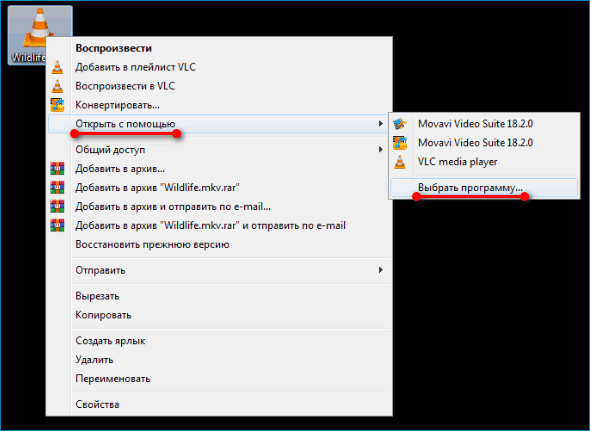
- Кликаем на значке видео или аудио правой кнопкой мышки и выбираем в раскрывшемся меню «Открыть с помощью…», а в следующем перечне возможностей – «Выбрать программу».
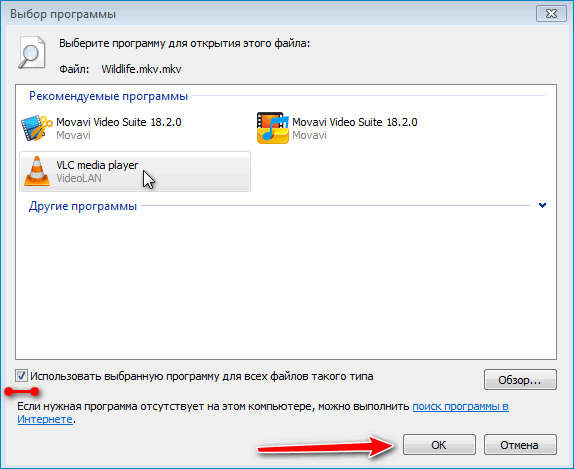
- В открывшемся окне находим и выделяем «VLC Media Player», затем устанавливаем отметку в чекбоксе «Использовать выбранную программу для всех файлов такого типа» и подтверждаем свой выбор нажатием кнопки «ОК».
- Впоследствии для открытия файла выбранного формата всегда будет использоваться проигрыватель VLC, а значки таких файлов в Проводнике изменят свое изображение.
Таким же образом можно назначить приложение проигрывателем по умолчанию и для другого(их) формата(ов), проделывая вышеперечисленное с файлами разных типов поочередно.
Способ 2: Панель управления
Вышеописанный способ назначения проигрывателя целесообразно использовать, если с помощью плеера на постоянной основе планируется воспроизводить медиафайлы одного-двух различных форматов.
Если же нужно открывать в плеере видео и аудио, сохраненное во множестве разнообразных форматов, более быстрым методом настройки является выполнение следующих шагов.
- Запускаем «Панель управления» и открываем раздел «Программы по умолчанию».
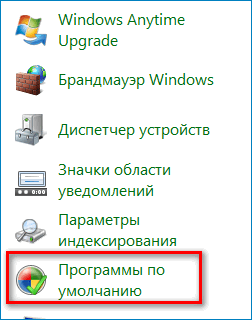
- Открываем первый по списку пункт – «Задание программ по умолчанию».

- В перечне приложений слева находим «VLC Media Player» и кликаем по названию программы. Далее, действуем в зависимости от нужного результата.
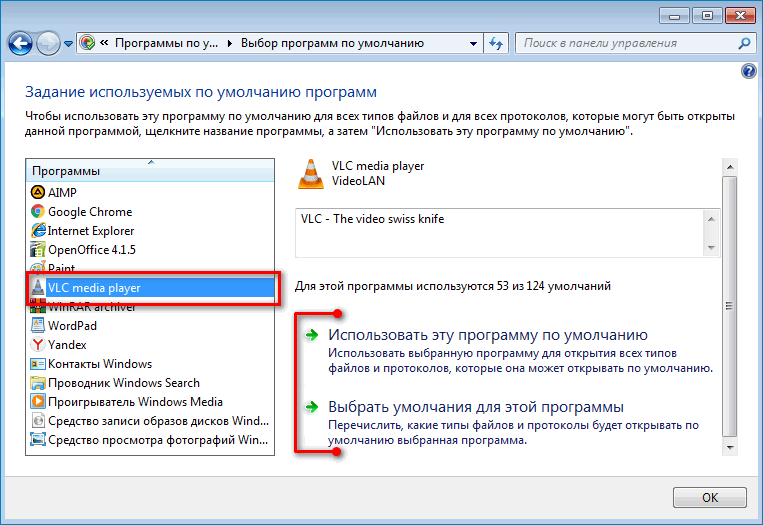
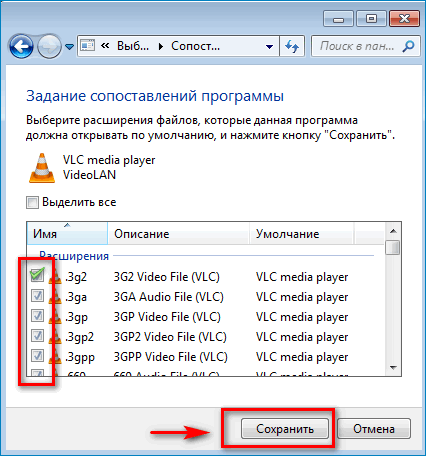
- Для того чтобы задать определенный ограниченный перечень типов файлов для открытия в проигрывателе, нажимаем «Выбрать значения по умолчанию для этой программы», а затем в открывшемся окне ставим отметки в чекбоксах напротив нужных пунктов и нажимаем кнопку «Сохранить».
- Если планируется применять плеер по умолчанию для всех поддерживаемых проигрывателем форматов, выбираем «Использовать эту программу по умолчанию» и после непродолжительного переопределения сопоставлений системой сохраняем настройки нажатием кнопки «ОК».
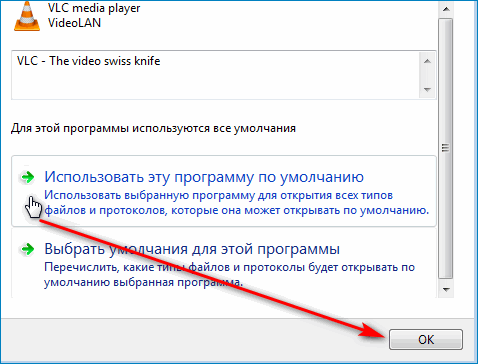
- После выполнения вышеперечисленного, файлы в выбранных форматах будут автоматически открываться в медиаплеере VLC.
Как видим, разобраться в том, как установить VLC Media Player по умолчанию, очень просто. Совсем не сложно организовать быстрое открытие медиафайлов различных типов в проигрывателе.
Какие форматы поддерживает VLC Media Player
Любой программный инструмент выбирается в первую очередь по функциональным возможностям, а также способности приложения взаимодействовать с различными типами файлов. Что касается воспроизведения мультимедиа, тут одним из лидеров, если оценивать способность работать с различными типами и форматами медиафайлов является проигрыватель, VLC Media Player. Какие форматы поддерживает данный продукт? Перед перечислением способностей VLC в плане работы с различными типами медиафайлов, следует отметить практическую универсальность этого решения.
Можно сказать, что если проигрыватель от VideoLAN не смог воспроизвести какой-либо видео- или аудиофайл, то искать программу для открытия последнего, вероятно, не стоит, это попросту невозможно.
Способность проигрывателя читать разнообразные форматы в некоторой степени зависит от того, на какой операционной системе осуществляется попытка открытия.
В целом пользователь может рассчитывать на возможность работать с типами файлов, которые представлены:
- Видеоформатами:

MPEG-4/2/1, MJPEG, H.264, H.263, VP6, VP5, Theora, DV
- Видеоформатами со сжатием:
MPEG-1/2/4, MJPEG, WMV, Cinepak, H.264, H.263, HuffYUV, Indeo3, Theora, Sorenson, VC-1, VP5/6/8/9, H.265.

- Субтитрами:
Телетекст, DVD, SVCD, DVB, MPEG-4 TimedText, TextFile, MPL2, Vobsub.
- Контейнерными форматами:
MPEG-2 (PVA TS, ES, PS, MP3), MPJPEG, MOV, MP4, FLAC, AVI, FLV, ASF, Ogg, Wav.
- Цифровыми контейнерами:
VOB, MPEG-2, MP4, MXF, Raw DV, Raw audio, MKV, FLV, 3GP, AVI, ASF, AIFF, QuickTime, WAV, OGM, Ogg.
- Аудиоформатами:

WMA. WavPack, Vorbis, Speex, QDM2/QDMC, RealAudio, MP3, MACE, FLAC, XM, DVAudio, DTS, AMR, ALAC, AC3, AAC, TTA.
Отдельно стоит отметить возможности плеера по воспроизведению вещания из сети. VideoLan Player поддерживает такие потоковые протоколы: File, MMS, RTSP, RTP, HTTPS, HTTP, UDP.
Таким образом, можно говорить о практической универсальности рассматриваемого инструмента при работе с различными медиафайлами. Кроме прочего, стоит отметить постоянное развитие продукта и практически мгновенное добавление разработчиками поддержки новых форматов в проигрыватель, когда они появляются.