How To Bass Boost Your Mic on Discord
 By Carlos Bradley December 3, 2022 December 4, 2022
Do you often use Discord for voice chatting and video sharing but are unsatisfied with the audio bass levels? Thankfully, you can use a mic with the app and increase the bass quickly.
To bass boost your mic on Discord, press the Windows + I keys to open Settings, navigate to “System” > “Sound” > “Sound Control Panel”, and open the “Playback” tab. Double-click your microphone in the list, and open the “Enhancements” tab. Check the “Bass Boost” box, click “Apply”, and “OK” to save your changes.
To help make things easier, we have written an extensive guide on how to bass boost your mic on Discord with easy-to-follow instructions. We will also discuss several methods to resolve Voicemod not working on Discord.
Bass Boosting Mic on Discord
If you don’t know how to bass boost your mic on Discord, our following 2 step-by-step methods will help you accomplish this task with minimal effort.
Method #1: Using Windows Settings
Since there aren’t any native bass boost settings available on Discord, you can use the Sound settings on your Windows computer in the following way.
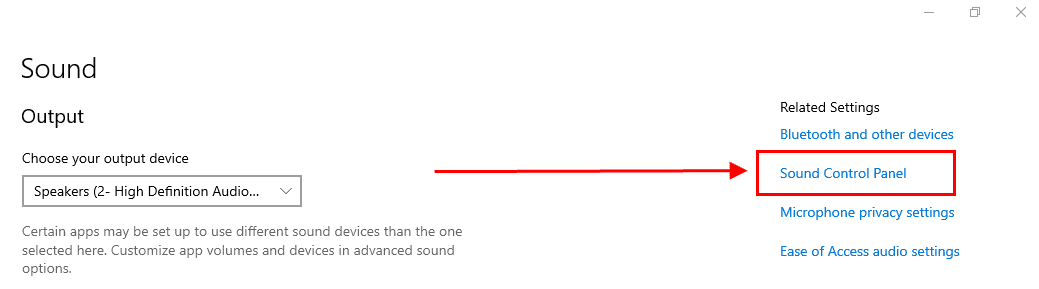
- Press the Windows + I keys to open Settings.
- Navigate to “System” >“Sound”.
- Click “Sound Control Panel”.
- Click “Playback”.
- Double-click your microphone and open the “Enhancement” tab.
- Check the “Bass Boost” box.
- Click “Apply” and then “OK” to save your changes, and increase the bass on your microphone on Discord.
Method #2: Using Third-Party Voice Software
If you wish to increase the bass on your Discord microphone, download and use the third-party software called Voicemod with these steps.
Step #1: Downloading Voicemod
Launch any web browser on your PC and head to the Voicemod website. Click “TRY IT NOW” and sign up on the website using your email to start the download automatically. Once downloaded, complete the installation by following the on-screen instructions, then launch the app.

On the app Start screen, click “Get Started” and wait for the app to load. Select your microphone and speaker from the drop-down menu and click “Continue”.
Step #2: Connecting Voicemod to Discord
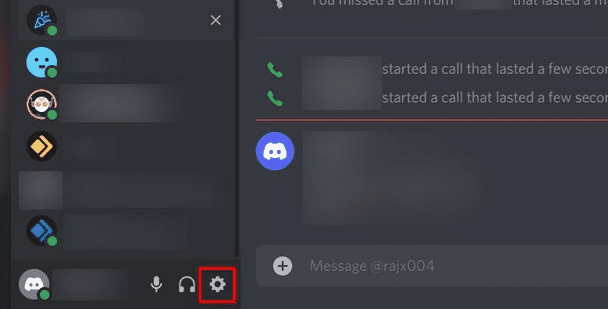
Once your Voicemod app has been set up, launch Discord on your computer and press the gear icon at the bottom left of the app’s Home screen to open “User Settings”. Click “Voice & Video” in the left pane and choose “Microphone (Voicemod Virtual Audio Device)” in the “INPUT DEVICE” drop-down.
Use the slider at the bottom to adjust the volume to your liking.
Step #3: Applying Bass Boost Filter
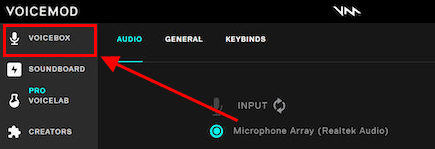
After selecting Voicemod as your input device on Discord, open the Voicemod app again and click “VOICEBOX” in the left pane. Select and apply various available filters to increase the bass on your microphone. Your voice will now be bass boosted whenever you use your microphone on Discord.
Is Voicemod Not Working on Your Discord?
If you are facing issues using Voicemod bass boost filters for the mic on Discord, try the following simple fixes to get rid of them.
Fix #1: Restarting Your Computer
One of the easiest ways to get Voicemod mic bass boost to work on your Windows computer again is to restart it in the following way.
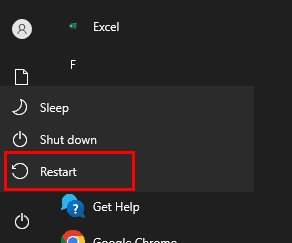
- Open the Startmenu.
- Click “Power”.
- Click “Restart”.
- Try to use the Voicemod microphone on your Discord app again and check if the issue is resolved.
Fix #2: Reinstalling the Voicemod Driver
Another quick way to resolve the issue is to reinstall the Voicemod virtual audio driver in the following way.
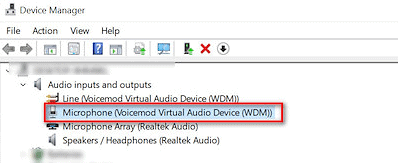
- Press the Windows + X keys simultaneously.
- Open “Device Manager”.
- Extend “Audio inputs and outputs”.
- Right-click the Voicemod microphone and select “Uninstall driver”.
- Click “Uninstall” in the pop-up window to confirm your action.
- Restart your computer to automatically install the drivers and check if the Discord mic issue has been resolved.
Fix #3: Reinstalling Voicemod
If you are facing issues using the Voicemod app for Discord, reinstall it on your Windows PC with these steps.
- Open the Control Panel.
- Select “Uninstall a program”.
- Locate and right-click on “Voicemod”.
- Choose “Uninstall”.
- Follow the on-screen instructions to uninstallVoicemod on your computer successfully.
- Reinstall Voicemod from its official website and set it up on your Discord again to bass boost your microphone.
Fix #4: Updating Windows OS
If the other fixes don’t work, try to update your Windows software using these steps to fix Voicemod not working on the Discord app.
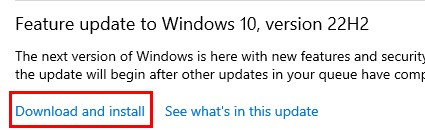
- Open the Start menu.
- Click Settings.
- Click “Update & Security”.
- Click “Download and install”.
- Once your systemrestarts, use Voicemod to apply bass to your microphone and try using it on Discord again to check if the problem is solved.
Summary
In this guide, we have discussed how to bass boost your mic on Discord. We have also discussed a few troubleshooting methods if the Voicemod app is not working on Discord.
Hopefully, your question has been answered, and you can deepen your voice’s tone while hanging out on the Discord communication platform.
Что может быть причиной басящего шума на микрофоне и как его устранить
Басящий шум на микрофоне – это неизбежный недуг всех аудиоинженеров и продюсеров, которые работают с записью звука. Несколько десятилетий захватывающих звуковых записей были разрушены из-за этого неприятного звука.
Причины баса на микрофоне
Басящий шум на микрофоне может быть вызван различными причинами, однако наиболее распространенные из них – это:
Электрический шум: Это происходит, когда электрический эфир взаимодействует с микрофоном. Это может быть вызвано рядом причин, включая близость к большим мощным источникам энергии, таким как энергетические подстанции, металлические стены, подземные линии передачи и многими другими факторами.
Низкочастотный шум на микрофоне: Этот тип шума является низкочастотным вибрационным шумом, который может быть вызван невыровненными микрофонами или невыровненными кронштейнами для микрофона.
Окружающая среда: Это может быть вызвано многими причинами, включая резкие изменения температуры, влажность и сильный ветер. Также могут влиять на бас на микрофоне – громкие соседи или засвечивание микрофона.
Как убрать бас на микрофоне
Существует несколько способов, чтобы убрать бас на микрофоне:
Используйте поп-фильтр. Это фильтр, который может помочь уменьшить воздушные потоки вокруг микрофона, и таким образом, снизить бас на микрофоне.
Используйте эквалайзер. Это один из мощных инструментов, который может помочь обрабатывать звуковую качественную запись и убрать бас на микрофоне. Регулировка высокочастотного диапазона и уменьшение низкочастотных диапазонов помогут убрать бас на микрофоне.
Уберите внешний шум. Это может быть сделано путем установки микрофона в среде, где нет уличных шумов или других источников шума.
Используйте шумоподавляющую технологию. Эта техника работает на основе обработки звуковой записи и нейтрализует бас на микрофоне.
Вывод
Бас на микрофоне может быть вызван множеством причин. Те, кто занимаются звукозаписью могут использовать различные методы уменьшения баса на микрофоне, включая использование поп-фильтров, эквалайзеров, убирание внешних шумов или использование шумоподавляющих технологий. В любом случае, отношение к этому вопросу должно быть серьезным, поскольку только так можно добиться качественной звукозаписи.
Как сделать микрофон Бассбустед?
Если громкость микрофона выставлена выше 20-25%, то это явная причина появления шума. . Если вы используете встроенный микрофон ноутбука, то он может записывать звуки, издаваемые корпусом ноутбука – шум кулеров, треск винчестера и так далее.
Как включить бас буст в наушниках?
- Настройка эквалайзера на бас. Сюда можно отнести и все программные «улучшайзеры».
- Улучшить басы в наушниках с помощью прогрева.
- Усилить басы в наушниках может приобретение хорошего источника. Плеер, «ЦАПоусь», усилитель.
- Переход на несжатые форматы аудио может улучшить качество баса.
Как сделать бас в колонках?
- Определитесь, какой именно бас вам нужен .
- Тщательно подбирайте систему .
- Особенно внимательно выбирайте колонки .
- Правильно установите колонки .
- Обратите внимание на фазоинвертор .
- Не забудьте об аксессуарах .
- Купите сабвуфер .
- Снова о сабвуферах
Как включить Тонкомпенсацию на Windows 10?
Перейдите в раздел Параметры > Система > Звук. В сопутствующих параметрах выберите Панель управления звуком. Выберите своё устройство воспроизведения звука и нажмите Свойства. Теперь во вкладке Улучшения снимите отметку Отключение всех звуковых эффектов и в списке выберите Тонкомпенсация.
Как увеличить громкость микрофона в Windows 10?
Усиление Дб микрофона
Для этого, нажмите правой кнопкой мыши по иконке звука в трее, и выберите «Звуки«. В новом окне перейдите во вкладку «Запись» и одним нажатием выделите микрофон. Далее перейдите во вкладку «Уровни», и в графе «Усиление микрофона» вы можете добавить Дб, тем самым усилив звук микрофона еще громче.
How To Bass Boost Your Mic on Discord?
 By Steve Kuhn January 16, 2023 January 16, 2023
Discord is a blessing for gamers and businesses wanting to organize their communication. This VoIP platform adds to the convenience of sorting through serves and communicating in real time.
Whether you’re engaging in a voice chat with friends, streaming a game, or recording a podcast, having a microphone with a good bass response can make all the difference in the overall quality of the audio.
So, how can you bass boost your mic on Discord?
Discord does not have an inbuilt feature for bass boost. To give your mic a bass boost, go to the window’s settings, and from the system’s sound section, you can access additional sound options. Double-click on your microphone, select the “Enhancement” tab, and check the “Bass Boost” option.
Let’s discuss in detail how you can quickly and easily bass boost your microphone on Discord and improve the quality of your audio.
What Is a Bass Boost?
Audio enthusiasts can take their listening experience to new heights with the bass boost!
By fine-tuning the equalization levels of an output signal – raising and lowering specific frequency bands – users have unprecedented control over the sound they perceive.
Boosted lows add a mighty thump that accurately conveys the music’s original intentions. All this is easily achievable with headphones, speakers, or even your sound card!
Discord Audio Features You’ll Love
Discord is essential for today’s gaming and streaming communities, providing users with powerful audio options to elevate communication.
From text-to-speech functions and voice recording capabilities to screen-sharing support – Discord has the features you need to make conversations more captivating.
Push-To-Talk
With this feature, you can activate your microphone only when needed and with the press of a key. Keep out unwanted disturbances while enjoying flawless audio transmission!
Echo Cancellation
This feature enhances the audio, giving it pristine clarity. It eliminates echoes to produce maximum understanding and pleasure in your listening experience.
Automatic Gain Control
This nifty feature dynamically adjusts the volume of your microphone based on what’s happening around you, ensuring that everyone always hears a crystal-clear version of you.
These are some of the many audio features that Discord offers, making it a great communication platform for all users.
Discord audio uses a technology called Opus codec to compress and transmit audio data. This technology is designed to provide high-quality, low-latency audio, and it’s also used in other communication applications such as Skype, Teamspeak, and Google Meet. Additionally, Discord also supports audio spatialization, which allows for virtual surround sound in supported devices.
Steps to Bass Boost Your Mic on Discord
Discord does not have any in-built bass boost feature. Hence we will accomplish the goal from Windows settings. Here are the steps to bass boost your microphone on Discord through Windows settings:
- Go to Settings on your computer by pressing “Windows + I.”
- Click on the “Sound” option.
- Select Sound Control Panel from the right panel on the screen.
- Double-click on your input device.
- Navigate to the “Enhancement“ tab.
- Check the “Bass Boost” box.
- Click the “Apply” button and then “OK.”
The boost level should be adjusted sensibly, as too much bass boost can cause distortion and make the audio less clear.
The Best Mic Tips for Discord
Here are some tips to improve microphone quality when using Discord.
Tip #1: Use a Quality Microphone
Invest in a microphone that is designed for professional use. USB microphones are a good option because they plug directly into your computer, eliminating the need for additional audio interfaces.
Tip #2: Position Your Microphone Correctly
Ensure your microphone is positioned at the appropriate distance from your mouth, and avoid pointing it directly at your computer speakers; this will prevent echo.
Tip #3: Use Noise Suppression
Noise suppression can be used to reduce background noise. Some microphones have built-in noise suppression, but you can also use software to filter out unwanted noise.
Tip #4: Use a Pop Filter
A pop filter can help to reduce plosives, which are the complex ‘P’ and ‘B’ sounds that can cause audio peaks and distortion.
Tip #5: Use a High-Quality Cable
Avoid using cheap cables, as they can introduce unwanted noise into your audio.
Tip #6: Test Your Microphone
Before joining a voice call, test your microphone to ensure the audio is clear and at a reasonable volume level.
Tip #7: Use Audio Software
Some third-party software allows you more control over your audio settings, enabling noise suppression, equalizer, automatic gain control, and more features.
By following these tips, you can improve your microphone audio quality and enhance your communication experience on Discord.
Conclusion
Following the simple steps above, you can quickly boost your Discord mic and enjoy a more precise, richer sound during your next chat session.
With some experimentation, you can find the perfect settings to suit your needs and make yourself heard loud and clear. So go ahead and try it – your friends (and ears) will thank you for it!