Устранение ошибки NET::ERR_CERT_AUTHORITY_INVALID в браузере

Рассматриваемая проблема возникает из-за устаревших либо повреждённых сертификатов безопасности, о чём вам и сообщает веб-обозреватель, однако это не значит, что ресурс полностью недоступен – достаточно нажать на кнопку «Дополнительно» в окне с ошибкой, затем кликнуть по ссылке «Перейти на сайт».
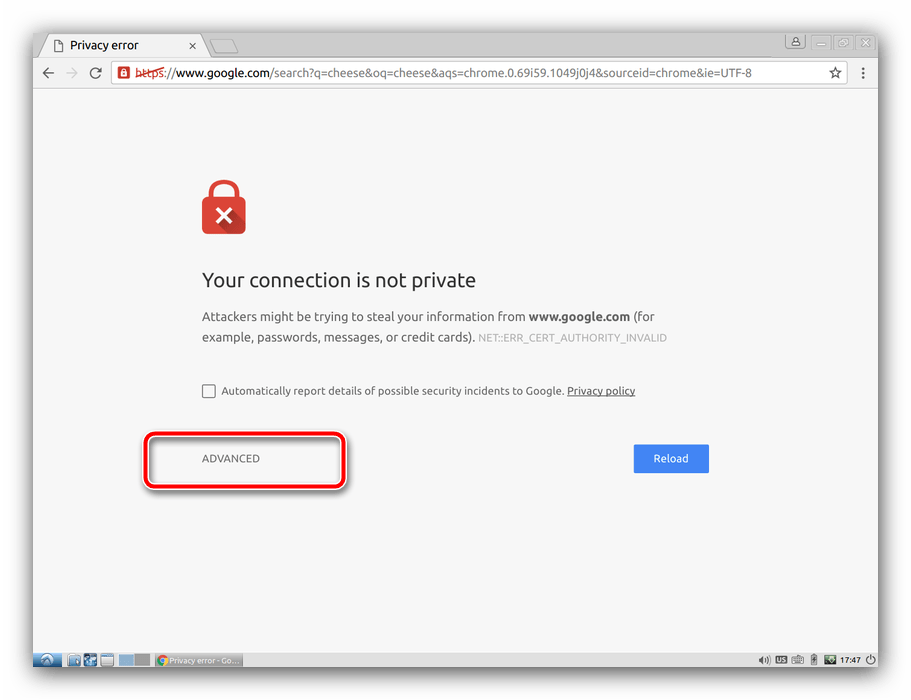
Стоит, однако, иметь в виду, что это действительно не самое безопасное решение, поэтому не рекомендуется использовать этот вариант для посещения сайтов с вводом личных данных.
Способ 2: Использование HTTP-версии
Большинство современных веб-страниц или переходит, или уже перешло на протокол HTTPS, который как раз таки и отличается повышенной безопасностью с использованием соответствующих сертификатов. Впрочем, некоторые сайты ради совместимости с устаревшим ПО по-прежнему поддерживают HTTP-варианты, и эту особенность мы можем задействовать для обхода рассматриваемой ошибки: кликните по адресной строке, перейдите в начало ссылки и сотрите код https .
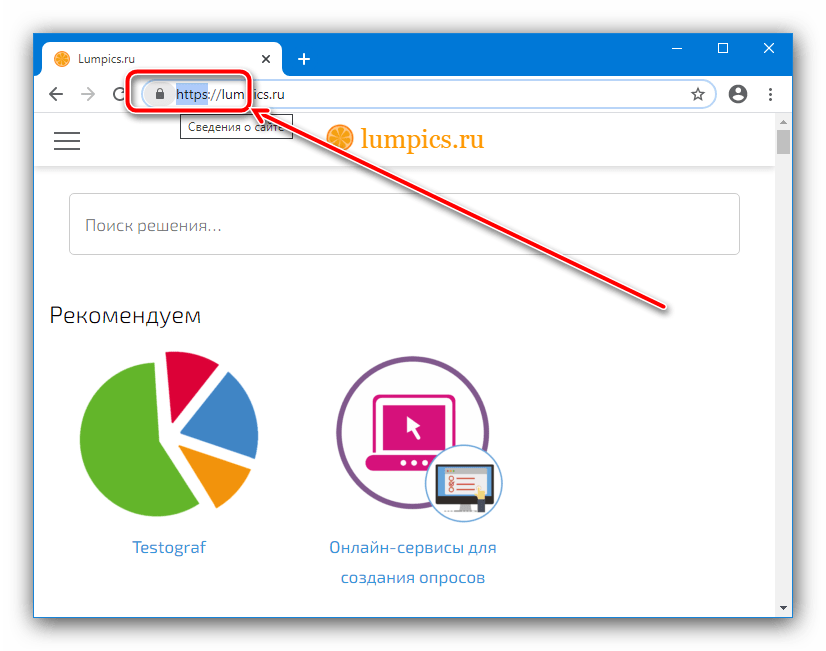
Далее вместо него напишите http и нажмите Enter.
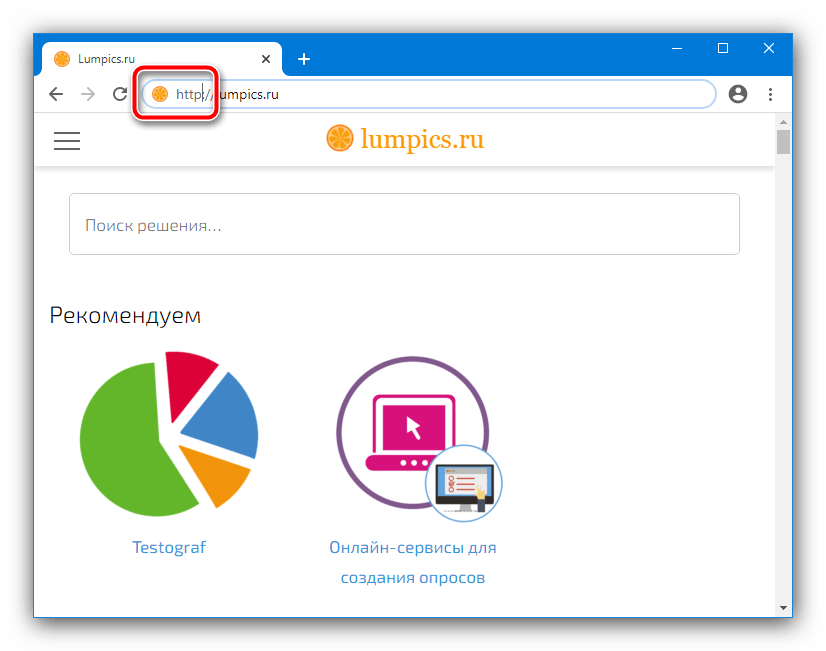
Если соответствующая версия ресурса доступна, она начнёт загружаться. В противном случае браузер отобразит ошибку – это значит, что следует использовать какой-то другой из упомянутых здесь методов.
Способ 3: Установка корректных даты и времени
Сертификаты безопасности имеют ограниченный срок действия – даты его начала и окончания проверяются обозревателем. Разумеется, если на компьютере будут установлены время и дата, которые не соответствуют текущим, средства защиты проверку не проходят, и вместо перехода на сайт вы получите рассматриваемую ошибку. Решение проблемы очевидно: следует убедиться в правильности ввода соответствующих значений и в случае необходимости внести в них коррективы.
Способ 4: Очистка кэша
Нередко причиной проблемы с сертификатами является информация, находящаяся в кэше программы для просмотра интернета, поэтому если ни один из предыдущих вариантов не помог, стоит провести очистку хранилища – обратитесь к ссылкам далее.
Способ 5: Режим игнорирования предупреждений (Google Chrome)
Пользователи Гугл Хрома для устранения рассматриваемой проблемы могут включить специальный режим работы, в котором проверка будет полностью отключена, и, как следствие, ошибка NET::ERR_CERT_AUTHORITY_INVALID не должна появляться.
Внимание! Отключение предупреждений ослабит защиту компьютера, поэтому используйте инструкцию далее на свой страх и риск!
- Нам понадобится второй ярлык Google Chrome на «Рабочем столе». Материал далее поможет вам правильно выполнить процедуру.
Способ 6: Отключение антивируса
Иногда появление ошибки NET::ERR_CERT_AUTHORITY_INVALID вызывает антивирусная защита, особенно если в ней присутствует встроенный файрвол. Для проверки можно временно отключить защитное ПО – если причина в нём, просто добавьте ресурс в исключения.
Способ 7: Переустановка браузера
Также проблема порой заключается и непосредственно в приложении для просмотра интернет-страниц: его файлы оказались повреждены, либо же инсталлированная версия серьёзно устарела. Решение в этом случае простое: создайте резервную копию закладок и/или другой важной информации, удалите ПО, затем загрузите и установите самый новый его вариант. Подробности процедуры для популярных веб-обозревателей вы можете найти в статье по ссылке далее.
How to fix NET::ERR_CERT_AUTHORITY_INVALID Error?

In this tutorial, we will show you how to fix the NET::ERR_CERT_AUTHORITY_INVALID error in Google Chrome. This particular SSL warning is triggered by an invalid SSL certificate. In a nutshell, the browser can’t establish a secure connection with the server because it’s unable to perform the SSL handshake. The culprit is the SSL certificate installed on the server side, as it’s either expired or self-signed.
Let’s expand on each reason and see how you, as a website owner, can fix this connection error.
An expired SSL certificate
SSL certs aren’t eternal. On the contrary, their current lifespan is pretty short — just one year. The good news is that you can get a multi-year SSL subscription service and streamline SSL management. The bad news is that even with timely reminders and notifications, some of the largest websites forget to renew their certificates on time.
This mistake is preventable. All you have to do is renew your certificate before expiry. We’ve already written a comprehensive guide on SSL expiration covering the best renewal practices. Don’t let your cert expire, and the chances of seeing the NET::ERR_CERT_AUTHORITY_INVALID error in Chrome will diminish.
A self-signed certificate
As their name implies, anyone can create a self-signed certificate and become their own Certificate Authority. Problem is, no browser will trust such certs. At best they may prove useful in testing environments and intranet systems where browser warnings are irrelevant, but for a live website, they’re worthless. If you don’t want to face SSL connection errors, use a valid SSL certificate from a certified CA.
How to fix the NET::ERR_CERT_AUTHORITY_INVALID Error if you’re a website user?
If you can’t access a website as a user, here are a few quick solutions you should try:
Updated the date and time on your computer
If the date and time on your computer are not the same as the global Internet time server, Google Chrome may display the error. Here’s how you to fix this issue:
Windows users:
- Click the Windows Key and go to the Control Panel
- Select Clock and Region
- Under Date and Time select Set the time and date
- Open the Internet Time tab
- If your computer isn’t set to automatically synchronize on a scheduled basis, click Change settings, and check the Synchronize with an Internet time server checkbox.
Mac users:
- Select Apple menu > System Preferences, then click Date & Time.
- Click the lock icon in the corner of the window, then enter your administrator password to unlock the settings.
- In the Date & Time pane, ensure that Set date and time automatically is selected and your Mac is connected to the internet.
Clear cache and browsing data
Your browser’s cache keeps temporary files such as images, data, and documents for smooth and fast browsing. But as they accumulate, your computer’s and browser’s performance may decrease and eventually lead to bugs and errors. To empty your cache, follow the steps below:
- Open your Chrome Browser and press Ctrl + Shift + Delete.
- Set the time range to All Time.
- Check the Cookies and other site data check boxes.
- Check the Cached images and files checkbox.
- Click the Clear Data button.
Disable Chrome extensions
Browser extensions may conflict with core functions and trigger all sorts of errors. A quick troubleshoot is to disable them temporarily and see if they’re the cause of the problem.
- Open Google Chrome and go to its Menu on the upper right side.
- Next, click on More tools and visit Extensions.
- Remove extensions one by one by clicking Remove
- Restart your browser and see if it works
Configure your Antivirus
Antivirus programs are notoriously overzealous when it comes to your files and apps protection. Sometimes they may clash with certain programs or block a benign website.
To ensure that your antivirus isn’t responsible for the NET::ERR_CERT_AUTHORITY_INVALID error, disable it and restart the site.
Final thoughts
A valid SSL certificate with proper installation and configuration is the best measure against all sorts of SSL connection errors. As a website owner, you have to protect users’ sensitive data, as nothing scares them more than a warning message in their browser. Never let your certificate expire, and use only reliable Certificate Authorities, universally trusted by all the computer programs, servers, and email clients.