How to log off from email account on Mac

Having spent some years coding applications for macOS, we’ve created a tool that everybody can use. The all-round problem fixer for Mac.
So here’s a tip for you: Download CleanMyMac to quickly solve some of the issues mentioned in this article. But to help you do it all by yourself, we’ve gathered our best ideas and solutions below.
Features described in this article refer to the MacPaw site version of CleanMyMac X.
If you use your Mac for checking your email and sending messages, chances are that you use the built-in Mail app, whether or not you have an iCloud email address. The Mail app can be used with any email address from the likes of Google or Microsoft or any IMAP email address (for example, using your own domain). However, if you stop using your Mac for email, perhaps because you do it all on your phone, or you move from Mail to a different email client, you probably want to know how to log out of mail on Mac. We’ll show you how to do thatю
What happens when you log out of Mail on Mac?
Before we show you how to do it, it’s worth explaining what happens when you log out of an email account on Mac. When you use Mail, it downloads copies of each email you receive and keeps copies of those you send or save in the drafts folder. It also downloads content like images and attachments. However, those messages and the content that goes with them are also kept on the server and synced with the other devices you use with that account. That’s why when you, for example, log in to Gmail in a web browser, all your messages are still there, even though you downloaded them in Mail. So, when you sign out of an email account on your Mac, you’ll still be able to access your messages on another device. However, if you don’t use email on your Mac, signing out of an account means you can delete messages and attachments stored on your Mac and free up space.
How to sign out of Mail account on Mac
- Open Mail and select Settings from the Mail menu.
- Select the Accounts tab at the top.
- Click on the account you want to sign out of in the sidebar.
- Deselect the box labeled ‘Enable this account.’

This disables the email account, but it remains on your Mac, and you can re-enable it at any time. If you want to remove it completely, select the account in the sidebar and click the ‘-’ at the bottom of the window, then confirm you want to delete the account.
How to log out of a Gmail account on your Mac
The way you log out of a Gmail account on your Mac is dependent on how you access Gmail. If you access it using Mail and only want to log out of Gmail rather than your entire Google account, you can follow the steps above and choose the Gmail account in step 3. If you want to log out of your Google account completely, follow the steps below:
- Click on the Apple menu and open System Settings.
- Navigate to Internet Accounts.
- Click on the Google account you want to log out of.
- Select Delete account and confirm.

When you delete an account, you will no longer be able to access Gmail, contacts, calendars, or notes from that Google account on your Mac.
How to manage your privacy on your Mac
One reason why you may want to know how to log out of email on Mac is that you share the use of the computer with someone else and don’t want to risk them having access to your email. If that’s the case, you should consider other ways you can protect your privacy. For example, you could clear your Recent Items list and get rid of your browser and download history. If you’re concerned about apps having access to sensitive areas of the system, like your camera and microphone, you should review those permissions and revoke them where necessary. Doing all of that manually would take a lot of time and effort. But there is an easier way. CleanMyMac X’s Privacy module allows you to do all of that with just a few clicks. And it can clear out the list of Wi-Fi networks your Mac has saved. This is particularly useful because, unless you delete it, if you have connected to a public Wi-Fi network in the past and it is now unsafe, the next time you’re within range, your Mac will connect to it automatically. You can download CleanMyMac X for free here and try it for yourself.

How to log out of a mail account on Mac in Microsoft Outlook
If you use Microsoft Outlook to send and receive email, you can log out of an account there, too. Here’s how:
- In Outlook, select Settings from the Outlook menu.
- Click Accounts.
- Choose the account you want to sign out of.
- Click ‘-’ at the bottom of the window.
- Select either Sign Out On This Device or Sign Out On All Devices.

How to permanently delete your mail account
Permanently deleting a mail account is a much bigger step than just deleting it from a device. If the mail account is an iCloud account (including me.com and mac.com), you will have to delete the Apple ID from the Manage Account > Manage your Privacy section on iCloud.com. You will then lose everything associated with that ID, including mail, contacts, reminders, notes, calendar entries, and photos in iCloud Photo. If it’s a Microsoft or Google email account, you will need to contact them via the account section on their website to delete your account. If the account is hosted on your own domain, you can delete it from your web host’s control panel.
There are several ways to disable, log out of, or delete a mail account on your Mac. Choose the situation that best reflects your needs and then follow the steps above to sign out of mail on your Mac.
Выход из учетной записи электронной почты в Outlook для Mac
В левой части окна выберите учетную запись, из которой вы хотите выйти.
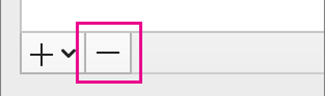
В левом нижнем углу диалогового окна « Учетные записи» нажмите кнопку  .
КАК ВЫЙТИ ИЗ ПОЧТЫ НА МАКБУКЕ
Чтобы выйти из почты на MacBook, вам нужно выполнить несколько простых шагов.
1. Откройте приложение «Почта», которое находится в папке «Приложения».
2. В верхнем левом углу окна «Почта» найдите меню «Почта» и щелкните на нем.
3. В выпадающем меню выберите опцию «Выйти из аккаунта», и вы будете выведены из вашей электронной почты.
4. После этого вы можете закрыть приложение «Почта», если больше не планируете использовать его.
Как выйти из iCloud на Macbook
How to Logout of Mail In Macbook Air / Pro or iMac
Это НЕОБХОДИМО сделать перед продажей MacBook! — Чистка памяти MacBook — Учетная запись MacBook
Как пользоваться «Почтой» на Mac в режиме Split View

Сначала откройте «Почту» в полноэкранном режиме. Для этого нажмите на зеленую кнопку в левом верхнем углу окна «Почты» или используйте сочетание клавиш: ⌘Command + ⌃Control + F.
Теперь, находясь в полноэкранном режиме, дважды нажмите на любое письмо. Оно откроется в режиме Split View, автоматически заняв правую половину экрана.
Чтобы изменить размер окон в режиме Split View, перетаскивайте центральную перегородку, которая их разделяет.
Как создать новое сообщение через Split View

Вы можете не только читать старые письма в Split View, но и читать новые. Для этого два раза нажмите на кнопку «Новое сообщение», находясь в полноэкранном режиме «Почты».
Новое письмо займет правую часть экрана и даст вам возможность использовать данные для создания нового сообщения из левой. Вам не нужно будет постоянно переключаться между окнами, поэтому написать письмо получится быстрее.
Чем полезны вкладки в правом окне

В правом окне Split View можно держать сразу несколько вкладок. Для этого откройте в нём одно письмо уже знакомым вам двойным нажатием, а затем дважды нажмите на ещё одно письмо или на кнопку «Новое сообщение». Все письма будут открываться в новых вкладках.
Заголовки вкладок появятся в специальной строке в верхней части правого окна. Вы сможете быстро переключаться между ними нажатиями по заголовкам, чтобы использовать дополнительную информацию из сообщений или составлять сразу несколько новых писем.
Как выйти из Split View
Достаточно повторно нажать на кнопку зеленого цвета в левом верхнем углу окна либо нажать клавишу Escape. При этом правое окно закроется вместе со всеми вкладками.
Как использовать Split View с другими приложениями
Вы можете использовать «Почту» в режиме Split View с другим приложением. Тогда одно окно будет занято «Почтой», а второе — другим приложением, таким как Safari или Pages. Для этого:
Убедитесь, что у вас не открыт полноэкранный режим;
Нажмите и удерживайте кнопку зеленого цвета в левом углу одного приложения;
Когда часть фона окрасится синим, отпустите кнопку;
Нажмите на кнопку зеленого цвета в левом углу второго приложения.
Окна можно поменять местами, если взять одно из них и потянуть за заголовок вбок.
Что делать, если Split View в «Почте» не работает
Проверьте, какая у вас версия macOS, в меню «Об этом Mac». Функция Split View в «Почте» работает только в macOS High Sierra (10.13) и новее.
Если версия macOS подходящая, то перейдите в меню «Почта» > «Настройки». Убедитесь, что пункт «Открывать сообщения в Split View в полноэкранном режиме» на вкладке «Основные» включен. По умолчанию эта возможность активна, но вы могли выключить её ранее.