Как получить исходник письма
Если вы обращаетесь в нашу службу поддержки с вопросом о поступлении письма, мы просим прислать исходник. Что это такое, зачем это нам нужно и как его получить?
Исходник — файл в формате .eml, .msg или .txt, который содержит все технические, или, иначе, RFC-заголовки письма. В служебных заголовках содержатся данные о том, когда, откуда и по какому маршруту пришло письмо, а также информация, добавляемая к письму различными программами.
Зачастую исходник позволяет нам по логам отследить путь имейла, понять, была ли какая-то проблема и в чём она заключалась.
Как получить исходник письма в популярных почтовых сервисах:
Gmail
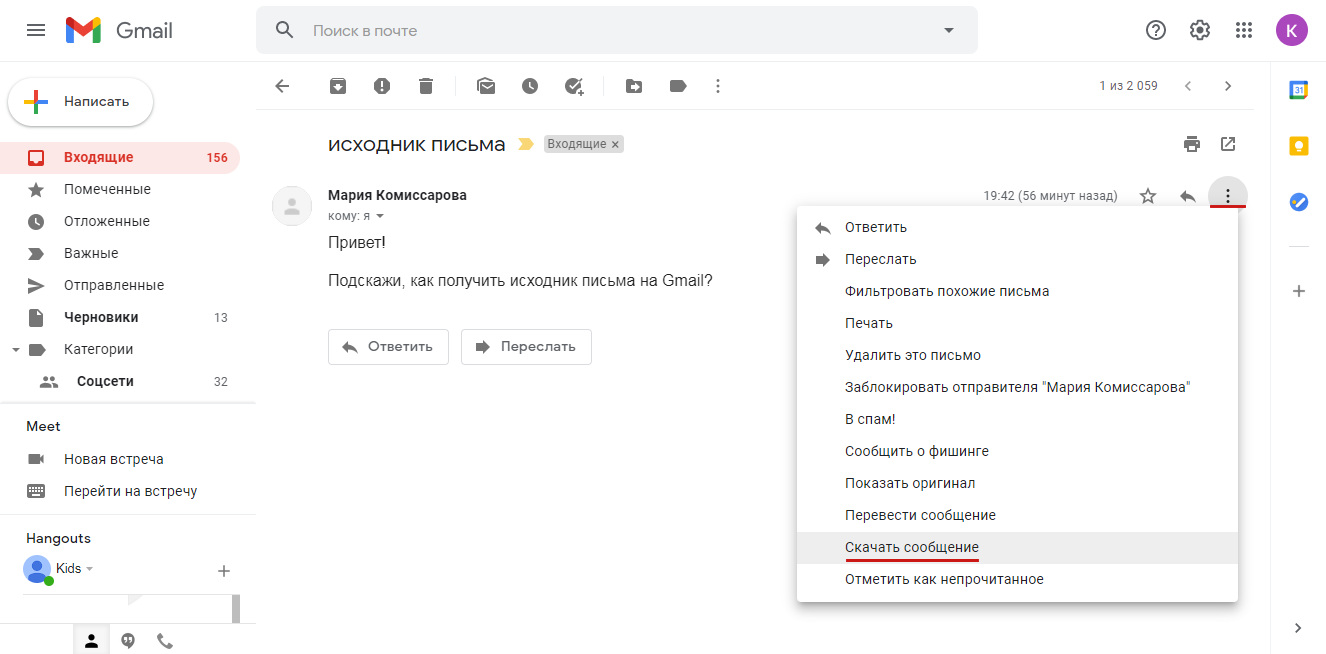
Если вы используете ящик на Gmail (включая почту на собственном домене), откройте нужное письмо. В верхней части письма нажмите на пункт «Ещё» (иконка в виде трёх точек), затем выберите пункт «Скачать сообщение». Сохраните исходник письма с расширением .eml.
Яндекс.Почта
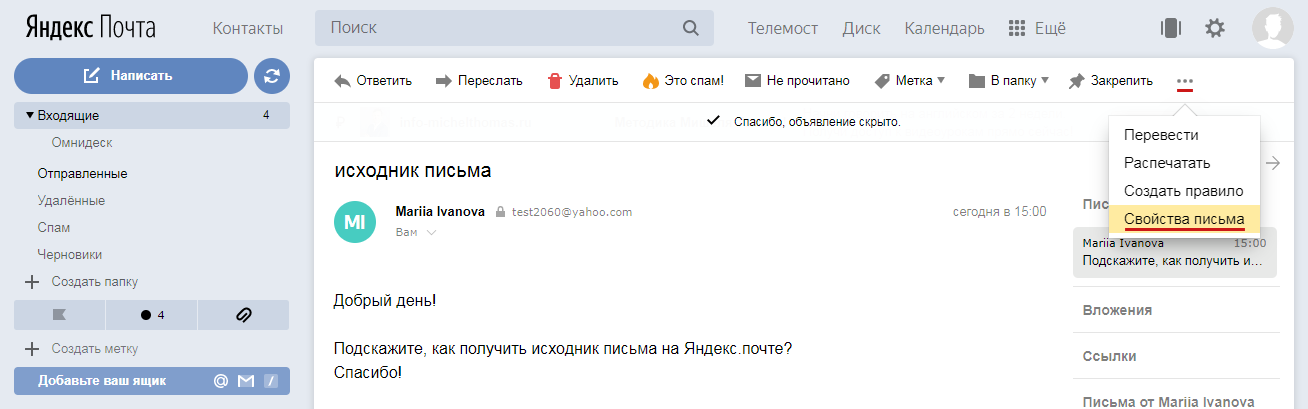
Если вы используете ящик на Яндекс.Почте (включая почту на собственном домене), откройте нужное письмо, нажмите в дополнительном меню на «Ещё» (иконка в виде трёх точек) и выберите пункт «Свойства письма».
Версия письма со всеми служебными заголовками откроется в новой вкладке. Перейдите в нее, нажмите правую кнопку мыши и выберите пункт «Сохранить как». Сохраните файл.
Mail.ru
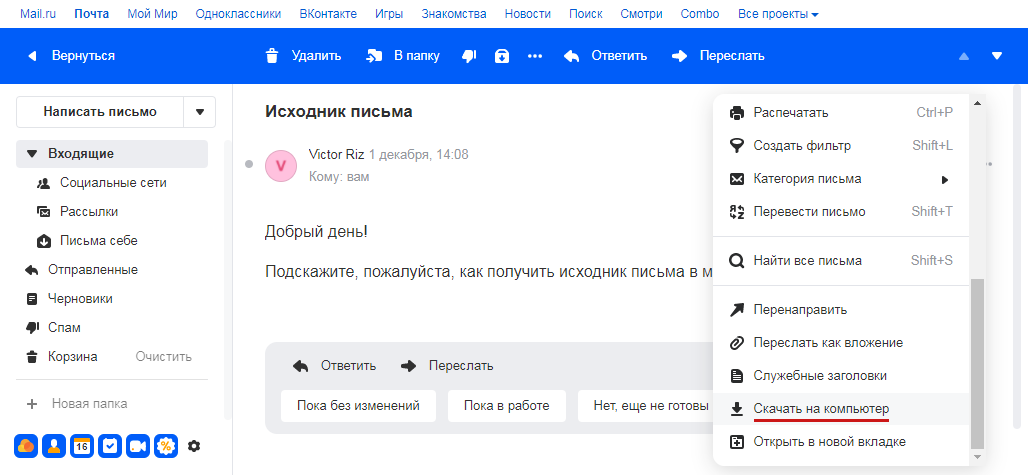
Если вы используете ящик на Mail.ru (включая почту на собственном домене), откройте нужное письмо. Справа в верхней части письма выберите пункт «Ещё» (иконка в виде трёх точек), внизу выпадающего меню кликните на пункт «Ещё», затем нажмите «Скачать на компьютер». Сохраните исходник письма с расширением .eml.
Microsoft Outlook (2016, 2013, 2010)
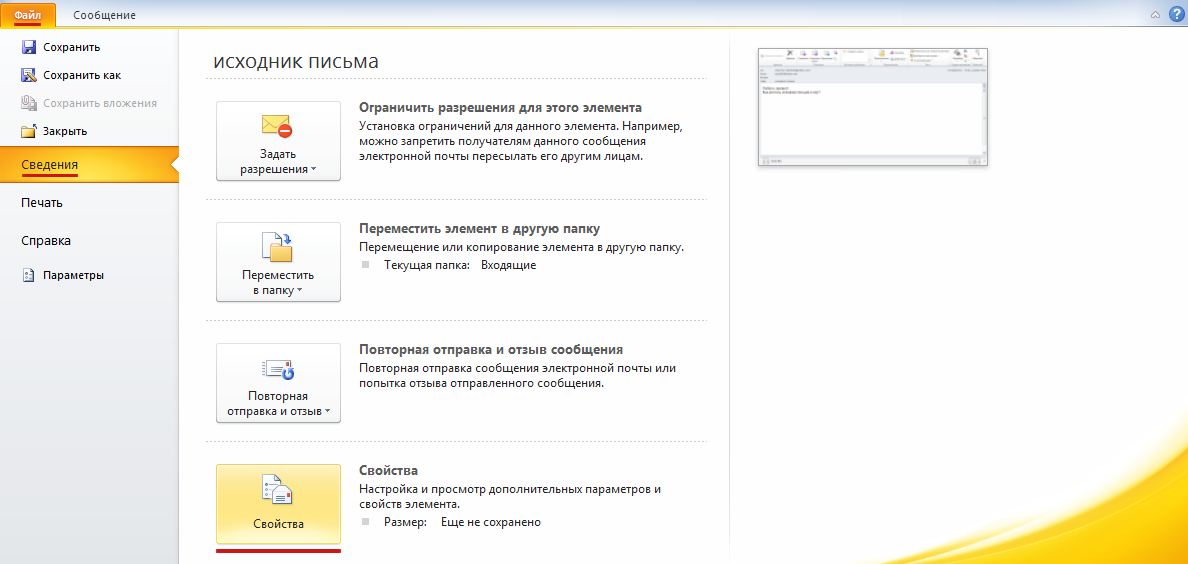
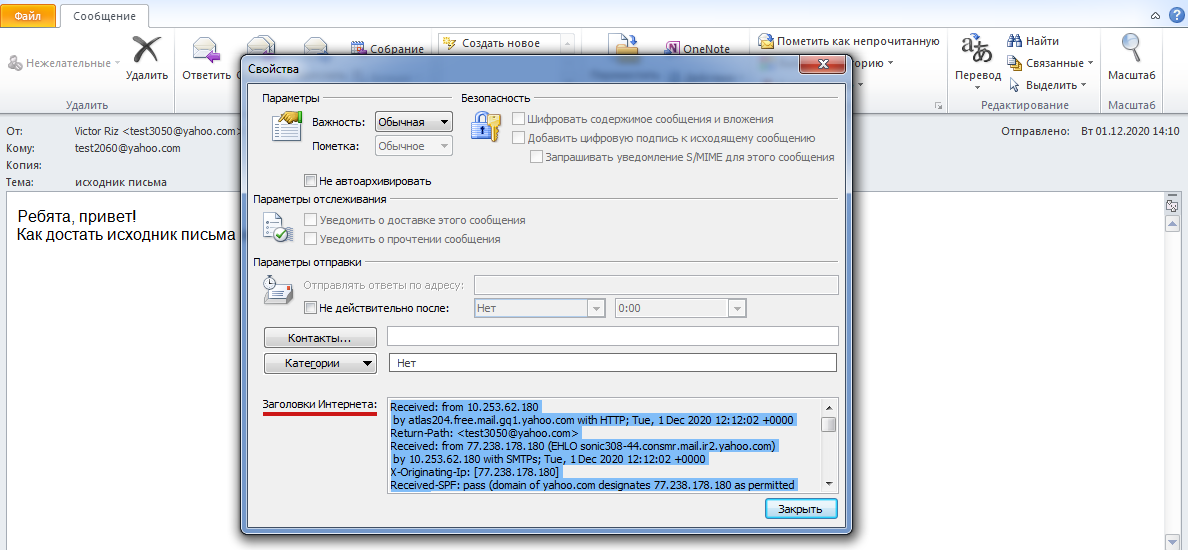
1. В списке сообщений дважды щелкните по письму, чтобы посмотреть его полностью. В меню выберите «Файл» → «Сведения» → «Свойства».
2. Откроется модальное окно. В поле «Заголовки Интернета» выделите и скопируйте текст.
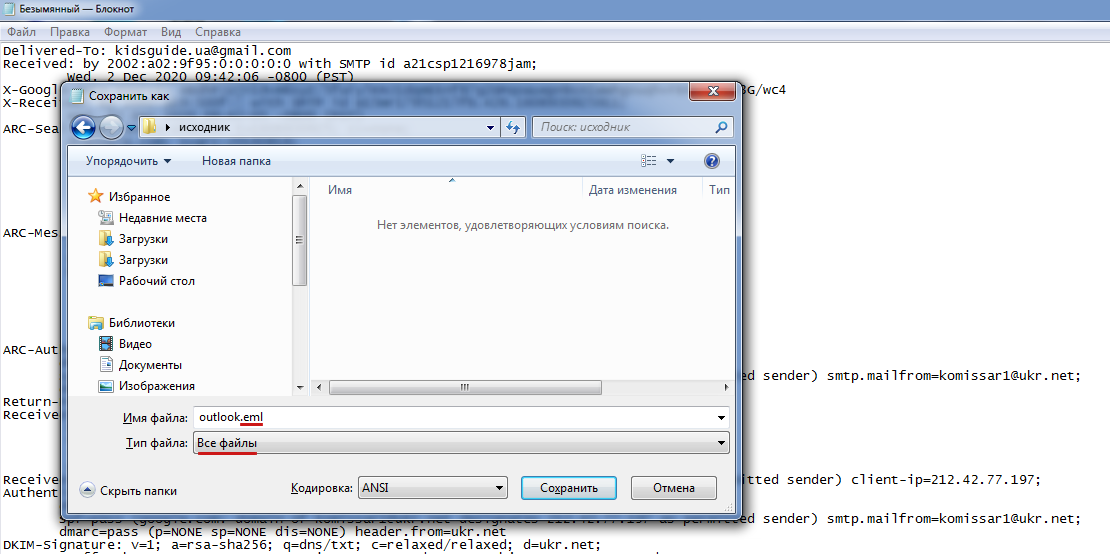
3. Откройте текстовый редактор, например «Блокнот». Вставьте скопированный текст в редактор. Нажмите «Файл» → «Сохранить как». В поле «Тип файла» укажите «Все файлы», в поле «Имя файла» введите название файла и добавьте расширение .eml (например, outlook.eml). Нажмите «Сохранить».
Outlook 365
1. Нажмите «Создать сообщение». Откроется новое пустое письмо.
2. В списке сообщений выберите электронное письмо, исходник которого вам нужен, и перетащите его в тело нового письма. К новому сообщению будет прикреплено электронное письмо в виде файла .eml. Скачайте его на компьютер.
Yahoo! Mail
Откройте письмо. В дополнительном меню выберите пункт «Больше» (иконка в виде трёх точек), затем нажмите «Посмотреть raw-сообщение».
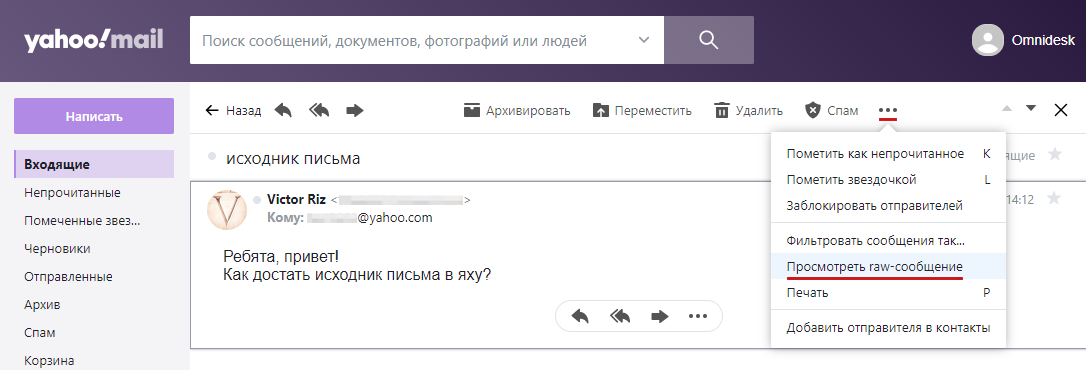
Версия письма со всеми служебными заголовками откроется в новой вкладке. Перейдите в нее, нажмите правую кнопку мыши и выберите пункт «Сохранить как». Сохраните файл.
Rambler.ru
Откройте письмо. В верхней части письма справа нажмите «Показать оригинал» (иконка в виде </>).
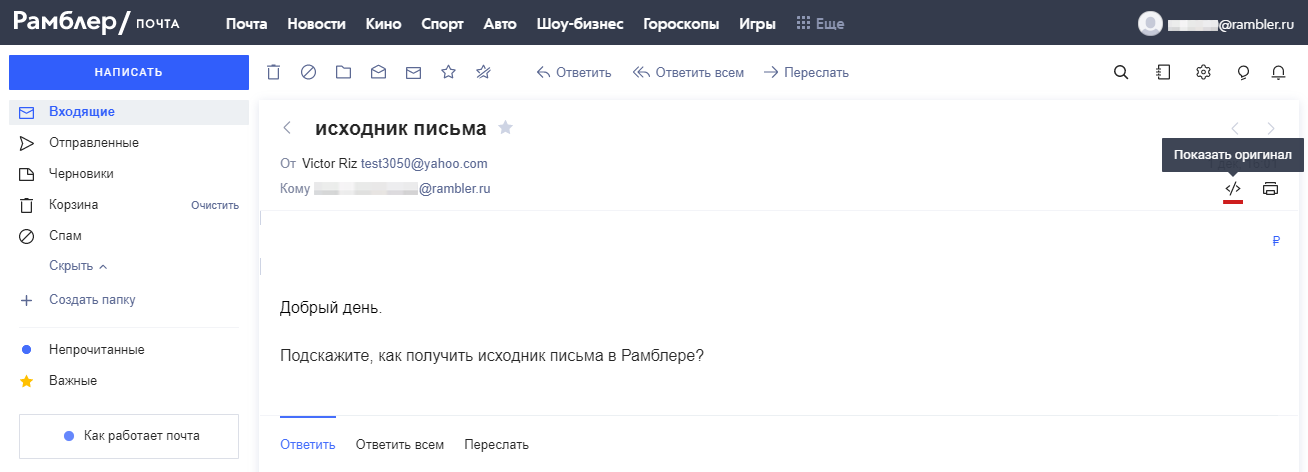
Версия письма со всеми служебными заголовками откроется в новой вкладке. Перейдите в нее, нажмите правую кнопку мыши и выберите пункт «Сохранить как». Сохраните файл.
Ukr.net
Откройте письмо. В дополнительном меню нажмите «Еще», выберите пункт «Загрузить письмо».
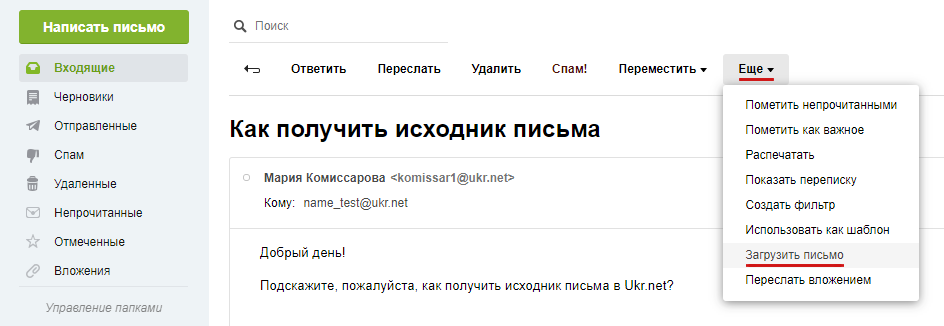
В новой вкладке откроется версия письма со всеми служебными заголовками. Перейдите в нее, нажмите правую кнопку мыши и выберите пункт «Сохранить как». Сохраните файл.
The Bat
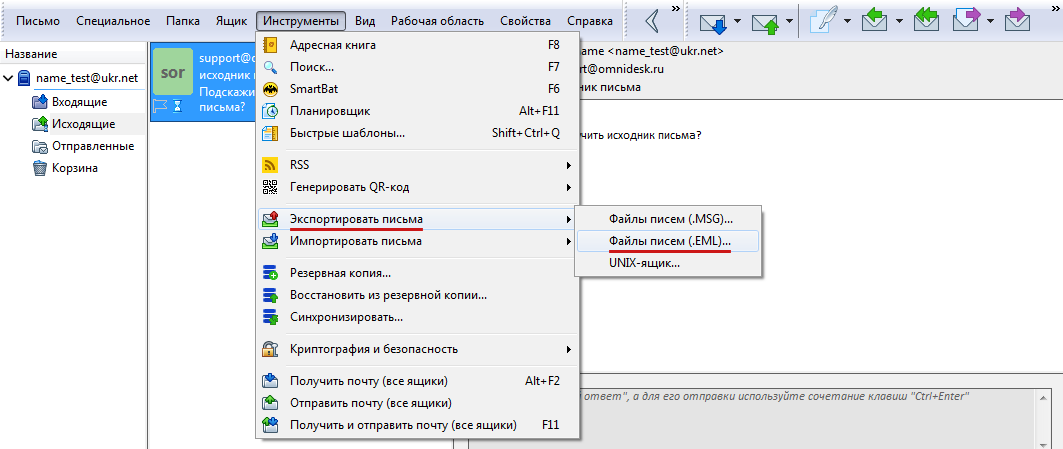
Кликните в списке сообщений по нужному письму и пройдите по пути «Инструменты» → «Экспортировать письма» → «Файлы писем (.EML)».
Mozilla Thunderbird
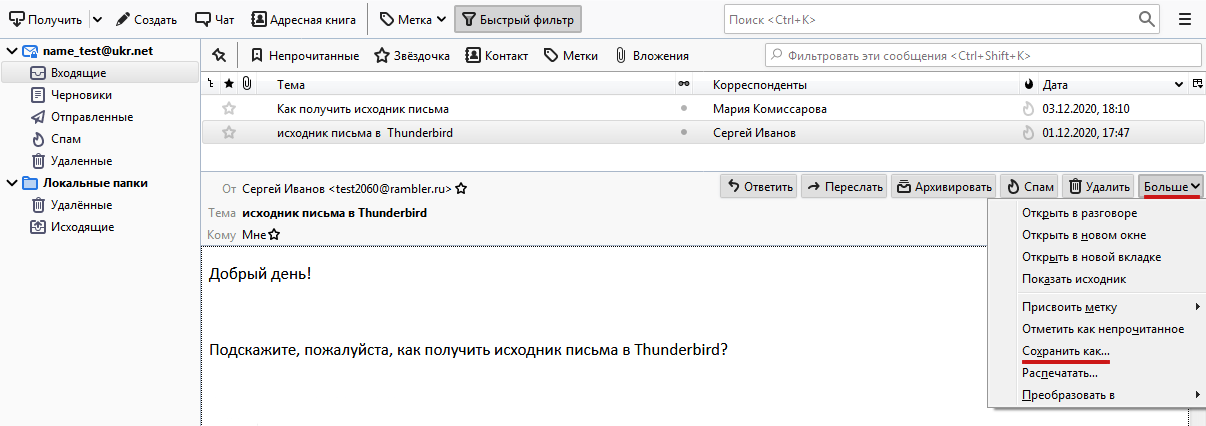
Откройте письмо. В дополнительном меню справа нажмите кнопку «Больше», выберите «Сохранить как». Сохраните файл.
Apple Mail
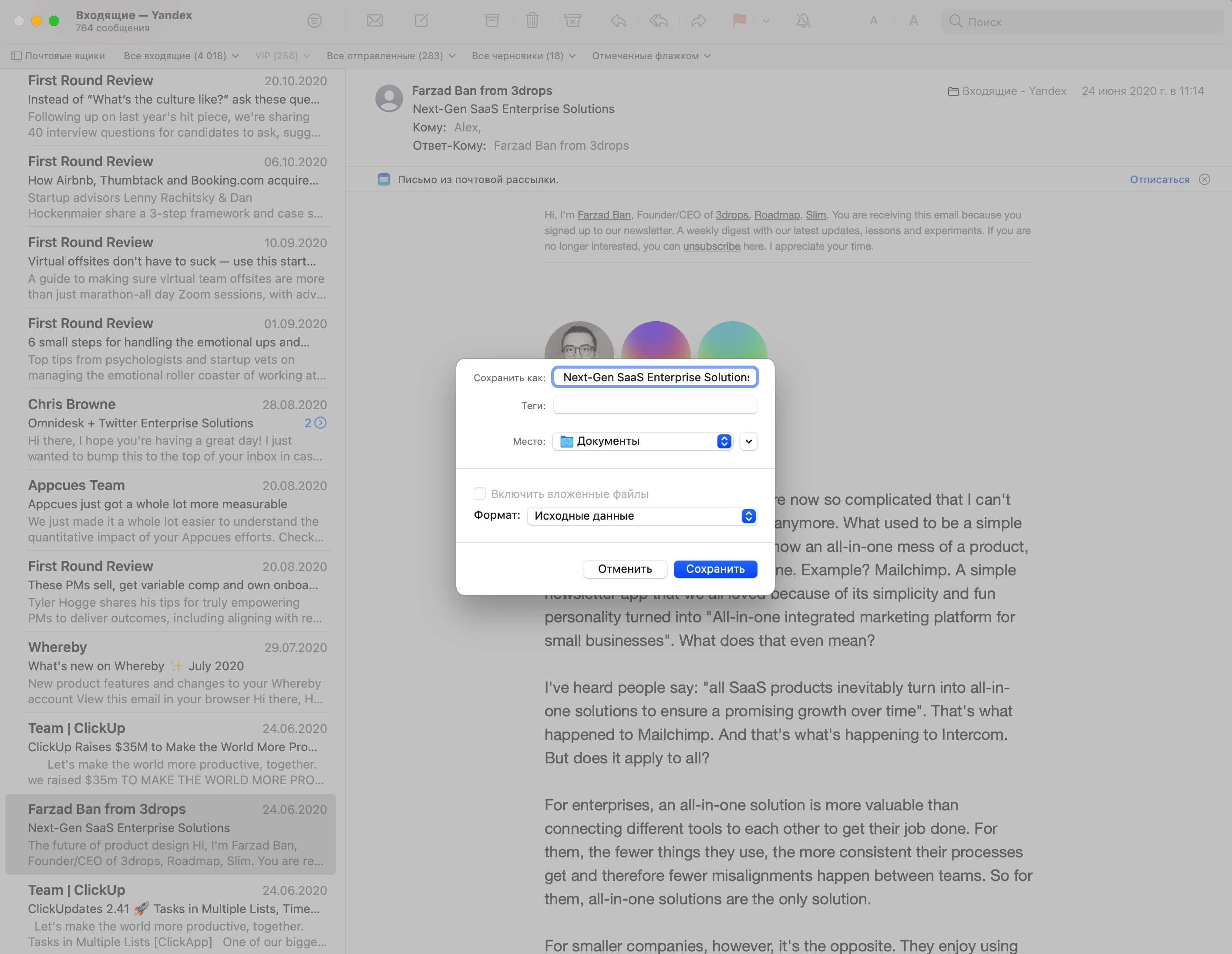
Выберите письмо и используйте сочетание клавиш — Option+Cmd+U. Также исходник можно получить через меню. Откройте письмо, нажмите в меню «Файл», кликните по «Сохранить как» и выберите формат «Исходные данные». Письмо сохранится в формате .eml.
Сохранить письмо в формате .eml можно просто перетянув его на рабочий стол. Если перетянуть разговор, все письма из него будут сохранены как отдельные файлы.
How to Export Outlook PST Emails into EML Format with Attachment?
Microsoft Outlook is a well-known email application that is used by both individuals and businesses to handle their emails, contacts, and calendars. Outlook stores data in the Personal Storage Table (PST) file format, which can be exported to a variety of alternative formats. One of these formats is the EML file format, which is used to store email messages by numerous email clients. This post will explain how to use a professional way to export Outlook PST files to EML format.
Why Export Outlook PST files into EML Format?
There are several reasons why you may want to export Outlook PST files into EML format:
Compatibility: EML is a widely used file format that is supported by many email clients, including Thunderbird, Apple Mail, and Windows Live Mail. By exporting PST files into EML format, users can access their Outlook emails in other email clients and platforms.
Easy Backup: Exporting PST files into EML format can be a simple way to create a backup of Outlook emails. Users can store the EML files on an external drive or cloud storage for safekeeping.
Migration: If users are migrating from Outlook to another email client, exporting PST files into EML format can be a way to transfer the emails to the new email client.
Archiving: Exporting PST files into EML format can be a way to archive old emails and free up space in the mailbox. Users can export old emails into EML format and store them separately while keeping the current emails in the PST format.
Multiple Device Access: EML files can be easily accessed on different devices, such as smartphones and tablets, which can make it easier for users to access their emails on the go.
Overall, exporting Outlook PST files into EML format can be a useful way to access emails in other email clients or platforms, create backups, or migrate to a new email client. Depending on the user’s needs, exporting PST files into EML format can be an efficient and effective way to manage their email communications and improve their productivity.
Manual Method to Convert PST File into EML File
Here’s how to export Outlook PST emails into EML format with attachments using a manual method:
- Open Microsoft Outlook and select the folder containing the emails you want to export.
- Click on the “File” tab and select “Open & Export” from the options.
- Select “Import/Export” from the list of options.
- In the Import/Export Wizard, select “Export to a file” and click on the “Next” button.
- Select “Outlook Data File (.pst)” as the file type and click on the “Next” button.
- Choose the folder you want to export and select the “Include subfolders” option.
- Choose the location where you want to save the exported file and provide a name for the file.
- Click on the “Finish” button to start the export process.
Expert Method to Export Outlook PST Emails into EML Format with Attachment
If you need to export the Outlook PST file into another file format. You can use Softaken PST Mailbox Converter Tool it uses very easy. Users easily convert Outlook PST files into multiple formats like MBOX, EML, EMLX, MSG, or VCF. It supports all MS Outlook and Windows versions.
There are easy steps to convert Outlook PST files into multiple formats
- Download and Install PST Mailbox Converter Tool
- Click Browse and Select a PST file
3. Select the file or folder mode and Click the browse button
4. Your source file to check the preview
5. Hit the browse button and choose the output location
6. Click on the Convert Now button to Proceed
Final Word-
Exporting Outlook PST files into MBOX and other formats might let you access emails in other email clients or platforms, back up your data, or transition to a new email client. While there are manual techniques, employing a professional application like the tool can save time and effort. This software is simple to use and can rapidly and efficiently convert PST files to EML format. Users can easily export their Outlook PST files into EML format and access their emails in other email applications by following the instructions given in this article.
Как сохранить почту в .eml-файл с Outlook?
Outlook Express и Thunderbird поддерживают формат .eml-файла. Так или иначе Outlook не делает.
Есть ли способ сохранить почту в .eml-файл с помощью Outlook (например, с помощью плагина)?
Вы можете либо импортировать сообщения в Outlook Express и сохранить их как файлы EML, либо использовать Outlook Extract
OutlookExtract — это инструмент, который помогает вам извлекать сообщения электронной почты и вложения, содержащиеся в MS Outlook, Outlook Express и Windows Mail. Вы можете сохранить сообщения в формате Mime ( .eml), сообщения Outlook ( .msg), Adobe PDF или в виде текстовых / HTML-файлов.
Просто дважды щелкните по сообщению, зайдите в Save -> Save As и под типом файла выберите Text .txt.
Это то же самое, что и формат EML, вы можете просто изменить расширение файла с .txt на .eml
Похоже, Outlook не хватает этой функции. Вы можете сохранить сообщение как MSG, а затем преобразовать его в EML. Это можно сделать с помощью бесплатного инструмента разработчика под названием MFCMapi.
- Сохраните сообщение в формате сообщений Outlook (MSG) через Файл → Сохранить как… ,
- убедитесь, что вы используете версию MFCMapi, соответствующую вашей версии OL (x64 для x64 outlook, x86 для x86 outlook).
- Запустите его, перейдите в раздел «Дополнительно» → «Импорт / экспорт» → «Преобразовать MSG в EML».
- Оставьте все поля по умолчанию, нажмите OK и выберите файл MSG.
- Сохраните файл EML в нужном месте.
Мне часто нужно выполнять эту задачу, поэтому я написал онлайн-утилиту для этого.
Существуют аналогичные инструменты, но они в основном полны рекламы и просят вас сначала зарегистрироваться. У меня всего два шага:
- Загрузить .msg
- Скачать .eml
Надеюсь, это будет кому-то полезно.
Я случайно наткнулся на эту утилиту, которая может быть хорошим бесплатным дополнением для Outlook http://www.outlookfreeware.com/en/products/all/OutlookMessagesExportEML/
Надеюсь это поможет. Было бы неплохо, если бы Outlook включил эту возможность и, возможно, даже возможность экспорта в формат «mbox», чтобы мы могли перенести его в почтовую систему Unix.
Mail Store Home — это бесплатная программа для домашнего использования. Он позволяет связать несколько почтовых программ (Outlook, Outlook Express, Thunderbird и т. Д.) И сетевых источников электронной почты (Gmail, Yahoo) с одной локальной почтовой базой данных. Вы запускаете программу, и она будет получать доступ к электронной почте из разных мест или к программе, на которую вы ее указываете, и объединять их в единую базу данных. Оттуда вы можете экспортировать почту в любую из настольных программ. Другими словами, он будет извлекать почту из Outlook и экспортировать ее, скажем, в Thunderbird для вас.
Это также хороший способ сделать резервную копию вашей электронной почты из нескольких источников и сделать ее доступной для поиска. Также отличный способ для резервного копирования (и поиска) ваших электронных писем (например, Gmail) на вашем рабочем столе, даже если вы не в сети.
Если вы пытаетесь конвертировать только одно письмо, это может быть излишним, но это работает хорошо
How to Save Outlook 365 Email as EML – Learn Quick & Reliable Way
Query1: Can any one suggest me a best solution which help me to save Outlook email as EML file. I need to keep the local copy of my important Outlook email messages, so that I can avoid the risk of data loss during any unexpected situations.
Query 2: I am using Outlook 365 account from very long time for the web based email management. But my system is installed with the Thunderbird desktop application. I got an urgency to mange my work in Offline so I need the offline copy of my Outlook emails for the reference purse. Is there any solution to take my save Outlook 365 email messages in EML format.
Do you have similar queries? Don’t worry we have the answers to all your questions related to this. Nowadays most cloud users are aware of the importance of the security of their online data. So they are searching for the most simple and secure way to save their email data locally. Hence, in this write-up, we are going to provide you with the best solutions for the same.
5 Step Save Outlook 365 Email as EML
- Step 1. Download, Install, and Run the Software.
- Step 2. Login with Office 365 User or Admin Credentials.
- Step 3. Select Export as EML & Choose Mailbox Items.
- Step 4. Apply Date Filter & Define Destination Location.
- Step 5. Click on Start to Save Outlook 365 Email as EML.
Now, before going any further, let’s understand the reason behind this operation.
Reasons Behind Saving Outlook 365 Email as EML
There are several reasons why someone might choose to save an Outlook 365 email as an EML file. Here are a few possible reasons:
- Compatibility: EML is a standard file format that is supported by a wide range of email clients, including popular programs like Thunderbird, Apple Mail, and Outlook Express. Saving emails as EML files ensures that they can be easily opened and read in other email clients, regardless of whether the recipient is using the same email service as the sender.
- Archiving: Saving emails as EML files can be a useful way to archive messages for long-term storage. EML files are self-contained and can be easily moved or copied to other devices or storage locations, making them a convenient format for storing important emails.
- Offline Access: Saving emails as EML files also allow you to access your messages offline, without requiring an internet connection. This can be particularly useful if you need to reference important emails while traveling or in areas with limited connectivity.
- Backup: Saving emails as EML files can also be a useful backup strategy, allowing you to create a copy of important emails in case your email account is compromised or lost. By saving emails as EML files, you can ensure that you have a backup copy of all your messages that can be easily restored if necessary.
Now let’s understand the different approaches, using which a user can execute this task safely.
There are Generally Two Ways to Save Outlook 365 Email as EML
Traditional Manual Way for Outlook 365 Save Email as EML Format
Outlook 365 allows you to download a single email message at a time manually. You can easily execute this task by following the below steps, however, this process is not adequate for bulk data download.
Since you can only download a single message at a time, hence, you may find this a tedious task if you have to save tons of emails as EML file format.
Here are the Manual Steps on How to Save Outlook 365 Email as EML:
Step 1. Log in to your Office 365 account and navigate to all apps, and click on Outlook.
Step 2. Now compose a new email and select the email you want to save as EML file.
Step 3. Drag and drop the email into the newly composed email.
Step 4. Now from the attached email, click on the drop-down icons and hit download.

Step 5. It will download that Office 365 email as EML file format on your computer.
Most Reliable and Automated Solution to Save Outlook Email as EML
The manual method can work for you, but only for limited emails if you need to download bulk emails then you might find yourself stuck in this process. Which would eventually consume a large amount of time to complete the conversion process.
Hence, we suggest you PCVita Office 365 Export Tool, it is an alternative solution to avoid such a situation and save your email data securely in the EML format. Using this tool you can also export Office 365 mailbox to PST format.
Five Software Steps to Save Outlook Email as EML Format
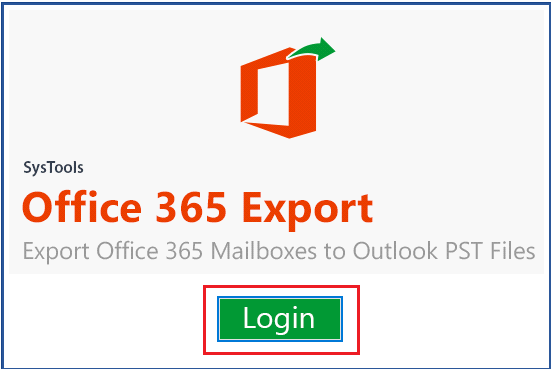
Step 1. Download, install, and open the software on your computer. Click on login to continue.
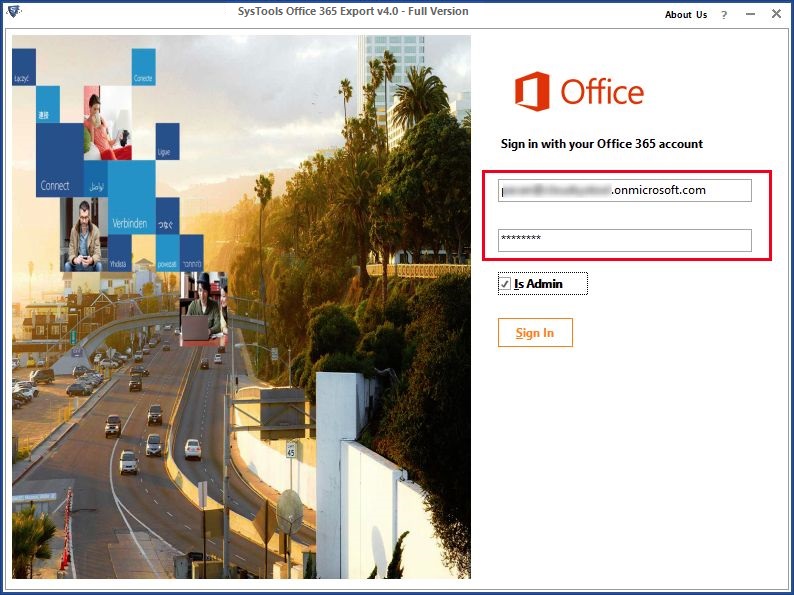
Step 2. Use Office 365 admin or user credentials to log in to the software. Select the required user email id to save their respective emails as EML file format.
Step 3. Now select email format as EML and check all the required mailbox box items that need to be saved as EML such as emails, contacts, calendars, etc.
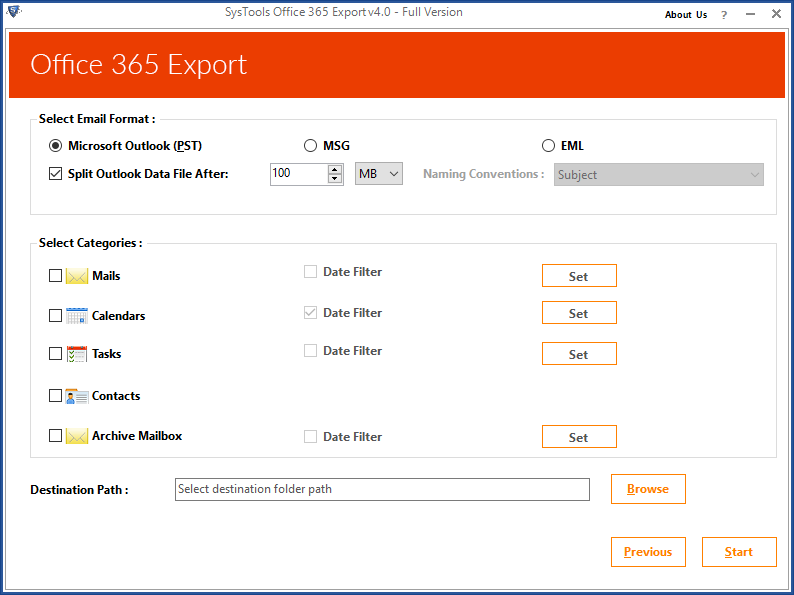
Step 4. You can also apply a date filter for selective data download. Enable the date filter and select the required date range, if required.
Step 5. Set the destination path and location to save Outlook email as EML file format.
By downloading the Outlook 365 mailbox into EML format users can save each email message separately on the desktop. It will help in the easy accessing & sharing of single email messages instead of accessing the entire mailbox data. EML is the single email format supported by most email clients hence saving email messages in EML files will allow the user to import the data EML supporting desktop-based email applications and manage the email data in offline situations.
Final Words
In the above blog, we discussed two methods to save Outlook 365 emails as files. Which helps you to secure your cloud mailbox data. Both manuals, as well as tool base solution, is mentioned in the above section. You can use any of the methods according to your preference. We recommend the automated solution for a fast and secure way to save your Outlook email data in EML format.