5KPlayer поддерживает AirPlay, загрузку видео, интернет-радио
У медийных пользователей компьютеров, вероятно, будет несколько медиаплееров на своем компьютере для выполнения различных задач. Тем не менее, есть более простой способ делать вещи с 5KPlayer для Windows устройства.
5KPlayer для Windows
Графический пользовательский интерфейс плеера темный, что-то, что нам не нравилось с нами. К сожалению, нам не удалось найти вариант изменения темы.
Когда дело доходит до интерфейса опций, оно помещается в середине проигрывателя, а не вверху. Нам это нравится, потому что это упрощает навигацию и меньше ошибок при попытке перейти к одной из интересных функций.
Вкладки на интерфейсе предназначены главным образом для DVD, YouTube, Airplay, Music и Video. Перемещение курсора над каждой вкладкой выводит их на передний план, поэтому пользователи всегда будут знать, что они доступны для просмотра. При перемещении курсора мыши внутри проигрывателя во время воспроизведения кнопки для разных задач отображаются «на лету».
Нам также нравится тот факт, что игрок позволил нам повернуть видеоролики всеми возможными способами.
Для тех, кто любит слушать интернет-радио, 5KPlayer дает возможность вставлять URL-адреса онлайн-радио внутри и проигрывателя. Нажатие кнопки воспроизведения начнет воспроизведение потоковой радиостанции, и мы можем сказать, что она работает очень хорошо. Тем не менее, это не то, что мы, как правило, много используем, так как гораздо проще транслировать онлайн-радио через веб-браузер.
Одна из замечательных особенностей этого проигрывателя заключается в том, что он поддерживает Windows XP, Windows Vista, Windows 8 и Windows 10
Проблемы
Если в библиотеке нет музыкальной папки, у пользователя возникнут проблемы с воспроизведением этих песен. Воспроизведение их по одному легко, но если пользователь попытается воспроизвести всю папку, это будет невозможно. Мы не знаем, почему это происходит потому, что все основные медиаплееры позволяют выбрать папку для воспроизведения всех песен, а не только для одиночных игр.
Заключение
5KPlayer отлично подходит для потребления мультимедиа, хотя мы не видим причин использовать его для использования интернет-радио. Он поддерживает загрузку видео, AirPlay, воспроизведение музыки и видео и поддерживает поддержку 4K, 5K и 1080p HD Video и MP3, FLAC, APE, AAC и т. Д., Форматы файлов. Вы также можете использовать его для воспроизведения MP4 в Windows 10.
Вы можете прочитать наш подробный обзор 5KPlayer здесь, а затем продолжить и скачать 5KPlayer Вот.
Похожие сообщения:
- Как играть в файлы MP4 в Windows 10
- Обзор Tomahawk — The Ultimate Social Media Player
- Лучшие приложения Radio для Windows 10, доступные в Windows Store
- 5 Советы и рекомендации для проигрывателя Windows Media, которые вы не можете знать
- Авторская бесплатная музыка для видео YouTube, которую вы можете использовать
Рекомендуемые:
Как протестировать, если ваш интернет-провайдер дросселирует ваше интернет-соединение
Мы все слышали слухи и даже видели случайные доказательства. Некоторые интернет-провайдеры замедляют определенные типы трафика, такие как трафик BitTorrent. Другие интернет-провайдеры замедляют подключение своих клиентов, если они загружают слишком много данных за месяц.
Как снимать видео с вашего iPhone или iPad на Apple TV с помощью AirPlay
Когда дело доходит до получения контента с вашего телефона на ваш телевизор, действительно нет недостатка в способах его совершения. Наш любимый Chromecast от Google — он доступен и хорошо работает. Но если вы инвестируете в экосистему Apple, вы можете легко передавать Netflix, YouTube и другие на свой Apple TV с вашего устройства iOS.
Как подключиться к локальному интернет-серверу без отправки трафика в Интернет и обратно?
Если вы настроили сервер в своей домашней сети (например, медиа-потоковый сервер), чтобы вы могли получать доступ к своим файлам вдали от дома, возможно, вы заметили любопытную загадку: когда вы хотите использовать сервер дома, ваш трафик будет перенаправлен на ваши серверы интернет-провайдеров, а затем обратно в ваш дом, потому что ваше сетевое оборудование не признает, что сервер на самом деле отсутствует в Интернете, он находится дома. Давайте взглянем на то, как коллега-ч
Причины, по которым Microsoft не поддерживает загрузку Windows с внешних дисков
Некоторые из нас любят устанавливать и переносить Windows на USB-накопители. Но это сценарии, которые Microsoft не поддерживает. Невозможно загрузить Windows с внешних устройств. Такие установки не поддерживаются.
YouTube поддерживает видео с высоким разрешением 4096 пикселей
YouTube объявила о поддержке видеороликов, снятых в 4K (эталонное разрешение 4096 x 3072). Он 4K почти в четыре раза больше 1080p. Теперь вы можете смотреть видео высокого разрешения с 360p до 4096p («Оригинал»)
Беспроводная передача AirPlay в проигрывателе 5KPlayer

Сервис 5KPlayer AirPlay обеспечивает возможность потоковой передачи вашей музыки или видео на iPhone/iPad/iPod, Mac/Apple TV или даже на ПК под управлением Windows 10/8/7/Vista. При этом решен вопрос интеллектуального преобразования медиафайлов – 5KPlayer настраивает разрешение и соотношение сторон таким образом, чтобы достигалось наилучшее качество передачи контента.
Разрешения и форматы передачи
Возможна беспроводная передача видео в разрешениях 4K/5K/8K/UHD. А что касается поддерживаемых форматов, то среди них можно выделить MKV, AVI, FLV, MOV, DivX и множество других.
Совместимость устройств
Технология 5KPlayer AirPlay корректно работает с iPhone (11/11 Pro/11 Pro Max/XS Max/XS/XR), iPad (mini 3/Air 2), iPod Touch, а также с устройствами под управлением Mac или Windows.
Как подключить айфон к ноутбуку?
Беспроводная передача видео или аудио на другие устройства звучит очень неплохо в теории. Но как в 5KPlayer подключить айфон и правильно его настроить? Если вы никогда раньше этого не делали, то процесс может сопровождаться рядом сложностей. Но на самом деле все очень просто!
1. Подключите к одной сети Wi-Fi ваш iPhone, iPad или iPod и компьютер, на который будет передаваться видео.
2. Запустите 5KPlayer и перейдите в раздел “Настройки”, пункт “AirPlay”. Включите сервис AirPlay.
3. Включите опцию “Трансляция экрана” (“Screen Mirroring”) в Центре управления вашего устройства на iOS или iPadOS и выберите в списке устройство, на котором хотите запустить трансляцию;
4. Запускайте видео со своего iPhone, iPad или iPod и смотрите его на выбранном устройстве.
How to Extend (Airplay) Mac Screen to Windows Computer (Free Solution)
Here is a simple solution to Apple Airplay Mac screen to a Windows Monitor for free. As you know, dual monitor setup can improve productivity and easy to work by sharing a few windows or apps on a secondary monitor. What about casting Mac screen direct to a Windows tablet or Windows Desktop screen without any cables? This trick is very convenient, easy and work over Wi-Fi that let you extend or mirror your Mac Screen to Windows-based PC or Tablet Screen. Obviously, there are a few pre-requirements to work with this airplay mirroring solution. As a side note, this solution will work with most of the Windows operating system including Windows 10.
In this workaround, we will demonstrate how to setup Windows Monitor as a secondary monitor to Airplay Mac Screen without any physical cables.
Editor’s Note: Are you looking for mirroring your iPhone Screen to Windows PC? Please refer the step by step instructions to Mirror iPhone/iPad to Windows Screen for Free Using AirPlay.
Step 1. Make Sure Mac Support Airplay and Same Network
Before you start, please make sure that the Windows and Mac system is under the same WiFi network. The second requirement is that your Mac OS (whether it is Laptop or Desktop) must have airplay support. The updated Mac OS has built-in AirPlay support. Just in case if you want to check or enable Apple AirPlay, please go to System Preferences > Displays > Check for Airplay Display at the bottom of the window.
Step 2. Install Airplay Software on Windows
Now we have to install software the supports AirPlay in Windows. We recommend the 5K player that works well and supports AirPlay. The 5K player is a free app that can install on Windows PC. Now open Windows Internet browser and go to the 5KPlayer download link, download and install 5KPlayer for Windows.
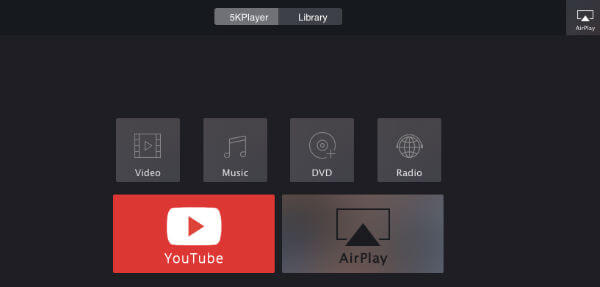
5KPlayer is a good DVD player for Windows operating system that supports multiple video formats. This DVD player is coming with a lot of other excellent features including youtube streaming, music player internet radio, etc., and free to download for Windows operating system.
Step 3. Set to Display AirPlay on Mac Top Bar. (Optional)
Before you go to the Windows system, set to display the AirPlay icon on the OS X top menu, and this is optional but convenient. To display AirPlay on top Menu;
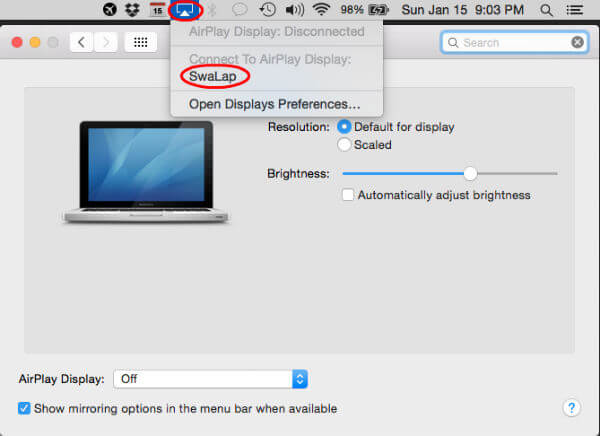
- Open Mac and go to System Preferences
- SelectDisplays
- Check-in Show Mirroring options in the menu bar when available.
Now the Mac will show the AirPlay icon on the top menu bar when any device is available for Cast Screen or AirPlay.
Step 4. Start Mac AirpPlay Windows PC
Once you download the Windows Airplay App (5K Player) on Windows 10 System, follow the steps to AirPlay Mac screen to Windows.
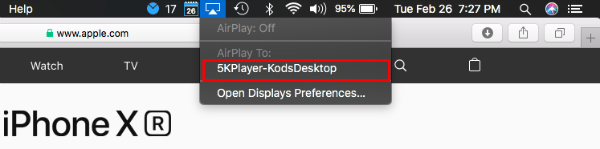
- Open 5K Player Software on Windows PC.
- Go back to Mac System to AirPlay Mac Screen.
- Tap on AirPlay icon from Mac Top Bar to get drop down menu.
- Select on 5KPlayer-DeskTop (AirPlay will display the system to cast screen).*
On step 4, you can see Windows PC name as available for Apple Airplay if you click on Airplay icon on the menu bar or settings. Now the Mac screen will display on Windows monitor too. In this case, the Mac screen will simply display on Windows, called Screen Mirroring. As long as your Windows screen is the almost the same size as Mac, the screen mirroring is not much useful.
Step 4. Extend Mac Display to Windows Screen.
You can Airplay MacBook screen in two different modes, mirror mode or extend mode. The airplay mirror mode simply displaying the mirror image of the primary monitor to secondary monitor. In extended mode, you can extend your Mac screen to Windows as a second monitor. Go to AirPlay menu > Use AirPlay Display to > Select Extend Desktop.
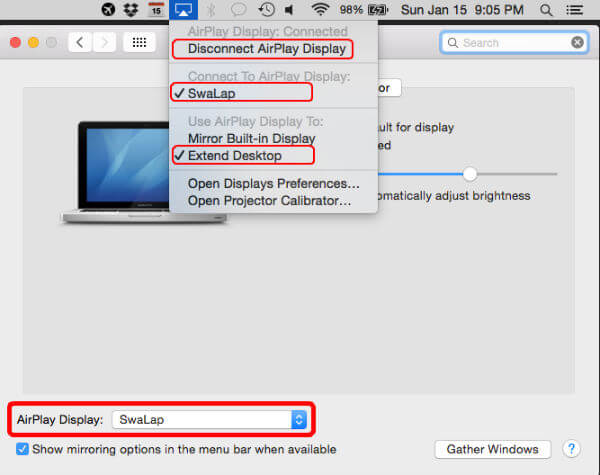
For those who want to see the full steps for extending Mac screen to Windows screen, see below:
- Open 5K Player Software on Windows PC.
- Go back to Mac System to AirPlay Mac Screen.
- Tap on AirPlay icon from Mac Top Bar to get drop down menu.
- Select on 5KPlayer-DeskTop (AirPlay will display the system to cast screen).*
- Select Use AirPlay Display To: Extend Desktop.
Now you can click and drag a couple of Apps and browser or website windows to extended Windows screen and start working on it with apple screen mirroring. Please be aware, at any time, you can disconnect AirDisplay by clicking Disconnect AirPlay Display from top menu icon.
Alternative Solution to Airplay MacBook to Windows
This is a free solution to utilize Apple screen mirroring to Airplay MacBook or Apple computer screen to Windows screen. There is an alternative AirPlay mirroring solution called LonelyScreen to replace 5KPlayer. This is like an Apple TV running on your desktop for Windows and MAC. You can cast anything from your iPhone or iPad to your computer screen just like an Apple TV. You don’t need to install anything on your iPhone/iPad, just need to install LonelyScreen on your Windows or Mac.
Apple Airplay MacBook to Windows Computer
I work with my Mac Laptop and sometimes, I wish I had a secondary monitor to move a couple of windows to the second monitor. Apple ecosystem is very closed and isolated. Usually, Apple won’t allow you to share the screen with a Windows Operating System. However, if you own an Apple TV (buy from Apple Store), then Apple Operating System like iOS or OS-X let you airplay from these Apple devices to a big TV Screen using Apple TV.
This workaround is coming very handy when you want to work with two screens. Don’t need to spend money on a second screen. When you have a Windows and Mac computer with you, this a free and quick solution to connect Windows screen to Mac without any extra cable complicated setup.
Disclosure: Mashtips is supported by its audience. As an Amazon Associate I earn from qualifying purchases.
How to AirPlay Media from 5KPlayer to Windows, Mac, Apple TV, & AirPlay 2-TV

5KPlayer is a multimedia player software that works as a downloader, screen recorder, and screen mirroring server. It has built-in AirPlay support and allows users to stream content from iPhone, iPad, and Mac to an Apple TV or any AirPlay 2-compatible TV. The best part about 5KPlayer AirPlay support is it will help you wirelessly stream the audio or video without any quality loss.
Table of Contents
How to AirPlay 5KPlayer from iPhone/iPad
You can install 5KPlayer on your Windows or Mac PC to AirPlay any media from your iPhone or iPad.
[1] Connect your iOS device and PC to the same internet.
[2] Launch 5KPlayer on PC after installing it from the official website.

[3] Enable the DLNA AirPlay option from the Home page of 5KPlayer to access AirPlay Settings.
[4] Turn on AirPlay Service (If you cannot turn it on, tap Download Now).
[5] Select the Screen Mirroring option from the Control Center of iOS.

[6] Choose your Mac/PC or 5KPlayer once the device is scanned.
[7] Now, play a media and Screen Mirroring from iPhone/iPad happens on the Mac/PC via 5KPlayer.
Note: When you encounter no sound issue on AirPlay, check if the mute button isn’t enabled on your iOS or raise the volume.
How to AirPlay 5KPlayer from Mac/PC to TV
Follow the steps below to mirror media from 5KPlayer to an AirPlay-2 compatible TV from Mac/PC.
[1] Enable the AirPlay option on TV (Settings > AirPlay and Homekit).
[1] Connect your TV and Mac/PC to the same WIFI.
[2] Launch 5KPlayer on Mac/PC once installing it from the official site.
[3] Click on the AirPlay icon from the top right corner of the Home page.
[4] Select your TV from the available devices.

[5] Now you can stream anything from your Mac/PC to TV through 5KPlayer.
How to Fix 5KPlayer AirPlay Not Working Issue
Imply the steps below to fix when the 5KPlayer screen mirroring not working issue appears.
- Ensure all AirPlay devices are connected to the same internet.
- Confirm if your TV supports the AirPlay-2 feature.
- Keep all AirPlay devices close to each other and the WIFI router.
- Make sure no other devices are connected to AirPlay and WIFI.
- Connect all AirPlay devices to strong, stable, and faster internet.
- Update all AirPlay devices to their latest software versions.
- Restart all AirPlay devices.
Yes. 5KPlayer is safe software that works absolutely fine on both Windows PC/laptops and macOS versions.
Yes. 5KPlayer is completely free software for all devices.
Yes. 5KPlayer is better than a VLC media player because VLC only plays video and audio files, while 5KPlayer can play media files, act as Screen Recorder, and as a Screen Mirroring server.