How To Fix Instagram Highlights Not Loading In 2023
Facing the Instagram highlights not loading error? We’ll see some troubleshooting tips to help you fix the issue.
Instagram is a popular social media platform that connects billions of people with different cultures from all parts of the world together.
Story highlights are a good way to communicate with people through Instagram. You can basically share what’s happening in your life, any upcoming event among other things with your Instagram audience.
However, most users face an issue commonly known as Instagram story highlights not loading which limits them from viewing other highlights on the platform. In some cases, the issue extends to preventing users from creating Instagram highlights.
If you’re one of those unfortunate users, then consider yourself as fortunate for landing on this article.
That being said, I’ve compiled the best troubleshooting tips to help you fix the Instagram story highlights not loading issue.
Table of Contents
What Are Instagram Highlights?
Instagram stories that you decide to permanently show on your profile are known as Instagram highlights.
It’s a great way to keep the visibility of your most popular stories if you put them in a Highlight because they will still be accessible after 24 hours. You should use Instagram’s wonderful feature called Highlights.
Instagram is all about creativity, and you can give more beauty to your highlights by using aesthetic Instagram highlights covers. This is a technic used by most influencers on the platform, including top brands like National Geographic.
You can watch and explore a Highlight just like a regular article, with the exception that you won’t see the list of viewers.
The list of viewers is gone once the story you saved has run for 24 hours, leaving you with just the views total.
Why Are Instagram Highlights Not Loading?
There are a few reasons why your Instagram highlights are not loading.
If you’re encountering an Instagram highlight glitch, you might be using an outdated version of the app or having issues with your internet connection.
In this case, you should try updating your app to try to solve this issue. Consider checking your internet connection too. Another option is to reset your phone.
These might be the main causes of the Instagram highlights not loading.
How to Fix Instagram Story Highlights Not Loading
Here are a few troubleshooting tips to fix the Instagram story highlights not loading issue.
1. Check your Internet Connection
The first and foremost thing to do in case you’re facing the Instagram story highlights not loading issue is to check your internet connection.
If you don’t have any data balance or if your network isn’t the best, there are great chances your Instagram highlights wouldn’t work.
You can also, turn on and off airplane mode on your phone to resolve some network issues.
2. Quit the Instagram App and Restart your Phone
Restarting your phone is another good way to fix the Instagram story highlights not loading issue.
Restarting your phone might not only resolve the Instagram highlight not loading issue but will also resolve some issues on your phone that necessitate a restart.
3. Enable Save to Archive
Instagram highlights should have the Save to Archive setting turned on for effective functioning.
With this feature turned on, your stories will be saved to your archive.
Any previous tale can be added to your highlight later.
You won’t be able to use Instagram highlights if that isn’t enabled.
Follow the steps below to turn on Save to Archive:
- Launch the Instagram app and go to your profile screen. Tap on the three-bar icon at the top. Select Settings.
- Go to Privacy followed by Story.
- Enable the toggle next to Save to Archive.
4. Create Highlights in the right way
Make sure you are creating highlights in the correct way if you are only experiencing problems when creating highlights.
Here’s how to create highlights on Instagram:
- Go to your profile and tap the +New button (the big plus sign).
- Pick the Stories you want to add to your new Highlight.
- Tap Next and name your new Highlight.
- Choose your Highlight cover, and tap Done.
5. Check for New Instagram Updates
At times, the Instagram highlights not loading issue happens because you might be using an outdated version of the app.
In this case, you would want to update your Instagram app to the latest version.
You can download the latest version of the Instagram app from Google Play (for Android users) or from the App Store (for iOS users).
6. Clear Instagram App Cache and Data
The Instagram highlights not loading issue is most often caused by a glitch in the Instagram app.
Clearing the Instagram app cache helps resolves some other glitches or issues besides the story highlight not working issue.
That being said, here’s how to clear Instagram app’s cache:
- Tap «Settings» on your Instagram’s profile.
- Tap «Security«.
- Tap «Clear Search History» (for iPhone) or «Search History» (for Android).
- Tap «Clear All.»
- That’s it!
You can also clear your Instagram App cache directly from your phone’s storage.
- From the settings, find the «Apps» section.
- In the apps list, find the Instagram App.
- Click on the Instagram app.
- You can see two options on the detail page.
- Clear Data.
- Clear Cache
In case that doesn’t work out, you should consider clearing the app’s data too.
Frequently Asked Questions
Some of your Instagram highlights are not working due to a glitch in the Instagram app or, because your network isn’t the good.
Some fixes for the highlight glitch on Instagram include; check your network connection, restart your phone, update the Instagram app and clear the Instagram app’s cache.
If you noticed your Instagram Story Highlights disappeared today, make sure you restart your app. Your Stories will likely come back, because the bug has been fixed.
Final Thoughts: Instagram Highlights Not Loading
The Instagram highlights not loading issue is one of the major issues most users face on the platform.
However, following the troubleshooting tips outlined in this guide should help you resolve the Instagram highlights not loading issue in no time.
How To Fix Instagram Highlights Not Showing?

Are you getting a “Highlights Not Showing” issue on Instagram?
Instagram is a social media platform used by many people.
Activities can be done using many features such as story, reels, video, messaging.
However, some Instagram users state that they have encountered the Highlights Not Showing issue.
In this guide, we will provide information on how to fix Highlights Disappeared or Highlights Not Showing issue on Instagram.
Why Are My Instagram Highlights Disappearing?
Instagram story highlights not loading issue occurs due to a problem with the in-app cache.
Also, an outdated app will cause you to encounter Instagram Highlights Disappeared, Instagram highlights not showing and Instagram highlights not working issues.
We will suggest a few solutions for users who encounter Instagram Highlights Not Working issue.
How To Fix Instagram Highlights Not Showing?
Under this title, we have made suggestions for friends who encounter Instagram Highlights Not Showing problem.
Fix 1: Clear Cache
The problem with the cache files can cause us to encounter many errors.
To fix the cache issue, we can clear it so that it is configured.
For Android users;
- Access the settings menu.
- Go to Applications>Instagram>Storage menu respectively.
- Tap the “Clear Data” button in the menu.
For IOS users;
- Access the settings menu.
- Go to General>iPhone Storage>Instagram menu respectively.
- Tap the “Offload App” button in the menu and confirm.
After clearing the data, run the application and check.
Fix 2: Update the App
The fact that the application is not up to date can cause us to encounter various errors like this.
You can check for us to update the application by searching “Instagram” from Google Play Store or App Store.
If a new update is available, you can check if the problem persists by performing the update process.
Fix 3: Reinstall the App
The problem that occurs in the application can cause us to encounter various problems like this.
We may need to reinstall the app for us to fix in-app errors.
Completely uninstall the Instagram app from your device to reinstall the app.
Run the Google Play and App Store application, type “Instagram” in the search screen and check if the problem persists by reinstalling the application.
Fix 4: Switch to Professional Account
Some Reddit users state that after switching their Instagram account to a professional account, they didn’t encounter such a problem again.
- Go to Instagram.
- Tap on your Instagram profile.
- Tap on the menu bar at the top right.
- Then tap on the “Settings” option.
- Tap on the “Account” option.
- Scroll down the menu and tap “Switch to professional account“.
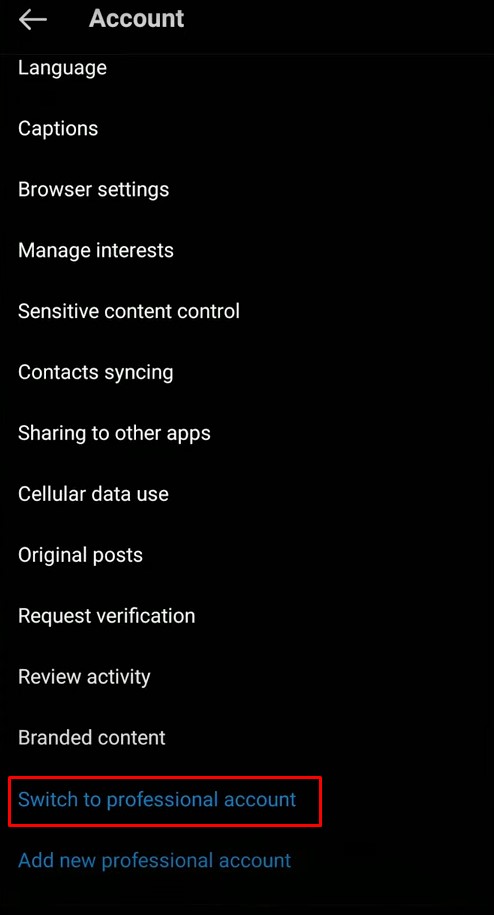
After this procedure, you can check if the problem still persists.
Fix 5: Use Old Version
Software problems in the new version can cause us to encounter various errors like this.
We can fix the bug by getting the old version so that we can fix the software problems in the new version.
Download the old version of the Instagram app by clicking the link below.
Download the old version available in the link.
First, uninstall the Instagram app installed on your device.
Run the “.apk” file you downloaded and start the installation process.
Web server is returning an unknown error Error code 520
There is an unknown connection issue between Cloudflare and the origin web server. As a result, the web page can not be displayed.
What can I do?
If you are a visitor of this website:
Please try again in a few minutes.
If you are the owner of this website:
There is an issue between Cloudflare’s cache and your origin web server. Cloudflare monitors for these errors and automatically investigates the cause. To help support the investigation, you can pull the corresponding error log from your web server and submit it our support team. Please include the Ray ID (which is at the bottom of this error page). Additional troubleshooting resources.
Cloudflare Ray ID: 8036158ae6e50554 • Your IP: Click to reveal 178.175.133.149 • Performance & security by Cloudflare
Не работают «Актуальное из истории» в Инстаграм, что делать?
Не работает функция «актуальное из истории» у меня несколько аккаунтов и на всех кроме основного работает, а на том что нужно нет, приложение обновлено, несколько раз заходила выходила и удалила сама приложение, не срабатывает, что делать?#инстанрамм#а ктуальноеизистории
Это может быть что-то со смартфоном, если есть возможность зайти через компьютер, планшет, другой смартфон, зайдите и проверьте, работает ли "Актуальное из истории" там или нет, если да, то точно больше шансов на то, что со смартфоном что-то.
Еще как способ — нужно взять одну из историй, выделить и нажать лайк\сердечко, выделить ее в "актуальное", дать название ей. Тогда она появится там, и будут уведомления о новых добавленных приходить.
Еще — бывает, что актуальное из истории пропадает, потом само восстанавливается, это уже проблемы у самого Инстаграма. И никак не решите проблему, только ожидание.
Так же, говорят, что у тех, у кого айфоны, то все есть, а на Андроидах проблемы, там может уже вообще не быть этого актуального из историй в зависимости от модели смартфона, видимо.
Возможно проблемы с устройством, с ноутбуком, со смартфоном, такое бывает. Поэтому, если возможность зайти с другого устройства есть, то надо зайти и проверить, как вообще работает "Актуальное из истории", если же работает, то значит проблема с вашим устройством.
Ещё один способ, это взять одну историю, выделить ее и нажать лайк (это сердечко)потом выделяем её в "актуальное", дадим название. В результате, история появляется там где надо, поэтому, придут уведомления и о новых туда добавленных.
Еще бывают проблемы у самого Инстаграма, поэтом "актуальное из истории" пропало, потом само восстановилось, так тоже бывает. Здесь надо подождать.
Ещё бывает, что у хозяев айфонов, проблем нет, но на смартфонах с простым андроидом есть проблемы с Инстаграмом, и поэтому не работает "Актуальное из истории" в Инстаграм.
Можно ещё очистить историю и кеш на своём устройстве. Можно, на крайний случай, проделать удаление приложения, а потом установить его вновь.
Если все проделано, а "Актуальное из истории" в Инстаграм всё также не работает, то это уже проблема в самом приложении Инстаграм, здесь можно написать в техническую поддержку.