Exporting MIDI In FL Studio Made Easy (Step-by-Step Guide)
Exporting MIDI from FL Studio can be done by selecting the export option from within the file menu on the top toolbar, then choosing “MIDI” as the file format before finally pressing the save button towards the bottom of the window.
MIDI In FL Studio
Do you need help figuring out how to export MIDI files from FL Studio? You’re not alone. Many people find the process of exporting MIDI files to be confusing and overwhelming.
But don’t worry; I’m here to help. This guide will walk you through the process step-by-step, so you can easily export MIDI files from FL Studio.
There are several benefits of learning to export MIDI files from FL Studio. You can share your creations with others, use them in other music production software, or even use them in live performances.
By the end of this guide, you’ll easily export MIDI files from FL Studio.
Let’s get started!
What Will You Need?
- FL Studio
- A MIDI pattern that you want to export
- A USB drive or external hard drive (if you’re going to export the file to a different location)
How To Export MIDI Files In FL Studio (Step-By-Step Guide)
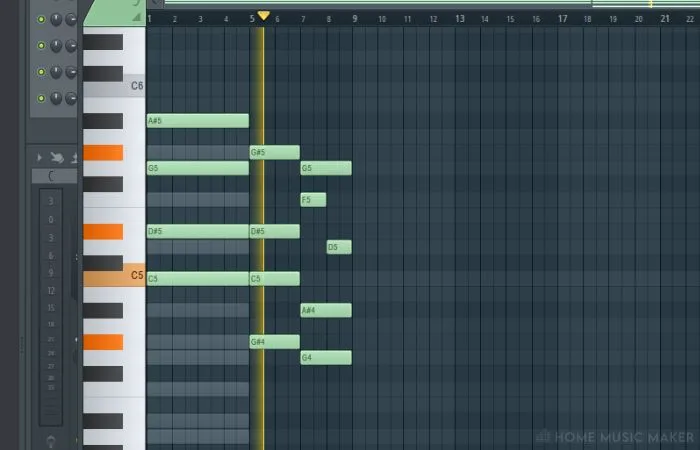
Step 1: Open Your MIDI File In FL Studio
Open the FL Studio project that contains the MIDI you want to export. Please ensure the MIDI is correct and exactly how you want it in the exported file.
Step 2: Go To The File Menu
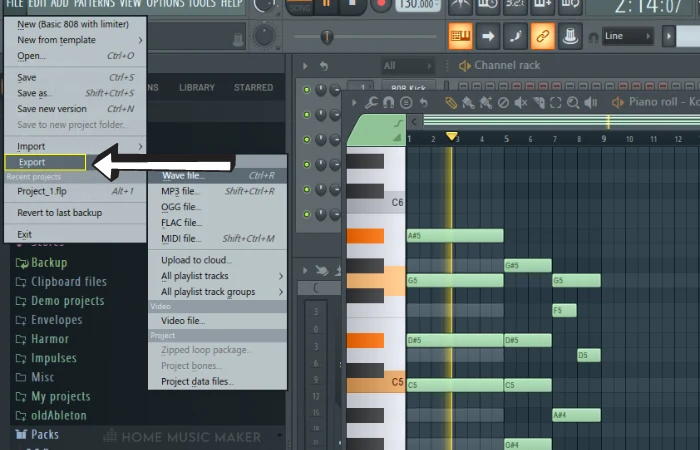
Click on the File menu at the top of the screen, and select the “Export” option.
Step 3: Select “MIDI” As The File Type
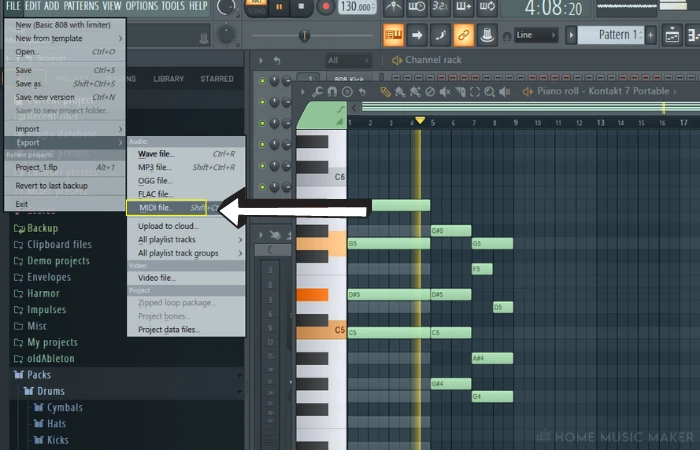
In the export window that appears, select “MIDI” as the file type. You will see a few export options, such as “All Patterns” or “Current Pattern.” Select the option that best suits your needs.
Step 4: Choose A Location To Save The File
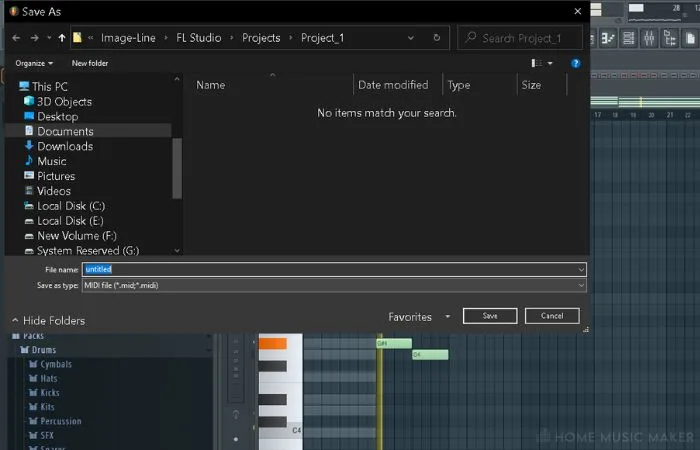
Next, select a location on your computer where you want to save the exported MIDI file. Give the file a name and click “Save.”
Step 5: Wait For The Export To Complete
FL Studio will now begin exporting the MIDI file. This may take a few minutes, depending on the file size. Once the export is complete, you will see a message indicating that the file has been saved.
And that’s it! You’ve successfully exported a MIDI file in FL Studio. Now you can use the file in other music software or share it with others.
READ NEXT:
Want to customize your MIDI notes? Check out our article on how to change note color in FL Studio.
How Do I Export A Pattern As MIDI In FL Studio?
To export a pattern as a MIDI file in FL Studio, follow these steps:
- Open the pattern you want to export in the step sequencer.
- Go to the “File” menu and select “Export,” and then “MIDI file.”
- In the “Save as” dialog box that appears, choose a location to save the file and enter a name for the file.
- Click “Save” to export the pattern as a MIDI file.
Pro Tip
You can also use the shortcut key ‘Alt+M‘ to export the MIDI file of the pattern currently open in the step sequencer.
How To Export MIDI With Marker In FL Studio?
To export a MIDI file with markers in FL Studio, follow these steps:
- Open the pattern or project you want to export in the step sequencer or playlist.
- Go to the “File” menu and select “Export“, and then “MIDI File“.
- In the “Save as” dialog box that appears, choose a location to save the file and enter a name for the file.
- In the “Rendering” dialog box, click on the “Save note markers” checkbox.
- Click “Start” to export the pattern or project as a MIDI file with markers.
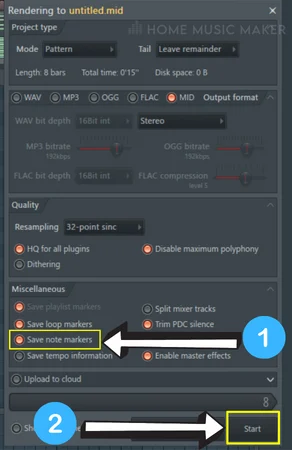
Alternatively, you can use the shortcut key ‘Alt+M‘ to export MIDI of the pattern currently open in the step sequencer, and markers will be exported by default.
Please note that markers in the playlist will be exported as MIDI cues if you have markers. These cues can be loaded in any DAW or MIDI player software that supports MIDI cues.
How To Import MIDI Into FL Studio?
To import a MIDI file into FL Studio, follow these steps:
- Go to the “File” menu and select “Import” and then “MIDI file“.
- In the “Open” dialog box that appears, navigate to the location of the MIDI file you want to import.
- Select the file and click “Open.”
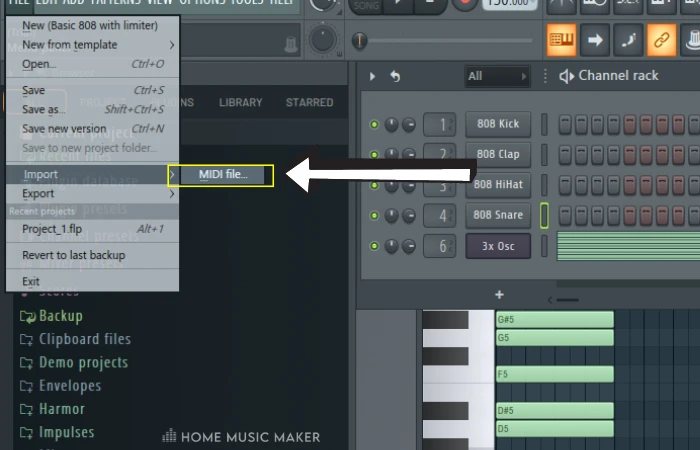
Alternatively, you can import the midi file with the shortcut key ‘Ctrl+I.’
The MIDI file will be imported into FL Studio and added to the playlist as a new pattern. You can also drag and drop a MIDI file from your computer into the playlist. The imported MIDI notes will be added to the piano roll for editing or further manipulation.
Please note that when you import a MIDI file, the project’s tempo, key, and time signature will be adjusted to match the settings in the imported MIDI file.
READ NEXT:
With your MIDI file now imported, what about issues that can come with that? Read our article on why FL Studio notes keep playing.
Related Questions
Can I Export Multiple Projects As MIDI Files At Once In FL Studio?
No, you can only export one project at a time as a MIDI file in FL Studio. However, you can use the batch export feature in FL Studio to export multiple audio files simultaneously.
Can I Export MIDI Files From Other DAWs To FL Studio?
You can import MIDI files from other DAWs into FL Studio using the “Import” option under the “File” menu.
Can I Edit The Exported MIDI File In Another Software?
You can open and edit the exported MIDI file in other music production software such as Ableton Live, Logic Pro X, or Pro Tools.
How Do You Pull Up Your MIDI Keyboard In FL Studio?
In FL Studio, you can pull up a MIDI keyboard by first making sure that your MIDI keyboard is connected to your computer and recognized by the system. Then, in FL Studio, go to the “Options” menu and select “MIDI Settings.” Ensure your MIDI keyboard is set as the input device in the MIDI settings.
Then click on the channel rack and press the “+” button to add a new instrument channel, select “MIDI Out,” and select your midi keyboard.
After that, you should be able to play your MIDI keyboard and have the notes appear in FL Studio.
How To Export MIDI Files In FL Studio (Step-By-Step Guide)
FL Studio allows you to turn patterns from the piano roll into MIDI files. Here’s how you do it in just 3 easy steps. To export MIDI files in FL Studio do the following.
- Make a melody or chord pattern in the piano roll
- Go into the Piano roll options by clicking on the little triangle in the top left.
- Go to, File –> Export as MIDI File
Done! Your MIDI file will be exported.
The Advanced Way
If you want to export a midi file containing many instruments playing at once. You can do so by following the following technique. This technique is also outlined in FL Studios manual but is not described so well there.
1. Put together any number of melodies and chords using the piano roll. You can arrange it all either in the playlist or the channel rack, whatever fits you. Then go ahead and save your project.
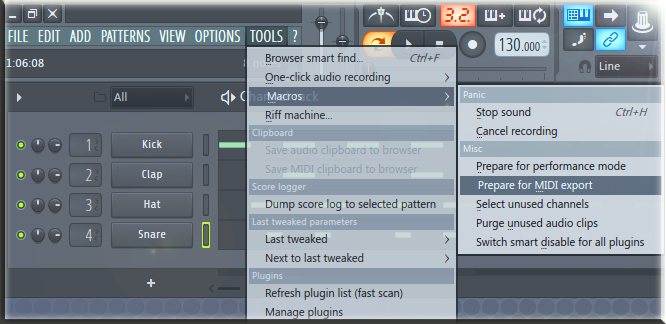
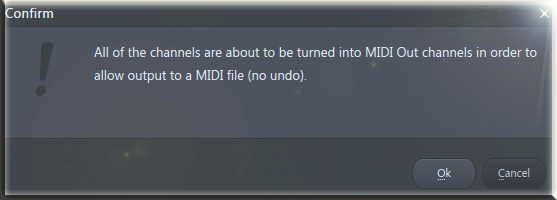
2. Head to the Menu on the top left corner in FL Studio. Go to Tools –> Macros –> Prepare for MIDI export. You will get a prompt with a warning, click Okay. All of the instruments and audio clips will be converted to MIDI Out channels.

3. Open up the Mixer and throw a Fruity LSD plugin on any slot. It doesn’t matter what mixer channel.

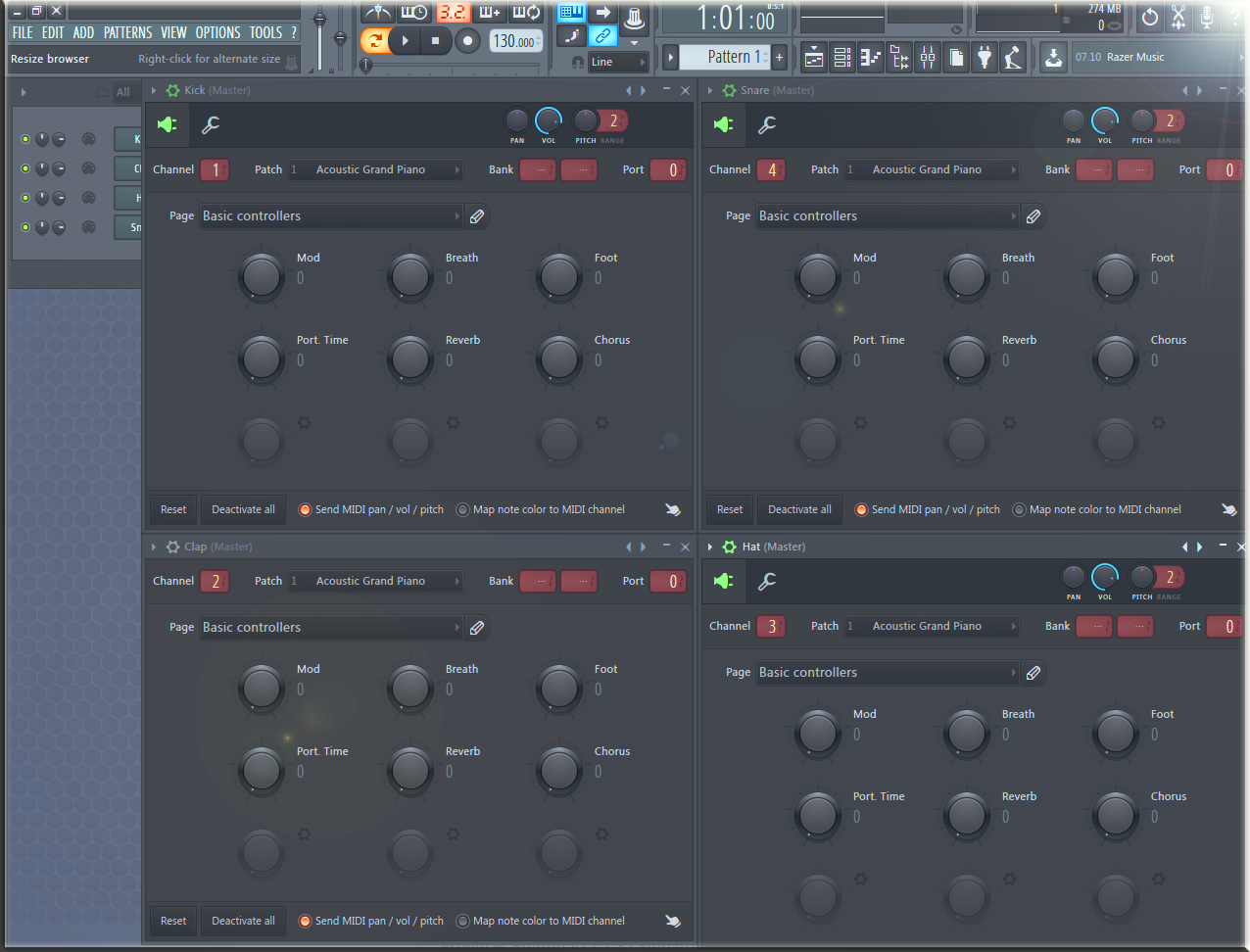
4. Route the MIDI Out channels to Fruity LSD. The Port in MIDI Out has to be the same as in Fruity LSD. You might need to change the port to something else than 0. Otherwise, it will make no sound.
The Channel from the MIDI Out window controls which instrument you wanna play with your Pattern. You can change instruments in Fruity LSD by clicking on the instrument’s name.

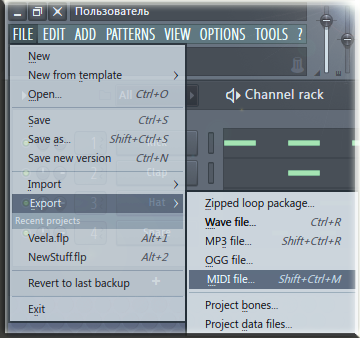
5. When you’re done with the routing, go to FL Studios Menu. Click, FILE –> Export –> MIDI file, and save your creation.
What is MIDI?
MIDI stands for Musical Instruments Digital Interface. It is a protocol that allows electronic musical instruments and computers to communicate with each other. It’s used to create sequences of notes that can be played back on synthesizers or sequencers. MIDI is also used to control other parameters of musical performances, such as tempo, pitch, and volume.
Recommended
Latest from the Studio
When you buy through our links, we may earn a commission. Learn more here!
Сохранение или экспорт MIDI в FL Studio.
MIDI это специальный формат, содержащий цифровую информацию о каналах, в виде параметров их составляющих – высоты тона (Pitch) и длине положению составляющей доли во времени. Проще говоря, MIDI это нотная информация, которая, как многие знают, практически ни чего не занимает на диске (весит мало). И еще стоит сразу подчеркнуть MIDI – это не аудио формат – это цифровые данные.
И в FL Studio, любой версии 12, 11 либо 10, сохранение данных ведется из этого степ секвенсора (Step Sequencer) – и будут сохраняться ноты из Piano Roll каждого отдельного канала:
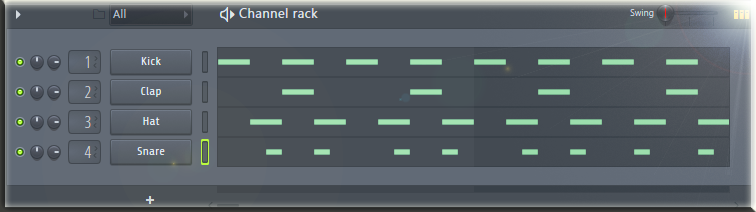
Ты можешь сохранить, конечно же, любые нотные данные, в том числе аккорды и мелодии любой длинны и в любом количестве каналов, пример со стандартными Drum элементами возможно слишком скучный).
Но теперь САМОЕ ВАЖНОЕ УСЛОВИЕ! Перед тем как перенести ноты из Piano Roll каналов из степ секвенсоре в файл MIDI, все каналы с инструментами и сэмплерами нужно преобразовать в MIDI каналы – иначе ни чего не получиться, этот шаг обязательный! И вот где и как это сделать и как сохранить или экспортировать ноты с Piano Roll FL Studio в MIDI… Заходим во вкладку Tools – Macros– Prepare for MIDI Export (вот твоя заветная строчка макроса):
Конечно же операция требует подтверждения, и ВНИМАНИЕ! Обязательно сохрани проект, если он тебе еще пригодиться, так как отменить преобразование инструментов и сэмплов из панели каналов в бездушные MIDI контейнеры потом не получиться. Сохрани проект перед подтверждением и вперед, на этот раз обдуманно жмем Yes (Да):
Готово преобразование и, как ты можешь пронаблюдать, теперь это просто MIDI каналы с некоторыми настройками, которые нам не очень то и нужны и, конечно, в Piano Roll каждого канала остались ноты, которые уже являются MIDI информацией, которую осталось только лишь сохранить (экспортировать)!
Команду, производящую экспорт MIDI данных найти несложно и сделать это можно там же, где мы и экспортируем форматы аудио (или воспользоваться горячими клавишами Shift+Ctrl+M):
Даем повествовательно-поэтическое имя файлу:
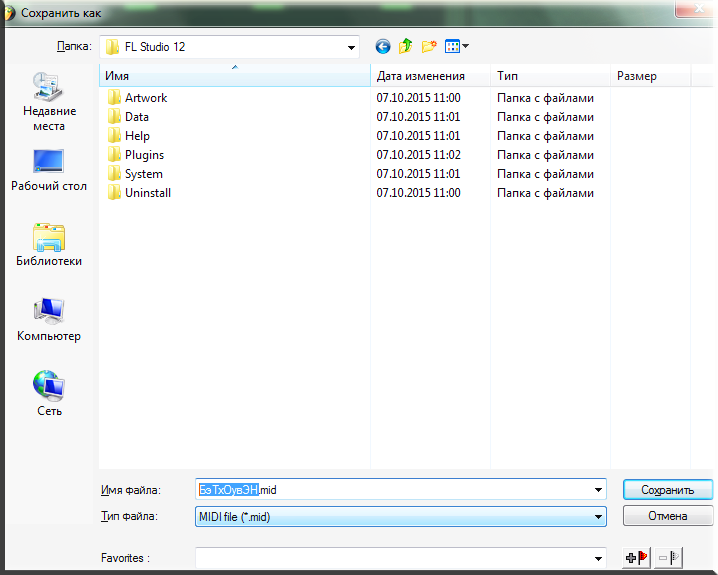
Вот и все! Вся необходимая нотная информация теперь содержится в MIDI файле, который теперь импортировать в проект FL Studio будет куда легче экспорта, который мы проделали только что.
Что касатеся импорта MIDI файлов в каналы проекта FL Studio 12 и как импортировать MIDI в проект FL Studio
То здесь все логично и обратно пропорционально:
Из папки в Windows, куда ты его экспортировал, просто перетащи его внутрь FL Studio на нужный канал инструмента (Внимание считывать весь файл теперь будет один канал – даже если внутри этого файла MIDI информация с нескольких каналов!). И, пожалуйста, после принятия (Accept) в появившемся диалоговом окне
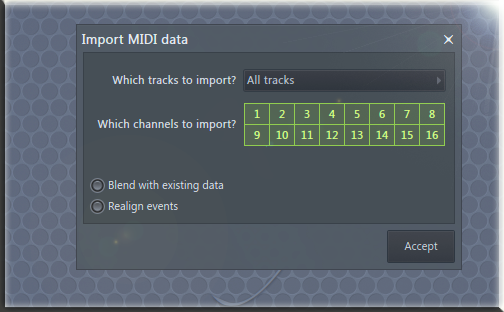
ты получишь MIDI данные в нужном канале:
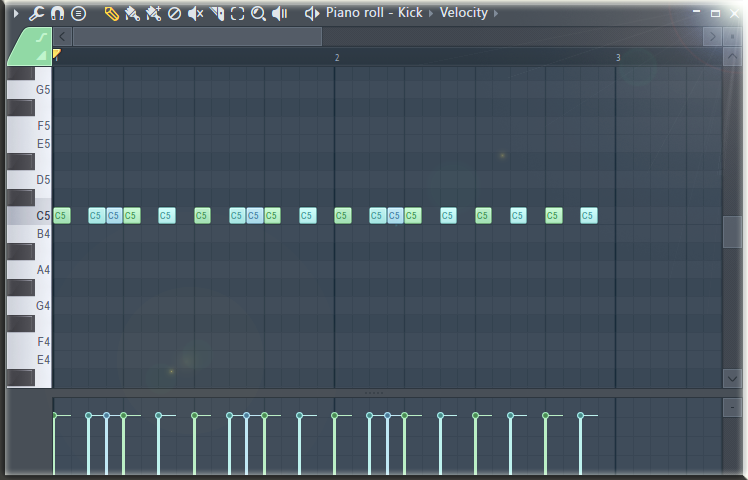
Разные каналы, как правило, отображаются разным цветом.
Теперь для того, чтобы, например, получить на каждом канале инструмента в проекте FL Studio разные каналы MIDI (Для каждого инструмента своя MIDI дорожка), я обычно просто исключаю из вот этого окна — номера каналов MIDI которые не нужны данному каналу инструмента (всего каналов 16, по-умолчанию они все активны и будут импортироваться в канал инструмента):
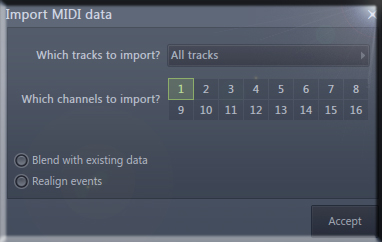
Вот и весь несложный процесс сохранения \ экспорта + импорта MIDI файлов внутри FL Studio 12.
Как сохранять midi в FL Studio 20-21
Сохранение MIDI-файлов в FL Studio происходит довольно просто. Вот пошаговая инструкция:
1. Откройте проект в FL Studio, в котором находится MIDI-дорожка, которую вы хотите сохранить.
2. Нажмите на кнопку «File» в верхнем левом углу окна FL Studio и выберите «Export» в выпадающем меню.
3. Выберите «MIDI file» в новом меню.
4. Введите имя файла и выберите место, куда хотите сохранить файл.
5. Нажмите «Export». Файл MIDI был сохранен.
Не забывайте, что при сохранении MIDI-файла у вас есть возможность настроить различные опции экспорта, такие как выбор дорожек, которые вы хотите экспортировать, длительность секции и т. д. Эти опции находятся под кнопкой «Options» в меню экспорта.
— Перед сохранением MIDI-файла убедитесь, что вся информация на дорожке аккуратно выровнена и подготовлена для экспорта, чтобы сохранить качество звука.
— Если вы хотите сохранить MIDI-дорожку, которая использует VST-инструменты в FL Studio, убедитесь, что вы выбрали «WAV» в меню экспорта, чтобы сохранить аудио-дорожку VST-инструмента.