How to open / unlock unreadable 7z rar zip files
PeaZip, like any archive management utility, needs the user to provide the correct password to work on encypted archives extraction, in order to access and extract encrypted files, and in some cases even to list the content of the archive — i.e. if sender used «encrypt filenames» option (7Z archives) making archive table of content unreadable without providing correct password.
Read more about how to open 7z rar tar zip archive files, as well as using PeaZip to open unsupported files extensions.
Recover lost / forgotten password

Open unreadable (forged or corrupted) files
- The archive header is encrypted and it’s not possible to read it before providing the right password to unlock it . 7Z, ARC, PEA, and RAR file formats supports header / TOC encryption, also known as encryption of file names. Notably, ZIP files does not support that feature , so unreadable ZIP archives (which cannot be extracted or opened for browsing archive content) are generally too corrupted to be read, or may have file extension changed (being a 7z or rar disguised as zip file, or even an exe file disguised as an archive), which is a strong hint of possible forgery — in those cases the files should not be trusted for opening and, especially, should not be trusted for extraction. In PeaZip’s file/archive browser you can enter the password clicking the proper context menu entry or clicking on the padlcok icon in the status bar or pressing F9
- The archive may be corrupted (it can happen quite frequently, i.e. when there is an error during a download of a file, or due to a failure on the memory support), or be a fake file (i.e. a non-archive file or random data renamed with archive type extension), or in worst case it may have been purposely altered. In those cases the files cannot (and in worst cases, should not) be «unlocked»: you will need to retrieve an intact copy of the file: re-download it from a trusted source or restore it from a reliable backup copy.
Why does PeaZip prompts a password request?


What to do with an unreadable file
- when downloading a file from the web or while saving a mail attachment, check if the download is reported to have been completed correctly (please note some download managers and some mail client make the file available for users before the actual download is completed!)
- check if the size of the archive is the one expected
- check if the checksum/hash of the file is the one expected — some sources reports checksum / hash of files for allowing users to perform this integrity check
- open the file with an hexadecimal editor to see if its content seems normal or if it is higly uniform filled with zeroes (to reduce fragmentation some downloaders pre-allocates the full size of the downloaded file, then replaces the content with the actual file), and to verify if the archive header is correct for the file type declared in the extension (sometimes an attacker may disguise a file type for another changing file extension).
- try to download it again or try to find another, more reliable source (or mirror) of the same file, see if other online users had encountered problems with the same archive
- in PeaZip, you can try a decryption password, and you can try listing archive’s content in flat mode clicking on the expand «plus» icon (or pressing F6)
- finally, try to open it with a different extraction utility that may be more error tolerant: please note that this may not be a good solution, as relying on less stringent error checks on the archive may result in unexpected and undetected errors in the extracted files.
Read more about unreadable files and password protection: checksum and hash functions, encryption articles on Wikipedia, Diceware password generation tips.
Learn how to create encrypted 7Z files with hidden filenames, feature which is also available when creating encrypted RAR files (if WinRar is available on the same system). Creating encrypted ZPAQ files filenames are always encrypted (hidden), as well as when creating encrypted PEA archives.
Synopsis: How to open unreadable or encrypted 7z rar zip archives. Remove password prompt. Unlock forgotten or lost passwords. Recover locked data with forgotten password. Read corrupted files. Open password protected encrypted files. What are nd how to detect unreadable files due forgery or data corruption.
Topics: open encrypted files, unlock password protected archives, recover lost password, open unreadable files
PeaZip > FAQ > How to open / unlock unreadable 7z rar zip files
Как снять пароль с архива
Если вы забыли пароль от ZIP-архива, который требуется открыть, оптимальным решением этой задачи будет использование специализированного программного обеспечения от сторонних разработчиков. Далее мы рассмотрим продукт компании PassFab, который хорошо себя зарекомендовал.
Обратите внимание! Процедура подбора пароля может занять довольно много времени (начиная от нескольких или десятков минут, и заканчивая несколькими часами и даже сутками), положительный результат нельзя гарантировать, а в ряде случаев он попросту недостижим. Поэтому если вам обещают быстрое и гарантировано эффективное решение, стоит отказаться от его использования – скорее всего, это либо вредоносный, либо мошеннический софт, единственная цель создателей которого – заражение ПК и/или получение доступа к вашим личным данным.
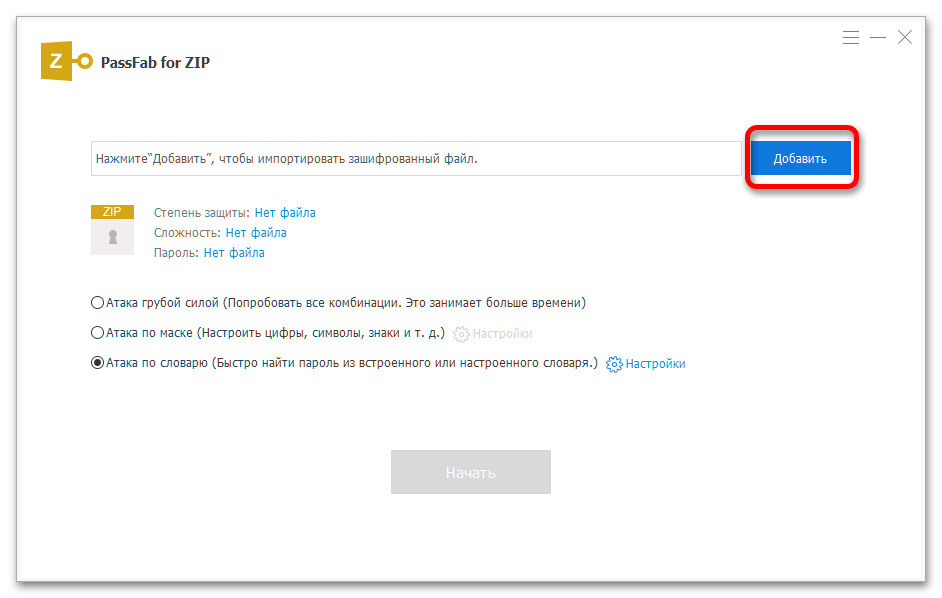
-
Скачайте, установите и запустите программу. Нажмите по кнопке «Добавить» в ее главном окне.
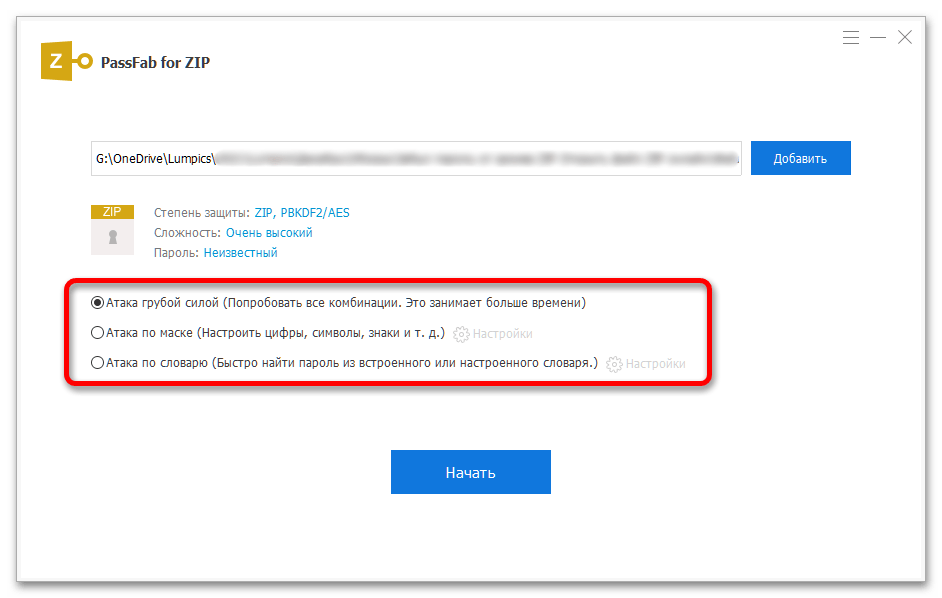
-
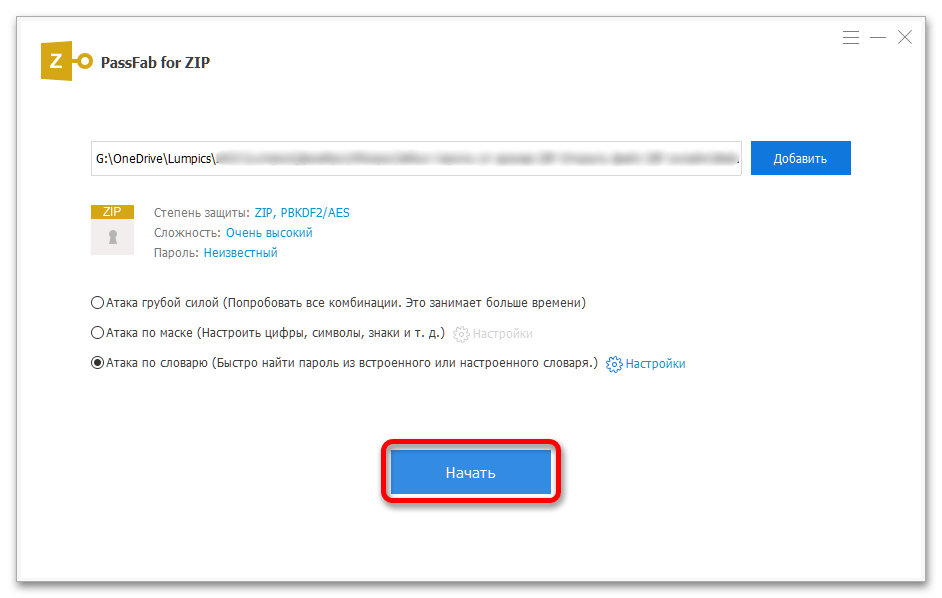
Грубой силой – занимает больше всего времени, так как подразумевает то, что будут пробоваться все возможные комбинации);
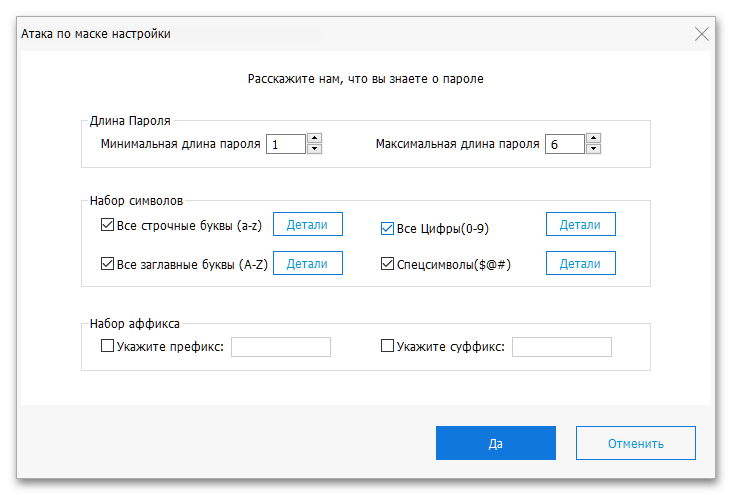
- Укажите известные особенности пароля;
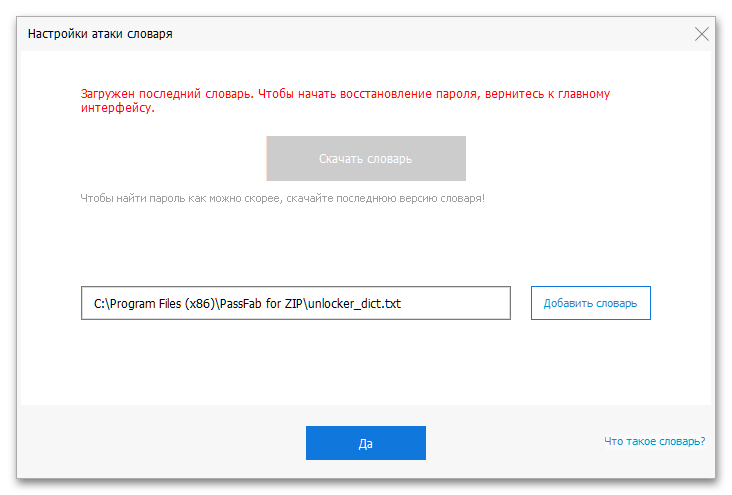
- Скачайте стандартный словарь или создайте и добавьте собственный.
По завершении данной процедуры вы сможете скопировать пароль
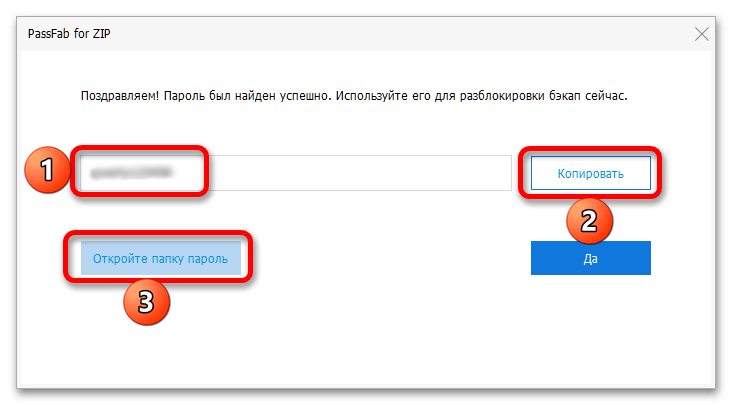
и использовать его для открытия архива в формате ZIP,
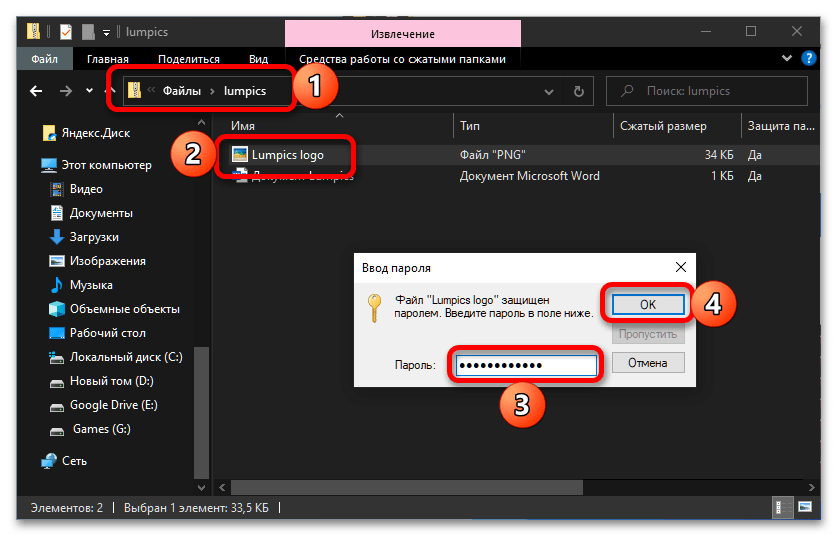
а также открыть лог-файл, в котором сохраняются сведения обо всех выполненных программой операциях.
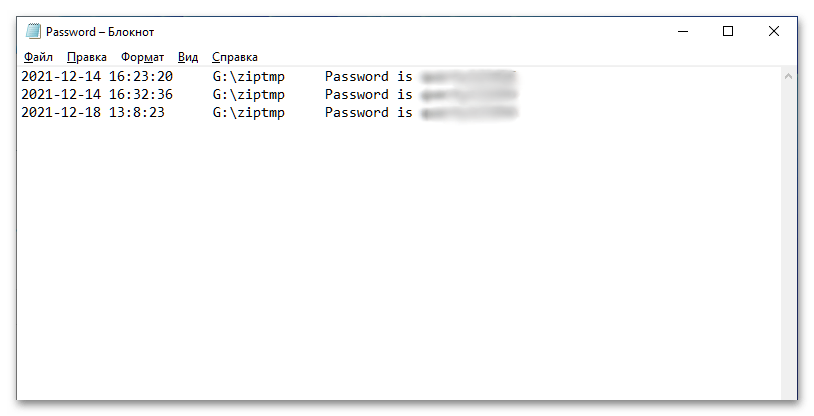
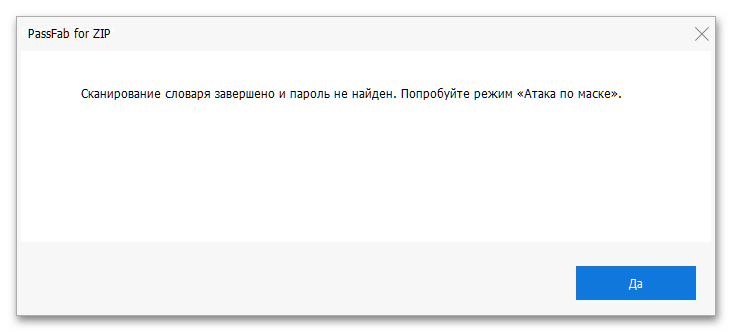
Примечание: Если выбранным вами на шаге №3 методом не получится восстановить пароль, попробуйте другой. Обычно программа сама предлагает это сделать.
Способ 2: John the Ripper
В качестве альтернативы полнофункциональному программному обеспечению можно воспользоваться консольной утилитой с открытым исходным кодом, предназначенной для проверки и восстановления паролей.
Обратите внимание! Подбор пароля рассмотренным далее методом представляет собой весьма трудоемкую и продолжительную процедуру. Приступая к ее реализации, закройте все требовательные к ресурсам ПК программы и будьте готовы к тому, что для решения задачи может потребоваться вплоть до нескольких дней.
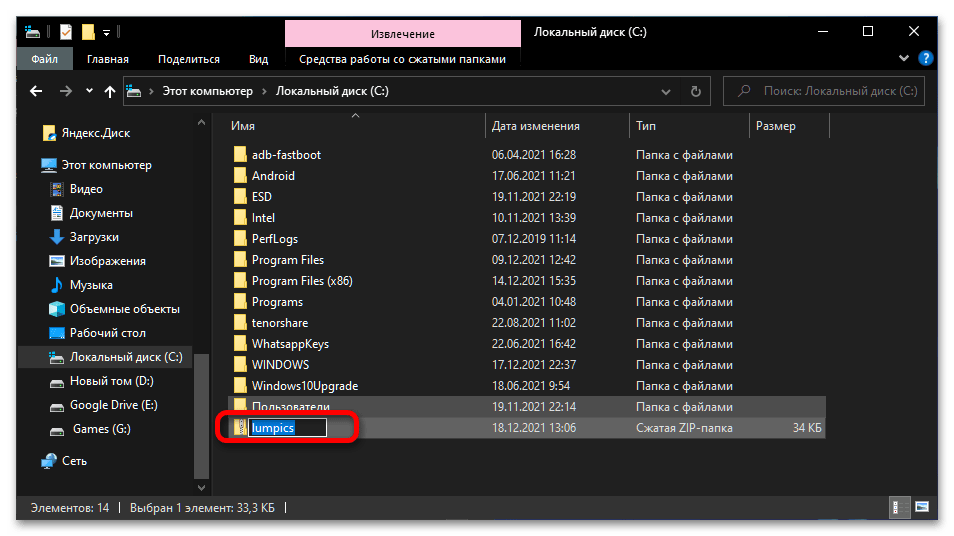
- Скопируйте запароленный архив в корень системного диска (в нашем примере таковым является «C:\». Присвойте ему простое и понятное, желательно односложное имя латиницей.
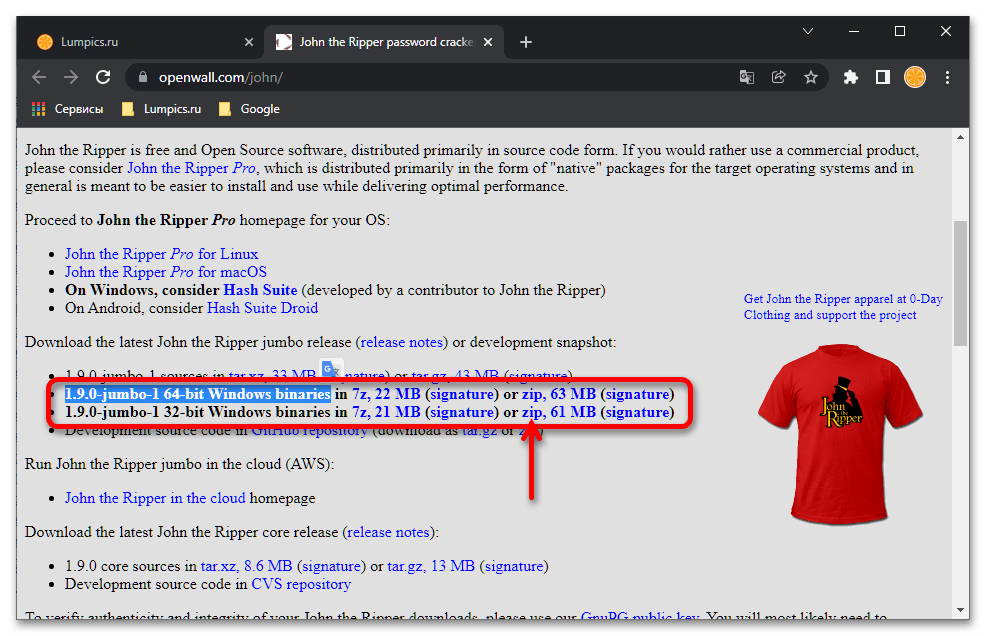
- Перейдите по указанной выше ссылке и загрузите версию ПО, соответствующую разрядности установленной на вашем компьютере операционной системы — необходимые файлы находятся под строкой «Download the latest John the Ripper jumbo release…», имеют выделенное жирным шрифтом название вида «X.X.X-jumbo-1 YY-bit Windows binaries in…» (лучше выбирать формат ZIP).
- Подтвердите сохранение на ПК в интерфейсе системного «Проводника».
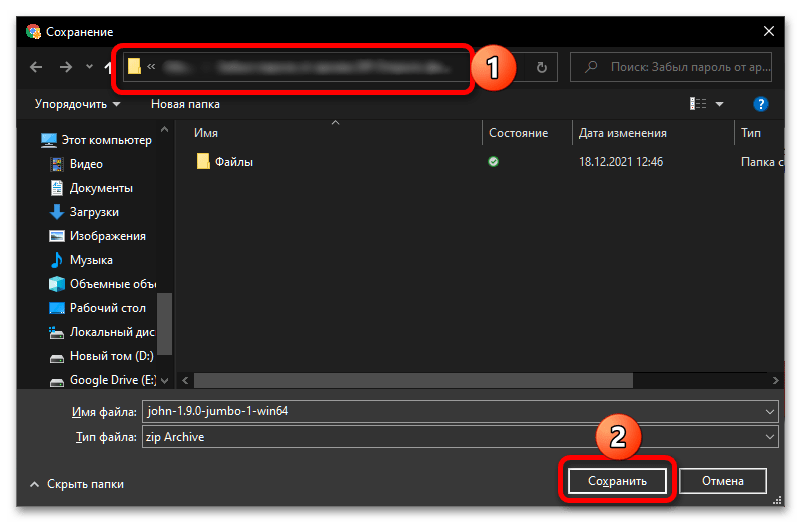
- Откройте архив после загрузки и извлеките его содержимое в корень системного диска. Переименуйте полученную папку в «john».
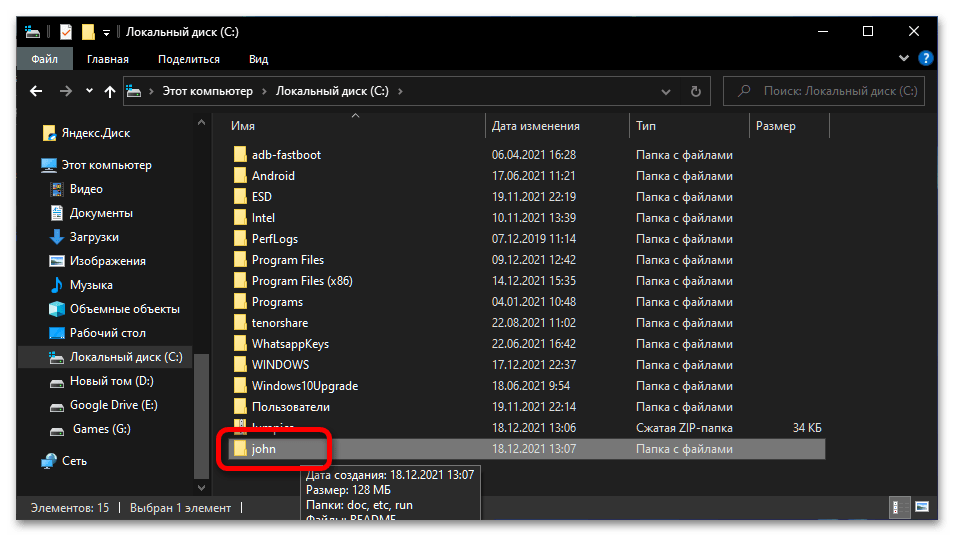
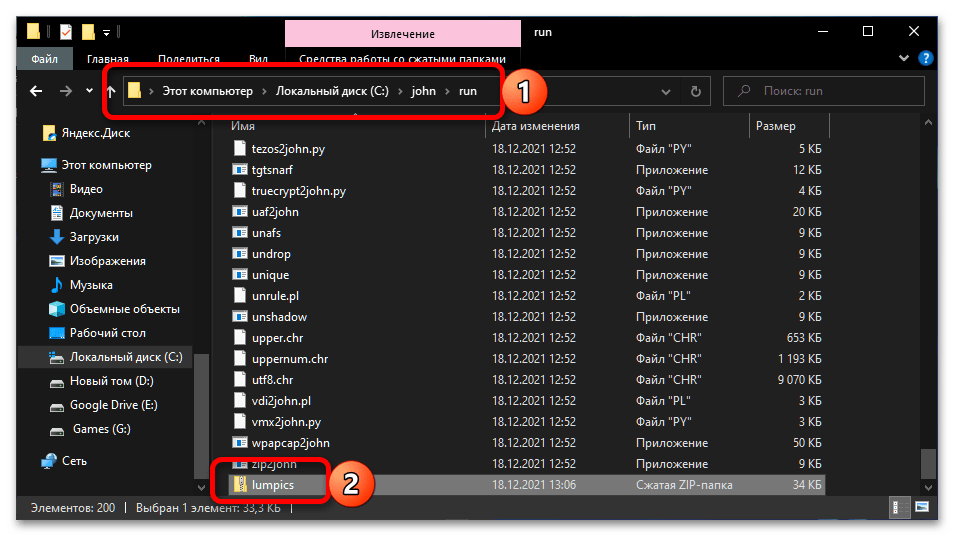
- Поместите ZIP-файл, пароль от которого требуется узнать, в каталог «run» директории «john».
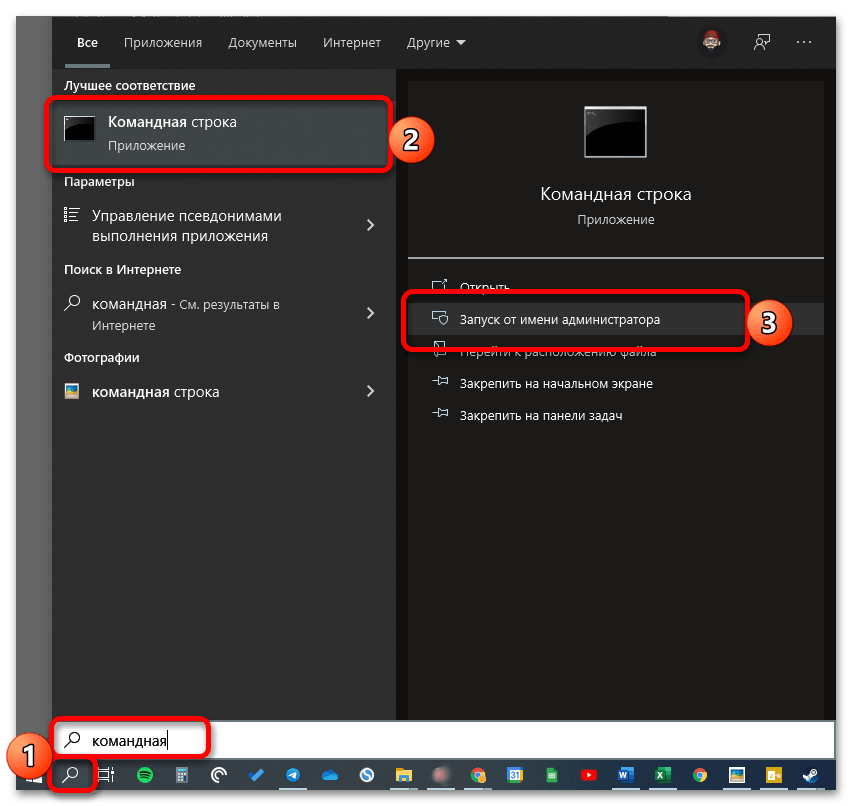
- Любым удобным способом запустите командную строку от имени администратора, например, воспользовавшись для этого встроенным в ОС поиском и соответствующей опцией в результатах выдачи.
zip2john.exe name.zip > name.hash
john.exe —pot=name.pot —wordlist=john/run/password.lst name.hash
После того как необходимые сведения отобразятся на экране, используйте их для открытия архива, просмотра и извлечения его содержимого.
Способ 3: OnlineHashCrack
Ели вы не хотите устанавливать стороннее программное обеспечение для того, чтобы снять пароль с защищенного ZIP-архива, можно попробовать воспользоваться одним из немногочисленных онлайн-сервисов, предлагающих решение этой задачи. Стоит отметить, что практически все из них справляются лишь с элементарными кодовыми выражениями, и даже на это требуется немало времени.
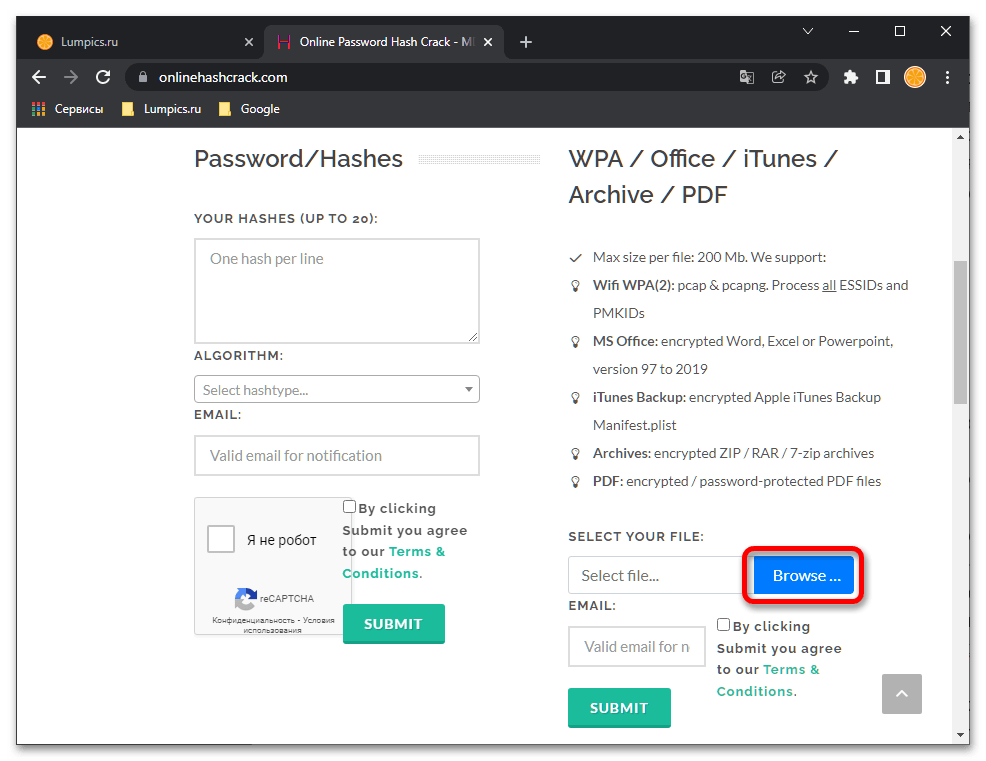
- Откройте сайт по указанной выше ссылке и нажмите по кнопке «Browse», расположенной справа от строки «Select file».
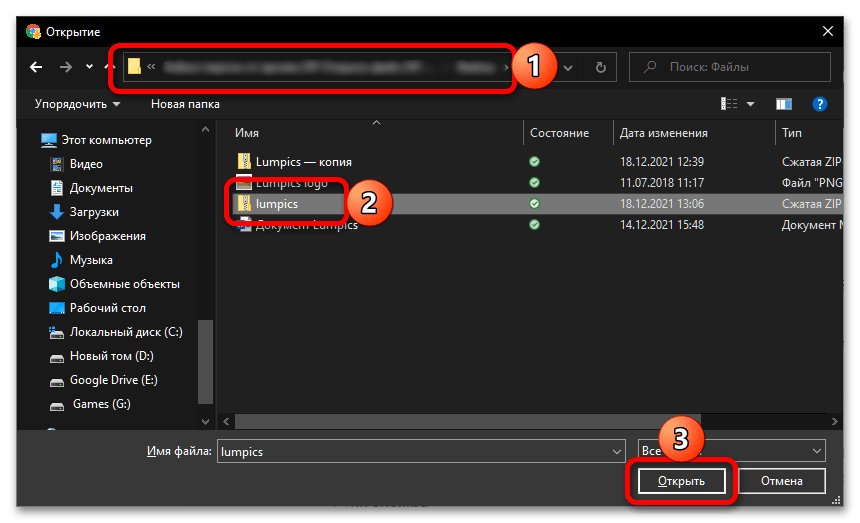
- С помощью системного «Проводника» выберите и откройте защищенный архив.
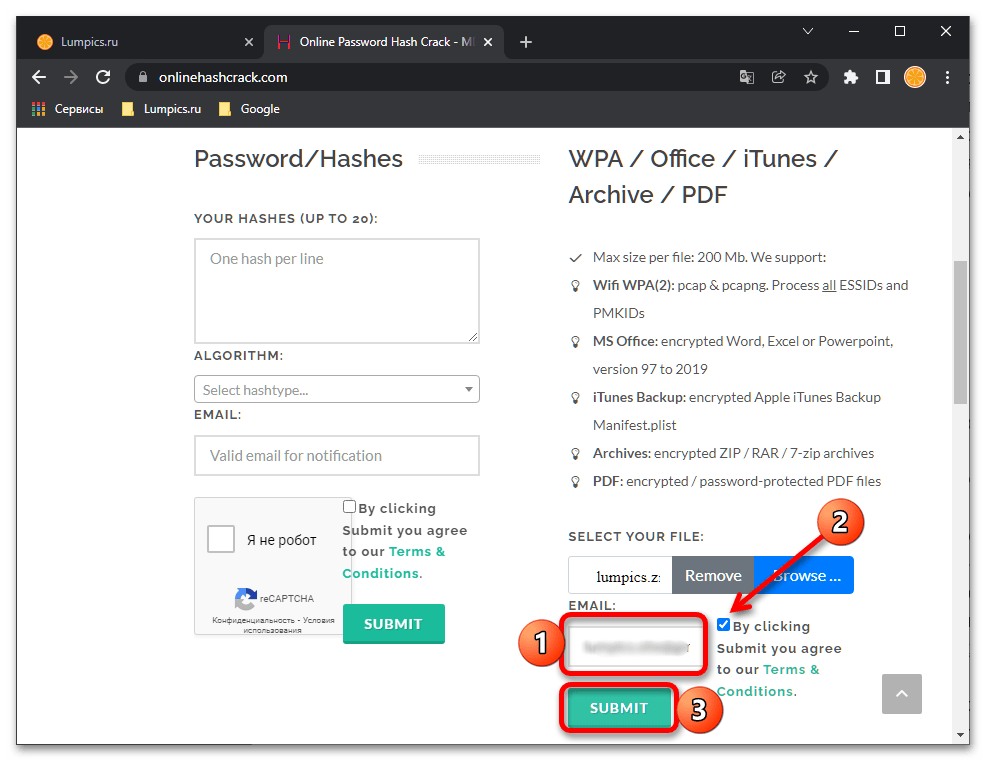
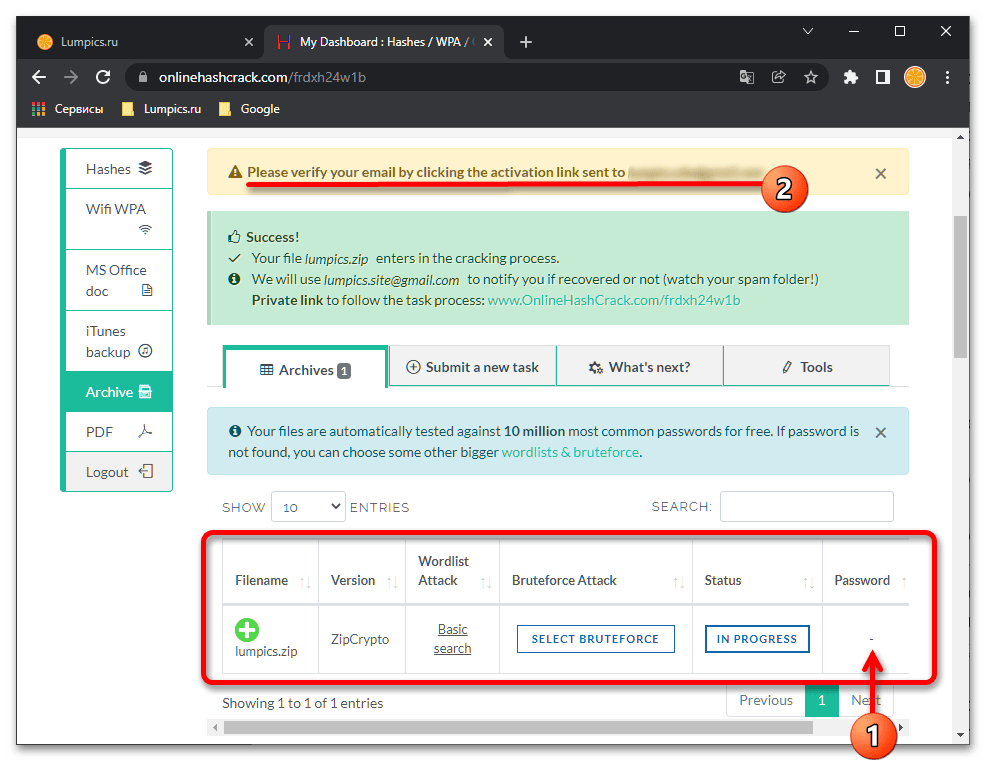
- В обозначенное на изображении ниже поле введите свой адрес электронной почты (на нее придет уведомление, когда сервисом будет подобран пароль или данная процедура завершится неудачей) и установите галочку в расположенном справа чекбоксе. Для подтверждения загрузки нажмите на кнопку «Submit».
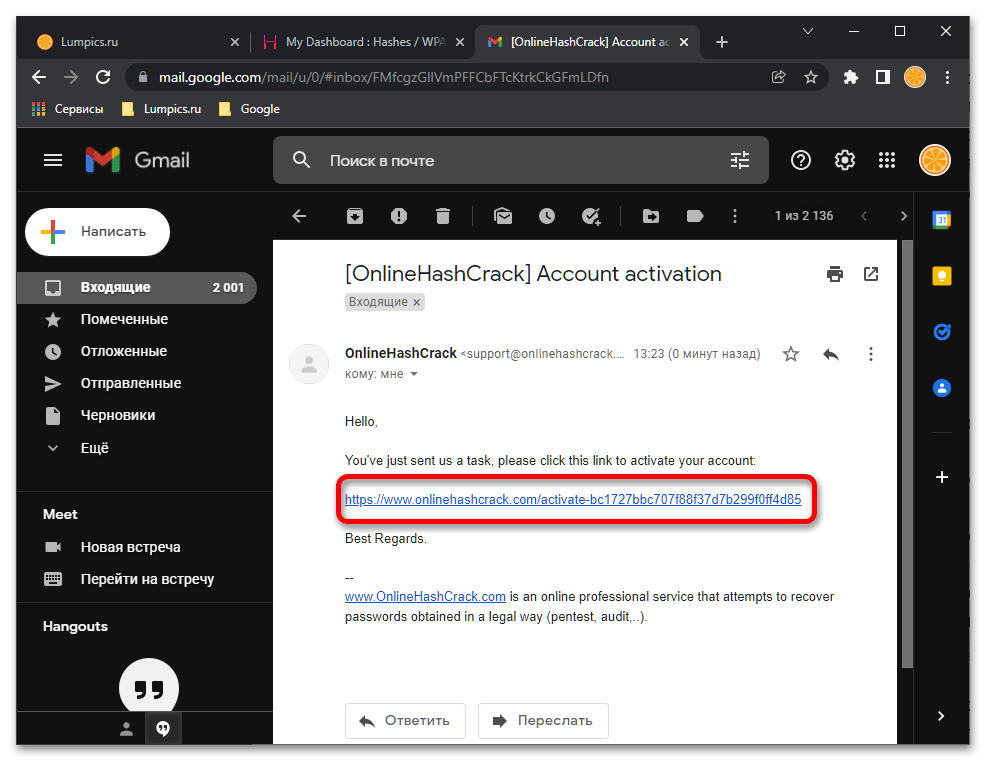
- Подтвердите владение указанным почтовым ящиком — на него придет письмо со ссылкой, по которой потребуется перейти.
- Все что остается далее – ожидать, пока OnlineHashCrack обнаружит установленное для защиты архива кодовое выражение и отправит вам соответствующее письмо на указанный адрес.
How to unzip password-protected ZIP files
There are different ways to open a password-protected ZIP file in Windows. Windows has its own file compression and decompression tool, that although it does not let you generate these types of files, it lets you open them. You can also opt for software developed by third parties. We will show you how to do it with the tool integrated into Windows and with two of the main compression software in the market, WinRAR and 7-Zip.
Extracting a password-protected ZIP using Windows 10
Using Windows’ integrated file compression and decompression tool, it is possible to open password-protected ZIP files. First, search for the file on your PC and double-click it. That should let you see its contents.
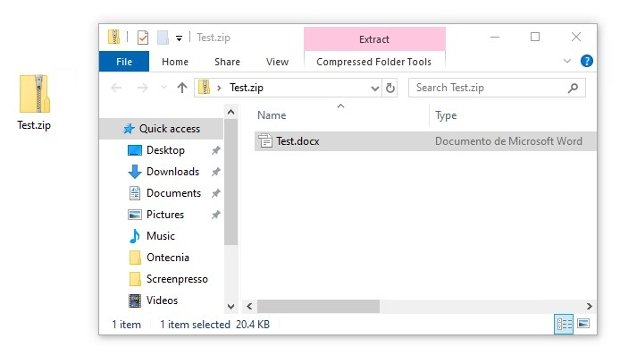
Content of a ZIP file viewed with Windows’ native tool
Issues may occur when opening the ZIP files or extracting them to a new folder on your computer. In both cases, Windows will display a pop-up window warning that the files are password protected. Type the password in the Password text box and press Ok on the right side.
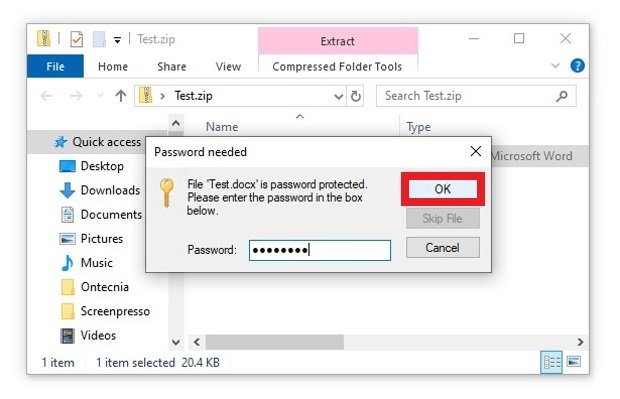
Enter the password and press OK
Extracting password-protected ZIP files using WinRAR
WinRAR is a popular file compression and decompression software that supports password-protected ZIP files. First, you must make sure you have the software installed on your PC. If it is not installed, download the executable from the green Download button below.

Once you have the software installed and ready to use, find the password-protected ZIP file you want to open. Now, you have two different options to open it. With a double click, you can see the content of the file as you would with the system’s integrated tool.
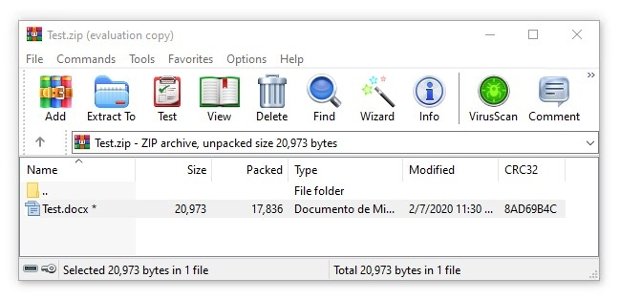
Inside a password-protected ZIP viewed with WinRAR
When you try to open a specific file or move it to another directory on your hard drive, you will be asked for the password. Type the password in the text box and click Ok at the bottom of the window.
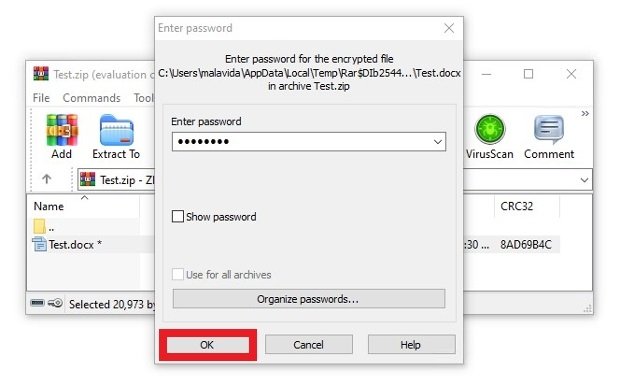
Write the password and press OK
Your second option is to use the context menu options. When you install WinRAR and if you do not specify otherwise, its options will be added to the Windows context menu. Find the file, right-click it and select the option you are interested in.
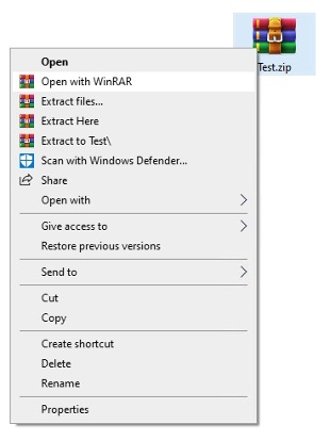
Options available in WinRAR’s contextual menu
Depending on the option chosen, you will be able to see the content as in the previous case or the same window will appear directly for you to enter your password. Do it, click on the Ok button and you will be able to work with the files inside without any problem.
Unzipping a password-protected ZIP file using 7Zip
An additional solution for opening these types of files is 7Zip, another popular compression, and decompression software. It works similarly to WinRAR. First, make sure you have it installed, if you do not have the software, click on the green Download button we offer and install it as you would do with any Windows software.

Now, you also have two ways to proceed. If you double-click on the 7Zip file it will show you the content.
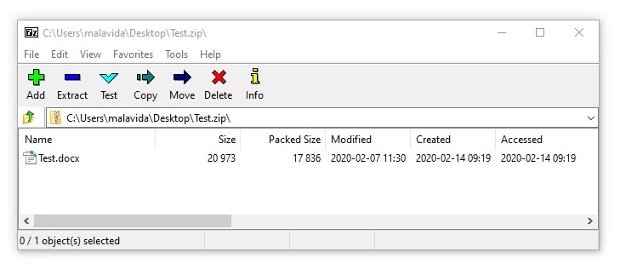
Content of a password-protected ZIP viewed with 7Zip
When you try to access the files, you will be asked for the password. Type it in the pop-up window and press Ok.
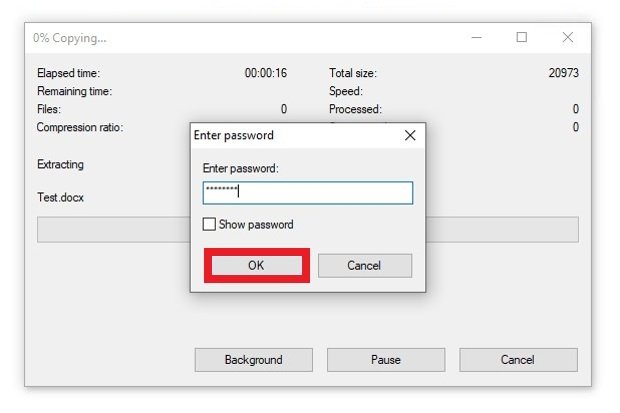
Type in the password and press OK to access the content
Same as WinRAR, 7Zip is integrated during installation in the context menu of options. If you prefer, you can right-click on the password-protected ZIP file and select any of the available 7Zip options. Depending on which one you choose, you will see the content and then be asked for the password.
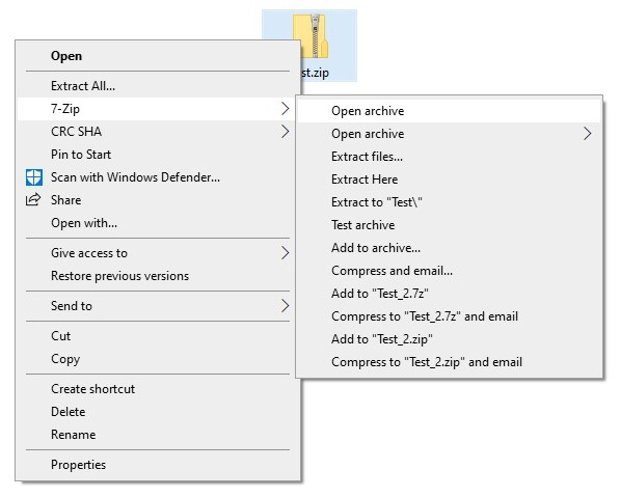
Options available in 7Zip’s contextual menu
Opening a ZIP file password protected is very simple, all you really need is the key or password. Once you have it, using the Windows 10 compression tool or either of the two software programs we recommend is quick and easy.
Unzipping password-protected ZIP files downloaded from Malavida
In Malavida, certain software downloads may consist of a ZIP file that contains a TXT document and a password-protected ZIP file. That password is precisely in the TXT document. To be able to open these files downloaded from our website, the first thing you must do is make sure you have a file compression and decompression software. If you use Windows 10, it is integrated into the system as you have seen before, and if you use an older version of the operating system, or you do not like the native system tool, you can use WinRAR or 7Zip again.
Windows 10
With the integrated Windows tool, all you have to do is double-click on the ZIP file you have downloaded. By doing so, you will be able to see its contents.
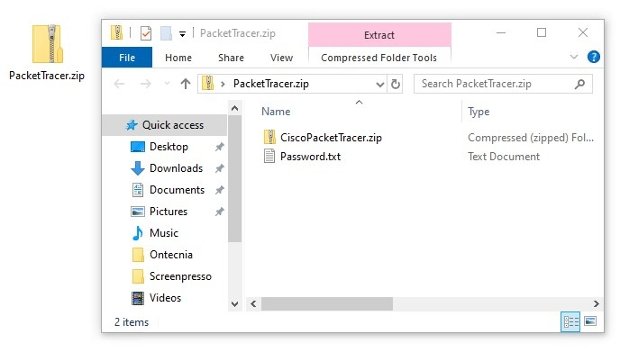
Content of the ZIP file
Inside, you will find two files. One is a new ZIP file containing the software, and the other is a text document called Password Double click on the text file to open it, inside, you will see the password. You can do so using the Windows Notepad or any other editor that supports TXT files. Keep the file open.
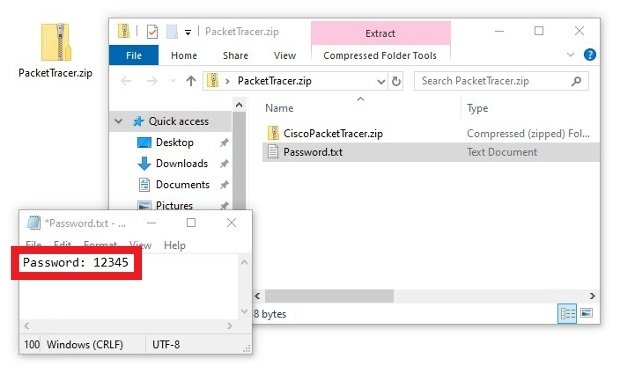
Password-protected file open
Then, double-click on the ZIP file inside to view its contents. When you double-click the executable file(s) inside it again to launch it, or when you try to move it to another directory, the Windows compression tool will notify you that it is password protected. Now, all you have to do is type the visible password into the text document that we have opened in the previous step. Please, respect the upper and lower case indicated to avoid errors. When you have it, press Ok on the right side. In a few seconds, the installation process of your software will be launched.
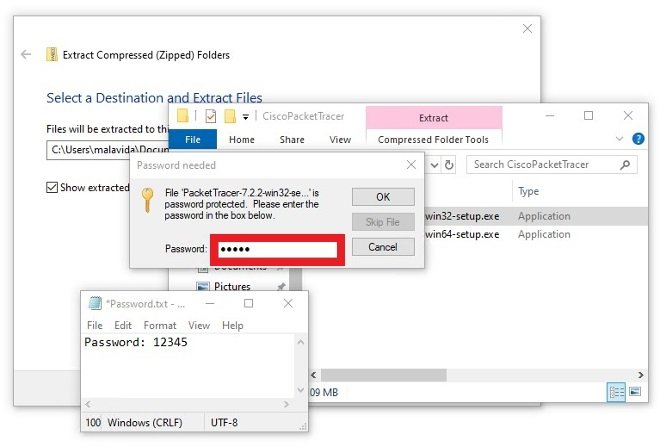
Enter the password in the pop-up window when trying to open the executable file
WinRAR
The process to open a password protected ZIP downloaded from our website with WinRAR is the same. First, double-click on the file you have downloaded to see what it contains, i.e. the TXT document and the ZIP file password protected containing the software.
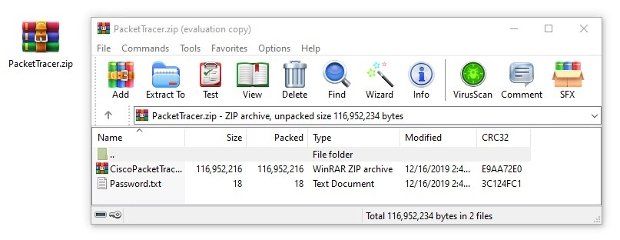
Content of the file with a ZIP and a TXT document
Double-click on the TXT document to read its contents, you will see the necessary password. Keep it in sight.
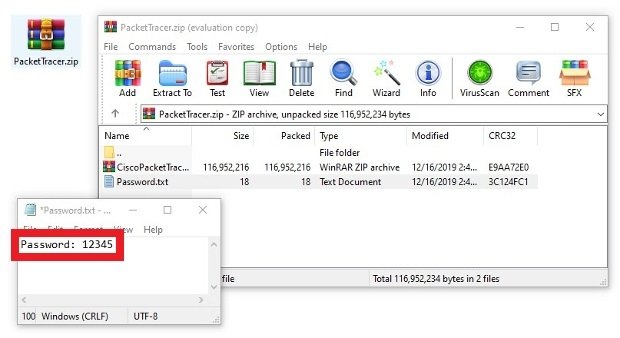
Password of the TXT document
Then, double-click on the ZIP file containing the software. You will be able to see the executable files it stores. When you try to run any of them, WinRAR will ask you for the password. Just type the password of the TXT file and press Ok below and the software installation will be launched.
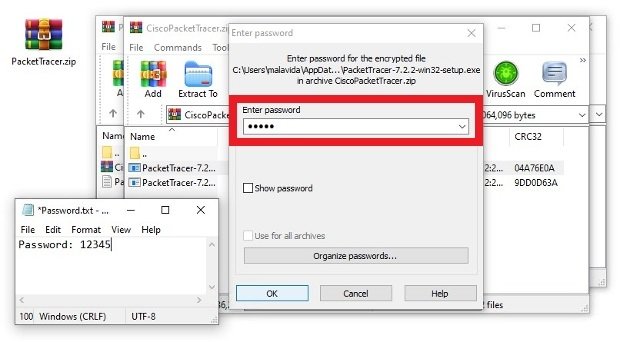
Entering the password to open the EXE files of the password-protected ZIP
7Zip
The procedure with this file compression and decompression software is exactly the same. First, double-click on the file you downloaded from Malavida and you will see its content, i.e. a new ZIP (the password-protected one) and the text document containing the password.
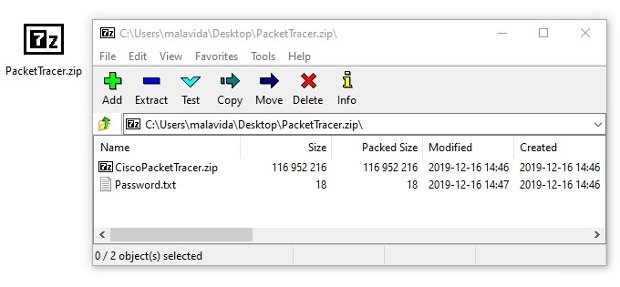
Content of the password-protected ZIP viewed with 7Zip
Open the TXT document containing the password and keep it within reach to take the final step.
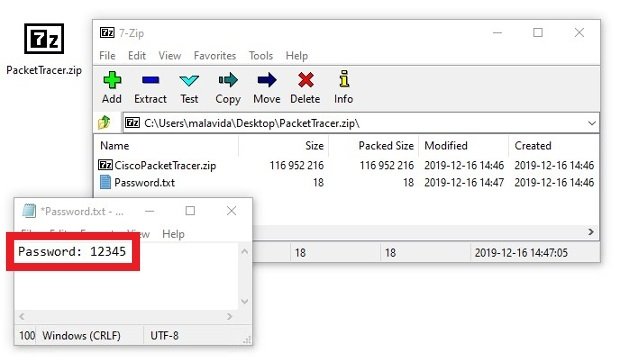
The TXT file contains the password
Finally, double-click on the password-protected ZIP containing the executable file(s) and try to launch it or move it to some directory on your PC. A pop-up window will ask you for the TXT password, just type it in and press Ok.
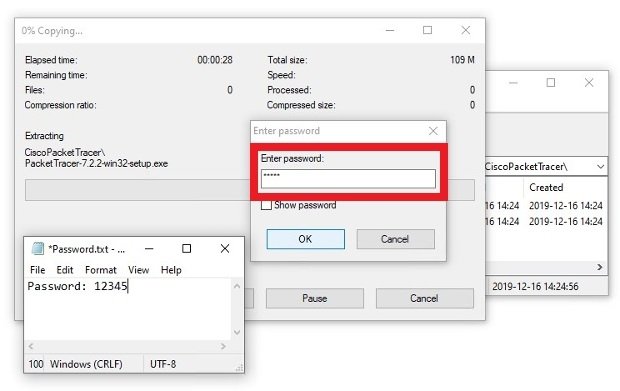
Type in the password to open the ZIP that contains the executable file
Any of the three methods will let you view and open the contents of the password-protected ZIPs you can download from the web.
Как снять/скинуть/сбросить пароль с архива RAR и ZIP?
Процесс подбора пароля для архива не всегда прост и возможен. Однако в большинстве случаев сбросить код все же реально. Рассмотрим несколько методов снятия блокировки для разных форматов архивов.
PassFab for RAR
PassFab for RAR — эффективная программа для снятия пароля с архивов формата .rar без потери данных. Она использует разные технологии в работе, что позволяет сбрасывать защиту быстрее. Утилита имеет две версии: полную платную и бесплатную с ограниченным функционалом. Бесплатная позволяет увидеть только часть от найденного пароля, однако зачастую этого достаточно, чтобы вспомнить забытый код.
Программа устанавливается из инсталлятора в несколько шагов. После запуска укажите нужный архив, нажав на кнопку Добавить. Выберите один из трех режимов работы: атака по словарю, по маске или грубой силой. Атака по словарю — это подбор кода с использованием специального словаря. При атаке по маске пользователь указывает программе известные характеристики пароля: длина, используемые символы. Атака грубой силой — это режим, использующий все доступные методы поиска.
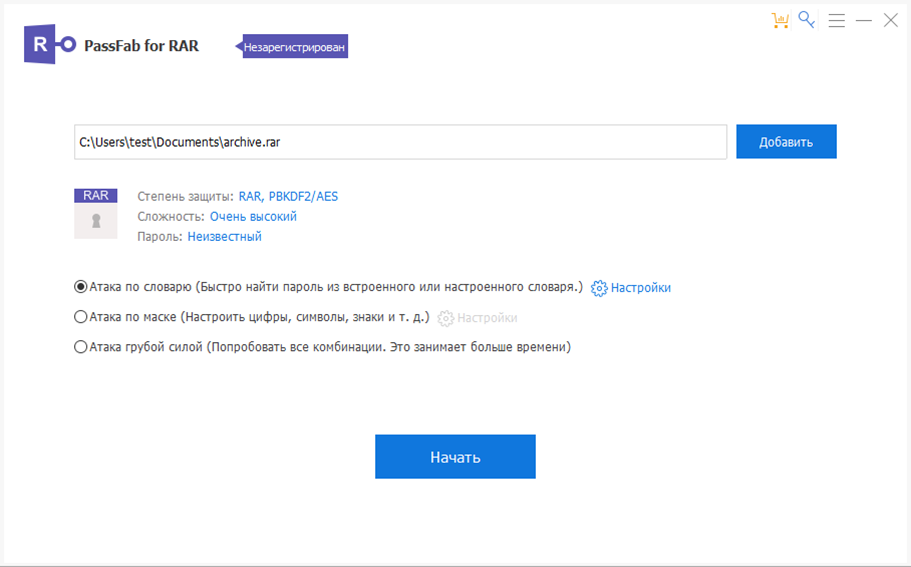
Определив архив и режим, нажмите на кнопку Начать, чтобы запустить процесс подбора. Он займет некоторое время. Для простых кодов потребуется 5-10 минут, а сложные пароли могут подбираться до нескольких часов. По окончанию программа выдаст результат работы — найденный код, который можно будет сразу скопировать и использовать.
Advanced Archive Password Recovery
В отличие от предыдущей, эта утилита поддерживает сразу несколько распространенных типов архивов. Программа платная, но имеет пробную версию. Ее можно загрузить с нашего сайта .
После установки и запуска выберите нужный архив, нажав Open. Укажите все известные характеристики кода и начните процесс кнопкой Start.
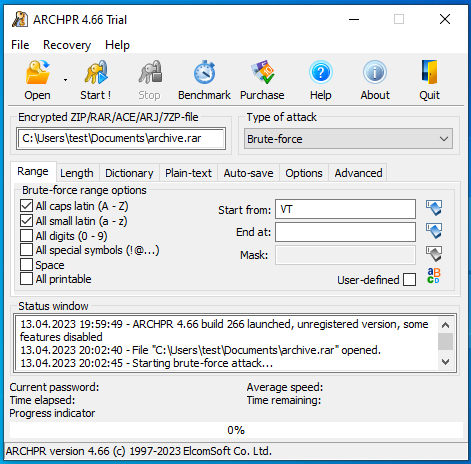
Заранее указать примерную длину пароля можно во вкладке Length. Это упростит программе работу.

По окончанию подбора программа отобразит найденный код.
Сайты для сброса пароля с архивов RAR и ZIP
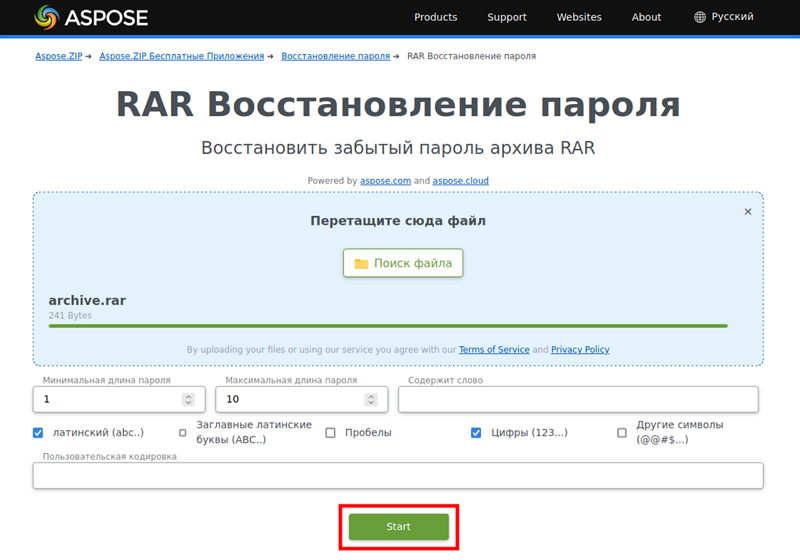
В интернете есть сервисы, которые позволяют подобрать пароль архива онлайн. Рассмотрим такой способ восстановления кода на примере сайта Aspose. Чтобы подобрать пароль с его помощью, проследуйте инструкции:
- Перейдите на сайт сервиса и выберите один из трех доступных форматов: ZIP, RAR или 7z.
- Загрузите файл.
- При наличии, укажите известные данные о пароле: длинна, используемые знаки, кодировка.
- Нажмите на кнопку Start для запуска процесса. Спустя время, программа выдаст результат работы — найденный код.
Как распаковать архив?
Узнав пароль, можно получить полный доступ к архиву и его содержимому, а также провести распаковку. Рассмотрим как это можно сделать в двух самых популярных архиваторах — WinRAR и 7-Zip.
В WinRAR
Чтобы извлечь содержимое из архива через WinRAR, проделайте следующее:
1. Откройте нужный архив программой.
2. Нажмите на кнопку Извлечь на верхней панели.
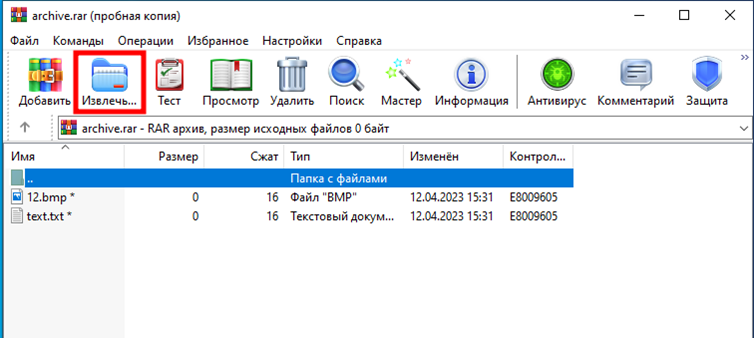
3. Выберите путь сохранения и нажмите ОК,
4. Введите пароль и кликните на кнопку ОК.
Архив будет распакован в указанном месте.
В 7-Zip
Для распаковки архива через 7-Zip, проследуйте инструкции:
1. Откройте файл архиватором.
2. Нажмите на Извлечь в верхней части окна программы.

3. Укажите путь распаковки и нажмите ОК.
4. В появившемся окне введите код и кликните на кнопку ОК.
Содержимое архива будет сохранено в выбранном месте.
Заключение
Восстановить утерянный пароль архива возможно благодаря специальным программам и инструментам. Воспользовавшись ими, можно сбросить код и вернуть доступ к запакованным файлам.