[Fixed] This Product Is Covered by One of the Following Patents
If you are bothered by the “This product is covered by one of the following patents” error, this post is worth reading. Here, MiniTool Partition Wizard offers some useful solutions to help you fix this error. You can try these methods.
Some people encounter the “This product is covered by one of the following patents” error on their computer. This bothers them a lot and affects the efficiency of their studies and work. When the error occurs, you can see a black screen with messages similar to the below picture:
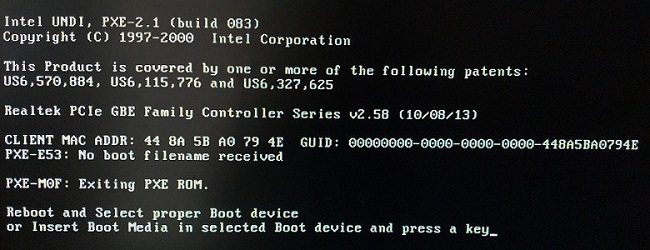
Have you also come across this error? If so, don’t worry. This post shows the causes of the error and how to fix it.
Causes of the “This Product Is Covered by One of the Following Patents” Error
What causes the “This product is covered by one of the following patents” error? After analyzing lots of user reports from different forums, we find the error is mainly related to these reasons:
- Incorrectly plugged storage drive
- Hardware issues
- Misconfigured BIOS settings
- Incorrect boot sequences
Now that you know the causes of this error, let’s see what can you do to fix the “This product is covered by one of the following patents” error.
How to Fix the “This Product Is Covered by One of the Following Patents” Error?
Method 1. Check the Hard Drive’s Connected Status
If your storage drive that contains your operating system isn’t plugged correctly into your computer, you can encounter the “This product is covered by one of the following patents” error easily.
In this case, you can do the following steps to check that the drive where Windows is installed is properly plugged in and available to access:
- Press the Power button for a few seconds to turn off your computer.
- Then, press the Power button to restart the computer, and press the BIOS key to enter the BIOS settings (You can press F2 to enter the Dell computer’s BIOS settings).
- Navigate to Settings > General > Systeminformation, and check whether your primary hard drive is listed there.
Method 2. Run the Diagnostics Process
If there is some faulty hardware on your PC, you may also encounter the “This product is covered by one of the following patents” error. In this case, you can try running a diagnostics process on your device to detect that. Here’s how to do it on the Dell computer:
- Press the Power button for a few seconds to turn off your computer.
- Press the Power button and press the F12 key to bring up the boot menu.
- Select Diagnostics and hit Enter.
- Click Yes in the next window.
- Once done, it will show you if there is a problem with your hard disk or any other component.
Method 3. Change the Boot Sequence
In a computer, the boot sequence refers to searching for nonvolatile data storage devices that contain program code to initiate the operating system (OS).
If you have multiple storage devices, you need to put the one that contains the operating system at the top of the sequence. Or, you may easily encounter errors like the “This product is covered by one of the following patents” error.
- You can follow the below steps to change the boot sequence:
- Enter the BIOS menu.
- Go to Settings > General > Boot Sequence.
- Then, change the boot option to Legacy.
- Under Boot Sequence, ensure that the box beside the storage device you’re using to boot your operating system.
- Next, move the boot storage device to the top.
- Click Apply to save the changes.
- Exit the BIOS menu and your PC will be restarted.
Method 4. Reset the Settings to Defaults
Some people report that resetting the settings to default helps them fix the “This product is covered by one of the following patents” error successfully. If you also want to have a try, you can do as follows:
- Enter BIOS settings.
- Select General, and then click Load Defaults.
- Click OK in the warning window.
- Once done, exit the BIOS settings.
Method 5. Disable Network Boot
Disabling the network boot may also work for the “This product is covered by one of the following patents” error. Some people fix the error this way successfully. You can also have a try. Here’s the guide:
- Enter the BIOS settings.
- Go to Boot Maintenance Manager > Delete EFI Boot Option.
- Select all of the Network Boot options and scroll down to Save Changes.
Method 6. Replace the Hard Drive
If all the above methods are unable to help you fix the “This product is covered by one of the following patents” error, you can try replacing the hard drive. However, you need to back up all your data on the previous hard drive to the new one before replacing the hard drive. Or, you may lose all your data.
To back up the data on the system disk, I recommend you use the MiniTool Partition Wizard. It is a professional disk manager that can help you clone disks, migrate OS to another drive, rebuild MBR, create/extend/resize/format/copy partitions, change cluster size, wipe disks, etc.
If you want to have a try, you can download it by clicking the following button.
Have a Try Now
Here comes the end of this post. Have you any better solutions to the “This product is covered by one of the following patents” error? You can share them with us in the following comment zone.
About The Author
Charlotte is a columnist who loves to help others solve errors in computer use. She is good at data recovery and disk & partition management, which includes copying partitions, formatting partitions, etc. Her articles are simple and easy to understand, so even people who know little about computers can understand. In her spare time, she likes reading books, listening to music, playing badminton, etc.
PXE-E61: сбой проверки носителя, проверьте кабель и PXE-MOF: выход из PXE ROM
Вчера ноутбук моего друга упал на пол. Потому что это достаточно надежно, хотя мы не оставляем следов. Но мы были не правы. При загрузке странные шумы начали выходить изнутри ноутбука. Затем загрузочный логотип появился как обычно. Но, продолжая далее, мы встретились с этим сообщением:

Затем звук ошибки BIOS стал буйным, как сумасшедший, и не остановился, пока мы не выключили ноутбук.
Я думаю, что из царапающих шумов можно сделать вывод, что какое-то оборудование было повреждено и что потребуется техническая поддержка. Я всего лишь сторонний наблюдатель, но мне все же любопытно, каковы возможные причины этой ошибки. Пожалуйста, утолите мою жажду знаний.
И еще один небольшой бонус для моего друга: я убежден, что мы не можем восстановить компьютер самостоятельно, но если у кого-то есть решение, которое не включает в себя ремонт ноутбука (я сомневаюсь), пожалуйста, сообщите нам. Мы очень благодарны за вашу помощь.
This product is covered by one or more of the following patents что делать
Stumped on a tech problem? Ask the community and try to help others with their problems as well. Note: Reddit is dying due to terrible leadership from CEO /u/spez. Please use our Discord server instead of supporting a company that acts against its users and unpaid moderators.
I installed an SSD 2 days ago, and everything has been running perfectly so far. An hour ago I rebooted my PC and my PC was 'stuck' on a screen giving the following message:
this product is covered by one or more of the following patents: .
Realtek PCI Express Gigabit Ethernet Controller Series v2.26 (898219) Client MAC Addr: 00 . CUID: 000000000-0000.
Can anyone tell me what this means and whether this is related to installing my SSD?
При включения компьютера пишет вот это!
У тебя компутер пытается загрузиться по сети. Зайди в BIOS и там выставь правильный приоритет загрузочных устройств — Привод CD — Жесткий диск.
Если после этого не сможет загрузиться, то смотри, что там с винтом у тебя приключилось.
Для начала — определяется ли он в BIOS вообще — как только появится экран BIOS, соазу же жми на Pause и смотри, есть ли он в устройствах.
PXE-E61: Media Test Failure (Сбой при проверке носителя)
Это сообщение об ошибке появляется, когда микропрограмма BIOS, настроенная на начальную загрузку по сети, не смогла обнаружить загружаемую операционную систему ни в сети, ни на устройствах хранения, прописанных в сценарии начальной загрузки ноутбука.
Шаг 1: Удалите несистемный диск из компьютера
Выполните следующие действия для удаления несистемных дисков и перезагрузите ноутбук.
Отсоедините все устройства USB или 1394 (Firewire), подключенные к компьютеру.
Удалите все компакт-диски (CD) и диски DVD из приводов.
Если в компьютере установлен флоппи-дисковод, извлеките из него гибкие диски.
Нажмите и удерживайте кнопку питания (Power ) в течение 5 секунд, чтобы выключить компьютер. Нажмите и отпустите кнопку питания ( Power ), чтобы включить ПК.
ПРИМЕЧАНИЕ: При запуске ноутбук проверяет наличие операционной системы на нескольких устройствах в предварительно заданном порядке. Последовательность поиска операционной системы на устройствах можно изменить в установках BIOS.
Шаг 2: Тестирование жесткого диска
Выполните следующие действия для проверки жесткого диска ноутбука с помощью утилиты самотестирования жесткого диска (HP Hard Drive Self Test).
Подключите адаптер переменного тока к ноутбуку.
Нажмите и удерживайте кнопку питания (Power ) в течение 5 секунд, чтобы выключить компьютер.
Нажмите и удерживайте клавишу F10 при нажатой кнопке Power ( Питание) , чтобы включить компьютер. Отпустите клавишу F10 после отображения текста на экране компьютера.
После появления экрана установок BIOS нажмите стрелку вправо и перейдите в меню Tools.
Выберите пункт Hard Drive Self Test .
Нажмите клавишу Ввод, чтобы начать тестирование.
Программа Hard Drive Self Test (Самотестирование жесткого диска) отобразит показатель Estimated test time (Примерное время проверки) . Быстрая, Полная и SMART -проверка будут выполнены после нажатия клавиши Ввод.
Если какой-либо из тестов выполнен неудачно, свяжитесь со службой технической поддержки HP для получения инструкций по замене жесткого диска.
Если все тесты выполнены успешно, то повреждения на жестком диске отсутствуют. Как правило, HP не заменяет жесткий диск, если самотестирование жесткого диска HP проходит успешно.
Большинство проблем возникает из-за программных сбоев. Комплексная часть автотеста жесткого диска НР (HP Hard Drive Self Test) устраняет ошибки ПО на жестком диске, но не выводит отчета о них. После завершения теста перезагрузите компьютер, чтобы проверить, были ли устранены существующие неполадки в результате выполнения теста.
Шаг 3: Удаление и переустановка жесткого диска
Если при выполнении тестирования не удалось обнаружить жесткий диск, выполните следующие шаги для удаления и переустановки жесткого диска.
ПРИМЕЧАНИЕ: Приведенные ниже инструкции могут быть неприменимы для вашей модели ноутбука. Ознакомьтесь с пошаговыми инструкциями по удалению и замене жесткого диска в Руководстве по обслуживанию и эксплуатации ноутбука вашей модели. Руководстве по обслуживанию и эксплуатации можно найти в разделе «Руководства» комплекта справочной документации для вашего устройства. Если вам потребуется помощь при выполнении следующих процедур, обратитесь к техническому специалисту HP.
Сдвиньте защелку отсека аккумулятора в положение «открыто» .
Извлеките аккумулятор из отсека пальцем.
Извлеките два невыпадающих винта с головкой под крестовую отвертку, фиксирующие крышку жесткого диска к нижней панели ноутбука.
Приподнимите внутренний край корпуса жесткого диска, чтобы отсоединить кабель жесткого диска из разъема на системной плате.
Извлеките дисковод из отсека.
Вставьте внешний край корпуса жесткого диска в отсек.
Нажмите на жесткий диск, чтобы он вошел в разъем на системной плате.
Затяните два невыпадающих винта с головкой под крестовую отвертку.
Установите аккумулятор в ноутбук.
Вдвиньте аккумулятор в отсек до щелчка.