Как удалить/отключить браузер Microsoft Edge в Windows 10/11?
 26.10.2022
 itpro
itpro
 PowerShell, Windows 10, Windows 11, Windows Server 2019, Windows Server 2022
 комментария 22
Браузер Microsoft Edge установлен по умолчанию в Windows 11 и всех новых билдах Windows 10 (и Windows Server 2022/2019). Если на компьютерах вашей организации используется другой браузер, вы можете удалить браузер Edge в Windows.
Основная проблема в том, что привычные способы удаления программ в Windows не позволяют удалить браузер MS Edge с компьютера. Он также глубоко интегрирован в операционную систему, как и его предшественник Internet Explorer (см. как удалить Internet Explorer в Windows). Если вы откроете раздел удаления программ в панели Settings (команда быстрого доступа ms-settings:appsfeatures ), обратите внимание что опция Uninstall у браузера Microsoft Edge не активна.
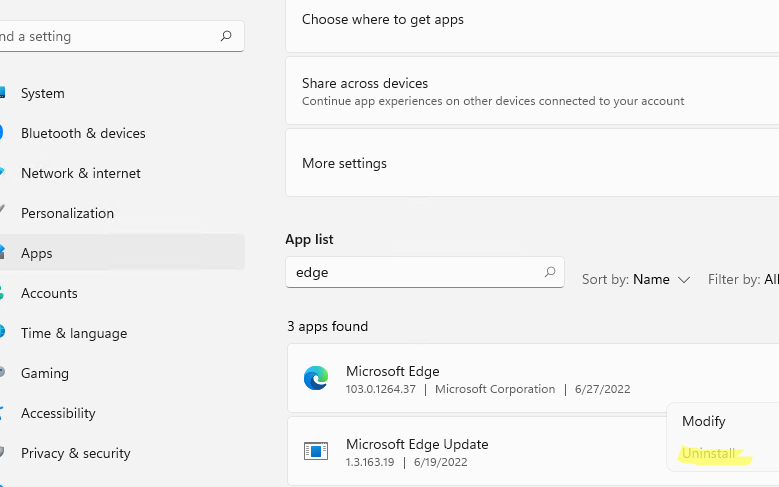
Также не работает способ удаления программы в Windows с помощью PowerShell командлета Uninstall-Package:
Get-Package -name “*Microsoft Edge*” | Uninstall-Package
Команда запускается, но ничего не происходит.

Удаляем браузер Microsoft Edge в Windows 10 и 11
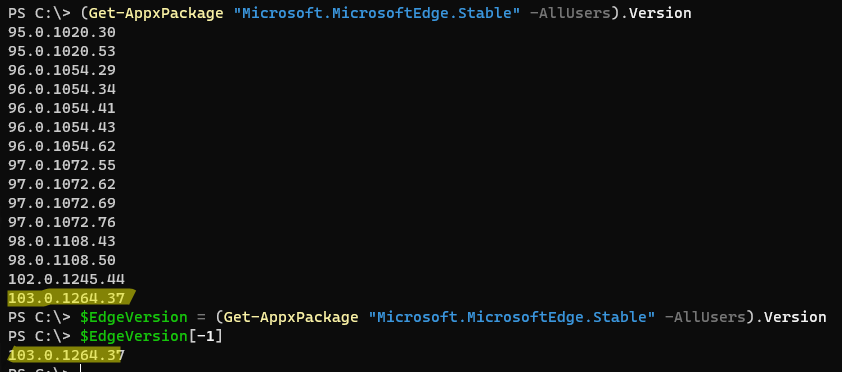
Вы можете удалить браузер Edge в Windows только из командной строки. Для этого сначала нужно узнать номер билда последней версии браузера MS Edge установленной на вашем на компьютере. Откройте консоль PowerShel и выполните команду:
$EdgeVersion = (Get-AppxPackage «Microsoft.MicrosoftEdge.Stable» -AllUsers).Version
На компьютере может быть установлены разные версии Edge, выберем последнюю:
Теперь сформируем путь к каталогу установки Edge:
$EdgeSetupPath = $
В нашем примере это C:\Program Files (x86)\Microsoft\Edge\Application\103.0.1264.37
Перейдите в этот каталог:
cd “C:\Program Files (x86)\Microsoft\Edge\Application\103.0.1264.37”
Запустите удаление Microsoft Edge с помощью команды:
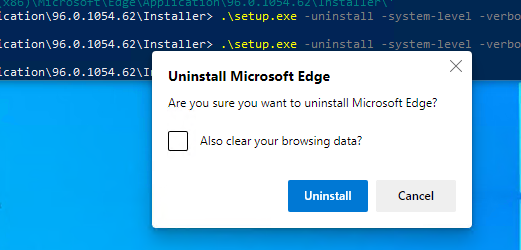
.\Installer\setup.exe —uninstall —system-level —verbose-logging —force-uninstall
Должно появится окно, в котором нужно подтвердить удаление Edge (в моем случае такое окно появлялось в Windows Server 2022 и Windows 10, но не в Windows 11). Нажмите кнопку Uninstall.
Также вы можете удалить компонент среды выполнения Microsoft Edge WebView2 Runtime (используется для встраивания веб контента в десктопные приложения с помощью движка Chromium из Microsoft Edge).
Перейдите в каталог:
cd «C:\Program Files (x86)\Microsoft\EdgeWebView\Application\103.0.1204.37\Installer\
Запустите команду удаления:
setup.exe —uninstall —msedgewebview —system-level —verbose-logging
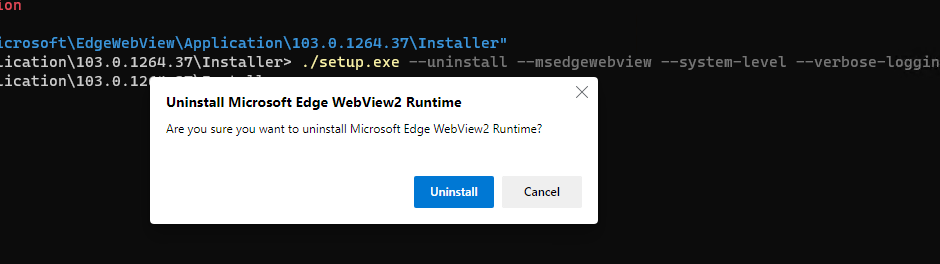
После этого ярлык Microsoft Edge пропадет из панели задач, и стартового меню Windows.
Чтобы запретить автоматическую установку и обновление Microsoft Edge через Windows Update, нужно создать параметр реестра DoNotUpdateToEdgeWithChromium. Вы можете создать этот раздел реестра и параметр с помощью PowerShell команд:
Set-item -Path «HKLM:\Software\Microsoft\EdgeUpdate»
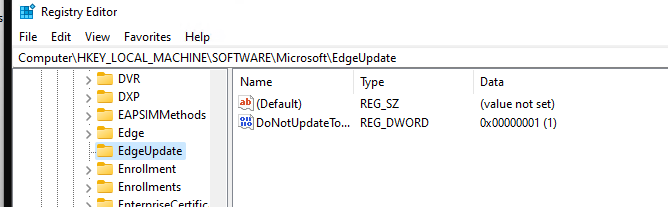
Также я пробовал удалить MS Edge, как обычное приложение Microsoft Store:
Get-AppxPackage -AllUsers «*edge*»|select Name,PackageFullName
Get-AppxPackage -allusers –Name Microsoft.MicrosoftEdge.Stable_103.0.1264.37_neutral__8wekyb3d8bbwe | Remove-AppxPackage -AllUsers
Но столкнулся с ошибкой HRESULT: 0x80073CFA при удалении системных встроенных приложений. Вы можете решить данную ошибку согласно инструкции по ссылке, но я все-таки рекомендую использовать первый способ, который гораздо проще.
Как отключить браузер Microsoft Edge в Windows?
Если вы не хотите полностью удалять MS Edge с компьютера Windows, а просто запретить пользователям использовать его, вы можете отключить это браузер. К сожалению, я не нашел простого параметра GPO или реестра, который бы отключил запуск браузера Edge.
Поэтому вы можете просто запретить запуск исполняемого файле msedge.exe в Windows. Для этого можно использовать Applocker, Software Restriction Policy или Windows Defender Application Control (WDAC). Но есть гораздо более простой способ:
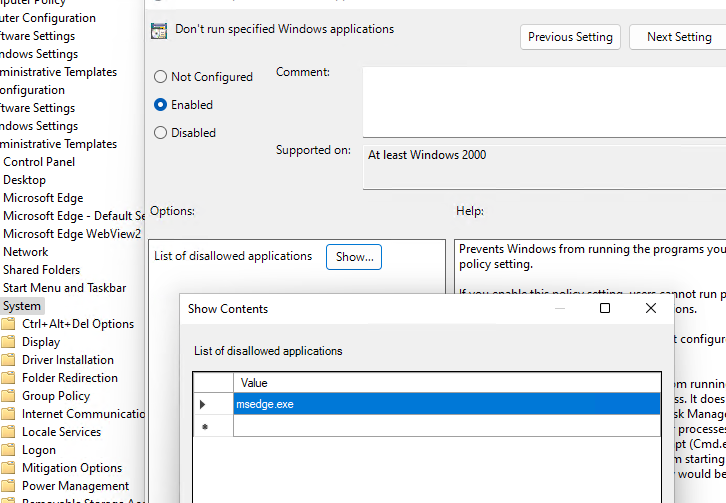
- Сначала отключите автозапуск браузера MS Edge при входе в Windows;
- Затем откройте редактор локальной групповой политики ( gpedit.msc );
- Перейдите в раздел User Configuration -> Policies -> Administrative Templates -> System;
- Найдите параметр Don’t run specified Windows applications, включите его и нажмите кнопку Show;
- Укажите имя исполняемого файл msedge.exe , запуск которого нужно запретить;
- Сохраните изменения и обновите настройки локальных политик командой gpupdate /force;
- Теперь запуск Microsoft Edge на компьютере будет запрещен и при попытке запустить его пользователь получить ошибку:
 Предыдущая статья Следующая статья
Как удалить Microsoft Edge в Windows 11

В Windows 11 по умолчанию присутствует браузер Microsoft Edge — вполне достойный, но далеко не все пользователи планируют его использование. Стандартными системными средствами удаления приложений в «Параметрах» или панели управления его удаление недоступно, однако возможность избавиться от браузера существует.
Далее в инструкции подробно о том, как полностью удалить браузер Microsoft Edge в Windows 11 с помощью Терминала Windows (PowerShell) или командной строки, а также дополнительная информация на тему, которая может оказаться полезной.
Быстрое удаление Microsoft Edge в Терминале Windows 11
Первый способ удаления, возможно, самый быстрый и простой для начинающих пользователей. Достаточно выполнить следующие шаги:
- Используя проводник, перейдите в папку
- Нажмите правой кнопкой мыши в пустом месте в папки и выберите пункт контекстного меню «Открыть в Терминале Windows».
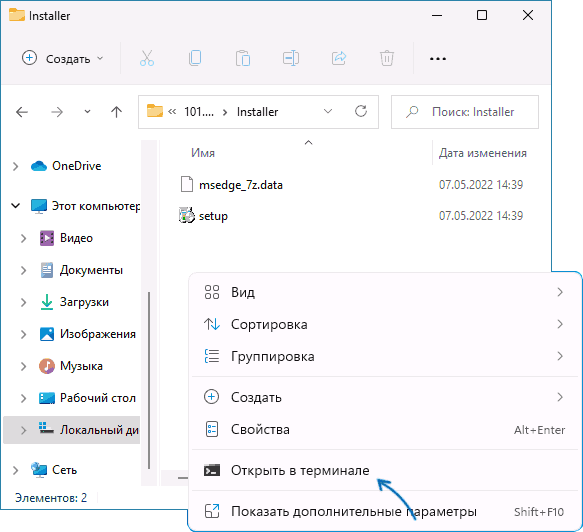
- В открывшемся Терминале введите следующую команду:и нажмите Enter.
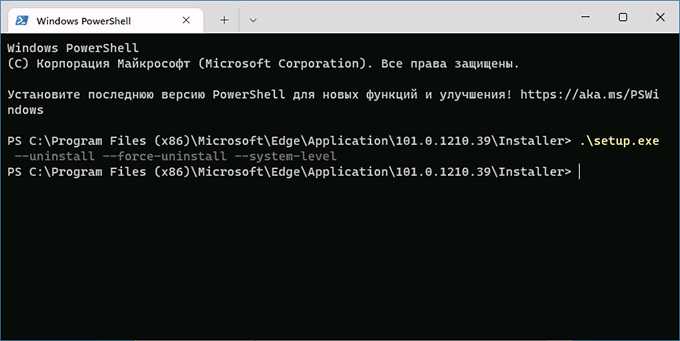
- Подтвердите удаление браузера.

В результате Microsoft Edge будет удален, терминал Windows можно закрыть.
Если в дальнейшем вам потребуется снова установить Microsoft Edge, вы можете скачать установщик с официального сайта https://www.microsoft.com/ru-ru/edge и установить его к себе на компьютер.
Удаление Microsoft Edge в командной строке
Ещё один способ почти полностью повторяет предыдущий:
- В браузере Microsoft Edge зайдите на страницу edge://settings/help и посмотрите (скопируйте) номер текущей версии браузера. Дополнительный путь для просмотра версии: открыть меню браузера, перейти в раздел «Справка и отзывы» и открыть пункт «О программе Microsoft Edge».

- Запустите командную строку от имени администратора. Для этого можно начать набирать «Командная строка» в поиске на панели задач, нажать правой кнопкой мыши по результату и выбрать пункт «Запуск от имени администратора».
- Введите команду (заменив версию на ту, которую определили в 1-м шаге)
- Введите команду

- После подтверждения внесения изменений на компьютере, браузер будет удален.
Дополнительная информация
Некоторые дополнительные нюансы, о которых стоит помнить после удаления Microsoft Edge:
How To Uninstall Microsoft Edge In Windows 11 10
As always, Microsoft is taking advantage of owning this OS and not allowing us to uninstall integrated Microsoft Edge browser from our Windows PC using the conventional method. Fortunately, there are still some ways to do this. Here in this article, we’ve mentioned all the possible methods to uninstall Microsoft Edge from Windows 11/10.
Uninstall Microsoft Edge From Windows 11/10#
There are three different methods to uninstall the Microsoft Edge browser from Windows 11/10. Here in this section, we’ve explained all three methods in a brief manner to uninstall the Microsoft Edge app from the PC successfully.
1. Using Command Prompt#
The first method to uninstall the built-in Microsoft Edge browser from your Windows 11/10 PC is using the command prompt. You need to execute a few simple commands in the console to remove the Microsoft Edge app from your Windows PC. Below are the steps to do the same with ease:
- To start, open Microsoft Edge on your Windows 11/10.
- Then, click on three dots (…) at the top-right corner of the screen to open the menu.
- Now, search for the Settings option in the menu and click on it to move to Settings of the Microsoft Edge app.
- Next, select the About Microsoft Edge option from the left sidebar to open the About section of the Microsoft Edge app.
- You need to copy the current version of your Microsoft Edge app, which is mentioned beneath the Microsoft Edge branding.
- Once the version is copied, open the Command Prompt app as admin to get the editing rights.
- Next, click on Yes when the User Account Control (UAC) prompt appears to open the console with administrative privileges.
- Once the console is launched, execute the mentioned command to navigate to the Microsoft Edge directory: Note: You must replace the EdgeVersion text with the current version of the Microsoft Edge app. You can check Step 4 for reference.
- After executing the above-mentioned command, copy-paste the below-mentioned command in the CMD app: Finally! You’ve now uninstalled Microsoft Edge from your Windows PC. We suggest searching for the Microsoft Edge app within the system to ensure the Edge app has been uninstalled from the PC.
2. Using Windows PowerShell#
You can also uninstall the Microsoft Edge browser from your Windows PC using Windows PowerShell. It’s pretty easy to remove the Edge app using Windows PowerShell, and the below-mentioned steps explain the same:
- Firstly, open the Windows Search Bar using the Windows + S shortcut key and type Windows PowerShell.
- Now, select Run as Administrator to launch Windows PowerShell with administrative privileges.
- Once the console is opened, execute the following command in the console to fetch details about the Microsoft Edge app and press Enter:
- Now, copy the text next to PackageFullName using the Ctrl + C keyboard shortcut.
- When the text is copied, safely paste it somewhere, and execute the below-mentioned command in the console: Note: You must replace the PackageFullName text with the package name copied earlier in Step 4. Once all the commands mentioned above are executed perfectly, the Microsoft Edge browser will be uninstalled from your Windows 11/10 PC. You can again search for the Microsoft Edge app manually on the system to see if it’s uninstalled from the system or not.
3. From Settings#
The last method to uninstall Microsoft Edge is through Windows Settings. But, this method only works for those who have either installed the Edge app manually on their system or using the Microsoft Beta, Dev, and Canary build. If you lie under any of these circumstances, you’re good to uninstall Microsoft Edge from your Windows PC through Windows Settings. Follow the below-mentioned steps to know the exact steps:
In Windows 11#
- Open the Settings app on your Windows PC and move to the Apps section.
- Now, search for Microsoft Edge in the Apps section either manually or using the search box present at the top of the applications.
- Once Microsoft Edge is found, click on the Uninstall button beneath the Microsoft Edge app to uninstall the app from the system.
Windows 10#
- Open the Settings app and move to the Apps section.
- Then, click on Apps & features to get a list of all the applications installed on your Windows 11/10 PC.
- Now, search for the Microsoft Edge app and then select Uninstall from the given options. That’s it. You’ve deleted Microsoft Edge from your Windows PC.
Stop Microsoft Edge From Reinstalling in Windows 11/10#
There are chances that future updates can reinstall the Microsoft Edge app on the PC without any need for permission. You can follow the below-mentioned steps to block the reinstallation of the Microsoft Edge app in the future on your Windows PC:
- To start, open the Windows Search Bar and type Registry Editor.
- Select Run an administrator to open Registry Editor with admin rights.
- Then, navigate to the following path in the Windows Registry or simply copy-paste the mentioned directory path in the Registry Editor address bar:
- Now, right-click on the Microsoft Folder, select New, and then select Key from the given options to create a new key.
- Following that, name the folder EdgeUpdate and then right-click on it to open the contextual menu on the screen.
- Now, select the New option, then DWORD (32-bit) Value from the sub-menu, and end the process by calling the new key DoNotUpdateToEdgeWithChromium.
- Once the DoNotUpdateToEdgeWithChromium key is created, double-click on it to open its properties and add 1 in the Value data field.
- Lastly, click OK to save the changes and restart the system to see the changes.
How Do I Completely Uninstall Microsoft Edge?#
You can uninstall Microsoft Edge from your Windows PC using the command prompt and Windows PowerShell. We suggest checking Method 1 & 2 to know the exact steps of doing the same.
Why Can’t I Uninstall Microsoft Edge From My Computer?#
Microsoft Edge comes as a default browser with Windows PCs and is also one of the most recommended web browsers by Microsoft. Therefore, you can’t uninstall it from your Windows PC.
How Do I Permanently Disable Microsoft Edge?#
You can follow the below-mentioned steps to disable the Microsoft Edge from your Windows PC:
- Open the Settings app on your system using the Windows + I shortcut key.
- Next, navigate to the Apps section and search for the Microsoft Edge app in the Apps section.
- Then, click on the three dots menu and select Uninstall from the given options. That’s it!
Is It Safe To Remove Edge From Windows 10?#
There’s no issue in uninstalling the Edge browser from the system. However, we suggest keeping it as it’s not causing any harm to the system in any way.
Can I Delete Microsoft Edge if I Use Chrome?#
Microsoft doesn’t allow users to delete the Microsoft Edge app from the Windows PC from the Settings.
Final Words#
So, these are some easy methods to uninstall Microsoft Edge from your Windows 11/10 PC. You can use any of the above-mentioned methods to remove the Edge app from your Windows PC and save your system’s resources from being wasted for no reason. Also, do let us know which method you used to delete the Microsoft Edge app from your Windows PC.
Полное удаление Microsoft Edge в Windows 10
Поскольку Microsoft Edge — встроенный браузер в Windows 10, удалить его обычным способом система не дает. Для полного удаления Microsoft Edge нужно физически удалить файлы или использовать PowerShell.
Так как браузер является частью Windows 10, его полное удаление может повлечь сбои в работе системы. Альтернативный вариант решения проблемы — использовать маленькую программу Edge Blocker. Эта утилита полностью заглушит всю активность браузера, но при этом нет риска сбоев и есть возможность обратного включения.
Удаление Microsoft Edge через проводник
Самый грубый способ раз и навсегда избавиться от Microsoft Edge — удалить все файлы браузера через проводник. Чтобы Windows 10 позволила удалить файлы, действие нужно проводить в аккаунте администратора.
-
Зайти в папку C:\Windows\SystemApps. Вместо C:\Windows\ может быть другой адрес, в зависимости от места установки системы.


Для удаления файлов MicrosoftEdge.exe и MicrosoftEdgeCP.exe может потребоваться разрешение от TrustedInstuller. Удалять все файлы из папки не советуется — могут возникнуть системные ошибки. Удаления EXE-файлов достаточно, чтобы Microsoft Edge больше никогда не запускался.
Удаление при помощи PowerShell
PowerShell — универсальный инструмент, делающий управление Windows 10 гораздо легче. PowerShell позволяет удалять файлы, с которыми не удалось справиться другими методами. В том числе предустановленные «неудаляемые» приложения, в списке которых есть Microsoft Edge.
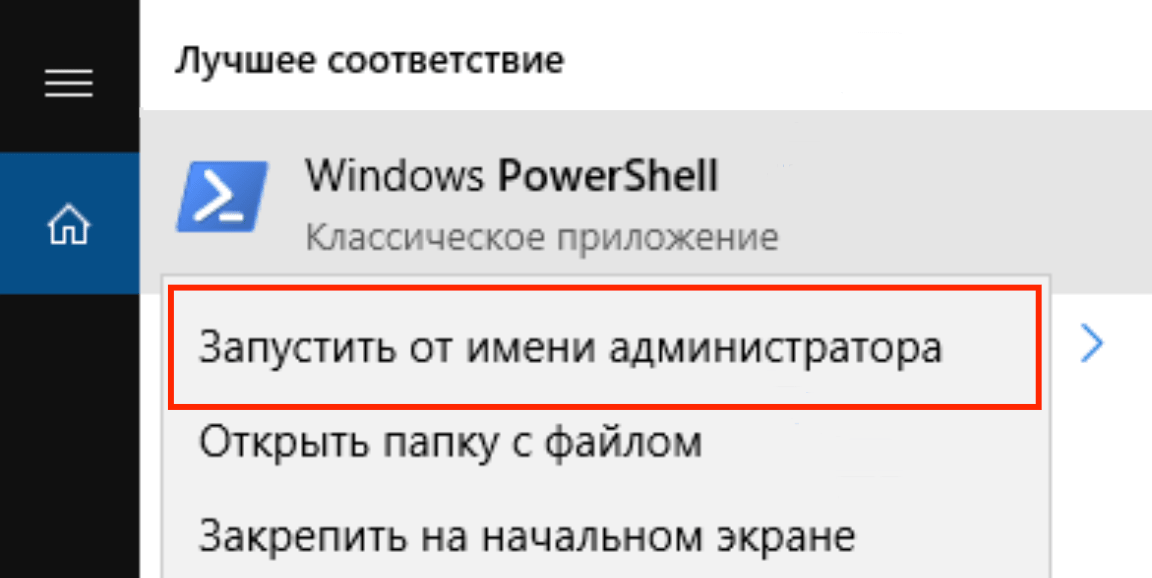
- В поиске меню Пуск ввести PowerShell.
- В «лучшем соответствии» должно появиться Классическое приложение Windows PowerShell. Нужно кликнуть по нему правой кнопкой мыши и Запустить от имени администратора.
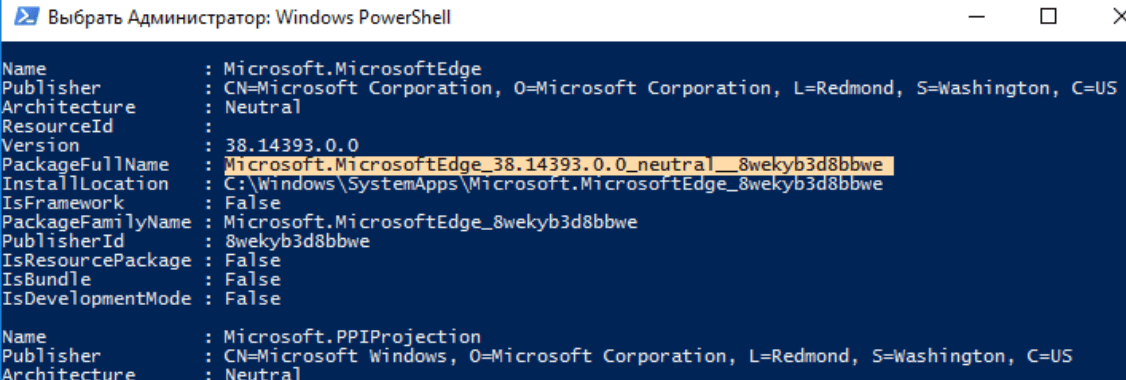
После выполнения команды браузер будет деактивирован. Microsoft Edge не будет запускаться как браузер по-умолчанию или включаться в принципе. Системных ошибок после такого метода удаления быть не должно.
Блокировка браузера при помощи EdgeBlocker
EdgeBlocker блокирует любую активность браузера Microsoft Edge. Последняя версия программы — Edge Blocker v1.4. Программа бесплатная, как и все остальные решения от этой команды.
-
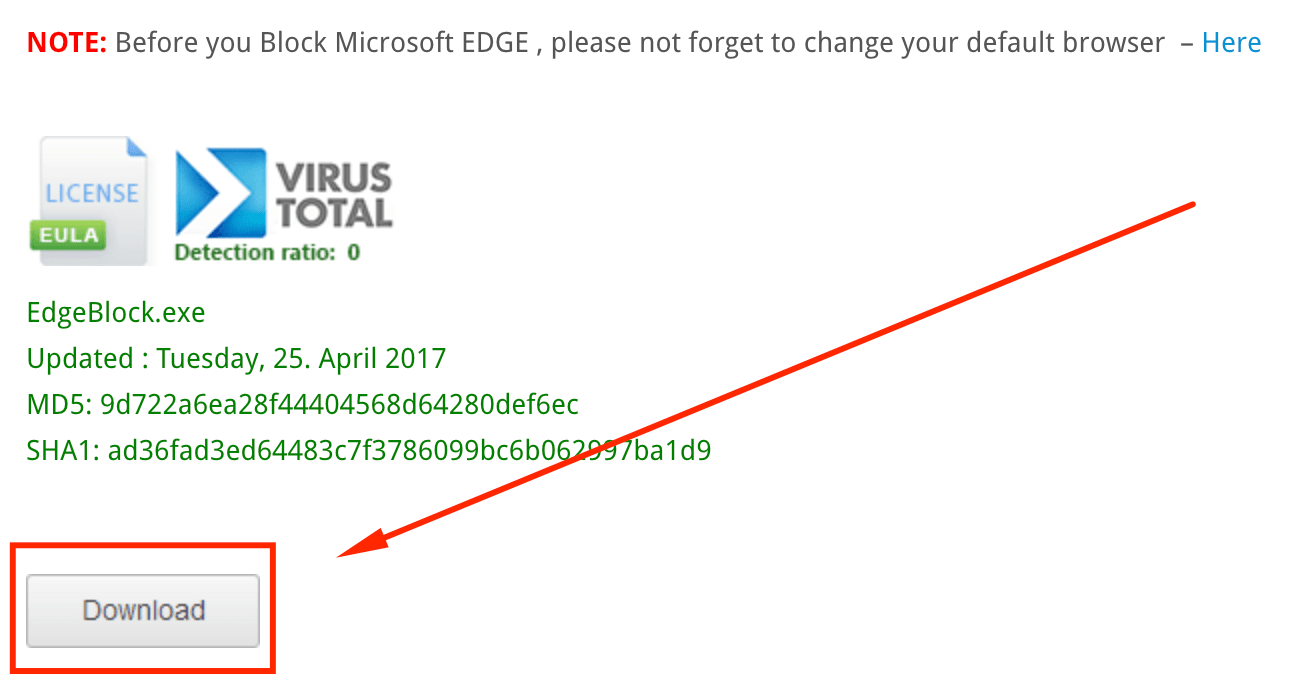
Загрузить EdgeBlocker v1.4 с сайта разработчика (https://www.sordum.org/9312/edge-blocker-v1-4/).
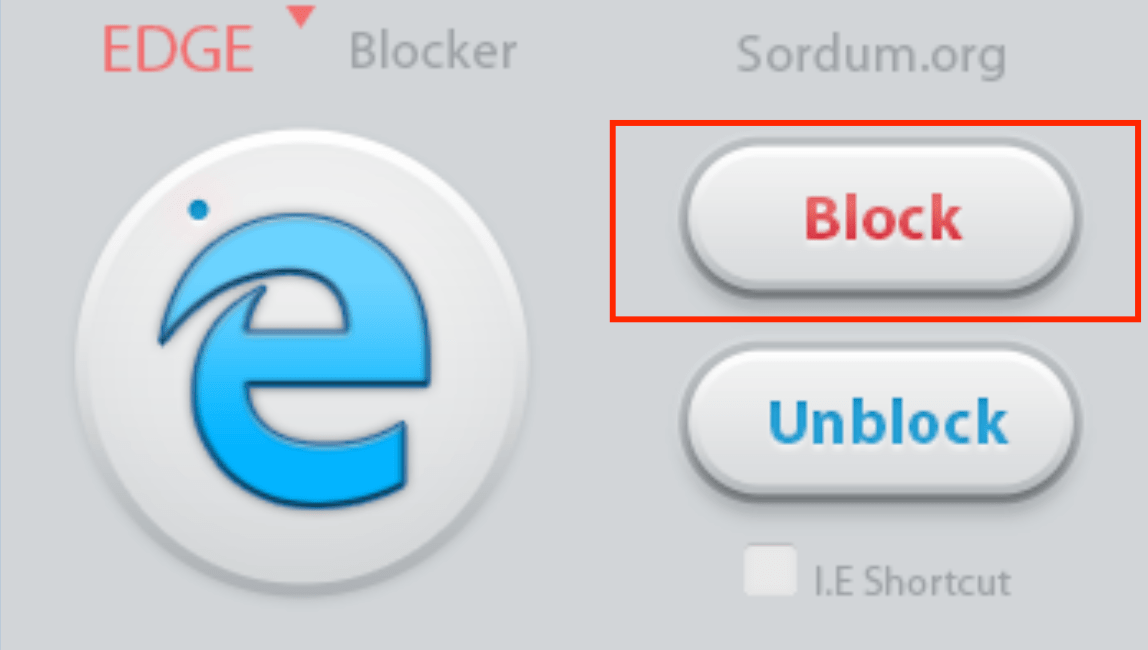
Программа не удаляет файлы браузера, а лишь блокирует действие приложения. Включить Edge обратно можно в любое время, открыв Edge Blocker и нажав на кнопку Unblock.