How to Download and Add Best Custom Fonts on CapCut?
CapCut is an easy-to-use video editing application with simple interface that provides many features and functionalities. Its ability to import custom fonts, which will aid in enhancing the visual appeal of your clips. Also, it adds a touch of originality and creativity to your projects, is one of its notable features.
Please enable JavaScript
We will show you how you can import and add custom fonts in CapCut on both mobile devices and PC in this article.
It makes sense to invest in the production value of your videos when you’re attempting to go viral on TikTok. You need to pay attention to detail if you want your videos to be highlighted. Custom fonts are required today in order to make your videos stand out. The application might be for a TikTok/Instagram reel, videos for education or commercial purposes.
If you decide to add text to your clips, CapCut offers a lot of amazing fonts and typefaces. So we show you how to add your own font using CapCut and talk you through about some of the best CapCut fonts and how to download them.
How to add your own font using CapCut?
Because they enable consumers to interpret material’s message in a meaningful way, fonts are an essential component of any display of content, whether it be digital or printed. Capcut Fonts give users a new way to comprehend the important information in your project. Users are more likely to engage with material when the font size, color, and height are chosen correctly.
Some CapCut text fonts are simple yet easy to read, while others have a traditional but styling look. Just follow this simple guide to understand how you can add your own font using CapCut.
Download the Font files to your system
Downloading your chosen font is the first step to importing custom fonts into CapCut. There are a lot of websites that offer you free download of fonts. . The most popular are: DaFont, Fontspace, Google Fonts, 1001 Free fonts etc.
In order to download the font file, just click on one of the links above. Enter in the search bar the font you are looking for. Then you may preview the font and experiment how it looks like. Once you have chosen the font just click on the Download button next to the font and it will save the file to your system.

Download the Font
The download will begin when you click on the desired font after finding it. You must extract the font file, which is normally provided in zip format, in order to access the font files.
Unzipping the font files

Now extract the contents from the zip file after you have downloaded the font. Click on the zip file and choose the option to extract it in a new folder. You must keep track of the file format of the font you have downloaded because the majority of fonts come in either .ttf or .otf format. Extract file
Downloading CapCut and launching a new project
Next step is to download the CapCut application. Use these links for downloading the latest version of CapCut: Android, iOS or PC. Once you have downloaded and finished installation then launch a New Project. Make use of a VPN application if CapCut app is not available in your geography.

New project
Adding the Font file into CapCut
It’s time to launch CapCut and import the font now that the font files have been extracted and are ready for usage. Here you need to add the media on which you want the text to appear such as a photo or a video.
Now click on “Text” option from the bottom menu and then click on “Add Text“. Next, click on “style” option and a plus sign (“+”) will appear. To access the menu for importing fonts, click this button.  Click on Text
 Add font option
Importing the Font file
Select the font file you wish to add by navigating to the place where you extracted the font files. To import a font file into CapCut, simply click on it or the “Import” button when the font file is chosen.
 Upload font file
 Choose the font file
Now the font should have been added (see image below). Then simply click on it and add the text or caption which you want.

Font added
Making use of the Custom Font

It’s time to start utilizing the custom font in your projects now that it has been imported into CapCut. Simply apply the custom font to your text by choosing it from the font menu. Additionally, you may change the font’s size, style, and color to better suit your artistic vision. Text based on added font
How to add own fonts using CapCut PC?
It is a good technique to increase the originality and creativity of your videos by adding personal fonts to CapCut on your computer. It is simple and straightforward to add a unique typeface to your clips with CapCut’s user-friendly interface.
In this guide, whether you’re using Windows or Mac, we’ll show you how to create a own fonts to CapCut on your PC.
Download and Install the font file on your PC
Downloading and installing the desired font is the first step in adding a custom font to CapCut on your PC. There are several places online that provide both free and premium fonts. Popular websites include Google Fonts and dafont.com.

Download font file to PC
Browse the websites for the font you are looking for and click on download after you have previewed the same. Now save the file to a folder and click on extract in order to extract the zip file. Locate the font file (usually ends with .otf or .ttf format) and double click to open.

Now click on Install button at the top to install the font to your system. Install the font
Importing the font to CapCut PC

Open CapCut on your computer after installing the font of your choice. After opening CapCut, use the “Text” option on the left hand side. Click on “Add to Track” in order to add text to the canvas. Click on Text on PC
Choosing the custom font
After that, select “Font” from the “Text” tab’s drop-down menu. Go to the dropdown menu and choose “System.” All of the fonts that are installed on your computer will be shown.

Add the text

Scroll down until you see the custom font you downloaded and set up previously in the “dropdown menu” window. When you’ve located the font, click it to choose it. Click on System font
Now that CapCut is installed on your PC, you may use your own font. By entering your desired text and choosing the font from the “Font” dropdown menu, you may utilize the font in your text elements.
Which are the Best Fonts for CapCut?
Not all of us who make content want to add text or subtitles to our videos. Or perhaps we just believe we don’t have enough time to include them. And by doing this, we reject the advantages of increased engagement with the videos created.
Even in the absence of sound, subtitles aid viewers in understanding the video. This is why include them can help you boost engagement, as will choosing the optimal subtitle font for readability.
We show you some options on the best fonts you can use today for CapCut application:
Roboto
Roboto is a distinctive typeface with a mechanical design and geometric shapes. The typeface features amiable curves. Roboto provides letterforms the opportunity to show their natural breadth rather than squeezing them into a rigid framework.
You may now read with a cadence that is more in line with humanist and serif kinds. The entire Roboto is responsive. On Roboto, letters are permitted to occupy any amount of space. Users’ reading experiences are enhanced by this.
Roboto is one of the best fonts for CapCut.

Roboto Font for CapCut
Helvetica
One of the all-time most popular typefaces, Helvetica, continues to gain popularity. Designers have compared Helvetica to water. Due of the variety it gives, the description matches the typeface. It is one of the best font for CapCut.
Designers adore it because it gives their work a distinctive feel and look while also enhancing its attractiveness and style. It provides all of your design work a new vibe.
Helvetica is widely used by several well-known firms to create their logos.

Helvetica Font for CapCut
Tahoma
Some of the most popular and enduring typefaces in history were produced by Microsoft. Tahoma may be set up in a variety of ways with a small letter spacing and a thin body layout.

Other variations of the Tahoma font include Wine Tahoma bold and Wine Tahoma regular. The Tahoma font generator also allows for the creation of text-based artwork. This font is widely used in many Windows programs. Tahoma Font for CapCut
Modern
They aim for readability, making it simple for your eye to read words or text. Thin lines, geometric forms, and wide spacing are characteristics. These typefaces are the ideal option for contemporary graphic design projects that call for a polished but original edge. Utilize them to produce powerful and eye-catching designs.

Modern Font for CapCut
Open Sans
The best brand font is suitable for offline marketing materials as well as videos. Upright stress, open shapes, and a neutral yet inviting aspect are some of its traits. It is prepared for internet, print, and mobile publication. In its type shapes, it has exceptional legibility and readability.

The flat web design aesthetic makes use of Open Sans. On certain of Google’s websites and in online adverts, Open Sans is employed. This can be a good font to use in CapCut. Open Sans Font for CapCut
Pluto Sans
Best for stuff that is upbeat and lighthearted. Long texts in tiny sizes and usage in print and on-screen are made possible by the geometric shapes and the big height. This is one of the best font to use for video creation on CapCut.

The open type fonts of Pluto Sans feature an enlarged character set to handle both the languages of Central and Eastern Europe and Western Europe, making them ideal for complicated professional typesetting. Alternate letters, fractions, lines, tabular numbers, and more are all included in each typeface. Pluto Sans Font for CapCut
Nunito
It has broad, curved lines that make it a pleasant typeface to read. It is already used in several CapCut projects, and interest in it is growing.
Its large letters give the typeface a distinctive appearance that grabs attention. It has a contemporary style without being overpowering and is quite readable.
Nunito Font for CapCut
Urban Jungle

This is a unique looking font. This font has recently trended in TikTok and Instagram reels. Urban Jungle font has a design of urban setting as well as forest background. Read more about Urban Jungle Capcut Template – Viral Name Video Editing Urban Jungle Font for CapCut
Caneta Script
If you are looking for a unique, new and modern font then Caneta Script can be a good option.
With its calligraphy-style font that is influenced by pen and ink, Caneta Script captures the spirit of conventional handwriting.
Its beautiful calligraphy and nostalgic charm are reminiscent of handwritten letters and scribbles made with feather pens. It captures the spirit of the pre-modern times. The art of handwritten letters while still appealing to current readers.
Caneta Script Font for CapCut
Montserrat

Montserrat has gained popularity due to its clean and modern appearance, making it suitable for a wide range of applications, including both print and digital media. It features a geometric design with subtle influences from the early 20th-century sans-serif typefaces, giving it a contemporary yet classic feel. Montserrat Font for CapCut
The font is characterized by its even stroke weight, rounded letterforms, and open spacing, making it highly legible even at small sizes. Montserrat has a vast range of font weights and styles, from thin to extra-bold and from regular to italic. This versatility allows designers to use it for various purposes, such as headlines, body text, logos, and more.
Lato is a font that epitomizes simplicity and modernism. Lato’s simple, minimalist style conveys an air of openness and clarity. It is a great option for companies that value readability and want to project a tidy, modern image.
Lato Font for CapCut
Lato’s varied weights and styles make it suitable for a range of advertising products, including printed brochures and web banners. Lato’s understated elegance can improve your advertising materials and leave a lasting impact, whether you’re creating for a corporate brand or a creative agency.
Frequently Asked Questions about CapCut fonts
We have made a list of some of the frequently asked questions when it comes to adding custom best fonts using CapCut:
How to convert font if font file is not working on CapCut?
Sometimes the format of font file might cause issues in CapCut. In such cases you will need to convert the font to a file format which is compatible with CapCut.
Fonts come in TTF, OTF, WOFF, PFA and many other formats. In order to convert between them visit one of the online font converter such as convertio.co or cloudconvert.com. Upload the font file and convert into whichever format you want. Generally CapCut supports TTF or OTF format. So try converting the font file to one of these before proceeding for upload in CapCut.
How to Create Your Own Font for CapCut?
The possibilities for selecting the ideal font for your unique project are virtually endless. There are already a lot of in-built system fonts in CapCut. On top of it you can download one of the custom created font using the steps outlined in the previous section.
You’re still only able to choose from among fonts that other people have made. There are many reasons to desire to make your own font, and there are also many ways to do so.
You can use one of the online tools such as Calligraphr or Metaflop in order to create your own unique font. You may be able to convert your own handwriting into a font using these techniques.
Watch this video tutorial on how to create your custom font:
What are the Best Websites to Download Free Fonts for CapCut?
There are a lot of websites which allow you the option to download the fonts online. We have outlined a few of them below. You can visit any these websites, search for the font you are looking for, preview the font and click on Download button.
- Fonts.com: Search for the greatest collection of desktop and web fonts that are of the highest caliber. Try, purchase, and download popular typefaces as well as recent releases.
- DaFont.com: Font library available for free downloads. Browse by author, style, popularity, or alphabetical listing.
- Fontspace.com: Free access to fonts with valid licenses that are ideal for your design needs. The top website for font searches and downloads online.
- 1001freefonts.com: 80000 free fonts are available for Windows and Mac. View categories including script, serif, calligraphy, and more. Since 1998, the best site for fonts.
- fonts.google.com: A vast collection of font library made available for free by Google.
How to Modify the Font Size in CapCut?
Font size helps the creators from avoid losing viewers by keeping them engaged to the content. Once the text has been entered, you may adjust the font size to your liking in order to improve the appearance of your information. You may alter the font size by simply grabbing the text part on the canvas and using the resize option to expand or contract the text box.
Also you can reposition or change the color of text using the options provided under the “Add Text” menu of CapCut application. By including transitions, you may make your writing more engaging and keep readers’ attention.
By sliding the text box, you may change your font by adjusting it side by side. The font adjustment has been made simple with CapCut, however manual alterations to the font size with numbers are not supported.
How to make videos more attractive using CapCut fonts?
You could be interested in upgrading your font if you want to generate visually appealing videos. Fortunately, there is an incredible assortment available in video editor programs like CapCut to enhance the impact of your videos.
You may also express your creativity by experimenting with various text styles, effects, animations, and bubbles. Making use of CapCut’s extensive selection of fonts for your text will improve your work.
You may unleash your imagination using this fantastic video editing tool. CapCut fonts may be used effectively to make your text more interesting. We all want to grab the attention of our viewers in this fast-paced world and start a conversation that will continue and expand.
How does CapCut Fonts help in improved video editing?
Fonts are a crucial aspect of video editing, as they convey the tone, mood, and style of the video’s message. They enhance the viewer’s understanding and emotional connection with the content, while also reinforcing brand identity and professionalism.
- Consistency in fonts helps build brand recognition and create a sense of professionalism. Readability is essential for video content, as it impacts the audience’s ability to comprehend information.
- Aesthetic appeal is another important aspect of fonts, with different fonts influencing the overall aesthetic appeal of the video. They can be elegant, sophisticated, or playful, depending on the context and storytelling.
- Fonts can be used strategically to create emphasis and establish a hierarchy of information within the video. Context and storytelling can be enhanced by aligning the font choice with the video’s theme or setting.
- Emotional impact can be evoked by carefully chosen fonts, complementing the content’s emotional tone. Cultural relevance is crucial in global or multicultural projects, as fonts that align with the target audience’s preferences and expectations can foster better engagement.
- Differentiating elements is another important aspect of fonts, as using unique or custom fonts can make a video stand out from the crowd. Custom typography can make a lasting impression on the audience.
Overall, fonts are a critical visual element in video editing, significantly impacting the overall quality, communication effectiveness, and brand identity of the video.
Are CapCut Fonts free to use?
Yes, CapCut offers hundreds of fonts on its own which is completely free to use. For most cases this is self sufficient for all your video editing needs. In order to differentiate yourself and create a self identity you can use a custom font in CapCut as described above.
A purchase or membership may be necessary to access the range of premium fonts offered by CapCut. Your clips will have a distinctive look thanks to the unusual and special styles of these fonts.
Closing Thoughts
So we saw how we can download and use custom fonts using CapCut app. We have shown step by step detailed tutorial for both mobile users as well as CapCut PC users. The process is very simple and you can use own fonts to enhance the content of your clips or reels.
We saw a list of best fonts which can be used in CapCut such as Roboto, Helvetica, Open Sans, Pluto etc. We also mentioned a few websites from where you can freely download a vast collection of fonts and make use in your project.
If you liked this post then please share it with your friends so that they also know how to use custom fonts. Also, don’t forget to post a comment about your recommendation about any font which you have liked.
Шрифты CapCut: популярные
На нашем сайте можно скачать множество популярных шрифтов. Все эти шрифты широко используются как в печатных, так и в цифровых изданиях. Если вы ищете конкретный шрифт для использования в своем следующем проекте, то обязательно найдёте на нашем сайте.
- Лицензия: бесплатно для личного пользования
- Скачиваний: 55702
- Лицензия: бесплатно для личного пользования
- Скачиваний: 56185
- Лицензия: бесплатно для личного пользования
- Скачиваний: 65788
- Лицензия: бесплатно для личного пользования
- Скачиваний: 56792
- Лицензия: бесплатно для личного пользования
- Скачиваний: 150526
- Лицензия: бесплатно для личного пользования
- Скачиваний: 31314
- Лицензия: бесплатно для личного пользования
- Скачиваний: 56547
- Лицензия: бесплатно для личного пользования
- Скачиваний: 24537
- Лицензия: бесплатно для личного пользования
- Скачиваний: 16865
- Лицензия: бесплатно для личного пользования
- Скачиваний: 36998
- Лицензия: бесплатно для личного пользования
- Скачиваний: 45149
- Лицензия: бесплатно для личного пользования
- Скачиваний: 35623
- Лицензия: бесплатно для личного пользования
- Скачиваний: 7199
- Лицензия: бесплатно для личного пользования
- Скачиваний: 52746
- Лицензия: бесплатно для личного пользования
- Скачиваний: 1206
- Лицензия: бесплатно для личного пользования
- Скачиваний: 3400
- Лицензия: бесплатно для личного пользования
- Скачиваний: 23573
- Лицензия: бесплатно для личного пользования
- Скачиваний: 26166
- Лицензия: бесплатно для личного пользования
- Скачиваний: 52905
- Лицензия: бесплатно для личного пользования
- Скачиваний: 4318
Поиск
Мгновенный поиск шрифта. Просто введите текст, и вы сразу получите результаты.
Классификации
Мы собрали свыше 700 классификаций шрифтов на нашем веб-сайте. Ниже приведены самые востребованные и популярные из них. Если вам требуется найти конкретную классификацию шрифта, воспользуйтесь удобным поиском.
Специалисты сайта осуществляют работу по сбору, обработке и структурированию бесплатных шрифтов, найденных в интернете. Шрифты, представленные на сайте — собственность авторов. Мы ни в коем случае умеренно не распространяем шрифты, защищённые авторским правом, как бесплатные. Лицензия, указанная на странице рядом со шрифтом, является указанием. Если автор или лицензия не указаны, значит нет информации о шрифте, однако это не означает, что шрифт бесплатный. Пожалуйста, проверьте сайт указанного автора для получения точной информации, и свяжитесь с ним, если сомневаетесь. Если вы автор найденного на сайте шрифта, то заявите свои авторские права и укажите детальную информацию на странице шрифта, перейдя по ссылке «это мой шрифт» и заполнив специальную форму.
Шрифты CapCut: как импортировать шрифты в CapCut и где их найти
Как импортировать шрифт в CapCut? Узнайте, как добавлять шрифты в CapCut, а также как найти их источники! Кроме того, мы обсудим популярные шрифты и способы изменения их размера.

Мария Матвеева
Время обновления: 23 Mar 2023 г.
Использование простых для понимания шрифтов — залог отличной презентации. Шрифты придают уникальность и дополнительную привлекательность вашему проекту. Они помогают пользователям воспринимать информацию из текста. Правильный выбор цвета, шрифта и размера текста может быть крайне важен для привлечения внимания вашей аудитории. Одним из таких приложений, которое вызвало шум во всем мире и сейчас очень популярно, является CapCut. Это руководство посвящено добавлению шрифтов CapCut, наиболее известным шрифтам CapCut, их размерам и источникам, где их можно найти.
Итак, давайте погрузимся в изучение шрифтов CapCut без лишних слов!
Часть 1: Самые популярные шрифты в CapCut
Прежде чем мы перечислим шаги по добавлению или импорту шрифтов CapCut, здесь представлен раздел о 10 самых популярных шрифтах CapCut, которые вы можете легко использовать и поднять эффективность вашего материала.
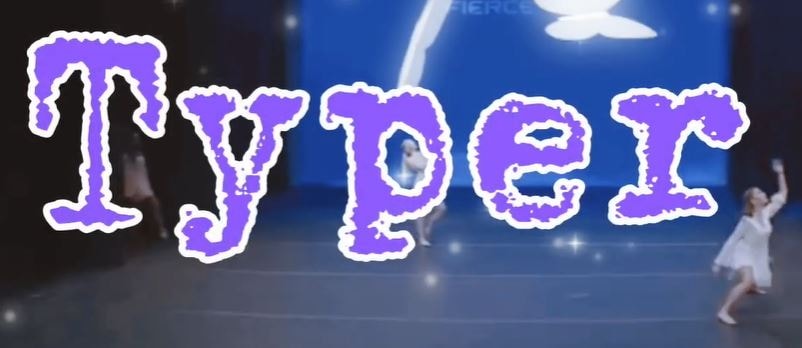
1. Typer
Он подходит для определенных видов проектов, но его применение минимально.
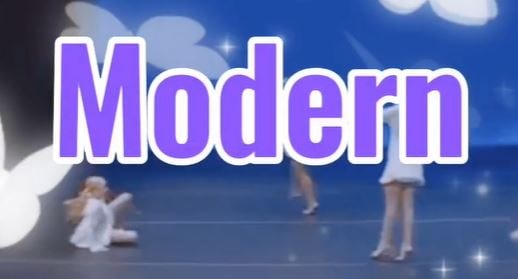
2. Modern
Он довольно симпатичный, однако через чур простоват.
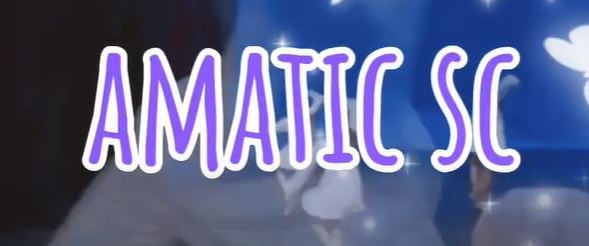
3. Amatic SC
Это симпатичный шрифт CapCut, но, на наш взгляд, немного переоцененный.
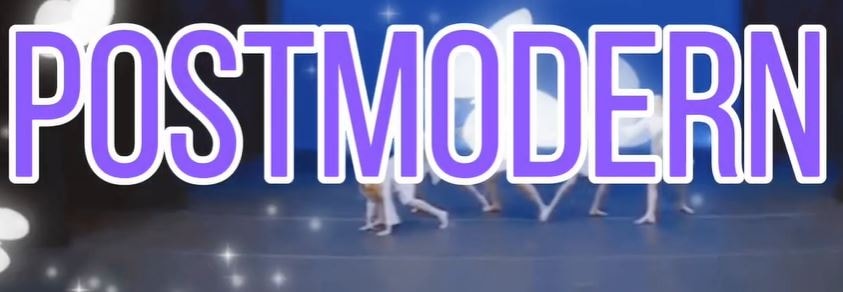
4. Post-Modern
Шрифт отлично подходит для вступления, но он становится немного странным, когда вы делаете апостроф.
5. Nunito
Шрифт отлично подходит для видео, но не очень хорош для интро и других подобных вещей.

6. Bahiana
Этот шрифт Bahiana очень популярен, и вы можете увидеть его использование в большинстве проектов, созданных CapCut.

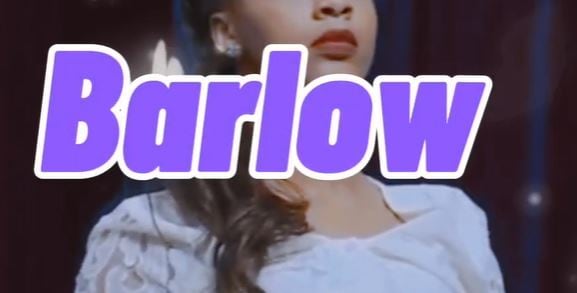
7. Barlow
Barlow отлично подходит для таких вещей, как ранжирование. Однако он не так хорошо подходит для таких аспектов, как вступление.
8. Signeton
Singleton — тоже красивый шрифт, за исключением того, что иногда его довольно трудно читать.

9. Letter
Этот шрифт также понравится тем, кто является большим поклонником типографии и тому подобных вещей.

10. Vogue
Большинство людей помешаны на использовании этого шрифта CapCut, особенно для оформления эстетичных интро.

Часть 2: Как добавить/импортировать шрифты в CapCut?
Ниже приведено подробное руководство по добавлению шрифтов CapCut.
Шаг 1: Зайдите в App Store или Google Play Store
Зайдите в Google Play Store и App Store и найдите приложение Photo – Photo and Typography.
Шаг 2: Откройте браузер
Открыв Google Chrome или любой другой браузер, найдите в поисковой строке www.dafont.com
Затем загрузите выбранный шрифт и стиль. Далее перейдите в Файлы и найдите загруженный шрифт. Удерживайте Zip-файл, а затем нажмите кнопку Поделиться.
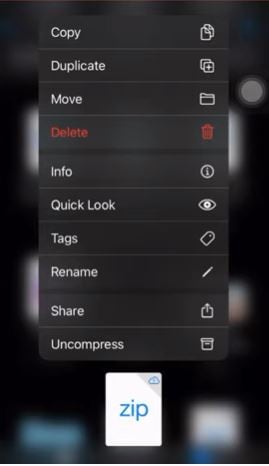
Шаг 3: Откройте приложение Phonto
Нажмите кнопку «Установить при открытии» приложения.
Теперь нажмите на значок камеры внизу и выберите изображения в явном виде. После этого вы можете выбрать зеленый цвет, как показано ниже.
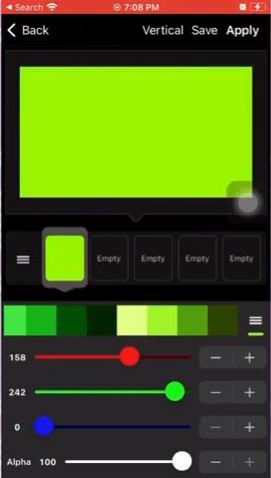
Щелкните по экрану и появится Добавить текст.
После ввода текста выберите вкладку Шрифт и выберите загруженный шрифт.
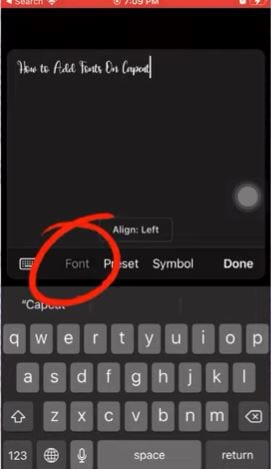
Вы можете добавить некоторый стиль к выбранному шрифту, как показано ниже.
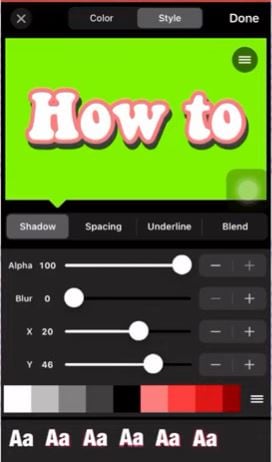
Шаг 4: Ищите средство для удаления фона в интернете
Зайдите в браузер и найдите в интернете программу для удаления фона после того, как закончите со стилизацией шрифта и вышеописанными действиями. Добавьте свое изображение, подождите некоторое время пока оно обработается, а затем загрузите изображение без фона.
Шаг 5: Откройте приложение CapCut
Войдя в приложение CapCut, нажмите «Добавить наложение».
Теперь добавьте недавно загруженное изображение в качестве наложения на CapCut.
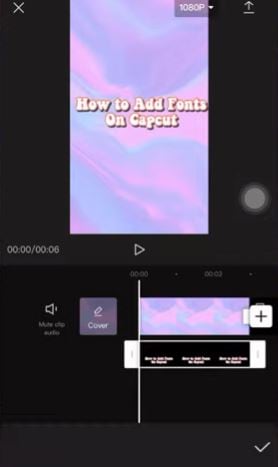
Итак, вы закончили добавлять красивые шрифты CapCut, проделав вышеописанные шаги.
Часть 3: Как изменить размер шрифта в CapCut?
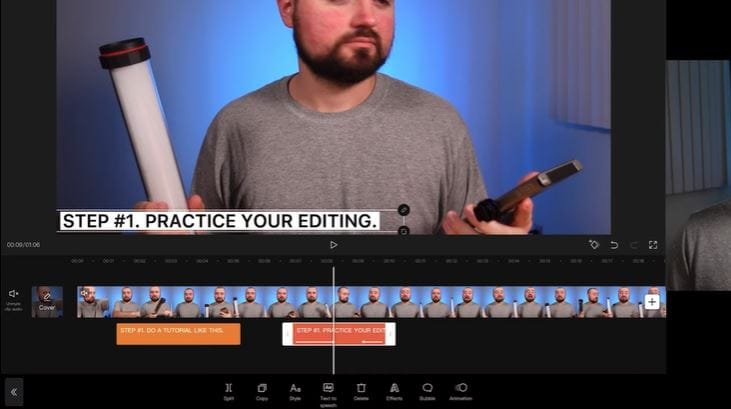
После того, как вы добавили текст вручную, в CapCut вы можете сделать с ним множество изменений.
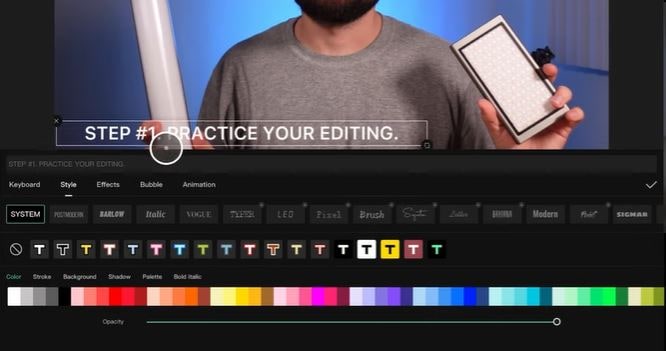
Вы можете изменить шрифт и добавить цвет к этому тексту, как показано выше. Кроме того, есть некоторые пользовательские настройки текста, которые можно применить.
Вы также можете добавлять к тексту различные виды переходов, как показано ниже.
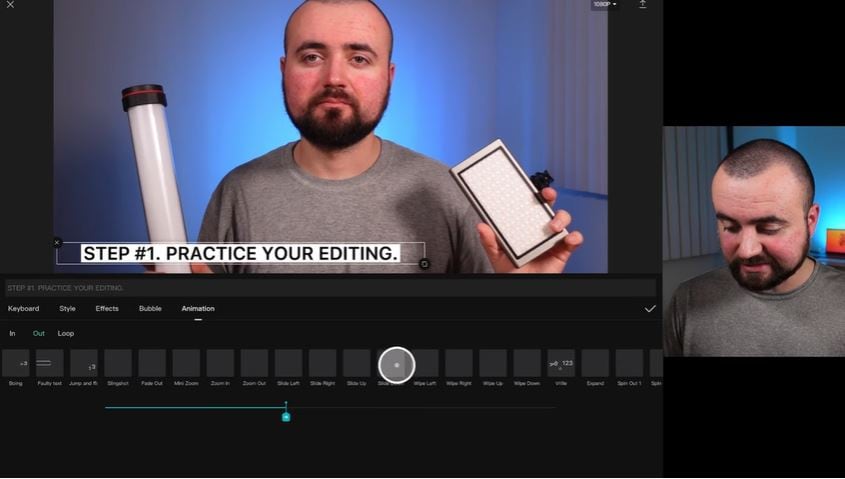
Таким образом, размер шрифта также можно изменять из стороны в сторону, регулируя поле, в котором находится текст. В CapCut все просто. Однако CapCut не предоставляет ручной регулировки для изменения размера шрифта с помощью цифр. Для этого необходимо перетянуть поле.
Часть 4: 3 лучших сайта для загрузки стильных шрифтов
Ниже показаны три источника загрузки шрифта CapCut aesthetic 2023!
1. FONTGET
Это сайт, на котором собраны различные шрифты, относящиеся к следующим категориям Basic, Party, Old School, Style, Fancy, Modern, Famous, Dingbats, и т.д. После выбора шрифта вы можете легко загрузить и использовать шрифт в приложении, как было предложено в первой части этого руководства после выбора шрифта.
2. Font Meme
Это еще один высоко оцененный сайт для загрузки шрифтов CapCut, разделенных на несколько интуитивно понятных разделов, таких как 3D, Period, Theme, Cartoon и многие другие. После выбора шрифта вы можете просмотреть и скачать его.
3. FontM
Здесь нет обширного списка, но выбор бесплатных шрифтов FontM хорошо организован по всем разделам, которые вам могут понадобиться, плюс шрифты со всего интернета. Здесь также есть несколько собственных разработок, заслуживающих внимания.
Часть 5: Как использовать шрифты CapCut в видеоредакторе для ПК
Несомненно, вам нужна Несомненно, вам нужна хорошая альтернатива Capcut для ПК, если вы хотите использовать шрифты CapCut на своем ноутбуке. К счастью, Wondershare Filmora — один из самых универсальных видеоредакторов, помогающий пользователям создавать стильные и качественные видеоролики. С помощью Filmora вы можете легко импортировать шрифты CapCut и использовать их для своего следующего видео.
Заключение
Вот и все о шрифтах CapCut. Мы подробно рассмотрели 10 самых популярных шрифтов CapCut, как добавить/импортировать шрифт CapCut aesthetic, как изменить их размер, а также три лучших источника для загрузки. Настроив шрифты таким образом, вы сможете сделать что-то уникальное и интересное для своей аудитории.
Субтитры в сторис + обучалка, как добавить любой шрифт в CapCut
Субтитры в REELS не такая уж редкость и присутствуют практически в любом ролике. Но зачем добавлять их в сторис?
Ответ прост — досматриваемость.
По статистике, сторис с субтитрами чаще досматривают, так как 50% людей смотрят сторис с выключенным звуком.
Не обязательно добавлять субтитры в каждую сторис, можно ограничиться просто текстом с ключевыми моментами.
Но если вы хотите записать длинную разговорную сторис, в которой вы говорите что-то супер-важное и хотите чтобы вас дослушала до конца — обязательно добавьте субтитры.
Как загрузить любой шрифт в приложение CapCut?
• Заходите на сайт https://old.fonts-online.ru/
ВАЖНО! Google иногда не прогружает, так что заходите сразу с Safari
• Выбираете любой шрифт, нажимаете скачать загрузить
• Затем открываете приложение CapCut,
нажимаете шрифтдобавить шрифт
Готово
#capcut #субтитры #smmпродвижение