[FIXED] The File or Directory is Corrupted and Unreadable

Have you come across the issue called ‘The file or directory is corrupted and unreadable’ and become frustrated? Don’t worry. We will show you how to overcome this issue for good and start using your hard drive again.
If you don’t know yet, The file or directory is corrupted, and an unreadable issue occurs with external hard drives. This is not a very new issue. When you use an external hard drive, there is a possibility of experiencing such an issue sooner or later.
In fact, this error emerges whenever Windows OS cannot read the external hard drive or access it. If you wonder what might cause this issue, there is no shortage of reasons behind it.
In other words, ‘The file or directory is corrupted and unreadable’ can occur for various reasons. However, the good news is that there are several fixes to address this issue successfully.
What Causes ‘the File or Directory is Corrupted and Unreadable’ Issue?
Before we look into the fixes, it is better to get a clear idea of the causes. Such an approach will give you a better idea about what you are dealing with. Also, it helps you to address the issue with a better understanding. In a nutshell, you know what you do.
So, below is a list of common reasons that cause the ‘The file or directory is corrupted and unreadable’ issue.
- Corrupted FAT or MFT partitions on your hard drive.
- Your external hard drive is infected by dangerous malware such as a virus. As a result, the malware can corrupt the partitions created in the hard drive. In addition to that, such malware can cause damage to all or some of the files stored.
- The respective external hard drive has physical damage or malfunction.
- The troublesome external hard drive was not removed properly from the computer. As a result, partitions and files stored in the same hard drive can corrupt.
- There is something wrong (physical defect, malfunction) with the USB port of the computer. As a result, the computer will not be able to read the data on the hard drive properly.
If you are bothered with the PFN_LIST_CORRUPT or a file too large for the destination file system, here are the top solutions for you.
What Are the Best Ways to Fix ‘the File or Directory is Corrupted and Unreadable’ Issue?
Now, in this section of our guide, we will explain the best ways of addressing this issue. In fact, we basically talk about two methods in this section.
Besides, click here to find out how to fix corrupted files, as well as how to fix the cannot open volume for Direct Access error.
01. Use the CHKDSK tool to Overcome the Issue
When you come across the issue ‘The file or directory is corrupted and unreadable,’ don’t panic. Instead, think of the fact that there is a built-in tool to address this issue. This tool is called CHKDSK (Disk Check Utility). Through this tool, you will be able to see if the disk has some fixable issues.
To launch this tool, you will have to enter the command CHKDSK. To enter this command, you should simply use the command prompt. Through this single line of command, you will be able to scan the respective drive.
Moreover, it will fix a variety of issues, such as bad sectors, directory errors, lost clusters, etc.
Mentioned Below Are the Instructions You Should Follow to Fix This Issue.
- First of all, you should launch the command prompt using the start menu of the computer. If not, you can easily enter the text CMD on the ‘Run’ box and hit Enter. Make sure that you run this process in administrator mode.
- When the command prompt is opened, type the text CHKDSK /f X: in the command prompt. Please note that the letter X should be replaced with the drive letter of the potentially erroneous disk.

- After executing the command, you will see that Windows starts a process to scan the drive. Then, after the scan, it will display the results. In this result, you will be able to see the potential errors.
By the way, click here for the full Raid 0 vs. Raid 1 comparison.
02. Format the Faulty Device without Affecting the Existing Data
The next solution we offer is formatting the respective hard drive and overcoming the issue. One would say that formatting the hard disk will erase all the data in it. If you do it regularly, yes, you will lose all the data on the hard drive.
However, a tool like Tenorshare 4DDiG can format hard disks without affecting the existing data. Isn’t that good news? Mentioned below are the steps you should take in order to format a hard drive without losing data.
Recover the Files using Tenorshare 4DDiG
In fact, formatting your hard drive means getting rid of all the data, including valuable files. So, the trick here is to use professional data recovery software (Tenorshare 4DDiG).
With such a tool, you will be able to avoid the frustration of losing all the files prior to formatting. We highly recommend using Tenorshare 4DDiG because of obvious reasons. This tool allows you to recover files using a single recovery session without any hassle.
PS: also, you will find out how to get rid of the error of the GPT protective partition.
Main Features Associated with Tenorshare 4DDiG
In this section of our article, we list the most notable features associated with 4DDiG.
- This software is capable of recovering all types of files using a couple of clicks.-It comes with an exceptionally friendly user interface to allow users better convenience and achieve better productivity.
- 4DDiG works with more than 1000 file formats, including images, documents, videos, audio, etc.
- It can recover lost data from your external hard drives faster and easier.
- In addition to external hard drives, it supports internal hard drives, USB flash drives, memory cards, cameras, etc.
- This software allows you to recover files effortlessly regardless of how you lost them. For instance, it can recover intentionally deleted files and files lost due to a system crash. Also, it can recover files that are damaged due to a physical defect, malware attack, or any other reason.
How to Overcome ‘The File or Directory is Corrupted and Unreadable’ Issue using 4DDiG
Now, let’s take a look at the steps to follow in order to resolve this issue.
Phase 01: File Recovery
- Download and launch Tenorshare 4DDiG on your computer, and connect your affected USB drive to it. Then you will see below, including Drives, Devices, and Standard Position sections. Now, you should select the USB drive in which you dropped your data and click the Start button to proceed.

The tool scans your targeted drive all over for lost data immediately. Once you find your lost files, you can pause the scanning process.
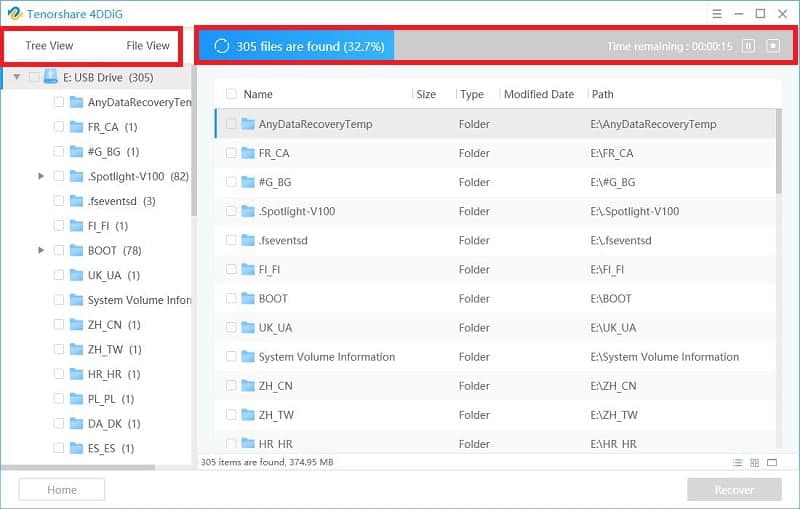
Tenorshare 4DDiG can let you preview and retrieve various file types, including videos, photos, audio and document files, etc. Please just select and preview your desired files, and then click Recover to retrieve them from your drive.
Once you select the distinct location to save the recovered files. The task is completed. Congratulations!

Phase 02: Format a drive
01. Now that you have recovered the files from your hard disk, you can proceed to format.
02. In fact, you don’t need to use any third-party tool to format your external hard drive. It can be done using two official methods provided by Windows itself. To do this, you can choose either Windows Explorer or CMD.
We strongly recommend that you format the external hard drive through Windows Explorer. That is because it is faster and more convenient, even if you are a novice user.
03. Mentioned below are the instructions to format your external hard drive through Windows Explorer.
- Go to ‘My Computer’ or ‘This PC’ depending on the operating system you use.
- Then, navigate to the external hard drive that needs to be formatted and rectified.
- Right-click on the respective device and then go to the option called ‘Format.’
- Now, you should choose the file system. In addition to that, you should choose the option called ‘Quick Format,’ which is located under the ‘Format’ options.
- Then, click on the option labeled ‘Start.’
Q1: Can I fix the “File or Directory is Corrupted and Unreadable” error myself?
A1: Yes, you can attempt various troubleshooting methods such as running CHKDSK, using SFC, or changing drive letters. However, if these methods fail, it is advisable to seek professional data recovery services.
Q2: Will running CHKDSK delete my data?
A2: No, running CHKDSK with the appropriate parameters is designed to fix file system errors and recover corrupted data without deleting your files.
Q3: Can antivirus software prevent file or directory corruption?
A3: While antivirus software can help protect your system from malware and viruses, it cannot entirely prevent file or directory corruption. Implementing additional preventive measures and practicing safe computing habits is essential.
Q4: Are professional data recovery services expensive?
A4: The cost of professional data recovery services can vary depending on the complexity of the case and the amount of data to be recovered. It is best to consult with data recovery specialists for an accurate assessment.
Q5: How often should I back up my files and directories?
A5: It is recommended to back up your important files and directories regularly, preferably on a daily or weekly basis. The frequency may vary depending on the volume and importance of your data.
Conclusion
Now, that is how to address the error ‘The file or directory is corrupted and unreadable.’
As we have mentioned, there are basically two methods to address this issue. If you use the second option (format the disk), make sure that you use Tenorshare 4DDiG. It will help you format the disk without causing data loss.
Ten years of experience in information and computer technology. Passionate about electronic devices, smartphones, computers, and modern technology.
[ Solved ] How to Open or Repair Corrupt Files and Recover it
 Updated by Somei Liam / Jan 18, 2021 09:10
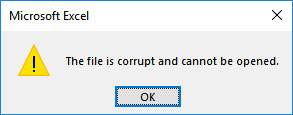
Sometimes, you may encounter errors when opening some files such as "The file" <filename> .docx "cannot open because there is a problem with the content. The file is corrupt and cannot be opened". This error means that there is unreadable content in the file, so the file cannot be opened.
But don’t worry, here in this article we will guide for how to open a corrupt file and how to recover corrupted file. By the time you finish reading this article, you’ll know the methods that can help you to fix corrupted files or recover the data you lost due to some minor mistakes.

1. What Is Corrupted File
Just as its name implies, the corrupted files are computer files that suddenly become inoperable or unusable.
In fact, every file on your system has certain structure and content. Thus, if the right information is in the right part of the files, it will work well. But if the wrong information is written to a file, or the right information is written in the wrong place, the data will be garbled and scrambled, leaving you with a corrupted file.
In general, a corrupted file will not open at all or show an error message when you try to open it. But it does not affect the original program. That’s to say, even if you have a corrupted word file, you still can open other word files and use Word as normal.
2. The Reasons for A Corrupted File
No matter what wrong, there is a reason for it. See below and get the reasons for a corrupted file.
- Your files corrupted during saving. For example, your computer loses power or crash as you save files, the files may be corrupted.
- Bad sectors on hard drive or other storage devices.
- Virus and malware on a hard drive or other storage devices.
- Unexpected shutdown or Bad update on your computer
3. How to Open and Repair Corrupt Files
Method 1: Change the file format
Changing a file’s format can sometimes help fix it. The file may not be able to open in its original form, but you should at least be able to access the file contents. For example, you can convert Microsoft Word documents to PDF format, or images in PNG format to JPG.
Method 2: Use a different program
A single file format can be opened by many programs, both built-in and third-party. Additionally, each program has its own algorithm and requirements for opening a file. Your current program might not be able to open the file, but an alternative program may be able to open it. For example, a Word document can also be opened by alternative programs like WPS and even Google Docs.
Method 3: Use open and repair option
Maybe not everyone knows that Microsoft office software has a useful feature when we want to open a new document. Open and repair feature can help us to repair corrupt files when opened
So, when we open a corrupt file, we can use open and repair feature when we open it.
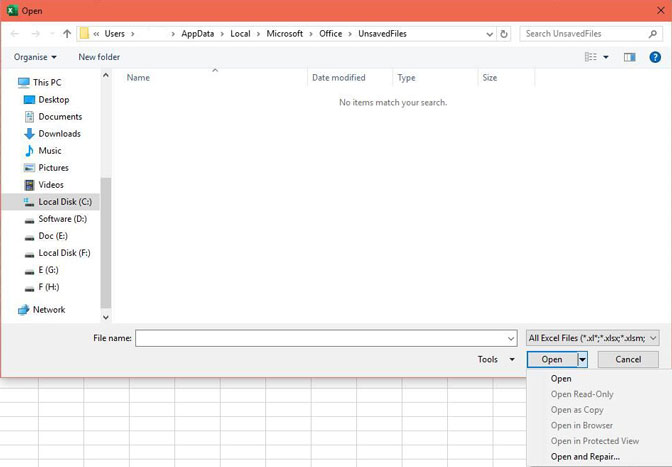
Using this function is very simple, just need to select the drop-down option when opening the file. Below I will open a corrupt excel file as an example to show you how to use this function.
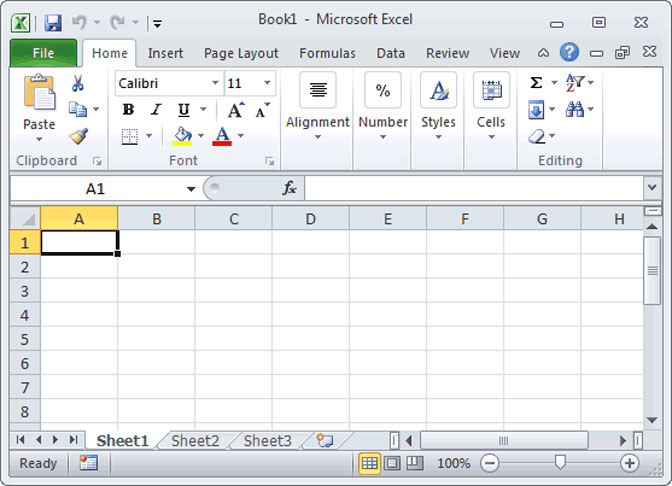
Step 1 Open Microsoft Excel, then click file and select Open.
Step 2 In the Open window, select the file you want to Open.
Step 3 Click on the Open button at the bottom right of the window and a drop-down box will appear. Select the open and repair option in the drop-down box.
4. How to Recover Deleted Corrupt Files
To recover deleted or lost corrupt file, FoneLab Data Retriever is the best choice
The Reasons Why We Choose FoneLab
- Recover all types of data such as document, email, audio, video, etc.
- Highly compatible with your computer, memory card, flash drive, digital camera, hard drive, and other removable drives.
- Apply to all data loss situations such as virus attack, unexpectedly crashes, formation, deletion and more.
- Scan, search and preview any data type and hard disk drive with the detailed information.
- Guarantee the data safe. When you retrieve lost data, it does not store any of these data to its server.
- Easy to use. With a few clicks, you can easily retrieve lost data.
- Just click below link, you can free download this software and get a 30-day free trial
FoneLab Data Retriever — recover the lost/deleted data from computer, hard drive, flash drive, memory card, digital camera and more.
- Recover photos, videos, documents and more data with ease.
- Preview data before recovery.
Step 1 Download and install FoneLab Data Retriever. After the installation is complete, the software will run automatically.
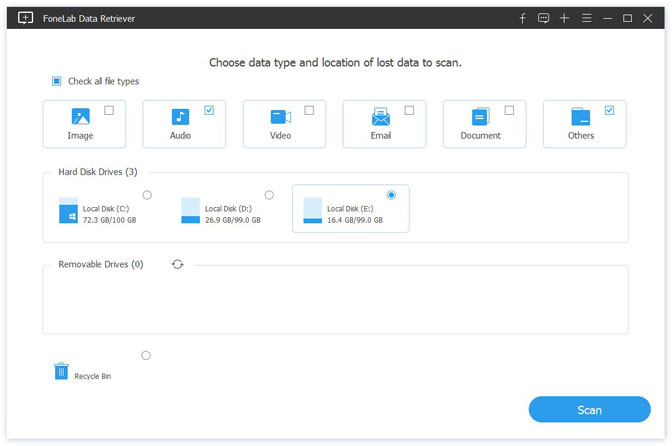
Step 2 On the main interface, choose the file types you want to recover and hard disk in which your deleted corrupt files stored. Then click Scan button to start the quick scan on the selected drive.
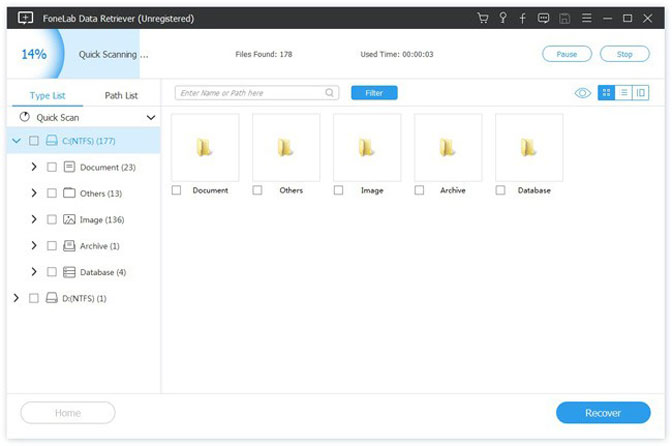
Step 3 Look through the files displayed in the window and look for the files you intend to recover. Checkmark the files you want to retrieve, and then click the Recover button to save the selected files to your computer.
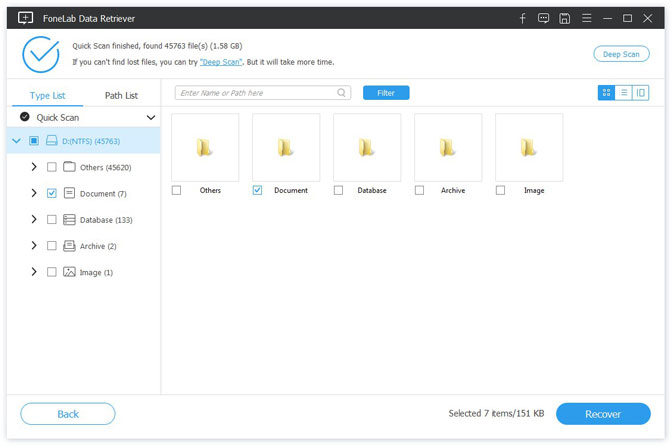
- If the quick scan can’t bring your desired results, you can click Deep Scan to try again. Deep Scan takes more time to complete the whole process, but it brings more results.
- You can also use Filter feature to quickly locate your needed files.
Conclusion
FoneLab Data Retriever — recover the lost/deleted data from computer, hard drive, flash drive, memory card, digital camera and more.
Solved: File or Directory is Corrupt or Unreadable

External hard drives serve the purpose of storing important data in a separate location other than the local hard disk. These drives can be connected to the PC or laptop for data transfer at any time. This process is usually very simple. However, sometimes you encounter error messages like file or directory is corrupt or unreadable upon plugging in the external hard drive to the system.
Part 1: Overview of File or Directory is Corrupt or Unreadable
File or directory is corrupt or unreadable error is a common error message that is generated by Windows if it is unable to access the external hard drive that has been connected to the system via the USB port. This error indicates that the files you have on the external hard drive are no longer accessible and can’t be opened for the time being.
Various reasons can cause this error message to appear on your PC’s screen. The following are some of the factors that can lead to the generation of this error.
Cause 1: MFT or FAT Corruption
What do these short-forms mean? You can expand MFT as Master File Table. And it has the important roles in NTFS file system. In short, it’s the data about your File Permissions and File Size.
When you create a file, its date goes in MFT. And FAT stands for File Allocation System. If MFT helps your NTFS drives on your PC, FAT plays the same role in FAT system. And FAT system is mostly the default formatting for your USB drives and some partitions.
Now, you can guess what happens if FAT or MFT errors exist. Thus, your main OS loses access to your Files.
Cause 2: Virus or Malware Attack
You know how the Malicious Apps come in different sizes and styles. And your device might fall victim to their gimmicks. And these irritating codes can infect your external USB drives as well.
Once a Virus succeeds in manipulating your File System; you start to see the errors. In some cases, it’s a Slow Processing experience. And before you know it, the ‘corrupted data’ nightmare begins. So, never underestimate the malware attack risks.
Cause 3: Hardware Issues
Your data goes to the sectors or physical areas on your Storage Devices. And this is how your system writes and saves your files. Now, imagine if your HDD, memory card or USB devices receive a shock or impact.
Thus, Physical Force damages your storage drives. And it’s possible for your mechanical as well as your electromagnetic devices.
Hence, such a hardware problem makes File Access more difficult.
Also, your File System details can go on a damaged sector. And you already know what happens when File System becomes unreadable. You lose access to your files and the corrupt data errors pop up everywhere.
Cause 4: Not clicking ‘Safely Remove’ option when ejecting your USB device.
So, you have to transfer data to USB drive. That’s great. But does a friend of yours unplugs your USB device in a careless manner?
Yes, this is twenty first century. And the technology is smarter than what it was 2 two decades ago. But remember, old wisdom lasts longer because it works well for many people.
Thus, this is not an obsolete or outdated tip. You should always use the ‘safely remove’ option. And only after doing so, you can take out the USB drive from the USB port.
If your USB drive is inactive, unplugging might be safe. But remember, if your drive is transferring, reading or modifying a file, it’s busy. And you are better off not interrupting its operations.
Still, if you unplug it, you carry a risk of losing your file information. The next thing you know, is a disaster: Data Corruption.
Part 2: Solution to Fix File or Directory is Corrupt or Unreadable Error
Solution 1: Format the Corrupted Volume or Partition
Formatting is your best available option if the corrupted partition does not hold any important files. This process will replace the damaged file system by configuring the hard disk with a new file system. The drawback of using this method is that you will lose all the data stored on the partition, making file recovery impossible.
Step 1 Start Windows Explorer after connecting the external drive to the PC.
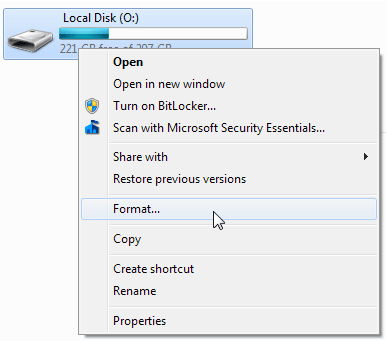
Step 2 Select the ‘Format’ option after right-clicking on the corrupted external drive.
Step 3 Choose the ‘Quick Format’ option after selecting the system of the file format of your choice. Now, format the drive by clicking the ‘Start’ button.
Solution 2: Perform Chkdsk to Examine and Fix File System Error
Windows provides a command-line tool for examining and fixing partition errors. This tool is named Chkdsk and can help you to fix problems like directory errors, cross-linked files, and lost clusters.
Step 1 Press ‘Run’ after pressing the ‘Start’ button.
Step 2 Press ‘Enter’ after typing cmd in the box labeled Open to go to the Command Prompt.
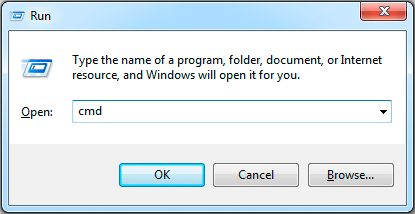
Users of Windows 7 and 8 will have to run the Command Prompt as administrator: Find ‘Command’ after clicking the ‘Start’ button using the search option. After that, choose ‘Run as administrator’ after right-clicking on it.
Step 3 Hit Enter after typing chkdsk /f g: Here g represents the letter of the corrupted partition.
If you receive the message ‘Chkdsk cannot be executed because the volume is being used by some other process. Do you wish to schedule the checking of this volume the next time the PC restarts?’ then press Enter after typing Y and restart your PC.
The volume’s capacity, resources of the system, the speed of the disk, and the number of folders and files on the disk are all factors that affect the time taken by the process to finish.
Chkdsk doesn’t solve partition issues that well sometimes and might cause problems when it comes to recovering files from the corrupted partition. Therefore, if you wish to retrieve data then you should not be using this tool for fixing this error.
Solution 3: Run antivirus and restart the PC
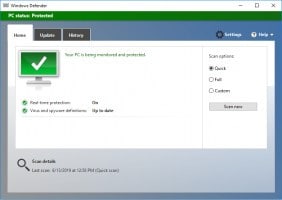
Your data can become unreadable because of a malware or virus. Thus, you need a reliable Anti-Virus program. Of course, some types of bad programs can interfere with your boot-ups. So, you need to restart your machine after the end of your Virus Scan.
And your corrupted directory or file will come back to life. Still, you must verify that everything is working as expected. So, don’t forget to open your files after restarting your device.
Solution 4: Try to open the problematic USB drive on another PC
Life is full of surprises. And sometimes, you need to rely on Trial-and-Error approach. So, if your USB drives is misbehaving on one machine, you should try another device. And it might regain its functionality.
Why would that happen? Well, you know how the Operating Systems have different versions. And your USBs have the distinct designs as well as driver software. Also, you will learn if your pen-drive is compatible with other devices.
So, before you hit ‘repair this device’, try accessing the device data using another desktop.
The above-mentioned methods can help you in fixing the error message, file or directory is corrupt or unreadable. However, if they fail then you will be facing the possibility of losing out on all the data that is stored on your external hard drive. You will have to attempt to recover data from USB drive to ensure that your data remains accessible to you.
More Related Articles:
- How to Recover a PDF File
- How to Repair Recovered Files with File Repair
- How to Repair Docx File with File Repair
Part 3: How to Recover Data from USB Hard Drive
Third-party data recovery tools can help in not only fixing file or directory is a corrupt or unreadable error but also in recovering lost data from the USB drive. The best such tool that you will find on the internet is Recoverit Recovery software. It can fix all types of error messages and recover data from external hard drive within a matter of minutes.

Your Safe & Reliable Hard Disk Recovery Software
- Recover lost or deleted files, photos, audio, music, emails from any storage device effectively, safely and completely.
- Supports data recovery from recycle bin, hard drive, memory card, flash drive, digital camera, and camcorders.
- Supports to recover data for sudden deletion, formatting, hard drive corruption, virus attack, system crash under different situations.
With Wondershare Hard Drive Data Recovery you can easily and effectively perform partition recovery, deleted file recovery, and RAW hard drive recovery. The following is an instruction manual containing step-wise guidelines on how to use Wondershare Hard Drive Data recovery software to recover data from the USB drive.
Step 1 Choose the specific physical drive where data lost and click «Start» to scanning lost data.
Step 2 Recoverit will start an all-around scan. Usually, it will take a few minutes to finish the scanning. Sometimes, a few hours are required if many large-sized files are present.

Step 3 Preview the recovered data from a corrupted hard drive, and you can save them to your preferred location.

Witnessing the file or directory is corrupt or unreadable error message is never a good thing. It is an indication that your external hard drive has gone corrupt and its data is no longer accessible to you. Formatting the external hard drive can help in fixing this error message. However, if you want to recover data from USB drive then using Recoverit recovery is a good option to use.
6 Fixes The File Or Directory Is Corrupted And Unreadable
Indeed you’ve encountered the problem of corrupted and unreadable files or directories at some point, and nothing is more frustrating than not being able to access them, especially if you’re in serious need. But there are some valuable tips to remember when you run into this unpleasant situation, so don’t lose hope. This can be a big problem for users, but there’s a way to fix a corrupted and unreadable file or directory on Windows 10. Before we dig in, let’s see some specific situations and examples where you might encounter this issue.
What does it mean when it says the file or directory is corrupted and unreadable?#
The error message File or directory is corrupted, and unreadable is a type of error might be considered essential. This occurs when malicious software causes damaged files, affecting your file system. All programs may have a damaged file that can no longer fulfill its function. Thus, this type of file is called corrupt.
Why is the folder corrupted?#
This problem can occur for a number of reasons, including recurring ones:
System crashes – These can be caused by hardware or software problems, and their occurrence can lead to file corruption. Update errors – The frequency of update errors is a fairly common thing among users and they can lead not only to corrupt files but also to BSoD errors. Power outages – Unfortunately, these problems can cause many issues to your OS, especially as they happen without warning signs.
Corrupted directories can be a problem since they won’t allow you to access your files. Speaking of corrupted directories, users reported the following issues:
The file or directory is corrupted and unreadable folder – According to users, sometimes they might encounter this message while trying to access certain directories. If you have issues reading files or folders, be sure to try some of our solutions. Repair corrupt folders – Even if you have damaged folders on your PC, you might be able to repair them and recover your files. There are many third-party tools that can help you with that, so be sure to check them out. The file or directory is corrupted and unreadable in the C drive, please run the chkdsk utility – In some cases, you’ll get an error message asking you to run the chkdsk utility on your C drive. We explained in detail how to run chkdsk in this guide, so be sure to check it out. Fix/Repair corrupted directory external hard drive – Sometimes files can get corrupted on external hard drives as well. In some cases, you might be able to recover your files with third-party tools; but usually, the best option is to run a chkdsk scan. If everything fails, you might have to format your drive.
How can I fix the corrupted folder on Windows 10?#
1. Use the chkdsk tool#
According to users, one way to fix problems with corrupted directories is to use the chkdsk tool. Chkdsk is a command line tool that repairs any folder, scans the specific hard drive partition, and fixes corrupted files or folders. After the scan completes, the issue should be resolved entirely. We must mention that a few users reported that the chkdsk command deleted files from their partition without warning, so be sure to back up any important files just in case.
2. Keep reconnecting your external storage device#
Using an external storage device is a great way to free some space on your hard drive and keep your important files backed up. Restoro will automatically scan your PC for problematic files and will replace all critical Windows system files that are malfunctioning with previous versions that are working perfectly. Here’s how you can perform this action: The built-in system restoration tool will revert your Windows to a previous version, therefore you can lose some precious data that was saved after the restoration point was made. You can always return your system to its pre-repair condition. ⇒ Get Restoro Disclaimer: This program needs to be upgraded from the free version in order to perform some specific actions. Unfortunately, users reported that this issue occurs on their external storage devices. According to users, one of the simplest ways to fix this problem is to keep reconnecting your external hard drive. After you reconnect your drive a couple of times, Windows 10 will notify you of an issue with the industry and ask you for permission to repair it. The repair process should take about 30 seconds, and the issue should be resolved after the process is completed.
3. Format your external storage device#
Users reported an error message regarding a corrupted directory while trying to access their external storage device. We have to mention that these tools can give you varying results, depending on the amount of corruption. If you’re looking for good file recovery software, we strongly recommend the professional tool Stellar Data Recovery, which quickly recovers files from corrupted directories. One way to fix this problem is to partition and format the drive by following the above steps. If the drive is partitioned, you must format it from This PC. To do that, follow these steps: After the drive is formatted, you’ll be able to access your external storage device without any problems. However, remember that formatting will delete all files from your external storage device.
4. Check the health of your hard drive#
Corrupted directories can be a sign of a damaged hard drive, and if you want to ensure that your hard drive is healthy and working correctly, you should check its health. If your hard drive fails, you should consider replacing your hard drive and backing up your files. Many third-party applications can help you with that, and if you need a tool that can clone your hard drive to a new one, you should consider using a professional one.
5. Try using Safe Mode#
If you can’t open a specific directory on your PC because it’s damaged, you might want to try accessing this directory in Safe Mode. SPONSORED In case you’re unfamiliar, Safe Mode is a segment of Windows that runs with default applications and settings, so it’s perfect for troubleshooting. Once you enter Safe Mode, try reaccessing the problematic directory.
6. Create a new user profile#
If you’re having problems with corrupted directories, the issue might be related to your user profile. For example, if your user profile is corrupted, you might not be able to access specific directories. However, you can always circumvent this issue simply by creating a new user account. After that, switch to a recent version and check if the problem persists. If you can access all directories without issues, it means that a corrupted account was causing the problem. Since there’s no way to repair a corrupted account, you’ll need to move your files to a new account and start using it as your main one.
How can I fix the corrupted and unreadable file or directory on Windows 11?#
How do you check if a folder is corrupted?#
In Windows-based operating systems, the CHKDSK (check disk) system tool or utility performs a scan of your hard drive to look for problems with the file system. To maintain proper computer hygiene, you should regularly run the CHKDSK tool to check for and fix faults on your hard drive and keep your system data organized. We showed you how to use it in the first solution, so check it out.
How to prevent file or directory corruption#
Repairing a corrupted directory on Windows 10 can be a complicated process, but if you encounter a problem with a corrupted guide, be sure to try one of our solutions above. But if you want to prevent this issue from occurring in the future so that you don’t have to go through the same process every time, then there are some things to consider: ➡ Protect your PC against cyber threats Malware plays a defining role in file corruption problems, although its primary purpose is to corrupt your entire operating system, not just one file. Microsoft Defender is a reliable ally against malware and viruses that can attack your PC, but often hacker innovations outpace it. That’s why the life-saving solution seems to come unexpectedly, and you can choose one of the best Windows 10 antivirus software to use today. Choose an antivirus solution that fits your needs, and use it with utmost confidence to save your work and protect your PC. ➡ Check your hard-drive Regarding resilience over time, HDDs are more vulnerable and require extra attention from users who want to maintain their PCs at optimal standards. Bad sectors are common problems on your hard drive, often leading to corrupted files or directories and affecting your entire system. To ensure that you keep your HDD healthy, you should periodically perform a defragmentation or chkdsk command, which is within reach of any simple user. To perform HDD defragmentation in Windows 10, just follow the steps below: ➡ Other useful tips
Make sure you do not delete any file without inquiring about its nature and whether it may affect the system. Shut down and restart your PC using the standard environment provided by your PC, not just the physical power button. Never interrupt the system processes you are performing.
Sometimes when your PC is damaged, it becomes impossible to open specific files. A safe solution would be opening files or directories in Safe Mode or creating a new user profile. Also, if you don’t know how to repair corrupted files in Windows 10, we provide you with the quickest solutions to get you out of a problem. We hope our solutions above helped you fix the problem of corrupted or unreadable files or directories on your Windows 10 PC. If you have other suggestions or questions on this topic, feel free to access the comments section below.
Name * Email * Commenting as . Not you? Save information for future comments
Comment