Как сбросить к заводским настройкам Apple TV
Однажды может наступить момент, когда вам захочется продать ваш Apple TV или отдать его кому-либо. Или, может быть, после неудачной установки обновления устройство не запускается. В любом из этих случаев было бы полезно знать, Как сбросить к заводским настройкам Apple TV.
Существует два способа сброса настроек в Apple TV. Первый из них заключается в поиске в меню настроек соответствующего пункта. Но он подразумевает тот факт, что вам удастся запустить устройство и зайти в его настройки.
Второй способ пригодится в том случае, если что-то пошло не так. Например, во время установки обновления было отключено питание устройства. Таким образом вам удастся выполнить сброс к заводским настройкам даже в том случае, если не удается запустить устройство и зайти в его меню.
Сброс настроек в Apple TV четвертого поколения
На домашнем экране нужно найти ярлык “Settings”. Переместиться по списку вниз и найти пункт “System”. Затем найти расположенный практически в самом низу пункт “Reset” и нажать на него.  В новом окне будут предложены варианты “Reset” (сброс настроек) и “Reset and Update” (сброс настроек и обновление системы).

 Любой из этих вариантов предназначен для сброса к заводским настройкам, но последний предполагает дополнительно установку последних обновлений для ПО, если такие имеются и устройство подключено к интернету.
Сброс настроек в более старых моделях Apple TV
 Для сброса настроек в более старых моделях (3-го поколения и младше) на домашнем экране необходимо найти ярлык “Settings” и нажать на него. В открывшемся меню следует выбрать пункт “General”.

 Затем вам нужно пролистать список пунктов меню вниз и найти пункт “Reset”. Дальнейшие действия соответствуют тем, которые описаны для более новых моделей Apple TV: необходимо выбрать один из вариантов сброса настроек (“Reset” или “Reset and Update”).
Сброс к заводским настройкам с помощью iTunes
Если что-то пошло не так и Apple TV не запускается либо работает неправильно, его настройки могут быть сброшены к заводским с помощью приложения iTunes.
Вначале отключите ваше устройство от телевизора. Питание Apple TV также следует отключить (кроме модели 2-го поколения). Но прежде чем включить питание, подключите microUSB-кабель к порту USB на задней панели устройства, расположенному под HDMI-портом (в устройствах 3-го поколения). Если у вас Apple TV 4, необходим кабель USB-C, который подключается в порт USB, расположенный над HDMI-портом. Теперь противоположный конец кабеля подключите к ПК.
После подключения Apple TV включите его питание (кроме модели второго поколения). При этом запустится iTunes и распознает подключенное устройство. На дисплее отобразится информация и кнопки, одна из которых называется “Restore Apple TV”. Ее и следует нажать. В открывшемся модальном окне нужно нажать на кнопку “Restore and Update”. Как только вы сделаете это, будет скачано и установлено самое свежее ПО для вашего устройства.
Как только процесс завершится, вы можете отключить Apple TV от ПК и подключить к телевизору. Теперь он должен успешно загружаться и работать правильно.
Sorry, you have been blocked
This website is using a security service to protect itself from online attacks. The action you just performed triggered the security solution. There are several actions that could trigger this block including submitting a certain word or phrase, a SQL command or malformed data.
What can I do to resolve this?
You can email the site owner to let them know you were blocked. Please include what you were doing when this page came up and the Cloudflare Ray ID found at the bottom of this page.
Cloudflare Ray ID: 8036535f79762870 • Your IP: Click to reveal 178.175.133.149 • Performance & security by Cloudflare
How To Factory Reset Your Apple Tv
If you have an Apple TV running tvOS 12 or later, perform a factory reset via the Apple TV using your remote. Note that performing a factory reset erases all your data, account information, and configurations.
What if the Apple TV Doesn’t Reset Properly?#
The process of resetting to factory settings can take a while, but something may be amiss if the Apple TV doesn’t respond even after you’ve given it ample time. If this happens and you have an Apple TV 4K, contact Apple support. If you have an Apple TV HD, you can try to reset the device using a Mac or Windows PC. Your exact steps depend on your computer and its OS.
Reset an Apple TV With a Mac Running Catalina or Later#
If you have a Mac running macOS Catalina or later, follow these steps:
Reset an Apple TV With a PC or Mac Running Mojave or Earlier#
If you have a Mac running Mojave or earlier, or you’re using a Windows PC, follow these steps:
How Does an Apple TV Reset and Restart Differ?#
Resetting an Apple TV to factory settings is different from restarting the device. Restarting is a standard troubleshooting step to try if you’re having common Apple TV problems. To restart your Apple TV, on the Apple TV remote, press and hold the Menu and Home buttons simultaneously until the Apple TV status light starts blinking. Or, use your remote to navigate to the Apple TV’s Settings, and then select System > Restart. When other troubleshooting steps have failed, resetting an Apple TV to factory settings is a last-resort option. Resetting is also appropriate if you’re selling or giving away your Apple TV and want to wipe the device of all your data.
How to Reset Apple TV 4K
Apple TV 4K gives you access to several streaming platforms and their content in Ultra HD resolution. With the support of Dolby Atmos, you can connect a good soundbar with your Apple TV 4K to enjoy an immersive audio-visual experience at home. Sometimes, you face software or app-related issues on your Apple TV 4K.

After trying all troubleshooting methods, sometimes the best choice is resetting your unresponsive Apple TV 4K and restoring it to factory settings. We will show how to reset your Apple TV 4K.
What Happens When You Perform Hard Reset on Your Apple TV 4K
If there is a recurring issue with the software or app usage on your Apple TV 4K, the best option is just to reset your Apple TV 4K or Apple TV. After you perform a reset, all the data will be removed from the Apple TV or Apple TV 4K box, including installed apps and your Apple account details. You will have to log in again with your Apple ID and then start downloading your streaming apps again.
You will have to set it up from scratch by connecting to your Wi-Fi or Ethernet. You can refer to our post if your Apple TV 4k fails to connect to Wi-Fi. The movies and shows you’ve purchased from iTunes will reappear when you sign in to your Apple account.
After you are sure about performing this step, here’s how to reset your Apple TV 4K with and without using the remote.
Reset Apple TV 4K With Remote
For this post, we’ve used the Apple TV 4K (3rd generation). But, the steps are also applicable to Apple TV HD and Apple TV 4K (2nd Generation). Ensure that you are using the latest version of tvOS on your model.
Here’s how to reset your Apple TV 4K or Apple TV HD to factory settings.
Step 1: Open Settings from the home screen of your Apple TV 4K.

Step 2: Scroll down and select System from the list of options.
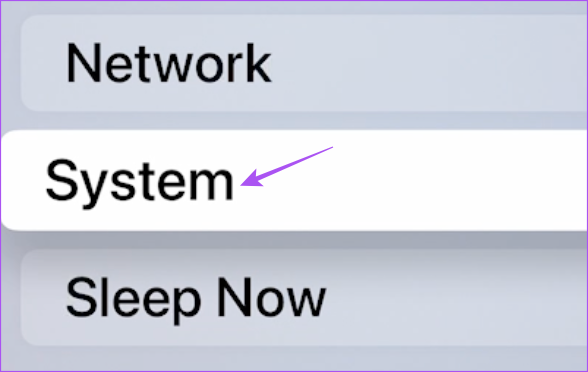
Step 3: Scroll down and select Reset.

Step 4: Select Reset again on your screen.
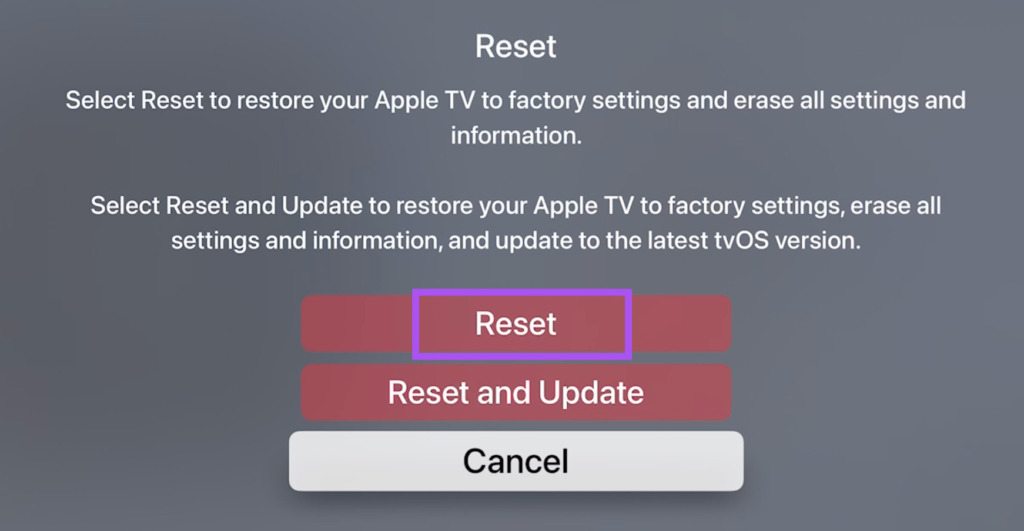
Note: If you select Reset and Update, your Apple TV 4K will be restored to its factory settings and will be updated to the latest version of tvOS.
Step 5: Select Reset again to confirm. Ensure that your Apple TV 4K remains plugged into the power source.

Your Apple TV unit will restart and you can set up your Apple TV 4K again by following the on-screen steps.
Reset Apple TV With Remote (3rd Generation or Earlier)
If you have an Apple TV (3rd generation or earlier), here’s how to factory reset it.
Step 1: Open Settings from the home screen of your Apple TV.
Step 2: Scroll down and go to General.

Step 3: Scroll down and select Reset.
Step 4: Select Reset All Settings.
Keep your Apple TV plugged into the power source till the reset process completes.
Reset Apple TV 4K Without Remote
If you don’t have your remote around or your remote is not responding to your Apple TV 4K, you can take the help of the Apple TV Remote app on your iPhone. It comes pre-installed as a system app and is easy to set up. Here’s how to reset your Apple TV 4K without the remote. Just ensure you use the same Wi-Fi network on your iPhone and Apple TV 4K.
Step 1: On your iPhone, swipe down from the top-right to access Control Center.
Step 2: Tap on the Remote app icon.

Step 3: Select your Apple TV 4K model and follow the on-screen instructions to set up the remote app.
You will be asked to enter a 4-digit PIN shown on your TV screen in the Apple TV Remote app.

You can follow the same steps to reset your Apple TV 4K using the Remote app on your iPhone. After that, you can close the Remote app on your iPhone.
Refer our post if the Apple TV Remote app is not working on your iPhone.
Reset Apple TV 4K With Or Without Remote
It is easy to reset your Apple TV 4K and solve a lot of major software and app-related issues. Check our post if Dolby Vision is not working on your Apple TV 4K.