Twitch.tv: Как управлять настройками уведомлений
Уведомления — обычная часть многих современных онлайн-сервисов; они созданы, чтобы держать вас в курсе того, что происходит, когда это происходит. В некоторых случаях, например, для приложений обмена сообщениями, уведомления действительно важны, поскольку они предупреждают вас о сообщениях, когда они приходят. Многие приложения и сервисы поставляются с рядом уведомлений, которые для вас не важны и могут просто раздражать.
Twitch поставляется с рядом уведомлений, чтобы не видеть уведомления, которые вас не интересуют, вы можете упреждающе управлять настройками уведомлений. Настройки уведомлений можно найти в настройках вашей учетной записи. Чтобы получить к ним доступ, нажмите на изображение своего профиля в правом верхнем углу, затем нажмите «Настройки».
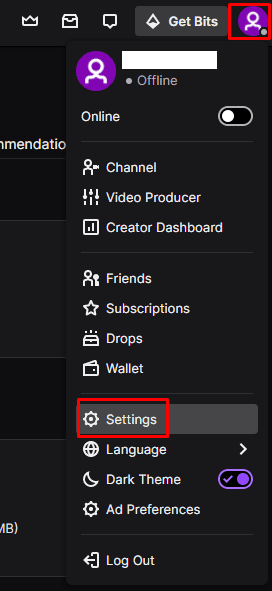 Чтобы открыть настройки своей учетной записи, нажмите на изображение своего профиля в правом верхнем углу, затем на «Настройки».
Как настроить параметры уведомлений
В настройках переключитесь на вкладку «Уведомления». Первый вариант — «Умные уведомления», если вы оставите этот параметр включенным, Twitch проверит, есть ли у него в настоящее время активный сеанс и отправит вам уведомление на это устройство, вместо того, чтобы отправлять уведомление всем включенным устройств.
Настройки уведомлений разделены на три типа устройств: «На Twitch», «По электронной почте» и «На мобильном устройстве». «В Twitch» используется для управления уведомлениями, которые вы можете получать на вкладке браузера Twitch. «По электронной почте» используется для управления тем, какие уведомления можно отправлять на ваш адрес электронной почты. «На мобильном устройстве» определяет, какие уведомления можно отправлять на ваш смартфон. Каждый из трех типов устройств можно индивидуально настроить для получения различных наборов уведомлений, хотя сами параметры одинаковы для каждой платформы.
Раздел «Для каждого канала» позволяет вам настроить, какие из каналов, на которые вы подписаны или на которые вы подписаны, могут генерировать уведомления. Переведите ползунок в положение «Выкл.», Чтобы отключить уведомления с определенного канала.
Совет: по умолчанию все уведомления включены для всех устройств и всех каналов.
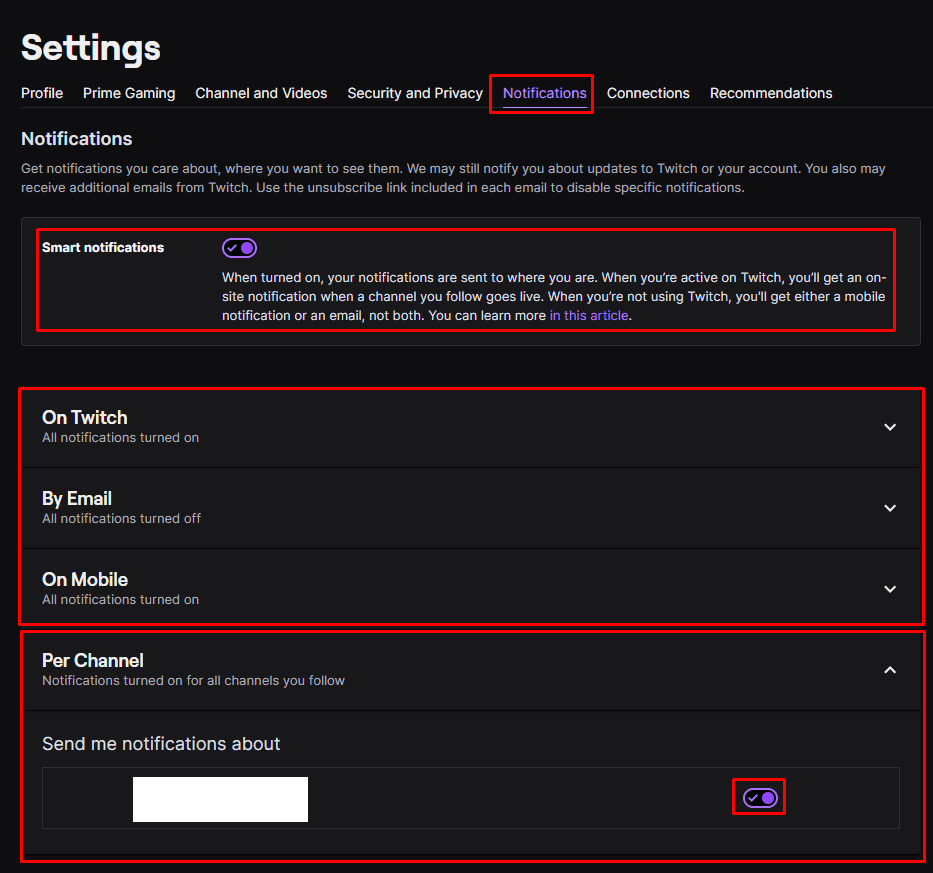 Умные уведомления означают, что уведомления отправляются на устройство, которое вы используете в данный момент; вы также можете контролировать, какие каналы отправляют уведомления и какие уведомления могут отправляться на какие устройства.
Вы можете включить или отключить уведомления о том, когда канал, на который вы подписаны, станет активным, когда канал ваши подписчики начинают повторно запускать старый поток, или, если клип с вашего канала или созданный вами, становится популярным. Вы также можете переключать уведомления, информирующие вас, когда событие, за которым вы следите, вот-вот начнется, когда вы упоминается в чате, когда друг отправляет вам «шепот» или если кто-то подписывается на вашу учетную запись Twitch.
Дополнительные административные уведомления включают официальные сообщения, отправленные создателям контента, уведомления, информирующие вас о том, что чат вы модерируете потребности вашего внимания, и если есть специальные предложения по дропам или ящикам, или если вы получаете подарочную подписку. Вы также можете настроить уведомления, предназначенные для разработчиков, рекомендации новых каналов на основе каналы, которые вы смотрите, когда у канала, на который вы подписаны, есть обновления, а также для маркетинга и продвижения Twitch Сообщения.
Вверху списка уведомлений для каждого устройства вы можете отключить их все, нажав «Все». уведомления на Twitch »,« Все электронные письма »или« Все push-уведомления »соответственно на« Выкл. » позиция. В частности, в настройках уведомлений «На Twitch» вы также можете включить уведомления браузера, нажав «Включить» внизу списка.
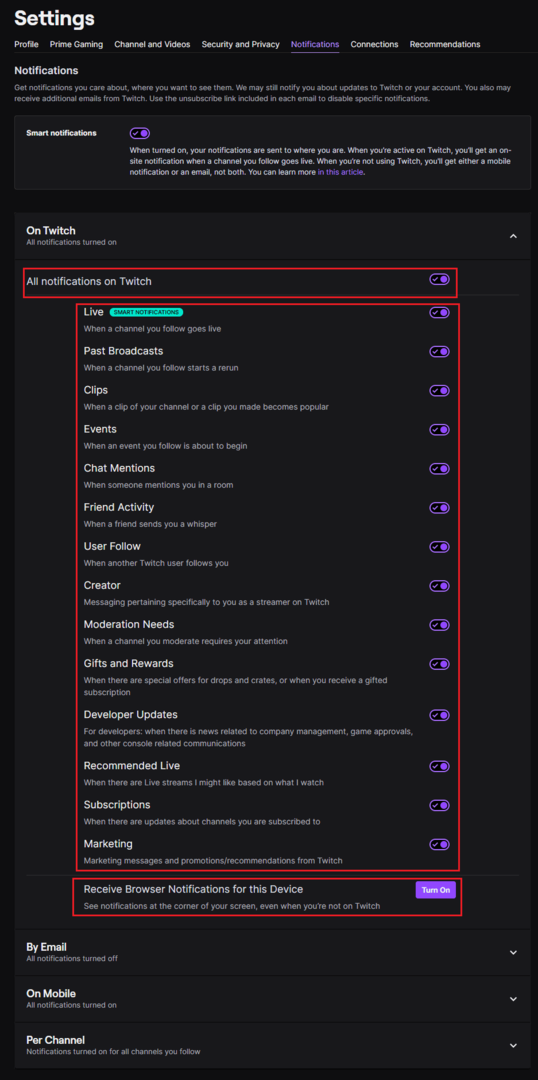 Вы можете отключить все уведомления или комбинации отдельных уведомлений для каждого устройства.
How to Stop Twitch Email Notifications
Clean Email helps you to easily unsubscribe from messages you no longer need and stop Twitch emails appearing in your inbox.
«You can have Clean Email archive, trash or label emails, and do so with any other messages that match this criterion in the future. It also spots newsletters, and notifications from social networks and project management apps like Slack. I’ve never had an easier time clearing out entire gigabytes’ worth of email until now..»
Abhimanyu Ghoshal, The Next Web
How to Stop Twitch Email Notifications: 3 Methods
As with any type of email, stopping Twitch email notifications can follow different paths. Here are some of the classic ways to limit the number of unwanted messages you receive.
1. How to disable Twitch emails on mobile
- Open the Twitch app.
- Click on your Account.
- Update your mail address to keep your main inbox clear and free of Twitch emails.
2. How to turn off Twitch emails in a browser
- Log into your account.
- Go to your Account, then choose Settings, then Notifications.
- Click “By Email.”
- Update your mail preferences.
3. Unsubscribe from Twitch emails in your mail service provider
- Go to your inbox.
- Use the search bar to locate the message you want to opt out from.
- Select the message and click the Unsubscribe button in your mail client.
How to Stop Getting Emails from Twitch Using Clean Email
Clean Email offers a better, faster way to get rid of unwanted emails from LinkedIn, Twitch, Amazon, Medium, Facebook, Quora, and so many more!
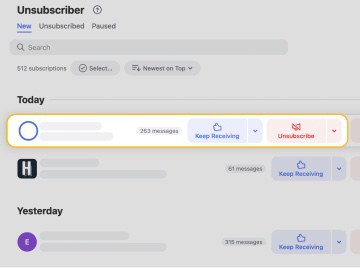
The secret lies in the app’s Unsubscriber feature. Just set it up one time to identify the newsletters you no longer want and the app works to eliminate junk from your inbox without you having to manually unsubscribe from each message.
See all your subscriptions in one place and instantly unsubscribe from them with a click.
Clean Email works with all email providers and platforms, including Gmail, Yahoo, Outlook, Apple, and more. You can use the app for multiple accounts, such as email for work, school, and personal use. We make it easier to unsubscribe from newsletters compared to doing it manually, helping you save time and stress. This is a huge benefit to you since manually unsubscribing from unwanted messages can take days before you see the effects.
How to unsubscribe from Twitch emails in Clean Email
- Use the search bar to locate your Twitch emails in the inbox.
- Select the Unsubscriber feature.
- Select the newsletters you no longer wish to receive and click Unsubscribe.
- Enjoy a clutter-free inbox knowing you can change your mind at any time.
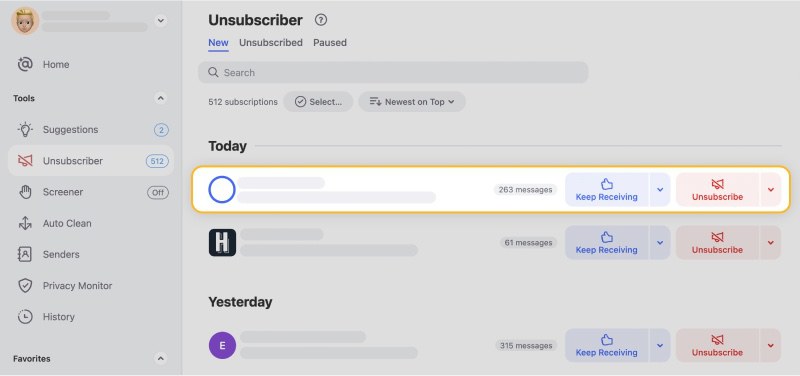
Follow our guides on how to unsubscribe from emails on Gmail on mobile or in a browser, how to stop spam emails from hitting your inbox, and how our app can help you unsubscribe from emails without unsubscribe link.
How to block Twitch messages in Clean Email
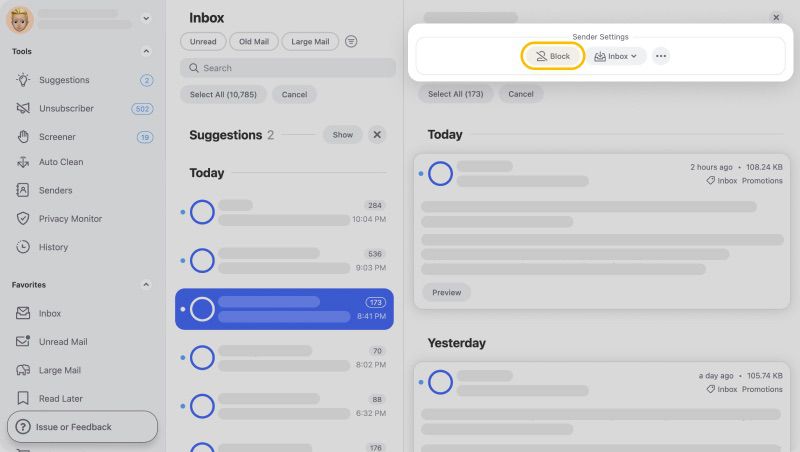
There is another way to stop getting Twitch emails using the app: block the entire domain. This is handy because this streaming service sends so many different types of messages: Friend activity, mentions, moderation requests, streamer stats, and more. And even if you have already unsubscribed from their messages, conventional methods are not always effective.
- Use the Smart Mail view in the app’s dashboard or simply go to your Inbox tab.
- Type @domain, in this case it would be @twitch.tv.
- Select all.
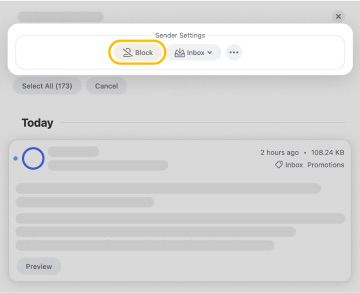
- Click “Block.”
Move Twitch email notifications to a dedicated «Read Later» folder
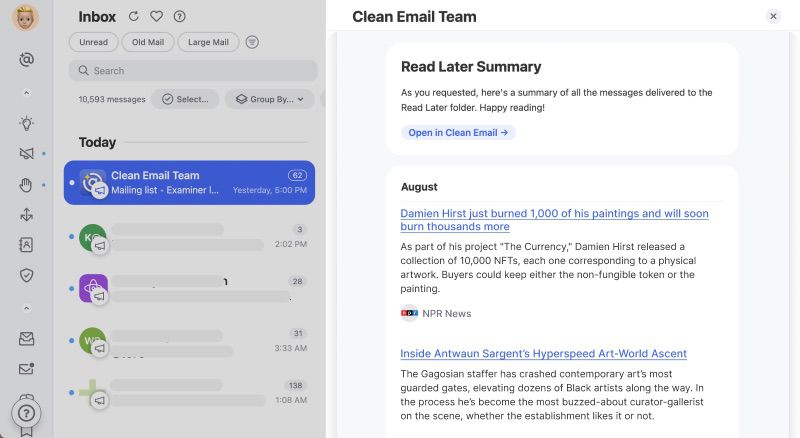
- Launch the app and sign in with your mail account.
- Locate and select your Twitch messages.
- Move them to a Read Later folder.
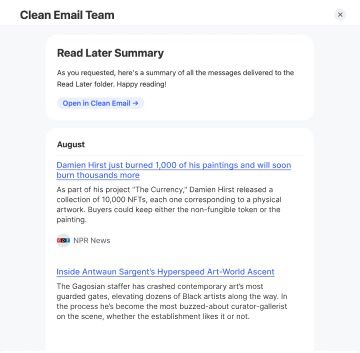
Set an automatic rule to stop Twitch emails
Clean Email also has an Auto Clean feature that allows you to filter incoming messages matching a rule set. If you don’t want to delete Twitch email notifications, you can create a rule to make them unread, archive, or move to a specific folder.
Wondering how to unsubscribe from Target messages, stop Zillow emails, or turn off Groupon email notifications? Our blog will help you learn how to stop unwanted newsletters from cluttering your inbox.
Our users about Clean Email
Clean Email processes billions of emails (yes, with a “b”!) across hundreds of thousands of mailboxes every week.
I needed to clean out my gmail account, I was receiving messages that I was over my limit. I had 127,000 messages to go through, so your app saved me a lot of time.
I had a horrendous amount of emails in my inbox with no time to sort through them so I felt this app would be a good option for me.
Simplicity of sorting emails. Makes it easier to delete and unsubscribe. Love those features!
It was time and more than time for me to get a realistic handle on my ever-growing bucket of multiple emails from a common sender. Gmail does not offer a clean way to do that, so after doing some research, I selected Clean Email as a way to do clean up my email and maintain ongoing control.
I saw your product on PCWorld and right away I was able to see the value. I have an unruly personal mailbox and this is exactly the type of product I need to get it under control. I just started using it a couple of hours ago and it appears to be working quite well.
Still Have Questions?
Why do I keep getting emails from Twitch?
Your preferences might be set to receive messages from Twitch. Log into your account to update preferences. A more effective option is to use an inbox manager like Clean Email to unsubscribe from unwanted newsletters automatically.
How do you delete all emails on Twitch?
You can search for all Twitch emails in your inbox, select each one, then click Delete. Or, you can use a tool like Clean Email to delete incoming messages from this service before they make it to your inbox.
Why did I stop getting emails from Twitch?
You may have updated your mail preferences on your Twitch account. Or, if you are using a tool like Clean Email, the emails from this streaming service might be blocked or moved to a dedicated Read Later folder. You can check both of these things fairly easily and make changes to your preferences if something is amiss.
How do I turn my Twitch email on?
Go to your Twitch account and update your mail notification preferences. Also, if you are using a tool like Clean Email, make sure the Twitch domain is not blocked and that emails are being filtered the way you want.
How can the Unsubscriber from Clean Email turn off Twitch emails?
You can unsubscribe from Twitch emails in bulk using the app in different ways. You can block the entire domain, or you can tell the app to filter these messages in a certain way or unsubscribe you altogether.
Which mail service providers does the Clean Email app support?
The app works across all mail service providers, including Yahoo, Gmail, Outlook, Apple, and more.
Clean and Organize
Clean emails from every corner of your account with tools designed to manage or delete thousands of emails at once.
Our app will do all the magic without sharing your personal data with third-party companies—as many completely free online service providers do.
At Clean Email, we take your feedback seriously and are constantly doing what we can to improve our services.
We want people to live their lives rather than spending time going through a cluttered inbox.
The app doesn’t automatically remove any emails from your account, so if you notice that important messages are being incorrectly filtered out of your inbox, it’s easy to reverse this in your settings.
How to Stop Twitch Email Notifications
Twitch is a popular video streaming platform among gamers to share live gameplay with commentary. It’s also known for streaming cooking shows and sporting events. The platform has over 140 million monthly active users, which will only increase over time. Twitch offers push notifications on mobile and email alerts to keep you hooked up with the platform. Unnecessary Twitch email notifications can irritate you at times. Here’s how to stop getting emails from Twitch.
When you first create an account on Twitch, the service enables email notifications for activities like guest start invites, past broadcasts, clips, events, chat mentions, user followers, stream stats, and more. While it’s useful in specific scenarios, the majority may not prefer to receive such messages in their email inboxes. You can stop Twitch email notifications from the web and mobile apps. Let’s get started.
Turn off Twitch Email Notifications on the Web
Most users prefer to use Twitch on the web only. The company killed the native desktop apps back in April 2022. You can use the steps below to disable email notifications for your account.
Step 1: Visit Twitch on the web. Sign in with your account details.
Step 2: Click your account picture in the top-right corner and open Settings.

Step 3: Move to the Notifications tab.
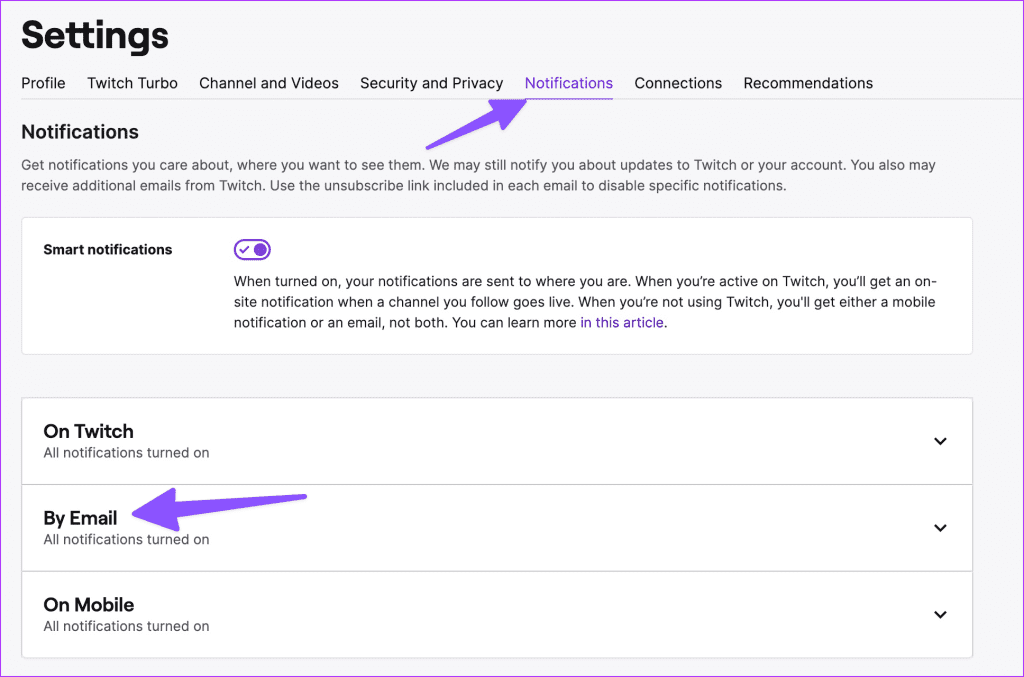
Step 4: Expand the ‘By Email’ tab and disable email messages for irrelevant activities. Unfortunately, there is no way to disable all email messages at once.

After that, Twitch won’t disturb you with frequent email messages.
Stop Twitch Email Notifications on iPhone
If you want to tweak Twitch email preferences on the go, use mobile apps. Let’s first check the iOS app and move to the Android version.
Step 1: Open Twitch on your iPhone. Tap on your account at the top-left corner.
Step 2: Select Settings.
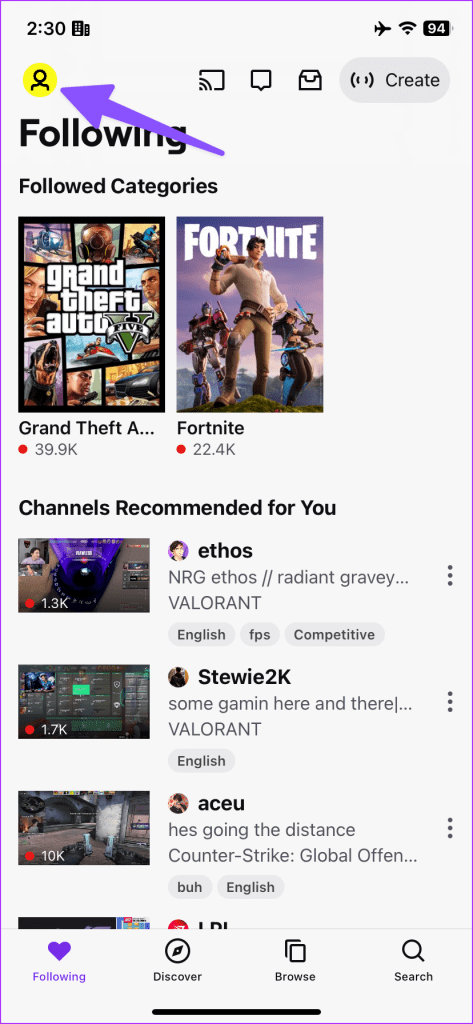

Step 3: Open Notifications and select By Email.
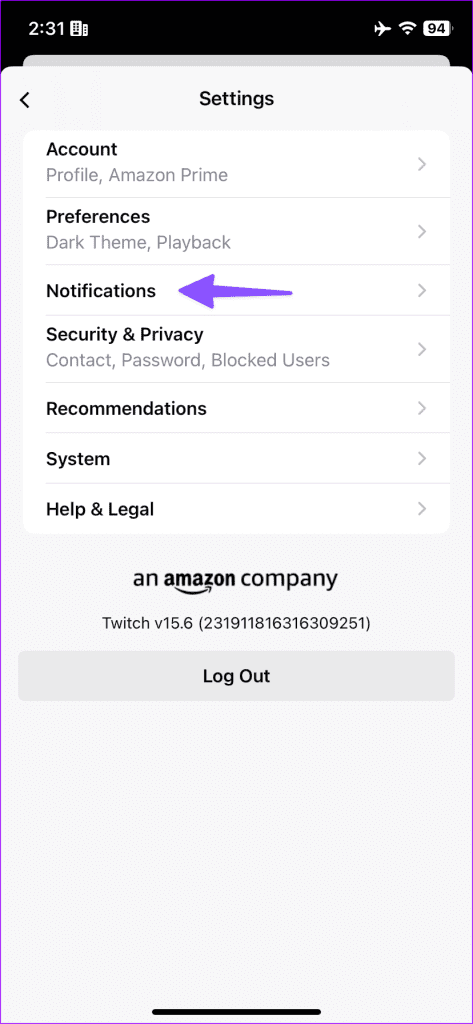

Step 4: Disable email messages for video broadcasts, events, your channel, and other activities.
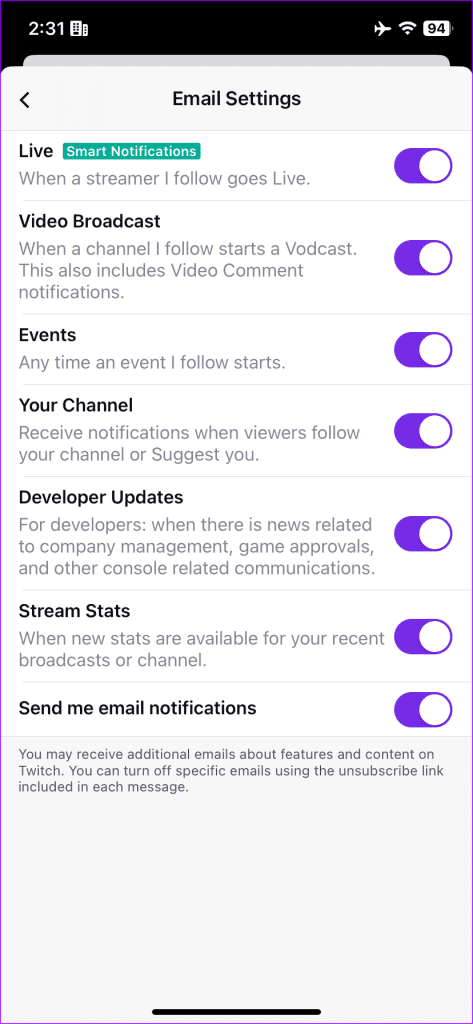
You can manage Twitch push notifications from the same menu. If you prefer Twitch on an iPad, use the same steps as above to disable email notifications. If you face issues with Twitch on iPhone or Android, check our dedicated post to fix the issue.
Stop Getting Emails From Twitch on Android
You can disable Twitch emails on the Android app too. The steps are mostly identical to the iOS version. Let’s quickly go through them.
Step 1: Launch Twitch on your Android phone. Go to your account from the top-left corner.
Step 2: Open Account Settings.


Step 3: Select Notifications and tap By Email.


Disable email alerts for Twitch activities from the following menu.

Create Rules to Stop Twitch Emails
After making all the changes, do you still receive emails from Twitch? You need to create rules to stop Twitch messages from appearing in your email inbox.
If you use Gmail, create a filter and automatically move such emails to the spam box or delete them. You can read our dedicated post to create such filters and keep your Gmail inbox clean of bogus emails. If you use Outlook, go through the tips below to make changes.
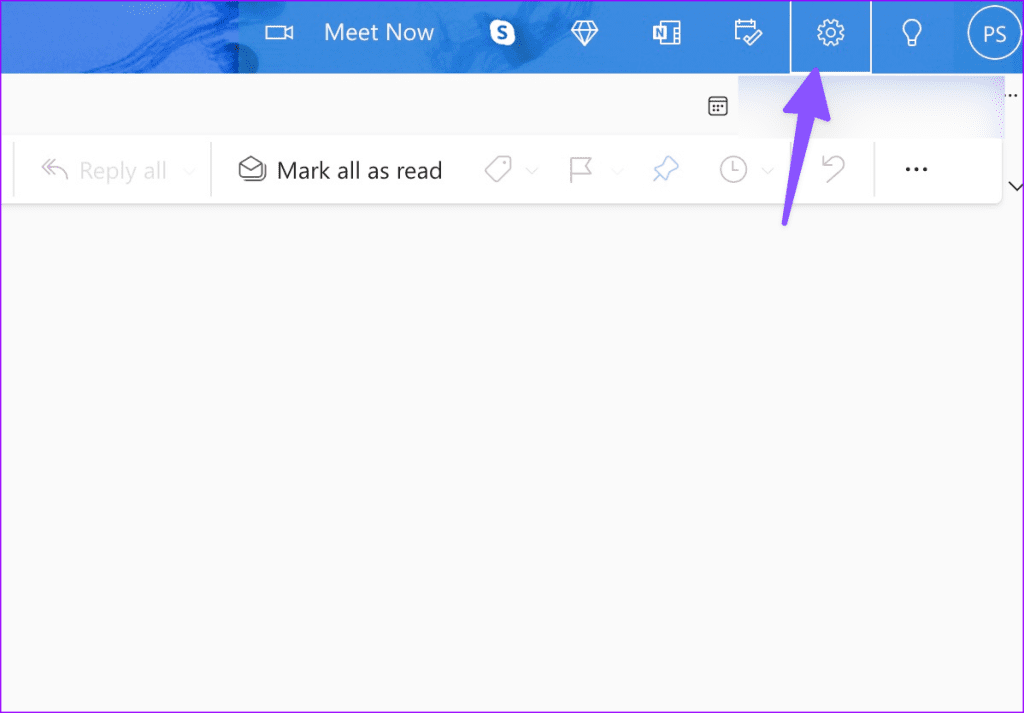
Step 1: Visit Outlook on the web, sign in with your account details and click the Settings gear in the top-right corner.
Visit Microsoft Outlook
Step 2: Open Rules under Mail.
Step 3: Click ‘Add new rule.’
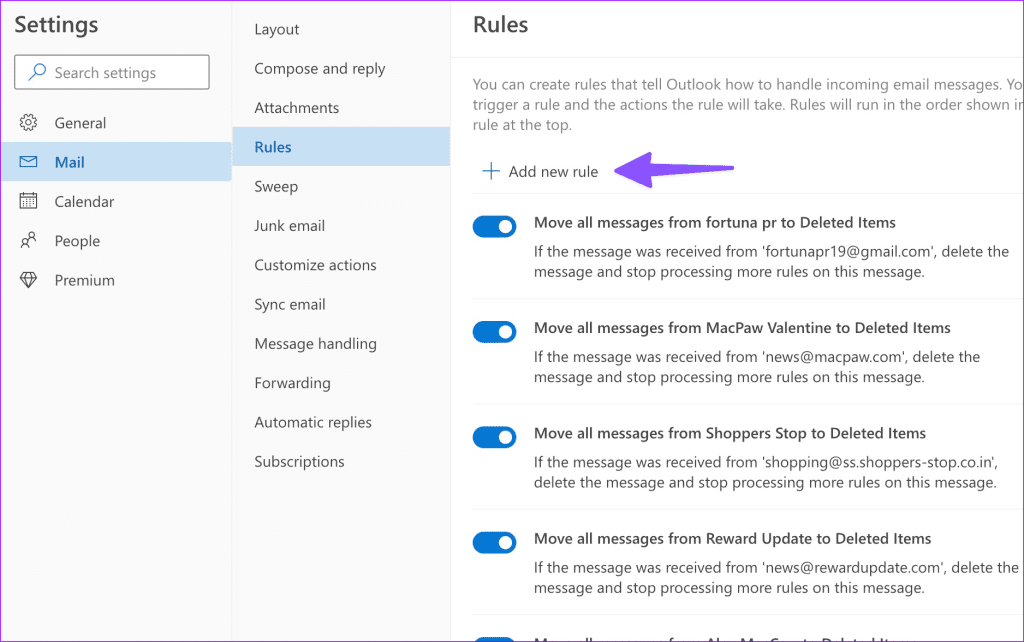
Step 4: Assign a name to your rules, add a condition, and select an action.
For example, you can create a condition that if the email message body includes a ‘Twitch’ word, mark it as junk or delete it.

Step 5: Hit Save to run the rule.
Why Should You Turn off Twitch Email Notifications
Here are some of the reasons to disable Twitch email notifications.
- Dozens of Twitch email notifications every day can be distracting.
- Twitch messages can fill up your Gmail or Outlook inbox. Instead of frequently deleting such messages, make changes in your Twitch account to stop receiving them in the first place.
- For most users, Twitch push notifications on Android or iPhone should be completely fine.
Can I Change My Twitch Email
You can easily change your Twitch email address from the Settings menu on the web. You can check the Security and Privacy tab and click the pencil icon beside the email to change it. Do note that your email can’t be changed more than once every 24 hours. So you can divert those email notifications to a secondary email.

Keep Your Email Inbox Free of Twitch
Why am I getting too many Twitch emails? It’s one of the frequently asked questions from Twitch users. Thankfully, the Amazon-owned company makes it straightforward to disable the behavior.
Как отписаться от рассылки твича на почту
Как Twitch отправляет уведомления – где их найти пользователю
Пользователи Twitch часто сообщают, что не получают уведомления «Go Live», в котором сообщается о запуске трансляции стримером, на которого они подписаны.
Можно выделить несколько распространенных причин, по которым пользователи могут иметь такие проблемы с уведомлениями на Twitch – эта статья поможет вам отладить получение уведомлений.
Где можно получать уведомления от Twitch
Когда стример запускает трансляцию, Twitch отправляет уведомления по 3 различным каналам, в зависимости от ваших настроек:
- Уведомление на месту вышей активности на веб или мобильный
- Push-уведомления на мобильный
- Уведомления по электронной почте
Недавно Twitch внедрил «умные» уведомления – вместо того, чтобы отправлять уведомления всем 3 пунктам, оно отправляется только туда, где вы активны. Если пользователь находится на сайте, он получает уведомление там. Если он вне сайта, то может получить push-уведомление. Если ни один из этих случаев не соответствует действительности, уведомление будет отправлено на электронную почту.
Почему я не получаю уведомлений на Twitch
Вот четыре распространенные причины, по которым пользователи Twitch не получают уведомления:
Уведомления на уровне канала
После того, как вы подпишитесь на канал, получите возможность получать уведомления. Эти уведомления по умолчанию включены, если вы подписываетесь через веб-сайт, но по умолчанию они отключены, если вы подписываетесь через мобильный телефон. Чтобы включить уведомления, проведите пальцем по переключателю на мобильном устройстве. Если вы заходите на канал в Интернете и уведомления включены, просто нажмите на колокольчик, чтобы включить их.
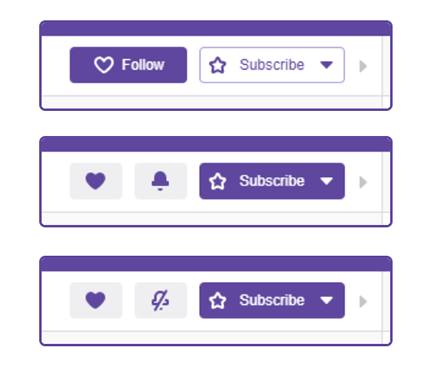
Настройки уведомлений Twitchs
Вы можете обновить настройки уведомлений на странице настроек уведомлений. Twitch предоставляет варианты настройки уведомлений на сайте, push-уведомлений и уведомлений по электронной почте – убедитесь, что нужный канал уведомлений включен.
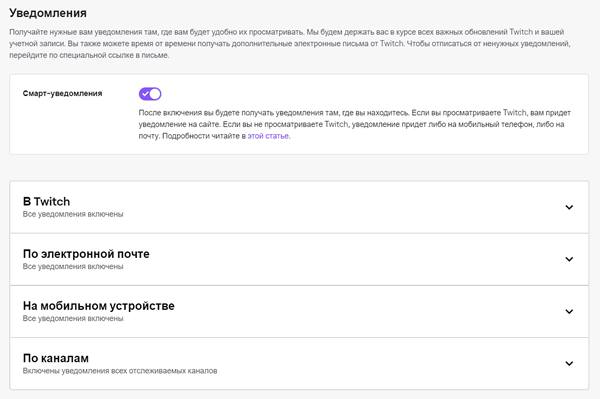
Чтобы получать Live Ups, вам также необходимо убедиться, что категория «Live» включена.
Уведомления на электронную почту и Push-разрешения
Twitch нужно разрешение отправлять вам электронные письма или отправлять вам push-уведомление. На мобильном телефоне вы можете сделать это через настройки уведомлений вашего мобильного устройства.
Для получения уведомлений на электронную почту нужно, чтобы вы подтвердили свою электронную почту, нажав на ссылку в письме с подтверждением, которое вам отправят. Вы можете проверить, подтверждён ли ваш e-mail, перейдя в настройки в разделе Безопасность и конфиденциальность. Чтобы обновить настройки на мобильных устройствах, войдите в настройки устройства, убедиться, что уведомления включены для приложения Twitch.
Умные уведомления Twitch
Умные уведомления облегчают пользователям получение уведомлений в наиболее релевантном месте (сайт, push или по электронной почте). Twitch отправит уведомление только в одно место, а не во все три.
Пришло СМС от Twitch с кодом верификации: что это, как отключить уведомления?
Сложно найти человека, который был бы не знаком с интернетом и его многочисленными приложениями. Их с каждым годом становится все больше и больше, но уже определились некоторые сайты и программы, которые пока что будет трудно подвинуть с места. И Твич – одно из таких приложений.
Twitch — видеостриминговый сервис, специализирующийся на тематике компьютерных игр, в том числе трансляциях геймплея и киберспортивных турниров. Видео на платформе Twitch можно просматривать как в реальном времени, так и по запросу. Twitch принадлежит Twitch Interactive — дочерней компании Amazon.
Двухфакторная аутентификация
У твича есть не только простые зрители, которые ничего не вкладывают в площадку, но и стримеры, которые там зарабатывают деньги. Если у обычного зрителя без подписок и привязки к аккаунтам других сервисов при взломе не потеряется ничего важного, то про других такого не скажешь.
В конце концов, разные базы взламывают частенько. А там может найтись ваша почта и пароль. Если вы везде используйте одинаковые пароли, то взломать ваши профили на разных сервисах хакеры смогут легко. Вот от этого и защитит пароль в смс.
Сообщений с кодом верификации
Здесь может быть два случая: у вас есть аккаунт на твиче и у вас его там нет. В первом случае нужно срочно бежать и менять свой пароль. Код высылается только тогда, когда был введен верный пароль или выполняется его сброс. Так что лучше поспешить и сменить его на что-то новое, не похожее на старое и с большим количеством символов.
Вот только поддержка твича не поможет вам, ведь для них вы не существуете. Как ни странно, самый простой способ избавится от сообщений – это зарегистрировать аккаунт. Один телефон – один аккаунт. Так что на него больше не смогут пытаться регистрировать что-то еще.
Как исправить распространенные проблемы с уведомлениями Twitch

Прямые трансляции на Twitch зависят от уведомлений, чтобы заинтересованные подписчики могли смотреть определенный контент в определенный момент времени. Но иногда уведомления Twitch не работают.
У пользователей Twitch, по-видимому, возникают различные проблемы с уведомлением, и они не проходят, несмотря на то, что они пытаются. Сегодня мы попытаемся решить все проблемы, связанные с уведомлениями, с которыми пользователи сталкиваются на Twitch.
Проверьте ниже для решения общих проблем.
Как включить уведомления для Twitch?
1. Попробуйте использовать другой браузер

Иногда смена браузера может помочь вам решить эту проблему. Попробуйте использовать другой браузер, чтобы войти в Twitch и изменить настройки.
Вы можете использовать любой браузер, но мы рекомендуем попробовать UR Browser из-за его функций, ориентированных на конфиденциальность.
Этот браузер похож на Chrome, но имеет расширенные возможности отслеживания, защиты от фишинга и вредоносных программ, поэтому, если вам нужен надежный браузер, обязательно попробуйте UR Browser.