How to Install the Symbolic Math Toolbox to Use with MATLAB
Once you have obtained a copy of the Symbolic Math Toolbox to use with MATLAB, you should have a number of files on your hard drive. These files provide everything needed to install the Symbolic Math Toolbox. You have two ways by which you can interact with the files:
If you were able to use the download agent, you see a dialog box telling you that the download is complete. At this point, you can perform one of these two tasks:
Select the Start Installer option and click Finish to start the installation process. The Symbolic Math Toolbox installer will start automatically.
Select the Open Location of the Downloaded Files option and click Finish. You see the location of the files open, and you must double-click the installer file to start the installation process. (The installer file is typically the only executable program in the folder.)
If you performed the manual download process, you need to find the download location of the files. You must double-click the installer file to start the installation process. (The installer file is typically the only executable program in the folder.)
Windows platform users may see a User Account Control (UAC) dialog box when starting the installer. Click Yes to give the installer permission to install the Symbolic Math Toolbox. Otherwise, the installation will fail.
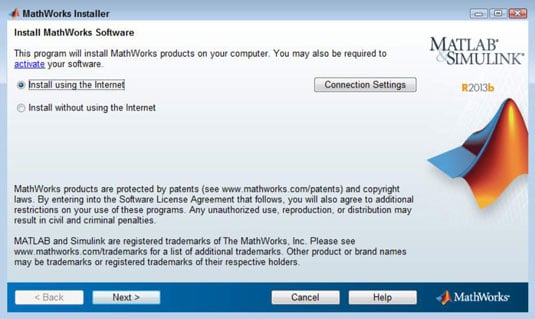
No matter how you start the installer, eventually you see a MathWorks installer dialog box. This dialog box determines the source of the files that you use to perform the installation. (Choosing the Install Using the Internet option downloads the files directly from the MathWorks site — you also have the option of using source files on your hard drive.) The following steps help you complete the installation process.
Select an installation source (either Internet or local hard drive) and click Next.
You see the License Agreement dialog box.
Read the licensing agreement, click Yes, and then click Next.
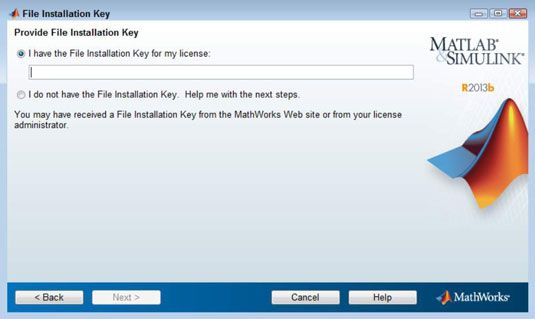
You see the File Installation Key dialog box. This is where you supply the licensing information. If you don’t have the key, make sure that you select the second option and follow the steps required to obtain the license.
Supply the File Installation Key and click Next.
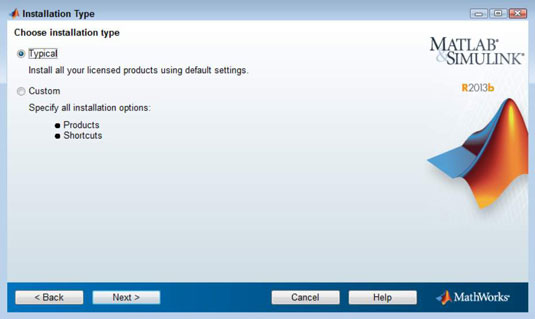
The installer asks you to select an installation method. In most cases, you obtain a better, faster, more error-free installation by selecting the Typical option. The steps that follow assume that you have chosen the Typical option.
Click the Typical option and then click Next.
The installer asks you to choose an installation destination. This destination differs by platform. In most cases, choosing the default installation destination is the best idea. However, if you have an existing installation and want to preserve this installation precisely as it is, you need to choose a different installation location.
Choose a destination location, if necessary, and click Next.
If you already have a copy of MATLAB installed and you choose the default installation location, the installer will ask whether you want to overwrite the existing copy. Click Yes To All (if you need to update your copy of MATLAB) or No (when you have the most current version) to proceed.
When you click Yes To All, you agree to allow the installer to remove your old copy of MATLAB and install a new one. Be aware that you’ll likely lose any special configuration options you have set up, along with any features you had installed previously.
The installer displays a Confirmation dialog box. Check the details carefully to ensure that the installation provides everything you need.
Click Install.
The installation process begins. You can watch the progress by checking the progress bar. The installation can require several minutes depending on the installation options you choose, the complexity of the installation, and the speed of your system.
When the installation process is complete, you see an Installation Complete dialog box.
Select the Activate MATLAB option and then click Next.
MATLAB asks whether you want to activate your copy using the Internet or manually. Using the Internet is generally the faster and easier option, unless you have already downloaded a license file ( license.lic ) as part of getting the file installation key.
Choose an activation option and click Next.
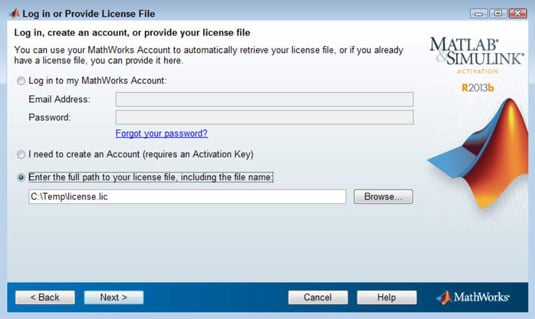
When you choose the Internet option, you must provide your email address and password to log on to the system for activation purposes. If you don’t have an account, you can also choose to create an account or provide the location of your locally stored license.lic file.
Supply any required input and click Next.
If activation is successful, you see an Activation Complete dialog box. (When you don’t see this dialog box, retry obtaining the required activation or contact MathWorks support.)
How do I download a Symbolic Math Toolbox in MATLAB?
How do I download a Symbolic Math Toolbox in MATLAB?
How to Obtain the Symbolic Math Toolbox for MATLAB
- 2Click the Download link found on the Licensed Products tab.
- 3Type your email address and password in the appropriate fields; then click Log in.
- 4Click the link for the MATLAB release that you have installed on your system.
- 6Click Download.
What is the symbolic math toolbox in MATLAB?
Symbolic Math Toolbox™ provides functions for solving, plotting, and manipulating symbolic math equations. You can create, run, and share symbolic math code. You can share your symbolic work with other MATLAB users as live scripts or convert them to HTML, Word, LaTex, or PDF documents.
Can MATLAB use symbolic math?
Symbolic Math Toolbox™ enables you to perform symbolic computations from the MATLAB® command line by defining a special data type — symbolic objects. Functions are called using the familiar MATLAB syntax and are available for integration, differentiation, simplification, equation solving, and other mathematical tasks.
How do I add a toolbox to MATLAB?
- In the Environment section of the Home tab, select Package Toolbox from the Add-Ons menu.
- In the Package a Toolbox dialog box, click the button and select your toolbox folder.
- In the dialog box, add the following information about your toolbox.
How do I install symbolic toolbox?
If you have the Symbolic toolbox, then you can download the MATLAB install it with the symbolic toolbox. If you already have MATLAB installed, then you can click you can click Add-ons and search for the symbolic toolbox and install it.
How do I know if I have a symbolic toolbox?
Direct link to this answer
- In MATLAB 7.0 (R14) and later versions, you can type ‘ver’ at the MATLAB command prompt and the Extended Symbolic Math Toolbox will appear in the toolbox list if it is installed.
- As seen on page 1-145 of the Symbolic Math Toolbox User’s Guide, you can type in the following:
What is symbolic toolbox?
Symbolic Math Toolbox™ provides functions for solving, plotting, and manipulating symbolic math equations. Create, run, and share symbolic math code using the toolbox. Symbolic Math Toolbox lets you analytically perform differentiation, integration, simplification, transforms, and equation solving.
How do I get a symbolic toolbox in MATLAB?
Answers (1) If you have the Symbolic toolbox, then you can download the MATLAB install it with the symbolic toolbox. If you already have MATLAB installed, then you can click you can click Add-ons and search for the symbolic toolbox and install it.
Why do we use Syms in MATLAB?
You can use the syms command to clear variables of definitions that you previously assigned to them in your MATLAB session. syms clears the assumptions of the variables: complex, real, integer, and positive. These assumptions are stored separately from the symbolic object.
Is Simulink a toolbox?
The Simulink toolboxes provide the specific tools for analyzing, designing, simulation of the system, making the communication between the other system, etc. The MATLAB toolbox contains multiple functional tools as per your requirements for building dynamic systems or projects.
What is the function of toolbox?
A toolbox (also called toolkit, tool chest or workbox) is a box to organize, carry, and protect the owner’s tools. They could be used for trade, a hobby or DIY, and their contents vary with the craft.
Symbolic math toolbox matlab как установить
Давайте рассмотрим добавление набора инструментов fecgsyn-master в качестве примера, чтобы объяснить метод добавления набора инструментов в Matlab.
Сайт загрузки наборов инструментов Matlab: http://fernandoandreotti.github.io/fecgsyn/
2. Разархивируйте и скопируйте в папку
Разархивируйте загруженный файл и скопируйте папку в каталог Toolbox Matlab, например: D: \ Program Files \ MATLAB \ R2019b \ toolbox.
Фактически, его не обязательно копировать в этот путь, если он помещен в конкретныйанглийскийПросто следуйте по пути, и вы сможете исправить это позже.
3. Задайте путь
Откройте Matlab, нажмите «Файл-> Установить путь-> Добавить папку» (в китайской версии путь настройки указан прямо на панели, или вы можете найти его в справке) и добавьте папку, только что разархивированную и скопированную. Помните, что если в папке, которую вы хотите добавить, есть подпапки, вы должны нажать «Добавить с подпапками», выбрать папку только сейчас и добавить все подпапки папки.


4. Обновите кеш пути к панели инструментов.
Затем в «Файл-> Настройки-> Общие» обновите кэш пути к панели инструментов.
How to use the Symbolic Math Toolbox in MATLAB to analyze the Fourier series
Symbolic Math Toolbox provides an easy, intuitive and complete environment to interactively learn and apply math operations such as calculus, algebra, and differential equations.
It can perform common analytical computations such as differentiation and integration to get close form results.
It simplifies and manipulates expression for great insights and solves algebraic and differential equations.
In this tutorial, the Fourier series (Trigonometric and Exponential) is implemented and simulated using MATLAB’s Symbolic Math Toolbox.
The proposed programs are versatile and can receive any function of time(t). It means that the function is dependent on time.
Moreover, the program gives plots of harmonics, original and approximated functions, magnitude spectrum, and phase spectrum.
This toolbox is already available in MATLAB. Therefore, you do not need to retrieve it from an external source. For example, to understand more about the Fourier series, you can read here.
Prerequisites
To follow along with this tutorial, you will need:
-
installed.
- A proper understanding of MATLAB basics.
Symbolic Math Toolbox
This toolbox has a wide range of applications:
To visualize analytical expressions in 2D and 3D and animate plots to create videos.
Symbolic Math Toolbox in the live editor (mode in MATLAB) lets you interactively update and display Symbolic math computations.
Besides, MATLAB code, formatted text, equations, and images can be published as executable live scripts, PDFs, or HTML documents.
While working with analytical problems, you can receive suggestions and tips. These suggestions help one insert and execute function calls or tasks directly into live scripts.
The Symbolic Math Toolbox also provides precision for higher or lower positions. It allows algorithms to run better than MATLAB’s in-built double. Furthermore, it has units for working with physical quantities and performing dimensional analysis.

This is an example of how this toolbox adds units for physical quantities
Symbolic Math Toolbox is widely applied in many engineering and scientific applications. Symbolic expressions of exact gradient and Hessians improve accuracy and optimization speed.
In non-linear control design, the Symbolic Math Toolbox improves recalculation speed at any operating point during execution. Furthermore, you can integrate symbolic results with MATLAB and Simulink applications. It is done by converting symbolic expressions into numeric MATLAB functions, Simulink, and Simscape blocks.

Sample of function converted to Simulink
Now, all these applications discussed above were to give you an insight into the wide application of this toolbox. However, not all of them are discussed here. Here, we will only major in using the toolbox to solve Fourier series problems.
How to use the Symbolic Math Toolbox
This toolbox is enabled in MATLAB using the function syms . However, you get an error message if you have the expression x=2*a+b and try to execute it in Matlab. The error message is undefined function or variable ‘a’ as shown below:
When using the syms function, the variable x is saved without the error message. When using the Symbolic Math Toolbox, the idea here is that you first define the symbolic variables. Symbolic variables are the undefined variables in an equation. For example, our symbols are a and b for our expression above. We first define these variables using the symbolic function syms .
After defining the symbols and rerunning the code above, our workspace stored our variables. We will then have:
Solving Fourier series using the Symbolic Math Toolbox
Let’s say we have a Fourier transform shown below:
The symbolic variables are t , w , T , and W , which we define by executing the command below:
w is the angle theta, T is the time function, and W is used to express the angular radians in the Fourier transform.
After the declaration of the symbolic variables, you can write the Fourier transform as shown below:
In MATLAB, int means integration. In the MATLAB expression above: exp(-t/2) is our equation which we are finding its Fourier transform. exp(-j*w*t) is the basic function of the Fourier transform. t shows that we are differentiating with respect to time. [0, inf] shows the integration limits from 0 to infinity .
Note that we don’t write f(t) when writing our equation in MATLAB. It is because we already know that our function is a time function. Also, t is a symbol variable, so we do not write it in our expression.
When the above program is executed, we get the output below:
To format this output in a user-friendly manner, we use the function pretty() . pretty(f) prints the symbolic expression f in a format that resembles type-set mathematical equations. When you execute this function in the command window, we have:
Now, we need to get the values of w since we use them to plot the Fourier transform. To do that, execute the code below:
subs mean symbolic substitution. This function replaces the symbolic variable in f with the values of w . The values range from -pi to pi . When we do this, we get the values below:
We now plot these values using the plot() function.
plot(angle(double(data_value))) gives the phase spectrum plot. The function subplot() is used to create a subplot. title() gives the plot a title.

Phase spectrum plot
Now, let us plot the magnitude response using the same values of w .
The code plot(abs(double(data_values))) gives the magnitude spectrum. This plot uses the absolute values of the data, thus abs() .

Magnitude spectrum plot
Example 2
Let’s look at another example:

The output here is:
To find the values of w , we use the subs() function.
After that, we plot the absolute values of the variable f-sub .

Plot for the range -pi to pi

Plot for the range -2pi to 2pi

Plot for the range -4pi to 4pi

Plot for the range -8pi to 8pi
While making the plots, we used the ezplot function. ezplot(FUN) is used to plot a function x over the default domain, -2*pi<x<2*pi . As we have seen, the Symbolic Math Toolbox makes it easy to analyze the Fourier series. Moreover, it makes it easy since you do not have to write long codes.
Conclusion
Symbolic Math Toolbox is an important toolbox for solving differential and integration operations. As we have seen in solving the Fourier series above, it is easy to use. This toolbox also helps find the Laplace transform of various equations. Generally, this toolbox has a wide application in science and engineering.
Основы работы в символьных переменных в системе MATLAB
Цель работы:изучить систему команд расширения MATLAB (Toolbox) для работы с символьными переменными Symbolic Math.
Теоретические данные:
Расширение (Toolbox) Symbolic Math предназначено для работы с математическими выражениями в символьных переменных, то есть в привычном для нас виде, когда переменная не заменяется ее числовым значением, может входить в разные функции, выражения и уравнения, а также преобразовываться в любых доступных формах с помощью известных алгебраических преобразований. Кроме того, указанное расширение дает возможность символьного интегрирования и дифференцирования, с последующей подстановкой числовых значений, упрощением и преобразованием вновь получаемых математических зависимостей.
Основные команды, используемые для работы с символьными переменными:
1. Общие операции:
— syms – создает символьные переменные упрощенным способом. Формат команды: syms vol1 vol2 …, где vol1, vol2 и т.д. – имена создаваемых символьных переменных. Для создания символьных переменных может также применяться команда sym, которая применяется в следующем формате: vol1 = sym(‘vol1’). Таким образом, в скобках, заключенное в апострофы, задается имя создаваемой переменной. Такая запись является чересчур громоздкой, поэтому рекомендуется применять упрощенную команду syms, при этом, создаваемые переменные просто перечисляются через пробел после самой команды. Ставить знак «;» после команды syms не требуется;
— pretty – выдает символьное выражение в многоуровневом представлении (в привычном нам виде). Формат записи команды: pretty(vol), где vol – имя переменной, в которой хранится символьное выражение. Например, символьное выражение:
A = (2*x+y*x*2+y^2)/(2*a+3*b) в линейной форме записи, будет преобразовано командой pretty в:
2. Решение уравнений:
— solve – решение алгебраических уравнений, в том числе их систем. Формат записи:
solve (‘eqn1′,’eqn2’. ‘eqnN’,’var1,var2. varN’), где eqn1, eqn2 и т.д. – уравнения, решения которых нужно найти.
Таким образом, в качестве аргументов этой функции используются уравнения, заключенные в апострофы и разделенные запятыми. После уравнений приводится список переменных, которые нужно определить. Если уравнение одно и содержит одну переменную указывать относительно какой переменной его решать не требуется;
— dsolve – решение дифференциальных уравнений. Формат записи:
— simplify – упрощение выражения;
— expand – раскрывает все скобки в выражении;
— collect – выносит общий множитель за скобки;
— subs – подстановка числовых значений вместо символьных.
Формат записи для всех команд одинаков:
vol2 = command(vol1), где vol1 – преобразуемая переменная, vol2 – переменная, в которую будет записан результат преобразования, command – одна из указанных выше команд.
— diff – дифференцирование выражения. Формат записи:
diff(vol1, n), где n – порядок дифференцирования;
— int – интегрирование выражения. Формат записи: int(vol1,a,b), где a и b – верхний и нижний пределы интегрирования, в случае нахождения определенного интеграла;
— limit – нахождение предела выражения. Формат записи:
limit(vol1,x,a,’ident’), где x – имя переменной которая стремится к пределу, a – численное значение, к которому стремится переменная x, ident – может принимать значения left и right, т.е. это указание, в какую сторону стремится величина x – направление для односторонних пределов.
Практическое применение:
Пример №1: Необходимо задать выражение A = (x*2+y^3-3*z)*3*x+4*y^3, упростить его и определить значение A в точке (1,2,1).
Выполняется следующим образом:
% после выполнения этой команды в рабочей области (workspace появятся три символьные переменные x, y и z
% результат выполнения команды:
% показывает как выражение было занесено в переменную А. В отдельных случаях, когда возможно упростить вводимое выражение, оно будет упрощено и выдано на экран уже в упрощенном виде. Как видно из результата применения команды, все составляющие в скобке были помножены на 3.
% для дополнительного контроля можно применить команду
% результат ее применения:
% (6 x + 3 y — 9 z) x + 4 y
% раскрываем скобки, запоминаем результат в переменной А1
% результат: A1 = 6*x^2+3*x*y^3-9*x*z+4*y^3
% группируем переменные в выражении А1 и выносим общие множители за скобки. Результат: A2 = 6*x^2+(3*y^3-9*z)*x+4*y^3
% задаем значения переменных x, y и z соответственно заданной точке (1,2,1). при этом в рабочей области появятся уже числовые переменные с соответствующими значениями.
% подставляем численные значения в наше выражение, получаем результат:
% Возможно присваивание численных значений только части символьных переменных выражения. Для иллюстрации этого вернем переменные x, y и z в символьный вид:
% результат в этом случае: A3 = 62-9*z
Пример №2: Необходимо решить независимые уравнения
x+20=10, 3*x^2+2*x-10=0 и 4*x+5*x^3=-12.
Выполняется следующим образом:
1 уравнение:
2 уравнение:
% MATLAB выдал два корня уравнения в неупрощенном виде, для их упрощения необходимо повторить ответ в командном окне (скопировать его и заново ввести в командное окно)
3 уравнение:
Пример №3: Необходимо решить независимые уравнения
x+y=35, 3*x^2+2*y=0 и 4*x+5*y^3=-12 относительно переменной x.
Выполняется следующим образом:
1 уравнение:
2 уравнение:
3 уравнение:
Пример №4: Необходимо найти неопределенный интеграл и дифференциал выражения 3*a^5*sin(a).
Выполняется следующим образом:
Пример №5: Необходимо найти определенный интеграл выражения 3*a^5*sin(a), для пределов от -10 до 100.
Выполняется следующим образом:
Пример №6: Необходимо продифференцировать выражение 3*a^5*sin(a) четыре раза.
Выполняется следующим образом:
Пример №7: Необходимо получить передаточную функцию трех последовательно соединенных звеньев: , и . А также определить передаточную функцию замкнутой системы, состоящей из звеньев W1, W2 и W3 – в прямой ветви, и звена – в обратной связи, при условии отрицательной обратной связи.
Accessing Symbolic Math Toolbox on MATLAB: A Guide
When using symbolic calculations with optimization functions, it is important to keep in mind a few considerations. Firstly, it is recommended to define the optimization objective and constraint functions in relation to a vector. Following this, the Hessians of the constraint functions can be calculated, and function handle versions can be created using this information.
How to install and enable Symbolic Math Toolbox
Solution 1:
Solution 2:
'Symbolic Math Toolbox' functions exist in MATLAB but not in the documentation
Solution:
Perhaps it is a licensing matter. Consider obtaining additional details by:
In case of possessing a Student version, there are certain functions that are not executable.
Before executing your code, make sure to checkout all floating licenses if you are working in an office or university setting.
Using Symbolic Mathematics with Optimization Toolbox Solvers
Demonstration of utilizing Symbolic Math Toolbox™ functions such as jacobian and matlabFunction to generate analytical derivatives for optimization solvers is provided in this example. As a general rule, optimization solvers of the Optimization Toolbox™ are more precise and effective when furnished with gradients and Hessians of the objective and constraint functions.
Optimization Toolbox offers automatic differentiation to calculate and apply gradients, enabling problem-based optimization. An instance of problem-based optimization utilizing automatic differentiation is demonstrated in Constrained Electrostatic Nonlinear Optimization.
When utilizing optimization functions in conjunction with symbolic calculations, there are multiple factors to take into account.
Optimization objective and constraint functions should be defined in terms of a vector, say x . However, symbolic variables are scalar or complex-valued, not vector-valued. This requires you to translate between vectors and scalars.
Optimization gradients, and sometimes Hessians, are supposed to be calculated within the body of the objective or constraint functions. This means that a symbolic gradient or Hessian has to be placed in the appropriate place in the objective or constraint function file or function handle.
Calculating gradients and Hessians symbolically can be time-consuming. Therefore you should perform this calculation only once, and generate code, via matlabFunction , to call during execution of the solver.
Evaluating symbolic expressions with the subs function is time-consuming. It is much more efficient to use matlabFunction .
matlabFunction generates code that depends on the orientation of input vectors. Since fmincon calls the objective function with column vectors, you must be careful to call matlabFunction with column vectors of symbolic variables.
First Example: Unconstrained Minimization with Hessian
The function that needs to be reduced is the objective function.
The function f(x1, x2) is defined as the logarithm of the expression (1 + 3[(x2^2) — (x1/3 — x1 + 1)^2] + [(x1 — 4/3)^2]).
The given function has a single minimum value of zero that is achieved at x1 = 4/3. Additionally, x2 can be calculated as (4/3)^3 — 4/3, which yields a value of approximately 1.0370.
The independent variables are represented as x1 and x2 in their symbolic form. However, when they are considered as elements of a vector x , they are denoted as x(1) and x(2) . The plot below illustrates the function's spiral valley.