Как добавить текст/титры в видео?
В Filmora Video Editor вы сможете добавлять заголовки и тексты к видео. В вашем распоряжении также будут такие варианты, включая Вступление, Титры, Субтитры, Lower3RDS и Заключительные титры.
1 Добавление текста
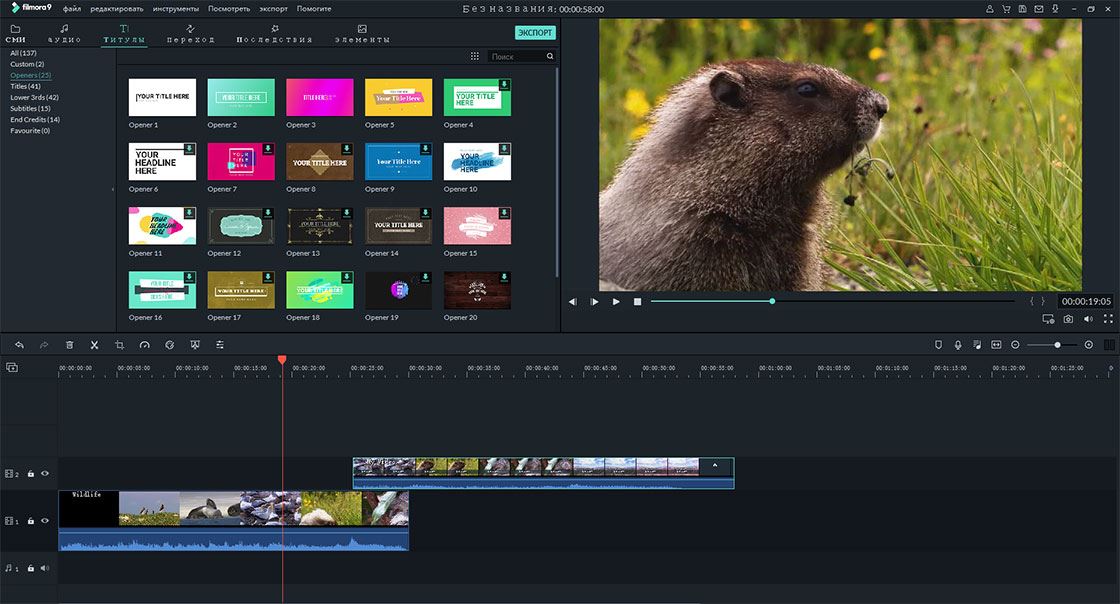
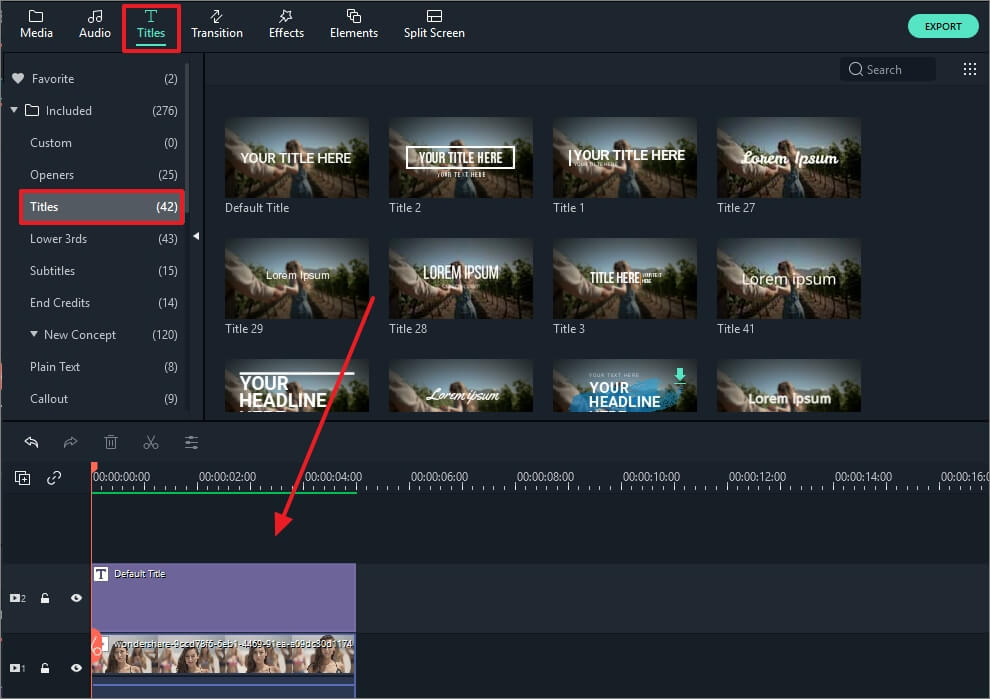
Чтобы добавить текст или титры к видео, нажмите на значок "T (Titles)" над подменю. Как только вы найдете необходимый шаблон текста, перетащите его на временную шкалу.
Там вы можете выбрать шаблон в соответствии с категорией на левой панели, например, вступление, заголовки, субтитры и так далее.
2 Edit Text
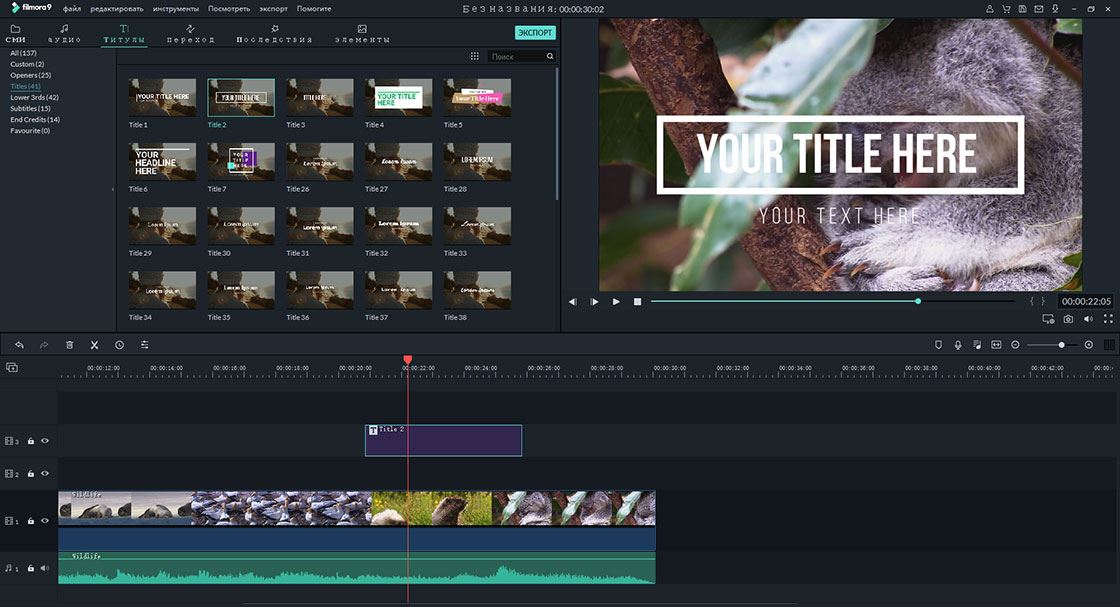
Дважды щелкните на текст, добавленный на временную шкалу, чтобы открыть окно настройки. Там вы можете выбрать предустановленный цвет и шрифт для текста. Или настроить видеоэффекты самостоятельно. Например:
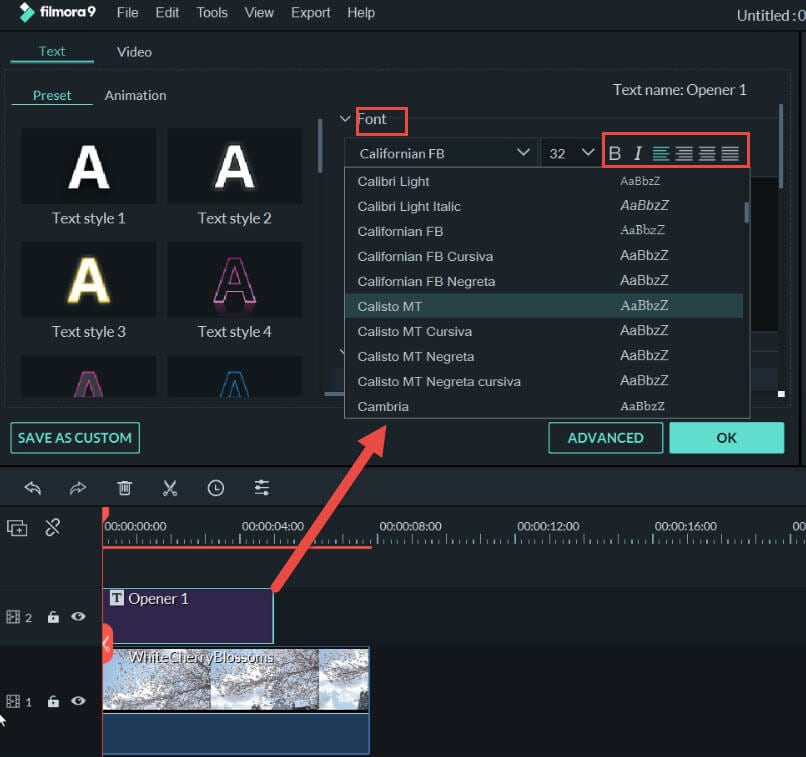
— Выберите стиль шрифта, размер, границы, выравнивание в опции "Шрифт";
— Перейдите в "настройки", чтобы выбрать цвет текста, место, размер строки, текстовый слой и т.д;
— Перейдите к "преобразование" и поверните текст или титры, как вам нравится;
— Перейдите в раздел "Compositing", чтобы выбрать режим смешивания и прозрачность.
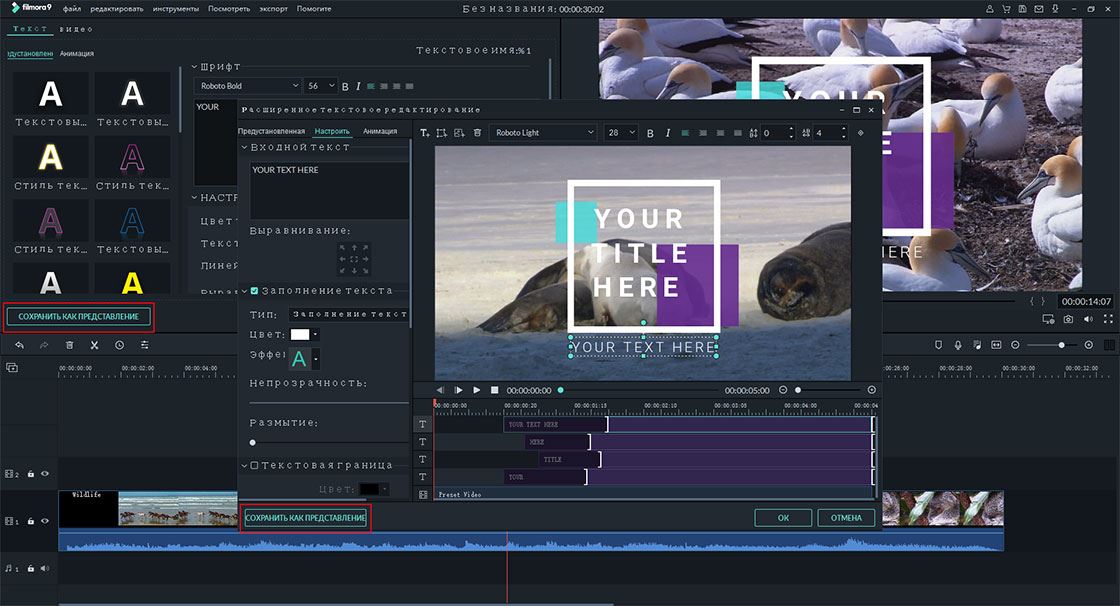
Дополнительные редактирования текста, вы найдете, нажав кнопку "продвинутый", там вы добавите текстовое поле, текст, фигуры, наложение изображения и т. д.

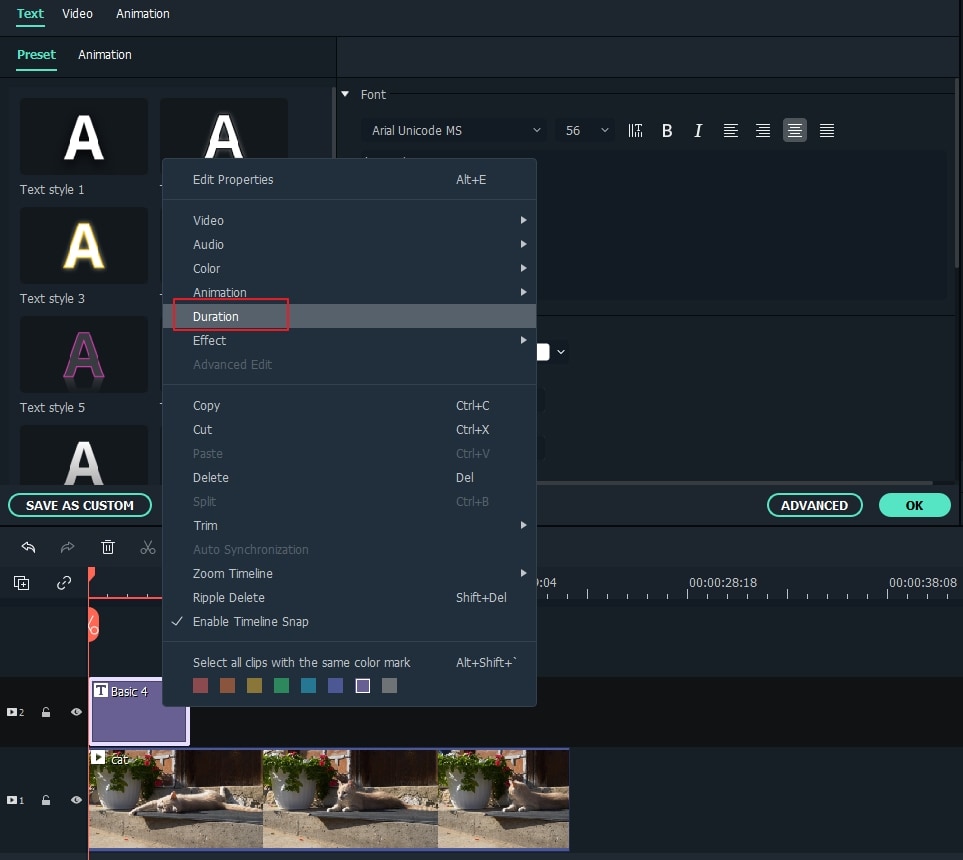
Примечание: Длительность текстового эффекта по умолчанию составляет 5 секунд; вы можете изменить ее, перетащив один из его краев на временной шкале. Или вы можете нажать на значок часов «продолжительность» в верхней части временной шкалы, чтобы ввести новое значение продолжительности.
3 Сохранение настроенных текстовых эффектов в качестве пресетов
Существует два способа сохранения настроенных текстовых эффектов в качестве пресетов:
1. В левом углу панели редактирования текста, щелкнете на кнопку "Сохранить как пресет", после настройки вашего текста . Затем введите название нового пресета и нажмите "OK", чтобы сохранить его.
2. На панели расширенного редактирования текста, после настройки текста, также можно нажать кнопку "Сохранить как пресет".
Новый созданный пресет будет находится в папке "изготовленный на заказ".
4 Удаление текстовых эффектов
Если вы хотите удалить текстовый эффект, вы можете напрямую щелкнуть на заголовок на временной шкале и нажать клавишу "удалять" на клавиатуре. Или щелкните на значок "удалять" на панели инструментов.
How to Add Text to Video Quickly

As we already said besides adding video and image overlay to the main video, you can also add text to the video. Adding text is one of the professional ways to touch your videos. Adding text to the video will allow viewers to watch the video in a noisy environment and get the information as well, which also works perfectly when people hang out on Facebook to watch the muted Autoplay videos in News Feed.
Let’s check the below tutorial about how to add text videos first.
Part 1: How to add text to video in Filmora
While adding text to video will require some video editor software, you can find some online solutions but it’s not difficult and can be completed in a few short steps using video text editor software like Wondershare Filmora. In this article, I will show you all the steps about how to add text overlay to video using Filmora.
Step 1: Import your video files
After launching Filmora, click New Project to enter the main screen. It is recommended to adjust settings such as aspect ratio and frame rates before getting started in the Project Settings window as shown below.
The default aspect ratio is 16:9, you can adjust the aspect ratio based on your needs and change it to 1:1 (for Instagram videos), 4:3, or 9:16 (videos shot vertically).
Click the «Import» button to select and add your video to the media library. For your convenience, you can also directly drag and drop the target video to the collection.

Step 2: Add Videos to Timeline and Locate the Video Frame
Next, you need to drag and drop your video clips from the media library to the timeline panel to edit. Before adding text to the video, you can trim, cut or delete part of the video based on your needs. Then Zoom in the timeline to show the video frame more precisely to locate the frames that should have a text overlay.
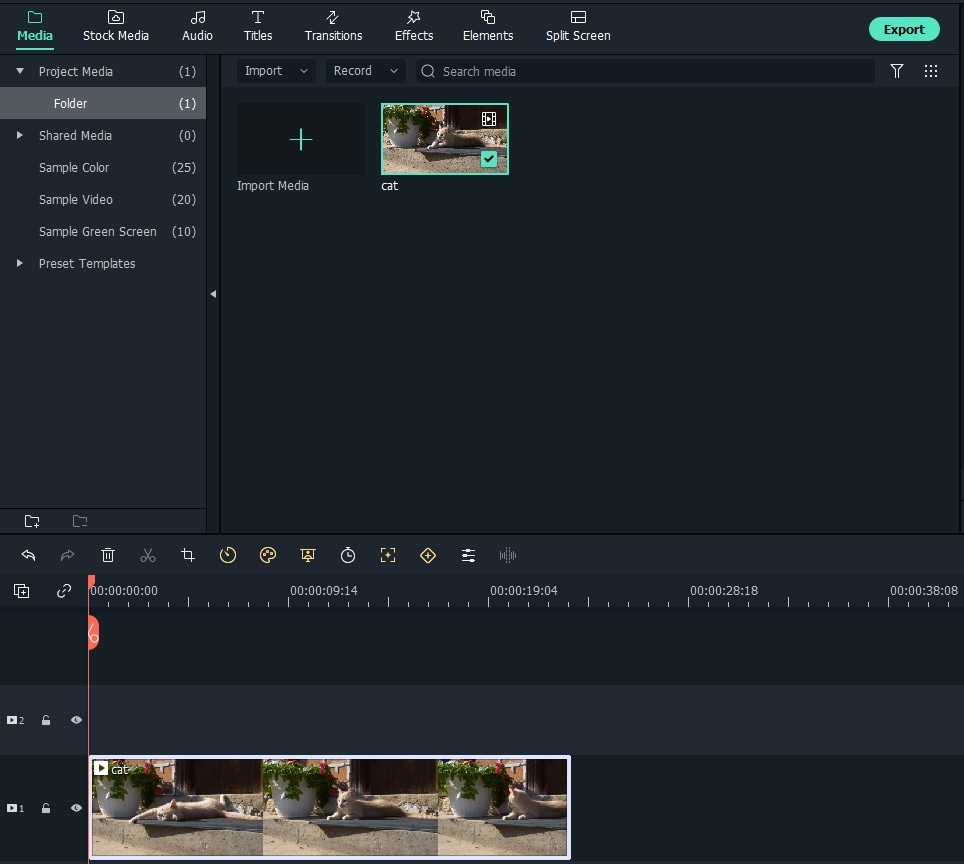
Step 3: Choose Text Presets and Add text
Click the Titles tab to open the Text& Title presets. There are more than 200+ text effects built-in Filmora, which cover various styles such as Lifestyle, media, seasonal, opener, lower 3rd, and end credits. Double click the titles preset to check the result in the Preview window.
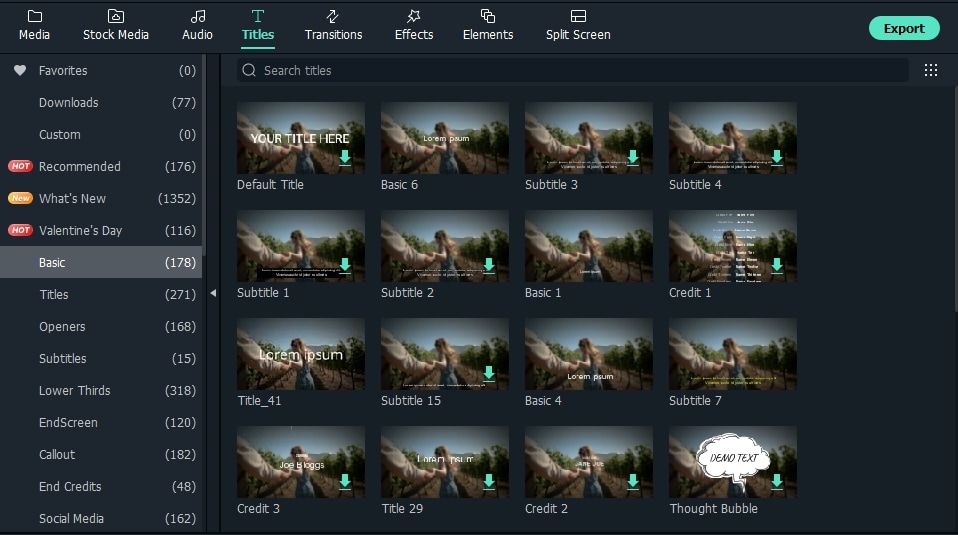
If it fits your needs, place the Playhead to the position where you want to add the text and title in the timeline and then drag and drop it to the track above the video in the timeline.
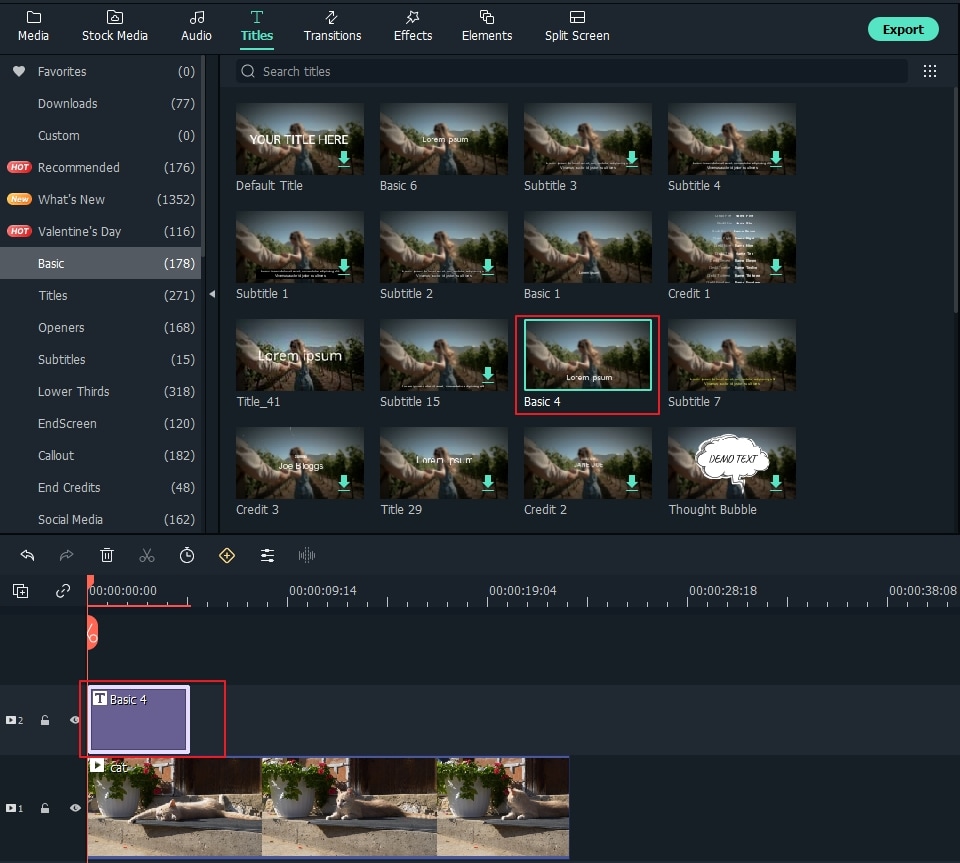
Step 4: Change the Duration of the Text
In Filmora, the default duration of the text overlay is 5 seconds, but you can drag the edge of the text module in the timeline to extend it to fit the length of the video based on your needs. Or, you can select the Text in the timeline first and then click the Timer icon to change the duration of the text effect.
Step 5: Edit and Customize Your Text
Double click the Title frame in the timeline to open a window that allows you to do some basic editing of the titles. Here you can enter the text of your text overlay and change the text font, color, and size.
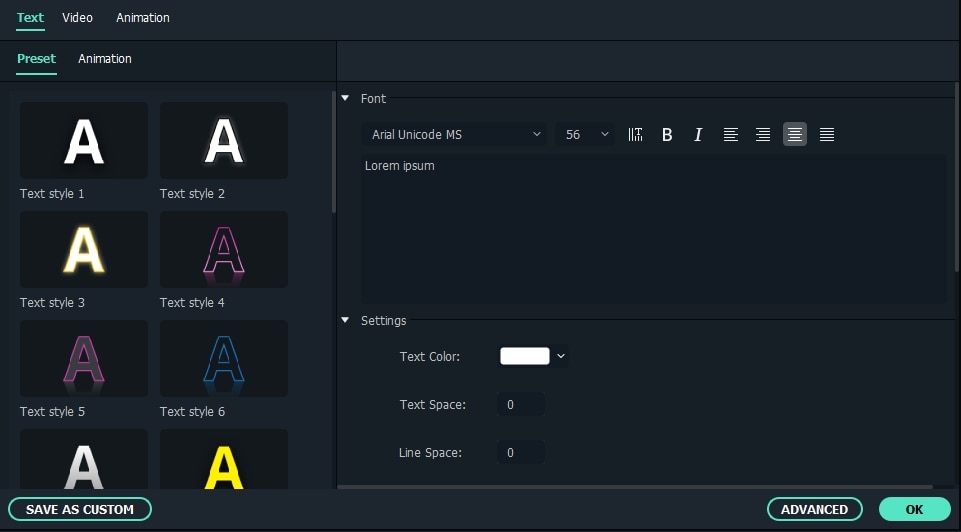
There is more than 20 text effect style for you to choose from. Just double click one Style to apply it in the text overlay and you will see the changes in the Preview window.
You can also click the «Animation» icon to change the animation of your title text overlay or drag and drop the text box in the preview window to change the position.
Advanced Text Editing
To customize the text overlay further, click the Advanced button to open the Advanced Text Edit panel. Here, you can also apply a preset and animation as well as customize the Text Fill, Border, and Shadow elements.
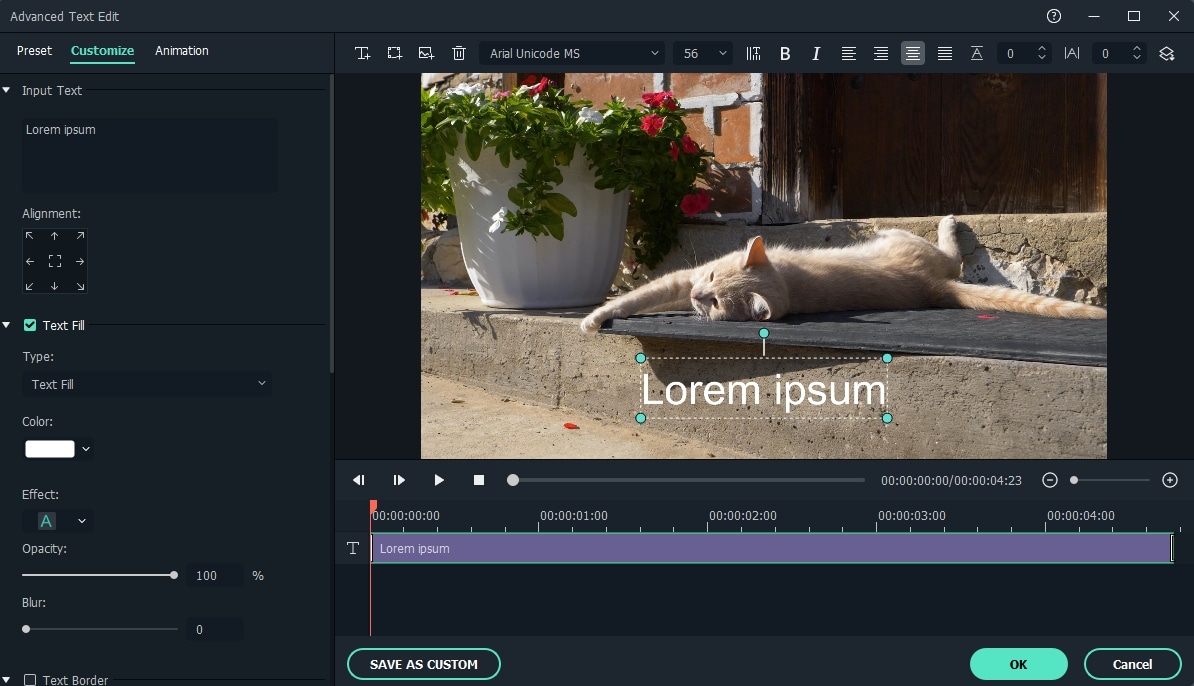
You can add more text boxes to the video as well as new text shapes such as circle, rectangle, round bubble and arrow. Besides that, you can adjust the duration of each text element by dragging the edge of the text in the Text timeline.
Step 6: Export the new video
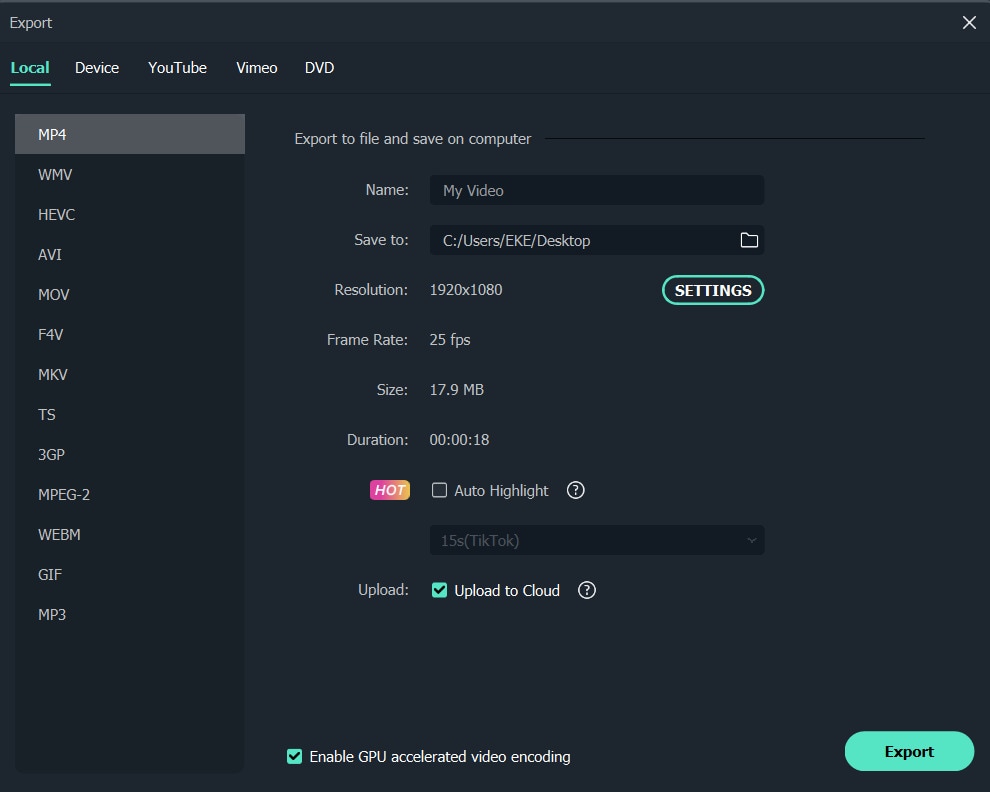
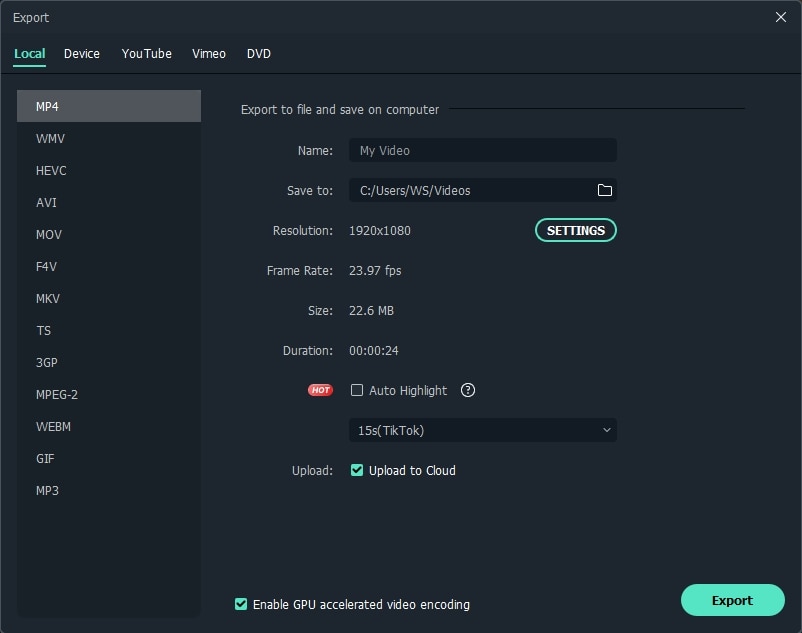
After adding your text overlay, click the “Play” icon to preview the result. If satisfied, click the “Export” button and choose an output format from the list. You can change the video and audio parameters such as Bit Rate, Encoder, Resolution in the advanced settings.
You can also directly upload to YouTube right from Filmora, or the classic way — burn to DVD for watching on your home player. If you want to play on your mobile device, choose the «Devices» tab and select a device such as iPhone, iPad, iPod, Zune, Samsung Galaxy, Xbox and more.
From the video tutorial above we can see that adding text to video is easy, now let me show you how to add text to video step by step.
Part 2: How to add text in video with other software
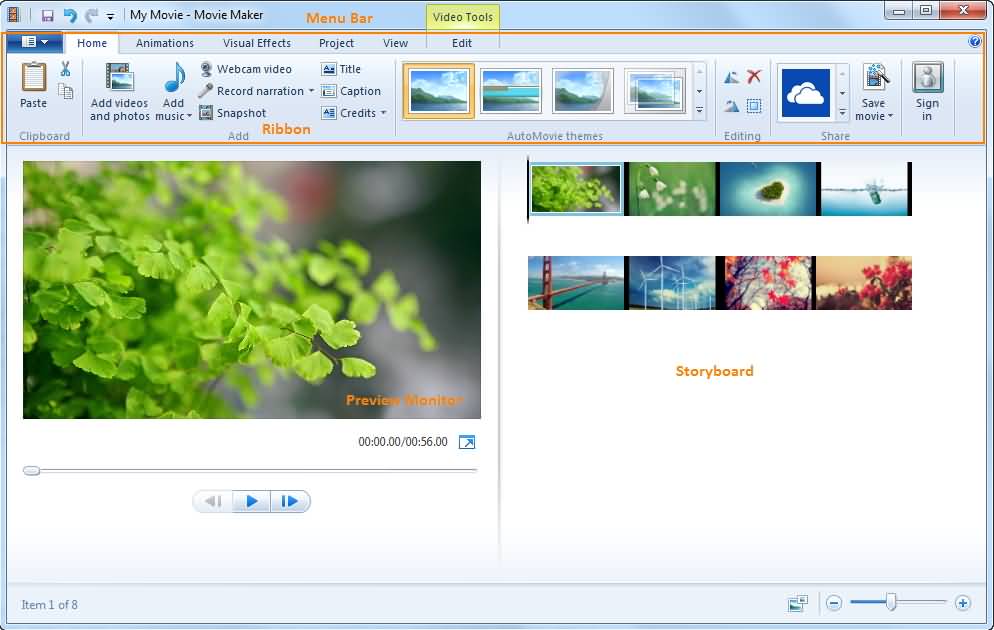
1. Windows Movie Maker
Originally, it is developed by Microsoft and many users use it to add text to video. You can use Windows Movie Maker to add various text templates to videos. It supports changing text size, text font and color. If you like to highlight video message, adding text to video is the best way. You can also add text to the video in a different position. Left or right is at your choice.
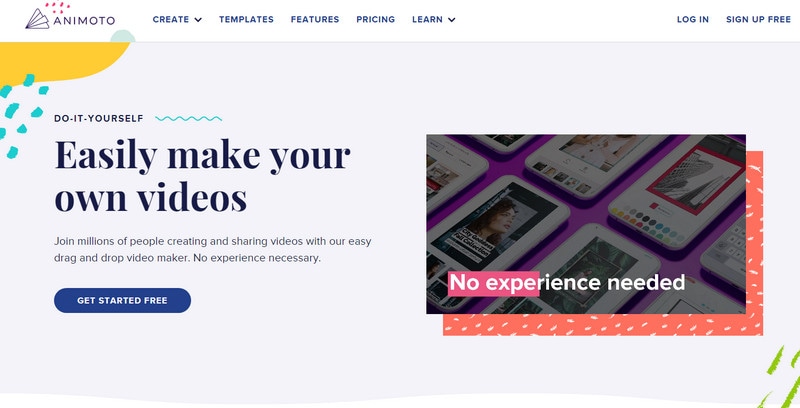
2. Animoto
Animoto is an online tool to add text to videos. Without downloading. You need to log in to import video and add text. You can change text style to make it fit with your video. If your video is young and happy, you should choose some funny text templates to add. All the style is based on your video. You can choose text animations to stand out in your video.
Besides adding text overlay, Filmora has more brilliant editing functions to edit and produce videos inside a wide selection of file kinds with ease for all the users. You can easily trim or split video clips, crop video screen size, apply unique effects to your video files, flip/rotate them horizontally or vertically. Now download and try it out!
Тексты и Заголовки: Как добавить Заголовки, Тексты и Титры к Видео
Filmora поставляется с мощными, но простыми в использовании инструментами редактирования текста, которые помогут вам легко добавлять заголовки к видео. Пошаговая инструкция по добавлению субтитров, третьих заголовков, вступлений или финальных титров к видео.

Мария Матвеева
Время обновления: 23 Mar 2023 г.
Добавление текста к видео в качестве водяного знака или использование подписей, текста, вступления или титров поможет вам легко рассказать свою историю с помощью видео. Вы можете добавить текст к видео с помощью некоторых онлайн-инструментов, но там всегда будут ограничения по размеру и функциям. Тогда как в этой статье я рекомендую вам добавлять текст, конечные титры, вступительные видеоролики и нижние третьи субтитры с помощью Wondershare Filmora, потому что вы можете использовать эту программу независимо от того, работаете ли вы на компьютере Windows или Mac.
Filmora пооставляется с мощными, но простыми в использовании инструментами редактирования текста, которые помогут вам легко добавлять заголовки к видео. Эта статья покажет вам, как добавлять заголовки и вступления/титры к видео с помощью Wondershare Filmora.
Вам Также Может Понравиться: Как Добавить Текст в Видео YouTube До или После Загрузки >>
Часть 1: Добавление Текста к Видео
Вы можете легко добавлять текст к видео с помощью Filmora. После добавления вы также можете изменить шрифт, размер, цвет текста и так далее. Filmora имеет более 100 текстовых предустановок. С Filmora ваше видео будет выглядеть более привлекательно. Прежде чем мы начнем, сначала загрузите его ниже.
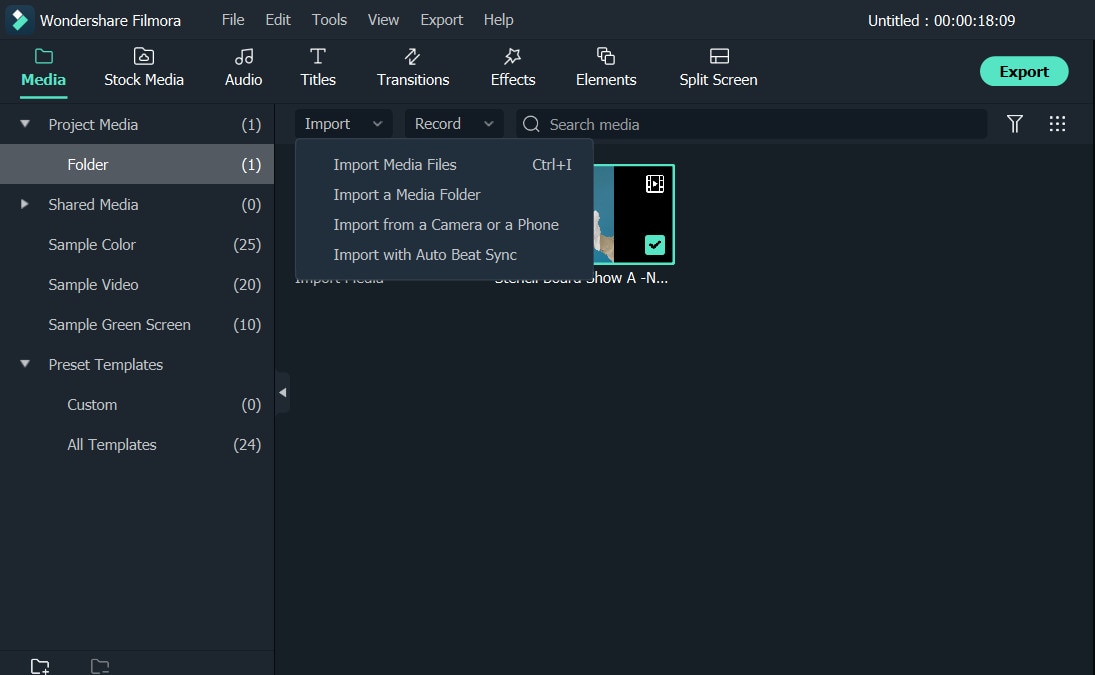
1. Импортируйте и добавьте видео на временную шкалу
Перед добавлением видео на временную шкалу вам необходимо импортировать видео в медиатеку. Таким образом, все ваши изменения не будут применяться к исходным видео, что обеспечит их безопасность. Чтобы добавить текст и заголовки к видео, сначала перетащите видео из медиатеки на временную шкалу.
2. Примените текстовый шаблон и введите текст
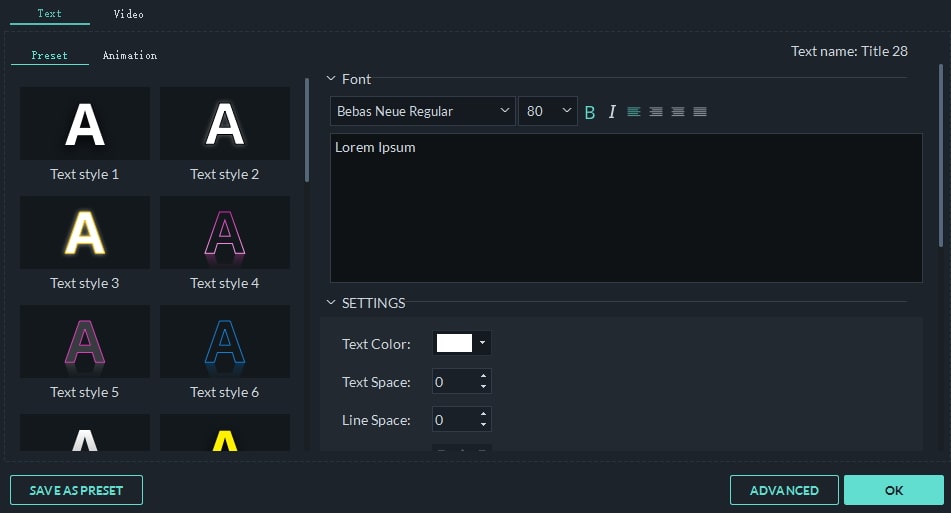
Щелкните Заголовки вверху, и на левой панели вы увидите более 100 текстовых шаблонов. Предустановки текста и заголовка включают в себя вступление, конечные титры, подзаголовки, субтитры нижней трети, а также некоторые специальные эффекты заголовков для особых событий. Дважды щелкните эффект предустановленного текста в библиотеке и проверьте этот эффект в окне предварительного просмотра. Перетащите целевой текстовый шаблон на временную шкалу, и вы увидите эскиз текста с ведущей буквой «T». Двойной щелчок по миниатюре текста откроет панель текстового редактора, где вы можете ввести текст, а затем выбрать шрифт, цвет, анимацию и так далее. Предустановленные стили также включены.
В настройках Базового Текста вы можете изменить шрифт, цвет, выравнивание и размер текста и заголовков или выбрать один из стилей текста из встроенной библиотеки стилей текста, а также применить анимацию к тексту и заголовкам. Вы также можете сохранить настройки в качестве предустановки и с легкостью использовать текстовый эффект в будущем.
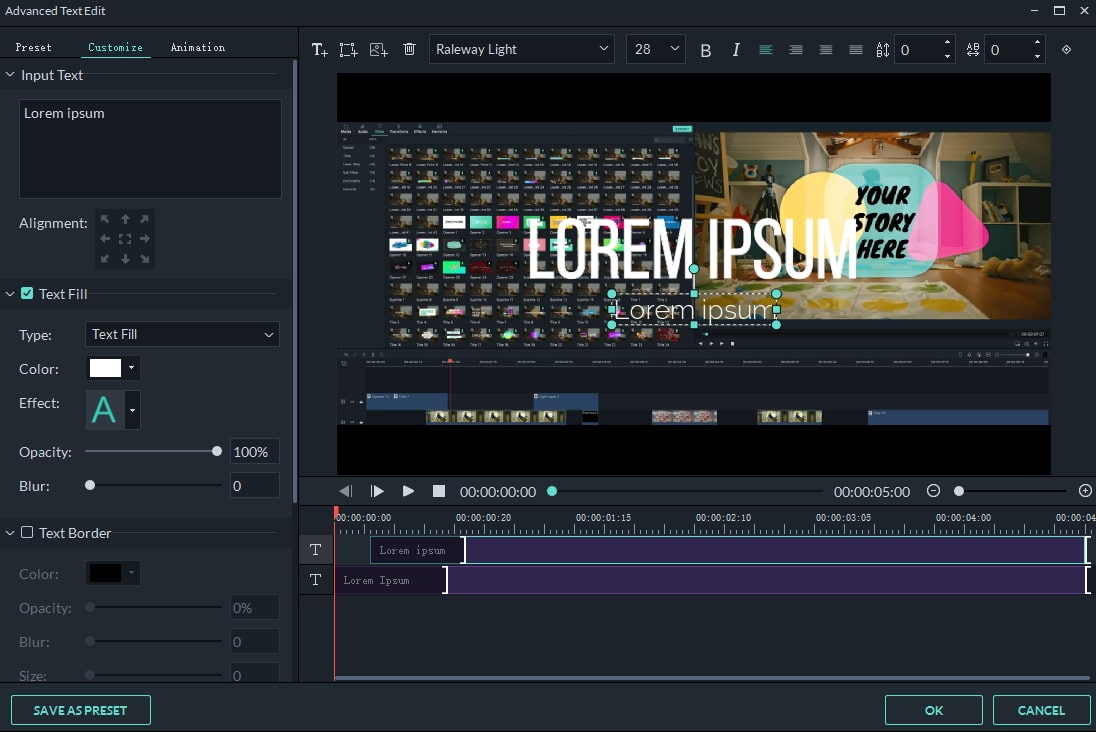
Filmora также предоставляет расширенную панель редактирования текста, в которой вы можете дополнительно настроить текст и эффекты заголовка. Вы даже можете добавить в видео больше текстовых полей различной формы и настроить текстовую заливку, границу и тень. Вы также можете внести изменения в продолжительность каждого текстового элемента, чтобы изменить скорость воспроизведения текстового эффекта.
Обратите внимание: Когда вы перетаскиваете текстовый шаблон в существующий, оригинал будет автоматически разделен, а новый будет вставлен в текущую позицию. Кстати, после того, как вы перетащите текстовый шаблон на шкалу времени, вы можете просмотреть весь текстовый эффект в окне предварительного просмотра.
3. Настройте текст в видео
На временной шкале вы можете переместить добавленный заголовок в любое место и позволить ему отображаться в указанное время. Также перетащите край миниатюры текста, чтобы изменить продолжительность текстового эффекта.
Чтобы удалить видео-заголовок, выберите его и нажмите кнопку Удалить над шкалой времени или просто нажмите клавишу Удалить на клавиатуре, либо щелкните правой кнопкой мыши, чтобы выбрать Удалить.
Часть 2: Добавление Вступительных Титров к Видео
Вступительные титры больше схожи на комбинацию заголовков и фото. Фактически, вы можете добавить их где угодно на видеодорожке временной шкалы. Они помогают вам создавать главы и привлекательные вступительные ролики, а также список актеров.
1. Перетащите шаблон вступительных титров
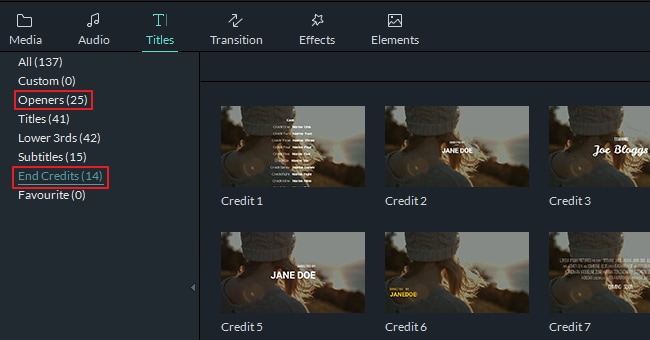
В настоящее время Filmora предоставляет более 20+ текстовых шаблонов вступительных титров, а также 14 текстовых шаблонов заключительных титров. Как и при добавлении заголовков, вы можете просто перетащить шаблон на вкладке «Вступление» на видеодорожку временной шкалы. Если вы поместите его на существующее видео/фото, то исходное видео/фото будет разделено, и вступительные титры будут вставлены в указанное место.
2. Измените текст и выполните настройки
Теперь дважды щелкните текст или фотографию для редактирования Вступительных титров. Для заголовков Вступления вы можете изменить текст, шрифт, цвет, анимацию и так далее. Для фотографии используются встроенные инструменты редактирования, включая поворот, кадрирование, яркость, контрастность, насыщенность, оттенок и движение.
На временной шкале переместите текст/фотографию и увеличьте их продолжительность, как описано выше.
3. Экспортируйте видео с заголовками
После завершения добавления текста к видео нажмите ЭКСПОРТ и вы получите пять способов вывода видео: локальный, на устройство, YouTube, Vimeo и DVD. Что касается устройства и формата, то поддерживаются все популярные устройства и форматы (если вы не можете найти подходящее устройство, вы можете попытаться сохранить в подходящих форматах, которые могут поддерживать ваше устройство). Кроме того, удобно напрямую загружать видео с текстом на YouTube или записывать на DVD без использования сторонних инструментов записи DVD.
Вывод
Добавлять названия и вступления к вашему видео так просто. Независимо от того, хотите ли вы добавить к видео несколько субтитров, третьих заголовков, вступлений или заключительных титров, вы можете легко добиться этого с помощью Filmora, просто перетаскивая их. Подробные инструкции по добавлению текста в видео вы можете найти в нашем руководстве по Тексту и Заголовкам. Почему бы не скачать Wondershare Filmora, чтобы попробовать прямо сейчас!
Filmora9 User Guide for Windows
Filmora9 (Latest Filmora version 9) makes it easy to create the text & titles that match your style. You can even add animated text effects like dialog balloons. Captions, lower 3rds,subtitles, openers, and end credits are among the text options available in Filmora9.
In this guide you will learn how to:
- Add Text
- Edit Text Effects
- Save Customized Text Effects as Presets
- Remove a Title
1. Add a Text to Your Video
You can add a title to your video easily using one of the customizable premade Title templates in Filmora9.
Go to the Titiles tab, and find the title you’re interested in. You can see what the title looks like in the Preview window before adding it to your video. After that, you can drag it from the Titles library and drop it into the timeline panel. You can also right click on the title effect you want and select Apply to add it to the timeline.
You can add titles to your Favorite menu to find them again easily. To favorite a Title effect, right click the target title and select Add to Favorite.
To Apply Openers and End Credits
To add an Opener (also called an Intro) go to the Openers menu under Titles, and right click on the Opener you want to add. Select Apply and the Opener will be added to a new video track.

To add End Credits, go to End Credits under Titles and right click on the credits you want. Then, select Apply from the submenu.
2. Edit Title Effects
The default duration of a text effect is 5 seconds. To change the duration of a text effect, drag one of its edges in the timeline. Or you can also select the text in the timeline and click the duration icon to set a new duration.

To change the default duration of all effects, go to File-> Settings -> Effect Duration.
To edit a title effect, double click on it in the timeline to open the Text editing panel. From here you can change the style (font, size, color, alignment, etc) and animation of your text.
To Change the Style (Font, Size, Color, Etc.) of Text Effects
In the Style tab you can change the font, input your words, and adjust other settings.
Filmora9 can recognize any font installed on your computer, including new fonts you might have downloaded from websites like Google Font. If you install a new font while Filmora9 is open, you will need to close and re-start Filmora9 to see it.
Besides choosing a font in this menu, you can make titles bold, italicize them, add boarders or shadows, and adjust the placement and alignment of your text.
To rotate a title, go to Transform and then drag the Rotate slider or enter a numerical value to rotate the title to any angle.
To resize a text box, drag the circles around or change the Scale settings under Transform.
To change the title position, you can drag the text box in the Preview window to any position, or enter values for the X and Y axis in the Transform section.
To Apply Text Animations
There are 80+ animation presets available in Filmora. Switch to the Animation tab in the Text Editing panel, double click on the animation you want to try, and watch the Preview window to see what it looks like. Click OK to apply the animation to your title.
Advanced Title Editing
To edit your text in even more ways, click the Advanced button to enter the Advanced Text Edit panel.

In the Advanced Text Edit panel, you can add more elements to a premade title effect such as new text boxes, shapes, or images.
In the left upper corner of the preview window in the panel:
- Click the
 icon to add a new text box.
 - Click the
 icon to add a shape such as an arrow, light bulb, circle, or triangle.
 - Click the
 icon to add an image.
To change the duration of any type of element you add, drag its edge in the Advanced Text Edit timeline.
You can customize your text effects in the Advanced Text Edit panel in the following ways: font, color, animation, opacity, fill, border (color and size), and shadow (style, color, and size).
3. Save Customized Text Effects as Presets
Filmora9 allows you to save customized text effects as presets for quick use in the future from both the Text Edit panel and the Advanced Text Edit panel.
- In Text Edit panel, after customizing your text (changing the font, size, color, position, or animation), click Save as Preset.
- In the pop-up Preset Dialog window, enter a name for your new preset and click OK to save it.
While in the Advanced Text Edit panel, you can save presets the same way: by clicking the Save as Preset button.
4. Remove a Title
To remove a title effect, just select it in the timeline and hit the Delete key on your keyboard. , You can also click the delete icon in the toolbar, or right-click on the title and choose Delete.