How Do I View A PNG File in Linux
Being a popular and fantastic operating system, Linux provides a collection of tools and utilities for viewing and editing images. This tutorial discusses various ways to view a popular image format, PNG, in Linux.
What is a PNG file?
Portable Network Graphics, or PNG for short, is an image format that uses a 24-bit color system. It is ideal for storing digital art such as flat images, icons, and logos. PNG is a popular image format supported by a wide range of tools.
Advantages of PNG
The following are advantages of using the PNG file format:
- PNG uses lossless compression, thereby preserving image quality.
- It is suitable for digital media, making it ideal to use on web pages.
- It uses 24-bit color, which supports over 16 million colors.
Disadvantages of PNG
Disadvantages of using PNG format include:
- Large file size
- Not well suited for photographic images.
How to Open A PNG file in Linux
The Linux operating system has a wide selection of tools you can use to open a PNG file.
However, due to the scope of this guide, we will only list the best ones based on our experience.
gThumb
gThumb is a lightweight and open-source image browser, manager, viewer, and editor. It allows users to perform various image operations in one tool.
To install it, use the command:
To launch the tool, use the gnome-search:
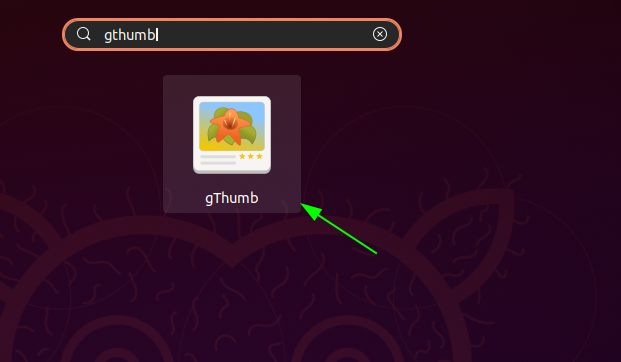
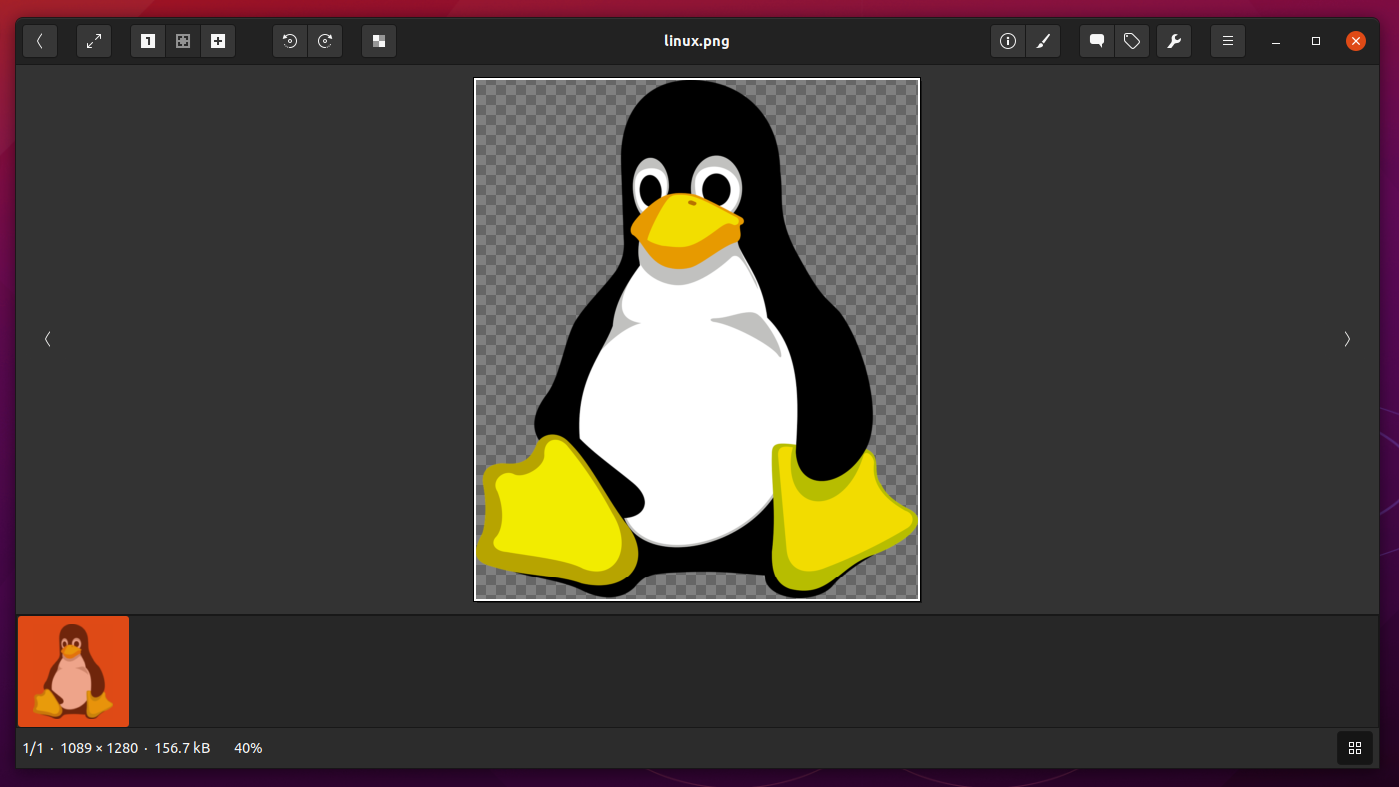
gThumb will launch in the Pictures directory. You can navigate the filesystem to the location of the image you want to view.
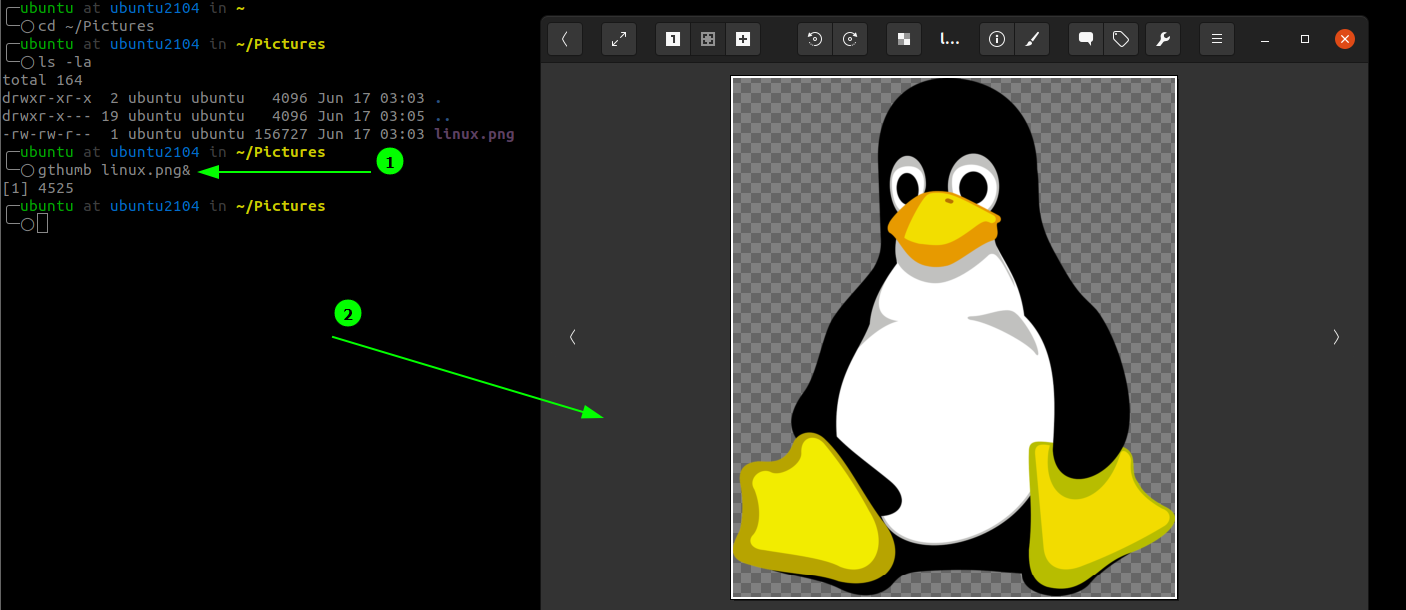
To launch the image from the terminal with gThumb, use the command:
NOTE: Replace the linux.png with the name of the png file you want to open.
Shotwell
Shotwell is a simple photo manager that comes pre-installed with Ubuntu systems.
It supports image imports, image organization, basic editing such as rotation, cropping, enhancing, and more.
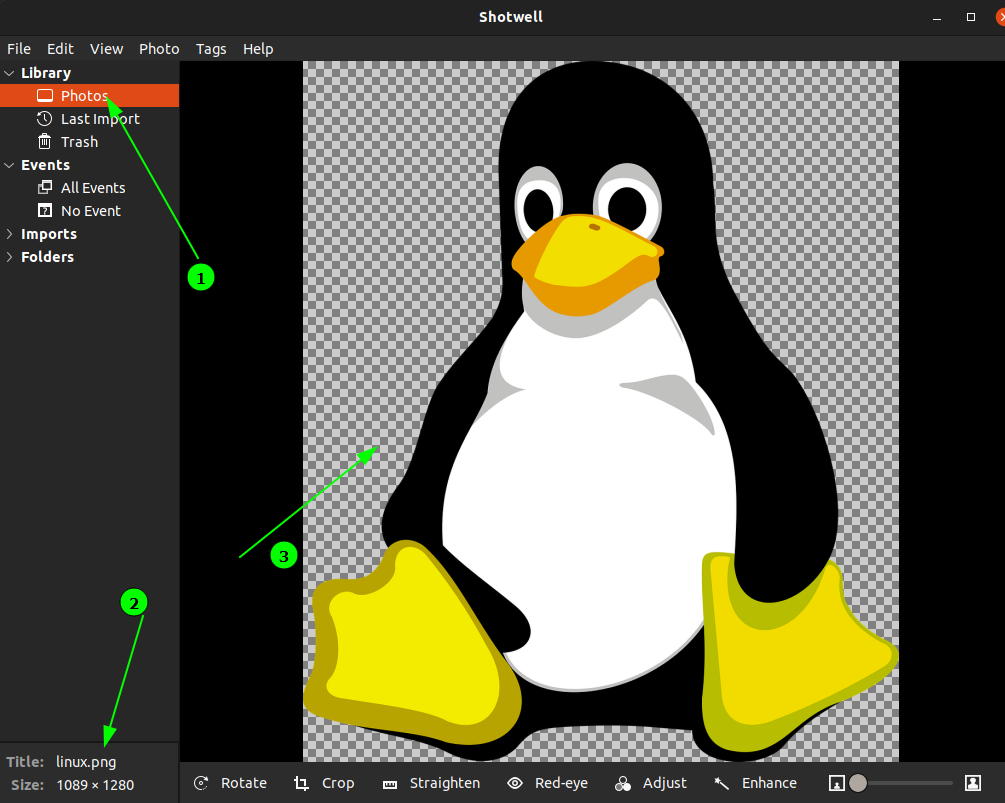
To open a PNG image with Shotwell, search for the tool in the gnome-search tool and launch. This will import all images in the Pictures directory.
To open a specific tool, double-click the image from the list.
For terminal users, feh is a great tool to view PNG files. It is a lightweight and straightforward tool that uses command-line arguments.
To install it on Linux, use the command
To view a PNG image with feh, pass the file name as:
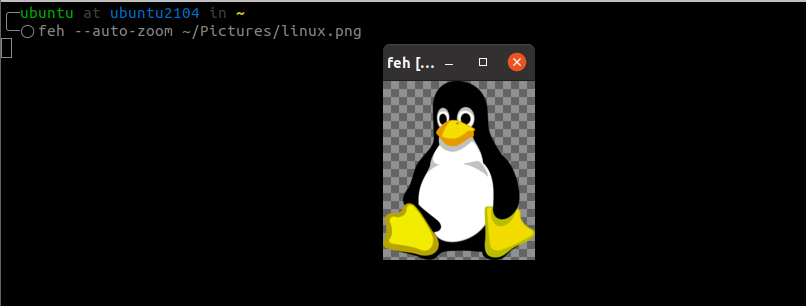
Feh will launch the image and window size respective to the image size. To control image display and how the tool works, consider the feh manual pages.
Nomacs
Nomacs is another popular tool you can use to view PNG images in Linux. It is free, open-source, and supports all major image formats.
To install nomacs on Linux, use the command:
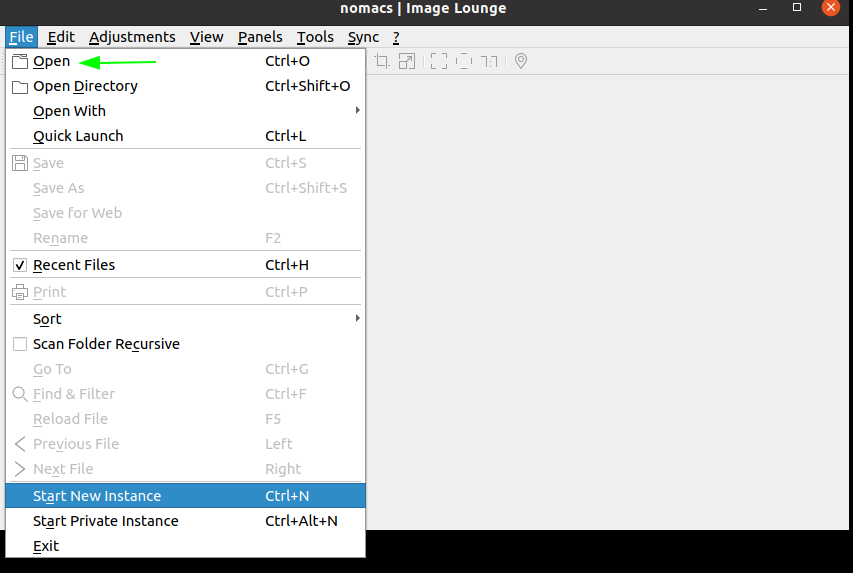
To view a PNG image with nomacs, launch the tool. Then, in the top menu, select Open and navigate to the image location.
Conclusion
There is a vast collection of tools you can use to view and edit PNG images. The best image viewer to use depends on the necessity; if you are a terminal user, stick to terminal-based image viewers.
About the author

John Otieno
My name is John and am a fellow geek like you. I am passionate about all things computers from Hardware, Operating systems to Programming. My dream is to share my knowledge with the world and help out fellow geeks. Follow my content by subscribing to LinuxHint mailing list
Как просмотреть файл PNG в Linux
С момента изобретения первой камеры в 1888 году изображения и фотографии играют жизненно важную роль в передаче информации и хранении свидетельств событий. С появлением современных технологий и социальных сетей хранение, просмотр и редактирование изображений стало как никогда важным.
Будучи популярной и фантастической операционной системой, Linux предоставляет набор инструментов и утилит для просмотра и редактирования изображений. В этом руководстве обсуждаются различные способы просмотра популярного формата изображений PNG в Linux.
Что такое PNG-файл?
Portable Network Graphics, или сокращенно PNG, представляет собой формат изображения, использующий 24-битную систему цвета. Он идеально подходит для хранения цифровых изображений, таких как плоские изображения, значки и логотипы. PNG — популярный формат изображений, поддерживаемый широким спектром инструментов.
Преимущества PNG
Ниже приведены преимущества использования формата файла PNG:
PNG использует сжатие без потерь, тем самым сохраняя качество изображения.
Он подходит для цифровых носителей, что делает его идеальным для использования на веб-страницах.
Он использует 24-битный цвет, который поддерживает более 16 миллионов цветов.
Недостатки PNG
К недостаткам использования формата PNG относятся:
Большой размер файла
Не очень подходит для фотографических изображений.
Как открыть файл PNG в Linux
Операционная система Linux имеет широкий набор инструментов, которые можно использовать для открытия файла PNG.
Однако из-за объема этого руководства мы перечислим только лучшие из них, основанные на нашем опыте.
gбольшой палец
gThumb — это легкий браузер изображений с открытым исходным кодом, менеджер, просмотрщик и редактор. Это позволяет пользователям выполнять различные операции с изображениями в одном инструменте.
Для его установки используйте команду:
Чтобы запустить инструмент, используйте gnome-search:

gThumb запустится в каталоге изображений. Вы можете перемещаться по файловой системе к расположению изображения, которое хотите просмотреть.

Чтобы запустить образ из терминала с помощью gThumb, используйте команду:
ПРИМЕЧАНИЕ. Замените linux.png именем файла png, который вы хотите открыть.

Шотвелл
Shotwell — это простой менеджер фотографий, который предустановлен в системах Ubuntu.
Он поддерживает импорт изображений, организацию изображений, базовое редактирование, такое как поворот, обрезка, улучшение и многое другое.
Чтобы открыть изображение PNG с помощью Shotwell, найдите инструмент в инструменте поиска gnome и запустите. Это приведет к импорту всех изображений в каталоге изображений.
Чтобы открыть определенный инструмент, дважды щелкните изображение в списке.

Для пользователей терминалов feh — отличный инструмент для просмотра файлов PNG. Это легкий и простой инструмент, использующий аргументы командной строки.
Чтобы установить его в Linux, используйте команду
Чтобы просмотреть изображение PNG с помощью feh, передайте имя файла как:

Feh запустит изображение и размер окна, соответствующие размеру изображения. Чтобы управлять отображением изображения и тем, как работает инструмент, рассмотрите несколько справочных страниц.
Номаки
Nomacs — еще один популярный инструмент, который вы можете использовать для просмотра изображений PNG в Linux. Он бесплатный, с открытым исходным кодом и поддерживает все основные форматы изображений.
Чтобы установить nomacs в Linux, используйте команду:
Чтобы просмотреть изображение PNG с помощью nomacs, запустите инструмент. Затем в верхнем меню выберите «Открыть» и перейдите к расположению изображения.

Заключение
Существует обширная коллекция инструментов, которые вы можете использовать для просмотра и редактирования изображений PNG. Выбор лучшего средства просмотра изображений зависит от необходимости; если вы являетесь пользователем терминала, придерживайтесь программ просмотра изображений на базе терминала.
View Images from the Terminal in Linux
The open-source community offers plenty of image viewers for both raster and vector graphics, ranging from lightweight image viewers to highly configurable graphics manipulation programs.
In this article, we’ll be going through several tools for the sole purpose of viewing images from the Linux command line.
2. feh
feh is a minimal tool for viewing raster images from the command line. We don’t need any fancy desktop environments or window managers for it to run because it only uses the X Window System. By default, it doesn’t ship with most Linux distributions, so we’ll need to install it ourselves.
2.1. Installation
The feh package should be available in our package repository, so we can install it through apt or yum. Once feh is installed, we can verify it through:
2.2. Using feh
Using feh is dead simple. We merely type feh followed by a path(s):
Let’s open an image:
Alternatively, we can also provide multiple paths or a directory:
Moreover, we can also view image(s) using a URL:
feh doesn’t have any GUI controls, but we can use left and right arrow keys to navigate through images. For zooming in and out, we can use the up and down arrow keys.
3. sxiv
sxiv is a lightweight and extendable image viewer. It stands for Simple X Image Viewer.
3.1. Installation
The sxiv package is available in most official package repositories. As usual, we can install the package with apt or yum. Once installed, go ahead and verify that sxiv has been installed successfully:
3.2. Using sxiv
We can use sxiv the same way we use feh:
sxiv has built-in GIF support as well:
The -A flag stands for animate, which expects the FPS value. Therefore, the above image will display 10 frames per second. Like feh, we can also feed a directory to sxiv:
- The -f flag will start sxiv in full-screen mode
- The -S argument will start the viewer in the slideshow mode with a five-second delay between images
Alternatively, we can use the mouse to navigate through images and + / – keys for zooming in and out.
4. ImageMagick
ImageMagick is a collection of tools for carrying out operations on raster images. It comes with a lot of handy utilities that we can use independently.
4.1. Installation
Some of the Linux distributions come with ImageMagick pre-installed. However, we can search and install the imagemagick package if it’s not installed using apt or yum. Let’s verify that imagemagick has been installed successfully:
4.2. Using ImageMagick’s display Tool
ImageMagick comes with a display utility that we can use to display our images:
We can give display any number of image paths to display in sequence:
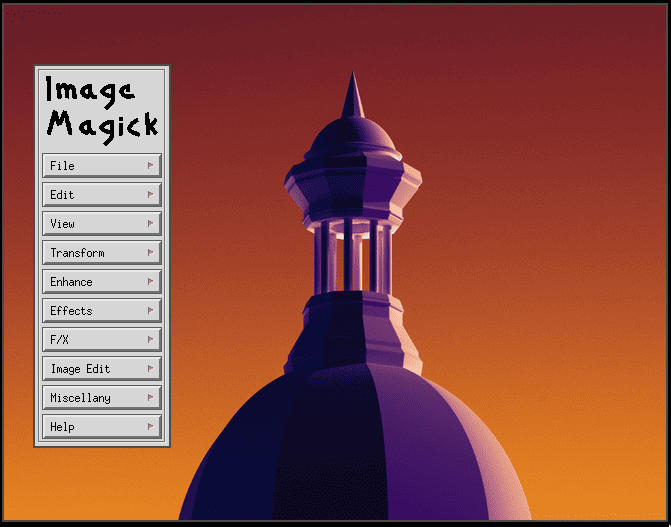
It also comes with a classic user interface that we can use to carry out a variety of image operations. For instance, if we want to rotate the image, we can simply press the mouse button over the image and select Transform > Rotate Right.
5. Terminal Image Viewer
Terminal Image Viewer is a fun tool that displays images inside modern terminals. While it’s not available in most package repositories, we can compile and install it ourselves using g++ and make.
5.1. Installing tiv
We’ll start by cloning the official repository using git:
Next up, we’re going to compile it and then install it, which requires both g++ and make to be installed on our machine:
5.2. Using tiv
Once installed, we can view the images inside our terminal using the following syntax:
By default, it expects only a single file path. Nevertheless, we can specify multiple paths by providing the -f flag:
Furthermore, we can also specify the line size and character size using the -h and -w flags, respectively:
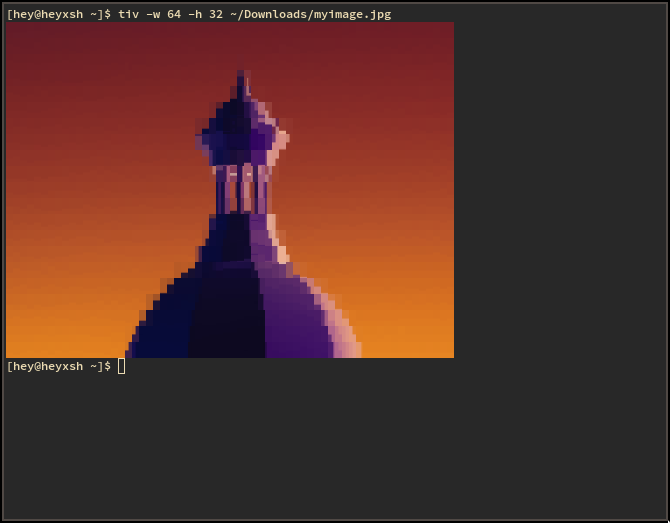
6. ranger File Manager
ranger is a powerful TUI file manager that is also capable of previewing images inside the terminal.
6.1. Installing ranger
The ranger package is available on most package repositories. However, we can use the pip tool to install it. Since Python is installed on most Linux machines, we’ll use pip to install the latest version of ranger:
Once ranger is installed, verify it by running the following command:
Now that we have ranger installed, we need one more additional package called w3m for the image previews to work. The w3m package is available in most official repositories and can be installed with yum or apt.
6.2. Using ranger
To launch ranger, simply type the ranger command:
After it starts, we can navigate to our images directory with the h, j, k, and l keys. Once we highlight the image we want to preview, we can notice that it doesn’t quite work the way we expected. That’s because ranger has image previews disabled by default.
Like Vim, Ranger has a command-mode feature, through which we configure the behavior of the file manager. Simply press the “:” key to enter command mode, then type in the command to enable image previews:
If we’d like the configuration to persist, we can simply save it in the
Now, we’ll be able to preview our images inside ranger.
Additionally, we can install the ueberzug package from the Python Package Index repository if we run into issues with w3m.
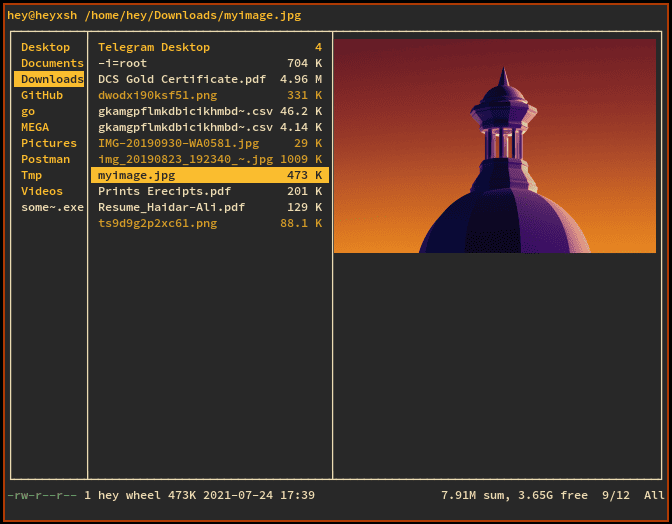
7. Using the Browser as Image Viewer
Modern browsers are capable of viewing images, though it consumes more resources if we want to view an image. Therefore, it should be our last resort. For Mozilla Firefox, type the firefox command followed by the image path:
In the same way, for other browsers, we can use the appropriate browser name followed by the image path:
8. GUI Image Viewers
Most desktop environments such as GNOME, KDE, and XFCE come with image viewers as goodies. If we’re using a desktop environment, we can simply launch the image viewer package from the command line. For instance, on GNOME, we can use eog:
Similarly, for other desktop environments, we can enter the program name followed by image path(s) or directory:
9. The xdg-open Tool
Sometimes on Linux, we might not be sure what kind of image viewer is installed on our Linux system. For that reason, we can use the xdg-open tool, which will open the image in our preferred program:
However, if it doesn’t find an appropriate program to process the file, it will exit with status code 3.
10. Conclusion
In this article, we looked at different tools we can use to open images from our command line.
We went through several tools, which are specifically designed for command-line. Next, we looked at using the ranger file manager and also using browsers to open image files. Finally, we got familiar with the helper utility xdg-open.
How To View A PNG File in Linux?
A PNG (Portable Network Graphics) file is a type of image file that utilizes lossless compression, which means that it can retain the full quality of the original image while still reducing its file size. One of the key features of PNG files is that they support transparent backgrounds, which makes them well-suited for use on websites and other online platforms.
This post will enlist the possible methods to view PNG files in Linux.
- Using any Web Browser
- Using the feh Image Viewer
- Using the eog Image Viewer
- Using a GIMP Image Editor
View PNG File Using any Web Browser
First, open the web browser and then drag the PNG file into the browser window. You will be able to see the content as shown below:
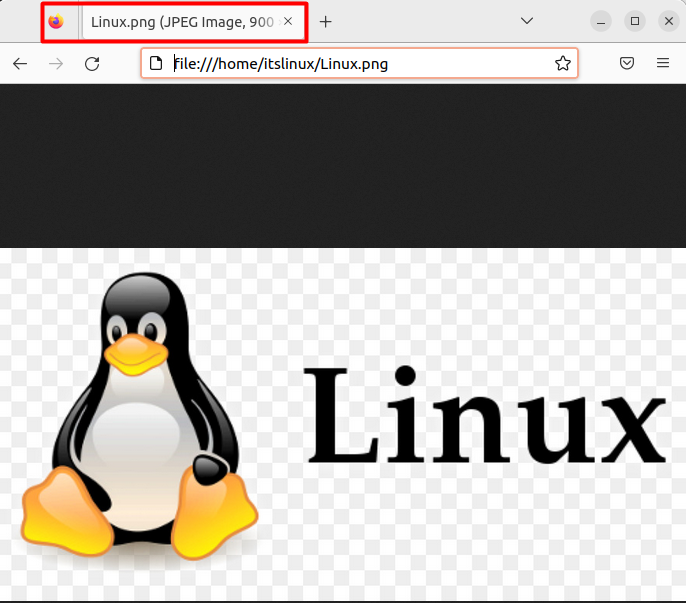
View the PNG File Using the feh Image Viewer
Linux also provides command-line tools that can be used to view PNG files, and for that, the “feh” (Fast Light Image Viewer) is considered to be the most popular tool.
Installing feh Image Viewer on Linux
This tool isn’t pre-installed in the Linux operating system. You must install it by typing any of the following commands depending on your distros.

View PNG
We have a PNG file with the name “Linux.png” so to view it, you need to type the below command in the terminal:

By executing the above command, the following image will be opened for us.
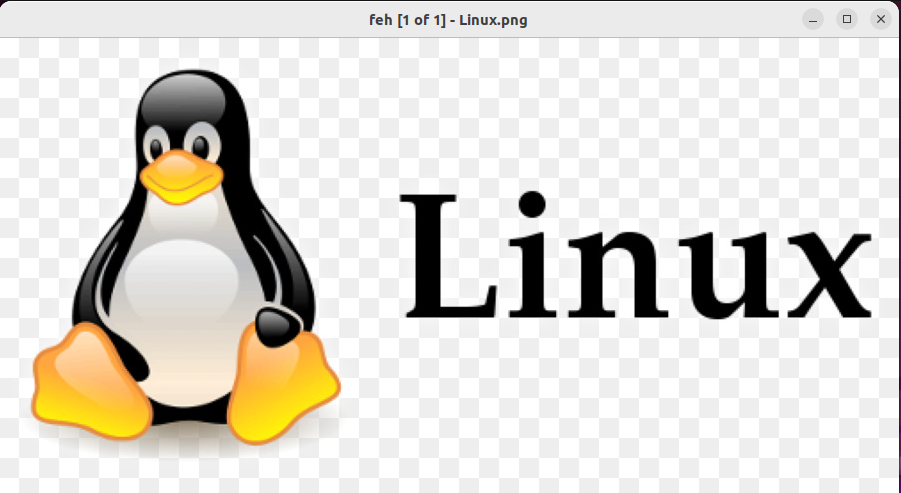
View the PNG File Using the eog Image Viewer
There is another image viewer available for Linux with the name eog (Eye of Gnome), which has a more polished user interface than the feh.
Installing the eog Image Viewer
To install this useful utility, run the command as per your Linux distributions:
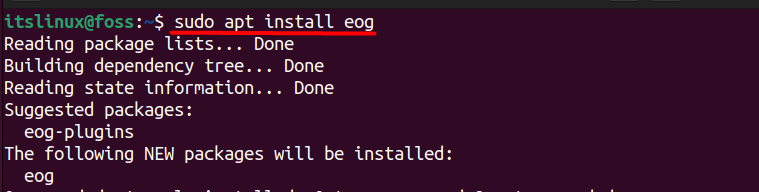
View PNG
After installing the eog image viewer, you can run the below command to view the PNG file.
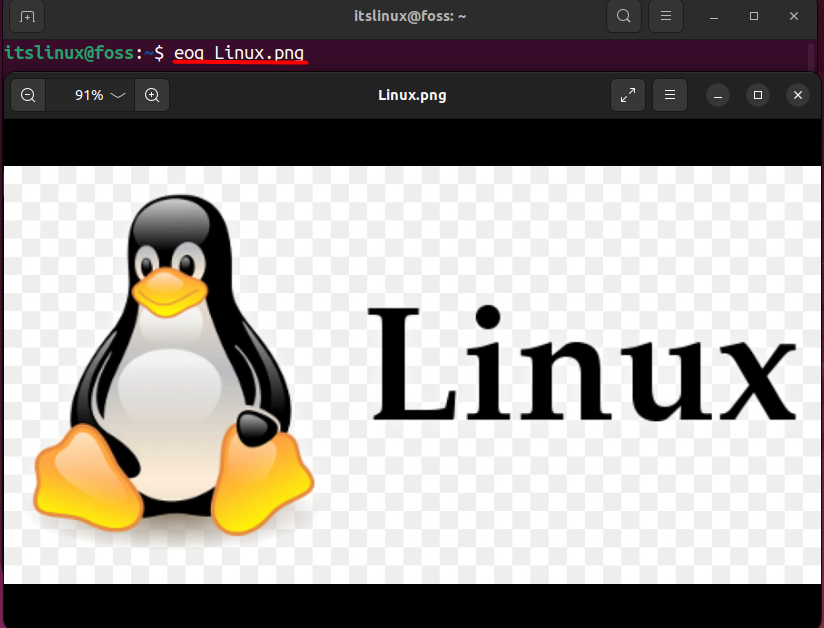
The eog image viewer can also display images in a slideshow mode, with the option to set the delay time between images and configure the transition effects.
View a PNG File Using a GIMP Image Editor
The GNU Image Manipulation Program, or GIMP, is a powerful and versatile image editing tool that is available at no cost. Similar to Adobe Photoshop, GIMP offers a variety of capabilities, including image retouching, composition, and authoring.
Install GIMP
If you are looking for a tool that is not only able to open the PNG files but also do other modifications to the image, then you should use the GIMP image viewer.
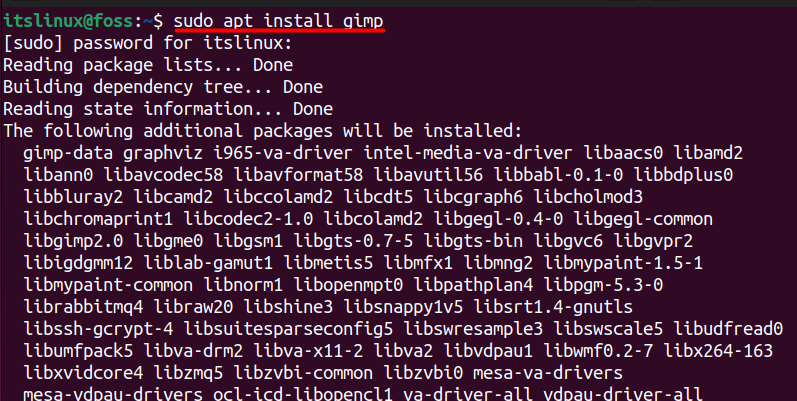
View PNG
You can open a PNG file using the below command in the terminal:
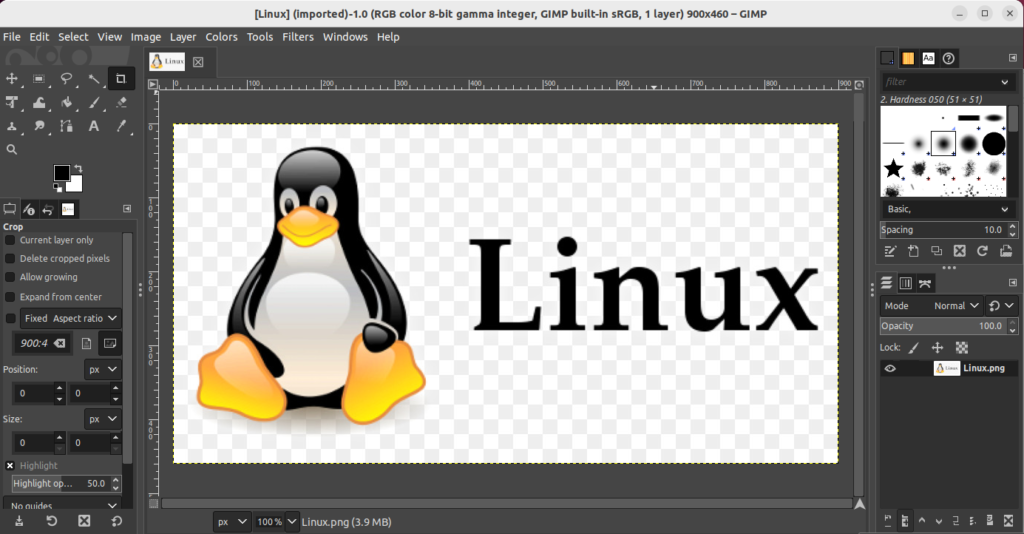
You can also launch the gimp application then select the file and then select the “open” tab option as well to view your desired png file.
Conclusion
To view a PNG file on Linux, a web browser, eog image viewer, feh image viewer, and the GIMP utility can be used. A PNG file is a type of image with a small file size while maintaining the quality of the original image as it uses a technique called lossless compression. This post has explained various methods to view a PNG file in Linux.