Sorry, you have been blocked
This website is using a security service to protect itself from online attacks. The action you just performed triggered the security solution. There are several actions that could trigger this block including submitting a certain word or phrase, a SQL command or malformed data.
What can I do to resolve this?
You can email the site owner to let them know you were blocked. Please include what you were doing when this page came up and the Cloudflare Ray ID found at the bottom of this page.
Cloudflare Ray ID: 803655884f93051f • Your IP: Click to reveal 178.175.133.149 • Performance & security by Cloudflare
Настройка Galaxy Watch 4, часть III: выключение, перезагрузка и сброс настроек
Мы продолжаем изучать особенности настройки Samsung Galaxy Watch 4. Включение, выключение и сброс настроек гаджета, на первый взгляд, очень простые процессы. Однако затруднения может вызвать и он. Сегодня рассмотрим работу этих простых, но нужных настроек.
Включение/выключение
Это очень простая манипуляция, знакомая любому пользователю, но давайте для очистки совести опишем и ее.
Чтобы включить часы, нажимаем и удерживаем кнопку “Домой” (отмечена красной окантовкой) до появления анимации с запуском. Если это не дает результата, возможно, аккумулятор вашего устройства полностью разряжен.
Для выключения часов, нажимаем и удерживаем ту же кнопку, но теперь ждем появления соответствующего меню. Здесь нажимаем на “Выключение”.
До этой же иконки можно добраться из шторки с быстрыми переключателями: тянем вниз от верхнего края экрана и нажимаем на соответствующий ярлык. Выключать часы есть смысл тогда, когда вы не планируете использовать их длительное время, это позволит вам сберечь здоровье аккумулятора устройства.
Перезагрузка
Интересно, но ни в приложении на смартфоне, ни в самых часах нет отдельной кнопки или ярлыка, которые бы позволили перезагрузить устройство. Однако, это не значит, что перезагрузка как таковая здесь не предусмотрена. Для рестарта нужно нажать и удерживать сразу две физические клавиши часов. Дожидаетесь соответствующей анимации (порядка семи секунд) — отпускаете кнопки и ждете окончания перезапуска.
Процесс перезагрузки может помочь при решении ошибок программного уровня и некорректной работы приложений.
Сброс настроек
Сброс настроек поможет, если вы отключаете часы от основного гаджета и хотите их продать или передать кому-то другому. Это позволит разорвать пару и стереть с устройства все приложения и персональные данные. Для сброса переходим по пути Настройки (их можно выбрать из списка приложений или шторки с быстрыми настройками) — Общие — Сбросить. Здесь у вас будет два варианта на выбор: создать резервную копию данных, чтобы использовать ее при подключении к новому смартфону или же полностью стереть данные и сбросить устройство до заводских настроек. Просто выбираете желаемый вариант для запуска процесса.
Как видим, ничего сложного нет ни в одной из этих манипуляций, однако они позволят вам не только правильно реагировать на возможные ошибки, но передавать гаджет другому пользователю, переносить данные, а при необходимости и просто хранить часики в бездействии. Напомним, это уже третья часть нашей подборки, ранее мы рассказывали как менять и настраивать циферблаты, а также добавлять приложения и файлы в память Galaxy Watch 4. Впереди нас ждет еще много полезных материалов по этой теме, подписывайтесь на ТЕХМО в Telegram, чтобы не пропустить их.
Автор  Алеся Шарапова
How to Reset Galaxy Watch 4 – Soft and Hard Reset
The ability to reset a device gives you the opportunity to start things afresh. In this regard, this guide will show you how to reset the Galaxy Watch 4. You will learn how to do a soft reset and a hard reset on the Galaxy Watch 4. When you do a soft reset, you will lose all your personal data on the device, and if you do a hard reset, you will lose all your personal data as well as device settings. So, whichever be the case, if you want to start things afresh on the Galaxy Watch 4, this guide will show how to do just that.
How to Soft Reset Galaxy Watch 4
To do a soft reset on the Galaxy Watch 4 is very simple and straightforward. You can do a soft reset from the device or from the Galaxy Wearable app. To soft reset the Galaxy Watch 4 from the device,
- Step 1: Wake up the device and swipe up to access your apps. Find the settings app and tap to open.
- Step 2: Scroll down until you see “General” tap to open.
- Step 3: Scroll down to see reset. Tap to open. You should get a prompt to backup before reset. If you wish to backup, go ahead and do that, then tap on reset to soft reset the watch.
You can also do a soft reset from the Galaxy Wearable app and it’s a similar process to when done from the watch. So, just open the app and find Watch settings>>general>>reset. This will soft reset the watch remotely.
How to Hard Reset Galaxy Watch 4
To do a hard reset on the Galaxy Watch 4 is a bit technical yet very simple. And this can only be done from the watch. Please note that the top button with red markings is the power button while the lower button is the back button.
To do a hard reset on the Galaxy Watch 4,
- Step 1: Wake the watch, then press and hold both the power and back button at the same time. Keep holding until you see the Samsung logo, then release your fingers and start pressing the power button repeatedly for about three times or more. This will take you to another screen. Press and hold both power and back buttons at same time, keep holding until you the Samsung logo. Then, press the power button repeatedly up to 3 times
- Step 2: Here, you need to press and release the power button to scroll through the list of options. So, press and release the power button to scroll to where it says recovery. To select recovery, press and hold the power button for about 2 seconds.
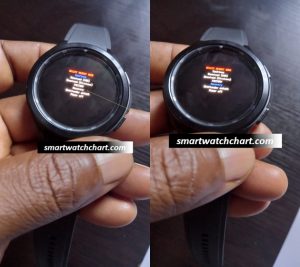 Press and release power key to scroll the list of options. Scroll to recovery
- Step 3: Unlike the previous Step where we used the power button to scroll through the list of options, in this step, we will use the back button to scroll through the options. So, press and release the back button to scroll to where it says “wipe data/factory reset” Then press and release the power button to select this option.
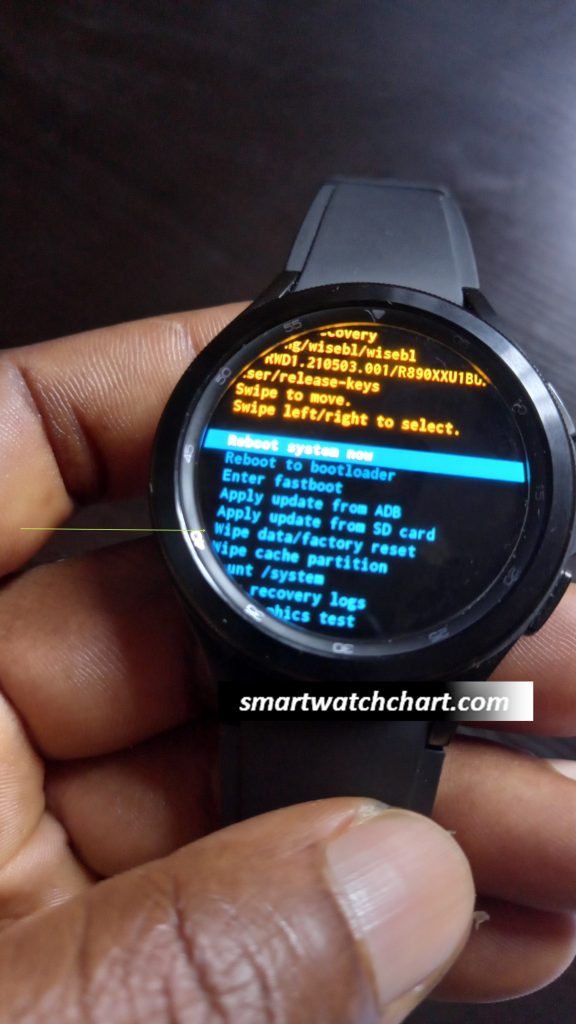 Press the back key to scroll to wipe data. Then press and release power key to select
- Step 4: Select wipe data/factory reset and you should get a prompt that says “wipe all user data?”, this cannot be undone. Press and release the power button to cancel. Otherwise, press the back button to go to factory reset. Press and hold the power button for a few seconds to select this option and this will factory reset the Galaxy Watch 4.
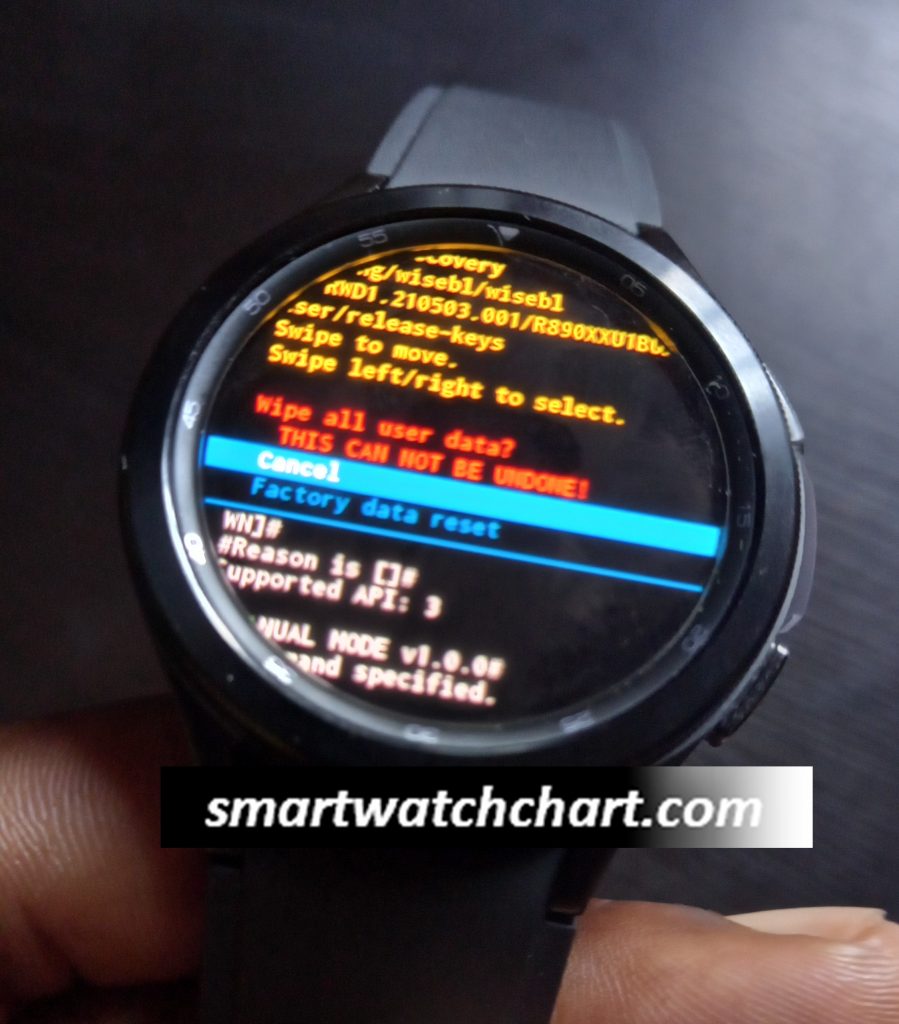 Press back key to scroll to factory reset. Then press power key to select
- Step 5: Congrats! You have successfully done a factory reset on the Galaxy Watch 4. Next, press and hold the power button for two seconds to reboot the system. This will take you to the startup screen that asks you to choose your language. Continue to setup the Galaxy Watch 4
RELATED POSTS

report this ad
How to Factory Reset Galaxy Watch 5 [Soft and Hard Reset]
The Galaxy Watch 5 Pro is one of the latest smartwatches from Samsung which was released alongside the Galaxy watch 5. The Galaxy Watch 5 Pro comes in a durable titanium case paired with silicone straps while sapphire glass graces the screen. While the Wear OS with Samsung One UI is a fantastic combo, there are instances where you might want to start things afresh or perhaps you experience a glitch. Well, this post will show you how to factory reset the Galaxy Watch 5. I’ll also show you how to reboot the Galaxy Watch 5. The steps mentioned in this guide can also be applied to reset the Galaxy Watch 5 Pro.
How to Restart Galaxy Watch 5 and Galaxy Watch 5 Pro
Restarting the Galaxy Watch 5 will soft reset the watch and oftentimes, fixes minor software issues like the watch isn’t connecting to your phone or the Wi-Fi won’t connect. This is the first line of action to take if you ever encounter any technical problems with the Galaxy Watch 5 or Watch 5 Pro.

Press & hold both upper and lower key until you see rebooting to restart Galaxy Watch 5
To reboot the Galaxy Watch 5 Pro, you need to press and hold both the top and lower buttons simultaneously for a couple of seconds and keep holding until you see rebooting on the screen. So press and hold both buttons to restart the Galaxy Watch 5 Pro.
How to Reset Galaxy Watch 5
How to Reset Galaxy Watch 5 From the Watch
There are two ways to automatically reset the Galaxy Watch 5 or Watch 5 Pro. You can either do this directly on-device or from the Galaxy Wearable app on your phone. Note that resetting the Galaxy Watch 5 will wipe off all your personal settings. So you might want to backup your settings before resetting the watch.

To reset the watch from the device, open the settings app and scroll down to locate General.

Then scroll down to locate Reset, select it, and confirm to reset the watch. You can choose to backup the watch which you can restore when you re-pair the watch to a phone.
How to Reset Galaxy Watch 5 From Phone

Reset Galaxy Watch 5 from phone
To reset the Galaxy Watch 5 from the Wearable app, open the app and tap on Watch settings. Scroll down to General and tap on it. Then scroll down to Reset, select it, and confirm to reset the Galaxy Watch 5 Pro.
How to Factory Reset Galaxy Watch 5 and Galaxy Watch 5 Pro
There are instances where you’re completely locked out of your watch. In scenarios like this, your best bet is to manually reset the watch. Manually resetting the Galaxy Watch 5 will factory reset the watch and all your details will be wiped off. And to do this on the Galaxy Watch 5 or Watch 5 Pro is very easy.

First, press and hold both the top and lower buttons until you see rebooting on the screen, then release your fingers and press the upper button twice in quick succession. This will take you to recovery mode. In this stage, you will use the upper button to scroll through the options. So, short-press the upper button to scroll through the menu, and navigate to Recovery.
To select Recovery, press and hold the upper button for three seconds and this will take you to the recovery menu.

Once in the recovery menu, you need to navigate to factory reset. To do this, you will use the lower button to scroll through the options and use the upper button to select an option. So short-press the lower button to scroll through the options. Scroll to Wipe data/factory reset, then short-press the upper button to select it.

Short-press the lower button again to navigate to Factory Reset, then short-press the upper button to confirm. This action will wipe all data on the watch and the Galaxy Watch 5 Pro will factory reset.
Once the process is complete, you should see the option to reboot the watch, short-press the upper button to reboot the watch.
That’s how you can factory reset the Galaxy Watch 5 or Galaxy Watch 5 Pro.
How to Turn on and Turn Off Galaxy Watch 5
To turn on the Galaxy Watch 5 Pro, you need to press and hold the upper button for three seconds. The will start the device and it takes about 15 seconds to boot.
Turning off the watch is perhaps the easiest. Just swipe down from the homescreen to access the control panel. Locate the power off menu and tap on it to switch off the watch. Alternatively, you can press and hold both the upper and lower buttons to enter the power menu, then tap on the power icon to turn off the watch.

Customize Galaxy Watch 5 buttons
Moreover, you can also turn off the Galaxy Watch 5 by pressing and holding the upper button. This will take you to the app menu where you can quickly turn off the watch. Although, you need to customize the buttons. To do this, Go to the settings app>>Advanced features and customize the keys.
In summary, this guide has shown you how to restart and how to automatically and manually reset the Galaxy watch 5.

Hi! I’m Jude, the chief editor at Smartwatchseries.com
I’m a graduate of biochemistry, a 3D artist and a passionate fitness enthusiast. On here, I and other smartwatch fans work hard to help you find the right smartwatch for you with our guides, reviews, and comparisons.
Our aim is to become better at providing useful content, please let us know via the contact us form if there is any way we can improve.