Sorry, you have been blocked
This website is using a security service to protect itself from online attacks. The action you just performed triggered the security solution. There are several actions that could trigger this block including submitting a certain word or phrase, a SQL command or malformed data.
What can I do to resolve this?
You can email the site owner to let them know you were blocked. Please include what you were doing when this page came up and the Cloudflare Ray ID found at the bottom of this page.
Cloudflare Ray ID: 80394c950e3898ac • Your IP: Click to reveal 178.175.133.149 • Performance & security by Cloudflare
Как правильно удалить Linux, установленную рядом с Windows 10
Установка Linux на один жесткий диск рядом с Windows стала настолько простой процедурой, что с ней без труда справится даже начинающий пользователь. Нужно только загрузить компьютер с установочного диска с Linux и выбрать опцию «Установить рядом с Windows», а всё остальное мастер сделает сам, главное, чтобы на системном разделе было достаточно места. Иное дело удалить Linux, не повредив при этом Windows.
Вот тут у новичков могут возникнуть проблемы, так как большой красной кнопки для выполнения этого действия не предусмотрено.
В действительности всё очень просто, за исключением одного момента, когда вам придется восстановить главную загрузочную запись. Итак, прежде всего запишите на DVD или флешку установочный образ с Windows, он вам понадобится для восстановления загрузчика.
Находясь в работающей Windows, откройте управление дисками и найдите там один или два раздела с установленной Linux. Эти разделы не имеют буквы и располагаются сразу после основного системного тома с Windows или после пользовательского тома, если установка Linux предварялась его разбиением.
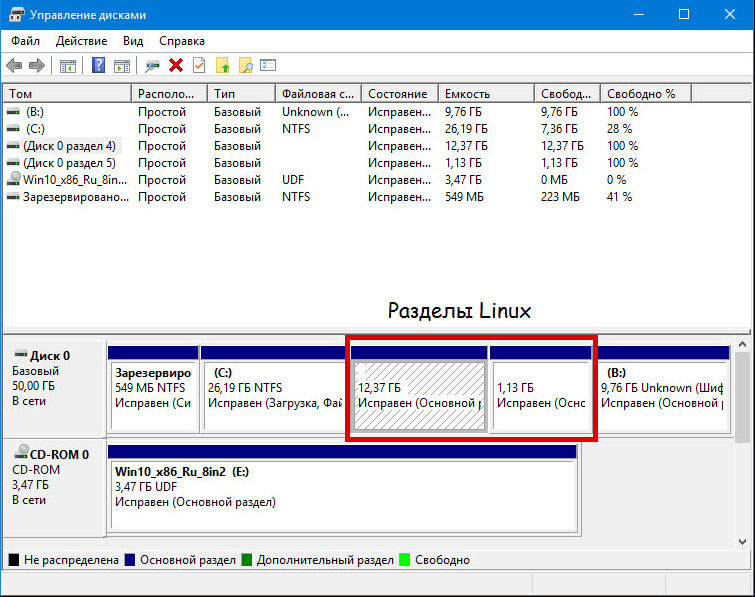
Удаляем эти разделы таким образом, чтобы на их месте образовалось нераспределенное пространство.
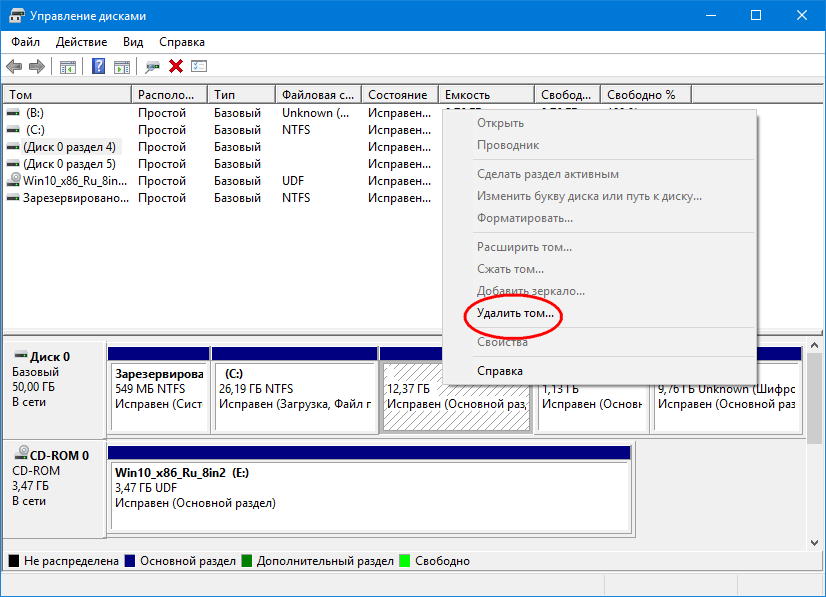
Которое затем можно будет присоединить к ближайшему тому.
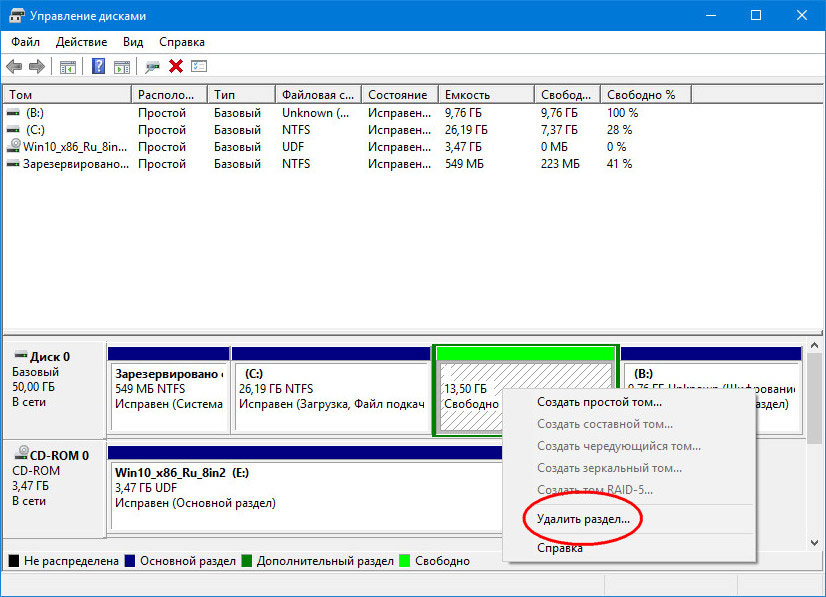
Вместе с Linux будет удален ее загрузчик, который, как известно, имеет приоритет, поэтому при перезагрузке компьютера вы получите ошибку «no such partition» .

Посему загружаем компьютер с установочного диска и при появлении на экране окна мастера установщика Windows жмем Shift + F10 .
В открывшейся командной строке выполняем две команды:
bootrec /fixmbr
bootrec /fixboot
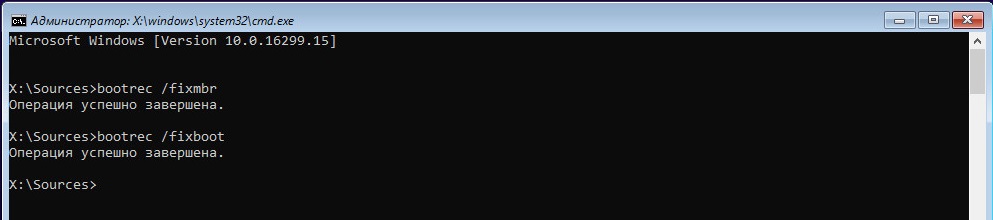
А вообще, должно хватить и одной, первой команды.
После этого перезагружаем компьютер обычным способом.
Действия по удалению разделов можно выполнить сразу из-под загрузочного диска. Для этого в окне мастера-установщика необходимо нажать «Установить».
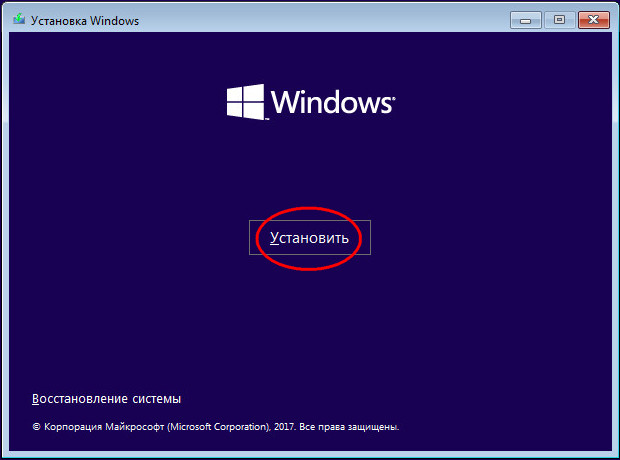
И проследовать вплоть до этапа разбиения диска.
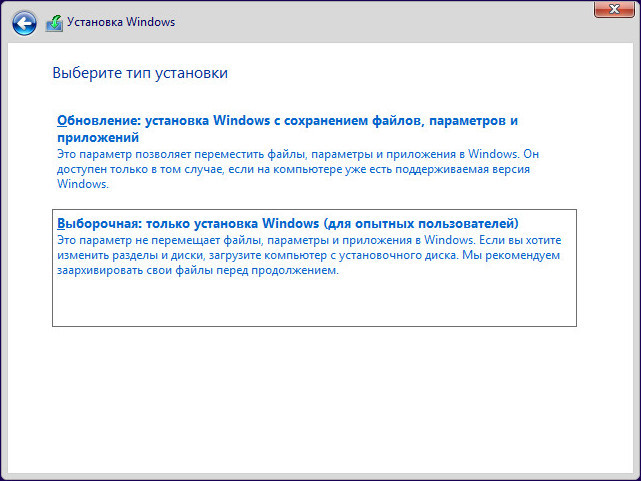
А затем удалить Linux-разделы.
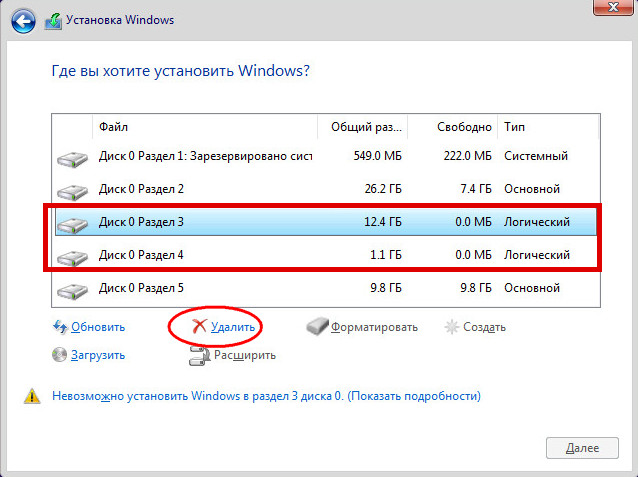
Тут же вызвать нажатием Shift + F10 командную строку и выполнить указанные выше команды.
Сгодится для удаления параллельной Linux и любой LiveCD с менеджером разделов, командной строкой или утилитой EasyBCD на борту, хотя бы тот же by Sergei Strelec .
Как удалить fedora рядом с windows
There is a single EFI partition for both Linux and windows.
Deleting the Linux partition from windows, and extending it
Using diskpart to clean the EFI partition like in this guide
Is this a proper way of going about things/will it remove every remnant of Fedora from my computer?
And sorry about leaving so quick, Fedora is making my laptop heat up like crazy/bad battery life + I'm scared of breaking it, so I'll just stick to using it on virtual box after I purge it from my laptop.
How to uninstall Fedora
At the Fedora Project, we strive to provide an operating system with the latest, best features that’s usable by everyone. Our millions of users agree that we’ve got what it takes. Everyone from schoolchildren to housewives to students to scientists are using Fedora all over the world to compute with stability and security. And the work that the Fedora Project continues to do in hundreds of upstream communities has helped other distributions become popular too.
But Linux isn’t everyone’s cup of tea. Because we respect your personal choices and the freedom to choose, even if that choice is for something other than freedom itself, this page explains how to uninstall Fedora from your system. How you proceed depends somewhat on how you set Linux up on your system.
These instructions should work equally well with most other Linux distributions.

- Right-click the device icon on your desktop or in your graphical Computer browser.
- Choose Properties.
- Make sure the file system is msdos, fat, vfat, or ntfs.
Contents
My system only has Fedora, and I want to remove it and restore Windows.
This situation is easy to fix:
- Back up your data as shown above, if necessary.
- Shut down your Fedora system.
- Boot from your Windows installation disc, which should have been provided with your system manufacturer. Sometimes this disc is called a «system restore disc.» If you do not have such a disc, you may need to contact your system’s manufacturer.
- Follow the instructions for system restoration that were provided with your system. If you did not receive these in printed form, you may find them on the system restore disc. If not, visit the manufacturer’s web site.
Some system restoration media, like a Windows installation disc, gives you choices for partitioning your hard disk. If you are presented with any choices for disk partitioning during the restoration or Windows installation process:
- Remove all existing partitions.
- Make a single partition taking up the full size of your hard disk
- Install Windows on the new, single partition.
Often when you use a manufacturer’s system restoration disc, the restoration process handles this procedure for you.
My system is a dual-boot with Windows XP and Linux, and I want to remove Linux and keep Windows.

- Back up your data as shown above, if necessary.
- Shut down your Fedora system.
- Restart your system. During the boot delay time, hit the Up and Down arrow keys to select your Windows operating system, and hit Enter to boot from it.
- After Windows has started, from the Start menu, select Control Panel.
- Select Performance and Maintenance, then Administrative Tools, then Computer Management.
- In the left pane of the Computer Management window, under Storage, select Disk Management. On the right side, a graphical representation of your disk appears with bars representing each partition. The first partition is usually labeled NTFS and appears as your C: drive.
- Remove other partitions belonging to your Linux system. Do not try to remove the C: drive partition. When you have finished, the rest of the disk is labeled as unallocated.
- From the Start menu, choose Run. .
- Enter the command diskpart. A command window opens.
- Enter list volume to show the volumes on your system. Each volume is numbered. Find the volume that represents your C: drive.
- Enter select volume <N>, where <N> is the number of the volume for your C: drive.
- Choose extend to extend the volume to fill the remainder of your disk where your Linux system previously existed. The diskpart utility confirms that the volume has been successfully extended.
- From the Start menu, choose the Shut down command and shut down the system.
- Insert the Windows installation CD and restart your system. Pay attention to the boot screens.
- The screen shows Press any key to boot from CD. Hit a key to boot from the CD. Allow the Windows installer to load.
- At the options menu, hit R to use the Recovery Console. The Recovery Console locates your existing Windows installation at C:\WINDOWS and assigns it with a number, usually 1.
- At the prompt to log in to the Windows installation, enter the number shown, followed by the Administrator password for your Windows installation.
- At the prompt, enter fixmbr to repair the master boot record of your disk. Your existing Windows partition should not be removed or harmed.
- In Windows Vista & 7, select command prompt, go to C: and type Bootrec /fixmbr and press enter.
- Enter exit to exit the Recovery Console and restart your machine.
Your machine has now been restored to a Windows-only system, with your C: drive re-expanded to fill your hard disk.
My system is a dual-boot with Windows XP and Linux, and I want to destroy both and return to a Windows-only system.
This is essentially the same case as that of the Linux-only system above. Simply follow those instructions to remove all operating systems and start from scratch. You will lose all data on your system, including all your Fedora and Windows programs and data. Follow the procedures for backing up data shown above.
My system is using Boot Camp with OS X and Linux, and I want to remove Linux and Keep OS X.
- Open the Boot Camp Assistant in /Applications/Utilities.
- Select «Create or remove a Windows partition» and click «Next».
- If your computer has a single internal disk, click Restore.
- If your computer has multiple internal disks, select the Linux disk, and then select “Restore to a single Mac OS partition”. Click Continue.
My system was manually dual-booted with OS X and Linux, and I want to remove Linux and Keep OS X.
- Open the Disk Utility in /Applications/Utilities
- Select the entry on the left for the disk volume containing Linux.
- Click the «Partition» tab on the right side of the dialog.
- Select the Linux partition and click the minus button below the partition layout diagram.
- Resize your OS X partition to include the newly freed space.
My system only has Fedora, and I want to remove it and restore OS X.
This situation is easy to fix:
- Back up your data as shown above, if necessary.
- Shut down your Fedora system.
- Boot from your OS X installation disc, which should have been provided with your system manufacturer. If your Mac included two disks, use Install Disk 1. If you do not have such a disc, you may need to contact Apple.
- Follow the instructions in the installer for installing OS X.
Often when you use a manufacturer’s system restoration disc, the restoration process handles this procedure for you.
I have a triple-boot or other highly customized setup and I want to remove Fedora.
These instructions cannot adequately cover every possible configuration, given Fedora’s extreme flexibility. You should refer to the available help facilities and ask questions about your specific setup. Remember to be friendly, and provide as much relevant information as possible, so that others can help you effectively.
Alternately, you can consider using the instructions for a simple Windows re-installation to simply install your system from scratch. Note that procedure also removes any other operating systems from your system.
Copyright © 2023 Red Hat, Inc. and others. All Rights Reserved. For comments or queries, please contact us.
The Fedora Project is maintained and driven by the community and sponsored by Red Hat. This is a community maintained site. Red Hat is not responsible for content.