Как установить Linux в Windows 10

В Windows 10 появилась новая возможность для разработчиков — оболочка Ubuntu Bash, позволяющая запускать, устанавливать приложения Linux, использовать скрипты bash прямо в Windows 10, все это называется «Подсистема Windows для Linux». В версии Windows 10 1709 Fall Creators Update доступны уже три дистрибутива Linux для установки. Во всех случаях требуется 64-разрядная система для установки.
В этой инструкции — о том, как установить Ubuntu, OpenSUSE или SUSE Linux Enterprise Server в Windows 10 и некоторые примеры использования в конце статьи. Следует также учитывать, что есть некоторые ограничения при использовании bash в Windows: например, нельзя запускать GUI приложения (правда, сообщают об обходных путях с помощью X server). Кроме этого, командами bash нельзя запустить Windows-программы, несмотря на наличие полного доступа к файловой системе ОС.
Установка Ubuntu, OpenSUSE или SUSE Linux Enterprise Server в Windows 10
Начиная с версии Windows 10 Fall Creators Update (версия 1709) установка подсистемы Linux для Windows несколько изменилась по сравнению с тем, что было в предыдущих версиях (для предыдущих версий, начиная с 1607, когда функция была представлена в бета-версии, инструкция — во второй части этой статьи). Также обратите внимание, что в Windows 10 2004 можно установить Kali Linux с графическим интерфейсом.
Теперь необходимые шаги выглядят следующим образом:
- Прежде всего, необходимо включить компонент «Подсистема Windows для Linux» в «Панель управления» — «Программы и компоненты» — «Включение и отключение компонентов Windows».

- После установки компонентов и перезагрузки компьютера, зайдите в Магазин приложений Windows 10 и загрузите оттуда Ubuntu, OpenSUSE или SUSE Linux ES (да, теперь доступно три дистрибутива). При загрузке возможны некоторые нюансы, о которых далее в примечаниях.

- Запустите загруженный дистрибутив как обычное приложение Windows 10 и выполните первоначальную настройку (имя пользователя и пароль).

Для включения компонента «Подсистема Windows для Linux» (первый шаг) можно использовать команду PowerShell:
Теперь несколько примечаний, которые могут быть полезны при установке:
- Вы можете установить сразу несколько дистрибутивов Linux.
- При загрузке дистрибутивов Ubuntu, OpenSUSE и SUSE Linux Enterprise Server в русскоязычном магазине Windows 10 заметил следующий нюанс: если просто ввести название и нажать Enter, то нужных результатов в поиске не оказывается, но если начать вводить и затем нажать по появляющейся подсказке, автоматически попадаешь на нужную страницу. На всякий случай прямые ссылки на дистрибутивы в магазине: Ubuntu, OpenSUSE, SUSE LES.
- Запускать Linux можно и из командной строки (не только с плитки в меню Пуск): ubuntu, opensuse-42 или sles-12
Установка Bash в Windows 10 1607 и 1703
Для того, чтобы установить оболочку bash, выполните следующие простые действия.
- Зайдите в параметры Windows 10 — Обновление и безопасность — Для разработчиков. Включите режим разработчика (должен быть подключен Интернет для загрузки необходимых компонентов).

- Зайдите в панель управления — Программы и компоненты — Включение или отключение компонентов Windows, отметьте пункт «Подсистема Windows для Linux».

- После установки компонентов, введите в поиске Windows 10 «bash», запустите предлагаемый вариант приложения и выполните установку. Вы можете задать свое имя пользователя и пароль для bash, либо использовать пользователя root без пароля.

По завершении установки вы можете запускать Ubuntu Bash на Windows 10 через поиск, или создав ярлык для оболочки там, где вам требуется.

Примеры использования Ubuntu Shell в Windows
Для начала отмечу, что автор не является специалистом по bash, Linux и разработке, а примеры ниже — просто демонстрация того, что в Windows 10 bash работает с ожидаемыми результатами для тех, кто разбирается в этом.
Приложения Linux
Приложения в Windows 10 Bash можно устанавливать, удалять и обновлять с помощью apt-get (sudo apt-get) из репозитория Ubuntu.

Использование приложений с текстовым интерфейсом ничем не отличается от такового на Ubuntu, например, вы можете установить Git в Bash и использовать его привычным образом.

Скрипты bash
Вы можете запускать скрипты bash в Windows 10, создать их можно в имеющемся в оболочке текстовом редакторе Nano.

Скрипты bash не могут вызвать программы и команды Windows, но возможен запуск скриптов и команд bash из bat файлов и сценариев PowerShell:
Также вы можете попробовать запускать приложения с графическим интерфейсом в Ubuntu Shell в Windows 10, на этот счет в Интернете уже имеется не одна инструкция и суть способа сводится к использованию Xming X Server для вывода GUI приложения. Хотя официально возможность работы с такими приложениями Майкрософт не заявлена.
Как было написано выше, я не тот человек, который может в полной степени оценить ценность и функциональность нововведения, но вижу как минимум одно применение для себя: различные курсы Udacity, edX и другие, связанные с разработкой проходить будет куда проще, работая с необходимыми инструментами прямо в bash (а в этих курсах обычно демонстрируется работа именно в терминале MacOS и Linux bash).
Install Ubuntu on WSL2 on Windows 10
NOTE: As of November 2022, the Windows 10 version of WSL has migrated to support the Windows Store application, bringing feature parity across Windows 10 and Windows 11. Please check out our updated Install Ubuntu on Windows 10 and Windows 11 tutorial for the latest information. This tutorial is now deprecated.
Windows Subsystem for Linux (WSL) allows you to install a complete Ubuntu terminal environment in minutes on your Windows machine, allowing you to develop cross-platform applications without leaving Windows.
In this tutorial, we’ll show you how to get up and running with Ubuntu on WSL. These instructions will work on both Windows 10 or Windows 11.
Whilst WSL is a powerful tool for all users, some features, such as the ability to run graphical Linux applications, are only available on Windows 11. Please check out our Windows 11 tutorial for more information.
2. Install WSL
Installing WSL is now easier than ever. Search for Windows PowerShell in your Windows search bar, then select Run as administrator.
At the command prompt type:
And wait for the process to complete.
For WSL to be properly activated, you will now need to restart your computer.
3. Download Ubuntu
WSL supports a variety of Linux distributions, including the latest Ubuntu release, Ubuntu 20.04 LTS and Ubuntu 18.04 LTS. You can find them by opening the Microsoft store app and searching for Ubuntu.
Choose the distribution you prefer and then click on Get as shown in the following screenshot:
Ubuntu will then install on your machine.
The one line install!
There is a single command that will install both WSL and Ubuntu at the same time.
When opening PowerShell for the first time, simply modify the initial instruction to:
wsl —install -d ubuntu
This will install both WSL and Ubuntu! Don’t forget to restart your machine before continuing.
Once installed, you can either launch the application directly from the store or search for Ubuntu in your Windows search bar.
4. Configure Ubuntu
Congratulations, you now have an Ubuntu terminal running on your Windows machine!
If Ubuntu returns an error during this initial installation, then the most common issue is that virtualisation is disabled in your device’s BIOS menu. You will need to turn this on during your device’s boot sequence. The location of this option varies by manufacturer, so you will need to refer to their documentation to find it.
Once Ubuntu has finished its initial setup you will need to create a username and password (this does not need to match your Windows user credentials).
Finally, it’s always good practice to install the latest updates with the following commands, entering your password when prompted.
sudo apt update
sudo apt upgrade
Press Y when prompted.
5. Install your first package
Installing packages on Ubuntu is as easy as using a single command. Below, you will see how to install bpython, a simple python interpreter for trying out ideas, featuring some nice usability features like expected parameters and autocompletion.
To check that you have the latest package lists, type:
sudo apt update
Then install bpython:
sudo apt install bpython
To run the application type:
And you’re ready to go!
6. Customising your Terminal with Windows Terminal Preview
Since you’re likely to be using your Ubuntu terminal a fair bit, it’s always nice to do some customisation. We recommend installing Windows Terminal Preview to get the most user-friendly setup. You can find it in the Microsoft Store.
Windows Terminal allows you to open multiple Terminal instances as tabs, so you can have PowerShell running alongside Ubuntu. It also includes a number of customisation options. In the below screenshot, we’ve changed the tab name and colour, and configured the terminal appearance to use the Tango Dark theme and the Ubuntu font!
These customisations can be applied universally using the Appearance menu in Settings or to individual profiles which each have their own Appearance menu. Try it yourself to find something you feel comfortable with!
7. Enjoy Ubuntu on WSL!
That’s it! In this tutorial, you’ve seen how to install WSL and Ubuntu, set up your profile, and install your first package. You also got some tips on how to customise your experience.
We hope you enjoy working with Ubuntu inside WSL. Don’t forget to check out our blog for the latest news on all things Ubuntu.
Download ubuntu 18.04 for windows 10
How to Install WSL and Ubuntu 18.04 LTS on Windows 10.
Download the Ubuntu 18.04 (Note 20.04 does not work properly with WSL 1 only WSL 2) Unzip the appx file (select directory carefully as it needs to stay there permanently ). Do NOT install. Run the file within the unzipped directory. For me this started the installation and ultimately led me to the point where it asks to set a.
Ubuntu 18.04 LTS is now on Windows 10’s Microsoft Store.
Update the apt package list to account for the new download repository location. sudo apt-get update. Install OpenFOAM (10 in the name refers to version 10) which also installs paraviewopenfoam56 as a dependency. sudo apt-get -y install openfoam10. OpenFOAM 10 and ParaView 5.6.3 are now installed in the /opt directory. Enable Linux subsystem for Windows 10 feature and restart. Download, Extract and install Linux distribution; Provide username and password for user; Launch your Distribution. I will show you all steps on Windows 10 latest update 2004 with Ubuntu 20.04 on the Command line and Ubuntu 18.04 on GUI. Ubuntu 18.04 on Windows allows one to use Ubuntu Terminal and run Ubuntu command line utilities including bash, ssh, git, apt and many more. Please note that Windows 10 S does not support running this app. To launch, use “ubuntu1804” on the command-line prompt (), or click on the Ubuntu tile in the Start Menu. To use this feature, one first needs to use “Turn Windows features on or off.
Download ubuntu 18.04 for windows 10.
Step 6) Run Ubuntu on Windows 10. Now that your download is finished, you can run your Linux subsystem by clicking the launch button in the Windows Store or through the Windows start menu. A new terminal will be launched prompting to provide a username and password for your new system.
Install Ubuntu on Windows 10 WSL 2 [Easy Steps] — LinOxide.
Creating a new database for osTicket That’s enough. 3) Dowload and Install osTicket on Ubuntu 18.04 Now we can download osTicket without problems. So let’s get started. Create a folder in /var/www/ called osticket. Change the owner to www-data, access it and give write permissions inside it. Oct 09, 2018 · Download Ubuntu 18.10. The beta version of Ubuntu 18.10 is already available for download, so if you’d like to try it out, you can. Test out the features beforehand and help out the Ubuntu community by reporting any bugs you may come across. Download Ubuntu 18.10 — Beta.
Get Ubuntu | Download | Ubuntu.
. Get Ubuntu Server Option 1: Manual server installation USB or DVD image based physical install OS security guaranteed until April 2027 Extended security maintenance until April 2032 Commercial support for enterprise customers Download Ubuntu Server 22.04.1 LTS Alternative downloads › Alternative architectures ›.
How to Upgrade Ubuntu 18.04 to 19.10 on Windows 10 Linux subsystem.
If you are on a long term support release of 18.04, I wouldn’t recommend upgrading to Ubuntu 19.10. Wait for six more months and you’ll have Ubuntu 20.04 LTS. To upgrade from 18.04 to 19.10, you’ll have to upgrade to 18.10 first. Ubuntu 18.10 has reached end of life already so you might not even see the option to upgrade to 19.04.
How To Install Ubuntu On Windows 10 Using VirtualBox.
Select the second option, ‘Install Ubuntu’, and press return to launch the desktop installer automatically. Alternatively, select the first option, ‘Try Ubuntu without installing’, to test Ubuntu (as before, you can also install Ubuntu from this mode too). A few moments later, after the desktop has loaded, you’ll see the welcome window.
Access Windows 10 Shared Folder from Ubuntu 18.04.
Ubuntu MATE 18.04.5 LTS (Bionic Beaver) Select an image Ubuntu-MATE is distributed on two types of images described below. Desktop image The desktop image allows you to try Ubuntu-MATE without changing your computer at all, and at your option to install it permanently later. This type of image is what most people will want to use. Ubuntu desktop 20.04 lts free download — SourceForge.Get Ubuntu | Download | Ubuntu.Download Ubuntu 18.04 LTS — DVD ISO Images — TecAdmin.How to Install Ubuntu 18.04 LTS on VirtualBox in Windows 10.Run ubuntu-desktop on WSL (Ubuntu 18.04 LTS).Ubuntu Fridge | Ubuntu 18.04.5 LTS released.How to Upgrade Ubuntu 18.04 LTS to 20.04 LTS on WSL (Windows 10).Rtl8111 driver ubuntu.How to Install Linux Ubunt.
Couldn’t install Ubuntu 18.04 on WSL — Microsoft Community.
Ubuntu 18.04 is now available for download from the Microsoft Store on Windows 10 as part of the WSL push that allows users to run Linux on top of Windows. Officially announced earlier this month,. Restart PC, open CMD (not PowerShell) as admin and simply type ubuntu. Not sure if you can specify version here or not, try ubuntu-18 first. If that doesn’t work, you can download appx file, those are instructions for 16.04. Not sure if Microsoft released 18 yet but you can always upgrade post install. From PowerShell. Install NoMachine Remote Desktop Tool on Ubuntu 22.04|20.04|18.04. NoMachine remote desktop tool is available as a package for Ubuntu and other Debian based Linux distributions. Visit the Downloads page to get a version for your machine. I’ll download mine with the wget command. sudo apt update sudo apt -y install wget wget.
Download Ubuntu Desktop | Download | Ubuntu.
Canonical has officially announced the release of Ubuntu 18.04, codenamed Bionic Beaver. This is a LTS (Long-Term Support) release that will be supported for 5 years, until April 2023. Ubuntu 18.04 is the first LTS release to use Gnome Shell instead of Unity by default, so if you’re coming from Ubuntu 16.04 LTS, you’ll find a lot of changes. Step 1. The name of your virtual machine will now appear on the left side of the VirtualBox Manager. Click on the “Start” button in the toolbar to launch your VM. Step 2. This time, you have to select your Ubuntu ISO file that you downloaded earlier. Now, click on the folder icon and then click on the “Add” button.
Guide to Install Ubuntu Dual Boot with Windows 10 — LinOxide.
How to download Ubuntu 18.04 LTS in Windows 10 from the Microsoft Store. To download Ubuntu 18.04 LTS in Windows 10 just go to the Microsoft Store and search for “Ubuntu 18.04” or click on this link. Once in the application tab, we will simply click on the Get button and it will be installed. Then, to execute the distribution, it will be. Download and install Download Ubuntu desktop and replace your current operating system. It’s easy to install on Windows or macOS, or run Ubuntu alongside it. Download now › Professional support Get professional support from Canonical to manage your Ubuntu desktop, cloud and server deployments. Buy Ubuntu Advantage Find out more › Ubuntu flavours.
Direct download of Ubuntu 18.04 without Windows Store.
Download the tool from this URL (for windows) Once the tool has been downloaded, you need to install & run it. Select the option “DISK IMAGE” and then browse & select the downloaded Ubuntu ISO path. In addition to this, also select the USB drive in which you want the Ubuntu setup to be installed. Once done, Click OK.
How to download a 32-bit version of Ubuntu 18.04.
My windows 10 system information as following: system verion:Windows10 Professional system build number:1909… 2019. But we could use Ubuntu 18.04 instead. Here is a link for download: Ubuntu 18.04 LTS If you have other issue about Ubuntu, we recommend to ask Ubuntu forum on UserVoice and GitHub until further notice. Bests, Comment. Comment. So every Windows Server 2019 and Windows 10 build 1709 or better has the ability to run Linux distros as a subsystem,… Download the Ubuntu 18.04 SubSystem Distro. Ubuntu 18.04 x86 Installable Live DVD. This is an installable Live-Medium of Ubuntu 18.04 (Bionic Beaver) for 32 — bit architectures, built using the , provided by , and the Distroshare Ubuntu -Imager. I replaced LibreOffice by AbiWord and Gnumeric. No other changes. Downloads: 26 This Week.
Как установить Linux используя Virtualbox
Если вы работаете на Windows версии ниже 10 или хотите получить изолированную операционную систему Linux, да ещё и с графическим окружением, то можно воспользоваться сторонним бесплатным программным продуктом под названием VirtualBox.
Общая информация о технологии виртуализации
Инсталлятор Oracle VM VirtualBox для Windows Hosts Ссылка на скачивание: Download Oracle VM VirtualBox
Образ операционной системы Ubuntu Linux в формате ISO Ссылка на скачивание: Download Ubuntu Desktop
Для начала необходимо установить и запустить приложение VirtualBox.
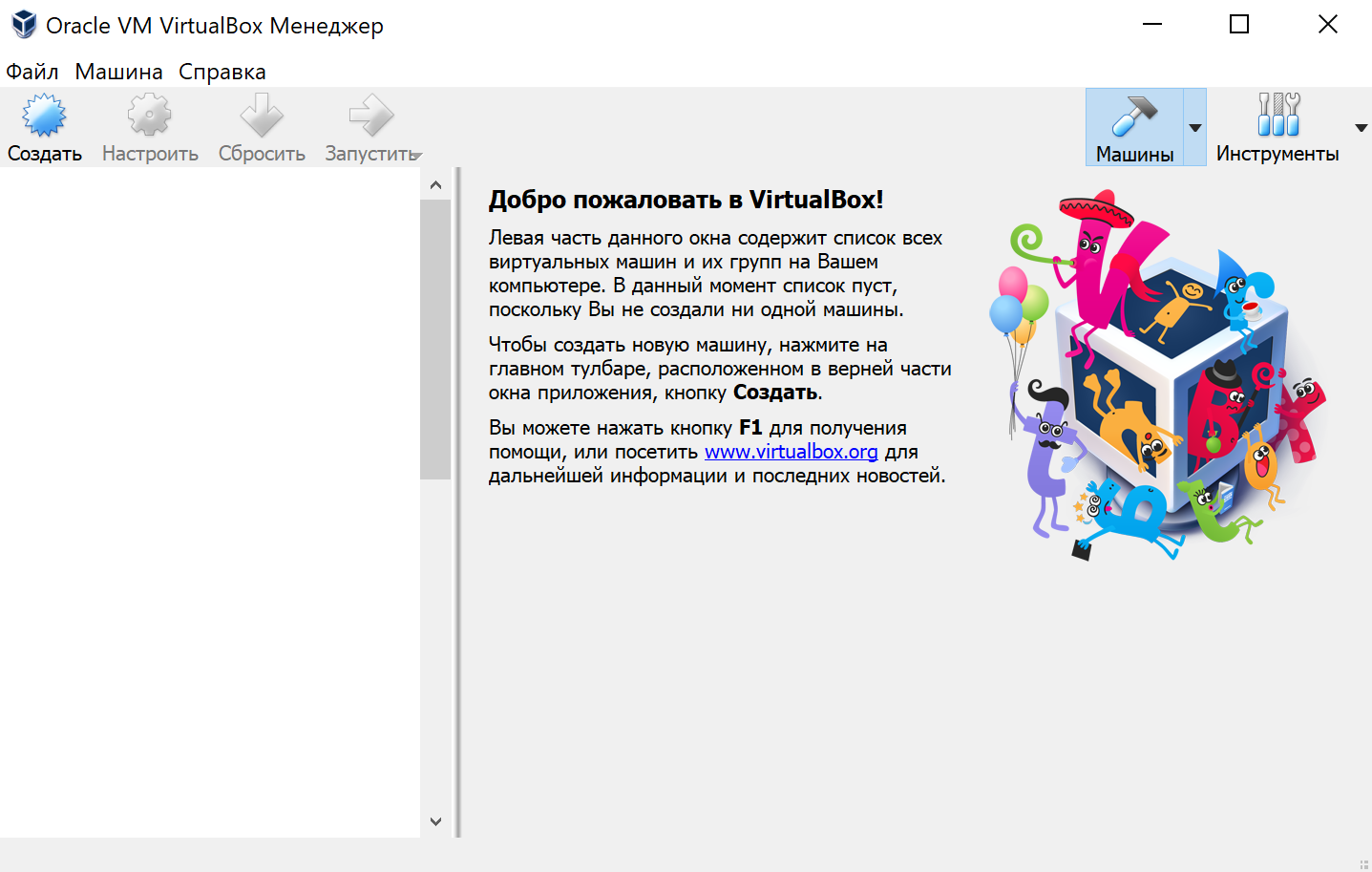
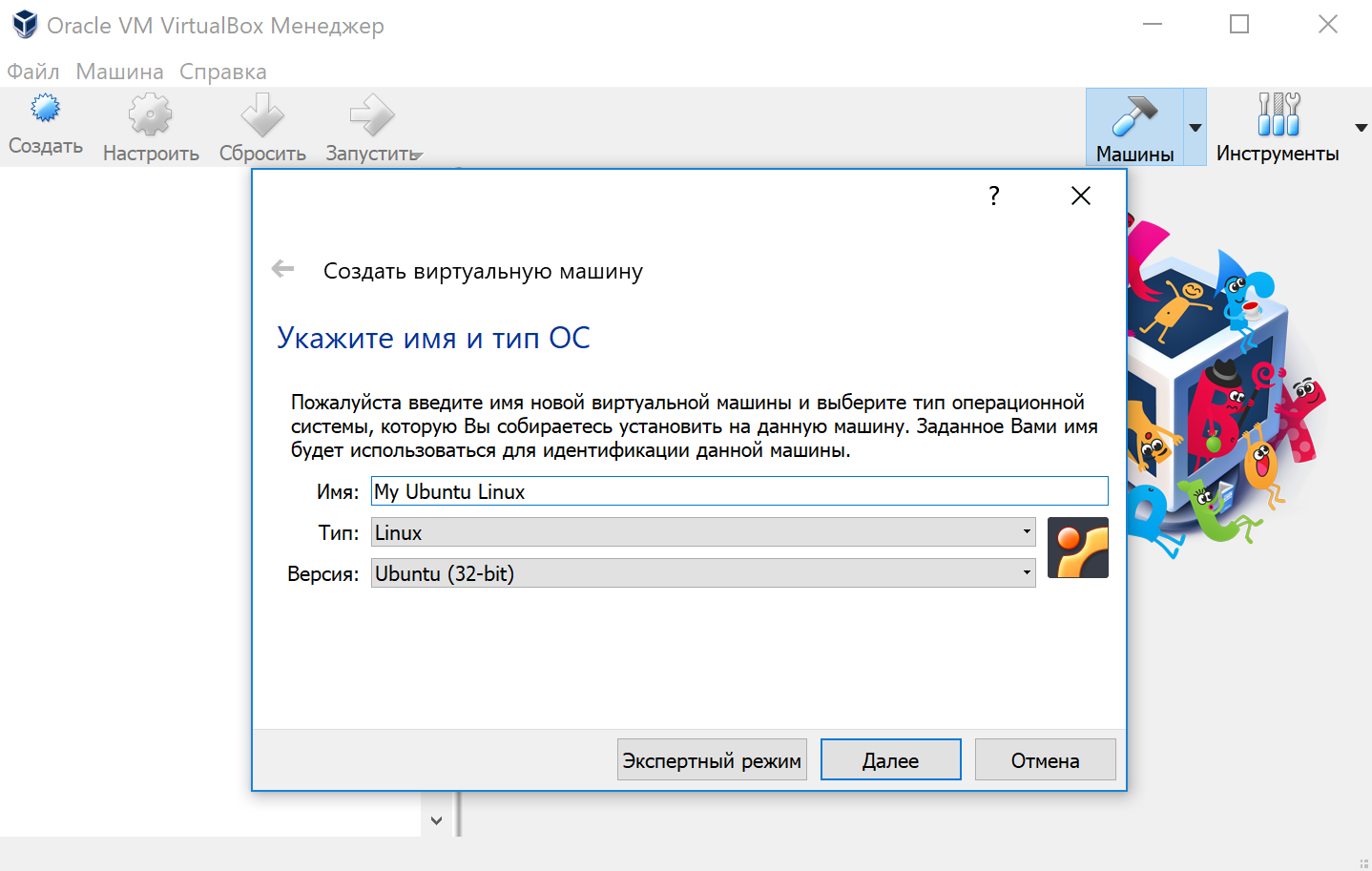
Нажимаем кнопку «Создать», выбираем из списка тип операционной системы «Linux», если нет своих предпочтений по дистрибутиву, то выбираем версию «Ubuntu» 32 или 64 битной архитектуры, а название можно ввести любое.
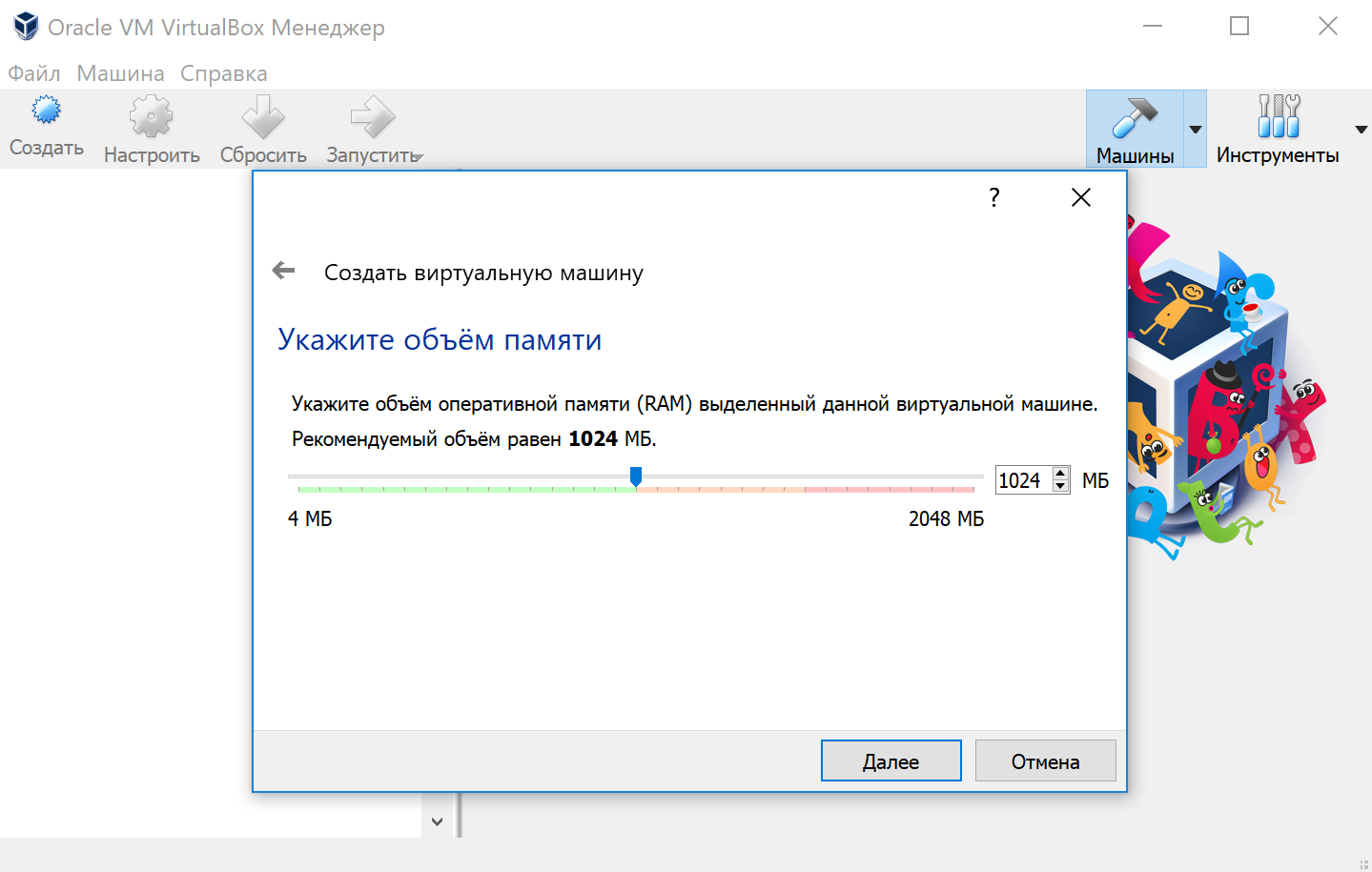
Указываем объём оперативной памяти выделенной под виртуальную систему. Рекомендованный объём составляет 1024 MB.
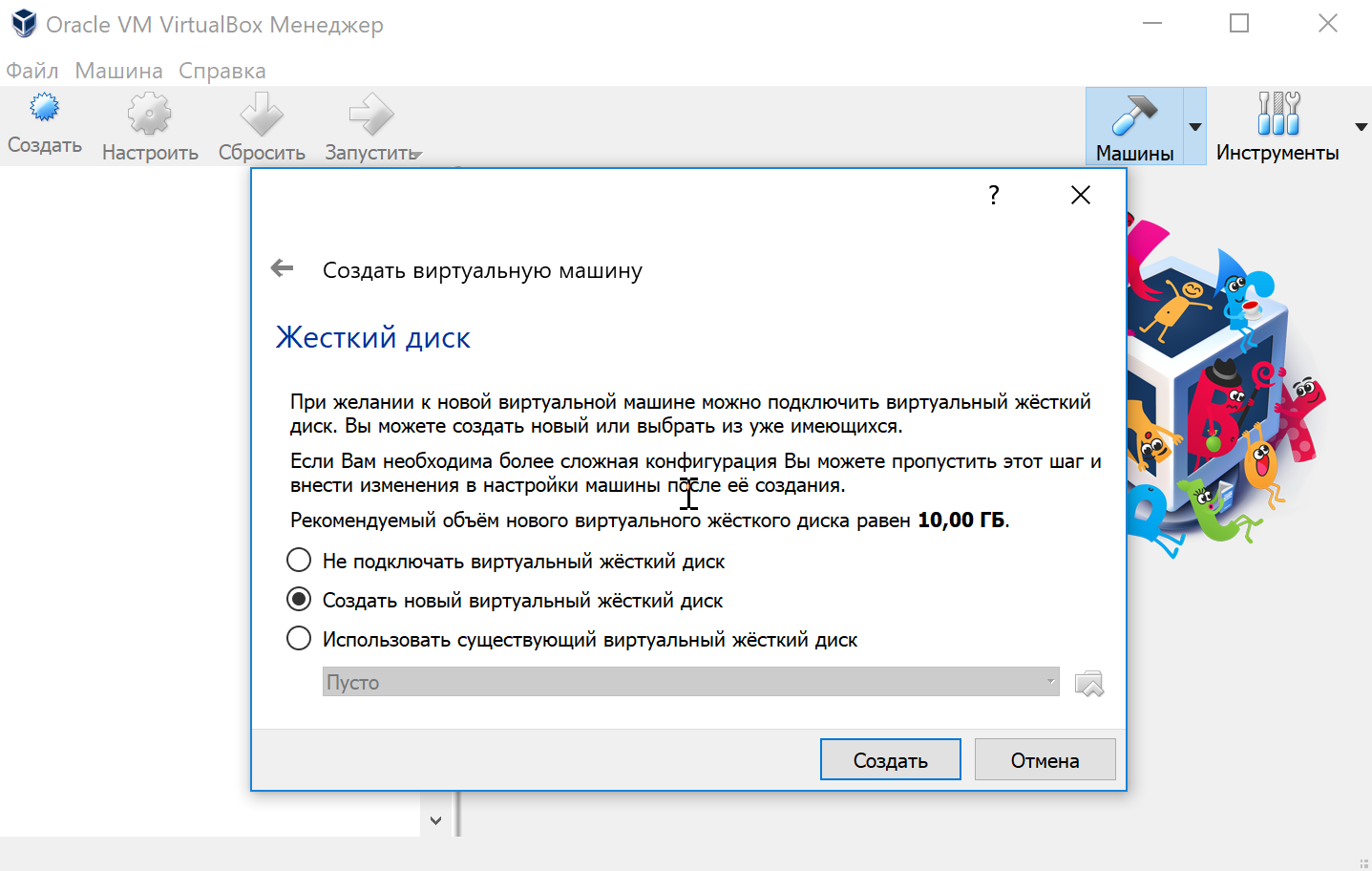
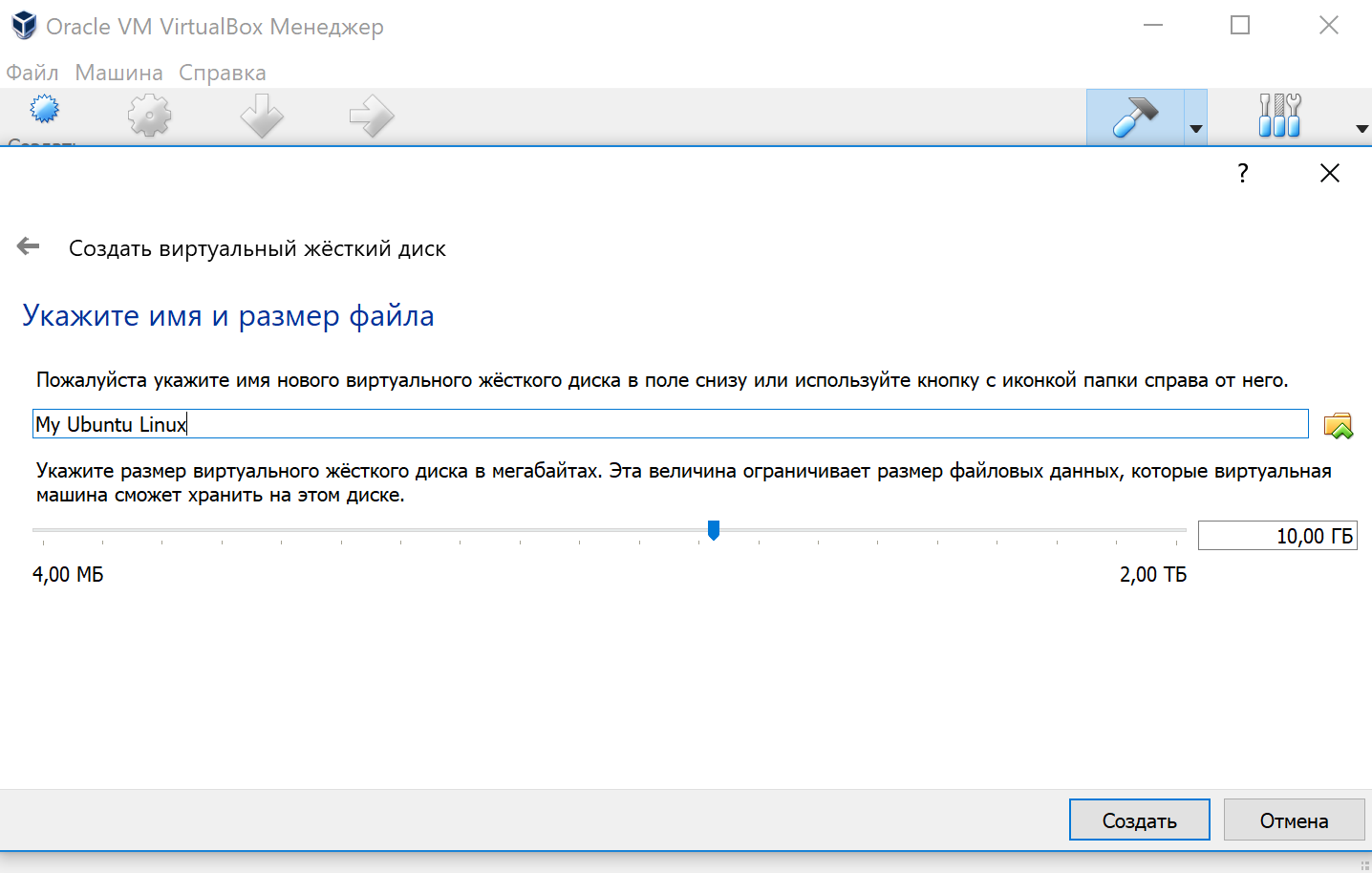
Указываем объём дискового пространства выделенного под виртуальную систему. Рекомендованный объём составляет 10 GB.
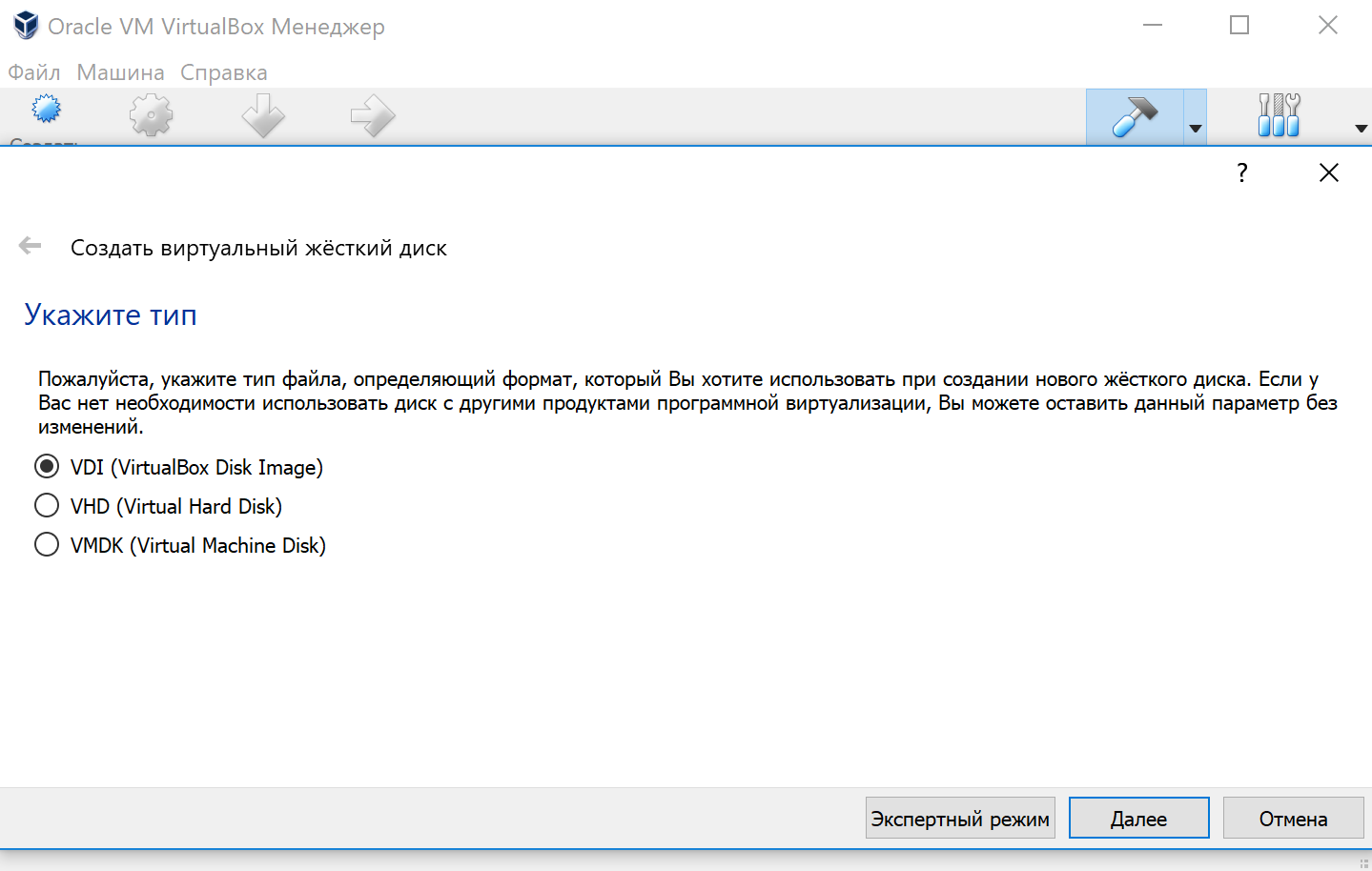
Тип виртуального жёсткого диска можно оставить как есть — VDI (VirtualBox Disk Image).
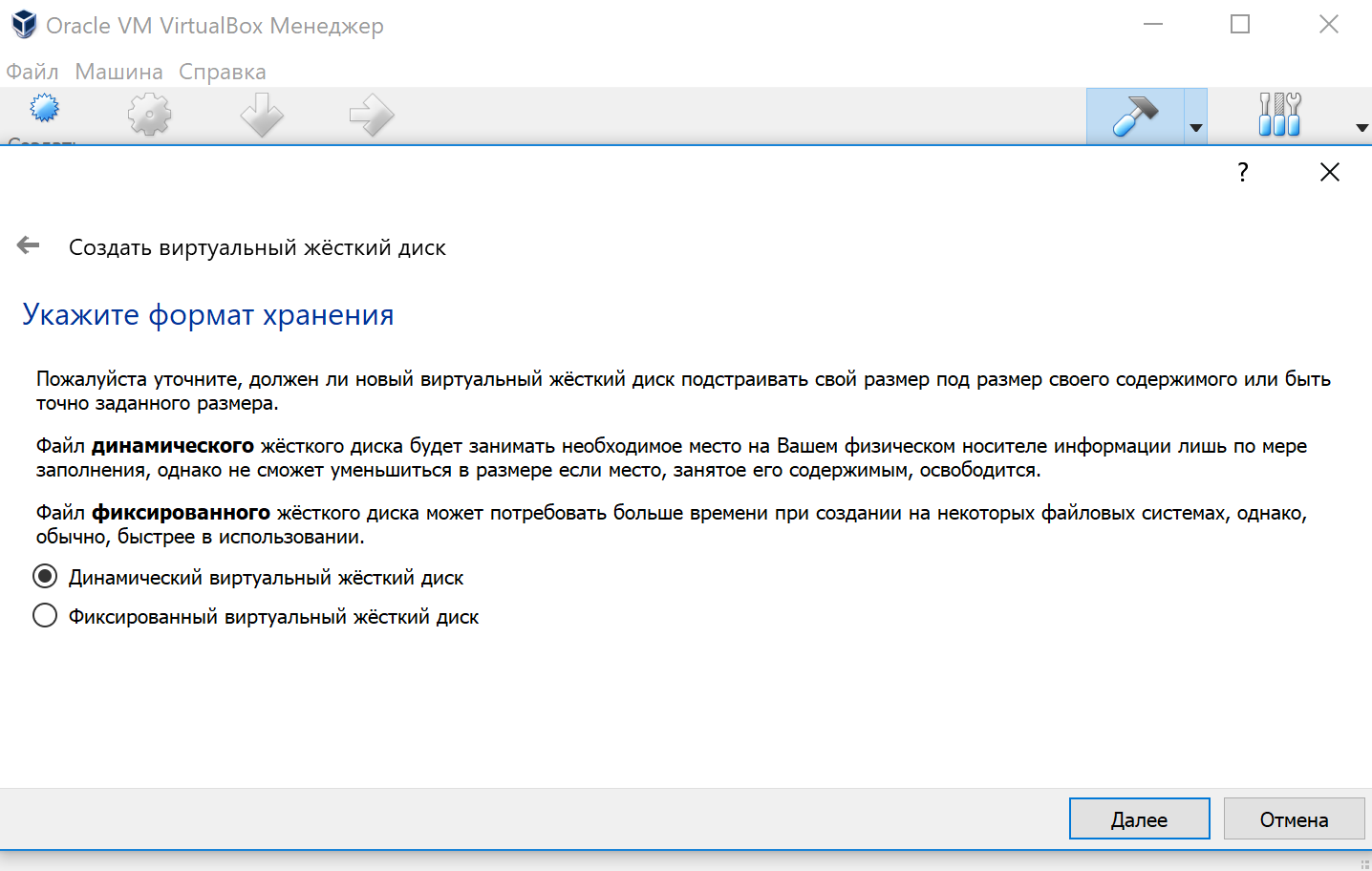
Формат хранения данных выберите исходя из личных предпочтений. Динамический виртуальный жёсткий диск растёт по мере заполнения, а фиксированный создаётся сразу того размера, который был указан на предыдущем шаге.
Имя и размер файла можно оставить без изменений и сразу нажать на кнопку «Создать».
По завершению у вас будет создана виртуальная машина, но она пока без операционной системы. Для того чтобы её установить, нужно скачать Ubuntu Linux (32-bit или 64-bit, в зависимости от того, что было выбрано на шаге, где мы указывали тип ОС).
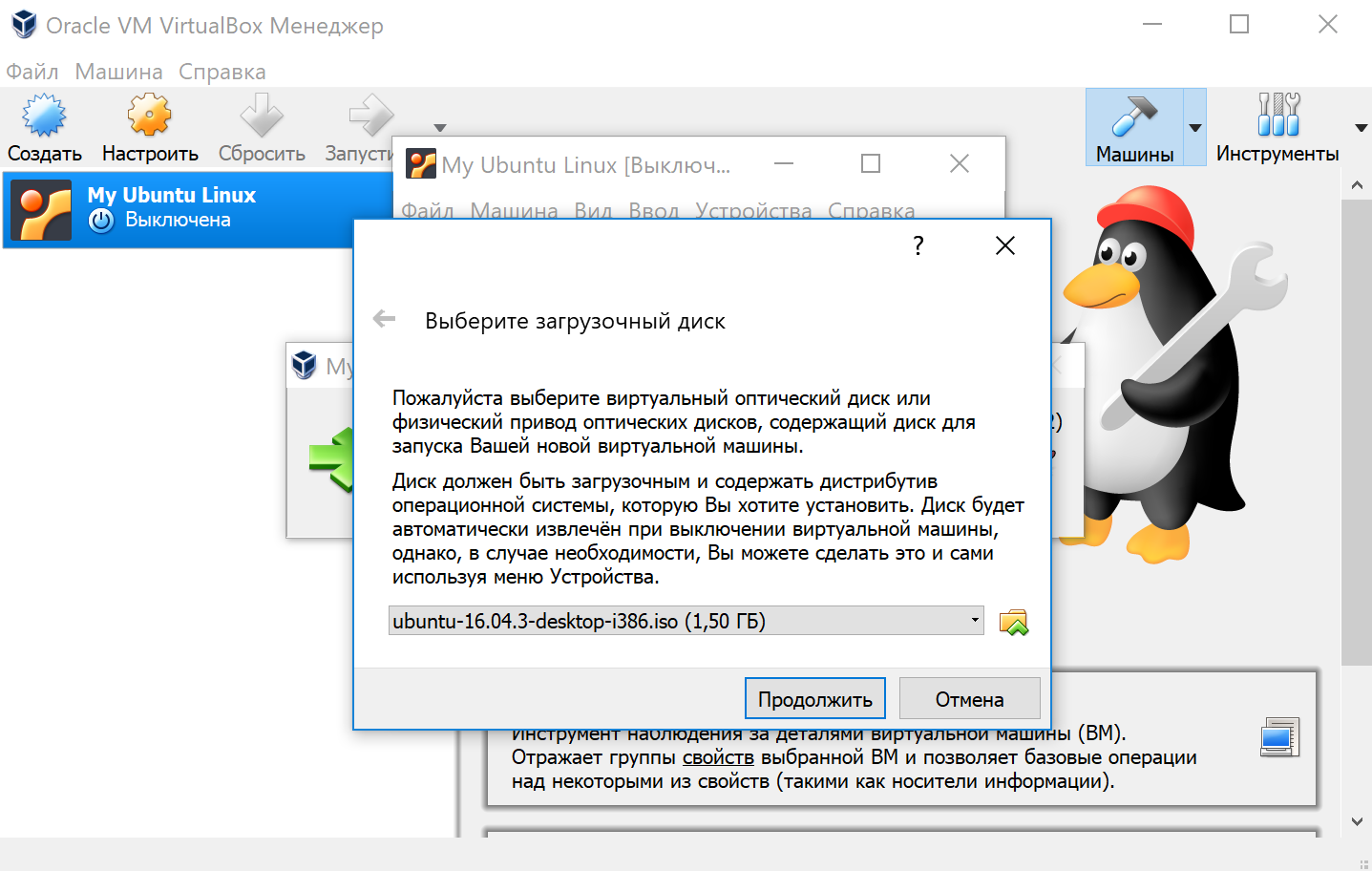
Нажатие на кнопку «Запустить» должно привести к появлению диалогового окна с предложением указать путь до скаченного ISO образа. Сделайте этого и нажмите кнопку «Продолжить»
Виртуальная машина автоматически будет выполнять часть процессов, но в некоторых операциях всё же потребуется участие пользователя.
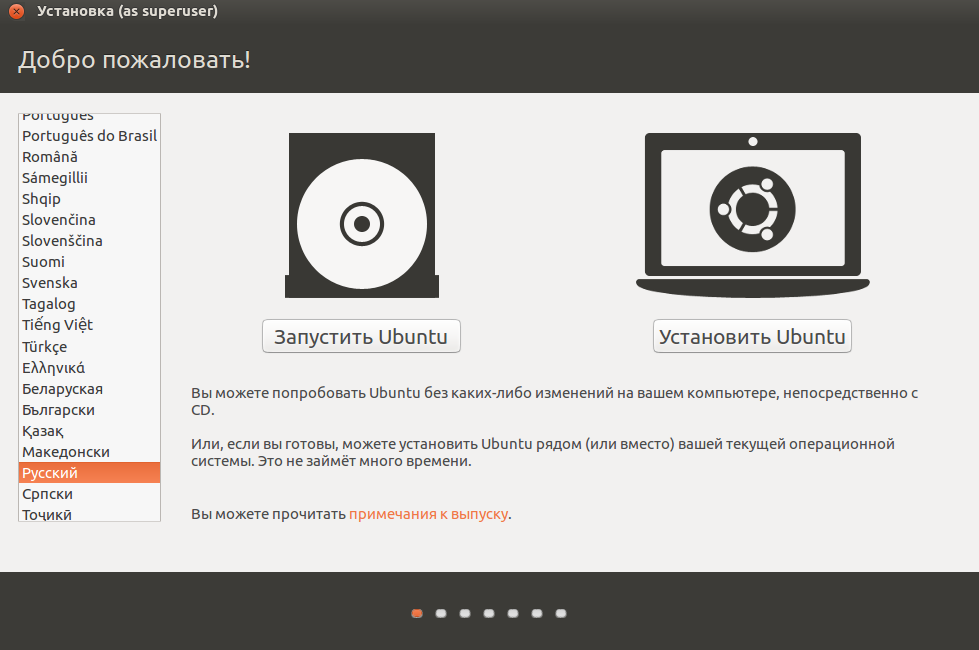
Выберите языковую поддержку в списке слева и нажмите «Установить Ubuntu».
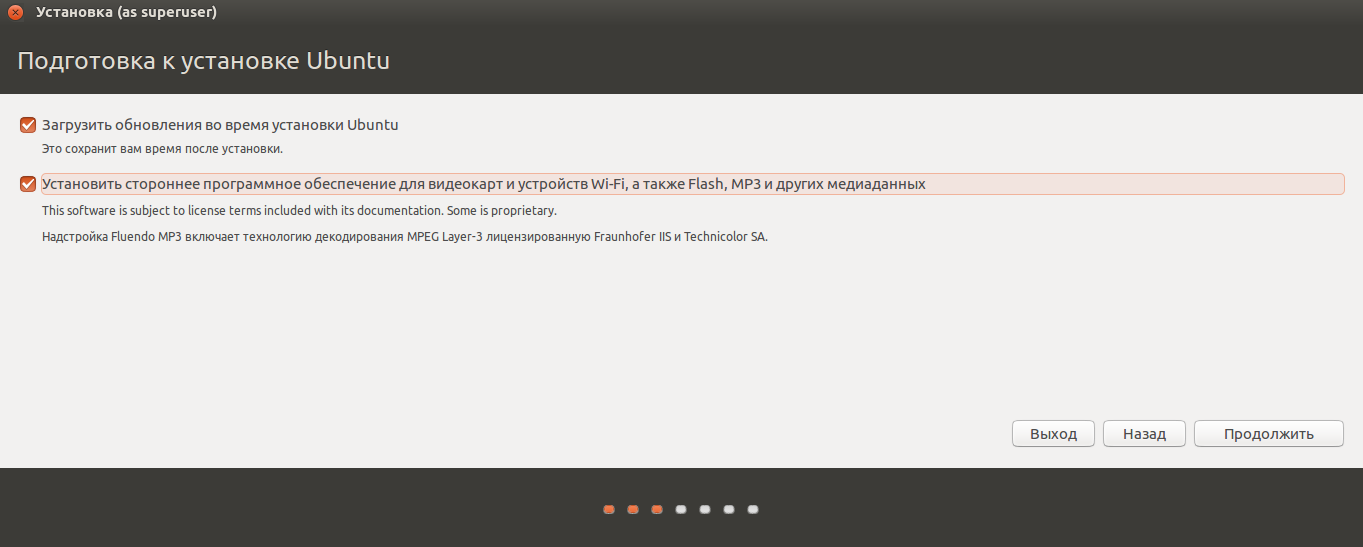
Можно загрузить обновления сразу на этапе установки.
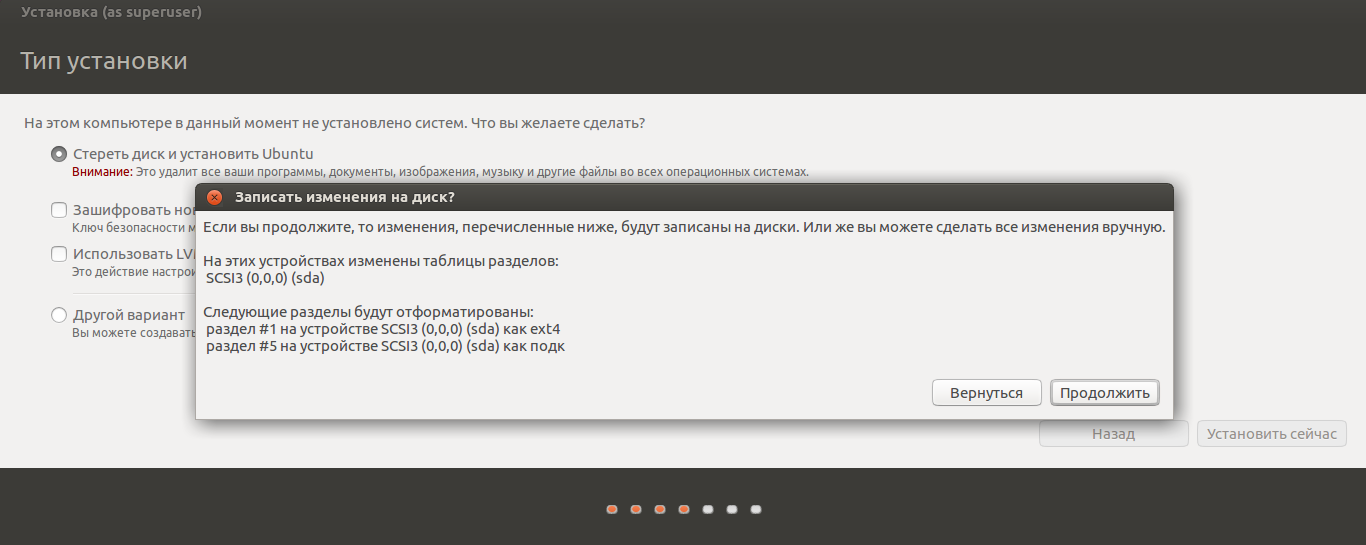
Без особых опасений выбираем пункт «Стереть диск и установить Ubuntu» и двигаемся дальше.
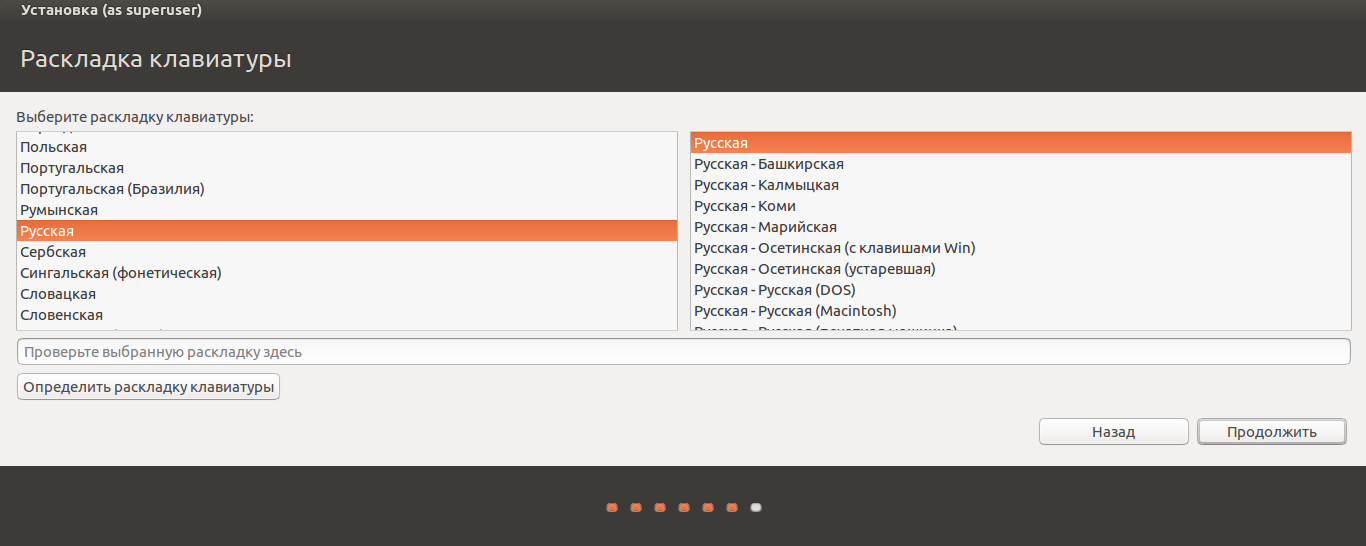
Если вы выбрали русский язык на первом этапе установки, то вам предложат русскую раскладку клавиатуры в качестве дополнительной.
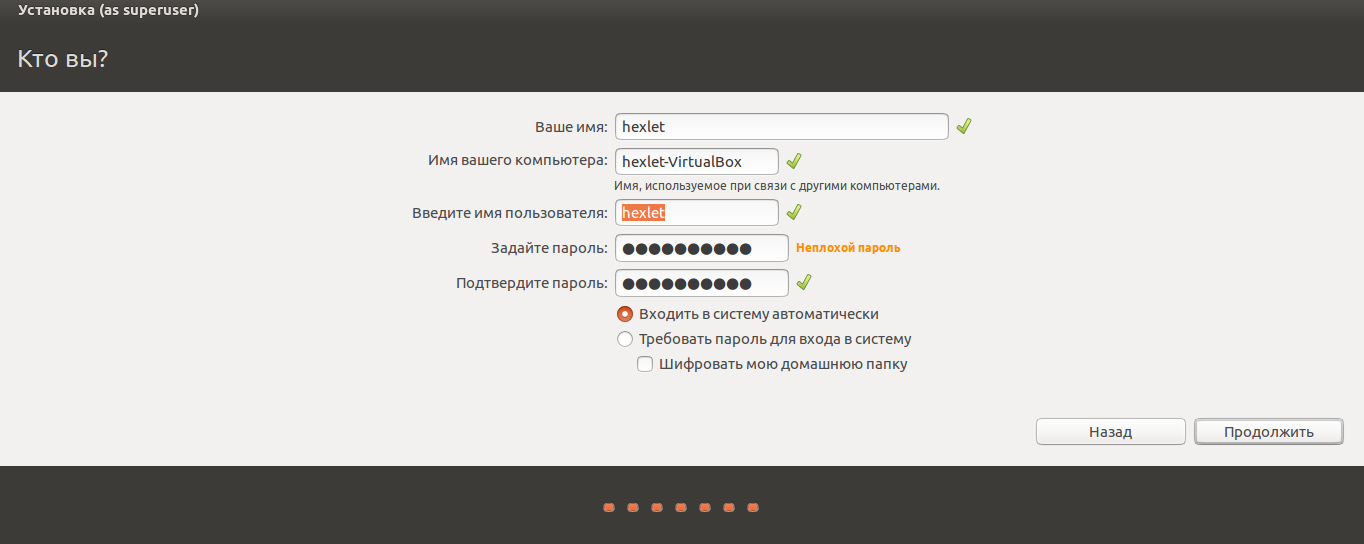
Заполните поля и выберите режим входа в систему.
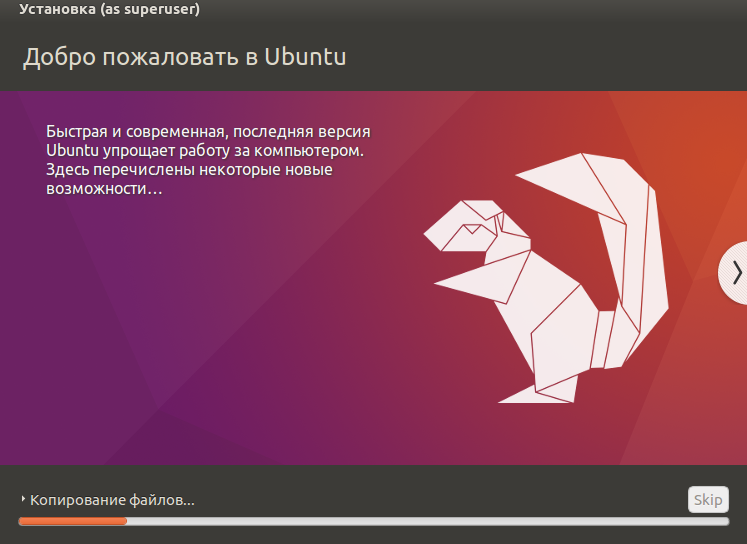
Далее начнётся процедура разметки диска, переноса файлов, установка обновлений и другие процессы, которые не потребуют прямого участия пользователя.
По завершению виртуальный компьютер перезагрузится и вы попадёте в уже установленную среду Ubuntu Linux.
Но это ещё не всё. Весьма желательно установить так называемые «Дополнения гостевой ОС». Они содержат драйверы и прочие системные файлы, необходимые для наилучшей производительности и обеспечения дополнительных функциональных возможностей между виртуальной и гостевой операционными системами.
Выберите пункт меню «Устройства» программы VirtualBox, подпункт «Подключить образ диска Дополнений гостевой ОС…» и дождитесь предложение запустить приложение для автоматического запуска с виртуального привода.