Проверка занятости порта сервисом в Linux
Oct 4, 2018 06:09 · 637 words · 3 minute read lsof netstat fuser tips
Однажды вам обязательно понадобится проверить используемый порт определенного сервиса (или наоборот, найти сервисы, слушающие конкретный порт) — в Linux существует несколько утилит командной строки, которые могут с этим помочь. Давайте разберемся!
Первым делом на ум приходит утилита netstat , с помощью которой можно проверить сетевые соединения, статистику сетевых интерфейсов, таблицу маршрутизации и т. д.
Устанавливается данная утилита в разных дистрибутивах по-разному, например, для RedHat и CentOS:
Для вывода детальной информации о всех TCP и UDP ендпоинтах можно воспользоваться следующей командой:
Вывод будет примерно следующим:
- -p — вывод ID процесса и его имени;
- -n — вывод адресов;
- -l — вывод сокетов;
- -t — вывод TCP соединений;
- -u — вывод UDP соединений.
Найти сервис, запущенный на определенном порту можно так:
Аналогично можно найти на каком порту запущен определенный сервис:
Также для наших целей подойдет утилита командной строки fuser . По умолчанию она не установлена в большинстве операционных систем, чтобы установить ее в Centos/RedHat делаем так:
Например, чтобы найти идентификаторы процессов (PIDs), запущенных на 80-м порту, выполняем команду:
Результат выполнения будет примерно следующим:
Далее можем найти имя процесса по его идентификатору (PID):
Еще один способ — использование утилиты lsof . Установка ее в RedHat/CentOS выглядит так:
Вывод всех активных TCP и UPD соединений:
Результатом будет примерно следующее:
Проверить использование конкретного порта можно так:
Напоследок можно также воспользоваться утилитой whatportis . Ее установка в RedHat/Centos требует чуть больше действий:
В Debian/Ubuntu все гораздо проще:
В общем виде использование утилиты выглядит так:
Если вам неизвестно точное имя сервиса, можно воспользоваться опцией —like , например:
6 ways to Check a remote port is open in Linux
Checking remote port status is a common task for Linux admin. Now we collect 6 different ways for this task. We don’t need to install any package if we use the following two python commands. We need to install the package if we choose nc, nmap,telnet.
Table of Contents
Methods to check if a remote port is open in Linux
The following commands can be used to check if a port is open on the remote server in Linux.
- Use nc command nc -zvw10 192.168.0.1 22
- Use nmap command nmap 192.168.0.1 -p 22
- Use telnet command telnet 192.168.0.1 22
- Use python telnet module
- Use python socket module
- Use curl command
Use nc command to check the remote port is open in Linux
$ nc [-options] [HostName or IP] [PortNumber]
$ nc -zvw10 192.168.0.1 22
- z: zero-I/O mode which is used for scanning
- v: for verbose output
- w10: timeout wait 10 seconds
The “nc” command stands for “netcat”. The “nc” command is a very versatile command that can be used for a variety of purposes, including network administration and data transmission.
For example, the “nc” command can be used to create a simple TCP connection between two computers. The “nc” command can be used to connect to a remote server on a given port and send/receive data.
For example, if you want to connect to a remote server on port xx, you would use the following command: nc -zv <remote server> port
In this example, “<remote server>” is the IP address or hostname of the remote server, and “<port>” is the port that you want to connect to.
I needed to see if the port 22 (SSH) on a remote machine was open, so I opened a terminal and ran the following command:
$ nc -vz hostname.com 22
The -v option enabled verbose output, and the -z option instructed nc to only scan for open ports, without actually establishing a connection.
The output showed me the results of the port scan:
Connection to hostname.com 22 port [tcp/ssh] succeeded!
This told me that the port 22 was open and that I could connect to the remote machine using SSH.
In another scenario, if the port was not open, the output would look something like this:
nc: connect to hostname.com port 22 (tcp) failed: Connection refused
You can also use the “nc” command to open a port in Linux. To do this, you would use the following command: nc -l -p 1234
In this example, “-l” is used to listen for a connection on port 1234
Use nmap to check the remote port is open in Linux
$ nmap [-options] [HostName or IP] [-p] [PortNumber]
nmap 192.168.0.1 -p 22
The “nmap” command is a command-line tool used for network exploration and security auditing. The “nmap” command can be used to scan for open ports on a remote server, as well as to identify the operating system and services running on that server.
For example, if you want to scan for open ports on a remote server, you would use the following command:
nmap <remote server> -p port
In this example, “<remote server>” is the IP address or hostname of the remote server, and “<port>” is the port that you want to scan.
Use telnet to check the remote port is open in Linux
$ telnet [HostName or IP] [PortNumber]
telnet 192.168.0.1 22
The telnet command is a command-line tool used for network communication. The telnet command can be used to connect to a remote server on a given port.
For example, if you want to connect to a remote server on port, you would use the following command: telnet <remote server> port
In this example, “<remote server>” is the IP address or hostname of the remote server, and “<port>” is the port that you want to connect to.
Use python telnet to check remote port is open in Linux
python -c «import telnetlib; tel=telnetlib.Telnet(‘192.168.0.1′,’22’,10); print tel; tel.close()»
If you are using Python3, using the following command:
python3 -c «import telnetlib; tel=telnetlib.Telnet(‘10.248.169.140′,’5432’,10); print(tel); tel.close()»
Telnetlib is a module in Python that allows you to communicate with remote servers using the Telnet protocol. The Telnet protocol is a text-based protocol used for communicating with remote servers.
To use the Telnetlib module, you first need to import it into your Python program: import telnetlib
Next, you need to create an instance of the Telnet object: telnet = telnetlib.Telnet()
The Telnet object has a number of methods that allow you to send and receive data. For example, the send() method allows you to send text data to the remote server, and the recv() method allows you to receive text data from the remote server.
Use python socket to check remote port is open in Linux
Python -c «import socket; s = socket.socket(); s.settimeout(10); s.connect((‘192.168.0.1’, 22)); «
The “socket” module is a module in Python that allows you to create and use sockets. A socket is a communication channel that allows two processes to connect and send/receive data.
The “socket” module has a number of functions that allow you to do a variety of things, including creating sockets, binding sockets to addresses, and sending/receiving data.
In order to use the “socket” module, you first need to import it into your Python program. You can do this by using the following command: import socket
Once you have imported the “socket” module, you can then use its functions to create sockets and communicate with other processes.
Use curl to check remote port is open in Linux
We have another solution for this with the curl command. curl -v telnet://192.168.0.1:22
The “curl” command is a tool used for transferring data with URL syntax. The “curl” command can be used to send data to a remote server, or it can be used to download data from a remote server.
If you want to download data from a remote server, you can use the following command: curl <remote server> port -o filename.txt
In this example, “<remote server>” is the IP address or hostname of the remote server, and “<port>” is the port that you want to download data from.
The “curl” command can also be used to check whether a port is open or not. To do this, you would use the following command:
curl -v telnet://<remote server>:port
In this example, “<remote server>” is the IP address or hostname of the remote server, and “<port>” is the port that you want to check.
Как сделать пинг порта в Linux и Windows
Команда ping — это сетевой инструмент для проверки работоспособности удаленной системы. Другими словами, команда определяет, доступен ли определенный IP-адрес или хост. Ping использует протокол сетевого уровня, называемый Internet Control Message Protocol (ICMP), и доступен во всех операционных системах.
С другой стороны, номера портов принадлежат протоколам транспортного уровня, таким как TCP и UDP. Номера портов помогают определить, куда пересылается Интернет или другое сетевое сообщение, когда оно приходит.
В этом руководстве вы узнаете, как проверить связь с портом в Windows и Linux с помощью различных инструментов.
Можно ли пропинговать конкретный порт?
Сетевые устройства используют протокол ICMP для отправки сообщений об ошибках и информации о том, успешна ли связь с IP-адресом. ICMP отличается от транспортных протоколов, поскольку ICMP не используется для обмена данными между системами.
Ping использует пакеты ICMP, а ICMP не использует номера портов, что означает, что порт не может быть опрошен. Однако мы можем использовать ping с аналогичным намерением — чтобы проверить, открыт порт или нет.
Некоторые сетевые инструменты и утилиты могут имитировать попытку установить соединение с определенным портом и ждать ответа от целевого хоста. Если есть ответ, целевой порт открыт. В противном случае целевой порт закрывается или хост не может принять соединение, потому что нет службы, настроенной для прослушивания подключений на этом порту.
Как пропинговать определенный порт в Linux?
Вы можете использовать три инструмента для проверки связи порта в Linux:
- Telnet
- Netcat (NC)
- Network Mapper (nmap)
Пинг определенного порта с помощью Telnet
Telnet — это протокол, используемый для интерактивной связи с целевым хостом через соединение виртуального терминала.
1. Чтобы проверить, установлен ли уже telnet , откройте окно терминала и введите:
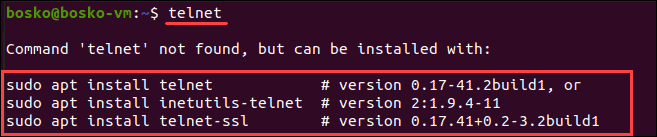
2. Если telnet не установлен, установите его с помощью следующей команды
- Для CentOS/Fedora: yum -y install telnet
- Для Ubuntu: sudo apt install telnet
3. Чтобы пропинговать порт с помощью telnet , введите в терминале следующую команду:
Где [address] — это домен или IP-адрес хоста, а [port_number] — это порт, который вы хотите проверить.

Если порт открыт, telnet устанавливает соединение. В противном случае он указывает на сбой.
4. Чтобы выйти из telnet , нажмите Ctrl +] и введите q .
Пинг определенного порта с помощью Netcat
Netcat (nc) позволяет устанавливать соединения TCP и UDP, принимать оттуда данные и передавать их. Этот инструмент командной строки может выполнять множество сетевых операций.
1. Чтобы проверить, установлен ли netcat :
- Для Debian, Ubuntu и Mint: введите netcat -h
- Для Fedora, Red Hat Enterprise Linux и CentOS: ncat -h
2. Если netcat не установлен, выполните в терминале следующую команду:
3. Чтобы пропинговать порт с помощью netcat , введите следующее:

Выходные данные информируют пользователя об успешном подключении к указанному порту. В случае успеха — порт открыт.
Пинг определенного порта с помощью Nmap
Nmap — это сетевой инструмент, используемый для сканирования уязвимостей и обнаружения сети. Утилита также полезна для поиска открытых портов и обнаружения угроз безопасности.
1. Убедитесь, что у вас установлен Nmap, введя nmap -version в терминал.

Если Nmap установлен, вывод информирует пользователя о версии приложения и платформе, на которой он работает.
2. Если в вашей системе нет Nmap, введите следующую команду:
- Для CentOS или RHEL Linux: sudo yum install nmap
- Для Ubuntu или Debian Linux: sudo apt install nmap
3. После установки Nmap в системе используйте следующую команду для проверки связи определенного порта:
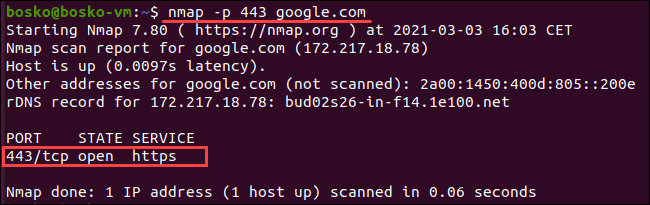
Выходные данные информируют пользователя о состоянии порта и типе службы, задержке и времени, прошедшем до завершения задачи.
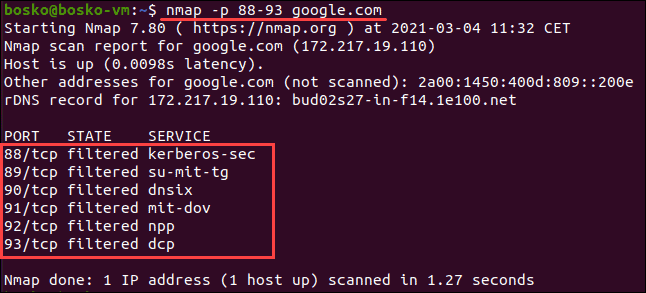
4. Чтобы проверить связь с более чем одним портом, введите nmap -p [number-range] [address] .
Синтаксис [number-range] — это диапазон номеров портов, которые вы хотите пропинговать, разделенные дефисом. Например:
Как пропинговать определенный порт в Windows?
Проверить связь с портом в Windows можно двумя способами:
- Telnet
- PowerShell
Пинг определенного порта с помощью Telnet
Перед использованием telnet убедитесь, что он активирован:
- Откройте панель управления.
- Щелкните «Программы», а затем «Программы и компоненты».
- Выберите «Включение или отключение компонентов Windows».
- Найдите клиент Telnet и установите флажок. Щелкните ОК.
Готово! Вы активировали клиент Telnet в системе.
После завершения активации можно пропинговать порт с помощью telnet. Для этого:
1. Введите cmd в поиске в меню «Пуск». Щелкните на приложение Командная строка.
2. В окне командной строки введите
Где [address] — это домен или IP-адрес хоста, а [port_number] — это порт, который вы хотите проверить.

Выходные данные позволяют узнать, открыт ли порт и доступен ли он, иначе отображается сообщение об ошибке подключения.
Пинг определенного порта с помощью PowerShell
Чтобы проверить связь с портом с помощью PowerShell, выполните следующие действия:
1. Введите PowerShell в поиске в меню «Пуск». Щелкните приложение Windows PowerShell.
2. В окне командной строке PowerShell введите:
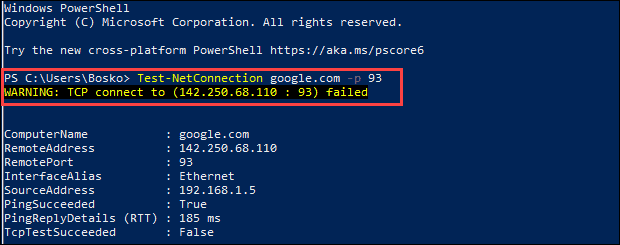
Если порт открыт и соединение прошло успешно, проверка TCP прошла успешно. В противном случае появится предупреждающее сообщение о том, что TCP-соединение не удалось.
Заключение
Теперь вы знаете, как выполнить эхо-запрос и проверить, открыт ли порт, с помощью нескольких сетевых инструментов и утилит в Linux и Windows.
How can I see what ports are open on my machine?
I would like to see what ports are open on my machine, e.g. what ports my machine is listening on. E.g. port 80 if I have installed a web server, and so on.
Is there any command for this?
10 Answers 10
I’ve always used this:
If the netstat command is not available, install it with:

nmap (install)
Nmap ("Network Mapper") is a free and open source utility for network exploration or security auditing.
Use nmap 192.168.1.33 for internal PC or nmap external IP address .
More information man nmap .
Zenmap is the official GUI frontend.
Other good ways to find out what ports are listenting and what your firewall rules are:
sudo netstat -tulpn
sudo ufw status

To list open ports use the netstat command.
In the above example three services are bound to the loopback address.
IPv4 services bound to the loopback address «127.0.0.1» are only available on the local machine. The equivalent loopback address for IPv6 is «::1». The IPv4 address «0.0.0.0» means «any IP address», which would mean that other machines could potentially connect to any of the locally configured network interfaces on the specific port.