Как в sketchup изменить единицы измерения
1. Откройте SketchUp и откройте вашу модель.
2. В верхнем меню выберите Окно и перейдите к Настройкам модели.
3. В открывшемся окне перейдите на вкладку Единицы.
4. Здесь вы можете изменить единицы длины, угла и формата точности.
5. Чтобы изменить единицы длины, щелкните на выпадающем меню Длина и выберите нужную единицу измерения.
6. После выбора единицы, вы можете настроить точность отображения, щелкнув на Точность и выбрав нужное значение.
7. То же самое можно сделать и для единиц угла, выбрав нужную величину угла из выпадающего меню Угол.
8. После внесения всех изменений нажмите кнопку ОК для сохранения изменений.
После выполнения этих шагов, SketchUp будет отображать все измерения и размеры в выбранных вами единицах.
Несколько полезных советов:
— Внимательно настройте единицы измерения, чтобы не возникло путаницы в будущем.
— Чтобы точно измерить объекты, используйте инструмент Линейный размер. Он поможет вам получить точные измерения на модели.
— Если вы работаете с физическими объектами, рекомендуется использовать соответствующие единицы измерения, например, миллиметры для моделирования мелких предметов или метры для больших зданий.
— Если вы хотите создать модель для 3D печати или других инженерных целей, проверьте, соответствуют ли единицы измерения требованиям спецификации проекта.
— Если вам нужно временно изменить единицы измерения для отдельного объекта, вы можете использовать инструмент Масштабировать для изменения размеров объекта без изменения глобальных единиц измерения.
Managing Units of Measurement
For most SketchUp models, the unit of measurement is critical to the success of your final project. In SketchUp you can control what units of measurement you’ll use for each model you create.
Templates
When you start a new project in SketchUp the first choice you’ll make is which template to use. The template determines the basic unit of measurement. SketchUp comes loaded with a variety of default templates tailored toward the type of project you want to work on. Each project type has different unit of measurement options.

You can choose from the following default templates:
- Simple (Inches or Meters)
- Architectural (Inches, Millimeters, Centimeters, Meters)
- Plan View (Inches, Millimeters, Meters)
- Urban Planning (Feet, Meters)
- Landscape (Inches, Meters)
- Woodworking (Inches, Millimeters)
- Interiors (Inches, Millimeters)
- 3D Printing (Inches, Millimeters)
For more information on templates, including how to create a custom template, see Setting Up Templates.
Units and Precision in Model Info
In Model Info you can view and change the units of measurement in your model. To access these settings, open Model Info by selecting Window > Model Info and select Units from the options on the left.

In the Units section of Model Info you’ll see the following options:
- Format — Choose your desired format. The options are Architectural, Decimal, Engineering, or Fractional.
- Length, Area, and Volume — Select your preferred unit for each type of measurement from the drop-down lists. When you select the Decimal format, you’re able to set different decimal units of measurement for length, area, and volume. For example, you might want length measured in centimeters but area and volume measured in meters. In this example, you could draw and measure line lengths in centimeters by default, but an entity’s area or volume would appear in meters.
- Display precision — For each format, you can select how precise you want measurements to be. For example, the Architectural option lets you fine-tune measurements up to 1/64 of an inch, and the Engineering option lets you choose up to six decimal places.
- Enable Length Snapping — When this checkbox is selected, your drawing tool will snap to the closest unit at the level of precision indicated in the text box.
- Display Units Format — This option is available when you select the Decimal or Fractional option. When the checkbox is selected, the unit appears in ToolTips. When the check box is cleared, only the number appears.
- Force Display of 0″ — This option is available when you select the Architectural format. When the checkbox is selected, trailing zeros appear in unit measurements (such as 3′ 0″ instead of 3′).
- Angle Degrees — Use the drop-down list to select how precise your angles need to be, up to three decimal places.
- Enable Angle Snapping — When this checkbox is selected, angles you draw or measure will snap to the closest unit based on the level of precision indicated in the text box.
Other Measurement Options
As you draw with the SketchUp 3D modeling tools, you’ll find lots of ways to model precisely, check measurements, and label dimensions. The following tools and features are especially useful:
Как установить единицы измерения в SketchUp?
Что такое сочетание клавиш для измерения в SketchUp?
Инструмент измерения позволяет размещать на экране размеры между любыми двумя точками. От по умолчанию SketchUp не имеет сочетания клавиш для инструмент измерения. Я рекомендую установить для этого сочетание клавиш на D.
Как изменить SketchUp на CM?
Вы можете изменить единицы измерения в SketchUp, перейдя в Окно > Информация о модели > Единицы измерения. Выберите предустановку, например «Архитектурный», «Инженерный» или «Дробный». Или, если вы хотите настроить свои единицы, выберите «Десятичные», чтобы выбрать любую метрическую или британскую единицу измерения длины, площади и объема.
Где находится поле измерения в SketchUp?
Обычно это в нижний правый угол экрана. Если его там нет, убедитесь, что SketchUp настроен на полноэкранный режим. Перейдите в «Просмотр» > «Панели инструментов» и выберите «Измерения роста».
В каком направлении длина и ширина?
Длина описывает, как долго что-то в то время как ширина описывает ширину объекта. 2. В геометрии длина относится к самой длинной стороне прямоугольника, а ширина — к более короткой стороне.
Что такое высота, длина и ширина?
Что такое длина, ширина и высота? … Вы можете использовать длину, ширину и высоту. Длина: какая она длинная или короткая. Рост: какой он высокий или низкий. Ширина: насколько она широкая или узкая.
Когда даны 3 измерения, каков порядок?
Когда вы сообщаете нам размеры коробки, они должны быть в следующем порядке: Длина x ширина x глубина.
Что такое сочетание клавиш для инструмента создания компонентов?
Затем вы можете вручную установить внешний вид для одного лица. Я всегда рекомендую использовать сочетания клавиш для всего, что вы делаете в SketchUp. Это значительно повысит вашу эффективность. Сочетание клавиш для инструмента создания компонента: «Г».
Designer Hacks
Helping designers level-up their lives & careers
Caitlin Godwin
How to Change Units in Sketchup: Switching Between Imperial and Metric
- March 13, 2019
- Sketchup
Ever been modeling in Sketchup only to realize you’ve been using the wrong units? This tutorial will show a quick tip on how to change units in Sketchup! You may want to switch between metric and imperial units if you are working on an international project or want more precise measurements. Whatever project you’re working on, no one wants to find out that they have been modeling for hours using the wrong units! Check out this simple tutorial to learn how to change units in Sketchup and quickly switch between imperial and metric.
Steps to Change Units in Sketchup
Open up the model you want to change units for, or start a new model so you can get the hang of switching between units first.

Window > Model Info > Units. In order to change units in Sketchup, you’ll have to open the “model info” window. To do this, hover over “window” and select “model info” from the dropdown menu. Then, select “units” from the side menu. You will see format and precision options for both length and angle units.

Format. Right now, the format is set to “architectural” and there are options for “decimal,” “engineering,” and “fractional.” When “architectural,” “decimal,” or “engineering” are selected, the “inches” option is locked and you cannot edit it. The only way to get metric units is by setting the format to “decimal.”
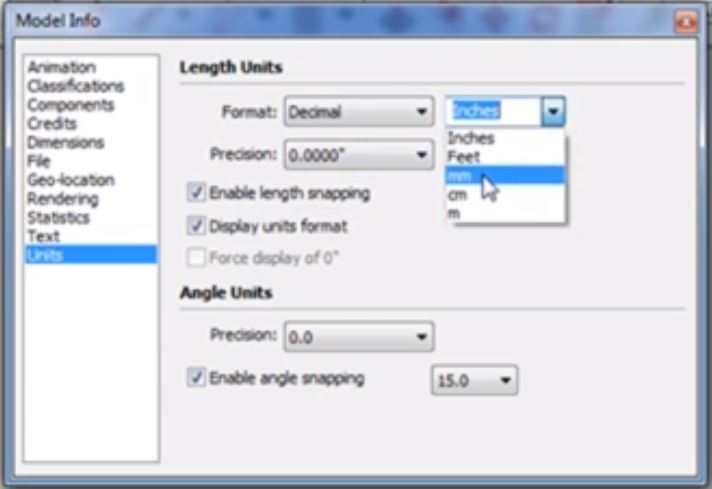
If you select the second dropdown menu next to “format,” you will see options for different units. The options are “inches”, “feet”, “mm” (millimeters), “cm” (centimeters), and “m” (meters). Select “mm” and you will notice the measurements in your model have switched from feet and inches to millimeters.
If you’re converting measurements from an existing model that was modeled in a different metric, it’s likely there will be a lot of weird looking numbers. We haven’t messed with the precision yet. Don’t worry, it’s an easy fix!
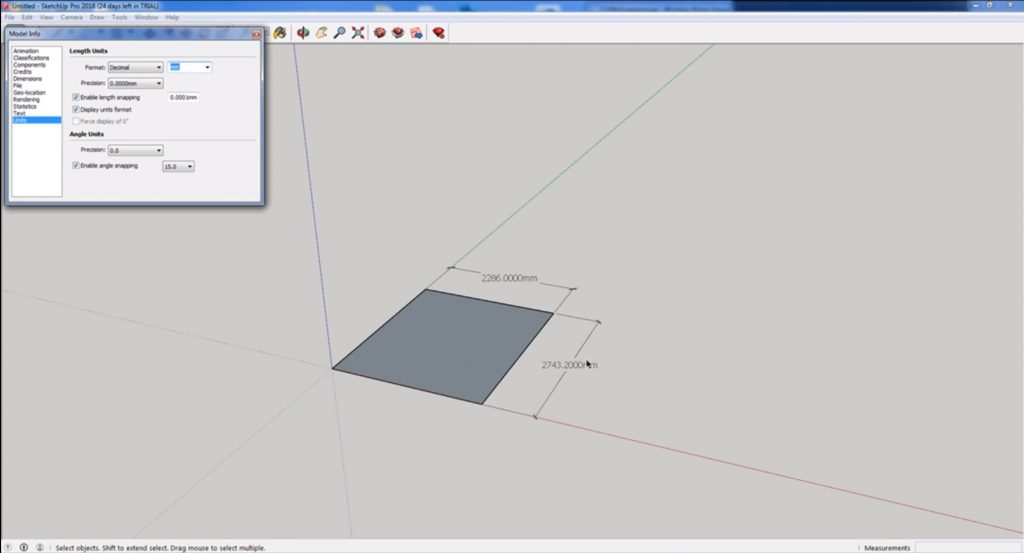
Precision. Next is the precision settings. Once you have changed your measurements to imperial units, you may want to change the level of accuracy so there are fewer decimal places. To do this, go to the “precision” dropdown menu and select the number of decimal places you want to be displayed. Now look over at your model and you will notice the number of decimal places has changed. Select the option with the level of accuracy you want and close the “model info” window.

And there you have it, the quick and easy way to change units in Sketchup. Make sure you always double check that you are working in the correct units before starting a project! Looking for other quick tips for Sketchup? Check out our tutorial on creating polygons in 5 seconds here, or use our list of 5 Sketchup tips you may not be aware of. If you want to see a full list of our Sketchup tutorials, go to our tutorials page here.

What units do you use the most often in Sketchup? Let us know in the comments!