How to Extract Files from a DEB Package in Debian Systems
Have you ever wondered how you can extract individual files from a Debian file (.deb) without actually installing any software?
In this guide, we will walk you through how you can do so using the ar and dpkg-deb command line utilities.
The Architecture of a .DEB File
A binary package (.deb) consists of the following salient files:
- debian-binary – This is a text file that indicates the version of the .deb package format.
- control.tar.gz – This is a compressed file that contains metadata about the Debian package. It has 3 files – the md5sums file, the control file that contains file metadata, and the postinst script file.
- data.tar.xz – A compressed file comprising all the files that will be installed on your system.
Extracting Files From a Deb Package Using ar Command
The ar command is a utility that creates, modifies, and extracts files from their archives. An archive is basically a file that comprises multiple individual files which collectively make up a single file.
To demonstrate how you can extract files, we have downloaded a skype .deb installation file using the following wget command:
The ls command below confirms the existence of the .deb</code Debian file.

Check the Debian Package File
To extract the contents of the Skype Debian package, run the following ar command. The x option extracts the contents of the file while the v option displays the files extracted on the terminal.
Once extracted, you can list the files using the good old ls command as shown.
You will see the control and data archives alongside the Debian-binary file which contains the metadata of the Debian file.
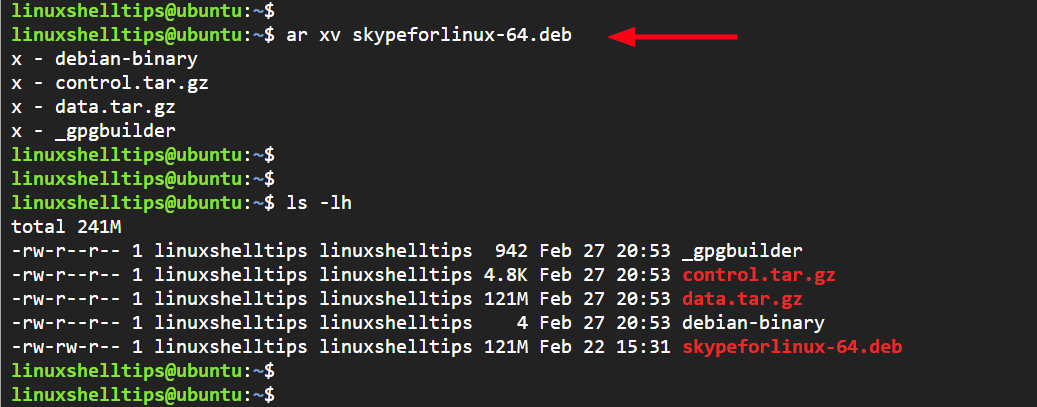
Extract Deb Files in Linux
Extract Deb Package Files Using dkpg-deb Command
The dpkg-deb command is yet another utility that you can use to extract a Debian file. To extract the Skype Debian file, run the following command:
Once again, you can use the ls command to list the extracted files. Here you can see that all the files are organized into opt and usr directories.
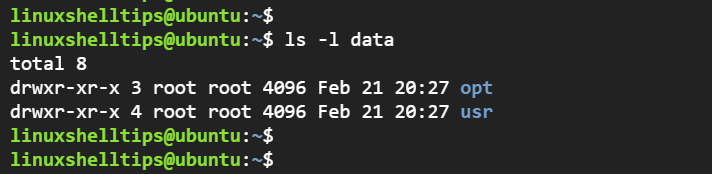
Extract Deb Package Files in Linux
To get a better view of the extracted files, list the contents of the directory in a tree format, run:
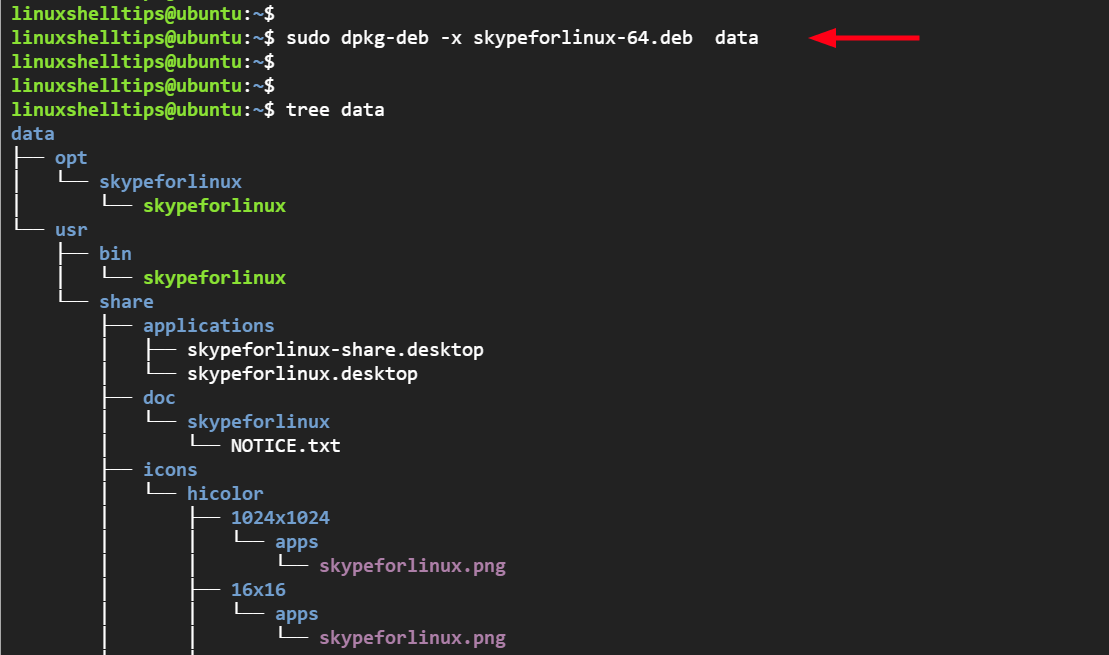
Linux Directory Tree Listing
Conclusion
That concludes this guide on how to extract files from a .deb package without actually installing the software that comes bundled with the package. We hope that you found this helpful. Your feedback will be appreciated.
How to extract RPM or DEB packages
RPM and DEB packages are both containers for other files. An RPM is some sort of cpio archive. On the other hand, a DEB file is a pure ar archive. So, it should be possible to unpack their contents using standard archiving tools, regardless of your distribution’s package format. Under normal conditions, you should use your distribution’s standard package manager, rpm or dpkg and their frontends, to manage those files. But, if you need to be more generic, here is how to do it.
For RPMs you need two command line utilities, rpm2cpio and cpio. Extracting the contents of the RPM package is a one step process:
If you just need to list the contents of the package without extracting them, use the following:
The -v option is used in order to get verbose output to the stdout. If you don’t need it, you can safely omit this switch. For more information about the cpio options, please refer to the cpio(1) manual page.
DEB files are ar archives, which contain three files:
- debian-binary
- control.tar.gz
- data.tar.gz
As you might have already guessed, the needed archived files exist in data.tar.gz . It is also obvious that unpacking this file is a two-step process.
First, extract the aforementioned three files from the DEB file (ar archive):
Then extract the contents of data.tar.gz using tar:
Or, if you just need to get a listing of the files:
Again the -v option in both ar and tar is used in order to get verbose output. It is safe not to use it. For more information, read the man pages: tar(1) and ar(1) .
If anyone knows a one step process to extract the contents of the data.tar.gz , I’d be very interested in it!
Update 1
As Jon suggested in the comment area, the contents of data.tar.gz can be extracted from the DEB package in a one step process as shown below:
Update 2 – Debian 8
As Vlad suggested in the comments below, starting with Debian 8, data.tar.gz inside .deb packages has been replaced with data.tar.xz (the xz format, which is based on LZMA2 offers better compression). So, if you are using Debian 8 or newer, the one-liner should be updated to something like this:
Moreover, tar is now able to handle xz compression and decompression (I also confirm tar supports this compression filter on CentOS), so the following one liner would do the trick as well:
That will do it.
Update: As Steve pointed out in the comments below, specifying the decompression filter in the tar command line arguments is no longer necessary with modern releases of tar , so the J switch above could be safely omitted.
About George Notaras
George Notaras is the editor of the G-Loaded Journal, a technical blog about Free and Open-Source Software. George, among other things, is an enthusiast self-taught GNU/Linux system administrator. He has created this web site to share the IT knowledge and experience he has gained over the years with other people. George primarily uses CentOS and Fedora. He has also developed some open-source software projects in his spare time.
Related Articles
29 responses on “ How to extract RPM or DEB packages ”
Please also try these:
‘rpm -qpvl package.rpm’
‘rpm -qpvl package.rpm > textfile’
‘less package.rpm’
‘lesspipe… > textfile’
‘less package.deb’
‘lesspipe… package.deb > textfile’
And of course The Midtnight Commander ‘mc’ will open both rpm and deb.
Rgds
One-liner to extract data.tar.gz:
ar p package.deb data.tar.gz|tar zx
for unpack only data.tar.gz directly from deb:
ar p package.deb data.tar.gz|tar xvzf –
f – is strongly recommended because tar command have default archive file hardcoded into binary. of course this default can be changed by environment, but f – is the simplest way without calling env as envelop for setting temporary environment.
Jon: Excellent. Thanks for your feedback. I will update the post.
Is there a GUI program to do all this that will take any package and convert it to what you want?
- George Notaras Post author March 24, 2009 at 02:47 Permalink →
None that I know of. There is a command line tool though, called alien, which can convert packages between the RPM and DEB formats. Its use is very straightforward. I highly recommend you give it a shot.
to extract RPM, I recommend p7z
The easiest way to extract a Debian package is with dpkg-deb. To extract the content run “dpkg-deb –extract mypackage.deb foobar”. If you want to modify the package:
dpkg-deb –extract mypackage.deb foobar
dpkg-deb -e mypackage.deb foobar/DEBIAN
modify files in foobar directory
dpkg-deb -b foobar
- George Notaras Post author May 9, 2010 at 18:07 Permalink →
Having used RPM-based distributions, I was not aware that it was so easy to modify the contents of a DEB package and then repackage the modified files. Thanks for the tip!
As for the method of extracting the contents of RPM or DEB I describe in that post, it is meant to be a generic method without requiring any distribution specific tools, but generic archive managers.
I had decided to write it because I once needed to extract a DEB package under CentOS; I cannot recall why.
Thanks for stopping by.
ar is rare to find already installed. Please revise this to use dpkg-deb or at least show it as an option.
This article describes how to extract a DEB or RPM package using generic archive decompressors. The fact that utilities like rpm or dpkg are not used is intentional. Thanks
“An one-step process” should be “a one step process.” This is because a/an is decided based on the pronunciation of the following word, not on the spelling.
Thanks for the article :-).
Hi Jonathan. Thanks for pointing it out! The same mistake probably exists in several posts throughout the web site.
It has been corrected in the current post. Thanks 🙂
good tutorial and very clear description and how to solve my problem. Thank for your tutorial. My problem about how to extract rpm file is solve 🙂
It’s good to mention that ar is in binutils package.
- George Notaras Post author September 28, 2011 at 02:54 Permalink →
Hi and thanks for your feedback. The binutils package is installed by default even in minimal installations on RHEL, Fedora, CentOS and Scientific Linux, so it was kind of impossible for this package to be missing. Also the following command reveals the containing RPM package:
What is the use of :
in a .deb package. Dont we need to extract files in them too ?
Any way to convert .deb packages to .rpm and vice versa, without losing the post-install scripts?
Benjamin, awesome!! That’s exactly what I was looking for. So I wanted to make few changes to the priority level in control file and your process is what I wanted.
Thanks George for posting good stuff.
Thanks, worked for me!
just came in very handy, my dpkg and tar binaries were incompatible (dpkg calling tar with an unknown option), so I couldn’t use the famed dpkg-deb, I guess this is a good reason to have another way to unpack these things.
Got the tar.deb and unpacked it to get the newer tar binary, so my dpkg would work again.
On OS X (and presumably *BSD), bsdtar can handle ar archives natively.
Starting with Debian 8, data.tar.gz inside .deb packages has been replaced with data.tar.xz (far better compression).
Therefore, the one-liner extractor should be updated at least to something like this:
- George Notaras Post author October 15, 2015 at 15:50 Permalink →
Hey Vlad, thanks for your feedback. Much appreciated.
I’ll add an update to the post, ASAP.
Tar understands xz as well:
ar p mypackage.deb data.tar.xz | tar Jx
- George Notaras Post author December 17, 2015 at 22:44 Permalink →
Hi, thanks for your feedback. I have updated the post and added this information.
Modern tars are capable of working out the archive format so using z, j or J is optional.